


|
|

The Cisco Resource Manager syslog analysis features provide a central error message logging system that you use to classify, sort, and integrate error messages and exceptions. You can perform the following procedures with the syslog analysis features:
All Resource Manager users can generate message log reports, custom reports and summaries, and severity alert reports and summaries. The following reports can be generated using the syslog analysis features:
The following topics are presented in this chapter:
Scenario: You want to configure a custom report to monitor several alert types.
To configure a custom report, perform the following steps:
Step 1 
Click Admin on the button bar, then select Syslog Analysis > Define Custom Reports.
Step 2 The Define Custom Reports dialog box appears. (See Figure 6-1.)
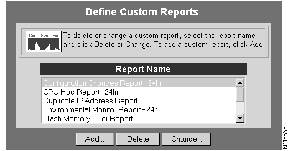
You have three options.
In this scenario, you will add a report.
Step 3 Click Add.
The Add Custom Report dialog box appears. (See Figure 6-2.)
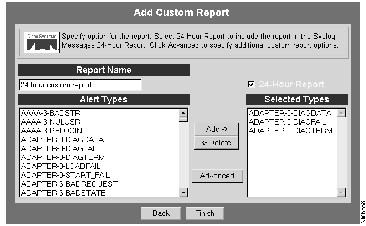
Step 4 Enter the Report Name, up to 64 characters long.
Step 5 Select the alerts you want reported from the Alert Types list and then click Add after each selection. The selected alerts appear in the Selected Types list. To delete alerts from the report, select them from the Selected Alert Types list and then click Delete.
Step 6 Select the 24-Hour Report box to run this report from the start of the current day. If you select this box, the report will be added to the 24-Hour Reports task folder.
Step 7 If you want to set more custom options, such as facility and severity codes, click Advanced. This step is optional.
Step 8 Click Finish.
A confirmation message appears informing you that the report has been configured.
Step 9 To define another custom report, click Define Another.
Scenario: You want to determine which of the routers on your network have changed their running configurations over a specified period of time.
To view a custom report, perform the following steps:
Step 1
Click Tasks on the button bar, then select Syslog Analysis > Custom Reports.
The Custom Reports dialog box appears. (See Figure 6-3.)
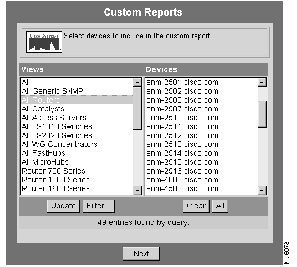
Step 2 Select All Routers from the Views column, then click All to view reports for all routers on your network.
Step 3 Click Next.
The Select Report Name and Dates dialog box appears. (See Figure 6-4.)
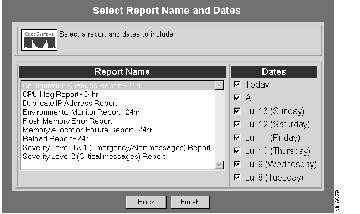
Step 4 Select the name of the report you want to view, specify the date range, then click Finish.
The Configuration Changes Report appears. Print the report and save it as a CSV or plain text file.
Use 24-hour reports to determine what syslog messages have been generated over the last 24 hours.
You can add 24-hour reports by performing the procedure for Configuring a Custom Report.
Scenario: You just came in from the field or arrived for your daily work shift and you want to obtain a status report for the current day.
To view 24-hour reports, perform the following steps:
Step 1 Click Tasks on the button bar, then select 24-Hour Reports > Syslog Messages.
The Syslog 24-Hour Report appears. (See Figure 6-5.) Click the Custom Report Name links to view report details.
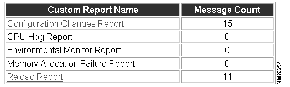
Step 2 To view reports, click the desired custom report name link.
Scenario: You want to obtain a snapshot of the error message severity levels for the routers on your network.
To view the severity level summary, perform the following steps:
Step 1 Click Tasks on the button bar, then select
Syslog Analysis > Severity Level Summary.
The Severity Level Summary dialog box appears. (See Figure 6-6.)
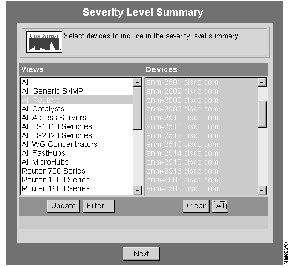
Step 2 Select All Router in the Views column and All in the Devices column, then click Next.
The Select Dates dialog box appears. (See Figure 6-7.)
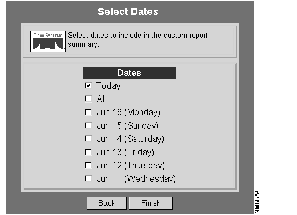
Step 3 Select Today to see the Severity Level Summary for the current day.
The Severity Level Summary appears. (See Figure 6-8.) Print the report and save it as a CSV or plain text file.

|
|