


|
|

You have now added devices to your network and created static and dynamic views. You are ready to use your device views to generate some reports.
The Resource Manager inventory management tasks enable you to monitor your network inventory so that you can plan upgrades and rollouts.
When planning for upgrades and rollouts, ask yourself these questions:
You can synchronize the Resource Manager Schedule Collection features with your rollout and upgrade schedule, thus ensuring that the Resource Manager server contains the most current data.
The following sections are presented in this chapter:
Scenario: After you populate the server with device inventory data, you want to synchronize your upgrade schedule with Schedule Collection and Inventory Change Report.
Use Schedule Collection to schedule the process that polls each managed device for information and updates the inventory data stored on your Resource Manager server. Then use Inventory Change Report to determine what changes have occurred in your network inventory over a specified period of time.
To view a list of changes to your inventory data, run the Inventory Change Report after each inventory collection. To maintain your inventory changes, print or save a copy of the report before the next scheduled inventory collection.
To set the parameters for your inventory collection schedule, perform the following steps:
Step 1 
Log in with administrator privileges.
Step 2 Click Admin on the button bar, then select Inventory > Schedule Collection.
The Set Inventory Collector Schedule dialog box appears. (See Figure 4-1.)
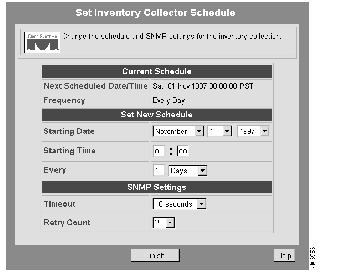
Step 3 Select the starting date and time. Alternatively, you can select Every to schedule the collection at specific intervals.
Step 4 Click Finish.
The schedule collection parameters are set.
Scenario: After each scheduled inventory collection, you run the Latest Change Report to determine what, if any, devices have changed in your network inventory.
To display an inventory change report, perform the following steps:
Step 1 
Click Tasks on the button bar, then select Inventory > Latest Change Report.
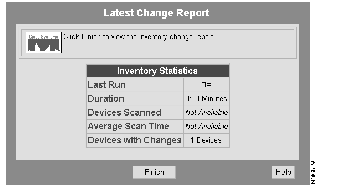
If any changes have occurred in the network inventory, the Latest Change Report displays statistical information. (See Figure 4-2.)
Step 2 Click Finish.
The Latest Change Report displays the description, network and physical address, speed, and type of the device.
Scenario: As the network administrator, you need to upgrade all Cisco IOS 10.3 routers on the network to Cisco IOS 11.1. To determine the scope of the work, you generate the appropriate Resource Manager reports.
To display inventory reports, perform the following procedure:
Step 1
Click Tasks on the button bar, then select Inventory > Major SW Version Graph.
The Major Software Version Graph dialog box appears. (See Figure 4-3.)
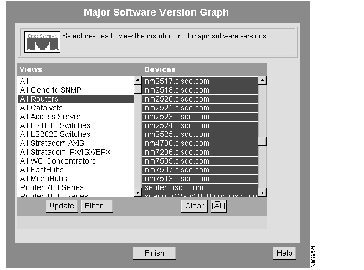
Step 2 In the Views column, select All Routers.
The device selection dialog box is updated, listing the names of the managed devices that are routers.
Step 3 Click All to select all managed routers.
Step 4 Click Finish.
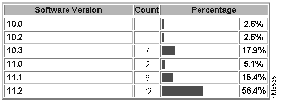
The Major Software Version Graph appears, showing the IOS versions installed on your managed routers. The count is the total number of devices on which each version is installed. The percentage column displays a bar graph and the numerical percentage of the devices for each software version. (See Figure 4-4.)
Step 5 To view other reports and graphs of the same device selection, select the desired report type from the Reports menu, then click Reports.
The selected report or graph appears.
Step 6 Print the report or graph and save it to a file.
Scenario: You want to see reports that display the hardware and software information about devices on your network. First, you want to know the types of chassis that reside on all routers. Then you want to know the software versions they are running.
To display hardware and software reports, perform the following procedure:
Step 1
Click Tasks on the button bar, then select Inventory > Hardware Report.
The Hardware Summary Report dialog box appears. (See Figure 4-5.)
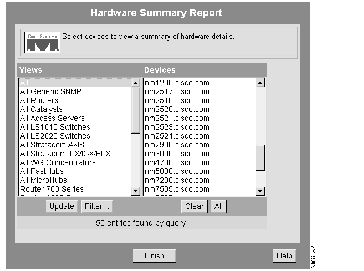
Step 2 Select a view from the Views column.
The devices in the selected view appear in the Devices column.
Step 3 Select the appropriate devices or click All, then click Finish.
A tabular report of your selected devices appears.
Step 4 To sort the devices by chassis type, click the Type column heading.
Step 5 To see more detailed information about a particular device, click on the device name.
The Device Center appears, listing the various inventory, availability, and syslog analysis reports.
Step 6 To view the software version report, select Software Report in the Reports drop-down menu, then click Reports.
The Software Version Report for the group appears.
Step 7 Click the Version link in the Cisco Router Class table to sort by version number, then print or save the report.
|
|