


|
|

This chapter describes the Device Management and Sync w/Sybase applications and how to use them to build the CiscoWorks database. CiscoWorks uses the database information in several application functions. This chapter includes the following sections:

The Device Management application, also referred to as nmdevman, stores the device information you enter into the Sybase relational database.
Use the Sync w/Sybase application during initial setup of your network map to automatically add or update devices into the CiscoWorks database from the database of your particular platform. Then use the Sync w/Sybase or the Device Management application to add devices. If you add devices directly to Sybase, you can synchronize them with the devices in your network map by using the
Sybase-->Platform command. Sybase-->Platform is part of the Sync w/Sybase application. For more information on how to run this application, refer to the section "Using Sync w/Sybase" later in this chapter.
The Device Management application provides electronic forms, to record or browse the relevant data on each network device. As an option, you can use the Sync w/Sybase application to create equivalent database entries automatically.
If you plan to use CiscoWorks applications that use Sybase, be sure you complete the necessary database forms. If you do not have the necessary information in the database, error messages will display or the application will not be able to access the most current devices.
The following CiscoWorks applications use the database data initialized by Sync w/Sybase or Device Management applications:
 | Caution Some CiscoWorks applications require a ReadWrite (RW) community string to perform their tasks. The RW community string comes from the device table. The Sync All command in Sync w/Sybase does not automatically place the RW community string into the device table. Ensure your device contains the correct RW community string in order to avoid CiscoWorks application device errors. |
For more information on database table structure, refer to Appendix C, "CiscoWorks Database Tables." Using the Sync w/Sybase application is easier to use than gathering device data, so Sync w/ Sybase is discussed first. Later, you can use the Device Management application to add custom data that you must access for troubleshooting, such as contact, administration, or vendor information.

Sync w/Sybase polls the database files, then adds and updates devices in the CiscoWorks database. This process is similar to you manually adding the devices to your database using the Device Management application and initializing the devices.
The following information is added to your CiscoWorks database for each new or updated device:
If device information is already listed in your CiscoWorks database, Sync w/Sybase updates any changed information about this device. If device information does not exist in the CiscoWorks database, Sync w/Sybase adds it. If a device is currently unreachable or has a name that cannot be resolved, it will not be added to the CiscoWorks database.
If device information is added directly to the CiscoWorks database, you can use the Sybase--> Platform command, an option within Sync w/Sbase, to add the device to the database used by your particular platform.
Access Sync w/Sybase through either the Tools or Glyph menu. The degree of Sync w/Sybase functionality depends on which menu you use to activate the application:
With HP OpenView or NetView, you can run Sync w/Sybase with or without a network map displayed on your monitor.
To open Sync w/Sybase, select Misc>Sync w/Sybase.
Figure 1-1 illustrates the Sync w/Sybase window and Table 1-1 describes its components.
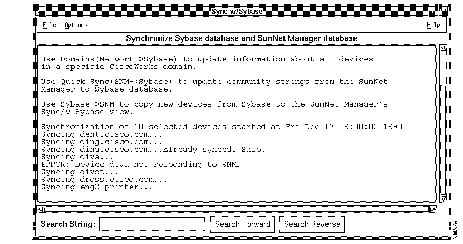
Depending on the number of database records and the information contained in each, database synchronization can be time-consuming. To adjust for synchronization time and to meet special needs, select one of the following four commands from the Options menu of the Sync w/Sybase window:
Copies the complete number and contents of database records from your network management platform to Sybase. These records might include information about the hardware platforms, community strings, and so forth. Allows you to choose the device records of your particular platform that you want to add to Sybase. With the device name selected, click on Sync. To select contiguous items, hold down shift key and click additional device names or drag your mouse through a range of device names. To select discontiguous items, hold down the Control key and select individual device names.
Updates device records for the selected domain in the Sybase database. With the domain name selected, click on Sync.
Creates only entries in the Sybase table for devices listed in your network management platform--but excludes any specific information, such as interface details or hardware platforms. Use this command if you need the databases to quickly recognize the devices contained in each. Later, if you decide that you want the complete device information available from the database of your network management platform, you can copy it using another command from the Options menu of Sync w/Sybase, or the CiscoWorks Device Management application.
Because this process can be time-consuming, upon selecting this option, you are first presented with a confirmation dialog box. If you click OK, this process updates the device records from Sybase into the database of your network management platform; if the device does not exist in the platform database, then it is created in the Sync w/Sybase view (expressed as a cloud) in the network map. This is the inverse process of Devices (Network-->Sybase). When you use Device Management or the CiscoWorks AutoInstall feature to add a device directly to Sybase, it will not be recognized by your platform database until you use the Sybase-->Platform command. Nor will the device name be recognized if you added it directly to Sybase, but not yet added the graphical symbol to your network management platform. For example, the device name will not be recognized if you added it directly to Sybase, but not yet added the glyph to SNM or the symbol type to HP OpenView or NetView for AIX. If you delete a device from SNM, however, it remains as a record in Sybase until you manually delete it from Sybase. A network view, or cloud, appears in your network map that lists the device records that were added from this process.
| Component | Subcomponent | Description |
|---|---|---|
| File | Print
Save As | Prints a snapshot of the current window.
Displays a dialog box that allows you to specify a directory where you can save a copy of the current configuration. Exits the current window. |
| Option | Devices (Network--> Sybase)
Domains (Network--> Sybase) Quick Sync (Platform--> Sybase) Sybase-->Platform Timeout Interval | Copies all database records from your platform database to Sybase. Updates device records for the selected domain in the Sybase database. Displays a dialog box in which you can specify how much time can elapse before synchronization terminates and declares the device unreachable. You can also specify the default timeout using X Resource timeout Interval in your .Xdefaults file. The resource name is synchTimeout. |
| Help | On Version
On application | Displays the CiscoWorks version information for this application.
Provides help text on the current window. |
| Search String field | Locates characters within browser text. | |
| Search Forward | Searches forward for a character string in the text. | |
| Search Reverse | Searches backward for a character string in the text. |
To add or update devices from your platform database to your CiscoWorks database, perform the following steps:
Step 1 From either the Tools or the Glyph menu, select Sync w/Sybase.
The Sync w/Sybase window appears. (See Figure 1-1.)
Step 2 Click on OK to continue with the synchronization of SNM's database and the Sybase database Devices table.
A Sync w/Sybase window appears. The synchronization process can take from three minutes to over an hour, depending on how large your network is and how many devices you are sychronizing. When the synchronization process is complete, a date stamp appears in the Sync w/Sybase window. This confirms that devices from the SNM database have been added to Sybase.
Step 3 Select File>Exit to exit this window.
The device management operation of CiscoWorks software is primarily used to maintain long-term records pertaining to the networks and to collect and store performance data for later evaluation.
The database helps organize this information by providing the means for system operators to rapidly access online information and for network managers to respond to the long-term needs and growth of the system.
To add or update devices from your platform database to your CiscoWorks database, perform the following steps:
Step 1 Select Misc>Sync w/Sybase.
The Sync w/Sybase window appears. (See Figure 1-1.)
Step 2 Click on OK to continue with the synchronization of the HP OpenView database and the Sybase database Devices table.
A Sync w/Sybase window appears. The synchronization process can take from three minutes to over an hour, depending on how large your network is and how many devices you are sychronizing. When the synchronization process is complete, a date stamp appears in the Sync w/Sybase window. This confirms that devices from the HP OpenView database have been added to Sybase.
The Device Management application allows you to add, delete, or modify information in the CiscoWorks database or synchronize the device lists of the CiscoWorks database and the platform database.
Devices can be any SNMP or IP equipment in your network. Examples include gateways, routers, servers, and workstations.
Through access to device information, you can isolate traffic-routing problems, redefine router characteristics using remote configuration, locate your network inventory, keep track of revisions or releases, and allocate resources on the network.
You should define the domain, interfaces, characteristics, vendor, serial number, revision level, and contacts for each device. If you choose not to use the Device Management windows, you can use the Sync w/Sybase application, which adds devices from the platform database to the CiscoWorks database.
| Caution If you use Sync w/Sybase, only those fields used by the platform database, such as device name, domain, and community string, will be automatically entered. You need to manually enter contacts, vendors, and other database information. |
If you have set up authentication checking for Device Management, each time you or another user try to access Device Management, a username and password are requested. If you previously used the Tools menu Login application to log into CiscoWorks, the user identification window will not display. If you have not used the Login application, each time you access Device Management, CiscoWorks prompts you for a user login and password. This login controls access to data stored in the database. If your user login does not have Sybase account permission, you will not have access to Device Management.
The section discusses how to enter a new device through the Device Management windows. The data includes information about the devices and the people who maintain them.

To add a device to the database, perform the following steps:
Step 1 Select Device Mgmt.
On SNM, select Tools>Device Mgmt.
On HP OpenView or NetView for AIX, select Administer>Cisco Devices>Device Mgmt.
The Device Management window displays on your screen. (See Figure 1-2.) The window components are described in Table 1-2.
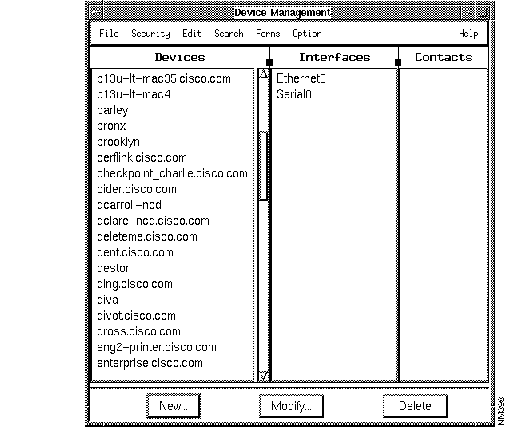
| Component | Subcomponent | Meaning or Action |
|---|---|---|
| File | Print
Exit | Prints a snapshot of the current window.
Closes the current window |
| Security | Change Domain
Change User Privileges | Enables user to display another domain
Allows user to login with another username Displays the user's current access privileges to the Device Management application. |
| Edit | Add Interface
Edit Interface Add Contacts Edit Contact Delete Contact | Displays the Details Interfaces window.
Displays the Details Interfaces window of the selected interface. Permanently removes the selected Details Interface record from the database. Displays the Details People window of the selected contact. Permanently removes the Details People record of the selected contact from the database |
| Search | Find
| Displays the Set Search String box to help you narrow which device names display in the Device Management window.
Displays all known device names in the current CiscoWorks domain. |
| Forms | Admin
People Lines Networks Vendors Locations | Displays the Admin-->Device window
Displays the People-->Phones window Displays the Lines-->Contacts window Displays the Networks-->Net Numbers window Displays the Vendors-->Locations window Displays the Locations window |
| Options | Initialize
| Writes all saved information on devices to the database.
Displays the Device Information window to include Administrative Details pane. |
| Help | On Version
| Displays the CiscoWorks application version information
Provides help text on the current window. |
| New | Opens a new Device Information window | |
| Modify | Opens the Device Information window on the selected device. Unless Admin Details is checked from the Options menu, only the Device Details and Inventory Details panes display. | |
| Delete | Displays a warning box that you are about to delete a device-information record from the database. If you click on OK button, the record is permanently removed. |
Step 2 Click on New along the bottom of the window to display the Device Information window. (See Figure 1-3.)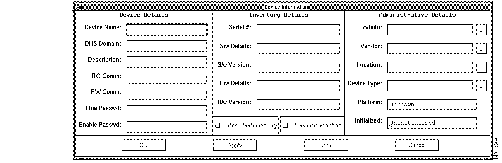
Step 3 Complete the Device Details portion of the window by entering data about your device into each field. If you decide not to work with the Devices window any longer, click on Cancel to close the window without saving any changes. Or, click on Undo to revert to the last saved changes.
If you need help defining what kind of information to enter, see Table 1-3.
| Component | Meaning or Action |
|---|---|
| Device Name | The hostname. Do not include the domain name. |
| Domain Name System (DNS) Domain | The internet domain name as distinguished from the domains of your own organization. Do not include the hostname. |
| Description | A blank comments field to specify any details about the device. |
| Read Comm(unity) | A password or privilege level that identifies the Read Community string. For example, Public. |
| Write Comm(unity) | A password or privilege level that identifies the Read-Write Community string. For example, Private. |
| Device Type (optional) | Click the pick menu to display the Chooser List for device types; then select the type (such as router or bridge) that corresponds to your device. If you do not see your device type, select the device type that may include your device as part of a series. For example, the Cisco 3500 should be device type 3000. |
Step 4 Complete the inventory details portion of the window by entering the appropriate data into each field. If you decide not to work with the Devices window any longer, click on Cancel to close the window without saving any changes. Or, click on Undo to revert the field to the last saved changes. Refer to Table 1-4 if you need help defining what kind of information to enter.
| Component | Meaning or Action |
|---|---|
| Serial Number (Optional) | The serial number of the device, if you know it. |
| S/w Details (Optional) | The specific software running on the device. |
| S/w Version (Optional) | The software version running on the device. |
| H/w Details (Optional) | A blank comments field to specify any needed details about the hardware device. |
| H/w Version (Optional) | A blank comments field to specify any needed details about the hardware version. |
Step 5 Complete the administrative details portion of the window by entering the appropriate data into each field. If you decide not to work with the Devices window any longer, click on Cancel to close the window without saving any changes. Or, click on Undo to revert the field to the last saved changes. Refer to Table 1-5 if you need help defining what kind of information to enter.
| Component | Meaning or Action |
|---|---|
Admin | Click the pick menu to display the Chooser List for admins; then select the name of the person responsible for supporting the specified device. |
| Vendor | Click the pick menu to display the Chooser List for vendors; then select the vendor, or manufacturer, of that device. |
| Location | Click the pick menu to display the Chooser List for locations; then select the location of that device. |
| Initialization | Shows you the last time the device was initialized, or updated, by the CiscoWorks database. |
| Platform Type | Shows you the kind of device that is selected, such as Cisco 7000. |
To modify the data on an existing device, perform the following steps:
Step 1 From the Device Management window, select the name of the device whose database record you want to modify.
Step 2 Click on Modify to display the existing Devices window for the selected device.
 | Time Saver To open a specified Devices window, double click on the device name from the Device Management window |
Step 3 Edit the existing Devices window as your needs determine.
Step 4 When you are finished modifying data in the Devices window, click on OK to save the new information to the database.
You return to the Device Management window.
To delete the data on an existing device, perform the following steps:
Step 1 From the Device Management window, click on the name of the device whose database record you want to delete.
Step 2 Click on Delete.
You see a confirmation box.
Step 3 Click on OK to permanently remove the interface data from the database. Or click on Cancel to put away the confirmation box without deleting the selected interface.
You return to the Device Management window.
The Interfaces portion of the Device Management window lists the network interfaces that are supported by the selected device.
To add or edit the interface from the CiscoWorks database, perform the following steps:
Step 1 From the Device Management Window, select the name of the device to which you want to add or modify information.
Step 2 Select Edit>Add Interface or Edit>Edit Interface as your needs determine. (See Figure 1-4.) You see the Details Interfaces window.
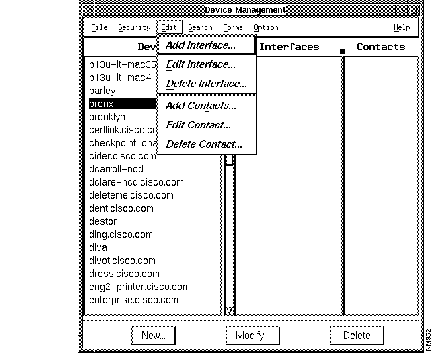
Step 3 Enter a new interface name or edit an existing one. (See Figure 1-5.)
The information in the Details Interfaces window is defined by your particular router configuration.
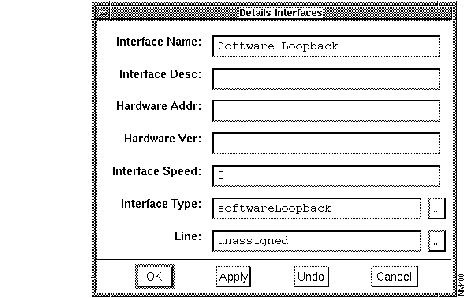
Step 4 When you finish working with the Details interfaces window, click on OK to save the new or modified information to the CiscoWorks database and to close the Details Interfaces window.
Besides clicking on the OK button, you can act on the information in the Details Interfaces window by clicking one of the other command buttons. Click on Apply to save the details information to the CiscoWorks database and to keep the Details interfaces window open. Click on Undo to revert to the last saved or applied details. Click on Cancel to close the window without keeping any changes you made since the last time you clicked on the Apply.
To delete a database record on an existing interface, perform the following steps:
Step 1 From the Device Management window, select the Device name that contains the interface data you want to delete
Step 2 Select the interface name.
Step 3 Select Edit>Delete.
You see a confirmation dialog box.
Step 4 Click on OK in the confirmation box to permanently remove the interface name from the CiscoWorks database. Or click on Cancel to close the confirmation box without deleting the interface data.
The Contacts portion of the Device Management window lists information on the individuals who are designated to support the selected device. You can add multiple contacts from an already existing database, or list, of contacts but can only edit or delete one contact at a time.
If you want to create database records of contacts, use the People form under the Forms menu in the Device Management window. (See the section "Adding People Data" later in this chapter.)
To add contact names from an established pool of contacts (already in the database), perform the following steps:
Step 1 From the Device Management window, select the device name to which you want to add contact names.
Step 2 To add one or more contacts, select Edit>Add Contacts.
The Contacts List box displays. (See Figure 1-6.)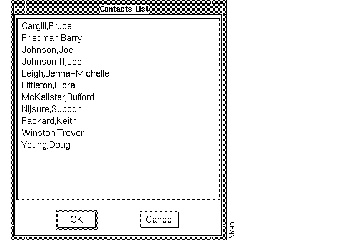
Step 3 Select the names of the contacts you want to add as designated support persons for the specified device. The names you select here will appear in the Device Management window as a contact for the chosen device.
Step 4 Click on OK to confirm your action. Or click on Cancel to dismiss the window without saving any changes.
To edit an existing contact from an established pool of contacts, perform the following steps:
Step 1 To change information about a selected contact person, select Edit>Edit Contact.
You see the Details people window containing data fields relating to the selected contact person. (See Figure 1-7.)
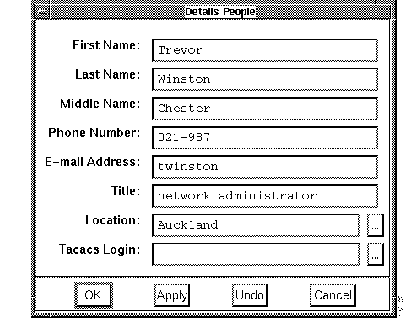
Step 2 Enter the new information into the corresponding fields.
For Location and TACACS Login, click the pick-menu button. A chooser list appears from which you can select the appropriate item, then click on OK to accept the information and to return to the Details People window.
Step 3 Click on OK to save all details on the contact person to the CiscoWorks database and to close the Details People window.
Besides clicking on the OK button, you can act on the information in the Details People window by clicking on one of the other command buttons. Click on Apply to save the details information to the CiscoWorks database and to keep the Details People window open. Click on Undo to revert to the last saved or applied details. Click on Cancel to put away the window without keeping any changes you made since the last time you clicked on the Apply.
To delete a contact from an existing pool of contacts, perform the following steps:
Step 1 Select a contact name from the Device Management window.
Step 2 Select Edit>Delete Contact. The name is permanently removed from the database without first displaying a dialog box requesting you to confirm your action.
For information on Device Management window error messages, refer to Appendix B, "Troubleshooting CiscoWorks Errors."
The initialize process automatically collects information about network devices, thereby minimizing the amount of data you must enter manually into the database table.
When you select Initialize from the Options menu, the initialize process starts. This process polls the network and obtains the details information (such as the MIB object) from the selected device. The collected data displays in the corresponding fields. (See Table 1-6.) The Sybase tables initialized include the following tables: devices, interfaces, if_addresses, domains, and controllers.
| Data Fields | Data Gathered | MIB Object |
|---|---|---|
| Device Type | Class of communications device such as router or bridge. | sysServices |
| DNS Domain | The internet domain name as distinguished from the domains of your own organization. | domainName |
| Platform Type | Identifies the hardware platform, such as Cisco 7000. | sysObjectID, sysDescr, flashStatus |
| Software Details | System Description | sysDescr |
| S/w Version | Identifies the software version running on the communications device. | sysDescr |
| RW Comm (Read-Write community string) | Shows the Read-Write Community string for a particular device. | None. |
| RO Comm (Read community string) | Shows the Read Community String for a particular device. | None. |
| Has Flash | Indicates whether the device has Flash memory. | flashStatus |
| Has Env | Indicates whether the device contains an environmental Monitor Card. (Note: To run nmenv, you need firmware version 2.0 or later on the environmental monitor card.) | None. |
| Initialization time | The time at which the device was last initialized. | None. |
| Interfaces field of the Devices window | Internet Protocol address of each interface table field. | ipAdEntAddr |
| Data appears in the Interface window in the Subnet Mask field | IP subnet mask number for the interface. | ipAdEntNetMask |
| Interface Type field of the Details Interfaces window | Type of interface associated with the device. Data is placed in the Interface Type field of the Interfaces table.1 | ifType |
| Description field | Interface description. Data is placed in the Interface Desc(ription) field of the Interfaces table, which is part of the Devices table. | ifDescr |
| Hardware Address field of the devices Details Interfaces window | Interface hardware address. Data is placed in threadworm Addr field of the Interfaces table. | ifPhysAddress |
| Interface Speed field of the Details Interfaces window | The speed of the interface. | ifSpeed |
| Interface Description field | Description of the user configurable interface. | locIfDescr |
For information on how to select additional MIB objects for polling the network, refer to the section "Creating Polling Tables Using Device Polling" in Chapter 4. For details on how to modify or add MIB objects in the MIB file, refer to Appendix A, "MIB Files and Objects."
| Time Saver If you do not want to enter device management information, you can use the Sync w/Sybase application. This application compares the platform database with the CiscoWorks database. If a device does not exist in CiscoWorks but does exist in the platform database, the Sync w/Sybase application adds it to the CiscoWorks relational database. For more information, refer to the section "Using Sync w/Sybase" earlier in this chapter. Ensure the ReadWrite community string is correct on the device, or some CiscoWorks applications may not work properly. |
To run the Initialize process, perform the following steps:
Step 1 Select Device Mgmt.
On SNM, select Tools>Device Mgmt.
On HP OpenView or NetView for AIX, select Administer>Cisco Devices>Device Mgmt.
The Device Management window displays on your screen. (See Figure 1-2.)
Step 2 Select the device name that you want to initialize.
Step 3 Select Options>Initialize.
During the initialization process, the SNMP MIB object information is collected and placed in the Device Type and Software Desc fields of the devices window. Data is also placed in several fields of the secondary Interfaces window. (Refer to Table 1-6.)
If you try to add a device manually (without the initialize command), you might receive the error message, "The column xxxx in table devices may not be null." This means that you did not enter data into mandatory data fields. You must enter data directly in the Location, Vendors, and Administrations windows first. Then return to the Devices window and fill in the Location, Vendor Name, and Admin Name fields. Finally, click on Apply under the text fields to add the device to the database.
You also can add devices that exist in the platform database, but do not yet exist in the CiscoWorks database, by using the Sync w/Sybase application. For instructions on this application, refer to the section "Using Sync w/Sybase."
If you are uncertain about the name or spelling of any database record that is part of Device Information, you can use the CiscoWorks Search menu to find the needed information, or at least narrow your choices. The Search menu is available in all Device Information windows. Because device locations, in particular, are sometimes difficult to find, an illustrated example of how to use the Search command is found in the section "Locations Window." However, you can still perform the following straightforward steps to search for device information:
Step 1 Select Search>Find to display the Set Search String Window.
Step 2 Enter the device information you want to find.
Step 3 If you are not sure of the exact spelling, you can enter the first few characters of the device record to narrow your choices.
For example, if the information you want begins with the letter A, but you don't recall the exact name or how to spell it, just enter A, in the Set Search String Window and click on OK.
Search logic, in the form of Sybase Wildcards, is supported if you prefer to narrow your choices in special ways.
Refer to the following table (Table 1-7) for the supported wildcards and their meanings:
| Wildcard | Meaning |
|---|---|
% | any string of 0 or more characters |
| _ | any single character |
| [ ] | any single character within the specified range ([a-f]) or set ([abcdef]) |
| [^] | any single character not within the specified range ([^a-f]) or set ([^abcdef]) |
To use %,_, [ ] or [^] as literal characters, use square brackets as escape characters for the percent sign, the underscore, and the open bracket. Use the close bracket by itself. use the dash as the first character inside a set of square brackets. Refer to Table 1-8 for the translation of wildcards into literal characters.
| Search string | Finds |
|---|---|
"5%" | 5 followed by any string of 0 or more characters |
| "5[%]" | 5% |
| "_n" | an, in, on, and so forth |
| "[_]n" | _n |
| "[a-cdf]" | a, b, c, d, or f |
| "[-acdf]" | -, a, c, d, or f |
| "[ [ ]" | [ |
| "]" | ] |
| Time Saver If you know the exact name of a device-information entry, you can locate it quickly by performing the following quick-search method: |
Step 1 From the Device Information Window, click on the list (device, interfaces, or contacts) that contains the entry you want to locate. For example, if you want to locate a device, click on the Devices list.
Step 2 Type the name of the device, interface, or contact that you want to find. The name must be visible somewhere in the list.
For example, if you are searching for a device named Barrow, click in the Devices column, then press b to scroll the list to the first device name that begins with "b."
As you continue entering the device name, the list scrolls to continually narrow your choices until the specified name becomes selected.
Step 3 To edit the search pattern, use the Backspace key. Press the escape key to clear the search pattern.

The Networks--> Net Numbers Window is available from the Forms menu of the Device Management window. Use this form to enter information that is critical to the needs of the network manager. This information allows you to identify and isolate sources of difficulties, and to quickly identify the administrative support for the networks.
The Network--> Net Numbers window provides options for entering data about a particular network and saving the information to the Sybase database. From the Networks--> Net Numbers window, you can access additional subwindows to enter the network administrator's name, search for text strings, as well as add, edit, or delete network numbers.
Perform the following steps to enter information into the Networks--> Net Numbers Window from the Forms menu, select Network -> Net Numbers. You see the Networks--> Net Numbers window. (See Figure 1-8.)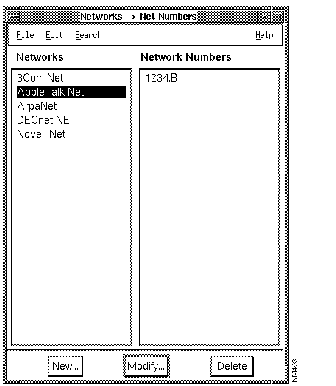
Add, modify, or delete information on your network as your needs determine. Refer to Table 1-9 for descriptions of each of the components. The following subsections provide detailed instructions on adding, modifying, and deleting network information.
| Component | Subcomponent | Description |
|---|---|---|
| File | Print
Close | Prints a snapshot of the current window.
Closes the current window. |
| Edit | Add Net Number
Edit Net Number Delete Net Number
| Writes a new network number to the database.
Permanently erases the selected network number. |
| Search | Find
| Locates the specified network number, if it exists in the database.
Empties the text in the Find box and redisplays all available networks and net numbers.
|
| Help | On Version
| Displays the CiscoWorks version information for this application.
Provides help text on the current window. |
| Networks column | Displays Network data records. | |
| Net Numbers column | Displays network type, name, and mask data. | |
| New | Opens the Details Networks window. | |
| Modify | Changes data fields of a record. | |
| Delete | Removes a record from the database. |
To add a network name to the CiscoWorks database, perform the following steps:
Step 1 Click on New from the Networks--> Net Numbers window. You see the Details Networks window. (See Figure 1-9.)
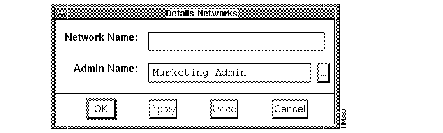
Step 2 Enter the data appropriate for your network into the Network Name field.
Step 3 To supply the Admin Name, click on the pick menu.
This opens the Administrations lookup window.
Step 4 Select a name from the lookup window and click on OK.
Step 5 To save the data to the database and close the Details Networks window, click on OK. You return to the Networks--> Net Numbers window where the network name you just defined appears in the networks column.
Besides clicking on the OK button, you can use other buttons to adjust your actions to the details information. If you click on Apply button, the data is saved to the database, but the Details Networks window remains open. Click Undo to revert to the set of changes since you clicked OK or Apply. Click on Cancel to close the Details Networks window without saving any changes.
To add a new Network Number, perform the following steps:
Step 1 From the Networks --> Network Numbers window, click on the network name you established in the previous section.
Step 2 Select Edit>Add Net Number.
You see the Details Net Number window. (See Figure 1-10.)
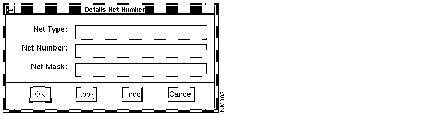
Step 3 Enter the data in the Net(work) Type, Net(work) Number, and Net(work) Mask fields as it applies to your particular network, then click on OK.
You return to the Networks--> Net Numbers window where the network number you just defined appears in the net numbers column and is linked to the selected network name.
Besides clicking on the OK button, you can use other buttons to adjust your actions to the details information. If you click on Apply button, the data is saved to the database, but the Details Net Number window remains open. Click on Undo to revert to the set of changes made since you clicked on the OK or Apply. Click on Cancel to close the Details Net Number window without saving any changes.
Step 4 To exit, select File>Exit.

The Administrations window allows you to access database records of pertinent information including contacts for lines, devices, and networks.
To complete a new Administrations window and add the corresponding information to the database, perform the following steps:
Step 1 Select Forms>Admin.
The Admin --> Device window where you can record pertinent information on the administration of the selected device appears. (See Figure 1-11.)
Figure 1-11 illustrates the Admin--> Device window.
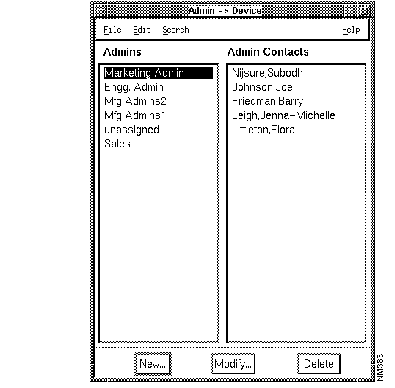
Step 2 Add, modify, or delete information regarding your device administration as your needs determine. Refer to Table 1-10 for descriptions of each of the components. The following subsections provide detailed instructions on adding, modifying, and deleting administrative information.
| Component | Subcomponent | Description or Action |
|---|---|---|
| File | Print
Close | Prints a snapshot of the current window.
Closes the current window. |
| Edit | Add Admin Contact
Edit Admin Contact Delete Admin Contact | Opens the Contacts List lookup window; select the name of an established contact, then click on OK.
Opens the Contacts window with the selected individual's name; edit the text field as your needs determine. Removes the selected name from the database. |
| Search | Find
Show All | Opens a Set Search String box; enter the name of the admin you want to locate then click on OK.
Empties the Set Search String box and redisplays all available Admins and Admin Contacts. |
| Help | On Version
On Form | Provides help text on the current window.
Displays the CiscoWorks version information for the Admin -> Device form. |
| Admins column | Displays administrative group names. | |
| Admin Contact column | Displays contact data on individuals. | |
| Modify | Opens the Details Admins window; allows changes to the selected administrative group name. | |
| New | Opens the Details Admins window; allows the creation of a new administrative group record. | |
| Delete | Permanently removes the selected item from the database. |
To modify the information on an admin, perform the following steps:
Step 1 Select Forms>Admin. You see the Admin --> Device window. (See Figure 1-11.)
Step 2 From the Admin --> Device window, select the name of the admin whose details information you want to modify.
Step 3 To display the Details Admins window, click on Modify.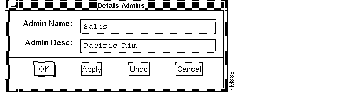
(See Figure 1-12.)
Step 4 Enter the new information for the Admin Name or Admin Desc(ription), then click on OK to record the modified Admin information to the database.
You return to the Admin --> Device window where the Admin you just modified appears in the Admins column.
Besides clicking on the OK button, you can use other buttons to adjust your actions to the details information. If you click on Apply button, the data is saved to the database, but the Details Admins window remains open. Click on Undo to revert to the set of changes made since you clicked on the OK or Apply. Click on Cancel to close the Details Admins window without saving any changes.
To delete information on an Admin, perform the following steps:
Step 1 Select Forms>Admin.
You see the Admin --> Device window.
Step 2 Select the name of the admin you want to delete.
Step 3 Click on Delete.
You see a confirmation box asking if you would like to continue with this action.
Step 4 Click on OK to permanently remove the admin from the database or click on Cancel to put away the confirmation box without deleting the selected Admin.

The Vendors Window enables you to update and view information on the vendor, or supplier, of a particular device.
The kind of information you enter in this window can help you with normal servicing, updating of equipment, transmission links, and other related needs.
The vendors table lists the names and locations of any entity you want to classify as a vendor. This can range from a company supplying physical equipment, such as Cisco Systems, to network consultants and service-only firms.
To add new vendor information, follow these steps:
Step 1 Select Forms>Vendors.
You see the Vendors--> Locations Window, as shown in Figure 1-13. The components of the Vendors--> Locations window are described in Table 1-11.
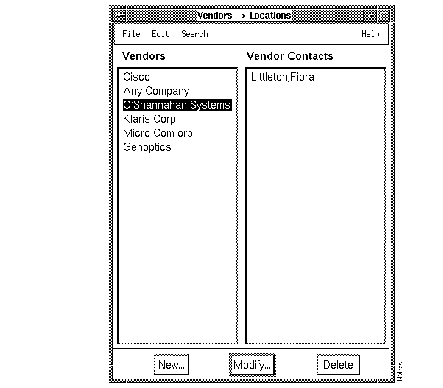
Step 2 To display the Details Vendors window, click on New. (See Figure 1-14.)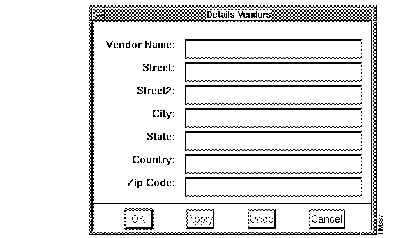
Step 3 Enter data in each of the fields, then click on OK to save the vendor information to the database and to close the window.
You return to the Vendors --> Locations window. The name of the vendor you entered in the Details Vendors window appears in the Vendors column.
Besides clicking on the OK button, you can use other buttons to adjust your actions to the details information. If you click on Apply button, the data is saved to the database but the Details Vendors window remains open. Click on Undo to revert to the last set of changes made since you clicked on the OK or Apply. Click on Cancel to close the Details Vendors window without saving any changes.
| Component | Subcomponent | Description |
|---|---|---|
| File | Print
Close | Prints a snapshot of the current window.
Closes the current window. |
| Edit | Add Vendor Contact
Edit Vendor Contact
Delete Vendor Contact
| Opens the Contacts List lookup window; select the name of an established contact, then click the OK.
Opens the Contacts window with the selected individual's name; edit the text field as your needs determine. Removes the selected name from the database. |
| Search | Find
| Opens the Set Search String box; enter the name of the Vendor you want to locate then click on OK.
Empties the Set Search String box and redisplays all available Vendors and Vendor Contacts |
| Help | On Version
On Form | Displays the CiscoWorks version information for this application.
Provides help text on the current window. |
| Vendors scroll window | Displays Vendor data. | |
| Vendor Contacts scroll window | Displays Vendor Contacts data. | |
| Apply | Updates changes into the database. | |
| New | Adds a new data record. | |
| Edit | Changes data fields of a record. | |
| Delete | Removes a record from the database. |
| Time Saver In the Vendor Contacts window, if names and locations already exist in the database, use a lookup window to access and select the names rather than retyping the data. |
Step 4 To exit this window, select File>Exit.
You can make changes and additions any time using the method described in the previous section "Adding Vendors Data," or you can follow the alternative methods described here.
For instance, you may want to add a vendor address signifying a branch office for an existing vendor.
To update or modify vendor data, perform the following steps:
Step 1 From the Vendors --> Locations window, select the vendor name.
Step 2 Click on Modify.
You see the Details Vendors window with the current data on a particular vendor.
Step 3 Enter new data into the fields that pertain to your needs, then click on OK.
The modified vendor and address are saved to the database, and you return to the Vendors- Locations window.

The People-->Phones window (see Figure 1-15) contains the name, title, phone number, and other relevant information about individuals responsible for the administration and support of the network and network equipment. The individuals might include network administrators, equipment vendors, Cisco contacts and others.
The CiscoWorks database links the names, telephone numbers, and other people-specific data to their addresses. This linkage allows you to quickly find essential contacts, such as names and addresses of troubleshooters, vendors, device administrators, or simply an e-mail address or telephone number.
To add information regarding a contact person to the database, follow the steps:
Step 1 Select Forms>People.
You see the People--> Phones window, or form. (See Figure 1-15.)
Refer to Table 1-12 for descriptions of each of the components.
| Component | Subcomponent | Description |
|---|---|---|
| File | Print
Close | Prints a snapshot of the current window.
Exits the current window. |
| Edit | Add Phone
Edit Phone | Displays the Details Phones window in which you can enter an additional telephone number and description, such as a FAX number or pager number. The number and its description display in the Phone Numbers column of the People--> Phones window.
Displays the Details Phones window of the selected phone number and allows you to modify the contents. Permanently removes the phone number from the database. |
| Search | Find Show All | Opens a Set Search String box; enter the name of the person you want to locate, then click the OK.
Empties the Set Search String box and redisplays all available people and phone numbers. |
| Help | On Version
On Form | Displays the CiscoWorks version information for this application.
Provides help text on the current window. |
| Modify | Details People window | Displays people data that you can change and save. |
| New | Details People window | Displays a blank Details People window where you can enter information about a new contact person. |
| Delete | Permanently removes information about this contact person from the database. |
From the People--> Phones window, you can click on one of the command buttons to add or modify information about a particular support person. To add or modify information about the individual's telephone number, select one of the corresponding commands from the Edit menu.
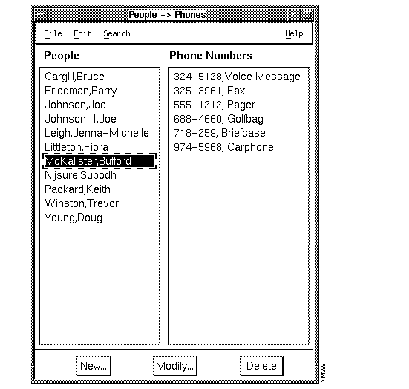
Step 2 Click on New to establish, or add, the name of a new contact person.
You see the Details People window where you can enter information that identifies a new contact person and how to reach that person. (See Figure 1-16.)
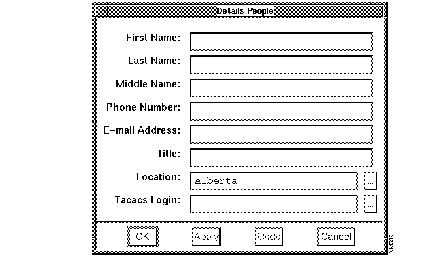
Step 3 Enter data in each of the fields.
Step 4 Click on OK to save the Details People information to the database and to close the window.
You return to the People--> Phones window, where you see the name of the contact person. This information is also accessible from the Edit menu of the Device Management window.
Besides clicking on the OK button, you can use other buttons to adjust your actions to the details information. If you click on Apply button, the data is saved to the database, but the Details People window remains open. Click on Undo to revert to the last set of changes made since you clicked on the OK or Apply. Click on Cancel to close the Details People window without saving any changes.
Step 5 With an individual's name selected, select Edit>Add Phone to add additional contact numbers for this person, such as a pager or fax number.
You see the Details Phones window. (See Figure 1-17.)
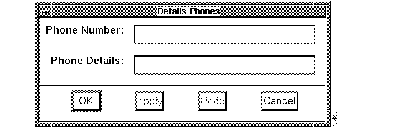
Step 6 Enter the phone number and phone details into the corresponding fields. Phone Details is a blank description field in which you can enter information (up to 16 characters) about the phone number that meets your needs.
Step 7 To save the information to the database and to close the Details Phones window, click on OK.
You can modify information regarding contact people any time using the method described in previous section "Adding People Data," or you can follow the alternative methods described here.
Step 1 Select Search>Find command to display the Set Search String window.
Step 2 Enter the last name of the contact whose information you want to modify, then click on OK. Or, if you are uncertain about the exact spelling of the person's last name, enter the first few characters, and CiscoWorks will display only the contact names that fit the search pattern. For example, if you know the name of the person is McBranagan, CiscoWorks shows you only the McBranagan contact in the People column of the
People--> Phones window. Or enter just, the first few characters such as McBr to view all the contact people whose last names begin with McBr.
Step 3 From the Edit menu, click on Modify to modify the contact person information as your needs determine.
Step 4 To save the information to the database and to close the Details Phones window, click on OK.
To delete data regarding a contact person, perform the following steps:
Step 1 Select the name of the individual whose data you want to delete from the People--> Phones window.
Step 2 Click the on the Delete.
The information on the selected contact person is permanently removed from the database.

The Locations Window represents a reservoir for network addresses of people, the location of network devices, and any other network associated matter. The information you enter in the Locations window goes into a central repository called Chooser List for locations. With the Chooser List, you can add or update locations data whenever you work with the Details People window or the Device Location window.
To add a location to the database, perform the following steps:
Step 1 Select Forms>Locations. (See Figure 1-18.)
You see the Locations window where you can add, modify, or delete locations information about the contacts people. You can also search for locations data.
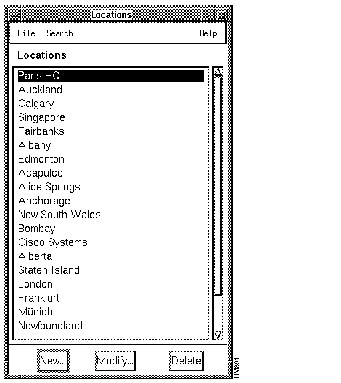
Step 2 Click on New to display the Details Locations window in which you can enter address-specific information about a location. (See Figure 1-19.)
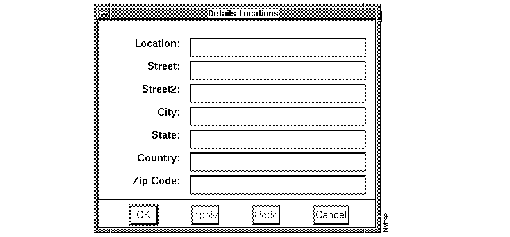
Step 3 Enter data in each of the fields, then click on OK to save the Details Locations information to the database and to close the window.
You return to the Locations window, where you see the name of the location you entered in the Details Locations window. This information is now part of the Chooser List for locations, available from the Details People window and the Device Location window.
Besides clicking on the OK button, you can use other buttons to adjust your actions to the details information. If you click on Apply button, the data is saved to the database but the Details Locations window remains open. Click on Undo to revert to the last set of changes since you clicked on the OK or Apply. Click on Cancel to close the Details Locations window without saving any changes.
At times you may need to look up a specific location, and perhaps then identify the corresponding contact person. Once you identify the locations data you want, you can modify it if necessary. Perform the following steps to search for locations data and if necessary to modify it.
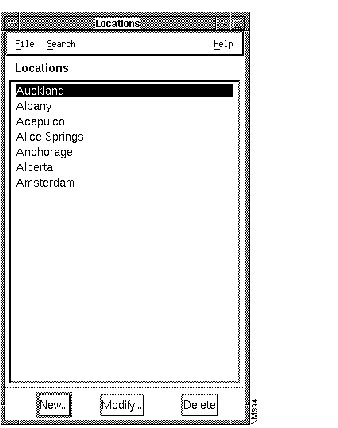
Figure 1-18 shows the Locations window. Table 1-13 describes its components.
Step 1 Select Search>Find to display the Set Search String window. (See Figure 1-20.)
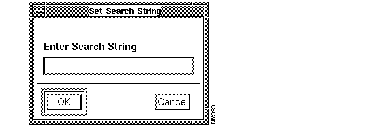
Step 2 Enter the exact name of the location you want to modify. If you are not sure of the correct spelling, you can enter the first few characters of the location name to narrow your choices.
For example, if the location you want begins with the letter A, but you do not recall the exact name or how to spell it, just enter A in the Set Search String window, and click on OK. This action narrows the list to only those locations that begin with "A." (See Figure 1-21 for the results of this kind of single-character search.)
Step 3 Select the Location that contains the information you want to change.
Step 4 Click on Modify to display the Details Locations window.
Step 5 Modify the information on the location as your needs determine.
Step 6 Click on OK to save the information to the database and to close the Details Locations window.
| Component | Subcomponent | Description |
|---|---|---|
| File | Print
Close | Prints a snapshot of the current window.
Exits the current window. |
| Search | Find
| Displays the Set Search String dialog box to find the name of a specific location or find a set of locations.
Empties the Set Search String box and redisplays all available locations. |
| Help | On Version
| Displays the CiscoWorks version information for this application.
Provides help text on the current window. |
| Modify | Displays the Details Locations window in which you can modify information about the selected location. | |
| New | Displays a blank Details Locations window in which you can enter information about a new location. | |
| Delete | Permanently removes the Details locations data of the selected location. |

The Lines--> Contacts window contains line identities used in the network. A link must exist between lines and contacts for troubleshooting. A line can have several contacts linked to it.
Figure 1-22 shows the Lines--> Contacts Window. Table 1-14 describes its components.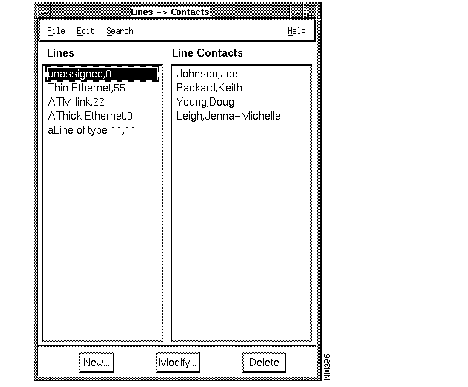
| Component | Subcomponent | Description |
|---|---|---|
| File | Print
Close | Prints a snapshot of the current window.
Exits the current window. |
| Edit | Add Line Contact Edit Line Contact Delete Line Contact | Opens the Contacts List lookup window; select the name of an established contact, then click on OK. Opens the Details People window of the selected individual, or line contact; edit the text fields as your needs determine. |
| Search | Find Show All | Displays the Set Search String dialog box to find the name of a specific location or find a set of locations.
Empties the Set Search String dialog box and redisplays all available Lines and Line Contacts. |
| Help | On Version
| Displays the CiscoWorks version information for this application.
Provides help text on the current window. |
| Modify | Displays the Details Lines window where you can modify the information on the selected line. | |
| New | Displays a blank Details Lines window in which you can enter new information about a line. | |
| Delete | Permanently removes the Details Lines information of the selected line from the database. |
The secondary, Details Lines window, shown in Figure 1-23, consists of three fields, each of which is described is described in Table 1-15.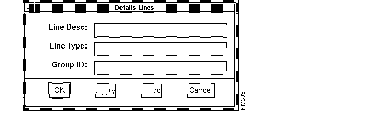
Complete the Details Lines window as your needs determine.
| Fields | Description |
|---|---|
| Line Desc(ription)
Line Type
Group ID | A blank text field where you can enter whatever comments about the line that meet your needs.
Line type1
Line description |
Assemble all of the line name designations and associated type identifiers. Along with this data, identify the contacts you want to list for activities such as troubleshooting and administration. Make a list or assemble a group to speed the entry process.
To add lines data, perform the following steps:
Step 1 Select Forms>Lines command.
You see the Lines--> Contacts Window. (See Figure 1-22.)
This window enables you to establish and associate contacts to a given line. Line Contacts are individuals who typically have a known expertise in troubleshooting or administration of a given line. A line indicates the transmission cabling in place, such as coaxial cable, fiber-optic cable, or twisted-pair wire.
Step 2 Click on New.
You see the Details Lines window. (See Figure 1-23.)
Step 3 Enter helpful comments in the Line Description and Line Type fields.
If a needed line description or type is available in the database, you can double-click on either field to open the Lines lookup window and select from existing data.
Step 4 Enter the Group ID, or "number," that identifies the specific line type to the network. Refer to Table 1-14 if you are not sure what Group ID to enter for the specific transmission media, or line, used in your network.
Step 5 Click on OK to save the Details Lines information to the database and to return to the Lines--> Contacts window, where you see the description of the line you just entered in the Lines column.
Step 6 Select Edit>Add Line Contact to display a list of established individuals who are designated resources for networking solutions. (See Figure 1-24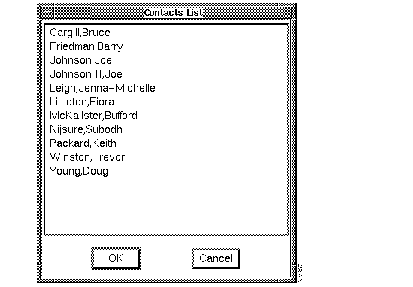
.)
Step 7 Click on the name of the individual who you want to serve as a contact for the selected line type.
Step 8 Click on OK.
The individual is now listed in the Lines Contacts window and is linked to the selected line. The Lines Contacts window closes.
|
|