


|
|

This chapter describes the configuration features that enable you to control your Cisco Systems device configurations and provides information in the following sections:
Several CiscoWorks applications help manage the configuration of the Cisco devices in your network. A brief description of each application discussed in this chapter follows:
These applications enhance your capabilities as a network administrator by collecting network data as a baseline before your network develops problems. These applications are discussed in detail in the following sections.

This section describes the Configuration Management application and provides information on the following topics:
The CiscoWorks Configuration Management application can be used with Cisco Systems devices only. Cisco Systems device software must be Software Release 8.2 or later.
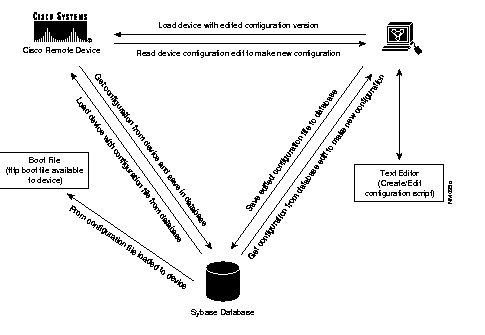
Figure 1-1 illustrates the configuration management data flow concept. You create the configuration file with a text editor. This data is then converted to a configuration file or series of commands used to configure a device. When a configuration file is loaded onto a device, a copy of the file is retained in the database.
The file sent to the device is also optionally retained in a separate boot file and is available if needed by the remote device for booting after failure or any other restart requirement. Configurations can be retrieved from devices, edited and returned to those devices, retained for future use, or used for analysis and troubleshooting. Configuration files are always archived in the CiscoWorks database.
TFTP is used to accomplish the transfer of configuration files between devices. If TFTP was not configured on your system, make sure you do so by following the instructions in the CiscoWorks administration and installation guide.
The following sections describe the scroll windows, options, and command buttons in the Configuration Management window. Figure 1-2 shows a Configuration Management window where a device is highlighted to display the different configuration versions identified with it.
The letter L beside a version in the Configuration Versions scroll window indicates that this version was loaded to the device from the CiscoWorks database. If the configuration file has been changed by any action other than the CiscoWorks configuration management applications, the database will not recognize the new configuration version. As a result of this functionality, the configuration marked with an L may not be the last file loaded into the device. An asterisk (*) beside a version indicates that this version of the configuration file was created but was never loaded to the device.
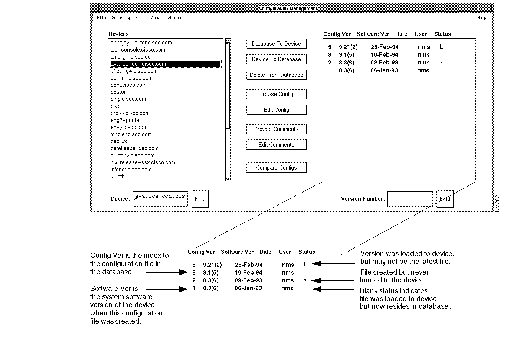
Table 1-1 describes the components of the Configuration Management window, and Table 1-2 lists each command button and the tasks you can accomplish by using these command buttons.
| Component | Subcomponent | Description |
|---|---|---|
| File | Print
Exit | Prints a snapshot of the selected configuration file.
Exits the current window. |
| Security | Change Domain
Change User Privileges | Changes the group of devices which this user has access.
Changes user ID to another user. Views current user ID privileges. |
| Edit | Edit Config Edit Comments | Edit a configuration file used by a device or from the database. Refer to "Creating a New Configuration File."
Edit or add information about the configuration file that is unique, critical to its operation, and so on. Each configuration version file has a comments file. Refer to "Editing Configuration Comments Files." |
| View | Browse Config
Browse Comments | View the contents of a configuration file from a device or from the database. You can search forward or backward for text strings. You cannot make any changes when you are browsing a configuration file. Refer to "Loading a Device Configuration File to the Database."
View the contents of a comments file from the database. You cannot make any changes when you are browsing a comments file. You can search forward and backward for text strings. Refer to "Deleting Configuration Files." |
| Options | Delete From Database File to Database | Delete a configuration file from the database. Refer to the section "Deleting Configuration Files."
Enables you to copy a configuration file from your system's directory to the database. After a configuration file exists in the database, it can be loaded to the device. |
| Help | On Version
On Configuration Management | Displays the CiscoWorks version information.
Provides a manual page about the current window. |
| Device scroll window | Find | Enables you to quickly find a device listed in the CiscoWorks database. Devices with tables in the CiscoWorks database are listed in the Devices scroll window. The configuration files are displayed only if you created and associated configuration files with that device. The configuration file that the database believes is loaded on the device will have the letter L in the entry. New configuration files that were created but never loaded on the device are indicated by an asterisk (*). |
| Configuration Versions scroll window | Find | Enables you to quickly find a specific version of a configuration file from the CiscoWorks database. To display the list of configuration files associated with a device, click on a device name in the Devices scroll window within the Configuration Management window. If you did not create and store a configuration file for a device, or if no device name has been highlighted, the Configuration Versions scroll window will be blank. |
| Command Buttons | Task Description |
|---|---|
| Database To Device | Load a configuration file from the database to a device. Refer to the section "Loading a Configuration File." |
| Device To Database | Load a device's configuration file to the database. Refer to the section "Loading a Device Configuration File to the Database." |
| Delete From Database | Delete a device's configuration file from the database. Refer to the section "Deleting Configuration Files." |
| Browse Config | View the contents of a configuration file from a device or from the database. You can search forward or backward for text strings. Refer to "Browsing a Configuration File or Comments File on a Device." |
| Edit Config | Edit a configuration file used by a device or from the database. Refer to "Editing Configuration Files." |
| Browse Comments | View the contents of a comments file from the database. You can search forward and backward for text strings. Refer to "Browsing a Configuration File or Comments File on a Device." |
| Edit Comments | Edit or add information about the configuration file that is unique, critical to its operation, and so on. Each configuration version file has a comments file. Refer to "Editing Configuration Comments Files." |
| Compare Configs | Compare a loaded device configuration file with a configuration file in the database or with a configuration file from another device. You can list the differences between files to troubleshoot configuration problems on a device. Refer to the section "Comparing Configuration Files." |
The Router Products Getting Started Guide explains the different ways to create a configuration file for a Cisco device at the time of setting it up. You can create configuration files by using a UNIX text editor such as vuepad, vi, or e3. You can also use the AutoInstall Manager application to create a configuration file for a Cisco device. For more information on the AutoInstall Manager, refer to the section on "Adding New Remote Routers Using AutoInstall."
Knowledge of configuration files and device requirements will help you to create configuration files that can be saved to the CiscoWorks database and downloaded to a device. For information on device requirements, refer to the hardware documentation for the appropriate Cisco device. You can use the following CiscoWorks applications to help you with configuration or image file changes: Software Library Manager, Software Inventory Manager, Device Software Manager, Global Command Manager, and Configuration Snap-In Manager. For more information on these applications, refer to their individual sections later in this chapter.
Before you create or load configuration files, note that configuration files have certain restrictions regarding syntax and file size. In addition, make sure that the device version number is correct and that an appropriate community string is assigned to the device. For more information, see the section "Requirements for Loading a Configuration File to a Device." If you are not using any name resolution server, ensure that the /etc/hosts file includes both the device name with the domain and the name without the domain in the hosts file.
The syntax you use to create a device configuration file is unique to the individual device. When you enter configuration data, be certain the sequence, syntax, and other parameters are in accordance with the requirements for the particular device. In most instances, you enter commands as though you were entering them from the appropriate device console. For more information on configuration file commands, refer to your Router Products Command Reference guide.
The maximum size of a single device configuration file is 128 kilobytes (KB). The number of configurations that can be stored in the database depends on how much of available disk memory CiscoWorks allocates to database functions.
For each version of a configuration file, you can store information up to 128 KB for the configuration file comments file. A configuration comments file can be used to store information such as the historical usage of a configuration file or the reasons why a specific change was made to a configuration file on a device.
You can define a text editor to create or edit configuration files. The default text editor for creating configuration files within CiscoWorks depends on which NMS you are using. Refer to the specific section to define your NMS text editor.
Skip this section if you have already specified a text editor or if you plan to use the default NMS text editor. For SNM, the default text editor is textedit. For HP OpenView, the default text editor is vuepad. For NetView for AIX, the default text editor is e3.
You can define the SNM text editor in the $HOME/.Xdefaults file or at the command line. Changes you enter in the .Xdefaults file remain in effect until you override them by setting the editor at the command line. Changes you enter at the command line will remain in effect (in the shell in which the command was executed) until you change the EDITOR variable again.
The .Xdefaults file on your system contains information that is specific to the OPEN LOOK environment. To define the look of your text editor window, add the following command to the .Xdefaults file, substituting the appropriate options:
*EditorFormat: command string %sThe command string is the editor, command, or file to be executed. With EditorFormat, you can create a file or command to represent your own customized editor.
If other editor parameters are defined in the .Xdefaults file, the EditorFormat parameter will override these parameters.
To specify the emacs editor in /usr/local/bin, add the following line to the .Xdefaults file:
*.EditorFormat: /usr/local/bin/emacs %sThis string tells the Configuration Management application (or any CiscoWorks application) to replace the %s symbol with the name of the actual configuration file being opened. The file will be opened using the emacs text editor.
If %s is not entered into the string, the Configuration Management application will append the actual configuration filename to the end of the string.
 | Caution You must update your environment after changing the .Xdefaults file. |
To add the changes to the file, enter the following command:
% xrdb -merge $HOME/.Xdefaults
To write over the existing information in the .Xdefaults file, enter the following command:
% xrdb -load $HOME/.Xdefaults
If you receive the following error message, "Unable to start xterm System error: <Error>, check your PATH to see that xterm is included." For instructions on specifying a path for xterm, refer to the CiscoWorks Administration and Installation Guide.
To set the environment variable for the text editor, enter the following command at the UNIX prompt:
setenv EDITOR "emacs"This EDITOR environment variable remains in effect in the shell it was created until you reset it. For a more permanent default, perform the tasks in the following section "Editing the .Xdefaults File Entry to Specify the Text Editor."
You can redefine the HP OpenView text editor at the command line or in the $HOME/.Xdefaults file. Changes you enter at the command line will remain in effect (in the shell in which the command was executed) until you change the EDITOR variable again. Changes you enter in the .Xdefaults file remain in effect until you override them by setting the editor at the command line.
The HP OpenView text editor default is set to vuepad, located in the /usr/vue/bin directory.
You can redefine the text editor that the NetView for AIX uses at the command line or in the $HOME/.Xdefaults file. Changes you enter at the command line will remain in effect (in the shell in which the command was executed) until you change the EDITOR variable again. Changes you enter in the .Xdefaults file remain in effect until you override them by setting the editor at the command line.
The text editor default on NetView for AIX is set to e3, located in the /etc directory.
A remote device configuration file is a text file created by any standard text editor.
Use your text editor to create and save a new device configuration file. This file is saved in a directory on your system.
After you create a configuration file, transfer the file to the database by selecting a device and using the File to Database command in the Configuration Management window. To load this configuration file to the device, use the Database to Device command in the Configuration Management window.
For an example of a configuration file, refer to the router products manual set.
After you create or edit an existing configuration file and save it, use the File To Database command from the Options menu in the Configuration Management window to copy and store it in the database. Configuration files in the database can be downloaded to a specific device.
To copy a file from a directory on your system to the database, perform the following steps:
Step 1 Select Config Management.
On SNM, select Tools>Config Management.
On HP OpenView or NetView for AIX, select Administer>Cisco Devices>Configuration Management.
The Configuration Management window displays. (See Figure 1-2.) CiscoWorks might require you to identify yourself and enter your password, as described in Chapter 7, "Setting Up Domains and Securing Applications." If you encounter an invalid password error, the password may have been changed, or you may have made an error in entering the password. If the password was changed, check with the system administrator for assistance. Also check to ensure you have the correct permissions for this device or domain.
Step 2 In the Configuration Management window, select a device in the Devices scroll window.
If you do not select a device before selecting the File to Database command, the following message will appear: No device has been selected. If you do not see the device in the Devices scroll window, run the Sync w/Sybase application to add the device to the Sybase database. If the device does not appear after running Sync w/Sybase, check your Sybase permissions to ensure you have access to the domain and privileges to alter the configuration on this device.
Click on OK, select the device, and try again.
Step 3 After you select a device, select Options>File to Database.
The File Selection scroll window displays the files and directories within the current directory. (See Figure 1-3.)
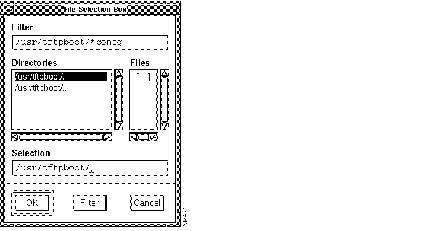
Step 4 If the configuration file exists in the current directory, click on the appropriate filename and click on OK or enter the filename in the Selection field and click on OK. If the configuration file is located in a different directory, specify the complete path and filename in the Path filter. Then click on OK.
The Configuration Management application will read the file, assign it a new version number and copy it to the database.
Files added to the database are assigned the next sequential version number and appear at the top of the list of existing versions in the Configuration Versions scroll window.
This section describes three methods used to edit a device configuration file:
| Caution When editing configuration files, do not delete lines because this may cause the configuration file to become corrupt. Instead, change parameters. For example, if you want a protocol enabled, do not delete the line containing the parameter. Instead, modify the parameter to show that the protocol is enabled. |
If you already have configuration files in a directory on your system, you can use the text editor to access a specific configuration file, edit it, and save it.
Use the Options>File to Database command in the Configuration Management window to transfer the new device configuration file to the CiscoWorks Sybase database. When this configuration file is added to the database, it can be loaded to a device you specify by using the Database to Device command.
To edit a configuration file that is currently loaded on a device, perform the following steps:
Step 1 Select Config Management.
On SNM, select Tools>Config Management.
On HP OpenView or NetView for AIX, select Administer>Cisco Devices>Configuration Management.
The Configuration Management window displays. (See Figure 1-2.)
Step 2 Select the appropriate device from the Devices scroll window in the Configuration Management window.
Step 3 Click on Database to Device to download the configuration file running on the device to the Sybase database.
Step 4 Select the latest configuration file from the Configuration Versions scroll window in the Configuration Management window.
Step 5 Click on Edit Config to open your text editor.
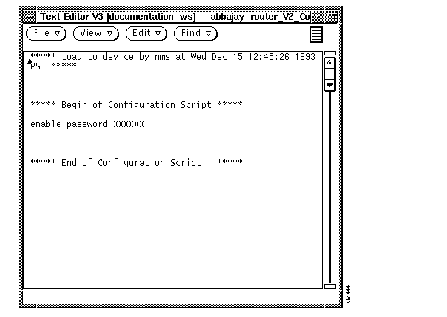
A copy of the current device configuration displays in the Text Editor window, similar to the one in Figure 1-4.
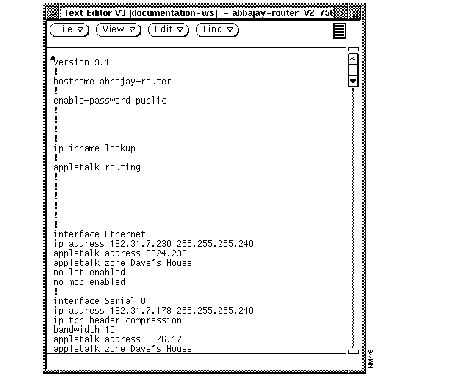
Step 6 Edit the file and save it by using the save command.
When you exit the editor, the edited configuration file is assigned the next sequential version number, added to the database, and displayed in the Configuration Versions scroll window. If you do not save the configuration file before you exit the editor, the file will be discarded and not saved.
Step 7 Close or exit the window using the Window menu.
Step 8 If you want to return this configuration file to the device, select the configuration file and click on Database to Device.
For more information on loading a configuration file to a device, refer to the section "Loading a Configuration File to a Device."
To edit a configuration file that currently exists in the CiscoWorks Sybase database, perform the following steps:
Step 1 Select Config Management.
On SNM, select Tools>Config Management.
On HP OpenView or NetView for AIX, select Administer>Cisco Devices>Configuration Management.
The Configuration Management window displays. (See Figure 1-2.)
Step 2 In the Configuration Management window, select a device in the Devices scroll window.
Step 3 In the Configuration Versions scroll window, select a version of the configuration file.
Step 4 Click on Edit Config to edit the selected configuration file.
Your text editor opens and reads the selected configuration file from the database and assigns a temporary filename to the file. (See Figure 1-4.)
Step 5 Edit the configuration file as your needs determine.
Step 6 Save the file using the save command.
When you exit the editor, the edited configuration file is assigned the next sequential version number, added to the database, and displayed in the Configuration Versions scroll window. If you do not save the configuration file before you exit the editor, it will be discarded.
Step 7 Close or exit the text edit window using the Window menu.
You can load a configuration file from the database to a device or from a device to the database. When a configuration file is loaded to a device, your original copy of the loaded configuration file is appended to the comments file associated with this configuration file. In addition, the configuration file that you download to the device can be written to the nonvolatile random-access memory (NVRAM) in the device. As a result, the existing configuration information in NVRAM of the device is replaced with the new configuration information. For detailed information on configuration information in NVRAM, refer to the Router Products Getting Started Guide. You can change the default option to write to NVRAM by selecting Options>NVRAM Properties and toggling the selection to Off.
Before a configuration file is loaded to a Cisco device, there are three critically important requirements:
For information on appropriate software release versions, refer to your Router Products Release Notes or contact your technical support representative.
Configuration files created or loaded by using the Configuration Management application can be used for Cisco devices running Software Release 8.2 or later.
Before a configuration file is downloaded to a device, the community string for the device must be specified as RW (ReadWrite). If the community string is ReadOnly (RO), a configuration file cannot be downloaded to a device. To verify the community string for a device, refer to "Modifying a Device" in Chapter 6. For details regarding router settings, refer to the Router Products Configuration and Reference publication.
In order for a new device to display in Configuration Management, or other CiscoWorks applications, you must run Sync w/Sybase and ensure that the new device name is included in the Domain Name System (DNS) database file or other name resolver such as NIS. Add a line similar to the following to the ensure that the IP address-to-host name mapping exists for the new router:
131.108.62.14 new_device.cisco.com new_device
Also ensure that the domain name in the Device Management window agrees with the name resolver domain, for example cisco.com.
When a configuration file is loaded from the database to a device, an image of the loaded configuration file can be saved in a TFTP boot file in the TFTP boot directory. If the device is down, you have the choice of retrieving the image of the configuration file from the TFTP boot directory that is defined in the /etc/syslog.conf file (usually /tftpboot or /usr/tftpdir); however, the TFTP boot directory may not provide a secure storage location because almost all users can access this directory. Therefore, you may want the boot file generation feature to be turned on.
By default, CiscoWorks does not enable the boot file generation feature in the TFTP boot directory, unless you activate it by editing the .Xdefaults file and turn it on.
To edit the .Xdefaults file, perform the following steps:
Step 1 To turn on the boot file generation, add the following line to the .Xdefaults file in your home directory.
*Bootfile:on
Step 2 Save the changes to the .Xdefaults file using the save command in your text editor.
Step 3 To write over the existing information in the .Xdefaults file, enter the following command at the UNIX command line:
xrdb -merge $HOME/.Xdefaults
After you create and add a configuration file to the database, you can load the configuration file from the database to the device, if the TFTP feature was already set up for your system. For instructions on setting up TFTP, refer to the CiscoWorks administration and installation guide.
To load a configuration file to a device, perform the following steps:
Step 1 Select Config Management.
On SNM, select Tools>Config Management.
On HP OpenView or NetView for AIX, select Administer>Cisco Devices>Configuration Management.
The Configuration Management window displays. (See Figure 1-2.)
Step 2 In the Configuration Management window, select a device in the Devices scroll window.
If the device name of your choice is not displayed in the Devices scroll window, enter the device name in the Device field next to Find and click on Find.
The device name will appear highlighted in the Devices scroll window.
Step 3 From the Configuration Versions scroll window, select a configuration version.
Step 4 If the configuration version of your selection is not displayed in the Configuration Versions scroll window, enter the version number on the blank line beside the Version Number field and click on Find.
The configuration version will appear highlighted in the Configuration Versions scroll window.
Step 5 Click on Database to Device.
A popup window appears with the following text: The upload operation will write the configuration to both RAM and NVRAM. Do you wish to load the configuration to the device?
Step 6 Click on OK to confirm your choice.
Or, click on Cancel if you do not want to load the configuration file to the device.
If you clicked on OK, the configuration file is loaded to the device, and the letter L will display to indicate that this configuration file was loaded to the device. When a configuration file is loaded to a device, the text file is called from the database and converted to a format appropriate to send to the device.
If this operation cannot be completed, a message appears stating that a file could not be created for the selected configuration. The most probable reason for this message is insufficient disk space available to conduct the process. If you suspect this is the case, adjust your memory allocation as required before attempting to repeat a load operation. For information on database memory allocation, refer to Chapter 8, "Database Administration." Other reasons for this problem may be that a disk error occurred; the link to the database failed; the community string in the device table is not enabled for ReadWrite; or the file was corrupted during the File to Database operation.
If a configuration file is loaded on a device, you can load that file to the database by selecting the device name from the Devices scroll window and clicking on Device To Database. This gets the configuration file from the device and copies it to the database.
When the configuration file is read from the device, it is assigned a new version number, added to the database as a machine record version, and listed at the top of the list of configurations in the Configuration Versions scroll window.
If you receive the following error message, "Confman error in device to Database. Unable to open peer," it may indicate a device name resolution problem. For information on fixing this error, refer to the section "IP Address-to-Host Name Mapping."
If problems still persist, check to see that you have the correct password and permissions to alter configurations on this device.
You can browse a configuration or comments file that is either loaded on a device or in the database.
To view a configuration or comments file from a device without making revisions, perform the following steps:
Step 1 In the Configuration Management window, select a device from the Devices scroll window.
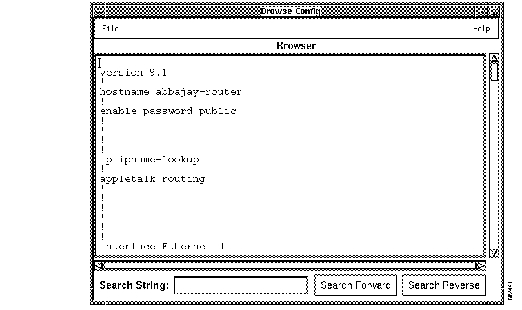
Step 2 To view the configuration file on the device, click on Browse Config.
A window similar to Figure 1-5 appears, displaying the appropriate configuration file for the device you chose.
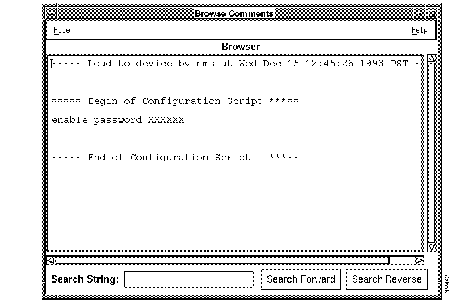
Step 3 To view the device comment file, click on Browse Comments.
A Browse Comments window similar to Figure 1-6 appears.
Step 4 To view a configuration file or comments file from the database, select a configuration from the Configuration Versions scroll window and then click Browse Config or Browse Comments.
A browse window containing the file you selected appears.
Step 5 To save a configuration file as a text file, from the Browse Config window, select File>Save As.
You can then extract the configuration file to other servers on the network.
Step 6 To scroll up or down in the file, click on either arrow in the scroll bar on the right.
Step 7 To locate a text string in the file, enter the text string in the Search field and click on Search Forward or Search Reverse.
Step 8 Close or exit the window using the Window menu.
When a configuration file is created for a device, it will also have a blank comments file associated with it. If the configuration file is loaded to the device, a copy of the original configuration file is appended to the comments file.
The maximum size of a comments file is 128 KB. It can be edited and used to record information about a configuration file. For example, you could add some comments on how a configuration file differs from other versions of the file, or specify the names of other devices that use identical versions of this configuration file. If you provide a brief history of the configuration file in this comments file, other users may find it useful to refer to the comments file for general information.
To edit a comments file associated with a configuration file, perform the following steps:
Step 1 In the Configuration Management window, from the Devices scroll window, select a device.
Step 2 From the Configuration Versions scroll window, select the configuration file.
Step 3 Click on Edit Comments.
This invokes your text editor and a window similar to Figure 1-7 appears with the comments file.
Step 4 Enter or change comments text as appropriate in the window.
Step 5 Save your comments using the appropriate command for your text editor.
Step 6 Close or exit the window using the Window menu.
You can delete configuration files from your database. When you accumulate several versions of configuration files in the database, you may want to delete older versions that you no longer use. Periodically, you can also free up disk space and reduce confusion by eliminating outdated configuration files in the database that are outdated.
To delete a device configuration file from the database, perform the following steps:
Step 1 In the Configuration Management window, from the Devices scroll window, select a device.
Step 2 From the Configuration Versions scroll window, select the configuration file.
Step 3 Click on Delete From Database.
A popup window with the following message: Do you want to delete this configuration? prompts you to confirm your action.
Step 4 To confirm the deletion, click on OK.
Or, if you do not want to delete this configuration file from the database, click on Cancel.
Configuration version numbers deleted from the database are not reassigned and will not appear again in the configuration version list.
If you try to delete a configuration loaded on a device (identified in Configuration Versions scroll window with the letter L), the following message appears: Could not delete the loaded version of the configuration file.
You cannot delete a configuration file that is marked as L (loaded), unless the file is the last configuration left in the database. This is a security feature of CiscoWorks. However, you can synchronize the information between the database and the actual device configuration.
Click on OK to cancel your request.
To obtain a new version of this configuration file, perform a device-to-database operation. To download the newer version of the file to the device, perform a database-to-device operation. The new version will be marked as L to indicate that it is the loaded file. Because the new version is marked L, you can now delete the previously loaded version of the configuration file.
The Configuration Management application enables you to compare the following:
In the Compare Configurations window, use the following descriptions to help you determine which files to compare:
 | Time Saver You do not need to load a device configuration in order to compare it with configuration files from the database. |
To compare the configuration file in a device with the configuration file in the database, perform the following steps:
Step 1 In the Configuration Management window, from the Devices scroll window, select a device.
Step 2 From the Configuration Versions scroll window, select the configuration file.
A configuration file that the database believes is loaded on a device will have the letter L displayed.
Step 3 Click on Compare Configs.
The Compare Configurations window appears. (See Figure 1-8.)
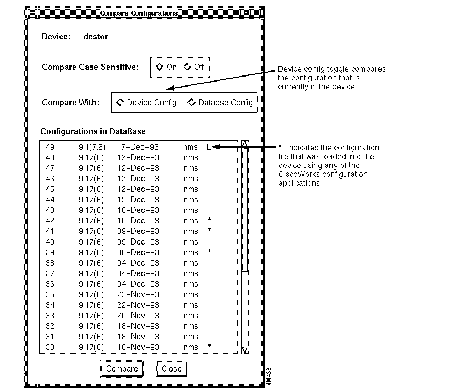
Step 4 If you want the comparison to include the differences between uppercase and lowercase letters, click On in the Compare Case Sensitive field.
Step 5 Click on Compare to perform the comparison.
CiscoWorks reads the configuration data from the device and compares it to the version stored in the database. The results of the comparison are presented as an exception list of line number comparison notations. (See Figure 1-9.) The comparison list shows the differences between the device and database configuration files, allowing you to quickly find any problems.
If there are no differences in the files selected, an Information Dialog window displays the following message: No differences were found in the two configurations.
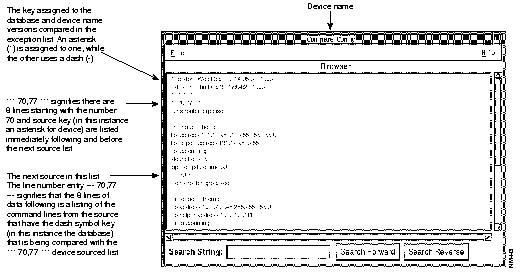
The compare function uses the diff command described in the UNIX documentation accompanying your workstation. For more information on diff, refer to the manual page on diff. In diff, operator characters are located in the left column and are in the form of !, *, +, and - . These operators tell you how to interpret the relationship between the two command strings. Table 1-3 describes three of these operators.
| Operators | Description |
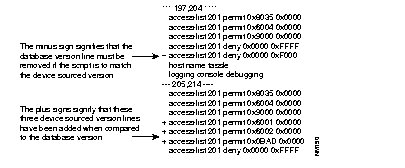
| ! | The line placement and function is the same in the database and device sourced versions, but the line has been modified. Both versions are in the exception list so you can compare them. In Figure 1-10, you can see that the addresses in lines 73 and 74 have been modified in the device named tassle's version. |
| + | The line has been added in the version configuration file, when compared to the other configuration file. In the database configuration file, a plus sign means the database version has command lines that the device configuration file version does not. Viewed from the device configuration file list side, a plus sign means the device version has a command line that does not exist in the database version. |
| -
| The line has been deleted in the version command file, when compared to the other configuration file. In the database command file, a minus sign means the database version does not have command lines that the device configuration file version does. Viewed from the device side, a minus sign means the device version is missing a command line that exists in the database version. |
| a | The line has been appended in the version command file, when compared to the other configuration file. In the database command file, a minus sign means the database version does not have command lines that the device configuration file version does. Viewed from the device side, a minus sign means the device version is missing a command line that exists in the database version. |
| d | Delete. After the line number preceding the d, delete the lines specified. |
The exception list in Figure 1-10 illustrates how you can clearly determine where command lines differ, in what way they differ, and to what extent.
If your database contains numerous configuration files for a device, you can compare two configuration files in the database for the same device. This feature is helpful if you revised a configuration file for a device and wish to compare the new configuration file with an older version.
To compare the configuration files in the database for a device, perform the following steps:
Step 1 In the Configuration Management window, from the Devices scroll window, select a device.
Step 2 Click on Compare Configs.
The Compare Configurations window appears. (See Figure 1-8.)
Step 3 In the Compare Configurations window, click on Database Config.
Step 4 Select the configuration file(s) you wish to compare by clicking on the file(s) in the Configurations in Database scroll window.
Step 5 If you want the comparison to include the differences between the uppercase and lowercase letters, click on On in the Compare Case Sensitive field.
Step 6 Click on Compare to perform the comparison.
CiscoWorks compares the versions of the configuration files that are stored in the database. The results of the comparison are presented as an exception list of line number comparison notations.
In addition to using the graphical-based Configuration Management window, you can use the nmconfig command at the UNIX command line to perform batch processing tasks. This section describes using the nmconfig command line interface to perform these tasks.
The nmconfig command parameters are described in Table 1-4.
| Parameter | Description |
|---|---|
| -l dirname | Specifies the directory to which nmconfig saves its results, in this case, the log directory. dirname is the path of the directory. If the directory does not exist, nmconfig flags an error and exits.1
If this parameter is not specified, the program will use $NMSROOT/log as the default log file directory. |
| -Uusername | Specifies the Sybase user account name. This is a required entry. (A space between -U and the username is mandatory.) |
| -Ppassword | Specifies the Sybase user account password. This is a required entry. (A space between -P and the password is mandatory.)
The default password is commonly NULL; you can specify -P only. |
| -i | Specifies the comparison to be case insensitive (or to ignore the difference between uppercase and lowercase characters). The default is case sensitive. |
| -m maillist | Specifies a list of email names or an address to whom the program will send the result summary file. The default is no mail. |
| -d device | Specifies a device name or a device list. Separate devices with a comma. Use the percent sign, %, as the wild card symbol. For example, -d z%,firewall. |
| -v | Prints current CiscoWorks version information. This must be the first argument; all other arguments are ignored. |
| -h | Prints help information. This must be the first argument; all other arguments are ignored. |
| -o | Specifies the configuration function option: Device To Database (getconf command) or Compare Configs (compare command). |
| -D or -g | Specifies the security domain for the device or device list. If not specified, the default World domain is used. |
| -dom | Internet domain name of the device or device list. Use this argument if you have devices in different Internet domain names. |
| -C cmdfile | A file containing the previous set of parameters. A cmdfile can be created with the above parameters and reused. The keyword options of this file follow: maillist, device, ignorecase, username, password, and logdir.
A sample file could include, but not be limited to, the following keywords: maillist = sybase, nms |
| -s community string | When you use this option, the community string you enter overrides the device community string. When you are loading a configuration file to a device, this temporary community string is sent to the device. |
The command line syntax of the nmconfig command follows:
nmconfig [-v] [-h] <-d device> <-U syb_user> <-P password> <-O option> <-D group>An example of the nmconfig command and the use of parameters follows:
nmconfig -dhq_device%-ssecret-l$NMSROOT/des-Dcw_domain-Ogetconf-Uusername-Ppassword
In this example, the nmconfig command selects a given device name list, mails the output to the user, places the log file in a specified directory, specifies a CiscoWorks domain, and specifies the getconf option. You must enter the Sybase username and password each time you run this command.
Using the nmconfig command, you can compare a current device configuration file with the version identified by the letter L in the Configuration Versions in Database window. As a result, any changes to the configuration file on the device can be immediately reviewed.
You can automate the comparison of the configuration files on a daily basis by adding the nmconfig command to the Global Command Scheduler application. The results of the comparison will indicate whether any changes occurred in the configuration file on the device. You can use the nmconfig command either with one device, a set of specified devices, or all devices listed in the database.
An example of the compare configuration nmconfig command follows:
nmconfig -ddevice-scommunity_string-llogdir-Dcw_domain-Ocompare-Uusername-Ppassword
Using the nmconfig command, you can get the current device configuration file and copy it to the log file using the -l option.
An example of the compare configuration nmconfig command follows:
nmconfig -ddevice-scommunity_string-llogdir-Dcw_domain-Ogetconf-Uusername-Ppassword
To automate nmconfig, you can use the Global Command Scheduler.
To add the nmconfig command to the Global Command Scheduler from the command line interface, enter the following:
nmscheduler -U cw_user_name -C "nmconfig -d device -s community_string -i -l dirname
-U username -P password -o option" -N MyGlobalCmd
To use a command file to add nmconfig command (or any command) to the Global Command Scheduler, enter the following:
nmscheduler -U cw_user_name -C "nmconfig -C /usr/tmp/MyCommandOptionsFile" -N MyGlobalCmd
For more information on the Global Command Scheduler, refer to the section "Scheduling a Command for Periodic Execution."
The nmconfig command generates three output files: the log file (nmconfig.log.XXXXX), the summary file (nmconfig.summary.XXXXX), the compare diff file (nmconfig.diff.XXXXX), and the configuration file, <device_name>.confg. XXXX stands for the process identification number or pid.
The log file captures messages indicating whether or not the configuration comparison between files matches or produces differences, if the device is unreachable, or if there are any other errors. The following is a sample log file:
******** Nmconfig Log File **************** Started : Thu Jul 21 11:46:22 1994---------- Reading Command File cmdfile---------- End of Reading Command File cmdfile---------- Input Arguments Sanity Check---------- End of Input Arguments Sanity Check--------------------------------------------------<bones.cisco.com>:Unable to compare config.Toolkit getting configuration error.Success of TFTP transfer is unverifiedPlease check system setupand community string.----------------------------------------------------------------------------------------------------<bones-con.cisco.com>:Unable to get loaded(L version) config from database.Database reading record error.No rows found in the DevConfHist table----------------------------------------------------------------------------------------------------<smith.cisco.com>:The loaded version of config isidentical to the current device config.----------------------------------------------------------------------------------------------------<backwall.cisco.com>:The loaded version of config isidentical to the current device config.----------------------------------------------------------------------------------------------------<zangbutt.cisco.com>:The loaded version of config isdifferent than the current device config.--------------------------------------------------
The summary file briefly lists the results of the configuration option performed.The following is a sample summary file:
	#Compare Device Configuration Summary
	#Started : Thu Jul 21 11:46:22 1994
	bones.cisco.com 	// Result: Other problems(see log file)
	bones-con.cisco.com 	// Result: Other problems(see log file)
	smith.cisco.com 	// Result: Identical
	backwall.cisco.com 	// Result: Identical
	zangbutt.cisco.com 	// Result: Different
The diff file displays the results of the configuration comparison between a loaded device and the database version. For an explanation of the diff file output, refer to the section "Comparing Configuration Files" earlier in this chapter. A sample diff file follows:
#Compare Result File
	#Started : Thu Jul 21 11:46:22 1994
	*** /tmp/confman1531/zangbutt	Thu Jul 21 11:46:49 1994
	--- /tmp/confman1531/zangbutt_Loaded	Thu Jul 21 11:46:47 1994
	***************
	*** 12,23 ****
	 !
	 !
	 !
	- vines routing 30039474:1
	 !
	 !
	 !
 	 !
	- !
	 interface Ethernet 0
	 ip address 131.108.165.71 255.255.255.0
	 no mop enabled
	--- 12,21 ----
	***************
	*** 24,33 ****
	 !
	 interface Serial 0
	 ip address 131.108.170.71 255.255.255.0
	! encapsulation X25
	! vines metric 35
	! x25 address 12
	! x25 map VINES 30015800:1 11 BROADCAST
	 !
	 !
	 router igrp 109
	--- 22,30 ----
	 !
	 interface Serial 0
	 ip address 131.108.170.71 255.255.255.0
	! encapsulation FRAME-RELAY
	! frame-relay map VINES 30011E7A:1 113 broadcast
	! frame-relay map IP 131.108.170.31 113 broadcast
	 !
	 !
	 router igrp 109
The following is an example of an email nmconfig sends once the program is finished:
	From: Joe Garlabeadaface <jgarlaface@cisco.com>
	Received: from localhost (jgarlaface@localhost) by jg-ss10.cisco.com (8.6		.5/8.6.5) id LAA01553 for joe; Thu, 21 Jul 1994 11:46:50 -0700
	Date: Thu, 21 Jul 1994 11:46:50 -0700
	Message-Id: <199407211846.LAA01553@joe-ss10.cisco.com>
	To: jgarlaface@cisco.com
	Subject: nmconfig is finished at Thu Jul 21 11:46:49 1994
	#Compare Device Configuration Summary
	#Started : Thu Jul 21 11:46:22 1994
	bones.cisco.com 	// Result: Other problems(see log file)
	bones-con.cisco.com 	// Result: Other problems(see log file)
	smith.cisco.com 	// Result: Identical
	backwall.cisco.com 	// Result: Identical
	zangbutt.cisco.com 	// Result: Different

The AutoInstall Manager application works in conjunction with the AutoInstall feature, which is built into every Cisco router. AutoInstall Manager enables you to perform autoinstall tasks remotely via the workstation running CiscoWorks. All control is exercised from a central site, which leverages your administrative resources.
The AutoInstall Manager application effectively creates a plug-and-play environment for installers and central staff, simplifying tasks without compromising full routing services at remote locations. Using AutoInstall Manager for serially connected routers, you need only enter a few pieces of information along with identifying the nearest router interface.
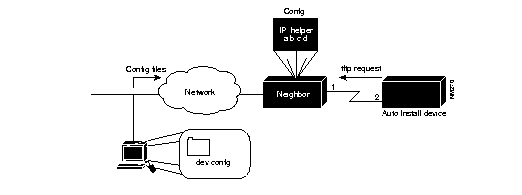
An overview of the AutoInstall Manager tasks to remotely deploy a new router follow:
or
Before proceeding with the AutoInstall Manager procedures, ensure that all the requirements listed in the following section "AutoInstall Manager Requirements" are followed.
For more information on the AutoInstall feature in the router software, refer to your router products documentation.
For AutoInstall Manager to work, the following requirements must be met:
There are two methods you can follow when using the AutoInstall Manager. An overview of the methods follows:
For more detailed instructions on how to perform an autoinstall of a Cisco device, continue to read the following sections. For a description of the NVRAM Properties option in the Configuration Management application, refer to the section "Loading a Configuration File to a Device," earlier in this chapter.
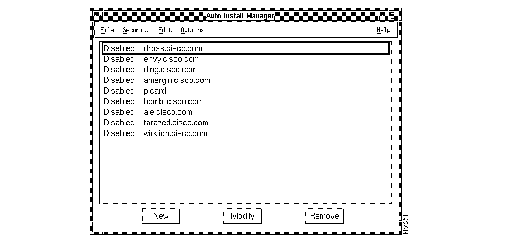
The AutoInstall Manager window should be viewed as a "to do" list. This to do list contains the devices that need to be installed or are in the process of being installed.
Figure 1-12 illustrates the AutoInstall Manager window. Table 1-5 describes its components.
| Component | Subcomponent | Description |
|---|---|---|
| File | Print
Exit | Prints a snapshot of the current window.
Exits the current window. |
| Security | Change Domain
Change User Privileges | Enables you to change your domain.
Enables you to change your username in order to access this application. Displays the current user's security privileges. |
| Edit | New
Modify Remove | Brings up a window where the user can define a new autoinstall device.
Brings up the selected device information in the Device Details window. Removes the selected device information from the autoinstall list. |
| Options | Enable
Disable | Performs the autoinstall procedure on the selected device.
Remove the device configuration from the /tftpboot directory. |
| Help | On Version
On AutoInstall Manager | Provides information on the application version.
Provides information on the current window. |
| Device list | Contains new device name and status of device (enabled or disabled). |
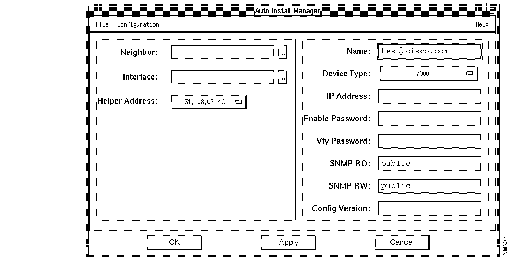
Figure 1-13 illustrates the AutoInstall Manager Device Details window. Table 1-6 describes its components.
| Component | Subcomponent | Description |
|---|---|---|
| File | Print
Close | Prints a snapshot of the current window.
Closes the current window. |
| Configuration | Create Default
File to Database | Creates a minimal configuration file to autoinstall into the new device.
Allows you to use an existing file from a UNIX directory to autoinstall into the new device. |
| Help | On Version
On AutoInstall Manager | Provides information on the application version.
Provides information on the current window. |
| Neighbor Device information | Neighbor | Choose the pick menu to pick from a list of device names. |
| Interface | Contains a list of possible interfaces for neighbor device. | |
| Helper Address field | Contains the IP address of the network management station. For multihomed workstations, you may choose the interface. | |
| New Device information | Name | Device name field. This specifies the name of the autoinstall device. |
| Device Type | Device type option menu. Includes support for the following device types: unknown, non-Cisco, Cisco-generic, CGS/MGS/AGS, IGS Generic, Terminal Server, Trouter, Protocol-translator, Cisco 3000, Cisco 4000, Cisco 7000, Cisco 2000, AGS+. | |
| IP Address | Contains the IP address serial interfaces. Is obtained automatically via SLARP. Read Only. | |
| Enable Password | The enable password for the device. | |
| Vty Password | The virtual terminal password for the device. | |
| SNMP RO
SNMP RW | Enables SNMP and defines the ReadWrite and ReadOnly community strings for the device. | |
| Config Version | Current version number in the device. | |
| OK | Saves the data to the database and closes the window. | |
| Apply | Saves the data to the database and leaves the window open. | |
| Cancel | Closes the window without saving the changes. |
Before you can deploy a new router from the CiscoWorks workstation, you need to ensure the following tasks are completed by the remote installer:
These actions do not need to occur before you perform these procedures, but need to happen for the autoinstall of the device to occur.
To add new autoinstall device data, perform the following steps:
Step 1 Select AutoInstall Mgr.
On SNM, select Tools>AutoInstall Mgr.
On HP OpenView or NetView for AIX, select Administer>Cisco Devices>AutoInstall Mgr.
The AutoInstall Manager window appears. (See Figure 1-12.)
Step 2 Click on New.
A Devices selection window displays.
Step 3 Select a device name from the scroller or enter your own device name, then click on OK.
The new device name appears in the AutoInstall Manager window as a disabled device. If the device does not appear in the scroller, run the Sync w/Sybase application to add the new device to the database.
Step 4 From the AutoInstall Manager window, select the device and click on Modify.
The AutoInstall Manager Device Details window appears. (See Figure 1-13.) The new device name appears in the Name field.
Step 5 To select the type of device you are autoinstalling, click on the option menu for the device Type field.
An option menu appears displaying the supported Cisco devices. If the device type does not appear on this list, CiscoWorks is unable to tell the difference between devices in the same platform series (for example, the Cisco 3000 and Cisco 2500). Use your NMS to reset the device type if it is incorrect. On SNM, use the Change Type command. On HP OpenView or NetView for AIX, use the Change Object command.
Step 6 Click on a device type.
Step 7 Define the nearest neighbor device by clicking on the pick menu for the Neighbor field.
Step 8 Select the device name from the pick menu and click on OK.
The neighbor device must have the correct Cisco device icon. Use your NMS to reset the device type if it is incorrect. On SNM, use the Change Type command. On HP OpenView or NetView for AIX, use the Change Object command.
Step 9 Define the interface of the neighbor device by clicking on the pick menu for the Interface field.
Step 10 Select one of the serial interface names from the pick menu and click on OK.
After you select the interface, the IP Address field is automatically entered by the AutoInstall Manager. If you do not select an interface name, you cannot manually enter the IP address field since it is ReadOnly.
Step 11 From the option menu, select the helper address from the list of interfaces on the network management station.
Step 12 Define all additional attributes for this new device, such as SNMP community strings and enable and VTY passwords, by entering the data into the appropriate fields.
Step 13 To send this information to the database and keep the window open, click on Apply. To send this information to the database and close the window, click on OK. To close the window without saving the changes, click on Cancel.
To complete the autoinstall procedure, continue to the next section, "Choosing a Configuration File for AutoInstall Manager."
Before you can choose a configuration file for your new autoinstall device, you need to complete the steps in the section "Adding New AutoInstall Device Data."
There are two ways you can define a configuration file for your new router:
Procedures for defining a configuration file follow.
The minimal configuration file allows you to Telnet to the device and perform SNMP queries.
To create a default configuration file, perform the following steps:
Step 1 From the Configuration menu on the AutoInstall Manager Device Details window, select Create Default.
A minimal configuration file is created for the new device and is stored in the database.
The default configuration file consists of the following information:
device_name>
device_name>
secret
public RO
public RW
mypasswd
mypasswd
Step 2 To send this information to the database and keep the window open, click on Apply. To send this information to the database and close the window, click on OK. To close the window without saving the changes, click on Cancel.
You are ready to enable the autoinstall feature on the device from the AutoInstall Manager window. To complete the procedure to autoinstall your new device, refer to the section "Enabling a New Device Using the Enable Command."
You can select a configuration file you want to load into the new router and store it in the database. You access the configuration file through the File to Database option in AutoInstall Manager. AutoInstall Manager copies the selected configuration file into the database to load into the new device.
To select a configuration file, perform the following steps:
Step 1 From the Configuration menu on the AutoInstall Manager Device Details window, select File to Database.
A file selection window displays.
Step 2 Select the file you want to autoinstall into the new Cisco device and click on OK.
Step 3 To send this information to the database and keep the window open, click on Apply. To send this information to the database and close the window, click on OK. To close the window without saving the changes, click on Cancel.
The AutoInstall Manager looks for the enable password, vty password, and community strings for this device, and updates the configuration file in the Config Version field by incrementally added one to the existing version number.
You are ready to enable the autoinstall feature on the device from the AutoInstall Manager window. To complete the procedure to autoinstall your new device, refer to the section "Enabling a New Device Using the Enable Command."
Enabling a device performs the following procedures:
By performing autoinstall with a minimum configuration file in the device, you can now Telnet and get SNMP information from the new device.
To enable a new Cisco device and complete the autoinstall procedure, perform the following steps:
Step 1 From the AutoInstall Manager window, select a device by clicking on the device name in the scroll window.
Step 2 Select Options>Enable.
If the configuration file cannot be transferred, the following error message displays: Toolkit loading configuration error. Success of TFTP transfer is unverified.
If the enable command is successful, the device will display the word Enable next to it in the AutoInstall Manager scroll window.
Step 3 Contact the remote site and request they power on the device.
After the device is turned on, you will be able to monitor using CiscoWorks or your NMS applications. On SNM, if you use the Device Monitor, its daemon reports that the device is up and the device icon status will change. On HP OpenView or NetView for AIX, if you select the options in the event browser, the browser will receive the signal to monitor the new Cisco device.
After you confirm that the Cisco device is operational, we recommend you remove the device from the AutoInstall Manager "to do" list. Removing the device performs the following functions:
To remove your new autoinstalled device from the AutoInstall Manager application, perform the following steps:
Step 1 From the AutoInstall Manager window, select the device you want to remove by clicking on the device name.
Step 2 Click on Remove to remove the device.
A confirmation window displays.
Step 3 To remove the device, click on OK. To cancel your request, click on Cancel.
If you select OK, the configuration file of the device, <device_name>.confg, is removed from the TFTP boot directory.
Step 4 To write the configuration file to the nonvolatile memory (NVRAM) of this device, continue with the following steps. If you do not want to save the file to NVRAM, skip the rest of these steps.
Step 5 Select Config Management.
On SNM, select Tools>Config Management.
On HP OpenView or NetView for AIX, select Administer>Cisco Devices>Configuration Management.
The Configuration Management window displays. (See Figure 1-2.) You may also choose to use the Configuration Snap-In Manager application.
Step 6 Select Options>NVRAM Properties.
The NVRAM Properties window displays.
Step 7 Click on On to enable the database to device write memory command.
Step 8 Click on Done.
Step 9 Select the new device from the Devices list in the Configuration Management window.
Step 10 Select the configuration file to write to NVRAM.
Step 11 To write this configuration file to the device's NVRAM, click on Database to Device.
You have completed the autoinstall procedure. If you want to clean up any remnants of the autoinstall procedure, continue to the next section. This is an optional step.
For information on what to do next, refer to section "Where to Go After the AutoInstall Is Complete."
The disable process cleans up the remnants of the autoinstall process. You can also disable the device if you are in the process of autoinstalling a new device and cannot complete the procedure.
Disabling the device performs the following:
To disable the device from the AutoInstall Manager application scroll window, perform the following steps:
Step 1 From the AutoInstall Manager window, select the device you want to disable by clicking on the device name.
Step 2 Select Options>Disable.
The device is disabled and is removed from the TFTP boot directory.
Step 3 Select File>Exit to exit the AutoInstall Manager window.
For information on what to do next, refer to the following section, "Where to Go After the AutoInstall Is Complete."
After the new device has been autoinstalled, you have several tasks to complete to ensure you can successfully manage your new Cisco device.
To completely manage this new device within CiscoWorks, you can perform the following tasks:
The software management set of applications consist of three applications that assist it in managing system software and microcode in Cisco routers via the CiscoWorks network management workstation. The trio of applications that perform software management are described following.
These applications enable you to upgrade software and microcode images for routers with run-from- Flash and run-from-RAM capabilities which include the following routers: Cisco 2500, 3000, AGS+, Cisco 4000, Cisco 7000, CGS, and MGS routers.
There are three applications that perform software management include: Software Library Manager, Software Inventory Manager, and Device Software Manager. These applications work together to manage the system software and microcode in Cisco routers. For more details on each application, read the following sections.

The Software Library Manager application enables you to perform the following tasks:

The Software Inventory Manager application enables you to perform the following tasks:

The Device Software Manager application enables you to perform the following tasks:
For any of the software management applications to work, the following software and hardware requirements must be met:
| Cisco Router Type | Router System Software Requirement |
|---|---|
Cisco 2500 | Software Release 9.14(4)-9.14(8) or later |
| Cisco 3000 | Software Release 9.1(7.5) or later |
| Cisco AGS+ | Software Release 9.1(7.5) or later |
| Cisco 4000 | Software Release 9.14(3.4) or later |
| Cisco 7000 | Software Release 9.17(5.2) or later |
| All Cisco routers (collection of Cisco 3000, Cisco 4000, Cisco 7000, or AGS+ routers) | Software Release 9.21(0.26) or later or 9.1(8) or later |
| Cisco 7000 routers on which you want to perform microcode upgrades | Software Release 9.17(5.2) or later; 9.21(0.32) or later |
The Software Library Manager and Device Software Manager applications require at least 6 MB (6144 KB) of free space for the /tmp directory and 6 MB (6144 KB) of free space for the TFTP directory. The TFTP directory name is dependent on which type of workstation you are using. For HP UNIX workstations, the default TFTP directory is /usr/tftpdir. For Sun workstations, the default TFTP directory is /tftpboot.
To confirm that your system meets the minimal requirements, perform the following steps:
Step 1 Enter one of the UNIX commands to determine the amount of available disk space on your workstation:
For HP UNIX workstations, enter:
% bdf
For Sun workstations, enter:
% df /tmp </tftpboot>
A list of the files on your system and the corresponding available space, similar to the following, will appear:
Step 2 Confirm that you have at least 6 MB (6144 KB) of available space for /tmp and 6 MB free space for the TFTP boot directory.
If, for example, both /tmp and the TFTP directory are in the same partition, (for example, the root or /), you need at least 12 MB (12,288 KB) of free space on that file system.
Step 3 If you do not have enough space in the file system, you must find another partition that has enough space and make a symbolic link from that partition to /tmp or the TFTP directory.
Contact your UNIX system administrator or your UNIX manuals for instructions on making a symbolic link.
Step 4 Depending on what you are currently running on your system, if you change the /tmp location, you may need either to reboot your system or to restart your NMS.
The Device Software Manager application determines which device it is upgrading and then performs the following checks to ensure the image transfer is accurate:
The sequence followed for boot system configuration follows:
There are several windows that are used to perform software management:
The software management window descriptions follow.
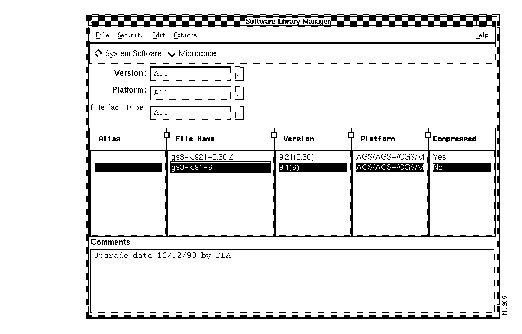
Figure 1-14 illustrates the Software Library Manager window. Table 1-8 describes its components.
| Component | Subcomponent | Description |
|---|---|---|
| File | Import from File
Import from Disk Import from Flash Exit | Enables importing from any UNIX directory.
Enables importing from a Cisco PC diskette. (Sun workstations only) Enables importing from the Flash memory of a device. Prints a snapshot of the current window. Exits the current window. |
| Security | Change Domain
Change User Privileges | Enables you to change your domain.
Enables you to change your username in order to access this application. Displays the current user's security privileges. |
| Edit | Delete
Edit Comments | Removes a selected device image.
Enables you to associate comments to software images. |
| Options | Software Inventory Manager | Opens the Software Inventory Manager window. |
| Help | On Version
On Software Library Mgr | Provides information on the application version.
Provides information on the current window. |
| System Software/Microcode Toggle | Selects the type of image you plan to load to the Cisco device. | |
| Version | Pick menu to select a Cisco image version. | |
| Platform | Pick menu to select a Cisco device platform. | |
| Interface Type | Pick menu to select an interface on the device. | |
| Spreadsheet Scroller | Alias | User-given name for the Flash configuration file. |
| File Name | Current file loaded into the Flash memory of the device. | |
| Version | Current software version on Flash memory. | |
| Platform | Current Cisco device platform. | |
| Compressed | Current status of software image. | |
| Comments | User notes about configuration file or device. |
You may need to import system or microcode images into CiscoWorks when you upgrade your Cisco devices. Image filenames cannot be changed.
| Caution Do not attempt to change the Cisco release image file names when importing into CiscoWorks, because it will cause application errors. Also, do not attempt to upgrade without software images present in the Software Library Manager. |
There are three ways to import these images:
Procedures for importing images follow.
To import a file from the UNIX directory, perform the following steps:
Step 1 Select Software Library Mgr.
On SNM, select Tools>Software Library Mgr.
On HP OpenView or NetView for AIX, select Administer>CiscoWorks Software Images>Software Library Mgr.
The Software Library Manager window displays. (See Figure 1-14.)
Step 2 Select File>Import from File.
The File Selection window displays. (See Figure 1-15.)
Step 3 To select the directory from which to import the system image, enter your directory path in the Filter field and press Return.
It may be easier for you to work consistently in one directory when upgrading images. We recommend that you create a directory that will contain your system and microcode images.
Step 4 Select the filename in the Files scroll window.
| Time Saver To save time, enter the directory and filename in the Selection field and click on OK. |
Step 5 Click on OK.
This action causes your image to be checked into the CiscoWorks database. The file information should now be displayed in the Software Library Manager window.
Step 6 When you are finished with the File Selection window, click on Cancel to close the window.
This task can be completed on a Sun workstation only. If you are using an HP-UX or RSC/6000 machine to import a file from a PC diskette, transfer the file to a UNIX directory that is accessible from the network and follow the instructions in the section "Importing From the UNIX File Directory" to import the file.
To import a file from a PC diskette, perform the following steps:
Step 1 Select Software Library Mgr.
On SNM, select Tools>Software Library Mgr.
On HP OpenView or NetView for AIX, select Administer>CiscoWorks Software Images>Software Library Mgr.
The Software Library Manager window displays. (See Figure 1-14.)
Step 2 Select File>Import from Disk.
The Install window displays. (See Figure 1-16.) The fdinstall program automatically fills in the text fields with the defaults for your floppy drive, the diskette directory where your images are stored, and the path for $NMSROOT/software.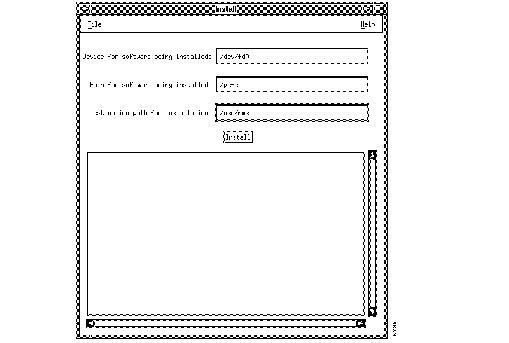
Step 3 Ensure the text field entries on the Install window are accurate. If they are inaccurate, change the text entry.
Step 4 Insert your diskette into the floppy drive of your network management platform workstation.
Step 5 To view the README text information associated with the image on this diskette, click on Install.
CiscoWorks uses the PC NFS software to display the README information of the image file and copies this image to the CiscoWorks database. If the image is stored on more than one diskette, you will be prompted to insert any additional diskettes. The image filename should display in the Software Library Manager window.
Step 6 To exit the Install window, select File>Exit.
To import a file from the Flash memory on a router, perform the following steps:
Step 1 Select Software Library Mgr.
On SNM, select Tools>Software Library Mgr.
On HP OpenView or NetView for AIX, select Administer>CiscoWorks Software Images>Software Library Mgr.
The Software Library Manager window displays. (See Figure 1-14.)
Step 2 Select File>Import from Flash.
The Import Flash window displays. (See Figure 1-17.)
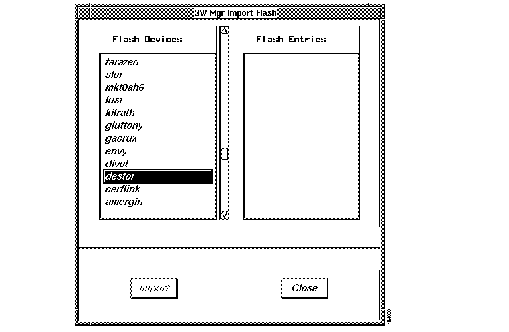
Step 3 Select a device from the Flash Devices scroll window.
The Flash device entries will display in the Flash Entries scroll window.
Step 4 Select a system software or microcode entry from the Flash Entries scroll window.
Step 5 To import the Flash entry into the database and update the Software Manager window, click on Import.
Step 6 To exit the Import Flash window, select File>Close.
To view or sort file image information in Software Library Manager, perform the following steps:
Step 1 From the Software Library Manager window, select the type of image you wish to view by selecting System Software or Microcode.
Step 2 To limit the version information you want to view, select the Versions pick menu and select your version number.
The files in the spreadsheet scroller update dynamically as you focus your search.
Step 3 To limit the platform information you want to view, select the Platform pick menu and select the platform type.
The files in the spreadsheet scroller update dynamically as you focus your search.
Step 4 To limit the interface type information you want to view, from the Interface Type pick menu, select an interface.
The files in the spreadsheet scroller update dynamically as you focus your search.
To edit image information such as comments and aliases, perform the following steps:
Step 1 From the Software Library Manager window, select which type of image you want to edit (System Software or Microcode).
Step 2 Select a filename in the spreadsheet scroller.
Step 3 To edit comments, select Edit>Edit Comments.
A generic text editor window displays.
Step 4 Add new or modify the existing comments.
Step 5 Save the file using the save command in the editor.
The new comments display in the Comments text field in the Software Library Manager window.
Step 6 To edit an alias, select the alias name and enter the new alias over the old alias name.
The Software Library Manager window contains a view of the Software Library Manager records in the database. The CiscoWorks database is referred to as the master storage area for the system software and microcode files.
To delete image files from master storage, perform the following steps:
Step 1 From the Software Library Manager window, select the type of image you want to edit (System Software or Microcode).
Step 2 Select a filename from the spreadsheet scroller.
Step 3 Select Edit>Delete.
The file is deleted from the CiscoWorks database and is removed from the Software Library Manager window.
After you finish adding new software or microcode images into master storage, you can determine what your current device and associated software inventory looks like. Viewing current software in devices gives you an idea of which devices need to be upgraded. To ensure that you are viewing the most current device software, you must update the inventory list in Software Inventory Manager.
The Software Inventory Manager application uses two separate methods to decide how to proceed with the upgrade of your Cisco devices. The method CiscoWorks uses depends on what Cisco device you are upgrading.
For run-from-Flash devices, such as the Cisco 2500 and Cisco 3000, the Software Inventory Manager invokes an upgrade procedure. For run-from-RAM devices, the application invokes the Device Software Manager application which allows you to select the software or microcode you wish to upgrade and takes you to the Software Image Update window to complete the upgrade.
Figure 1-18 illustrates the Software Inventory Manager window. Table 1-9 describes its components.
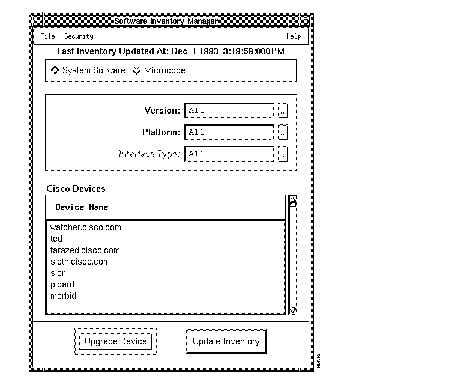
| Component | Subcomponent | Description |
|---|---|---|
| File | Print
Exit | Prints a snapshot of the current window.
Exits the current window. |
| Security | Change Domain
Change User Privileges | Changes your current domain to another domain.
Changes your username in order to access this application. Displays the current user's security privileges. |
| Help | On Version
On Software Inventory Manager | Provides information on the application version.
Provides information on the current window. |
| Timestamp | Last Inventory Update | Date and time the Software Inventory Manager was synchronized to the database. |
| System Software/Microcode Toggle | Selects the type of image you plan to load to the Cisco device. | |
| Version | Pick menu to select a Cisco image version. | |
| Platform | Pick menu to select a Cisco device platform. | |
| Interface Type | Pick menu to select an interface on the device. | |
| Cisco Devices list | Device Name scroll window | Lists devices that correlate the options selected. |
| Upgrade Device | Upgrade device software after a device has been selected. | |
| Update Inventory | Update the Sybase database to include current devices in the Software Inventory Manager. |
To sort device information by platform and software image, perform the following steps:
Step 1 From the Software Inventory Manager window, select the options you plan to update. To select the image type, click on either the System Software or Microcode toggle button.
Step 2 To select the versions, click on the Versions pick menu and select the release version to view from the window.
The device list in the window updates automatically to display devices with the selected version.
Step 3 To select the platform, click on the Platform pick menu and select the Cisco device platform.
The device list in the window updates automatically to display devices with the selected platform.
Step 4 To view the sorted devices, click on the scroll bar to move around the device list.
If devices are added to the network, they may not appear in the CiscoWorks database unless you have used the Sync w/Sybase application. You can update new or modified device information from the Software Inventory Manager application to ensure all devices appear in the window.
To update device information from the Software Inventory Manager window, perform the following steps:
Step 1 Select Software Inventory Mgr.
On SNM, select Tools>Software Inventory Mgr.
On HP OpenView or NetView for AIX, select Administer>CiscoWorks Software Images>Software Inventory Mgr.
You can also start this application from the Software Library Manager application menu. The Software Inventory Manager window appears. (See Figure 1-18.)
Step 2 To add any new devices that the CiscoWorks database may not yet know about, click on Update Inventory.
A window confirming the request to update this device using Sync w/Sybase displays.
Step 3 Click on OK to update the device in the Software Inventory Manager.
If the Cisco device or software does not appear in the Software Management suite of applications, check to see if one of the following problems exits:
To update a device using the Software Inventory Manager, perform the following steps:
Step 1 Before you can upgrade a device, select the device you plan to update.
Step 2 Select Software Inventory Mgr.
On SNM, select Tools>Software Inventory Mgr.
On HP OpenView or NetView for AIX, select Administer>CiscoWorks Software Images>Software Inventory Mgr.
You can also start this application from the Software Library Manager application menu. The Software Inventory Manager window appears. (See Figure 1-18.)
Step 3 To select the image type, click on either the System Software or Microcode toggle button.
Step 4 Click on the Versions pick menu and select the release version of the device to view from the window. If you do not know the version, use the default All.
Step 5 From the Platform pick menu, select the Cisco device platform. If you do not know the platform, use the default All.
Step 6 From the Interface Type pick menu, select the interface.
Step 7 In the Device Names scroll window, click on the device name.
If the device you want to upgrade does not appear in the list, perform the procedure in the previous section "Updating Device Information to View Current Database Devices."
Step 8 To update the software in this device, click on Upgrade Device.
Depending on which Cisco device you are upgrading, the application chooses an upgrade method. If the image name is unrecognizable, the application displays a message: Unable to identify image name from system description string. Run-from-Flash verification failed. Is <device_name> currently running image from Flash? Select Yes or No.
If you are upgrading a Cisco run-from-Flash device, the upgrade is performed using the ROM monitor mode and the Flash Image Manager. If you are upgrading a Cisco run-from-RAM device, the Device Software Manager window displays and performs the upgrade using NVRAM. If CiscoWorks cannot access the device software you selected, you will receive an error message.
Step 9 Continue to the following section "Upgrading the System Image on a Cisco Device" to complete the upgrade.
The Device Software Manager application uses two separate methods to upgrade Cisco devices. The method CiscoWorks uses depends on what Cisco device you are upgrading.
For run-from-Flash devices, such as the Cisco 2500 and Cisco 3000, the Device Software Manager takes you through an upgrade procedure. The run-from-Flash upgrade is supported on the Sun, HP, and RSC/6000 platforms. For run-from-RAM devices, the application allows you to select the software or microcode you wish to upgrade and takes you to the Software Image Update window to complete the upgrade.
To complete your Cisco device upgrades, refer to the following sections "Upgrading Cisco Run-From-Flash Devices" or "Upgrading Cisco Run-From-RAM Devices."
The Flash Image Manager application upgrades Cisco run-from-Flash devices using the Flash Image Manager window.
Figure 1-19 illustrates the Flash Image Manager window. Table 1-10 describes its components.
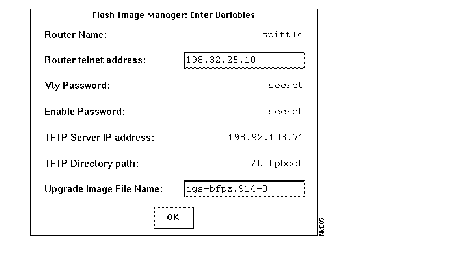
| Component | Description |
|---|---|
| Router Name | Run-from-Flash device to be upgraded. Enter the hostname without the domain name extension. |
| Router Telnet Address | Run-from-Flash device IP address. |
| Vty Password | Run-from-Flash device line password. |
| Enable Password | Run-from-Flash device enable password. |
| TFTP Server IP Address | Boot file server IP address. This is the workstation on which the rxbmgr command runs. |
| TFTP Directory Path | Boot file directory location. On Sun and RSC/6000 platforms, the default is /tftpboot. On HP-UX, the default is /usr/tftpdir. |
| Upgrade Image File Name | Cisco Internetworking Operating System (IOS) image name for Cisco 2500 or 4000 devices. |
| OK button | Backs up the existing router configuration and software image to the TFTP server and starts the upgrade process. |
After the Software Inventory Manager invokes the Flash Image Manager window, perform the following steps to upgrade your run-from-Flash device:
Step 1 Enter the required device information into the Flash Image Manager: Enter Variables window and verify the read-only information.
Use the device hostname without the domain name extension if a router name entry is required. If all the information is present, continue to the next step. If all the information is present, continue to the next step. If you are missing information, Telnet to the device and retrieve the data using the appropriate commands.
Note that an icon representing a journal or log also appears when the Flash Image Manager window first appears. This icon will open after you click on OK in the next step.
Step 2 To back up the existing router configuration and software image to the TFTP boot directory, click on OK.
The Flash Image Manager Journal icon opens and the Flash Image Manager: Journal window appears. (See Figure 1-20.)
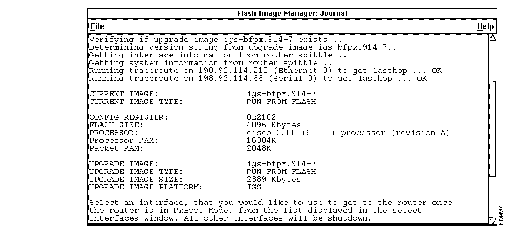
The Flash Image Manager also displays a window to select an interface. (See Figure 1-21.)
Step 3 From the Flash Image Manager: Select Interface window, select an interface on the run-from-Flash device which will be used to download the image. (See Figure 1-21.)
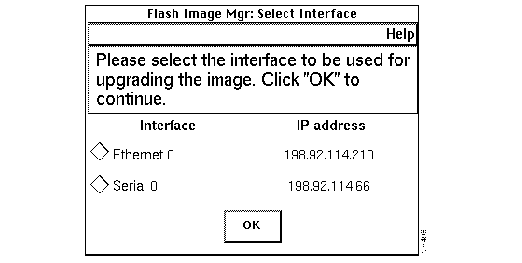
Step 4 If you select a Serial interface, click on OK to confirm your choice.
or
If you selected an Ethernet or Token Ring interface, ensure you have connectivity to the device and click on OK to continue.
After you click on OK, a window similar to the following appears. (See Figure 1-22.)
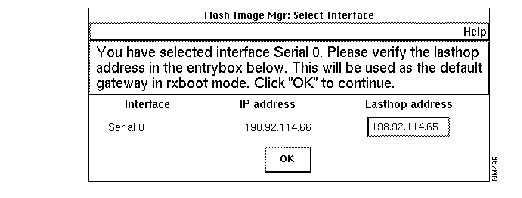
Step 5 Enter the last-hop address in the entry box provided in the window (Figure 1-22).
This address will be used to set the IP default gateway on the remote router.
Step 6 When you click on OK, the device configuration and current image is backed up. Output similar to the following will display in the Flash Image Manager: Journal window. (See Figure 1-23.)
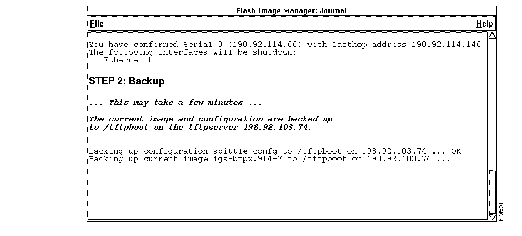
After the backup is complete. The upgrade process starts. Output similar to the following displays in the Flash Image Manager: Journal window. (See Figure 1-24.)
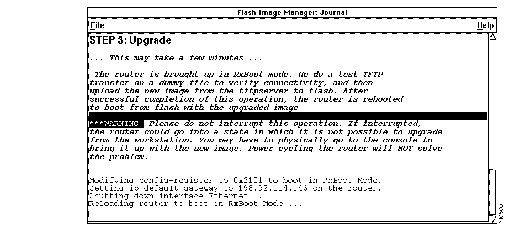
After the upgrade is complete the configuration file is restored to the router. Output similar to the following displays in the Flash Image Manager: Journal window. (See Figure 1-25.)
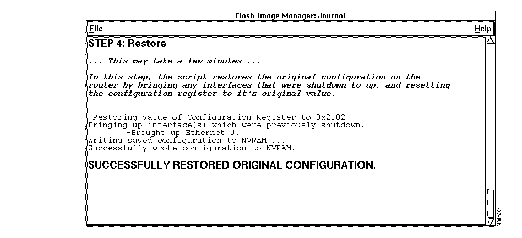
After the upgrade completes, a message displays informing you the upgrade was successful.
The Device Software Manager application upgrades Cisco run-from-RAM devices.
Figure 1-26 illustrates the Device Software Manager window. Table 1-11 describes its components.
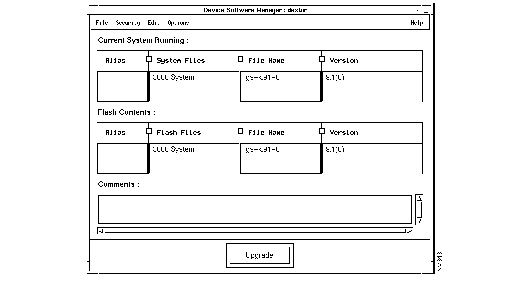
| Component | Subcomponent | Description |
|---|---|---|
| File | Print
Exit | Prints a snapshot of the current window.
Exits the current window. |
| Security | Change User
Privileges | Changes your username in order to access this application.
Displays the current user's security privileges. |
| Edit | Comments | Allows you to enter comments about this configuration file. |
| Help | On Version
On Device Software Manager | Provides information on the application version.
Provides information on the current window. |
| Current System Running | Aliases | User-given name for the configuration file. |
| System Files | Device system platform designation. | |
| File Name | Current file loaded into the device. | |
| Version | Current software version in the device. | |
| Flash Contents | Aliases | User-given name for the flash configuration file. |
| Flash Files | Device system platform designation. | |
| File Name | Current file loaded into the flash memory of the device. | |
| Version | Current software version on Flash memory. | |
| Comments | User notes about configuration file or device. | |
| Upgrade Device | Opens the Software Image Upgrade window. | |
| Update Inventory | Updates the device information in the database. |
To upgrade the system image on a Cisco run-from-RAM device, perform the following steps:
Step 1 From the Device Software Manager window, select the software or microcode you want to upgrade on this device by clicking on the current system software or the Flash contents.
You can access the Device Software Manager window through the Software Inventory window or the Glyph menu.
Step 2 To upgrade comments with this image, select Edit>Comments.
Enter your comments in the Comments scroll window.
Step 3 To perform the upgrade on this device, click on Upgrade.
Depending on which Cisco device you are upgrading, the application chooses an upgrade method. If the image name is unrecognizable, the application displays a message: Unable to identify image name from system description string. Run-from-Flash verification failed. Is <device_name> currently running image from Flash? Select the appropriate response.
If you are upgrading a Cisco run-from-Flash device, the upgrade is performed using the ROM monitor mode and the Flash Image Manager. If you are upgrading a Cisco run-from-RAM device, the Device Software Manager window displays and performs the upgrade using NVRAM. If CiscoWorks cannot access the device software you selected, you will receive an error message.
The Software Image Update window appears. (See Figure 1-27.)
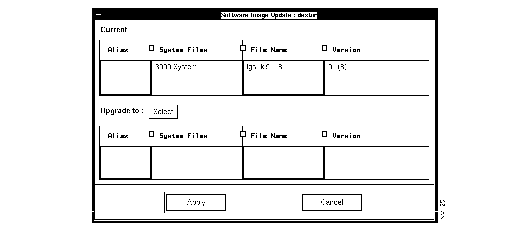
Step 4 Select a current software filename which will be loaded to upgrade this device by clicking on a filename in the Current panel.
Step 5 To see the available software that you can upgrade on this device, click on Upgrade to Select.
The Available Software window displays. (See Figure 1-28.)
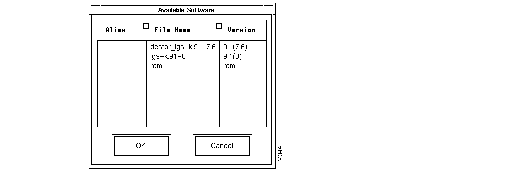
Step 6 Select the software image you want to load onto your device and click on OK.
The Software Image Update window updates and displays the name of the software image you will load onto your device.
Step 7 Click on Apply to begin the upgrade procedure.
The Device Software Manager attempts to upgrade the software. For more information on how the Device Software Manager works, refer to the section "How Device Software Manager Works" earlier in this chapter.
Step 8 If a popup window appears with a message asking you to confirm the configuration register change or a Flash memory erase, click on OK to proceed with the upgrade.
If you choose to erase the contents of Flash memory, Device Software Manager attempts to back up a copy if the system image is not in the database or if the software is not currently in Flash memory. This is the only backup of the old system image.
If you choose to cancel the requested changes by clicking on Cancel, the Device Software Manager exits the upgrade procedure. You may be required to perform the steps in this procedure again because Device Software Manager requires configuration register settings and Flash memory space in order to complete its task.
If you chose to proceed with the upgrade, the next message that displays requests a confirmation of the device reload.
| Caution Device reload temporarily disables communication to a device. This process may take up to 5 minutes. |
Step 9 To continue with the system software image upgrade and start the device reload, click on OK in the popup window.
Device Software Manager reloads the system software image and updates the window with the new image information.
If the reload was not successful, an error message displays.
To update comments or alias information for a device, perform the following steps:
Step 1 From the Device Software Manager window, select a device by double clicking on the device name.
Step 2 Select the filename or version for which you want to update information.
Step 3 To add comments information, move your cursor into the Comments box and enter the comments you desire.
Step 4 To change the alias, click on the alias name and reenter the new name.
| Caution Be aware that if you upgrade CiscoWorks, the comments field of the Software Manager application will be cleared. To preserve the comments prior to upgrading, you need to develop and maintain a separate log. |

The Global Command Manager application automatically schedules tasks such as backing up your database, purging log files, and running CiscoWorks applications during off-hours. The Global Command Scheduler application allows you to schedule these routine administrative tasks to occur during off-peak hours to maximize your network performance.
Figure 1-29 illustrates the Global Command Manager window. Table 1-12 describes its components.
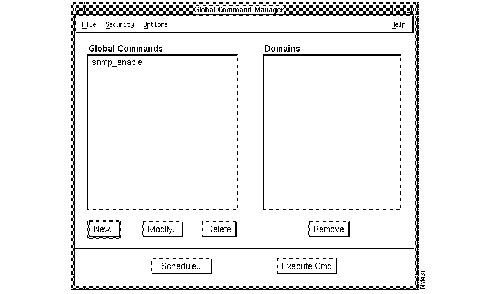
| Component | Subcomponent | Description |
|---|---|---|
| File | Print
Exit | Prints a snapshot of the current window.
Exits the current window. |
| Security | Privileges
Change User | Displays the current user's security privileges.
Enables you to change your username in order to access this application. |
| Options | Execute Now
Schedule | Executes selected global command.
Executes the Scheduler to schedule the global command. |
| Help | On Version
On Global Command Mgr | Provides help text on the application version and the current window. |
| Global Commands list |
New Modify Delete | Lists the global command options.
Adds new commands to your global command list. You can enter any valid CiscoWorks or UNIX command executable. Edits an existing command. Deletes commands from the global command list. |
| Domains list |
| Lists the domain names on which to execute the global command. Double click on domain name for list of devices.
Removes the domain selected. You cannot remove the World domain. |
| Execute Cmd | Executes selected global command. | |
| Schedule | Displays the Scheduler window to schedule command execution. |
The following tasks can be performed with the Global Command Manager application:
The procedures for these tasks follow.
The Global Command Manager allows you to schedule the execution of any CiscoWorks or UNIX command. When you create a global command, CiscoWorks Global Command Manager creates a log file, gcmd.log and stores it in $NMSROOT/log. The gcmd.log file contains records with the following information: time, process ID, user ID, domain name, device name and the log message.
You can use the Global Command Manager application to schedule tasks in the following areas:
You cannot add or delete devices from the domain in the Global Command application. You must use the Domain Manager application to add or delete devices.
To add new devices to the domain list, refer to the section on the Domain Manager application in Chapter 7.
To add or delete a global command, perform the following steps:
Step 1 Select Global Command Mgr.
On SNM, select Tools>Global Command Mgr.
On HP OpenView or NetView for AIX, select CiscoWorks>Global Command Mgr.
The Global Command window appears. (See Figure 1-29.)
Step 2 To add a new global command, click on New.
The New Global Command window appears. (See Figure 1-30.)
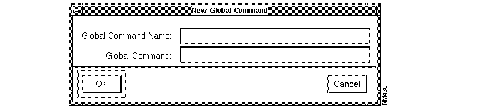
Step 3 Enter the global command name and the global command in the appropriate fields.
For more information on CiscoWorks application command syntax, refer to the section "Running CiscoWorks Applications from the Command Line" in Appendix B. For more information on UNIX command syntax, refer to your UNIX manual pages.
Step 4 Click on OK.
The new global command should be displayed in the Global Command list in the Global Command window.
Step 5 If the Global Command application is secure, a domain selection window appears. Select the domain you want the global command to affect by clicking on the domain name.
Step 6 Click on OK.
Step 7 To delete a global command, first select the command name and domain name from the Global Command Manager window.
Step 8 Click on Delete.
The selected global command will be deleted from the Global Command list.
| Caution There is no confirmation of the delete function. Be sure you want to delete a command before clicking on Delete. |
To run a global command in a domain, perform the following steps:
Step 1 Select Global Command Mgr.
On SNM, select Tools>Global Command Mgr.
On HP OpenView or NetView for AIX, select CiscoWorks>Global Command Mgr.
The Global Command window appears. (See Figure 1-29.)
Step 2 Select a global command you want to run from the Global Commands list.
Step 3 Select a domain to run which to run this global command from the Domains list.
This step is optional. You do not need to select a domain if your command does not have a domain associated with it.
Step 4 Click on Execute Cmd to run the global command.
An information window confirms that you are about to execute a global command.
Step 5 Click on OK to begin command execution.
Step 6 To verify the global command has been sent and to view the data, check the gcmd.log in $NMSROOT/log.
The gcmd.log file contains records with the following information: time, process ID, user ID, domain name, device name and the log message.

The Global Command Scheduler application is a graphical user interface that uses the UNIX crontab utility to run commands or other jobs at regularly scheduled times. The crontab utility allows you to submit a list of jobs that the system will run for you at the times you specify. If you want to alter a schedule you have set, you can do so through the Global Command Scheduler.
You can choose to use the Global Command Scheduler graphical user interface or the command line interface. To use the Global Command Scheduler command line interface, enter nmscheduler at the command line. The Global Command Scheduler application has the following limitations:
For more information on the Global Command Scheduler syntax, refer to Appendix B, "Troubleshooting CiscoWorks Errors."
The Scheduler has two options: schedule a command for one-time execution and schedule a command for periodic executions.
For a one-time execution of a command, the Scheduler adds two jobs into the crontab file. The first job is the global command itself. The second job is the one the Scheduler uses to delete the first job entry by command name. The delete command entry remains in the crontab file and is not used. It is recommended that you delete those commands from the crontab file interactively using the Scheduler application.
You can use the Global Command Scheduler application to perform tasks in the following areas:
Figure 1-31 illustrates the Scheduler window. Table 1-13 describes its components.
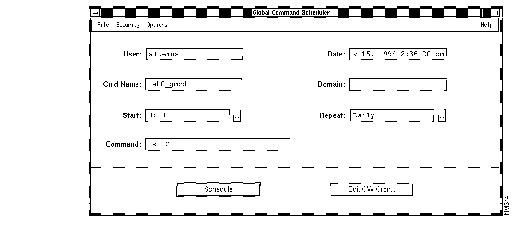
| Component | Subcomponent | Description |
|---|---|---|
| File | Print
Exit | Prints a snapshot of the current window.
Exits the current window. |
| Security | Change User
| Enables you to change your username in order to access this application.
Displays the current user's security privileges. |
| Options | Schedule
Edit CW Cron | Puts the schedule into the cron file for execution at a later time.
Displays the CW Cron window to schedule command execution. |
| Help | On Version
On Scheduler | Provides help text on the application version.
Provides help on the current window. |
| User | Identifies which user is scheduling the Global Command Scheduler. | |
| Command Name | Displays the command name that will be executed. | |
| Domain | Identifies the domain of routers this command will reach. | |
| Date | Identifies the current date and time. | |
| Start | Identifies when the command has been started. Default start is set at 0:00 a.m. You can choose between 0:01 a.m. to 23:45 p.m. | |
| Repeat | Daily, Weekly, Monthly, Hourly, or None | Identifies the periodic intervals of the schedule. Click on the Start button to select the desired frequency. Use None for one-time execution of the command. |
| Schedule | Places the schedule into the UNIX cron. | |
| Edit CW Cron | Displays CW Cron window. |
To scheduling a command for periodic execution, perform the following steps
Step 1 Select Global Command Mgr.
On SNM, select Tools>Global Command Mgr.
On HP OpenView or NetView for AIX, select Administer>CiscoWorks System>Global Command Mgr.
The Global Command Manager window appears. (See Figure 1-29.)
Step 2 From the Global Commands list, select a global command to run on this domain by clicking on a global command.
Step 3 From the Domains list, select a domain to run a global command by clicking on a domain name.
This step is optional. You do not need to select a domain if your command does not have a domain associated with it.
Step 4 Click on Schedule to run the global command using the Scheduler.
The Scheduler window appears. (See Figure 1-31.)
Step 5 From the Start pick menu, select the start time delay you want to establish.
For example, if you choose 1:00, your global command will start running at 1:00 a.m. sharp. If you choose 14:00, your global command will start running at 2 p.m.
Step 6 From the Repeat pick menu, select the number of times to repeat this global command.
For example, if you want to schedule this global command to run weekly, from the Repeat pick menu, select the Weekly option. The Day of the Week window displays after you choose the weekly option. If you choose the None option, this command will execute only once.
Step 7 Select the day of the week, or in the case of the Monthly option, select the date of the month you want the global command to execute.
Step 8 Click on Schedule to schedule this global command for periodic execution.
This action enables the Global Command application to run this global command at the designated date and time until the number of repeat cycles is complete.
To edit a global command schedule, perform the following steps:
Step 1 Select Global Command Mgr.
On SNM, select Tools>Global Command Mgr.
On HP OpenView or NetView for AIX, select Administer>CiscoWorks System>Global Command Mgr.
The Global Command Manager window appears. (See Figure 1-29.)
Step 2 From the Global Commands list, select a global command to run on this domain by clicking on a global command.
Step 3 From the Domains list, select a domain to run a global command by clicking on a domain name.
Step 4 Click on Schedule to run the global command using the Scheduler.
The Scheduler window appears. (See Figure 1-31.)
Step 5 To view the CiscoWorks Cron window and alter the schedule for a command, click on Edit CW Cron.
The CiscoWorks Cron window appears. (See Figure 1-32.)
Step 6 To change any fields in a global command schedule, click inside the field and enter the new information.
You cannot enter data into the read only fields.
Step 7 To enable or disable a regularly scheduled command job, from the Start pick menu, select the start time delay you want to establish.
Step 8 To view the syntax of a global command, click on View Cmd.
A Global Command View window displays. (See Figure 1-33.)

Step 9 When you are finished viewing the global command, click on OK.
Step 10 When you are finished, click on OK to save your CW Cron request.
Step 11 To delete a global command from the Cron window, select the global command name and click on Delete.
To delete a global command schedule, perform the following steps:
Step 1 Select Global Command Mgr.
On SNM, select Tools>Global Command Mgr.
On HP OpenView or NetView for AIX, select Administer>CiscoWorks System>Global Command Mgr.
The Global Command Manager window appears. (See Figure 1-29.)
Step 2 From the Global Commands list, select a global command to run on this domain by clicking on a global command.
Step 3 From the Domains list, select a domain to run a global command by clicking on a domain name.
Step 4 Click on Schedule to run the global command using the Scheduler.
The Scheduler window appears. (See Figure 1-31.)
Step 5 On the Scheduler window, click on Edit CW Cron.
The CiscoWorks Cron window appears. (See Figure 1-32.)
Step 6 To ensure you delete the correct command, view the syntax of a global command by clicking on View Cmd.
A Global Command View window displays. (See Figure 1-33.)
Step 7 Click on OK to close this window.
Step 8 Select the global command to be deleted, and click on Delete.
Use care when deleting a global command from the cron file, because the command is deleted without confirmation. You cannot delete a schedule created by another user.

Configuration Snap-In Manager allows you to send a few configuration commands to a set of devices. An easy way to remember snap-ins is to view them as configuration building blocks that can be applied to a device set. This capability saves the network from a potential disruption.
The Configuration Snap-In Manager uses the domains, or groups of devices, that were set up in the Global Command Manager.
The Configuration Snap-In Manager application supports device interfaces that allow you to specify which interface to apply the command. For example, you can apply an access-list command to serial interface 1 of a router. The DoItNow button on the Command Set window means to send the command to the highlighted Cisco devices immediately. You can also choose to send the command or commands later using the Schedule button on the Configuration Snap-In Manager window. The Description field in the Command Set window is ReadWrite, so you can modify the descriptions.
You can only send the same group of snap-in commands together as part of one configuration snap-in file, and they must be the same command type. For example, you can send three community string commands in one command set, but you cannot send a community string and an enable password command in one command set.
The device set reference in the Edit Device Sets in Domain window allows you to add devices within a domain to a device set.
You can run the Configuration Snap-In Manager from the UNIX command line. For more information on command line syntax for this application, refer to Appendix B, "Troubleshooting CiscoWorks Errors."
| Time Saver Double-clicking on the Configuration Snap-In Manager command panels (Name, Command Type, Device Set, Description) displays the Command Set window. |
Figure 1-34 illustrates the Configuration Snap-In Manager window. Table 1-14 describes its components.
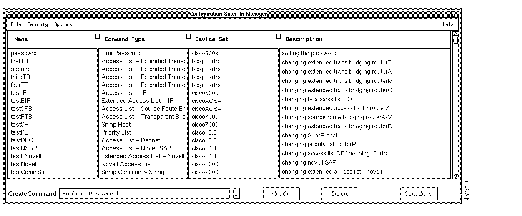
| Component | Subcomponent | Description |
|---|---|---|
| File | Print
Exit | Prints a snapshot of the current window.
Exits the current window. |
| Security | Change Domain
Change User Privileges | Allows you to change domains.
Allows you to change user IDs. Views current user ID privileges. |
| Options | Save Command Set As | Allows you to save a command set to another name. |
| Help | On Version
On Configuration Snap-In Manager | Displays information on the application version.
Provides information on the current window. |
| Name | Configuration Snap-In commands include:
Enable Password | |
| Command Type | Type of configuration command. | |
| Device Set | Name of a group of devices (not related to domain). | |
| Description | Describes the configuration snap-in command. | |
| Create Command pick menu | Provides a list of new commands to select from. | |
| Modify | Edits a selected snap-in command. New commands can be created using an existing command. | |
| Delete | Deletes a selected snap-in command. | |
| Schedule | Provides the Scheduler facility to determine when this Configuration Snap-In is run. |
The Configuration Snap-In Manager application performs the following tasks:
In order to use the Configuration Snap-In Manager application, you need to set up your device sets within your current domain. These are the groups of routers or other devices that you send snap-in commands via this application. The Configuration Snap-In Manager uses the domains set up in the Global Command Manager.
For example, if you are in the domain World using device_set_A and change domains to domain West, the device set (device_set_A) may not appear in the West domain.
It is important to review your device sets before executing snap-in commands; this allows you to check the devices in your set and review if any devices have been deleted.
Remember there are several ways to group devices into device sets. The following list is an example of some of the device sets you might find useful:
In order to send snap-in commands to a router or set of routers, you need to create a device set that defines what devices the snap-in command should be sent to. The term device set is different from the term domain. The Configuration Snap-In Manager uses the domains you have set up in the Domain Manager application, but it allows you to create a subset of routers within the domain. All the device sets you use are within your current domain.
Once you create a device set for the first time, you can use this device set as a building block to build future device sets.
| Time Saver Once you have created at least one device set, it is faster to use the procedure in the section "Creating New Device Sets from an Existing Device Set" to create new device sets. |
To define a device set for the first time, perform the following steps:
Step 1 Select Configuration Snap-In Mgr.
On SNM, select Tools>Configuration Snap-In Mgr.
On HP OpenView or NetView for AIX, select Administer>Cisco Devices>Configuration Snap-In Mgr.
The Configuration Snap-In Manager window appears. (See Figure 1-34.)
Step 2 From the Configuration Snap-In Manager window, click on the Create Command pick menu.
The Create Command window appears. (See Figure 1-35.)
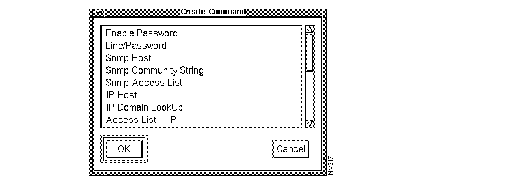
Step 3 Click on the command you plan to create.
Step 4 Click on OK.
The Command Set window appears. (See Figure 1-36.)
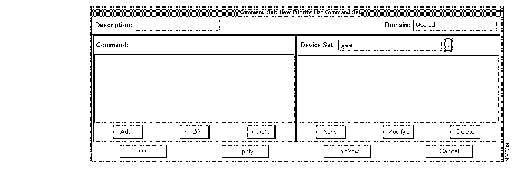
Step 5 Click on New.
The Add New Device Set window appears.
Step 6 Enter the new device set name and click on OK.
The Edit Device Sets in Domain window appears. (See Figure 1-37.)
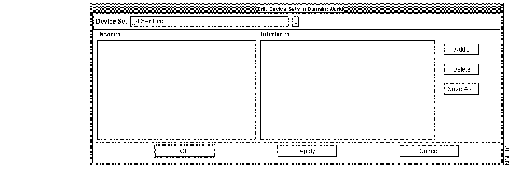
The appearance of Edit Device Sets in Domain window will depend on which command you select. If you select an access list or priority list command, the Edit Device Sets in Domain window contains the Devices and Interfaces scroll windows. If you select any of the other commands, the Edit Device Sets in Domain window contains only the Devices scroll window.
Step 7 To add devices to your new device set, click on Add and select the devices from the Device List window.
Use the Shift key to select a contiguous groups of devices. Use the Control key to select several individual devices from the list.
Step 8 Click on OK to exit the Device List window.
The device or devices you select display in the Devices scroll window.
Step 9 If you are creating an access list or priority list command, select the interface for this command.
Step 10 Click on Apply to save any changes in the Edit Device Sets in Domain window.
Step 11 To exit the Edit Device Sets in Domain window, click on OK.
If you do not save before leaving the window, a confirmation message displays asking you if you want to close the window without saving.
Step 12 To close the Edit Device Sets in Domain window with autosaving, click on OK. To cancel and return to the Edit Domain window without autosaving, click on Cancel.
To add snap-in commands, refer to the section "Adding Snap-In Commands."
To define a device set from an existing device set, perform the following steps:
Step 1 Select Configuration Snap-In Mgr.
On SNM, select Tools>Configuration Snap-In Mgr.
On HP OpenView or NetView for AIX, select Administer>Cisco Devices>Configuration Snap-In Mgr.
The Configuration Snap-In Manager window appears. (See Figure 1-34.)
Step 2 From the Configuration Snap-In Manager window, double-click on a snap-in command set from the Name scroll window.
The Command Set window appears. (See Figure 1-36.)
Step 3 Click on Device Set Modify.
A window similar to the Edit Device Sets in Domain window appears. (See Figure 1-37.) The appearance of Edit Device Sets in Domain window will depend on which command you select. If you select an access list or priority list command, the Edit Device Sets in Domain window contains the Devices and Interfaces scroll windows. If you select any of the other commands, the Edit Device Sets in Domain window contains only the Devices scroll window.
Step 4 Click on Save As to save this device set as a different name.
The Save As window displays.
Step 5 Enter the name of the new device set and click on OK.
Step 6 To delete devices from the existing device set, select the devices from the Devices list and click on Delete.
Use the Shift key to select a contiguous groups of devices. Use the Control key to select several individual devices from the list.
If you have added devices to this device set without saving, a confirmation message displays asking if you want to delete the selected devices.
Step 7 Click on OK to delete all the selected devices. Or, click on Cancel to return to the Edit Device Sets in Domain window to save the device set.
Step 8 To add devices to the new device set, click on Add and select the devices from the Device list window.
Step 9 Click on OK.
Step 10 To save this new device set, click on Apply.
If you do not save before leaving the window, a confirmation message displays asking you if you want to close the window without saving.
Step 11 To close the Edit Device Sets in Domain window without saving, click on OK. To cancel and return to the Edit Device Sets in Domain window to save, click on Cancel.
You can view device sets or modify existing device sets. View a device set to ensure the contents of the device set are what you expect. We recommend that you view your device set each time before sending a snap-in command.
When you modify device sets, you can perform the following tasks:
To edit or view a device set, perform the following steps:
Step 1 From the Configuration Snap-In Manager window, double-click on a snap-in command set from the Name scroll window.
The Command Set window appears. (See Figure 1-36.)
Step 2 Click on Device Set Modify.
The Edit Device Sets in Domain window appears. (See Figure 1-37.)
Step 3 To delete devices from the existing device set, select the devices from the Devices list and click on Delete.
Use the Shift key to select a contiguous groups of devices. Use the Control key to select several individual devices from the list.
If you have added devices to this device set without saving, a confirmation message displays asking if you want to delete the selected devices.
Step 4 Click on OK to delete all the selected devices. Or, click on Cancel to return to the Edit Device Sets in Domain window to save the device set.
Step 5 To add devices to the new device set, click on Add and select the devices from the Device list window.
Use the Shift key to select a contiguous groups of devices. Use the Control key to select several individual devices from the list.
Step 6 Click on OK.
Step 7 To view devices, use the Devices scroll bar.
Step 8 Click on Save As to save this device set as a different name.
A Save As window displays.
Step 9 Enter the name of the new device set and click on OK.
Step 10 To save the modified device set, click on Apply.
If you do not save before leaving the window, a confirmation message displays asking you if you want to close the window without saving.
Step 11 To close the Edit Domain window with autosaving, click on OK. To cancel and return to the Edit Domain window without saving, click on Cancel.
You can delete an entire device set, or delete devices from an existing device set.
To delete a device set or delete devices from a device set, perform the following steps:
Step 1 From the Configuration Snap-In Manager window, double-click on a snap-in command from the scroller.
The Command Set window appears. (See Figure 1-36.)
Step 2 To delete an entire device set, click on the Device Set pick menu.
A Device Set window displays.
Step 3 Select the device set you want to delete and click on OK.
Step 4 Click on Delete under the Device Set scroll window.
A confirmation message asks you to confirm the delete of this device set. If the device set is referenced by more than one command set, you cannot delete it.
Step 5 Click on OK to confirm the deletion of the device set.
Step 6 To close the Edit Device Set in Domain window with auto saving, click on OK. To cancel and return to the Edit Domain window without saving, click on Cancel.
Each configuration snap-in command displays a unique command set window. For a detailed description of the commands found in the Configuration Snap-In Manager application, refer to the Router Products Command Summary or Router Products Configuration Guide publications.
TFTP is used to accomplish the transfer of configuration files between devices. If TFTP was not configured on your system, make sure you do so by following the instructions in the CiscoWorks Administration and Installation Guide.
To add commands for partial configuration of a router, perform the following steps:
Step 1 Select Configuration Snap-In Mgr.
On SNM, select Tools>Configuration Snap-In Mgr.
On HP OpenView or NetView for AIX, select Administer>Cisco Devices>Configuration Snap-In Mgr.
The Configuration Snap-In Manager window appears. (See Figure 1-34.)
Step 2 To add a new command, click on the Create Command pick menu.
The Create Command window appears. (See Figure 1-35.)
Step 3 Select a command name from the list and click on OK.
The Command Set window appears. (See Figure 1-36.) The only fields with entries are the Domain and Device Set fields.
Step 4 Click inside the Description field and enter a meaningful name for this command.
The description you enter will appear in the Description panel of the Configuration Snap-In Manager window after you complete these steps.
Step 5 Click on Add under the Command window.
A view of the command window you have selected displays. Each command in the Configuration Snap-In Manager application has an individual or series of windows in which you add specific information.
Step 6 Add the required information and click on OK in all required windows.
For detailed command syntax and descriptions, refer to the Router Products Command Summary and Router Products Configuration Guide publications.
Step 7 If the device set is ok, click on Apply.
The Save Current Set window displays.
If you want to add a device set for this command, refer to the section "Creating New Device Sets." If you want to change an existing device set for this command, refer to the section "Editing or Viewing Device Sets."
Step 8 To save this command set, enter the new command set name and click on OK.
Step 9 If a device set selection is required (as it is in the access list and priority list commands), click on the Device Set pick menu.
Step 10 Select the device set name and click on OK.
Step 11 To modify an existing device set, click on Modify under the Device Set scroll window.
The Edit Device Sets in Domain window appears. (See Figure 1-37.) This window displays if you are editing access list and priority list commands. If you are editing other commands, the Edit Domain window will contain only a Devices scroll window.
If you need to create a device set, refer to the section "Creating New Device Sets." If you need to edit a device set, refer to the section "Editing or Viewing Device Sets."
Step 12 To add devices to the current device set, click on Add and select the devices from the device list.
Step 13 To select interfaces for commands that require it, click on an interface in the Interfaces list. (See Figure 1-37.)
Step 14 From the Edit Device Sets in Domain window, click on Apply to save any changes.
Step 15 Click on OK to leave the window.
If you do not save before leaving the window, a confirmation message displays asking you if you want to close the window without saving.
You will be returned to the Command Set window.
Step 16 From the Command Set window, click on OK to save any changes and leave the window.
Use the Command Modify button to edit an existing configuration snap-in command or to create a new configuration snap-in command from an existing command.
To edit snap-in commands within a command set, perform the following steps:
Step 1 Select Configuration Snap-In Mgr.
On SNM, select Tools>Configuration Snap-In Mgr.
On HP OpenView or NetView for AIX, select Administer>Cisco Devices>Configuration Snap-In Mgr.
The Configuration Snap-In Manager window appears. (See Figure 1-34.)
Step 2 From the Command Set list, select the command set by double-clicking on the name.
The Command Set window appears. (See Figure 1-36.)
Step 3 From the Command scroll window, select a command by double-clicking on it.
The specific command edit window for this command appears.
Step 4 Add the required information and click on OK in all required windows.
For detailed command syntax and descriptions, refer to the Router Products Command Summary and Router Products Configuration Guide publications.
Step 5 If you need to create a device set, refer to "Creating New Device Sets."
Step 6 If you need to edit or delete devices from a device set, refer to the sections "Editing or Viewing Device Sets" or "Deleting Device Sets."
Step 7 From the Command Set window, click on OK to save any changes and leave the window.
To delete commands in Configuration Snap-In Manager, perform the following steps:
Step 1 Select Configuration Snap-In Mgr.
On SNM, select Tools>Configuration Snap-In Mgr.
On HP OpenView or NetView for AIX, select Administer>Cisco Devices>Configuration Snap-In Mgr.
The Configuration Snap-In Manager window appears. (See Figure 1-34.)
Step 2 To delete a command from a command set, double-click on the command set name.
The Command Set window appears. (See Figure 1-36.)
Step 3 From the Command Set window, select the command you want to delete from the list of commands and click on Delete.
A confirmation message displays asking you to confirm the deletion.
Step 4 Click on OK to delete the command.
Step 5 To save the changes, click on Apply.
Step 6 Click on OK to leave the window.
If you do not save before leaving the window, a confirmation message displays asking you if you want to close the window without saving.
To send commands for directly to the router or other device, perform the following steps:
Step 1 From the Configuration Snap-In Manager window, select the snap-in command you want to send to the device or domain by clicking on the command name.
Step 2 Click on Modify.
The Command Set window for this specific command appears.
To edit the command set or command, refer to section "Editing Snap-In Commands."
Step 3 If you want to view command specifics such as device set details, click on Device Set Modify.
Step 4 If you want to edit the device set or sets, refer to the section "Working with Device Sets."
Step 5 Select a device/interface or device set from the Device Set scroll list.
Step 6 Click on DoItNow to send this command set to the device or domain directly.
The command is sent to the device(s). A log file is generated and stored in the $NMSROOT/log directory. A browser window appears to display the status of the download. After the download is complete, select File>Close to exit the window. If an error occurs, the error message displays in the browser window.
Step 7 To confirm that the command was sent to the device or domain, use the Configuration Management application to view the last configuration file loaded to this device.
For information about the Configuration Management application, refer to the section "Browsing a Configuration File or Comments File on a Device."
To send commands for partial configuration of a device or domain, perform the following steps:
Step 1 Select Configuration Snap-In Mgr.
On SNM, select Tools>Configuration Snap-In Mgr.
On HP OpenView or NetView for AIX, select Administer>Cisco Devices>Configuration Snap-In Mgr.
The Configuration Snap-In Manager window appears. (See Figure 1-34.)
Step 2 Select the snap-in command you want to send to the device or domain by clicking on the command set name.
Step 3 To view command specifics such as command details, click on Command Modify.
The unique command edit window appears. To edit the command set or command, refer to section "Editing Snap-In Commands."
Step 4 To view command specifics such as domain and device details, click on Device Set Modify.
The Command Set window appears. (See Figure 1-36.)
Step 5 To edit the domain set or devices, refer to the section "Working with Device Sets."
Step 6 Click on OK.
Step 7 To save any changes and leave the window, click on OK.
If you do not save before leaving the window, a confirmation message displays asking you if you want to close the window without saving.
The window closes and returns you to the Configuration Snap-In Manager window.
Step 8 Click on Schedule to schedule the download of this command set to your device set.
The Schedule window appears. (See Figure 1-31.) For information on using the Scheduler, refer to the section "Scheduling a Command for Periodic Execution."
Step 9 Enter the schedule information.
Step 10 Click on Schedule.
The command set is scheduled for periodic execution to the device or domain you selected. When the command set executes, a log file is generated and stored in the $NMSROOT/log directory.
Step 11 To confirm that the command set was sent to the device or domain, use the Configuration Management application to view the last configuration file loaded to this device.
For information about the Configuration Management application, refer to the section "Browsing a Configuration File or Comments File on a Device."
|
|