


|
|

AtmDirector provides the tools you need to perform the following tasks:
This chapter explains the AtmDirector features. For help in completing individual tasks or for information about specific windows, click Help in the corresponding window.
For a quick-start tutorial on AtmDirector, see the "Quick-Start Tutorial."
Cisco documentation and additional literature are available on a CD-ROM called Cisco Connection Documentation, Enterprise Series, which ships with your chassis. The CD is updated and shipped monthly, so it might be more up to date than printed documentation. To order additional copies of the Cisco Connection Documentation, Enterprrise Series CD, as a single CD and as an annual subscription. You can also access Cisco technical documentation on the World Wide Web URL http://www.cisco.com.
An ATM fabric comprises a group of interconnected ATM switches and end hosts that have been discovered using the Interim Local Management Interface (ILMI) neighbor discovery mechanism. Switches within the ATM network must support RFC 1695, "ATM Interface Configuration Entry," in order for the discovery process to function.
If the discovery process encounters a switch that does not support ILMI, AtmDirector will not include that switch or any devices connected to it in the fabric. You can seed the discovery process with switches that do not support ILMI to discover these switches individually.
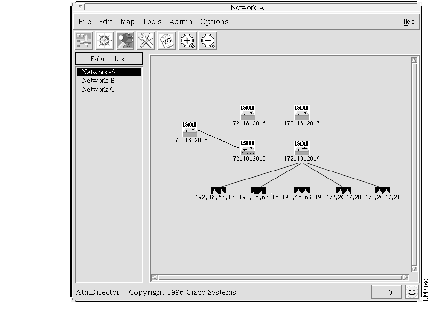
You provide the discovery process with the Internet Protocol (IP) address and the community string (if it is not set to public or private) of an ATM switch in each ATM fabric you want to discover. These IP addresses are called "seeds," and the process is called "seeding." The discovery process uses the seeds provided as starting points to find other ATM devices and their connections. The discovery process adds the device and connection information about the discovered ATM devices to a database. AtmDirector graphically displays the ATM network in a topology map, as shown in Figure 1-1 Refer to "Discover the ATM Network" for steps on seeding the discovery process.
Sometimes you will need to supply AtmDirector with multiple seeds so that discovery can find all of the ATM devices in the network. AtmDirector provides a topology map in a separate window for each discovered ATM network fabric. An ATM network fabric is the group of interconnected ATM switches and the ATM end hosts reachable from the seed ATM device.
The connections between devices are represented as follows:
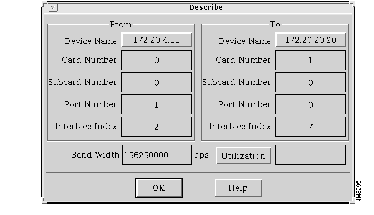
You can obtain detailed information about links. Select a link and press the right mouse button. Then choose the Describe option from the popup menu. Figure 1-2 shows an example of this window.
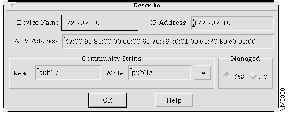
You can also obtain detailed information about devices in the same manner. Select a device and select Map>Object>Describe or select a device, press the right mouse button, and choose the Describe option from the popup menu. Figure 1-3 shows an example of this window.
The discovery process can find all ATM devices that support the AtoM MIB (RFC 1695) and all ATM hosts that support Interim Local Management Interface (ILMI) protocol. The following Cisco devices support the AtoM MIB and/or ILMI:
The discovery process requires the supported devices to be preconfigured as follows:
For specific information about setting up any of these features, refer to the manual for the specific router or switch.
To use AtmDirector for configuring SPVCs or SPVPs, you should have a basic understanding of the following terms:
SPVC and SPVP connections provide the following features:
Using AtmDirector, you can set up a SPVC or a SPVP connection between end hosts. To display the Soft PVC/PVP Set Up window, click the link connected to the source ATM end host, hold down the shift key, and click the link connected to the destination ATM end host.


AtmDirector monitors devices at defined intervals and shows their status on the topology map by changing the color of the affected icon. Refer to Table 1-1 for a list of colors and descriptions. Refer to Table 1-2 for a list of initial and resulting device colors and states.
| Color | Description |
|---|---|
| Red | Device is down or unreachable. |
| Green | Device is up. |
| Orange | Device is up, but was previously down or unreachable. |
| Blue | Status of device is not known or the device is unmanaged. |
| Device Color/ Initial State | Process | Result of Process | Device Color/ End State |
|---|---|---|---|
| Blue/Unknown or Unmanaged | Polling | Up | Green/Up |
| Blue/Unknown or unmanaged | Polling | Down or unreachable | Red/Down or unreachable |
| Green/Up | Unmanage | Unmanaged | Blue/Unknown or unmanaged |
| Green/Up | Polling | Down or unreachable | Red/Down or unreachable |
| Red/Down or unreachable | Unmanage | Unmanaged | Blue/Unknown or unmanaged |
| Red/Down or unreachable | Polling | Up | Orange/Previously down or unreachable |
| Orange/Previously down or unreachable | Unmanage | Unmanaged | Blue/Unknown or unmanaged |
| Orange/Previously down or unreachable | Polling | Down or unreachable | Red/Down or unreachable |
| Orange/Previously down or unreachable | Clear State | Up | Green/Up |
AtmDirector provides the following information to help you manage the permanent virtual channels (PVCs) and switched virtual channels (SVCs) in your network:
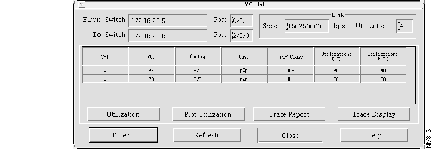
This information is available from the VC List window, shown in Figure 1-6. Select a link from the topology map. From the AtmDirector window (Figure 1-1), select Tools>VC List and All Connections, or By SVC Addresses.
You can obtain the percentage of available bandwidth used by a particular link. The linkutilization value is provided in the Utilization field, as shown in Figure 1-6.
You can obtain the percentage of available bandwidth for the displayed virtual channels by clicking Utilization. The utilization values appear in the Transmit (Tx) column and in the Receive (Rx) column. These values represent the percentage of the available bandwidth that the source device (shown in the From Device field) used to transmit and receive data. For example, the connection for VPI 0 and VCI 37 in Figure 1-6 is using 30 percent of the available bandwidth to transmit data and 40 percent of the available bandwidth to receive data.
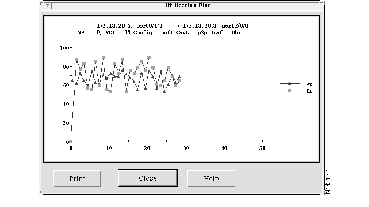
You can obtain a utilization trend graph by selecting one VC link in the VC List window, shown in Figure 1-6, and clicking Plot Utilization. The utilization graph appears, as shown in Figure 1-7.
The utilization graph is updated at each utilization polling interval. The utilization polling interval is configured by selecting Options>Global Options>Polling.
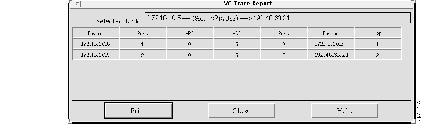
A trace report for a selected VPI/VCI shows the starting device and port, the ending device and port, and the distance of the link segment to and from the root. The report includes the devices used to connect the two selected devices. Point-to-multipoint connections have an entry in the table for each connection.
You can use this information to identify the route of a particular VC by tracing the VC from one device to another. Figure 1-8 shows an example of a trace report.
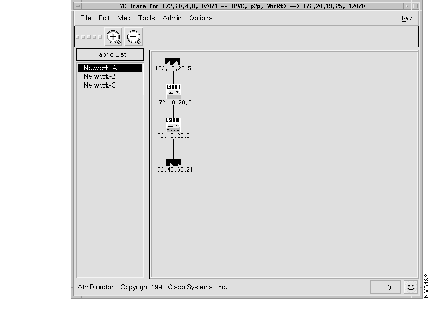
A trace display for a selected VPI/VCI graphically shows the topology map with the starting and ending nodes and the switches used to connect these two nodes. You can view point-to-point connections or point-to-multipoint connections. This information can help you identify the path of a VPI/VCI, including all the hops and links. Figure 1-9 shows an example of a trace display.
The only options that you can select from the Trace Display window are Zoom In and Zoom Out. None of the other options are available from this window.
AtmDirector performs fault and performance management functions using ATM layer F5 Operation, Administration, and Maintenance (OAM) cells. OAM cells are used to perform standard loopback (end-to-end or segment) tests and to maintain a group of timers for OAM functions.
OAM F5 cells flow between network elements used in virtual connections and report degraded VC performance, such as late arriving cells, lost cells, and cell insertion problems.
AtmDirector can send OAM packet internet gropers (pings) to verify link and connection integrity. OAM pings are OAM cells containing the ATM node addresses or IP addresses of intermediate switches. Sending OAM pings allows you to determine the integrity of a specific connection at any intermediate point along the connection. You can send OAM pings for network connection debugging and troubleshooting.
From AtmDirector, you can invoke CiscoView for a selected device. From the topology map, select an ATM switch or an ATM end host and either select Map>Object>CiscoView or click the right mouse button and select CiscoView from the popup menu. CiscoView is started for the selected device. Refer to the CiscoView documentation for details about using CiscoView.
|
|