


|
|
September 23, 1997
This document describes new features and caveats for SwitchProbe Release 3.1.1 and Release 3.1.0. Release 3.1.1 is specific to all the Fast-Ethernet SwitchProbe devices. Release 3.1.0 is specific to the Ethernet, Token-Ring, Copper Distributed Data Interface (CDDI), and Fiber Distributed Data Interface (FDDI) SwitchProbe devices.
For detailed information about all SwitchProbe devices, refer to the SwitchProbe Installation and Configuration Guide.
Cisco documentation and additional literature are available in a CD-ROM package, which ships with your product. The Documentation CD-ROM, a member of the Cisco Connection Family, is updated monthly. Therefore, it might be more up to date than printed documentation. To order additional copies of the Documentation CD-ROM, contact your local sales representative or call customer service. The CD-ROM package is available as a single package or as an annual subscription. You can also access Cisco documentation on the World Wide Web at http://www.cisco.com, http://www-china.cisco.com, or http://www-europe.cisco.com.
This document includes the following sections:
Table 1 and Table 2 show the release number for each SwitchProbe model.
| Model | Release |
|---|---|
| Ethernet | 3.1.0 |
| Token Ring | 3.1.0 |
| Ethernet/Token Ring | 3.1.0 |
| Model | Release |
|---|---|
| CDDI | 3.1.0 |
| FDDI | 3.1.0 |
| Fast Ethernet-Half Duplex | 3.1.1 |
| Fast Ethernet-Full Duplex | 3.1.1 |
| Multiport Ethernet | 3.1.0 |
This section describes the interface numbering conventions for each of the probes.
There are two probe types; Small Chassis series and Large Chassis Series. The small series has a maximum of three interfaces and a simple numbering convention. The Large Chassis series, however, can come in several configurations and the interface numbering convention varies from one probe to another.
As described in the SwitchProbe Installation and Configuration Guide, two interfaces that ship with all SwitchProbe models.
In addition to the standard interfaces described above, a second LAN or a WAN interface might be present. The additional interface is always designated as Interface 3. Figure 1 shows the physical interface locations on the small chassis models.
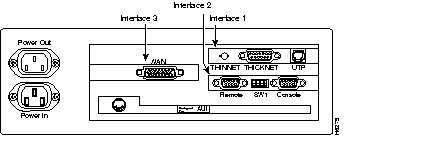
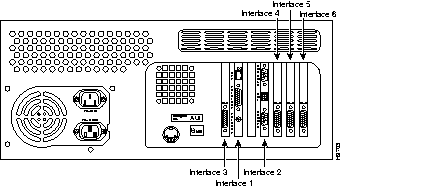
The large chassis SwitchProbes are available in several different configurations with different combinations of interface types. The standard LAN management (numbered 1) and remote interfaces (numbered 2) are always present, but are installed in different chassis locations depending on the probe model. The following sections present the installation standards and numbering conventions for interfaces on the different types of Large Chassis series probes.
Install the interface cards for the FDDI or CDDI probes as follows:
Figure 2 shows the FDDI rear panel with the interface cards installed.
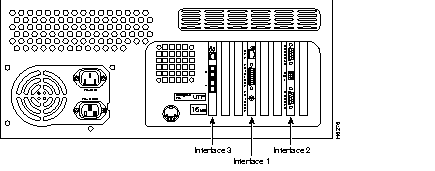
Install the interface cards for the Fast Ethernet probes as follows:
Figure 3 shows the Fast Ethernet Half-Duplex SwitchProbe with the interface cards installed.
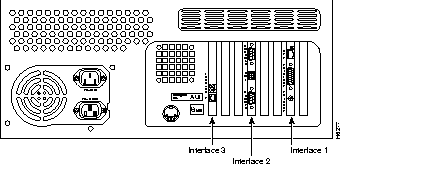
Install the interface cards for the Multiport 10BaseT Ethernet probes as follows:
Figure 4 shows the Multiport Ethernet SwitchProbe with multiple interface cards installed.
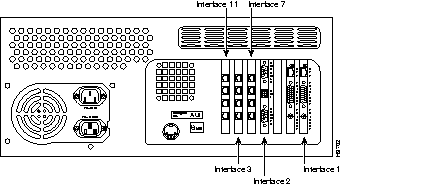
Install the interface cards for the Multiport WAN probes are installed as follows:
Figure 5 shows the Multiport WAN with multiple WAN interface cards installed.
Cisco Systems recommends using TrafficDirector Release 4.1 with SwitchProbe devices. To use an earlier TrafficDirector release with any SwitchProbe device, disable the default groups within the agent by using the following procedure:
Step 1 Select menu option [31] Go to Next Page from the TrafficDirector Configuration Utility menu.
Step 2 Select menu option [22] Configure Agent Options.
Step 3 Select menu option [3] Toggle default_groups.
Step 4 Select menu option [11] Go Back to Main Menu.
Step 5 Select menu option [12] Reset Agent.
The following software enhancements have been added to all SwitchProbe devices.
The following new features, in addition to the new features listed in the "New Features for Both Small and Large Chassis SwitchProbe Devices" section, apply to the small chassis SwitchProbe devices running release 3.1.0:
The following new features, in addition to the new features listed in the "New Features for Both Small and Large Chassis SwitchProbe Devices" section, apply to the large chassis SwitchProbe devices:
The following configurations are recommended for optimum SwitchProbe device performance:
The nsfddi.adp file is the firmware image for the FDDI Flash memory. This image file is provided with the ns7100.hex device image and should be stored in the /tftpboot directory on the TFTP server.
To upgrade the Flash memory on the FDDI adapter, enter the following command:
% do tftp nsfddi.adp
In MAC-passive mode, the adapter requires a 10-percent tap. The SwitchProbe device or any FDDI node operates in MAC-passive mode if it is not governed by any Station Management (SMT) or MAC protocols and does not transmit any frames.
You must upgrade the FDDI-adapter Flash memory before using MAC-passive mode. If mac_passive mode is turned on when using old FDDI-adapter firmware, a warning message is displayed, and the adapter continues to operate in MAC-active mode.
To change the SwitchProbe device MAC mode, use the set if_options command. The following example shows how to set the MAC-passive mode:
% set curr_interface 3% set if_options mac_passive on
Reset the SwitchProbe device for the new setting to take effect.
The following sections explain how to set interface 1 (Ethernet or Token Ring) to monitor mode from either the TrafficDirector Configuration Utility menu or the command line.
To set interface 1 to monitor mode from the command line, use the set monitor_mode command. The following example shows how to turn on monitor mode on interface 1:
% set curr_interface 1
% set monitor_mode 1
Reset the SwitchProbe device for the new setting to take effect.
To set interface 1 to monitor mode from the TrafficDirector Configuration Utility menu, use the following procedure:
Step 1 Select menu option [8] Select Interface from the TrafficDirector Configuration Utility menu.
Step 2 Select menu option [1] Ethernet to select interface 1.
Step 3 Select menu option [31] Go to Next Page.
Step 4 Select menu option [24] Configure Interface Options.
Step 5 Select menu option [4] Toggle Monitor Mode to toggle monitor mode on or off.
Step 6 Select menu option [5] Go Back to Main Menu.
Step 7 Select menu option [12] Reset Agent for the new setting to take effect.
To convert a full-duplex Fast-Ethernet SwitchProbe device to a dual half-duplex device using TFTP, from your local console enter the following command:
% do tftp ns7200hd.hex
To convert a dual half-duplex probe into a full-duplex probe, from the command-line mode enter the following:
% do tftp ns7200fd.hex
Reset the device for the new firmware to take effect.
 | Caution Resetting the SwitchProbe device with the new firmware erases device parameters, such as IP Address and NET Mask. |
The following caveats describe some unexpected behavior:
The following caveats are resolved in Release 3.1.1:
The following sections include important information, caveats, and modifications for SwitchProbe Release 2.4.0 and Release 2.3.3.
Release 2.4.0 provides support for Fast-Ethernet SwitchProbe devices and is available only on Fast-Ethernet devices.
The following caveats describe possibly unexpected behavior by Release 2.4.0 for Fast-Ethernet SwitchProbe devices:
There are no modifications for Release 2.4.0.
This following information applies only to Ethernet, Token-Ring, CDDI, and FDDI SwitchProbe devices:
There are no known caveats for Release 2.3.3.
The following caveats are resolved in Release 2.3.3 for SwitchProbe devices with Token-Ring interfaces:
Cisco Connection Online (CCO), formerly Cisco Information Online (CIO), is Cisco Systems' primary, real-time support channel. Maintenance customers and partners can self-register on CCO to obtain additional content and services.
Available 24 hours a day, 7 days a week, CCO provides a wealth of standard and value-added services to Cisco's customers and business partners. CCO services include product information, software updates, release notes, technical tips, the Bug Navigator, configuration notes, brochures, descriptions of service offerings, and download access to public and authorized files.
CCO serves a wide variety of users through two interfaces that are updated and enhanced simultaneously--a character-based version and a multimedia version that resides on the World Wide Web (WWW). The character-based CCO supports Zmodem, Kermit, Xmodem, FTP, and Internet e-mail, and is excellent for quick access to information over lower bandwidths. The WWW version of CCO provides richly formatted documents with photographs, figures, graphics, and video, as well as hyperlinks to related information.
You can access CCO in the following ways:
For a copy of CCO's Frequently Asked Questions (FAQ), contact cco-help@cisco.com. For additional information, contact cco-team@cisco.com.
|
|