


|
|

This chapter is a guide to upgrading an existing StrataView Plus installation to Release 8.2.
When upgrading StrataView Plus from StrataView Plus Rel. 8.1, it is only necessary to install the new release of the StrataView Plus program. There should be no need to modify the already resident versions of Motif, Informix, and Wingz. During the initial part of the installation you may choose to save the data from the old database.
The settings from config.sv are not saved. If you want to save these, you must save the file in another directory (that is, do a mkdir /usr/users/svplus/save) then save config.sv back to /usr/users/svplus after the automatic installation. You may just want to make a note of the setup, as this is a short file, with one line for each network or domain.
The SPI script checks that the second disk is partitioned correctly for StrataView Plus, that the correct user accounts are present, and that Motif, Informix, and WingZ are configured correctly for StrataView Plus 8.2. It then proceeds to install StrataView Plus 8.2. At the completion of the SPI installation, it is only necessary to perform the On-Line Help upgrade, configure the workstation to BPX/ IPX interface, and start up StrataView Plus.
Proceed as follows to upgrade StrataView Plus using the SPI.
su<RETURN>password:<superuser password><RETURN>
cd /<RETURN>
/usr/etc/extract_unbundled<RETURN>
This command results in the following messages:
Enter media drive location [local | remote]:1
Enter Device Name (e.g. rst0, rmt0, rfd0c) : /dev/		  		{You type mt0 for /dev/rmt0}
**Please mount the release media if you haven't done so already.**
Press return when ready:
The following product will be installed:
2+0 records in
2+0 records out

                     StrataView Plus 8.2.02 AIX


    Copyright (c) 1996 StrataCom, Inc.  All rights reserved.

This software product is copyrighted and all rights are reserved by
StrataCom, Inc.  StrataCom, Inc. reserves the right to make periodic
modifications to this product without obligation to notify any person
or entity of such revision.  Copying, duplicating, selling, or otherwise
distributing any part of this product without the prior written consent
of an authorized representative of StrataCom, Inc. are prohibited.

StrataCom, IPX, IGX, BPX, AXIS, FastPad, and FastPacket are registered trademarks and
StrataView Plus is a trademark of StrataCom, Inc.
Do you want to continue [y|n]?  y

/usr/etc/extract_unbundled : Extracting Installation Scripts
x install_unbundled, 2764 bytes, 6 tape blocks
/usr/etc/extract_unbundled : Begin Install Script Execution
Extracting the StrataView Plus Installer packages.
Running the StrataView Plus Installer driver.
*** Starting main driver script at Wed Dec 12 03:09:44 PDT.  ***
*******************************************************************************
*                Welcome to the StrataView Plus Installer!                    *
*           This program will install StrataView Plus software                *
*                             on your workstation.                            *
*                                                                             *
*              Copyright (c) 1996 StrataCom, Inc.  All rights reserved.       *
*                                                                             *
*******************************************************************************
*************************************************
****** Running pre-checks for main driver. ******
*************************************************
*** Checking basic setup. ***
Checking that user is root.
Checking core script files
*** Determining type of installation. ***
>> This installer will automatically perform the configuration necessary
>> for StrataView Plus.  If you have special configuration needs, you can
>> just load the StrataView Plus files from tape and perform the rest of
>> the configuration manually.
>>
>> What type of installation do you want? [auto|manual] m
Checking that proper OS is installed.
*** Checking required installer script files. ***
*** Checking for current installation of StrataView Plus. ***
StrataView Plus version 7.2 is currently installed.
When you upgrade StrataView Plus, you can reinitialize the statistics
>> database, or you can retain your current statistics. If you choose
>> to reinitialize, you will loose all your current statistics.
>> Do you want to initialize the statistics database? [yes|no]  n
>> When you reinitialize StrataView Plus files, you can also redo
>> the preliminary preparation that was done the first time you installed
>> StrataView Plus.  This preliminary preparation involves partitioning
>> the disk drives, setting up user accounts, updating the kernel, and
>> installing the Motif and Wingz software packages.
>>
>> Do you want to redo the preliminary preparation? [yes|no]  n
**************************************************
****** Running post-checks for main driver. ******
**************************************************
Installation was successful!
*** Exiting main driver at Dec 12 03:19:08 PDT 1996. ***
jaguar#
exit <RETURN>
pwd<RETURN>
The INSTALL program checks that the second disk is partitioned correctly for StrataView Plus, that the correct user accounts are present, and that Motif, Informix, NetView, and WingZ are configured correctly for StrataView Plus 8.2. It then proceeds to install StrataView Plus 8.2. At the completion of the INSTALL script, it is only necessary to perform the On-Line Help upgrade, configure the workstation to the BPX/ IPX interface, and start up StrataView Plus.
The StrataView Plus INSTALL program performs the following functions:
All of the procedures in Upgrading StrataView Plus must be completed before running the INSTALL program. Additionally, NetView must already be installed on your workstation. For instructions on installing NetView, refer to the NetView for AIX User's Guide.
root
password: <superuser password>
cd /usr/users/svplus
jaguar# INSTALL<RETURN>
Checking UNIX Kernel for StrataView Plus patches .......... Successful
Checking existence of the motif window manager............. Successful
Initializing Informix root file............................ Successful
Initializing Informix mode................................. Successful
Performing check sum on all files.......................... Successful
Filtering files............................................ Successful
Checking for the existence of Informix..................... Successful
Checking for the existence of Wingz........................ Successful
Do you wish to Restore/Upgrade the saved files(Y/N) (Default is N): y <RETURN>
Choose "y" if you saved the previous version's configuration files in the /usr/users/svplus/save directory. The installation will continue.
Filtering files.... done
Checking for the existence of Informix.... OK
The script continues, displaying the database installation Welcome screen:
DATABASE INSTALLATION
You can create new database or upgrade existing one to 8.2.1x
If you choose to create new database then you can specify new name
for database
If you wish to create new database , press 'y' to proceed;
otherwise, press 'n' to proceed with upgrade
New Database ?n<RETURN>
    Configuration Files Upgrade to StrataView Plus 8.2.02
    1)  rel7.2.x
    2)  rel8.1.x
    3)  rel8.2.02
Enter number corresponding to release or x to exit : 2 <RETURN>
If you enter "1", the following confirmation prompt displays:
 OK to upgrade SV+ 7.2x to SV+ 8.2 (y/n) ?  y <RETURN>
If you enter "2", the following confirmation prompt displays:
 OK to upgrade SV+ 8.1x to SV+ 8.2 (y/n) ?  y <RETURN>
If you enter "3", the following confirmation prompt displays:
 OK to upgrade SV+ 7.2x to SV+ 8.2 (y/n) ?  y <RETURN>
Initializing the Informix database
This will take a few minutes
Shutting down Informix (if necessary)............. Successful
Initializing the Informix database root file...... Successful
Initializing the Informix database mode........... Successful
Preparing the database for StrataView Plus........ Successful
Checking for existence of INS.... ....... ins not installed
StrataView Plus uses FrameViewer to display the IPX/BPX Online Help files. The INSTALL script adds FrameViewer to your system.
Welcome to the On-Line Help INSTALLATION of StrataView Plus Checking for the existence of On-Line Help... Installing Frameviewer... Reconfiguring user setup files... Adding Frameviewer environment strings... ./fmusersetup: The FrameMaker user installation program. This script is used to reconfigure your path setting. When you are asked a yes or no question below, type the letter 'y' or 'n' and then press Return. Note that the default answer (shown in brackets next to the question) is usually correct. To use the default answer, press Return in response to the question. Would you like a description of what this script does? [y]:y <RETURN>Checking installation... FrameMaker is not already installed in your .cshrc file. OK to add these two lines: ---- # FMHOME line added by the FrameMaker user's setup program setenv FMHOME /files/users/svplus/frame; set path=( $FMHOME/bin $path ) ---- to /usr/users/svplus/.cshrc? [y]:y <RETURN>------------------------------------------------------------ OK. Adding the lines to the end of your .cshrc file Original version of .cshrc saved in /usr/users/svplus/.cshrc.fmsave. FrameMaker installation in your .cshrc is now complete. Press Return to continue. (You may want to remove old or redundant copies of FrameMaker) IMPORTANT: ------------------------------------------- In order for the changes in your login file to take effect, you MUST exit X windows and log out *completely* (until you see the UNIX 'login:' prompt). Then log in and start X windows. From then on, you can start FrameMaker from any X windows window by typing: maker ----------------------------------------------------- Please exit X windows and log out and back in again. ------------------------ Please be sure that each person who wishes to use FrameMaker runs this installation script (./fmusersetup). If any files were changed by this script there will a corresponding .fmsave file produced that contains the original version of the file. To be sure that this script changed things appropiately, you should diff the files. IMPORTANT: Don't forget to log out completely now so that the changes to your login file will take effect.
Licensing Frameviewer..
Frameviewer has already been licensed ..
Do you wish to verify the Frameviewer installation (y/n)? n<RETURN>
Normally, "n" is chosen, as verification of FrameViewer takes considerable time, and successful installation of FrameViewer is verified by the satisfactory operation of the IPX/BPX On-Line Help.
The following message is displayed:
Bypassing On-Line Help Installation Verification
INSTALLATION has completed !
The BPX/IPX On-Line Help files for StrataView Plus come on a separate tape that is installed after StrataView Plus has been installed.
Make sure you have the tape labelled StrataView Plus BPX/IPX Help Files.
Proceed as follows to install the IPX On-Line Help files:
pwd <RETURN>
2 <RETURN>
cd onlinehelp <RETURN>
pwd <RETURN>
tar xvpf /dev/rst0 <RETURN>
For a Sun workstation; the "0" in /dev/rst0 is a zero.
cd .. <RETURN>
The Statistics Collection Manager (SCM) files for StrataView Plus are installed by SPI after StrataView Plus has been installed. If there are multiple NMS workstations used to control the network or if this is a structured network, you must install StrataView Plus and SCM on each NMS workstation. Proceed as follows to configure the network for management by SCM:
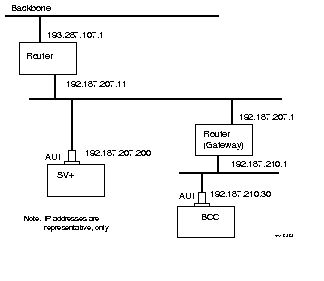
192.187.207.1 alpha
exit
Proceed to the next section.
If you are performing an upgrade, and your original config.sv file was configured for a LAN connection to a BPX/IPX node, you will need to use the vi command to edit the config.sv to your prior configuration or, if you saved the original file, you can proceed as follows to restore the saved file:
pwd
cp save/config.sv .
The "." is a shortcut notation for the current directory and must be included.
If the System Administrator takes care of the addressing for the workstation, including the /etc/services file, proceed to step 3. If not, and an NIS is not being used, do the following:
192.187.207.200 hedgehog
192.187.210.30 sanfran
IPX_PORT 5120/tcp ipx_port
0|Network1|sanfran|19200|0|7|3|0|30|1024|8.2|IP-OFF|
Leave the other fields as is. For example, the baud rate of 19200 does not apply to a LAN connection.
The cnflan command configures the node's communication parameters so that the node can communicate with a StrataView Plus terminal over an Ethernet LAN using the TCP/IP protocol. The parameters contain address information about the Ethernet TCP/IP network that is used to connect the StrataView Plus station to an IPX or BPX node. The values used must conform to those of the network and should be supplied by the Ethernet network administrator.
The cnflan command has the following parameters:
D2.cb1         LAN   StrataCom       IPX 32    8.2 Oct. 27 1995 14:23 PST
Active IP Address:                     192.187.207.21
IP Subnet Mask:                        255.255.255.0
TCP Service Port:                      5120
Default Gateway IP Address:            192.187.207.1
Maximum LAN Transmit Unit:             1500
Ethernet Address:                      00.55.43.00.04.55
Control Socket - Ready
Base Socket Descriptor - 1
Socket Closed
Last Command: cnflan
Next Command:
ping sanfran
D2.cb1         LAN   StrataCom       IPX 32    8.2 Oct. 27 1996 14:27 PST
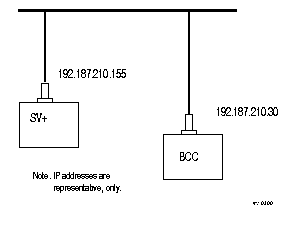
Active IP Address:                     192.187.210.155
IP Subnet Mask:                        255.255.255.0
TCP Service Port:                      5120
Default Gateway IP Address:            192.187.210.30
Maximum LAN Transmit Unit:             1500
Ethernet Address:                      00.55.43.00.04.55
Control Socket - Ready
Base Socket Descriptor - 1
Open Socket Descriptor - 2
Last Command: dsplan
Next Command:
When StrataView Plus is started, it obtains the current network topology information and enables default trunkand circuit line statistics that you had set up for your previous version of StrataView Plus software.
Before starting up StrataView Plus, you need to plan the statistics types that you want to enable automatically and enable these using the SCM program. Refer to Chapter 5 of the StrataView Plus Operations Guide for information on enabling statistics using SCM.
Start up StrataView Plus as follows:
SV+
|
|