


|
|

Your StrataView Plus configurations are stored in the SV+ database when you execute a Save operation from a topology map menu bar. The HP OpenView window contains the save map for topology icons resident in the view area. Likewise, the Network Map window contains the save application for the icons resident on the map area.
| To save, but not exit: | Use the Save command of the Utility menu. This saves the current map, display, and node positions without logging you out of the system. |
| To exit the system: | Use the Exit command of the File menu. |
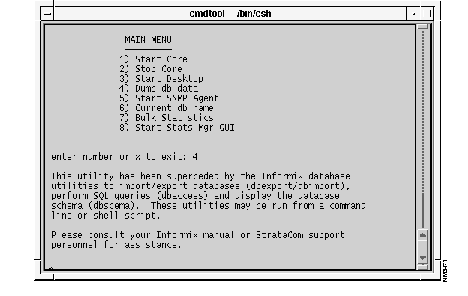
You can load a non-default database by using item 6 of the SV+ Main Menu--Current db name--during a SV+ startup. You can also assign a different name for the default SV+ database during SV+ installation by using the StrataView Plus Automatic Installer (SPI). Doing so changes the default identifier from "StrataCom" to whatever you designate.
To create a new database, the SV+ system administrator issues the command line at a terminal window:
create_db -D databasename
To load the database, use the dump db data option of the SV+ Main Menu.
This procedure is typically used when you cannot recall the name of a database that you need to load to the system.
su informix 		[RETURN]
<password> ******** 		[RETURN]
cd /usr/users/informix/bin   		[RETURN]:
dbaccess 		[RETURN]
The dbaccess menu is presented.
If you choose Item 4, "Dump db data" in the StrataView Plus Main Menu screen, you will be prompted to use the dbexport command.
System software and card firmware can be downloaded to the BPX/IPX network by entering SuperUser commands in the Node Administration Window. Refer to the SuperUser Commands Reference Manual for details on these commands.
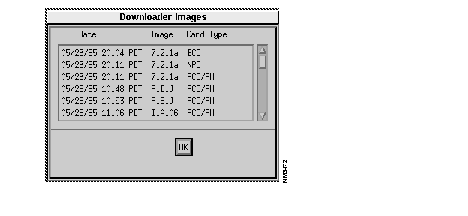
A listing of the BPX/IPX software releases and card firmware versions stored by StrataView Plus can be viewed by selecting the SW/FW option in the Images pulldown menu in the Network Topology Window.
New updates as well as current BPX/IPX software releases and card firmware versions can be stored in StrataView Plus from tape using the standard file administration commands used to read from tape. These commands are accessed from a standard workstation Motif window.
BPX/IPX software downloader and card firmware images are loaded from tape onto the StrataView Plus hard disk. There is a set of files for IPX nodes using PCC cards, for IPX nodes using NPC cards, and for BPX nodes using BCC cards. The following example shows the use of the tar utility to load BPX/IPX software downloader files from tape:
cd /usr/users/svplus
			tar tvf /dev/rst0
	svB800.img   	{A listing of BCC files}
	svB800.000
	svB800.001
	svB800.002
	svB800.003
	svB800.004
	....
	....
	....
 	svB800.031
	svB800.032
	....
	....
	....
	svN800.img	{A listing of NPC files}
	svN800.000
	svN800.001
	svN800.002
	svN800.003
	svN800.004
	svN800.005
	svN800.006
	....
	....
	....
	svN800.031
	svN800.032
# tar xvf /dev/rst0
Where /dev/rst0 is the name of the device containing the IPX software.
Software downloader and firmware images should be deleted from the StrataView Plus internal hard disk drive after a network has been revised upwards and has been running properly for some reasonable amount of time. They consume hard disk space unnecessarily. However, do not be in a hurry to do this as you may want to reload an errant node.
One BPX/IPX downloader image is a composite of several files. To delete an image, you must delete all of the associated files with the rm command. There is a set of files for IPX nodes using NPC cards, and for BPX nodes using BCC cards. Deletion of these files can be done using a wild card file designation for each set of files:
rm svN800.*	{Delete the 800 set of NPC files}
rm svB800.*	{Delete the 800 set of BCC files}
Similarly for a card firmware image, to delete an image, you must delete all of the associated files with the rm command. For example:
rm NCA.*
The save and restore process may be used to restore a node or nodes to a prior configuration. If for any reason a node should lose its configuration, the configuration stored in StrataView Plus can be downloaded to a replacement node.
Each BPX/IPX node stores network configuration information in BRAM of the control card (e.g., BCC or NPC, as applicable). The node configuration includes data about trunks, circuit lines, jobs, terminated connections, etc.
A typical node has 2 control cards for redundancy. In the event of the failure of the active control card, the standby card takes over, using the identical configuration. As an additional safety precaution, the configurations of all nodes in a network can be saved to the StrataView Plus workstation by executing the savecnf command.
This command should be executed periodically and after configuration changes to the network.
Use the following save command for each feeder node in the network:
savecnf BKUPID <nodename> <nodename.IP address>
Use the following save command for network routing nodes:
savecnf BKUPID <*|nodename> <SV+ attached nodename>
The saved configuration can then be restored to the BPX/IPX node or nodes, by executing the loadcnf and runcnf commands.
The loadcnf command downloads the configuration from StrataView Plus to the selected node(s). The runcnf command causes the node(s) to rebuild with the restored configuration image. This rebuild takes a few minutes for each node. Further description about the loadcnf, runcnf, savecnf, dspcnf commands are provided in Appendix A.
You can view a list of BPX/IPX configuration images by selecting the Config option from the Images pulldown menu in the Network Topology Window.
The Configuration Name dialog box appears.
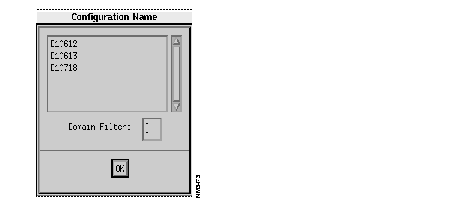
Click on one of the names in the Configuration Name dialog box to present the screen which lists the associated node's date and time of configuration save, the BRAM ID (BPX/IPX software version), and the node name.
StrataView Plus requires approximately 256 Kbytes of disk storage space for each node's BPX/IPX BRAM Configuration Image. Therefore, to calculate the amount of StrataView Plus disk space required for a network, multiply 256 Kbytes times the number of nodes. This should give a close approximation. For example, for a 40 node network, the StrataView Plus disk space required would be:
40 X 256 Kbytes = 10,240 Kbytes or approximately 10.2 MBytes.
The system administrator should check for unneeded configuration files in the /usr/users/svplus directory and remove them if no longer applicable. These files are stored in directories that all have the following name format: configuration name_Cfgdir. For example, the directory for a configuration saved as nw1bk1 would be stored as /usr/users/svplus/nw1bk1_Cfgdir.
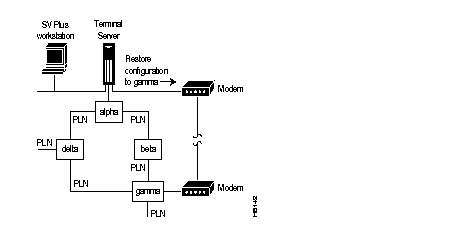
Figure 10-5 shows an example of node configuration restoration to "gamma" which has been put out of service. A major alarm is generated over the network because gamma is unreachable. The trunks going from "gamma" to other nodes should not be deleted, so as to preserve the configuration information about gamma at these other nodes.
This section describes SuperUser commands which should be performed only by personnel who have received the appropriate StrataCom training, and who are authorized to access nodes at privilege level 0.
For details on the configuration commands, refer to Appendix A.
The network configuration was previously saved as follows:
dspcnf
If a firmware image is present, use the getfwrev 0.0 command to clear the savecnf/loadcnf buffer
savecnf nw1bk1 * alpha
savecnf clear *
The configuration is downloaded to a replacement node via a modem connection from StrataView Plus using the loadcnf command. Then the node is restored to operation using the runcnf command.
cnfname gamma
loadcnf nw1bk1 gamma
In this case, the source node and the node receiving the configuration download are one and the same node.
runcnf nw1bk1 gamma
loadcnf clear gamma
Since the node gamma now has the same configuration as the nodes in the rest of the network, the trunks will come out of alarm, and the failed connections terminated at gamma will be restored.
In this example, an entire network is restored to a prior configuration named "orenwbk2" that is stored in a StrataView Plus workstation.
loadcnf orenwbk2 * alpha
runcnf orenwbk2 *
loadcnf clear *
Changing the size of the Informix database eradicates the data stored in the database. Therefore, before changing the size of the database, the data should be backed up. For detailed information on backing up and changing the size of the database, refer to Appendix D.
Even if you don't want to change the size of the database, you should back it up periodically. The following is a synopsis of the procedure for just backing up the database, only:
The tbmonitor program provides an archiving facility that allows you to back up the database. Informix can be in on-line or quiescent mode to execute an archive. If you are archiving while the system is on-line be sure to choose an off-peak period.
cd /usr/users/informix/bin
tbmonitor
<RETURN>.
C or <RETURN>. You will be prompted to mount the tape.
<RETURN>
Please label this tape as number 1 in the archive sequence.
Please mount tape and press <RETURN> to continue."
|
|