|
|

This chapter describes how to install the Cisco 3800 Expansion Router Module (ERM), and includes the following sections:
Do not unpack the Cisco 3800 ERM until you are ready to install it. If the final installation site will not be ready for some time, keep the card in its shipping container to prevent accidental damage. When you have determined where you want the Cisco 3800 ERM installed, proceed with unpacking it.
The Cisco 3800 ERM and any optional equipment you ordered might be shipped in more than one container. When you unpack each shipping container, check the packing list to ensure that you received all of the following items:
Inspect all items for shipping damage. If anything appears to be damaged, or if you encounter problems when installing or configuring your system, contact customer service.
Installing the Cisco 3800 ERM requires some tools and parts that are not provided as standard equipment. The following tools and equipment, which are not included, are required to install the Cisco 3800 ERM in the Cisco 3800 chassis:
 | Warning Only trained and qualified personnel should install or replace this equipment. |
| Warning Before handling the ERM, attach a wrist strap. Power OFF the Cisco 3800 chassis. The cannot be removed and inserted in the Cisco 3800 chassis while the system is up and running. |
Step 1 Determine the ERM's slot in the chassis if you are replacing the ERM or removing it to perform maintenance procedures.
Step 2 Detach all cables.
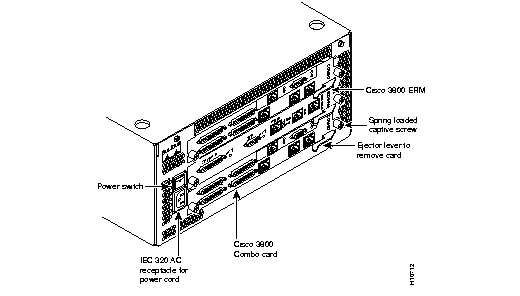
Step 3 Unscrew the spring captive screws from the sides of the Cisco 3800 ERM.
Step 4 Press the ejector lever until you feel the Cisco 3800 ERM's backplane connector release from its seating in the front of the Cisco 3800.
Step 5 Pull the ERM out along the guides. If it sticks, jiggle it gently.
Step 6 Insert the new Cisco 3800 ERM card by reversing this procedure.
Step 7 Insert the Cisco 3800 ERM into the card track and push it firmly but gently into the connectors on the backplane.
Step 8 Hold the extractor handles in the open position until they make contact and then rotate them to the closed position.
Step 9 Tighten the two captive screws on the faceplate of the ERM just enough to secure the ERM to the card cage.
Figure 3-2 illustrates a Cisco 3800 ERM connected to a Cisco 3800 Combo card.
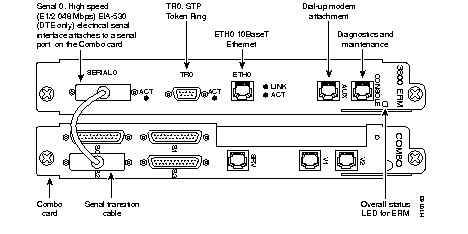
Take the following steps to connect the Cisco 3800 ERM to the Cisco 3800 Combo card:
Step 1 Attach the DB-25 female end of the special serial transition cable to the Cisco 3800 ERM's serial0 port.
Step 2 Attach the DB-25 male end of the serial cable to a Cisco 3800 Combo card serial port.
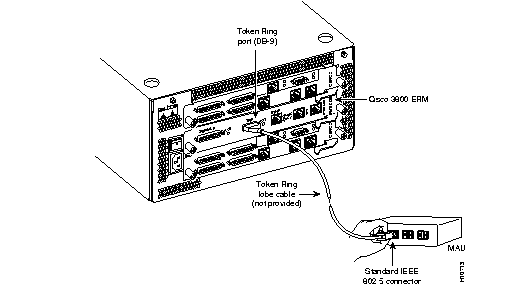
This section describes how to connect the Cisco 3800 ERM to Token Ring and Ethernet LANs.
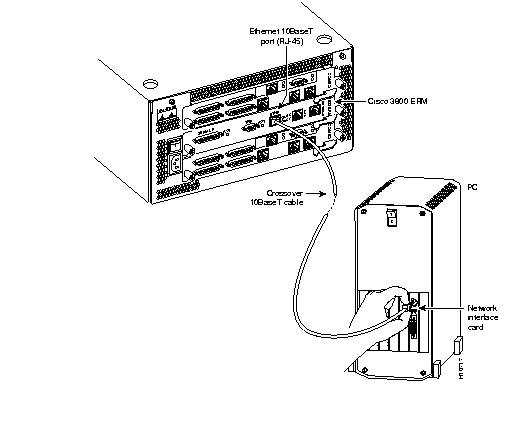
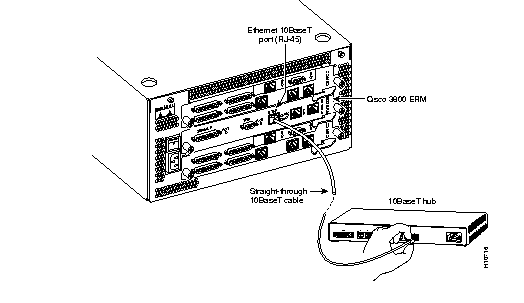
To connect your Cisco 3800 ERM to an Ethernet LAN, use the Ethernet 10BaseT (ETH0) port. You can connect the Cisco 3800 ERM to an Ethernet LAN in one of the following ways:
The ERM includes asynchronous serial console and auxiliary ports. These ports provide administrative access to the ERM either locally (with a console terminal) or remotely (with a modem).
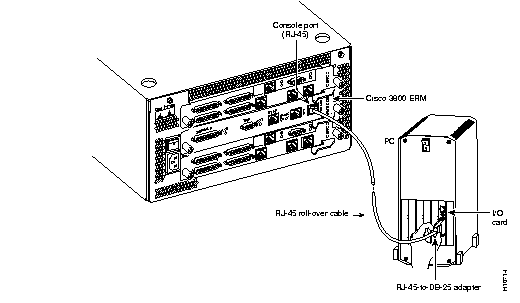
Take the following steps to connect a terminal (an ASCII terminal or a PC running terminal emulation software) to the console port on the ERM:
Step 1 Connect the terminal (see Figure 3-6) using the thin, flat, RJ-45-to-RJ-45 rollover cable (it looks like a telephone cable) and an RJ-45-to-DB-9 or RJ-45-to-DB-25 adapter (labeled "Terminal") included with the ERM. For cable pinouts, see the appendix "Cable Specifications."
Step 2 Configure your terminal or PC terminal emulation software for 9600 baud, 8 data bits, no parity, and 2 stop bits.
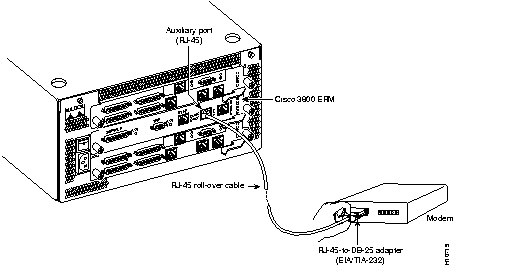
Take the following steps to connect a modem to the auxiliary port on the Cisco 3800 ERM for remote access:
Step 1 Connect a modem to the auxiliary port using the thin, flat, RJ-45-to-RJ-45 rollover cable (it looks like a telephone cable) with the RJ-45-to-DB-25 adapter (labeled "Modem") included with the ERM. (See Figure 3-7.)
Step 2 Make sure that the modem and the auxiliary port on the ERM are configured for the same transmission speed (38400 baud is typical) and hardware flow control.
When you have installed the Cisco 3800 ERM in the Cisco 3800, turn on the system and proceed to the chapter "Configuring the Cisco 3800 ERM."
|
|