


|
|

This chapter describes how to install the Cisco 3800 systems hardware, and includes the following sections:
 | Caution Except in the United States and Canada, this product should not be directly connected to the PSTN analog lines. |
 | Warning Installation should be carried out by an experienced system administrator or network engineer. |
Before you install your Cisco 3800 system, select the location with the following considerations in mind:
| Caution To maintain full electromagnetic interference (EMI) and EMC integrity of this equipment, it must be bonded to an integrated ground plane or an isolated ground plane network to mitigate the damaging effects from electrostatic discharge and lighting. Refer to the latest edition of ITU Recommendation K.27 or Bellcore GR-1089-CORE requirements to ensure that the correct bonding and grounding procedures are followed. |
The unit should be installed in a location no more than six feet (approximately two meters) from the power source.
As you plan your installation locations, keep the length of cables in mind. Cables are typically 10 feet long.
The site must be capable of maintaining an ambient temperature between 32 and 104°F (0 and 40°C) while the system is operating.
Acceptable humidity range is between 10 and 95 percent, noncondensing.
To provide extra protection in the event of seismic activity, the Cisco 3800 system can be secured to its wall-mounting or rack-mounting brackets with extra attachment screws.
If you install the Cisco 3800 system in a small space, or on a rack located in a closet or other enclosure, make sure the space has proper ventilation allowing good airflow through the unit. This prevents overheating. Installation of air-conditioning in the proposed location must be considered if proper ventilation may not cool the units.
If phone cords are not provided by the manufacturer, UL requires that phone cord attaching telephone equipment to a voice port be of Recognized Component Appliance Wiring Material (AWM).
| Warning To reduce the risk of fire, use only Number 26 AWG or larger telecommunication line cord. |
All Cisco 3800 AC systems are equipped with a single IEC 320 receptacle that accepts a variety of power cords. The system accepts universal AC input voltage from 90 to 264 VAC. The power requirement for each system depends on the configuration. The information in Table 2-1 applies to the maximum configuration for each system.
| System | Maximum Line Current (Amps) | Maximum Power (Watts) | Maximum VA |
|---|---|---|---|
| Cisco 3801 | 1.1 @ 90 VAC | 53W | 97 |
| Cisco 3803 | 3.3 @ 90 VAC | 160W | 291 |
An insulated grounding conductor identical in size to the grounded and ungrounded branch circuit supply conductors must be installed as part of the branch circuit that supplies the device.
In addition to the safety ground, the chassis shall be grounded to the local ground using the rack-mounting bracket or its frame bonding connection.
Cisco 3800 systems are designed to be installed in both simple and complex networks. This section provides network planning information to enable you to install a Cisco 3800 system successfully.
Before installing Cisco 3800 equipment at the site, consult the responsible system administrator for a clear understanding of the site's network's topology and for its appropriate network addresses, and so forth. Many network administrators maintain a diagram of the entire network topology.
An installation site can consist of the entire network in a small office. A small office can have control of its entire network, but may not have the support of a system administrator or IT department when equipment is being installed and configured. As part of a larger network, a site may receive technical support from an IT department or system administrator. This information should be reviewed to gain an understanding of what is involved when you install and configure a Cisco 3800 series network.
Diagramming the immediate installation site before the actual installation provides a clear picture of the elements of the Cisco 3800 system's connections. Do this before purchasing equipment. If not, before you connect cables to your Cisco 3800 system and configure it, have a clear understanding of the physical connections to other equipment at the installation site. The configuration of your Cisco 3800 chassis provides an appropriate number of ports, with each connection's IP address and line speed and protocol supported.
When you have read the preinstallation considerations described here, have a clear understanding of your installation site, have planned your installation, defined your network, and assigned appropriate IP addresses to your Cisco 3800 configuration, follow these steps to prepare your site:
Step 1 Designate a location for a diagnostics and maintenance terminal.
You need a terminal to assign IP addresses to Cisco 3800 cards and to perform certain startup diagnostic routines.
Step 2 Designate a terminal you will use to configure the Cisco 3800. Such a terminal can connect directly to the SRV service and maintenance port on startup.
Step 3 Make sure you have plenty of room to unpack the cabinet and to lay cable out in such a way that nothing gets tangled.
This section describes how to unpack the shipping container without damaging the cabinet.
The Cisco 3800 system cabinet is shipped in a polyethylene bag, packed in a cardboard container, and protected with foam in place.
Before you unpack the shipping container, make sure you have the following items:
Take the following steps to unpack the shipping container:
Step 1 Check the container for any obvious signs of damage. Shock and tilt indicators change color from white to red if the container has been shaken or tilted beyond recommendation. Although the Cisco 3800 system may not be damaged if the indicators are red, be extra alert when you look for potential damage.
Report any damage to customer service and the shipping authority.
Step 2 If there is no damage to the container, open it.
Step 3 Check your original order with the packing slip and make sure all the components are included.
Step 4 Lift the contents from the crate. The system is modular, so the cards and cables you ordered may be packaged separately.
| Caution Use caution to avoid injury when lifting the cabinet. |
What you will find in your shipment is listed on the packing list included in the container. The following items should be included:
Step 1 Inspect the Cisco 3800 system carefully.
If you see visible damage to the cabinet, contact customer service.
Step 2 If there is no damage to equipment, lay out the cables and label their ends, if appropriate.
When you have installed the cards and optional cards, you can wall-mount the chassis, mount it in a rack, or place it on your desktop.
Step 1 Locate the studs in the wall.
Step 2 Put the flat bracket against the wall and mark where you will install screws.
Step 3 Partially insert the corner screws into the wall in the marked locations. Remember that the self-tapping screws require quite a bit of pressure to install because they are creating their own thread.
Step 4 Attach the flat bracket to the bottom of the Cisco 3801 or Cisco 3803 unit--unscrew the feet.
Step 5 Slide the attached bracket over the slotted screw holes and position it into place.
Step 6 Secure the corner screws. We recommend that you add the intermediate screws as reinforcement.
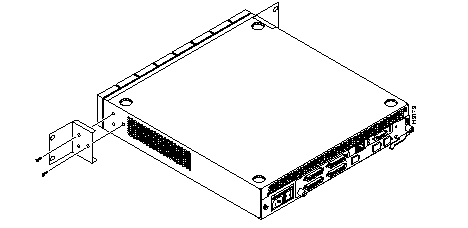
Cisco 3800 systems rack-mount with side ear brackets, as illustrated in Figure 2-1. When a unit is rack-mounted, its front bezel faces the front of the rack so you can see an LED indicating the operating state of the Combo card through the front bezel. Connectors for cable terminations face the rear of the rack.
When rack-mounting, be sure racks are capable of supporting the unit's weight and the weight of associated cables. The brackets attach to the sides of the unit are designed for a standard 19-inch rack.
Step 1 Decide where the unit will reside in the rack.
Step 2 Insert the four 10-32 screws into the holes at the front of the rack.
Step 3 Secure the side-tab brackets to the unit using the Phillips size 8-32 screws.
Step 4 Position the shelf mounting bracket with the unit attached in the rack so the flat plates with slotted holes fit over the screws you inserted in the rack in Step 2.
Step 5 Fit the screw heads through the larger portion of the slotted holes and secure the rack by sliding the bracket so the narrow part of the screws jam into the narrow portion of the slotted holes.
Step 6 Secure the four attaching screws so the shelf bracket does not move.
When rack-mounting, be sure racks are capable of supporting the unit's weight. Racks should be of a standard 19-inch width. You can use the Cisco racks and rack-mounting shelf. The rack-mounting bracket can also be used for wall-mounting. (See Figure 2-2.)
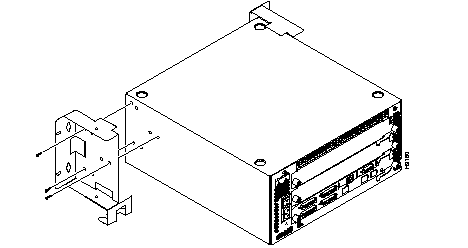
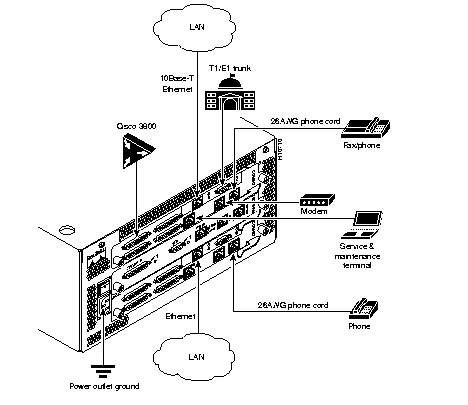
Figure 2-3 shows a Cisco 3803 with Combo cards and an ERM installed and symbols of devices that connect with the cards.
What is not shown:
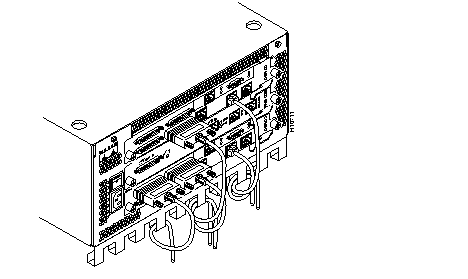
A special cable mounting bracket has been designed to guide cabling neatly from the Cisco 3803 chassis when it is mounted on a wall or in a rack. It installs on the bottom of the chassis. (See Figure 2-4.)
With the power supply cord plugged into the wall socket and the diagnostic and maintenance terminal's RJ-45 connector plugged into the Combo card's SRV port, follow these steps:
Step 1 Enable the Cisco 3800 system's main power by pressing the power switch.
Step 2 Turn the maintenance terminal's power on.
Step 3 As the system starts, you may hear the power supply, fan, and a series of noises. The LEDs indicate that the card is running self-diagnostic routines.
Step 4 The LEDs on the installed and cabled cards are green to indicate that the cards are up and running.
Step 5 If the cards appear to be operating properly, refer to the publication Cisco 3800 Series Software Configuration Guide and Command Reference to configure your system.
|
|