


|
|

This chapter describes the Cisco 3800 series cards, how to install them, and how to configure them. It includes the following sections:
You can install optional cards in the Cisco 3803:
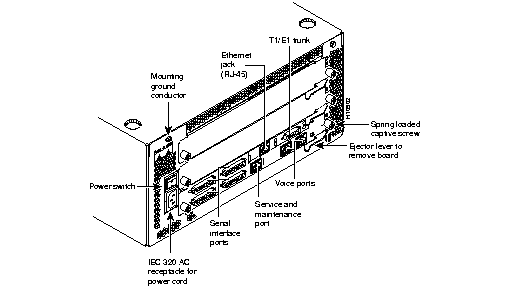
In Figure 3-1 Combo card is installed in the Cisco 3803 unit, which includes the features described in the section "Features" in the chapter "Installing Cisco 3800 Cards." The Combo card can be upgraded with an additional T1/E1 interface and Ethernet port by installing a daughter card.
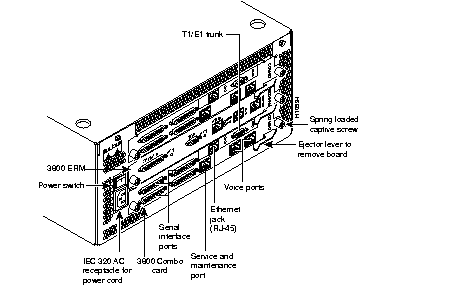
The Combo card's overall status is indicated by the tri-state LED, which is visible both on the rear panel and through the front bezel of the unit. See the sections describing individual cards for details about LEDs.
The two additional slots on the Cisco 3803 can be upgraded to offer routed LAN interfaces. The Cisco 3803 backplane supports light integration. Optional cards attach to their supporting Combo card with serial interface cables.
The Expansion Router Module (Cisco 3800-ERM) adds a DB-9 Token Ring port, an RJ-45 Ethernet port, an auxiliary port, and a console port. It fits in one slot of the Cisco 3800 unit, receives power through its backplane, and communicates with the Cisco 3800 Combo card through serial interface cabling.
The Combo card can be installed in any Cisco 3803 slot, as long as the Cisco IOS software image is properly configured to reflect the Combo card's slot and port. The remainder of this chapter describes the Combo card in detail.
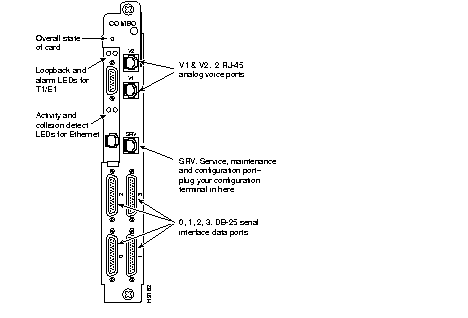
The Combo card is illustrated in Figure 3-3.
Connections include four serial interface ports (DB-25 connectors), two analog voice ports (RJ-45s) and a service access port (RJ-45). The Combo card also can be upgraded with a daughter card for an additional T1/E1 port (DB-15) and a 10BaseT Ethernet port (RJ-45).
Each serial interface port on the Combo card is individually programmed using Cisco IOS software commands to provide one of the following electrical interfaces: RS-232/V.28, V.35, RS-422A/V.11, RS-449, RS-485 or EIA-530. Each port is configured as DCE and uses a female DB-25 pin connector. For connections requiring other than a DB-25, such as V.35, the appropriate cable must be used to convert from the DB-25 connector to the standard connector for that interface. See the list of cables available in the chapter "Introducing the Cisco 3800 Series."
Two analog voice ports each utilize an RJ-45 connector. They are configured with onboard DIP switches to provide 2/4-wire E&M, FXS and FXO functionality. Ports are not individually programmable so the switch settings you select apply to both ports.
In E&M mode, the ports are configured for a terminate (CO type) interface to facilitate connection to a local PBX or key system. E&M signalling types I, II, III, IV, and V are supported. PSTN connection is not likely.
In FXS mode, ports are configured to provide a "central-office" like trunk to a local PBX, key system or station. Loop-start (standard telephone line) and ground-start (tie-trunk, coin phone line) modes are provided. Ringing support is provided to REN 1.0, so ringing lots of extensions is not an option. PSTN connection is not applicable.
In FXO mode, ports behave as a station, allowing simple connection to a PBX system. Loop-start (standard telephone set) and ground-start (PBX, key system, or coin phone) modes are provided. Outside North America, homologation requirements may necessitate customization for PSTN connection. Contact customer service for details.
The service access port is an RJ-45 asynchronous connection to the onboard serial management channels (SMCs) residing on the master and slave QUICC processors.The console port provides dial-in access to the Combo card through an external modem.
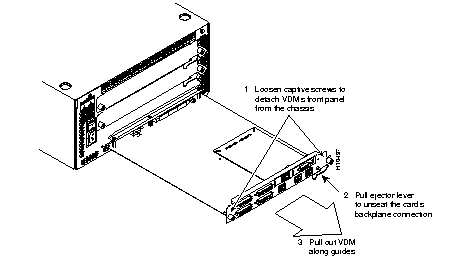
This section describes how to remove and replace the Combo card (see Figure 3-4) if you need to upgrade it, configure its ports with DIP switches, or replace it.
 | Warning During this procedure, wear grounding wrist straps to avoid ESD damage to the card. Do not touch the backplane with a screwdriver or your finger or you may shock yourself. |
The Combo card slides into the back of the units along plastic guides. It plugs into the cable attaching to the power supply at the front of the unit. When you remove a Combo card from any model chassis, you may feel some resistance as it disconnects from the backplane.
| Warning During this procedure, wear grounding wrist straps to avoid ESD damage to the card. Do not directly touch the backplane with your hand or a metal tool, or you could shock yourself. |
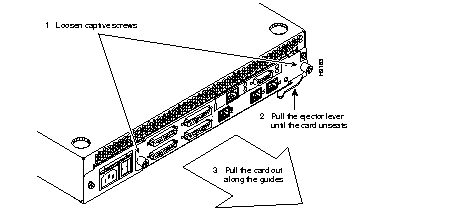
Step 1 Detach the cables installed on the Combo card.
Step 2 With a Phillips head screw driver, loosen the captive screws attaching the Combo card's front panel to the chassis.
Step 3 Pull the ejector lever until you feel the Combo card's six-pin connector release from its backplane seating at the front of the unit.
Step 4 Slide the card out along the guides toward you. If it gets stuck, gently move the card from side to side to dislodge it and then tug.
Step 5 If necessary, configure the replacement Combo card's DIP switches as described in the section "Configuring Cisco 3800 Combo Card Ports with DIP Switches" later in this chapter.
Step 6 Insert the new Combo card by reversing this procedure.
Step 7 Tighten and secure the captive screws.
Step 8 Reattach the cables.
Figure 3-5 illustrates removing a combo card from a Cisco 3803 chassis.
This section describes how to configure DIP switches on Cisco 3800 series Combo cards (see Figure 3-6), and contains the following sections:
Voice port line impedance can be configured with DIP switch SW3 on the Combo card. SW3 can be set to provide either 600-ohm or 900-ohm impedance to the analog voice lines. An installed daughter card covers these DIP switches. (See the section "Removing and Installing a T1/E1 and Ethernet Daughter Card" later in this chapter for information about removing a daughter card.) See Figure 3-7 and Table 3-1.
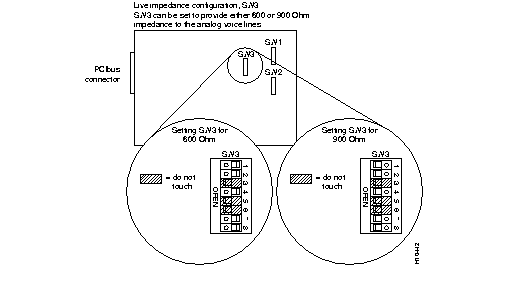
| Set DIP switches correctly for the card to function properly. Incorrect settings may cause damage. The dimple (see Figure 3-7) pops up when you select the opposite side by pressing it down. For different DIP switch package styles, you slide the switches into place. Open means off; closed means on. |
| Pin # | 600 Ohm | 900 Ohm |
|---|---|---|
| 1 | Closed/on | Open/off |
| 2 | Closed/on | Open/off |
| 3 | - | - |
| 4 | Closed/on | Open/off |
| 5 | - | - |
| 6 | - | - |
| 7 | Closed/on | Open/off |
| 8 | Closed/on | Open/off |
Voice port E&M mode can be configured with DIP switch SW3 on the Combo card. SW3 can be set to provide either two-wire or four-wire E&M mode to the analog voice lines. An installed daughter card hides these DIP switches. (See the section "Removing and Installing a T1/E1 and Ethernet Daughter Card" later in this chapter for information about removing a daughter card.) See Figure 3-8 and Table 3-2.
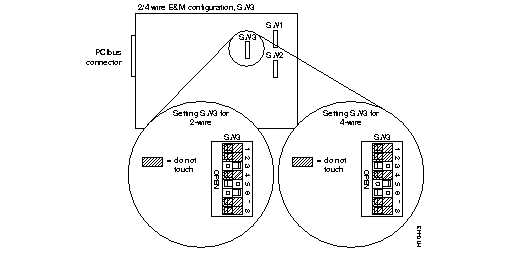
| Set DIP switches correctly for the card to function properly. Incorrect settings may cause damage. The dimple (see Figure 3-8) pops up when you press the opposite side down. Depress the side of the switch you want to select. For different DIP switch package styles you slide the switch into place. Open means off; closed means on. |
| Pin # | Two-wire | Four-wire |
|---|---|---|
| 1 | - | - |
| 2 | - | - |
| 3 | Closed/on | Open/off |
| 4 | - | - |
| 5 | Open/off | Closed/on |
| 6 | Closed/on | Open/off |
| 7 | - | - |
| 8 | - | - |
Analog voice lines can be configured as FXS Ground Start with DIP switches SW1, SW2 and SW3 on the Combo card. An installed daughter card hides these DIP switches. (See the section "Removing and Installing a T1/E1 and Ethernet Daughter Card" later in this chapter for information about removing a daughter card.) See Figure 3-9 and Table 3-3.
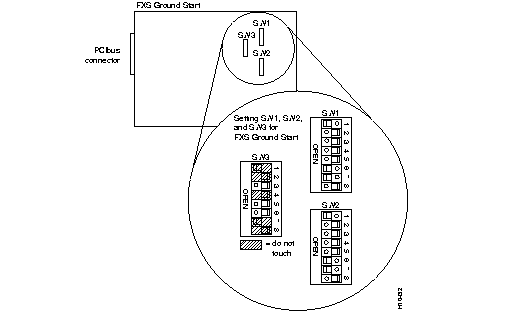
| Set DIP switches correctly for the card to function properly. Incorrect settings may cause damage. The dimple (see Figure 3-9) pops up when you press the opposite side down. Depress the side of the switch you want to select. For different DIP switch package styles you slide the switch into place. Open means off; closed means on. |
| Pin # | SW1 | SW2 | SW3 |
|---|---|---|---|
| 1 | Open/off | Open/off | - |
| 2 | Closed/on | Closed/on | - |
| 3 | Closed/on | Closed/on | Closed/on |
| 4 | Closed/on | Closed/on | - |
| 5 | Closed/on | Closed/on | Closed/on |
| 6 | Open/off | Open/off | Closed/on |
| 7 | Open/off | Open/off | - |
| 8 | Closed/on | Closed/on | - |
Analog voice lines can be configured as FXS Loop Start with DIP switches SW1, SW2 and SW3 on the Combo card. An installed daughter card hides these DIP switches. (See the section "Removing and Installing a T1/E1 and Ethernet Daughter Card" later in this chapter for information about removing a daughter card.) See Figure 3-10 and Table 3-4.
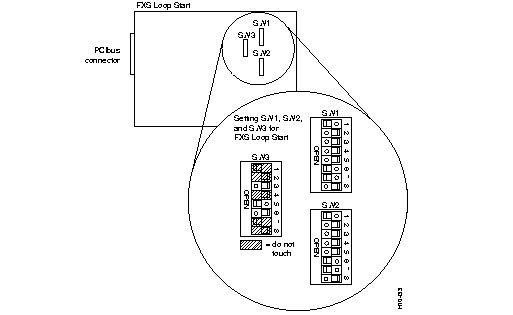
| Set DIP switches correctly for the card to function properly. Incorrect settings may cause damage. The dimple (see Figure 3-10) pops up when you press the opposite side down. Depress the side of the switch you want to select. For different DIP switch package styles you slide the switch into place. Open means off; closed means on. |
| Pin # | SW1 | SW2 | SW3 |
|---|---|---|---|
| 1 | Open/off | Open/off | - |
| 2 | Closed/on | Closed/on | - |
| 3 | Closed/on | Closed/on | Closed/on |
| 4 | Closed/on | Closed/on | - |
| 5 | Closed/on | Closed/on | Open/off |
| 6 | Open/off | Open/off | Closed/on |
| 7 | Open/off | Open/off | - |
| 8 | Closed/on | Closed/on | - |
Analog voice lines can be configured as FXO Ground Start with DIP switches SW1, SW2 and SW3 on the Combo card. An installed daughter card hides these DIP switches. (See the section "Removing and Installing a T1/E1 and Ethernet Daughter Card" later in this chapter for information about removing a daughter card.) See Figure 3-11 and Table 3-5.
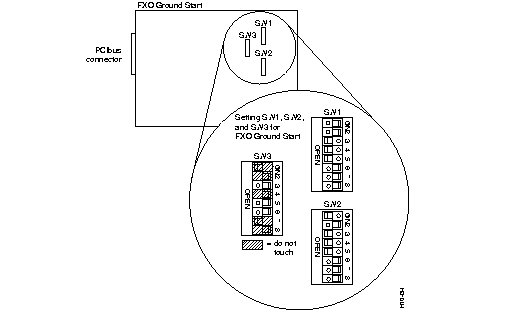
| Set DIP switches correctly for the card to function properly. Incorrect settings may cause damage. The dimple (see Figure 3-11) pops up when you press the opposite side down. Depress the side of the switch you want to select. For different DIP switch package styles you slide the switch into place. Open means off; closed means on. |
| Pin # | SW1 | SW2 | SW3 |
|---|---|---|---|
| 1 | Closed/on | Open/off | - |
| 2 | Closed/on | Closed/on | - |
| 3 | Open/off | Open/off | Closed/on |
| 4 | Open/off | Open/off | - |
| 5 | Open/off | Open/off | Closed/on |
| 6 | Closed/on | Closed/on | Closed/on |
| 7 | Closed/on | Closed/on | - |
| 8 | Closed/on | Closed/on | - |
Analog voice lines can be configured as FXO Loop Start with DIP switches SW1, SW2 and SW3 on the Combo card. An installed daughter card hides these DIP switches. (See the section "Removing and Installing a T1/E1 and Ethernet Daughter Card" later in this chapter for information about removing a daughter card.) See Figure 3-12 and Table 3-6.
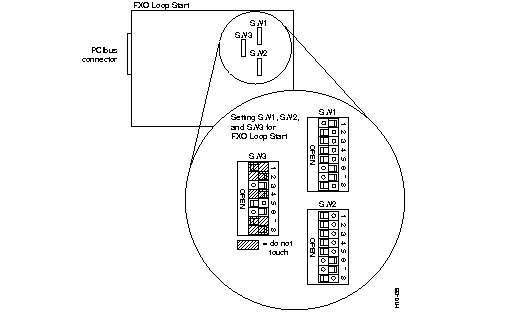
| Set DIP switches correctly for the card to function properly. Incorrect settings may cause damage. The dimple (see Figure 3-12) pops up when you press the opposite side down. Depress the side of the switch you want to select. For different DIP switch package styles you slide the switch into place. Open means off; closed means on. |
| Pin # | SW1 | SW2 | SW3 |
|---|---|---|---|
| 1 | Closed/on | Open/off | - |
| 2 | Open/off | Open/off | - |
| 3 | Open/off | Open/off | Closed/on |
| 4 | Open/off | Open/off | - |
| 5 | Open/off | Open/off | Open/off |
| 6 | Closed/on | Closed/on | Closed/on |
| 7 | Closed/on | Closed/on | - |
| 8 | Open/off | Open/off | - |
Analog voice lines can be configured as E&M Type I with DIP switches SW1 and SW2 on the Combo card. An installed daughter card hides these DIP switches. (See the section "Removing and Installing a T1/E1 and Ethernet Daughter Card" later in this chapter for information about removing a daughter card.) See Figure 3-13 and Table 3-7.
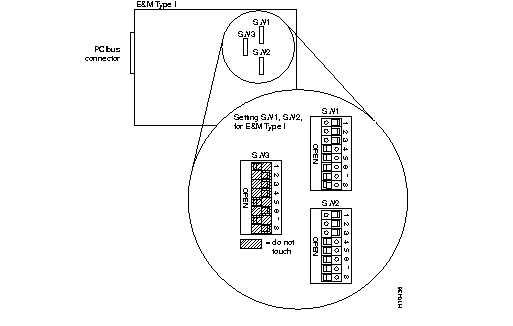
| Set DIP switches correctly for the card to function properly. Incorrect settings may cause damage. The dimple (see Figure 3-13) pops up when you press the opposite side down. Depress the side of the switch you want to select. For different DIP switch package styles you slide the switch into place. Open means off; closed means on. |
| Pin # | SW1 | SW2 |
|---|---|---|
| 1 | Closed/on | Closed/on |
| 2 | Closed/on | Closed/on |
| 3 | Closed/on | Closed/on |
| 4 | Open/off | Open/off |
| 5 | Open/off | Open/off |
| 6 | Open/off | Open/off |
| 7 | Open/off | Open/off |
| 8 | Open/off | Open/off |
Analog voice lines can be configured as E&M Type II with DIP switches SW1 and SW2 on the Combo card. An installed daughter card hides these DIP switches. (See the section "Removing and Installing a T1/E1 and Ethernet Daughter Card" later in this chapter for information about removing a daughter card.) See Figure 3-14 and Table 3-8.
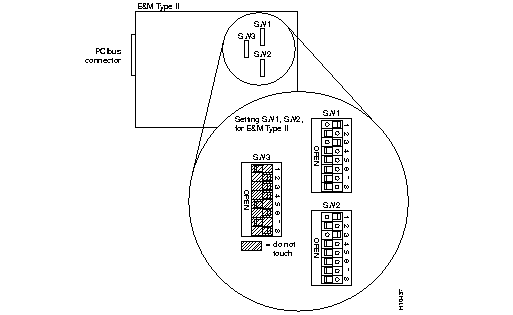
| Set DIP switches correctly for the card to function properly. Incorrect settings may cause damage. The dimple (see Figure 3-14) pops up when you press the opposite side down. Depress the side of the switch you want to select. For different DIP switch package styles you slide the switch into place. Open means off; closed means on. |
| Pin # | SW1 | SW2 |
|---|---|---|
| 1 | Closed/on | Closed/on |
| 2 | Open/off | Open/off |
| 3 | Closed/on | Closed/on |
| 4 | Open/off | Open/off |
| 5 | Open/off | Open/off |
| 6 | Open/off | Open/off |
| 7 | Open/off | Open/off |
| 8 | Open/off | Open/off |
Analog voice lines can be configured as E&M Type III with DIP switches SW1 and SW2 on the Combo card. An installed daughter card hides these DIP switches. (See the section "Removing and Installing a T1/E1 and Ethernet Daughter Card" later in this chapter for information about removing a daughter card.) See Figure 3-15 and Table 3-9.
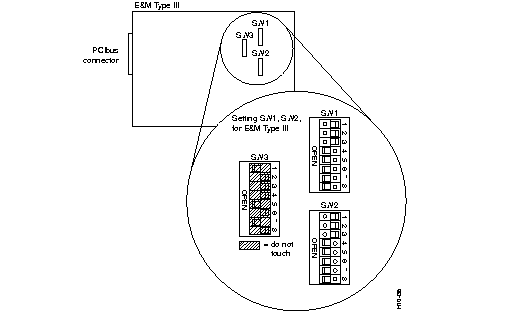
| Set DIP switches correctly for the card to function properly. Incorrect settings may cause damage. The dimple (see Figure 3-15) pops up when you press the opposite side down. Depress the side of the switch you want to select. For different DIP switch package styles you slide the switch into place. Open means off; closed means on. |
| Pin # | SW1 | SW2 |
|---|---|---|
| 1 | Closed/on | Closed/on |
| 2 | Closed/on | Closed/on |
| 3 | Closed/on | Closed/on |
| 4 | Open/off | Open/off |
| 5 | Open/off | Open/off |
| 6 | Open/off | Open/off |
| 7 | Open/off | Open/off |
| 8 | Open/off | Open/off |
Analog voice lines can be configured as E&M Type IV with DIP switches SW1 and SW2 on the Combo card. An installed daughter card hides these DIP switches. (See the section "Removing and Installing a T1/E1 and Ethernet Daughter Card" later in this chapter for information about removing a daughter card.) See Figure 3-16 and Table 3-10.
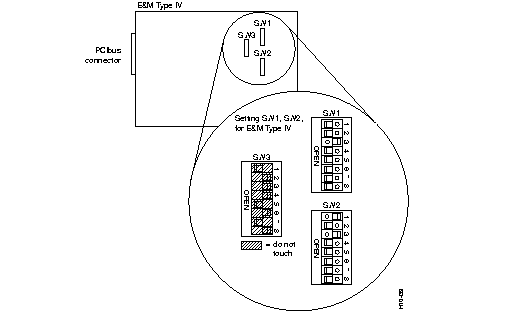
| Set DIP switches correctly for the card to function properly. Incorrect settings may cause damage. The dimple (see Figure 3-16) pops up when you press the opposite side down. Depress the side of the switch you want to select. For different DIP switch package styles you slide the switch into place. Open means off; closed means on. |
| Pin # | SW1 | SW2 |
|---|---|---|
| 1 | Open/off | Closed/on |
| 2 | Open/off | Open/off |
| 3 | Closed/on | Closed/on |
| 4 | Open/off | Open/off |
| 5 | Open/off | Open/off |
| 6 | Open/off | Open/off |
| 7 | Open/off | Open/off |
| 8 | Open/off | Open/off |
Analog voice lines can be configured as E&M Type V with DIP switches SW1 and SW2 on the Combo card. An installed daughter card hides these DIP switches. (See the section "Removing and Installing a T1/E1 and Ethernet Daughter Card" later in this chapter for information about removing a daughter card.) See Figure 3-17 and Table 3-11.
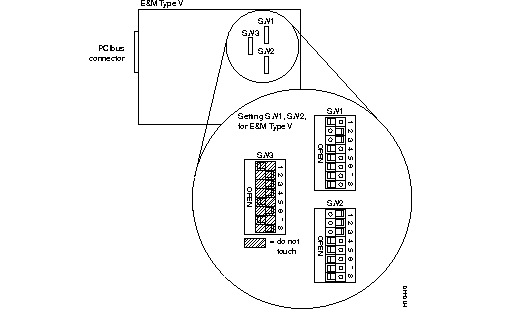
| Set DIP switches correctly for the card to function properly. Incorrect settings may cause damage. The dimple (see Figure 3-17) pops up when you press the opposite side down. Depress the side of the switch you want to select. For different DIP switch package styles you slide the switch into place. Open means off; closed means on. |
| Pin # | SW1 | SW2 |
|---|---|---|
| 1 | Open/off | Closed/on |
| 2 | Closed/on | Closed/on |
| 3 | Closed/on | Closed/on |
| 4 | Open/off | Open/off |
| 5 | Open/off | Open/off |
| 6 | Open/off | Open/off |
| 7 | Open/off | Open/off |
| 8 | Open/off | Open/off |
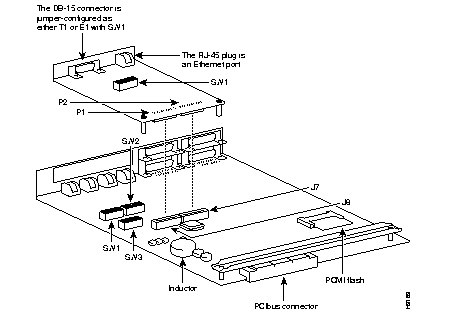
The T1/E1 and Ethernet daughter card installs onto either single-slot or multislot versions of the Combo card, adding one DB-15 T1/E1 port and one RJ-45 10BaseT Ethernet port. The connector pinouts are described in the chapter "Cisco 3800 Port and Trunk Pinouts." The DB-15 port can be jumper-configured to be either a T1 or E1 line.
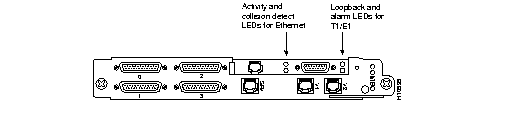
Two LEDs are associated with the Ethernet RJ-45 port. The LED's color indicates the port state (see Table 3-12).
| Position | Label | LED states | |||
|---|---|---|---|---|---|
| Dark | Green | Red | Amber | ||
| Top, left | COL | Not Receiving No Collision | Receiving | Collision | Collisions While Receiving |
| Bottom, right | ACT | No Link Integrity No Transmission | Link Integrity | Transmission | Periodic transmission with link integrity |
Each LED can be dark or green, red, or amber. Amber occurs when both red and green show simultaneously. The top, left LED flashes green during normal receive activity. There may be occasional red flashes when collisions are detected. Collision detection causes amber-to-red flashing, depending on the collision rate.
The bottom, right LED is normally green. If no data is being transmitted, an amber flash occurs approximately once every ten seconds. This is the periodic keepalive transmission. More rapid data transmission causes amber-to-red flashing, depending on data transmission rates.
Two LEDs are associated with the T1/E1 port. The LED's color indicates the port state described in Table 3-13.
| Position | Label | LED states | |||
|---|---|---|---|---|---|
| Dark | Green | Red | Amber | ||
| Top, left | LBK | Not used1 | Not in loop | In loop | Not used |
| Bottom, right | ALM | Not used1 | Frame Sync2 | Near-end alarm3 | Far-end alarm4 |
To install the daughter card, tilt it at an angle, fitting its faceplate into cutout in the Combo card faceplate, before inserting the plugs into the receptacles. (See Figure 3-19.)
You need a hard, flat surface to remove a daughter card:
Step 1 Remove all cables from the Combo card.
Step 2 Remove the Combo card from your Cisco 3800 unit.
Step 3 Place the Combo card on an antistatic foam pad spread on a hard, flat surface.
Step 4 Loosen the thumbscrews located at the corners of the daughter card approximately seven or eight turns or a quarter inch.
Step 5 With your thumbs pressing down on top of the thumbscrews and your index fingers beneath the end of the daughter card, pry the P1/P2 connectors away from their Combo card receptacles (J7 and J8). (See Figure 3-20.)
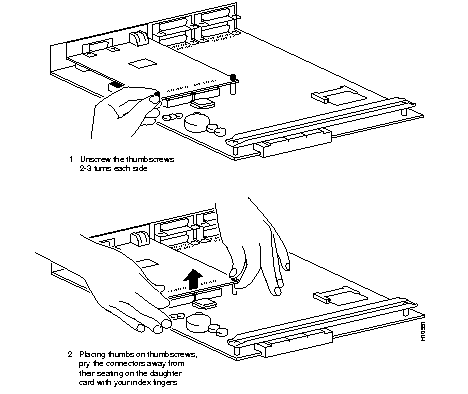
Step 6 Remove the thumbscrews.
Step 7 Tilt the daughter card's P1 and P2 connector end upward so the RJ-45 and DB-15 connectors and the daughter card faceplate are freed from their cutout in the Combo card's faceplate without being damaged.
Step 8 Configure the new daughter card's SW1 jumper appropriately, either as a T1-100 ohm port, an E1-120 ohm balanced port, or an E1-75 ohm unbalanced port, as described in the sections "T1 Trunk Termination Impedance" and "E1 Trunk Termination Impedance" later in this chapter.
Step 9 Attach the new daughter card by reversing these steps.
Step 10 Reinsert the Combo card into your Cisco 3800 unit, taking precautions not to touch the backplane with your hand, fingers or any metal object.
The DB-15 connector on the T1/E1 and Ethernet daughter card can be set to T1 or E1 by configuring DIP switch SW1 as described in this section. (See Figure 3-21.) Configurable features are as follows:
SW1 sets the DB-15 connector to be a T1 trunk with a termination impedance of 100 ohms. Set DIP switch SW1 on the daughter card. See Figure 3-22 and Table 3-14.
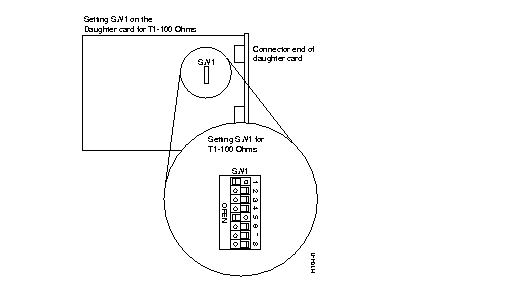
| Setting DIP switches correctly is critical for the card to function properly. Figure 3-22 illustrates the SW1 setting for a daughter card. Setting the Combo card's SW1 in this combination may cause damage to the card. The dimple (see Figure 3-22) pops up when you press the opposite side down. Depress the side of the switch you want to select. For different DIP switch package styles you slide the switch into place. Open means off; closed means on. |
| Pin # | T1-100 Ohm |
|---|---|
| 1 | Open/off |
| 2 | Closed/on |
| 3 | Closed/on |
| 4 | Closed/on |
| 5 | Open/off |
| 6 | Closed/on |
| 7 | Closed/on |
| 8 | Closed/on |
SW1 sets the DB-15 connector to be an E1 trunk with 120-ohm or 75-ohm termination impedance. Set DIP switch SW1 on the daughter card as listed in Table 3-15.
| Pin # | E1-120 Ohm | E1-75 Ohm |
|---|---|---|
| 1 | Open/off | Closed/on |
| 2 | Open/off | Open/off |
| 3 | Open/off | Open/off |
| 4 | Open/off | Open/off |
| 5 | Open/off | Closed/on |
| 6 | Open/off | Open/off |
| 7 | Open/off | Open/off |
| 8 | Open/off | Open/off |
The Cisco 3800-ERM option installs in the Cisco 3800 chassis to provide multiprotocol routing and bridging between Ethernet and Token Ring LANs and the WAN facilities of the Cisco 3800. The Cisco 3800-ERM is connected to a serial port on the Cisco 3800 Combo card using a special serial transition cable. (See Figure 3-23.) The Cisco 3800-ERM receives power from the backplane, but does not perform any communications over it.
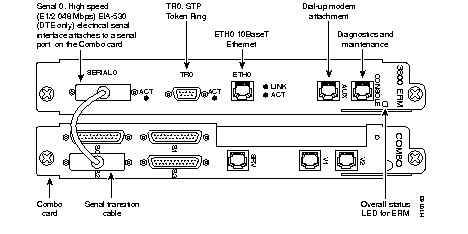
The Cisco 3800-ERM installs into one full-size slot in the Cisco 3803 chassis. The Cisco 3800-ERM connects with its host Combo card with a 24-inch serial transition cable. When installed in the cabinet, it must be positioned within reach of a Combo card.
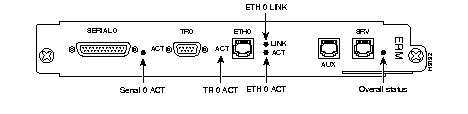
Cisco 3800-ERM LEDs indicate the operating condition of the ports. See Figure 3-24 and Table 3-16.
For more information about the Cisco 3800-ERM, refer to the product documentation.
Refer to the publication Cisco 3800 Series Software Configuration Guide and Command Reference to configure your system.
|
|