


|
|

This chapter is a guides you through a first time installation of StrataView Plus and associated software programs.
Most initial installations of StrataView Plus will be performed using the instructions in Installing Solaris. The installation allows you to customize the set up of the raw partition size for Informix.
This section describes the Solaris 2.5.1 installation. As each window appears on the screen, click the appropriate box or default selection for your particular installation. Before you begin, it is a good idea to know the have the host name, IP address, domain name, disk partitioning information, and the system network connectivity details.
Step 1 Halt system.
Step 2 Insert the Solaris CD-ROM.
Step 3 When the ok prompt appears, type:
boot cdrom < RETURN>
Step 4 The Solaris Installation Program Window appears. Click Continue.
Step 5 The Identify This System Window appears. Click Continue.
Step 6 The Host Name Window appears. Type your Host Name in the box.
Click Continue.
Step 7 The Network Connectivity Window appears. This window allows you to specify whether the system is networked. The default is yes.
Step 8 The IP Address Window appears. You are asked to:
Enter IP address.
Click Continue.
Step 9 The Confirm Information Window appears. If all details are correct,
Click Continue. Otherwise, click Change.
Step 10 The Name Service Window appears. Select:
NIS (formerly yp) Click Continue.
Step 11 The Domain Name Window appears. Enter domain name, for example,
cisco.com.
Click Continue.
Step 12 The Name Server Window appears. Select one of the following:
Click Continue.
Step 13 The Name Server Information Window appears. Type:
Server's Host Name
Server's IP address
Click Continue.
Step 14 The Subnet Window appears. You are asked, "Is system part of subnet?" The default is y.
Click Continue.
Step 15 The Netmask Window appears. Change up to the last three digits.
Click Continue.
Step 16 The Name Server Error Window appears.
Select No.
Click Continue.
Step 17 The Time Zone Window appears. Select correct time zone and region.
Specify time zone by geographic region.
Step 18 The Geographic Region Window appears.
Click Continue.
Step 19 The Date and Time Window appears. Correct if necessary.
Click Continue.
Step 20 Confirm Information Window appears.
Click Continue (if correct).
Step 21 The Install Solaris Software - Initial Window appears.
Click Continue.
Step 22 The Upgrade System Window appears.
Click Upgrade or Initial, as appropriate.
Click Continue.
Step 23 The Software Group Window appears with five categories. Select:
Entire Distribution
Click Continue.
The Disks Window appears.
Select drive and Add.
Click Continue.
Step 24 The Preserve Data Window appears.
Click Continue.
Step 25 The Automatic Layout File System Window appears. Select Manual.
Click Continue.
Step 26 The File System and Disk Layout Window appears.
Select Customize.
Step 27 The Customize Disks Window appears. Make selections as appropriate. (See the example layout shown in Figure 2.1 in the section, "Disk Partitioning," in this chapter..)
Step 28 The Mount Remote File Systems? Window appears.
Step 29 The Profile Screen appears. If you want to make changes to the installation setup,
Step 30 The Unnamed Window appears. If you select No Reboot, refer to the appropriate Solaris documentation for more information. Otherwise,
Step 31 The Installing Solaris--Progress Window appears.
This section offers some useful information for installing HP OpenView. For complete installation instructions, refer to the HP OpenView Installation Guide.
To install HPOV after the Solaris installation, follow these instructions:
forceload: sys/semsys
forceload: sys/shmsys
set shmsys:shminfo_shmmax=268435456
set semsys:seminfo_semmap=64
set semsys:seminfo_semmni=4096
set semsys:seminfo_semmns=4096
set semsys:seminfo_semmnu=4096
set semsys:seminfo_semume=64
set shmsys:shminfo_shmmin=100
set shmsys:shminfo_shmmni=100
set shmsys:shminfo_shmseg=100
set semsys:seminfo_semaem=16384
set semsys:seminfo_semvmx=32767
Before loading StrataView Plus and associated programs, it is necessary to partition the internal boot disk. When the installation has completed, the screen shown appears, as shown in Figure 2-1.
The Customize Disks screens let you make selections that determine your disk layout. (see examples in Figures 2-1and 2-2).

Table 2-1 gives a more detailed example of disk partitioning.
| 0 | Disk 0 / | 70 | 0 | Disk 1 | |
|---|---|---|---|---|---|
| 1 | Disk 0 swap | = size *2 of Phy Mem | 1 | Disk 1 | |
| 2 | Disk 0 Overlap | 1980 | 2 | Disk 1 Overlap | 1980 |
| 3 | Disk 0 | 3 | Disk 1 | ||
| 4 | Disk 0 /var | 100 | 4 | Disk 1 | |
| 5 | Disk 0 /opt | 450 | 5 | Disk 1 | |
| 6 | Disk 0 /usr | Remainder of Disk | 6 | Disk 1 /usr/users | Remainder of Disk |
| 7 | Disk 0 | 7 | Disk 1 | 800 |
An optional enhancement of the 8.4 release of StrataView Plus is disk striping, which requires three raw partitions for dual disk option.
Disk striping allows faster access. Spreading data across a stripe gives you increased performance, as reads and writes are spread across multiple disk arms.
When disk striping is used for Informix raw partitions, limit each partition to 2.0 GB, as Informix does not support single raw partitions larger than 2.1 GB.
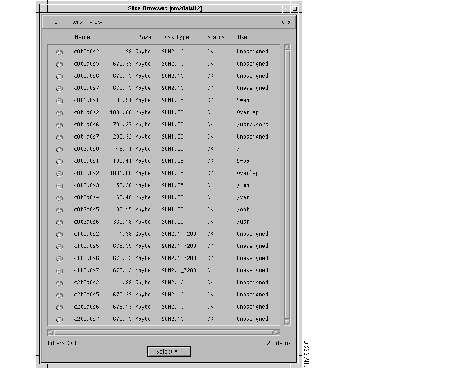
The following table gives (as an example) partition information for three disks attached to three controllers.

When disk striping is used for Informix raw partitions, limit each partition to 2.0 GB, as Informix does not support single raw partitions larger than 2.1 GB.
For complete information on the disk striping procedure, refer to the following technical manuals:
To install the SunSolstice DiskSuite follow this procedure:
Install DiskSuite CD in CD-ROM drive. Type:
cd /cdrom/cdrom0
pkgadd -d 'pwd'
Select 2 and 3 to be installed. (Follow on-screen instructions.)
Type the following command:
/usr/opt/SUNWmd/sbin/metatool
or
cd /usr/opt/SUNWmn/sbin
To start the DiskSuite Tool, type:
./metatool
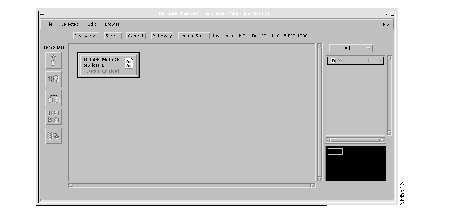
Open a Concat/Stripe template from the Metadevice Editor.
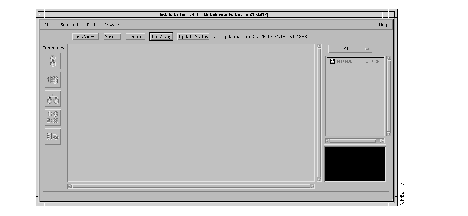
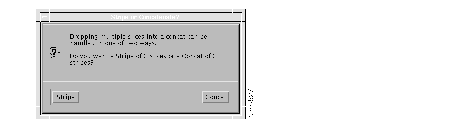
The first time DiskSuite Tool is started on a system, a warning message appears. Click on the OK button.
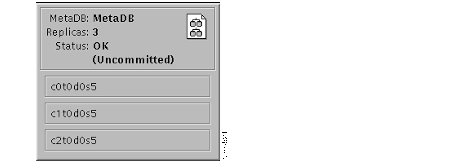
To check the status of the status of the database and the replicas, you can move the MetaDB object from the device list and view the Status Field on the object.
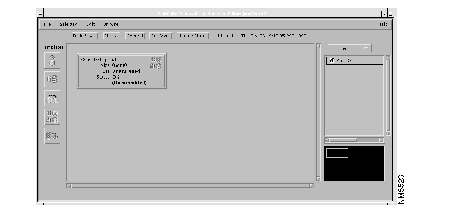
Information about the new devices is written to the appropriate files.
StrataView Plus 8.4 offers a refined and easy-to-follow automated installation procedure. The components and what they do are presented concisely and in no way reflect the technical sophistication of this feature.
To ensure a smooth installation, it helps to be aware of the following tips:
This release of StrataView Plus does not support swap on the secondary drive.
The following is an excerpt of the CSCOconf installation script. Respond to the prompts as appropriate. The default response is shown in boldface type.
For tape, an example devicename is /dev/rmt/0cbn
For CD-ROM, an example devicename is /dev/rmt/0cdrom
Processing package instance <CSCOconf> from /devicename
StrataView Plus 8.4.00 Configuration
(sparc) 8.4.00
This appears to be an attempt to install the same architecture and
version of a package which is already installed.  This installation
will attempt to overwrite this package.
                     StrataView Plus 8.4.00
    Copyright (c) 1995, 1996, 1997  Cisco Systems, Inc.  All rights reserved.

This software product is copyrighted and all rights are reserved by
Cisco Systems, Inc. Cisco Systems, Inc. reserves the right to make periodic
modifications to this product without obligation to notify any person
or entity of such revision.  Copying, duplicating, selling, or otherwise
distributing any part of this product without the prior written consent
of an authorized representative of Cisco Systems, Inc. are prohibited.

StrataCom, IPX, BPX, AXIS and FastPacket are registered trademarks and
StrataView Plus is a trademark of Cisco Systems, Inc.
The selected base directory </var/SVconfig> must exist before
installation is attempted.
Using </var/SVconfig> as the package base directory.
## Processing package information.
## Processing system information.
   7 package pathnames are already properly installed.
## Verifying package dependencies.
## Verifying disk space requirements.
## Checking for conflicts with packages already installed.
## Checking for setuid/setgid programs.
This package contains scripts which will be executed with super-user
permission during the process of installing this package.
Respond to the prompts as appropriate:
Installation of <CSCOconf> was successful.
You will be asked to supply the following information:
Are you installing from <cdrom> or 8mm <tape>?
Respond as appropriate, according to your installation media. For example:
Running the StrataView Plus Installer driver.
*** Starting main driver script at Wed Mar 26 17:59:06 PST 1997. ***
*******************************************************************************
*                                                                             *
*                  Welcome to the StrataView Plus Installer!                  *
*                                                                             *
*           This program will install the StrataView Plus software            *
*                             on your workstation.                            *
*                                                                             *
*          Copyright (c) 1997 Cisco Systems, Inc. All rights reserved.            *
*                                                                             *
*******************************************************************************
*************************************************
****** Running pre-checks for main driver. ******
*************************************************
*** Checking basic setup. ***
Checking that user is root.
Checking core script files
Checking that proper OS is installed.
*** Checking required installer script files. ***
*** Checking for current installation of StrataView Plus. ***
StrataView Plus is not currently installed.
*****************************************
*****************************************
****** Installing disk partitions. ******
*****************************************
*** Running pre-checks. ***
Checking for secondary disk(s).
>> There is more than one secondary disk connected to this system. You must choose
>> the secondary disk on which you want to install StrataView Plus.
>> You have the following choices:
>>    /dev/dsk/c0t1d0s2  /dev/dsk/c0t2d0s2  /dev/dsk/c0t3d0s2
>>
>> Please choose a drive, or <Control-C> to abort:  /dev/dsk/c0t2d0s2
Determining disk geometries.
Scanning disk partitions and mount points.
Checking available swap space.
>> or stick with the default values:
>>   swap = 500 MB, database = 800 MB
>>
>> Your secondary disk will need to be rebuilt.
>> You currently have the /usr/users partition on the secondary drive.
>> This installer will rebuild the secondary drive, which will destroy any
>> data that you have put there.
>> Hit <CTRL-C> to quit or no to skip
>>
*** Running main installation script. ***
>> The installer will now rebuild the secondary disk, destroying any data
>> that you have put there.  You have one more chance to change your mind.
>> If this is done before and you want to keep the partition as it is
>> , answer no on the following prompt. Hit <CTRL-C> to quit.
You are asked to enter the appropriate selection
Unmounting filesystems on secondary disk.
Killing processes that are accessing /usr/users
Rebuilding secondary disk.
Warning : everything in the secondary disk will be lost!
Running format
Disk format is needed for first time installation. If you have already
done so, you can skip this by entering no to the following prompt
or <CTRL-C> to quit.
>>
Creating new /usr/users filesystem.  This will take a while.
Running post-checks.
*******************************************
****** Installing User Accounts. ******
*******************************************
Running pre-checks.
Checking status.
Creating informix user id and group id
Creating svplus user id and group id
*** Running main installation script. ***
Adding extra configuration commands to /usr/users/svplus/.cshrc.
Adding extra configuration commands to /usr/users/informix/.cshrc.
*** Running post-checks. ***
*** Finished installing user accounts. ***
The installation procedure for Wingz is shown in the following example. Respond to the prompts as appropriate.
*******************************************
****** Installing Wingz for solaris. ******
*******************************************
*** Running pre-checks. ***
Checking current status of Wingz.
*** Running main installation script. ***
*** Running post-checks. ***
*** Finished installing Wingz for solaris. ***
The installation procedure for Motif is shown in the following example. Respond to the prompts as appropriate.
*******************************************
****** Installing Motif for solaris. ******
*******************************************
*** Running pre-checks. ***
Checking current status of Motif.
*** Running main installation script. ***
*** Running post-checks. ***
linking /opt/SUNWmfwm to /usr/users/motif
*** Finished installing Motif for solaris. ***
Before installing CSCOsv, keep the following in mind:
If you have allocated enough space in /usr/users/svplus/tmp,the installation procedure creates the necessary symbolic link to /var/temp, averting any difficulty as long as there is space available in /usr/users partition.
To install StrataView Plus 8.4, perform the following steps:
Installing StrataView Plus from CD-ROM takes about forty minutes.
**********************************************************
****** Installing StrataView Plus software package. ******
**********************************************************
*** Running pre-checks. ***
*** Running main installation script. ***
>> Please insert the StrataView Plus tape into your tape drive.
>>
>> Press <Return> when ready or <Control-C> to abort.
**********************************************************
****** Installing StrataView Plus software package. ******
**********************************************************
*** Running pre-checks. ***
*** Running main installation script. ***
>> Please insert the StrataView Plus tape into your tape drive.
>>
>> Press <Return> when ready or <Control-C> to abort.
Extracting the StrataView Plus files from CD.  This will take a while.
Preparing /var/tmp on the secondary disk for svplus pkgadd.
This will temporary allocate space from /usr/users/svplus/tmp and
link it to /var/tmp.
Removing /var/tmp and linking it to /usr/users/svplus/tmp...
Installing CSCOsv from /dev/nrst4
This will take approximately 40 minutes on CD.
If you are installing from 8 mm tape, it will take approximately two hours.
Processing package instance <CSCOsv> from </dev/nrst4>
StrataView Plus 8.4.00 for HPOV
(sparc) 8.4.00
This appears to be an attempt to install the same architecture and
version of a package which is already installed.  This installation
will attempt to overwrite this package.
                     StrataView Plus 8.4.00
    Copyright (c) 1995, 1996, 1997  Cisco Systems, Inc.  All rights reserved.

This software product is copyrighted and all rights are reserved by
Cisco Systems, Inc. Cisco Systems, Inc. reserves the right to make periodic
modifications to this product without obligation to notify any person
or entity of such revision.  Copying, duplicating, selling, or otherwise
distributing any part of this product without the prior written consent
of an authorized representative of Cisco Systems, Inc. are prohibited.

StrataCom, StrataView Plus IPX, BPX, and FastPacket are registered trademarks and
AXIS is a trademark of Cisco Systems, Inc.
Using </usr/users/svplus> as the package base directory.
## Processing package information.
## Processing system information.
   33 package pathnames are already properly installed.
## Verifying package dependencies.
WARNING:
    A version of <CSCOsv> package "StrataView Plus 8.4.00
    for HPOV" (which is incompatible with the package that
    is being installed) is currently installed and must be
    removed.
Do you want to continue with the installation of <CSCOsv> [y,n,?] Type y <RETURN>
## Verifying disk space requirements.
## Checking for conflicts with packages already installed.
## Checking for setuid/setgid programs.
This package contains scripts which will be executed with super-user
permission during the process of installing this package.
Do you want to continue with the installation of <CSCOsv> [y,n,?] Type y <RETURN>
	.
	.
	.
The following is an example of the installation script for Informix OnLine and ESQL Runtime. Respond to the prompts as appropriate. The default response is shown in boldface type.
	=============================================
INFORMIX-OnLine Administrator's Guide 5.06.UC1
DATE: 09/05/95
==============================================
StrataView Plus 8.4.00 INFORMIX 5.0.6 UC1
>> Please insert the Informix tape into your tape drive.
>>
>> Press <Return> when ready or <Control-C> to abort.
Extracting the Informix files from CD.  This will take a while.
Installing CSCOinf from /dev/nrst4
Processing package instance <CSCOinf> from </dev/nrst4>
(sparc) 8.4.00
This appears to be an attempt to install the same architecture and
version of a package which is already installed.  This installation
will attempt to overwrite this package.
Using </usr/users/informix> as the package base directory.
## Processing package information.
## Processing system information.
   8 package pathnames are already properly installed.
## Verifying package dependencies.
## Verifying disk space requirements.
## Checking for conflicts with packages already installed.
## Checking for setuid/setgid programs.
The following files are being installed with setuid and/or setgid
permissions:
* /usr/users/informix/bin/mkdbsdir <setuid root setgid informix>
* /usr/users/informix/bin/sgidsh <setuid root setgid informix>
*/usr/users/informix/bin/tbcheck <setgid informix>
* /usr/users/informix/bin/tbinit <setuid root setgid informix>
*/usr/users/informix/bin/tbload <setgid informix>
*/usr/users/informix/bin/tblog <setgid informix>
* /usr/users/informix/bin/tbmode <setuid root setgid informix>
* /usr/users/informix/bin/tbmonitor <setuid root setgid informix>
*/usr/users/informix/bin/tbparams <setgid informix>
* /usr/users/informix/bin/tbspaces <setuid root setgid informix>
* /usr/users/informix/bin/tbstat <setuid informix setgid informix>
* /usr/users/informix/bin/tbtape <setuid root setgid informix>
*/usr/users/informix/bin/tbunload <setgid informix>
* /usr/users/informix/lib/sqlturbo <setuid root setgid informix>
* - overwriting a file which is also setuid/setgid.
Do you want to install these as setuid/setgid files [y,n,?,q]Type y <RETURN>
This package contains scripts which will be executed with super-user
permission during the process of installing this package.
Do you want to continue with the installation of <CSCOinf> [y,n,?] Type y <RETURN>
Installing StrataView Plus 8.4.00 INFORMIX 5.0.6 UC2 as <CSCOinf>
Installation of <CSCOinf> was successful.
Running the final StrataView Plus configuration program.
Welcome to the INSTALLATION of StrataView Plus Release 8.4.0d1(Wed Mar 19 17:08:20 PST 1997)
Checking existence of the sqlhosts file       .... Successful
Checking existence of the informix_istar entry.... Successful
Checking existence of the motif window manager.... Successful
Creating init_db boot up script................... Successful
Filtering files................................... Successful
Checking for the existence of Informix............ Successful
Checking for the existence of Wingz............... Successful
Installation Type for StrataView Plus Release 8.4
            --------------------------------------------------
            (1) NEW         (Release 8.4 of SV+)
            (2) UPGRADE     (From previous release of SV+)
Enter number corresponding to installation type of x to exit :1
Checking existing partition....................... Successful
				Available partitions (Solaris) :
				================================
				/dev/rdsk/c0t0d0s1
				/dev/rdsk/c0t1d0s1
				/dev/rdsk/c0t1d0s6
				/dev/rdsk/c0t2d0s3
				/dev/rdsk/c0t2d0s7
				/dev/rdsk/c0t3d0s0
				/dev/rdsk/c0t3d0s1
				/dev/rdsk/c0t3d0s4
				/dev/rdsk/c0t3d0s5
				/dev/rdsk/c0t3d0s6
Checking Hard Disk count.......................... Successful
	Disk Configuration Migration to StrataView Plus Release 8.4
  		1) Single Raw Database Disk
  		2) Dual Raw Database Disk
  		x) To Exit
Enter number corresponding to disk configuration or x to exit : 1
Enter Raw Partition Name for rootdb (default :  Not configured): /dev/rdsk/c0t2d0s6
Enter new database name that start with a letter and fewer than
10 characters (default is stratacom):
Informix data will be installed in /dev/rdsk/c0t2d0s7 (409MB ) (Default is Y)
OK to continue (Y/N) :
Initializing the Informix database. This will take a few minutes...
Shutting down Informix (if necessary)............. Successful
Initializing the Informix database root file...... Successful
Initializing the Informix database mode........... Successful
Preparing the database for StrataView Plus........ Successful
Checking for existence of INS....
INS is not installed in /usr/users/svplus
Checking for existence of HP OpenView....
Found HP OpenView installed in /opt/OV
Installing HP OpenView related files. This will take a few minutes...
Prerequisites
You will need the following items to complete the manual installation:
You must create a group name and account number for the Informix database.
/usr/sbin/groupadd -g 79 informix
/usr/sbin/groupadd -g 21 svplus
/usr/sbin/useradd -m -u 270 -g 79 -c "Informix Software" -d
/usr/user/informix -s /bin/csh /informix <RETURN>
/usr/sbin/useradd -m -u 271 -g 21 -c "StrataView Plus" -d
/usr/users/svplus -s /bin/csh /svplus <RETURN>
setenv  LD_LIBRARY_PATH /opt/SUNWmfwm/motif/lib:/usr/openwin/lib:/usr/lib <RETURN>
setenv  INFORMIXDIR  /usr/users/informix  <RETURN>
Save the file and exit the editor.
This completes the creation of the SV+ and Informix accounts.
You need to set the following environment variables before installing any Informix products. The directions are as follows:
C shell: setenv INFORMIXDIR /usr/users/informix
set PATH = ($PATH /usr/users/informix/bin) <RETURN>
Step 1 Insert the one-quarter-inch Informix OnLine tape cartridge and close the door.
Step 2 If you're not already logged in as root, do so now.
Step 3 Type cd /usr/users/informix <RETURN>
Step 4 Type pkgadd -d /devicename CSCOinf <RETURN>
Start the installation script by typing the following:
INFORMIX-OnLine Version 5.0
Copyright (") Informix Software, Inc.
Installation Script
This installation procedure must be run by root (super-user).
It will change the owner, group, and mode of all files of this
package in this directory. There must be a user "informix" and a
group "informix" known to the system.
Press RETURN to continue,
or the interrupt key (usually CTRL-C or DEL) to abort.
<RETURN>
WARNING: This INFORMIX SOFTWARE, INC. SOFTWARE is licensed
for use by 8 SIMULTANEOUS USER(S) on this computer system.
In the event you exceed 8 simultaneous user(s), the End User
License Agreement, and the licenses granted to you thereunder,
are subject to immediate termination by Informix.
Press RETURN to continue,
or the interrupt key (usually CTRL-C or DEL) to abort.
<RETURN>
Installing directory.
Installing directory bin
:
:
Install Wingz from the tape. When you install Wingz, follow the procedure given in this section.
Installation will proceed normally. You will then be asked to provide the serial number and key for "branding" the software.
Executing Wingz brander
Enter serial number > XXX#Xnnnnnn <RETURN>
Enter key > XXXXXX <RETURN>
Enter the serial number and key exactly as they appear on the Wingz Identification Card in your package.
Once you have correctly entered the serial number and key, the system displays the following:
Branding /files/Wingz/Wingz...
Brand successful.
An initial installation of StrataView Plus includes the partitioning of the second disk, setting up Informix and StrataView Plus user and group accounts on the operating system disk, and the installation of Motif, Informix, Wingz, and the StrataView Plus application. Following that, the On-Line Help files are loaded, and the StrataView Plus workstation to BPX/IPX interface is configured for either an RS-232 or LAN connection.
Proceed as follows to perform an initial (first time) installation of StrataView Plus:
	su <RETURN>
	password: <superuser password> <RETURN>
cd / <RETURN>
/var/tmp directory. If there is adequate space in the /usr/users/svplus/tmp directory, enter the following commands to install StrataView Plus in the /usr/users/svplus/tmp directory:
rm -rf /var/tmp
ln -s /usr/users/svplus/tmp /var/tmp
The BPX/IPX On-Line Help files for StrataView Plus come on a separate tape that is installed after StrataView Plus has been installed. Make sure you have the tape labelled StrataView Plus BPX/IPX Help Files.
Proceed as follows to install the IPX On-Line Help files:
mkdir onlinehelp
cd /usr/users/svplus/onlinehelp
pwd
tar xvpf /dev/rmt/0
For a Sun workstation; the "0" in /dev/rmt/0 is a zero.
cd ..
The Statistics Collection Manager (SCM) files for StrataView Plus are installed as part of the StrataView Plus installation. If there are multiple NMS workstations used to control the network or if this is a structured network, you must upgrade each instance of StrataView Plus and configure SCM on each NMS workstation. Proceed as follows to configure the network for management by SCM:
192.187.207.1 alpha
exit
The config.sv file contains a single line (or lines for more than one network or domain) of parameters used by StrataView Plus to establish a connection to the BPX/IPX node at start-up. After both an upgrade and an initial installation, this file will contain the default values (user configurable) of /dev/ttya and 9600.
For an initial (first time) installation of StrataView Plus, the default parameters gateway and 9600 are not applicable. the config.sv file should be modified to set up the required links from StrataView Plus to the attached network(s) or domains.
Configure the workstation interface to the node LAN port as follows:
0|Network1|sanfran|19200|0|7|6|0|30|1024|8.4|nwip_on|
Leave the other fields as is. For example, the baud rate of 19200 does not apply to a LAN connection.
Configure the workstation interface to the node control port as follows:
0|Network1|/dev/ttya|19200|0|7|6|0|30|256|8.4|nwip_on|
where:
The first field is the network id and must be unique.
The second field is the network name and must be unique and less than or equal to 8 characters in length. The network name uniquely identifies a network. For consistency, if more than one StrataView Plus workstation is connected to the same network, that StrataView Plus workstation should use the same network name in this field. Similarly, if more than one StrataView Plus workstation is connected to the same domain in a structured network, that StrataView Plus workstation should use the same domain name in this field.
The third field is the port and must be unique. This can be for example, /dev/ttya for RS-232 serial port, IP host name for LAN connection to a node (for example, sanfran) or /dev/ttyDD (or similar designation not already assigned used by the workstation) for LAN connection to terminal server from which a serial port then connects to a node.
The fourth field is the baud rate.
The fifth field is the phone number (if not applicable, set at 0). In some cases, ",0" or something other than "0" may be required for a null if "0" has significance to the public network.
The sixth through tenth fields should remain the same.
If the System Administrator takes care of the addressing for the workstation, including the /etc/services file, proceed to step 3. If not, and an NIS is not being used, do the following:
1. 192.187.207.200 hedgehog
192.187.210.30 sanfran
Leave the other fields as is. For example, the baud rate of 19200 does not apply to a LAN connection.
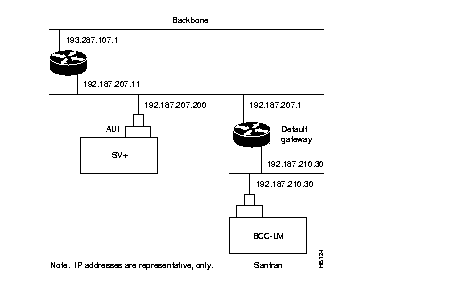
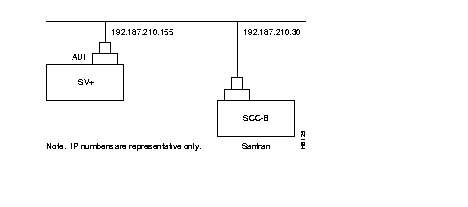
The cnflan command configures the node's communication parameters so that the node can communicate with a StrataView Plus terminal over an Ethernet LAN using the TCP/IP protocol. The parameters contain address information about the Ethernet TCP/IP network that is used to connect the StrataView Plus station to an IPX or BPX node. The values used must conform to those of the network and should be supplied by the Ethernet network administrator.
The cnflan command has the following parameters:
D2.cb1         LAN   StrataCom       IPX 32    8.4 Feb. 27 1997 14:23 PST
Active IP Address:                     192.187.207.21
IP Subnet Mask:                        255.255.255.0
TCP Service Port:                      5120
Default Gateway IP Address:            192.187.207.1
Maximum LAN Transmit Unit:             1500
Ethernet Address:                      00.55.43.00.04.55
Control Socket - Ready
Base Socket Descriptor - 1
Socket Closed
Last Command: cnflan
Next Command:
D2.cb1         LAN   StrataCom       IPX 32    8.4 Feb. 27 1997 14:27 PST
Active IP Address:                     192.187.207.21
IP Subnet Mask:                        255.255.255.0
TCP Service Port:                      5120
Default Gateway IP Address:            192.187.207.1
Maximum LAN Transmit Unit:             1500
Ethernet Address:                      00.55.43.00.04.55
Control Socket - Ready
Base Socket Descriptor - 1
Open Socket Descriptor - 2
Last Command: dsplan
Next Command:
The first time that StrataView Plus is started, it obtains the current network topology information and enables default trunk and circuit line statistics that you selected using the SCM software.
Before starting up StrataView Plus, you need to plan the statistics types that you want to enable automatically and enable these using the SCM program. Refer to Chapter 5 of the StrataView Plus Operations Guide for information on enabling statistics using SCM.
Start up StrataView Plus as follows:
The StrataView Plus Operations Guide includes a thorough explanation in the chapter, "Informix Database, Backup, and Changing Size." The StrataView Operations Guide is recommended reading for topics outside the scope of this installation guide.
The following commands are provided for configuring the Codex V.34 RSA modem.
Using the cnfport command, set the IPX Control port (CONTROL TERMINAL port) to 9600 bps and disable the XON/XOFF flow control. Using the cnfportfunc command, set the terminal type to VT100/StrataView. To program the modem, temporarily attach a terminal to the modem using a 25-pin straight through cable. The modem EIA port will automatically match the 9600 bps setting of the terminal. Enter the following commands:
| 1. | AT&F | Reset to factory default and save. |
| 2. | ATSØ=1 | Enables Auto-Answer Mode (answer on first ring). |
| 3. | ATL1 | Modem speaker at low volume. |
| 4. | AT*SM3 | Enables automatic MNP error correction. |
| 5. | AT*DCØ | Disables data compression. |
| 6. | AT*FLØ | Disables XON/XOFF flow control. |
| 7. | AT&S1 | Sets DSR to "normal." |
| 8. | ATEØ | Disables local character echo. |
| 9. | ATQ1 | Disables result codes. (Modem will appear "dead.") |
| 10. | AT&W | Saves current configuration settings in non-volatile memory. |
Connect the workstation to the modem, with the serial port set to 9600 bps, using a 25-pin straight-through cable (uses RS-232 protocol) and enter the following commands:
| 1. | AT&F | Initializes factory defaults. |
| 2. | ATLØ | Modem speaker at minimum volume. |
| 3. | AT*SM3 | Enables automatic MNP error correction. |
| 4. | AT*DCØ | Disables data compression. |
| 5. | AT*SC1 | Enables DTE speed conversion |
| 6. | AT*FLØ | Disables XON/XOFF flow control. |
| 7. | AT&C1 | DCD controlled by modem. |
| 8. | AT&D2 | Modem disconnects when IPX toggles DTR. |
| 9. | AT&V | Verify entries. |
| 10. | AT&W | Saves current settings to non-volatile memory. |
For information on configuring a Sun workstation for communication via modem, refer to the applicable Sun User's Guides. For specific information regarding StrataView Plus, contact Technical Support.
Customer Service provides support for the customer StrataView Plus workstation via a dial-up modem connection. This support is available when a Motorola Codex modem is provided at the customer site. There are two procedures to be performed before the Customer Service can dial into the workstation.
The following paragraphs describe how to set up a dial-in connection. These procedures are for a typical connection. Refer also to the applicable Sun SPARCstation System Administration User's Guide, and the Codex V.34 RSA Modem User's Guide.
The connection from Customer Service to a StrataView Plus workstation via a terminal server and modem is shown in Figure 2-13.
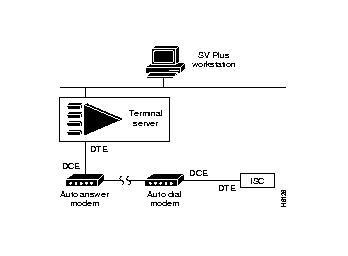
The connection from Customer Service to a StrataView Plus workstation via a modem is shown in Figure 2-14.
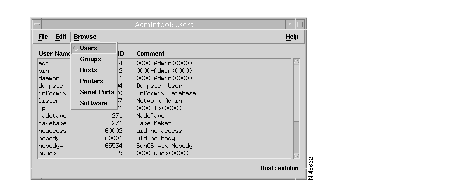
You can use the Admintool to choose the configuration best suited to your environment. The example in Figure 2-15 shows available selections from the Browse menu.
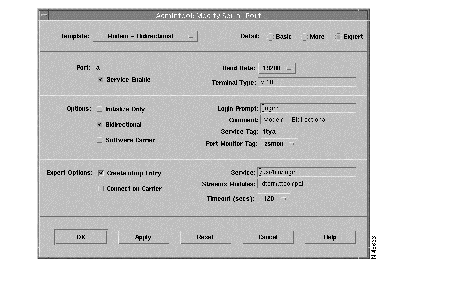
To modify the serial port configuration, use the Admintool: Modify Serial Port window. Figure 2-16 gives an example of modified settings.
Setup of a Sun Workstation for incoming modem calls:
Configure the modem connected to the workstation according to the Auto Answer procedure.
DCD--On | AT&CØ |
DTR--On | AT&DØ |
DSR--Normal | AT&S1 |
CTS--ON when connected | AT&R1 |
| ATSØ=1 (answer on first ring) |
When the system is up, the Customer Service is capable of calling into the StrataView Plus via the serial port on the workstation.
This section describes how to start a copy of the GUI on another user's workstation.
For example, where the local workstation is maui:
to display the StrataView Plus main menu, and select option 3 (Start DeskTop).
|
|