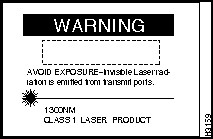
Warning Network hazardous voltages are present in the BRI cable. If you detach the BRI cable, detach the end away from the router first to avoid possible electric shock. Network hazardous voltages also are present on the system card in the area of the BRI port (RJ-45 connector), regardless of when power is turned off.
Overview of the Cisco 4000 Series Power Supplies
Figure 1 illustrates the AC and DC power supplies.Figure 2 shows an AC power supply mounted in a Cisco 4000 series router. Table 1 contains the AC power supply specifications and Table 2 contains the DC power supply specifications.
Figure 1 : Cisco 4000 Series AC and DC Power Supplies
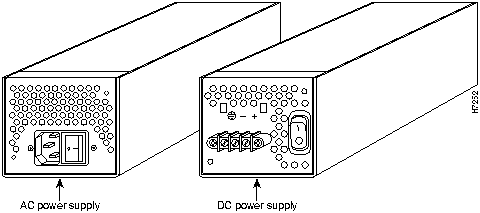
Figure 2 : Rear View of Cisco 4000 Series Router Showing Power Supply Location
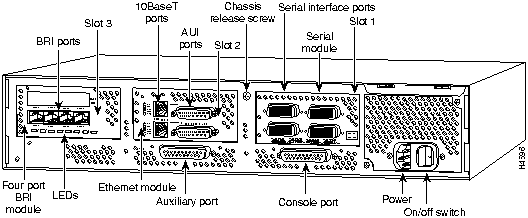
Table 1 : Cisco 4000 Series AC Power Supply Specifications
| Input voltage
|
100 to 240 VAC1
|
| Frequency
|
50 to 60 Hz
|
| Current Rating
|
3.0 A maximum at 100 VAC, 1.5 A maximum at 240 VAC
|
1 The AC power supply autoselects either 110 or 220 VAC operation.
Table 2 : Cisco 4000 Series DC Power Supply Specifications
| Input voltage
|
40 to 72 VDC
|
| Current Rating
|
5.0 A maximum at 40 VDC, 2.8 A maximum at 72 VDC
|
| Wire gauge for DC-input power connections
|
14 AWG1
|
1 AWG = American Wire Gauge
Safety Recommendations
Follow these guidelines to ensure general safety:
- Keep the chassis area clear and dust-free during and after installation.
- Place the removed chassis cover in a safe place.
- Keep tools away from walk areas where you or others could fall over them.
- Do not wear loose clothing that may get caught in the chassis. Fasten your tie or scarf and roll up your sleeves.
- Wear safety glasses when working under conditions that may be hazardous to your eyes.
- Do not perform any action that creates a potential hazard to people or makes the equipment unsafe.
Safety with Electricity
 Warning Before working on equipment that is connected to power lines, remove jewelry (including rings, necklaces, and watches). Metal objects will heat up when connected to power and ground. This can cause serious burns or even result in welding to the terminals.
Follow these guidelines when working on equipment powered by electricity:
- Locate the room's emergency power-off switch. Then, if an electrical accident occurs, you can quickly shut the power OFF.
- Before working on the system, turn OFF the power and unplug the power cord.
- Disconnect all power before doing the following:
- Working on or near power supplies
- Installing or removing a router chassis or network processor module
- Performing a hardware upgrade
- Do not work alone if potentially hazardous conditions exist.
- Look carefully for possible hazards in your work area, such as moist floors, ungrounded power extension cables, and missing safety grounds.
- Never assume that power is disconnected from a circuit. Always check.
- If an electrical accident occurs, proceed as follows:
- Use caution, and do not become a victim yourself.
- Turn off power to the system.
- If possible, send another person to get medical aid. Otherwise, determine the condition of the victim and then call for help.
- Determine if the person needs rescue breathing or external cardiac compressions; then take appropriate action.
Preventing Electrostatic Discharge Damage
Electrostatic discharge (ESD) can damage equipment and impair electrical circuitry. It occurs when electronic printed circuit cards are improperly handled and can result in complete or intermittent failures.
Always follow ESD prevention procedures when removing and replacing the power supply. Ensure that the router chassis is electrically connected to earth ground. Wear an ESD-preventive wrist strap, ensuring that it makes good skin contact and operates effectively. Connect the clip to an unpainted surface of the chassis frame to safely channel unwanted ESD voltages to ground.
 Caution If no wrist strap is available, ground yourself by touching the metal part of the chassis. For safety, periodically check the resistance value of the antistatic strap, which should be between 1 to 10 megohms (Mohms).
Tools and Equipment Required
The following tools and equipment are required to remove and install power supplies in a Cisco 4000 series router:
- ESD cord and wrist strap
- Number 1 Phillips screwdriver
- Wire cutters to cut cable tie-wraps
Accessing the Power Supply
To access the power supply of a Cisco 4000 series router, you must first remove the component tray. Procedures for removing the component tray follow.
Some Cisco 4000 series routers have a safety latch tab on the chassis that affects removing the component tray. (See Figure 3 and Figure 4.)
If your chassis has a safety latch tab, refer to the next section, "Removing the Component Tray from a Chassis with a Safety Latch."
If your chassis does not have a safety latch tab, go to the section "Removing the Component Tray from a Chassis without a Safety Latch."
Note The power cable and power switch are on the lower right of the rear panel of the router. The system console port, auxiliary port, and module ports appear to the left of the power cable and switch. (See Figure 2.)
Removing the Component Tray from a Chassis with a Safety Latch
 Warning Do not touch the power supply when the power cord is connected. For systems with a power switch, line voltages are present within the power supply even when the power switch is OFF and the power cord is connected. For systems without a power switch, line voltages are present within the power supply when the power cord is connected.
Take the following steps to remove the component tray from a chassis with a safety latch:
Step 1 Turn OFF the system power.
Step 2 Attach your ESD-preventive wrist strap.
Step 3 Remove all network cables. Proceed with Step 4 if you have an AC power supply. Proceed with Step 5 if you have a DC power supply.
Step 4 If you have an AC-powered router, remove the power cord.
 Warning Before performing any of the following procedures, ensure that power is removed from the DC circuit. To ensure that all power is OFF, locate the circuit breaker on the panel board that services the DC circuit, switch the circuit breaker to the OFF position, and tape the switch handle of the circuit breaker in the OFF position.
Step 5 If you have a DC-powered router, take the following steps to remove the power cables:
(a) Use a screwdriver to loosen the captive installation screws on the terminal block cover.
(b) Lift and remove the terminal block cover.
(c) Use a screwdriver to remove the three power leads from the terminal block in the following order: negative, positive, then ground.
 Warning Before opening the chassis, disconnect the telephone-network cables to avoid contact with telephone-network voltages.
Step 6 Loosen the nonremovable chassis release screw on the rear panel of the chassis. (See Figure 3.)
Step 7 Pull on the handle located on the upper right corner of the chassis to slide the component tray out of the chassis shell until the safety latch catches. (See Figure 3.)
Figure 3 : Component Tray Removal for Chassis with a Safety Latch
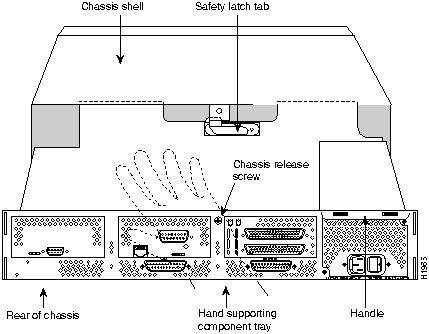
 Warning Before releasing the safety latch, support the component tray from underneath, either on your work surface or with your hands, to prevent injury.
Step 8 Support the component tray with one hand, push down on the safety latch tab, and pull the component tray out completely.
Step 9 Set the component tray on your work surface.
Proceed with the section "Removing AC and DC Power Supplies."
Removing the Component Tray from a Chassis without a Safety Latch
 Warning Do not touch the power supply when the power cord is connected. For systems with a power switch, line voltages are present within the power supply even when the power switch is off and the power cord is connected. For systems without a power switch, line voltages are present within the power supply when the power cord is connected.
Take the following steps to remove the component tray from a chassis without a safety latch:
Step 1 Turn OFF the system power.
Step 2 Attach your ESD-preventive wrist strap.
Step 3 Remove all network cables. Proceed with Step 4 if you have an AC power supply. Proceed with Step 5 if you have a DC power supply.
Step 4 If you have an AC-powered router, remove the power cord.
 Warning Before performing any of the following procedures, ensure that power is removed from the DC circuit. To ensure that all power is OFF, locate the circuit breaker on the panel board that services the DC circuit, switch the circuit breaker to the OFF position, and tape the switch handle of the circuit breaker in the OFF position.
Step 5 If you have a DC-powered router, take the following steps to remove the power cables:
(a) Use a screwdriver to loosen the captive installation screws on the terminal block cover.
(b) Lift and remove the terminal block cover.
(c) Use a screwdriver to remove the three power leads from the terminal block in the following order: negative, positive, then ground.
 Warning Before opening the chassis, disconnect the telephone-network cables to avoid contact with telephone-network voltages.
Step 6 Loosen the nonremovable chassis release screw on the rear panel of the chassis. (See Figure 4.)
 Caution Support the component tray from underneath, either on your work surface or with your hands, to prevent it from falling.
Figure 4 : Component Tray Removal for Chassis without a Safety Latch
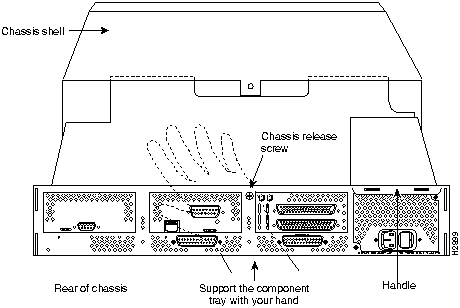
Step 7 Pull on the handle located on the upper right corner of the chassis to slide the component tray out of the chassis shell while you support the component tray with one hand.
Step 8 Set the component tray on your work surface.
Proceed with the section "Removing AC and DC Power Supplies."
Removing AC and DC Power Supplies
After you remove the component tray from the chassis shell, remove the power supply from the chassis.
Take the following steps to remove a power supply:
 Caution When cutting the cable tie-wraps be careful not to cut into the power cables.
Step 1 Locate the power cable harness located on the rear of the power supply (toward the front of the router), then carefully cut the cable tie-wraps on the harness. (See Figure 5.)
Note The number and placement of the cable tie-wraps in your router may differ from the illustration.
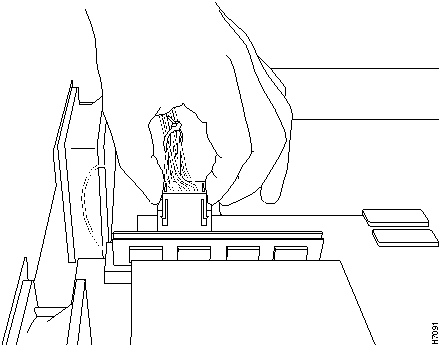
Step 2 Locate the main power connector on the motherboard. Grasp the plug on the ends, press in toward the middle, and lift the plug away from the connector. (See Figure 6.)
Step 3 Locate the two small two-pin connectors used to power the fans. Separate both of the small connectors by grasping each end of the connector firmly and then pulling the connector apart. (See Figure 5.)
Figure 5 : Power Supply Wiring Harness
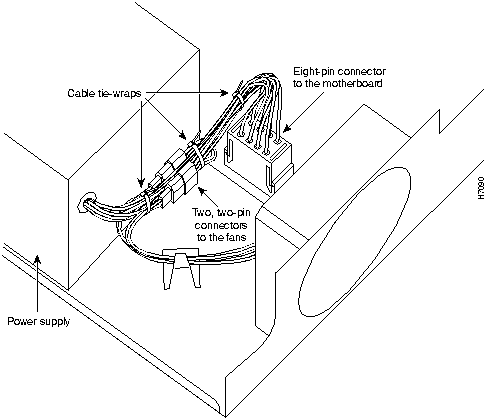
Figure 6 : Power Supply Connection to the Motherboard
Step 4 Remove the two external rear mounting screws and set them aside. (See Figure 7.)
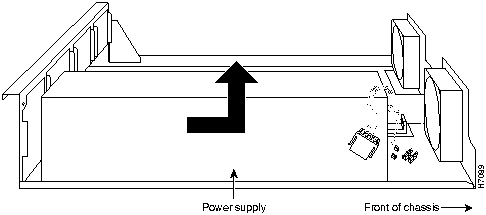
Step 5 Slide the power supply forward slightly in the chassis. (See Figure 8.) This disengages the hook built into the chassis that helps secure the power supply.
Step 6 Lift the power supply out of the chassis.
Proceed with the section "Replacing AC and DC Power Supplies."
Figure 7 : Cisco 4000 Series Chassis and Power Supply
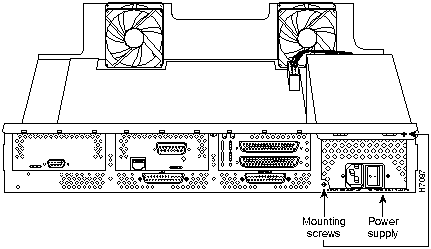
Figure 8 : Power Supply Removal
Replacing AC and DC Power Supplies
Take the following steps to replace a power supply in the chassis:
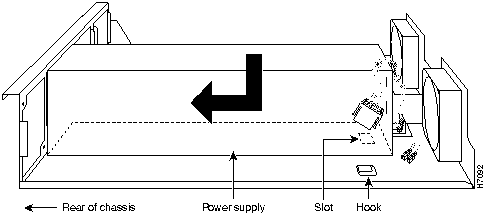
Step 1 Place the power supply in the chassis with the power supply faceplate slightly forward of the chassis rear panel. This will allow the hook in the chassis to engage the cutout in the bottom of the power supply. (See Figure 9.)
Step 2 Slide the power supply toward the rear of the chassis, engaging the hook in the chassis.
Step 3 Replace the external rear mounting screws. (See Figure 7.)
Step 4 Insert the large power connector into the receptacle on the motherboard. (See Figure 6.)
Step 5 Join the small connectors used to power the cooling fans. (See Figure 5.)
Step 6 Using tie-wraps, secure the power cables into a bundle that clears the edge of the chassis and keeps the cables away from the fan. Be sure that the cables to the fans are routed under the hook provided in the bottom of the chassis. (See Figure 5.)
Proceed with the section "Replacing the Component Tray."
Figure 9 : Power Supply Installation
Replacing the Component Tray
Take the following steps to replace the component tray in the chassis shell:
Step 1 Reinsert the component tray into the shell, pushing on the back of the tray while pressing on the chassis release screw (as shown in Figure 3 and Figure 4) with the thumb of your right hand.
Step 2 Retighten the chassis release screw.
Proceed with the section "Replacing Connections to the Router."
Replacing Connections to the Router
Take the following steps to make the final connections to the router:
 Warning Read the installation instructions before you connect the system to its power source.
Step 1 Replace all network connections.
Step 2 If you have an AC-powered system, plug the system power cord into a 3-terminal, single-phase power source that provides power within the acceptable range (100--240 VAC, 50--60 Hz, 3.0--1.5 A).
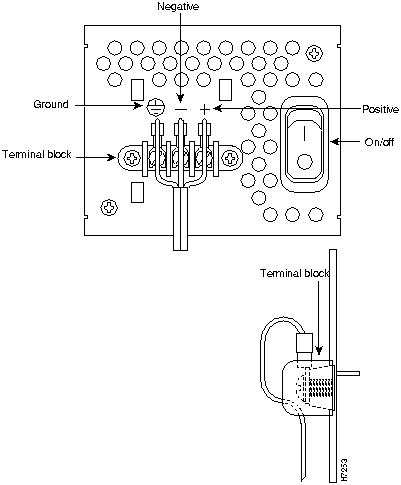
Step 3 If you have a DC-powered system, rewire the DC-input power supply (40 to 72 VDC) to the terminal block using 14 AWG copper wires. The proper wiring sequence is ground to ground, positive to positive, and negative to negative. (See Figure 10.)
 Warning When stranded wiring is required, use approved wiring terminations, such as closed-loop or spade-type with upturned lugs. These terminations should be the appropriate size for the wires and should clamp both the insulation and conductor.
 Warning This unit is intended for installation in restricted access areas.
 Warning The illustration shows the DC power supply terminal block. Wire the DC power supply using the appropriate lugs at the wiring end, as illustrated. The proper wiring sequence is ground to ground, positive to positive (line to L), and negative to negative (neutral to N). Note that the ground wire should always be connected first and disconnected last.
 Warning After wiring the DC power supply, remove the tape from the circuit breaker switch handle and reinstate power by moving the handle of the circuit breaker to the ON position.
Step 4 Turn ON the system power switch. The power LED on the front panel of the router should go ON. )
Step 5 Check the OK LED on the right side of the front panel to verify that it goes ON after a few seconds delay when booting. If you have problems, see the section "Troubleshooting the Power Supply Installation" and the section "Cisco Connection Online."
This completes the power supply replacement procedure.
Figure 10 : DC-Input Power Supply Connections
Troubleshooting the Power Supply Installation
Check the following items to help isolate problems with the power supply installation:
- With the power switch on, is the power LED on the front panel on?
- If not, check the AC or DC input, AC or DC source, router circuit breaker, and the power supply cable (AC) or power supply wiring (DC).
- Check the power supply connection to the motherboard.
- If the power LED is still off, the problem might be a power supply failure.
- Does the system shut down after being on a short time?
- Check the fans. If the fans are not working the system will overheat and shut itself down.
- If the fan(s) are not working, check the power supply connections to the fans.
- Ensure that the chassis intake and exhaust vents are clear.
- If you have a Cisco 4000-M, Cisco 4500-M, or Cisco 4700-M router, check the environmental site requirements in the section "General Site Requirements" in the chapter "Preparing to Install the Cisco 4000 Series Router" in the Cisco 4000 Series Installation Guide publication.
- If you have a Cisco 4000 router, check the environmental site requirements in the section "General Site Requirements" in the chapter "Preparing for Installation" in the Cisco 4000 Hardware Installation and Maintenance publication.
- If you have a Cisco 4500 or Cisco 4700 router, check the environmental site requirements in the section "General Site Requirements" in the chapter "Preparing for Installation" in the Cisco 4000 Series Hardware Installation and Maintenance publication.
Cisco Connection Online
Cisco Connection Online (CCO), formerly Cisco Information Online (CIO), is Cisco Systems' primary, real-time support channel. Maintenance customers and partners can self-register on CCO to obtain additional content and services.
Available 24 hours a day, 7 days a week, CCO provides a wealth of standard and value-added services to Cisco's customers and business partners. CCO services include product information, software updates, release notes, technical tips, the Bug Navigator, configuration notes, brochures, descriptions of service offerings, and download access to public and authorized files.
CCO serves a wide variety of users through two interfaces that are updated and enhanced simultaneously---a character-based version and a multimedia version that resides on the World Wide Web (WWW). The character-based CCO supports Zmodem, Kermit, Xmodem, FTP, Internet e-mail, and fax download options, and is excellent for quick access to information over lower bandwidths. The WWW version of CCO provides richly formatted documents with photographs, figures, graphics, and video, as well as hyperlinks to related information.
You can access CCO in the following ways:
- WWW:
http://www.cisco.com.
- Telnet:
cco.cisco.com.
- Modem: From North America, 408 526-8070; from Europe, 33 1 64 46 40 82. Use the following terminal settings: VT100 emulation; databits: 8; parity: none; stop bits: 1; and baud rates up to 14.4 kbps.
For a copy of CCO's Frequently Asked Questions (FAQ), contact
ccohelp@cisco.com.
For additional information, contact
ccoteam@cisco.com.
Note If you are a network administrator and need personal technical assistance with a Cisco product that is under warranty or covered by a maintenance contract, contact Cisco's Technical Assistance Center (TAC) at 800 553-2447, 408 526-7209, or
tac@cisco.com.
To obtain general information about Cisco Systems, Cisco products, or upgrades, contact 800 553-6387, 408 526-7208, or
csrep@cisco.com.

Copyright 1988-1996 © Cisco Systems Inc.