


|
|

This chapter provides step-by-step instructions for installing, cabling and verifying the installation for:
A detailed description and installation instructions for all of the optional expansion modules for the Catalyst 3000 are described in Chapter 5, "Expansion Components Installation and Configuration."
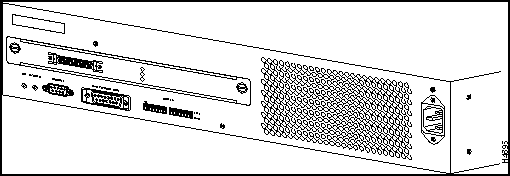
Figure 4-1 : Front View of the Catalyst 3000
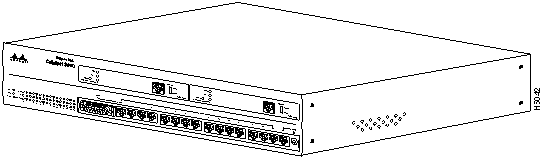
The Catalyst 3000 and the Catalyst Matrix mount in a standard 19-inch rack or cabinet. The installation area should be near a power source and should have enough room around the front and rear panels for cabling and access to controls. Use the following procedures for the installation of Catalyst Stack equipment.
If you install the Catalyst 3000 in a closed or multi-unit rack, observe the environmental guidelines from Chapter 3, "Preparing for Installation." Observe the following warnings and use the following steps for a rack or cabinet installation.
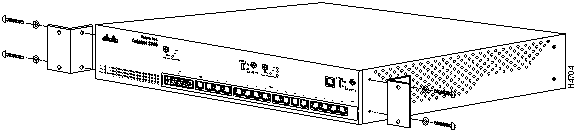
The following steps describe how to mount the Catalyst 3000 or Catalyst Matrix in a rack or cabinet. Only fixed brackets are supplied with these units. If you want to install a sliding pull-out mount, you will need to provide the extra mounting hardware.
Figure 4-2 : Attaching the Mounting Brackets (Similar view for the Catalyst Matrix).
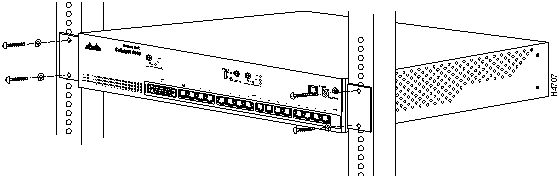
Before starting the next step, be sure you have the proper hardware for mounting the unit to your cabinet or rack.
Figure 4-3 : Mounting in a Rack or Cabinet (Similar View for the Catalyst Matrix).
The Catalyst 3000 should be mounted in an appropriate mounting rack, but if the situation warrants, such as a shortage of rack space or location constraints, the Catalyst 3000 can be surface mounted. The unit operates at a low noise level, which makes it suitable for a work area or almost anywhere with a large enough flat surface, such as a table or desktop. Simply place the unit on a clear and level location. Leave enough room around the unit for ventilation and access to the controls and cable connectors.
Catalyst Stack Cable Connections
There are two Catalyst Stack configurations.
How to cable the Catalyst Stack equipment is described in the next two sections. The first section explains connecting two Catalyst switches back-to-back. The next section describes how to connect Catalyst switches to the Catalyst Matrix.
Catalyst Stack Back-to-Back Connection
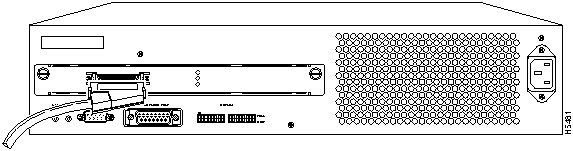
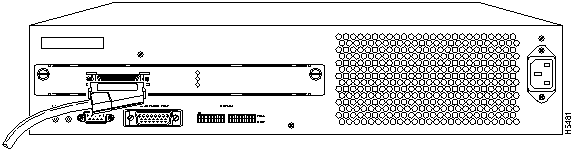
To connect two Catalyst 3000 series switches together, an installed WS-X3004 module must be in the expansion slot in the back of each Catalyst switch. (See Figure 4-4.) For a description of how to install the WS-X3004 rear expansion module into the Catalyst 3000 see Chapter 5, "Expansion Components Installation and Configuration" for the section, "Installing WS-X3004 Stack Port (Rear) Expansion Module." Observe the following statements and cautions and use the following steps to install two Catalyst switches in a back-to-back configuration.
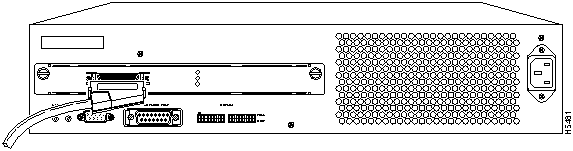
The following illustrations, Figure 4-4 and Figure 4-5, show how two Catalyst switches are cabled together. (The cable connector is shown at an angle for illustration purposes.)
Figure 4-4 : Connecting the Stack Port Cable to the WS-X3004 Module Figure 4-5 : Connect the Other End of the Cable to the Stack Port on the Other Catalyst 3000.
Connecting Catalyst Switches to the Catalyst Matrix
Up to eight Catalyst switches can be connected to a Catalyst Matrix. For a detailed description of the Catalyst Matrix see Chapter 5, "Expansion Components Installation and Configuration."
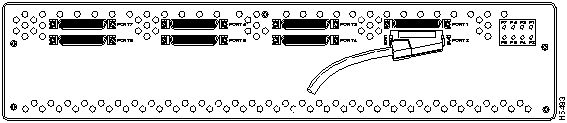
This configuration requires a Catalyst Matrix and a Stack port cable and a WS-X3004 module for each Catalyst switch. The connection is made through one of the eight I/O Stack ports on the back panel of the Catalyst Matrix to the single I/O Stack port on the WS-X3004 installed in the back of each Catalyst switch. Use the following instructions (after mounting the Catalyst switches and Catalyst Matrix in a rack or cabinet) to cable the units together.
Figure 4-6 : Connecting the Stack Port Cable to Port 1 of the Catalyst Matrix
Figure 4-7 : Connecting the Stack Port Cable to the Stack Port on the Catalyst 3000
Before you apply power, inspect the equipment thoroughly. Verify that all cables are installed correctly. Check their routing, so they are not damaged or create a safety hazard. Be sure all equipment is mounted properly and securely.
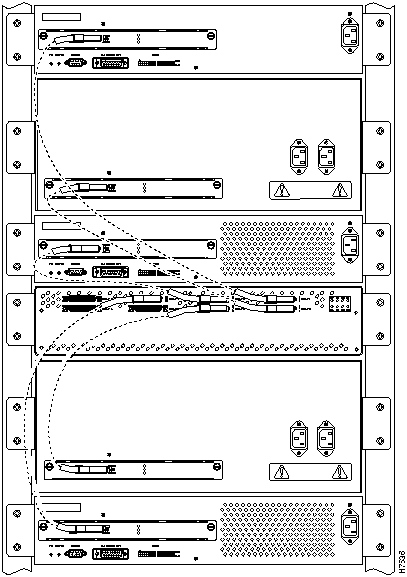
The following figure, Figure 4-8, is an illustration of several Catalyst switches cabled to a Catalyst Matrix
Figure 4-8 : Rear View of a Catalyst Matrix Cabled to Several Catalyst Switches
Use the following steps to power on your Catalyst Stack units:
Figure 4-9 : Catalyst 3000 Power Receptacle Location Figure 4-10 : Catalyst Matrix Module Power Receptacle Location Connecting the Catalyst 3000 to the Network
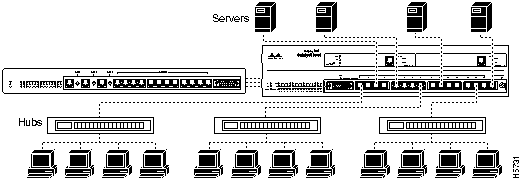
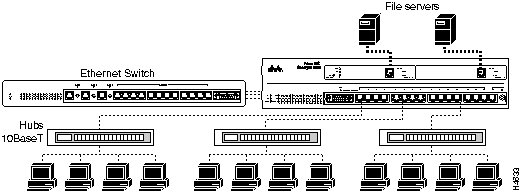
There is one AUI/UTP port, 15 UTP (Unshielded Twisted Pair) ports and two expansion module ports on the front panel of each Catalyst 3000. The UTP ports are 10BaseT using RJ-45 connectors. Use these ports to connect to computers, hubs, servers, and other network devices, or to a network backbone. Figure 4-11 shows examples of Ethernet switches, devices, and networks connected to the Catalyst 3000 10BaseT ports. Figure 4-12 shows examples of Ethernet switches, devices, and networks connected to the Catalyst 3000 Fast Ethernet expansion module ports.
Figure 4-11 : Examples Of Different Network Connections
Figure 4-12 : Examples Of Different Network Connections
Setting the MDI or MDI-X Device
MDI (Media Dependent Interface, or "straight cable") is the IEEE 10BaseT standard for the UTP cable interface. For two 10BaseT devices to communicate with each other, the transmitter of each device must be connected to the receiver of the other device. You can achieve this connection by using a crossover cable, or by using a port that implements the crossover internally. Ports that implement the crossover internally are called MDI-X; "X" stands for crossover.
UTP ports 1 through 15 on the Catalyst 3000 are always MDI-X mode.
When connecting devices that have the same port type, that is, both are MDI or both are MDI-X, use a cross-over cable. For example, when connecting hubs and concentrators that have MDI-X ports to the MDI-X ports on the Catalyst 3000, use a cross-over cable.
When connecting devices that have different port types, that is, one is MDI and one is MDI-X, use a straight cable. For example, servers, PCs, routers, bridges or similar equipment use MDI type ports, therefore use a straight cable to connect these MDI ports to the MDI-X ports on the Catalyst 3000.
See the pinouts in "Appendix A" if a crossover cable needs to be made.
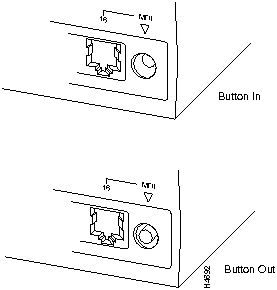
Port 16 can be set on the Catalyst 3000 to either MDI or MDI-X by using the push-button to the right of that port. Refer to the following table (Table 4-1) and illustration (Figure 4-13) to make sure the button is set correctly.
Table 4-1 : Port 16 Switch Setting
In Figure 4-13, in the top example, the button is shown in the depressed position.
Figure 4-13 : Front Panel Push Button
Because of different combinations of equipment and cables, you should refer to Table 4-2 to determine whether you should use the MDI or MDI-X setting:
Table 4-2 : MDI/MDI-X Selection
If you do need to order, or make a crossover cable, see the pin-outs in Appendix A.
This section explains how to connect a 10BaseT cable to a 10BaseT port on a Catalyst 3000.
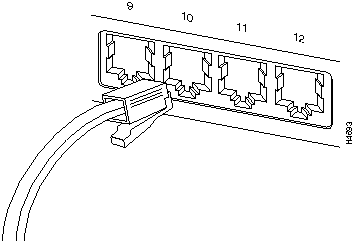
The Catalyst 3000 has 16 10BaseT ports. Connect them as follows:
Figure 4-14 : 10BaseT Cable Insertion
This section explains how to connect to the AUI port on the Catalyst 3000.
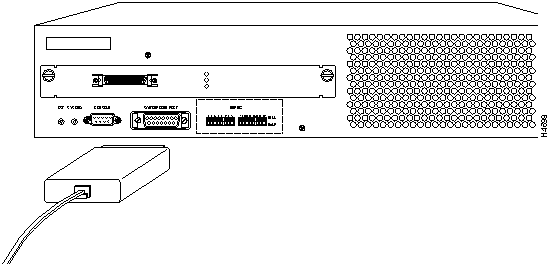
To connect the AUI port to different media types, use an external transceiver. The Catalyst 3000 supports full-duplex Ethernet when connected to a transceiver supporting full-duplex.
Connecting to an External Transceiver
The following section describes how to connect the AUI port on the Catalyst 3000 to an external transceiver.
Figure 4-15 : Connecting the AUI Port to an External Transceiver
Configuring Full-Duplex Communications
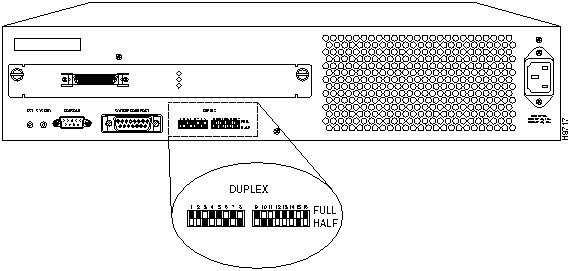
On Enhanced models, 10BaseT ports on the Catalyst 3000 can be set to either Half-Duplex or Full-Duplex communication mode. The mode can be set either by using software control, or by using the hardware DIP switches on the chassis back panel (see Figure 4-16). If the enhanced feature is not configured, then only half-duplex can be used. The enhanced feature and software mode setting must be set and verified through the console. See Chapter 7, "Console Configuration."
Contact your Cisco sales representative for information on how to obtain the enhanced software version.
Use the following steps when using the hardware switches to set full-duplex or half-duplex communication modes for the fixed 10BaseT ports:
Figure 4-16 : Selecting Half-Duplex or Full-Duplex Mode for Fixed 10BaseT Ports
The LNK/FDX LED on the front panel is on when a half or full-duplex communications link has been established. The color of the LED responds to whether half or full-duplex:
Before you apply power, inspect the equipment thoroughly. Verify that all cables are installed correctly. Check their routing, so they are not damaged or create a safety hazard. Be sure all equipment is mounted properly and securely.
Copyright 1988-1996 © Cisco Systems Inc.



Before you create a Stack, or add to a Stack, if any of the Catalyst 3000 units will need any downloading, perform the downloading before cabling the Catalyst 3000 units together.



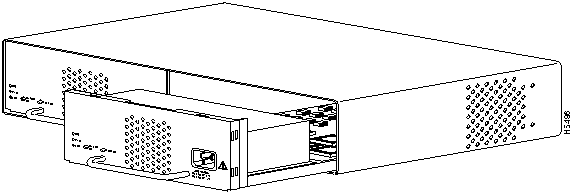
The Catalyst Matrix chassis or modules do not run power-on diagnostics, so neither have a DIAG or FAULT LED. When power is applied to the Catalyst Matrix module, the PWR LED and the fan should turn on. If either the PWR LED or the fan does not turn on, see Chapter 10, "Troubleshooting."
Push-button
Mode
In (below level of front panel)
MDI
Out (flush with front panel)
MDI-X
Device
Crossover Cable
Straight Cable
Hub (MDI-X)
MDI-X
MDI
Router
MDI
MDI-X
Server
MDI
MDI-X


Half Duplex
Down
Full Duplex
Up
Green
Half-Duplex
Yellow
Full-Duplex
