


|
|

Expansion Components
Installation and Configuration
This chapter covers the following topics:
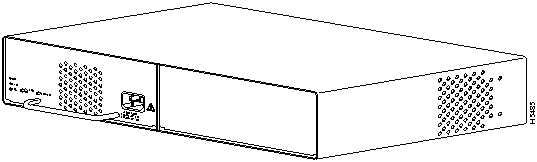
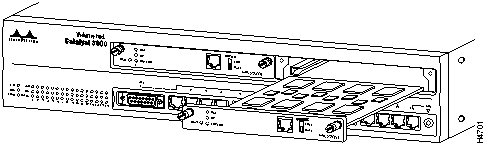
The standard configuration for the Catalyst Matrix includes a chassis and one Catalyst Matrix module (see Figure 5-1). A Catalyst Matrix module includes a fan, power supply, front AC power receptacle, and complete logic circuitry. The Catalyst Matrix chassis needs only one module to operate, but has another slot available for a second, redundant module. If two modules are used, the unit runs with the one on-line (primary) module installed in the left hand side and an off-line (secondary) module installed in the right-hand side. If the primary module should fail, Catalyst Matrix operation is switched to the secondary module through automatic logic control. The modules can be also be switched manually using the ACTIVATE push button on the front panel. For a detailed explanation of the Catalyst Matrix modules, see the following section, Catalyst Matrix Module Description. Installation instructions for the Module follow the description section.
The following figure shows the Catalyst 3000 with a Catalyst Matrix module in the left (primary) position and a blank cover plate over the right (secondary) position.
Figure 5-1 : View of a Catalyst Matrix Chassis with a Catalyst Matrix Module
Catalyst Matrix Module Description
There are two slots in the Catalyst Matrix for modules; a primary slot (normally on-line), and a secondary slot (normally off-line). The modules are hot-swappable. When a secondary module is installed, it provides a redundant module that can be switched on-line if the primary module fails. The primary slot is the one on the left, as viewed from the front of the unit.
Modules switch-over automatically or manually. Automatic switch-over occurs if power fails on the active module or if a primary to secondary switch-over is initiated through any attached Catalyst 3000. Switch-overs can also be initiated manually using the ACTIVATE front panel push button on the Catalyst Matrix module. Pressing the push button on the off-line module forces it on-line and causes the other module to go off-line. The newly activated module assumes the switching functions. The following sections are detailed descriptions of module switch-overs.
Automatic Switch-over From the Catalyst 3000
Automatic switch-over is initiated when a Catalyst 3000 senses that the primary module has failed. When a failure is detected, any Catalyst 3000 can request the Catalyst Matrix to switch from the primary module to the secondary module. Once the secondary module is on-line, no further switch-over requests are generated by the Catalyst 3000. This one-time switch-over prevents module swap oscillations. The Catalyst 3000 cannot initiate a switch-over from the secondary module to the primary module.
Each Catalyst 3000 periodically sends a packet to itself (self-ping). As long as the packet returns, the on-line Catalyst Matrix module is considered OK. If the self-ping packets do not arrive after a time-out, the on-line module is considered faulty and the Catalyst 3000 requests a module switch-over. The request is via a software controlled request line in the Stack Port link. If a switch-over is requested and the primary module is on-line, the Catalyst Matrix will switch to the secondary module (if present).
A manual switch-over is one that is initiated by the operator. Each module has an ACTIVATE push button on the front panel. Pressing this push button on the off-line module turns it on-line (active), while the module that was on-line is forced off-line. Pressing the push button on the on-line module has no effect.
During a controlled switch-over, data transfer management helps prevent errors. A controlled switch-over is one activated by a Catalyst 3000 (automatic) or by the user push button (manual).
An uncontrolled switch-over occurs when the on-line module is removed or powered off. Several packets could get corrupted during this time.
If the Catalyst Matrix ports are idle during module switch-over, no packets will be corrupted.
Powering a module on or off, or moving a module, has the following effects:
Simultaneous power up. When both modules are installed and powered up at the same time, the primary module will go on-line. The secondary module has a power-up delay that allows the primary module to go on-line first.
Hot insertion. If a second module (primary or secondary) is inserted and powered up after the other module has gone on-line, nothing will happen; the new module will stay off-line and the other will stay on-line.
On-line module powered off or removed. Whether primary or secondary, the remaining module will detect the other's absence and go on-line. (Packet errors may occur with this type of switch-over.)
Both ACTIVATE push buttons pressed simultaneously. Whichever push button is pressed first causes its module to go on-line and force the other off-line. In the unlikely case of a tie, the primary module will go on-line.
Catalyst Matrix Module Installation
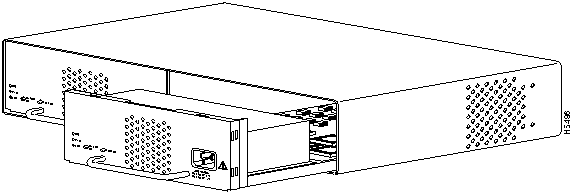
A Catalyst Matrix module can be installed in the Catalyst Matrix chassis in either the left hand position, right hand position, or both. If a module fails, it can be easily replaced by the user. The only tool needed is a Phillips (cross-head) screwdriver. The following describes the procedure for adding or replacing a Catalyst Matrix module.
Use the following steps for installing or replacing a Catalyst Matrix module. If you are installing a module into an open slot proceed to Step 5.
Figure 5-2 : Inserting a Secondary Module into a Catalyst Matrix
Catalyst Matrix Control Panels
The following tables list and provide a description of the connectors, switches, and status LEDs on the Catalyst Matrix.
Table 5-1, Table 5-2, and Table 5-3 list the front panel controls on the Catalyst Matrix.
Table 5-1 : Front Panel Connectors
Table 5-2 : Front Panel Switches (push buttons)
Table 5-4 and Table 5-5 list the rear panel controls on the Catalyst Matrix.
Table 5-4 : Rear Panel Connectors
Installing WS-X3004 Stack Port (Rear) Expansion Module
The following section explains the installation and use of the WS-X3004 Catalyst Stack Port connection module. With the installation of this module in each Catalyst 3000, from two to eight Catalyst 3000 units can be cabled together to form a Stack.
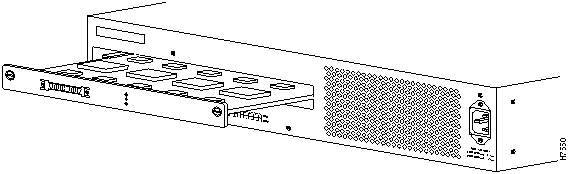
The WS-X3004 is a single-port expansion module with a special 50-pin connector that is installed into the rear panel of the Catalyst 3000. If you have two Catalyst 3000 units each equipped with a WS-X3004 module, then when you connect the modules, the two Catalyst 3000 units function as a Stack. If you have more than two Catalyst 3000 units each equipped with a WS-X3004 module, you can combine them into a unified Catalyst Stack by connecting each module to a Catalyst Matrix unit. See the section "Catalyst Stack Cable Connections" in Chapter 4, "Installation."
Observe the following Cautions and use the following steps when installing a WS-X3004 module into a the rear expansion slot of the Catalyst 3000 chassis.
Figure 5-3 : Inserting a WS-X3004 Expansion Module
WS-X3004 Expansion Module Cables
The WS-X3004 module has a 50-pin connector designed to accept Stack port cables. The cables are available from Cisco Systems. See Chapter 4, "Installation," for the section "Catalyst Stack Cable Connections," for details on how to install Stack port cables on the WS-X3004 module.
Installing Catalyst 3000 Front Expansion Modules
The following is a description of how to install a front expansion module into a Catalyst 3000. A WS-X3001 expansion module is shown as an example, but all of the front expansion modules are installed in the same way.
The Catalyst 3000 has six standard size front expansion slots and one wide expansion slot This wide slot is for future enhanced modules that will require more circuitry than the standard modules. There is conversion hardware for this wide slot that allows the installation of a standard size module.
This section covers the installation of the following expansion modules:
The 100BaseTX Expansion Module
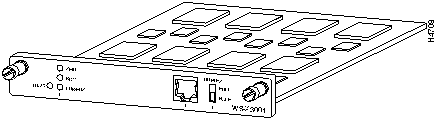
The single-port 100BaseTX expansion module (WS-X3001) is used to connect to computers, hubs, servers, and other high-speed network devices. The following sections explain the installation, cable connection, and network connection for the 100BaseTX expansion module.
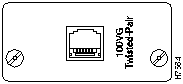
The 100BaseTX expansion module is shown in Figure 5-4.
Installing The WS-X3001 (100Base TX) Expansion Module
The modules can be inserted in any of the front expansion slots, as shown in Figure 5-5.
Observe the following Cautions and use the following steps when installing a module into a Catalyst 3000 expansion slot.
Figure 5-5 : Inserting a 100BaseTX Expansion Module
100BaseTX Expansion Module Cables
The 100BaseTX module's network port is an RJ-45 connector that uses 100BaseTX cable.
The 100BaseTX module's network port is an RJ-45, 100BaseTX type that is always in MDI-X mode. Cabling the 100BaseTX to different types of equipment that have MDI or MDI-X ports requires different types of 100BaseTX cable. The cable types are described below.
As a reference for 100BaseTX cable, use the 10BaseT cable information in Appendix A.
Connecting Cables to 100 BaseTX Expansion Module Ports
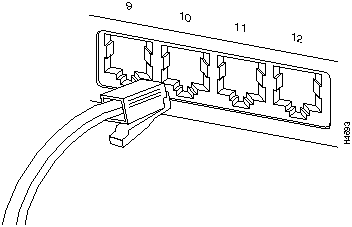
Connect cables to the RJ-45 port on the 100BaseTX module as follows:
Figure 5-6 : RJ-45 Connector Insertion When the connection is established, the LNK/FDX LED is on: green in half-duplex mode, or yellow in full-duplex mode. If the LED is not on, there may be a cable problem. Verify that you are using the correct type of cable, then check if the cable is bad by trying a different one.
If, after installation, there is poor system performance or the 100BaseTX module does not work at all, remove the module and check for any damage or bent connector pins. You may need a bright light to see inside the expansion module slot to check for bent pins. Also, verify that the module is set firmly in place. If you cannot find an immediate cause for the problem, refer to Chapter 10, "Troubleshooting."
Table 5-6, Table 5-7, and Table 5-8 describe the LEDs, switches, and connectors on the 100BaseTX module.
Table 5-6 : 100BaseTX Expansion Module LEDs
Table 5-7 : 100BaseTX expansion Module Switch
Table 5-8 : 100BaseTX Expansion Module Connector
The four-port 10BaseT expansion module (WS-X3002) is used for connections to computers, hubs, servers, and other network devices. The 10BaseT module is shown in Figure 5-7.
Figure 5-7 : The 10BaseT Expansion Module
Expansion modules are installed in the expansion slots on the front of the Catalyst switch. All front expansion modules are installed in a similar way. Use the previous section "Installing The WS-X3001 (100Base TX) Expansion Module" as an example for detailed installation instructions and precautions for the 10BaseT module.
10BaseT Expansion Module Cables
The 10BaseT module's network ports are RJ-45 connectors that use 10BaseT cable.
The 10BaseT module's network ports are RJ-45, 10BaseT types that are always in MDI-X mode. Cabling the 10BaseT to different types of equipment that have MDI or MDI-X ports requires different types of 10BaseT cable. The cable types are described below.
For detailed information on 10BaseT cables see Appendix A.
Connecting Cables to 10BaseT Expansion Module Ports
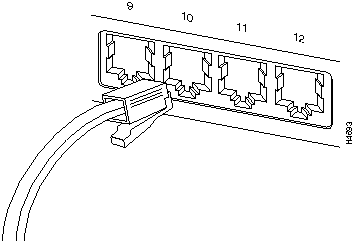
Connect cables to the RJ-45 ports on the front of the 10BaseT expansion module as follows:
Figure 5-8 : RJ-45 Connector Insertion The WS-X3003 10BaseF Expansion Module
The three-port 10BaseF expansion module (WS-X3003) is used for fiber-optic connections to computers, hubs, servers, and other high-speed network devices. The 10BaseF expansion module is shown in Figure 5-9.
Figure 5-9 : The 10BaseF Expansion Module
Expansion modules are installed in the expansion slots on the front of the Catalyst switch. All front expansion modules are installed in a similar way. Use the previous section "Installing The WS-X3001 (100Base TX) Expansion Module" as an example for detailed installation instructions and precautions for the 10BaseF module.
10BaseF Expansion Module Cables
The 10BaseF module's network ports are multimode fiber-optic interfaces with ST type connectors.
In full-duplex or half-duplex operating modes, the 10BaseF supports connection distances up to 2 km.
Connecting Cables to 10BaseF Expansion Module Ports
Enhanced versions of the Catalyst switch Stack support full-duplex operating mode. Unenhanced versions of the Stack only support half-duplex operating mode. To set the half-duplex or full-duplex mode, see Step 1 in the following cabling instructions.
Connect cables to the ST ports on the front of the 10BaseF module as follows:
Observe the following warnings and notes when cabling an expansion module with fiber-optic cable.
The WS-X3005 100BaseF Expansion Module
The 100BaseF expansion module (WS-X3005) is a single-port 100BaseFx expansion module used for high-bandwidth fiber-optic connections to computers, hubs, servers, and other high-speed network devices. The 100BaseF expansion module is shown in Figure 5-10.
Figure 5-10 : 100BaseF Expansion Module Expansion modules are installed in the expansion slots on the front of the Catalyst switch. All front expansion modules are installed in a similar way. Use the previous section "Installing The WS-X3001 (100Base TX) Expansion Module" as an example for detailed installation instructions and precautions for the 100BaseF module.
100BaseF Expansion Module Cables
The 100BaseF module's network port has 1300 nm multimode fiber-optic ST type connectors.
In full-duplex operating mode, the 100BaseF supports connection distances up to 2 km. In half-duplex operating mode, the 100BaseF supports connection distances up to 400 meters.
Connecting Cables to 100BaseF Expansion Module Ports
Enhanced versions of the Catalyst switch support half- or full-duplex operating mode, while the unenhanced version supports only half-duplex mode. If the Catalyst switch in which the 100BaseF is being installed is an enhanced version, refer to Step 1 in following steps. That step provides details about half-duplex or full-duplex communication mode.
Connect cables to the ST ports on the front of the 100BaseF module as follows:
Observe the following warnings and notes when cabling an expansion module with fiber-optic cable.
The WS-X3006 ATM Expansion Module
The WS-X3006A is a single-port ATM expansion module that is used to establish a high-speed 155 Mbps ATM connection between Catalyst 3000 Stack devices and ATM networks. For an operational explanation of the WS-X3006A, see the ATM functional descriptions later in this document. For a complete description of the ATM module and how to configure the ATM module, see "ATM Console Menus" in Chapter 7, "Console Configuration."
The ATM expansion module is shown in Figure 5-11.
Figure 5-11 : The ATM Expansion Module
The WS-X3006A ATM expansion module performs packet/cell conversions. Cells enter through the ATM physical interface and are processed by the module and converted to packets at network Layer 2. Outbound data is converted from packets to cells and transmitted through the ATM physical interface.
The following table (Table 5-9) displays the specifications for the WS-X3006A ATM expansion module.
Table 5-9 : WS-X3006A Specifications
Inserting the ATM Expansion Module
Expansion modules are installed in the expansion slots on the front of the Catalyst switch. All front expansion modules are installed in a similar way. Use the previous section, "Installing The WS-X3001 (100Base TX) Expansion Module" as an example for detailed installation instructions and precautions for the ATM module.
The ATM module's network port is an OC-3 interface with an SC Duplex connector that uses 62.5/125 multimode fiber-optic cable rated for 155 Mbps ATM data transfer rate.
The ATM module supports cable lengths up to 2 km.
Connecting Cables to ATM Expansion Module Ports
The ATM expansion module is a full-duplex device. For its multiple VLAN (virtual LAN) features to be enabled, The ATM module must be installed in an enhanced version of the Catalyst switch.
The ATM module supports connection distances up to 2 km. Connect cables to the front of the ATM module as follows:
Observe the following warnings and notes when cabling an expansion module with fiber-optic cable.
The ports on the module, and the fiber-optic network to which it is connected, use laser light. Do not stare into a fiber-optic port or into the end of a cable that is connected to a fiber-optic port.
The following tables describe the connectors, LEDs, and switches on the WS-X3006A module.
Table 5-10 : ATM Expansion Module LEDs
Table 5-11 : ATM Expansion Module Connector
When the link is established, the LINK LED is on. The LED should be green. If the LED is not on, or if the LED is an amber color, try the following tests:
If the above tests do not correct the problem, contact Cisco support.
If, after installation, there is poor system performance or the ATM module does not work at all, remove the module and check for any damage or bent connector pins. You may need a bright light to see inside the expansion module slot to check for bent pins. If you cannot find an immediate cause for the problem, contact Cisco support.
The WS-X3007 and WS-X3008 100VG Expansion Module
The 100VG module is an expansion module that can be added to a Catalyst switch to provide 100VG high speed connectivity. The 100VG module is compatible with the IEEE 802.12 standard.
The 100VG expansion module is available in the following two models. Each model has two high-speed 100VG ports.
The following topics for the 100VG expansion module are discussed in this section:
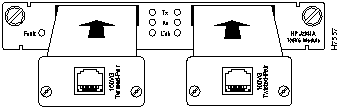
Figure 5-12 : 100VG Expansion Module
Physical
Dimensions
Width: 6.00 cm (6.30 in)
Depth: 1.89 cm (8.62 in)
Height: 2.36 cm (0.93 in)
Weight: 86.33 g (10.10 oz) (with no transceivers installed)
Environmental
Operating temperature: 0C to 40C (41F to 104F)
Nonoperating temperature: 40C to 70C (-40F to 158F)
Relative humidity: 5% to 80% at 40C (104F) non-condensing
Maximum operating altitude: 3.1 km (10,000 feet)
Electromagnetic
Emissions
FCC part 15 Class A
EN55022 / CISPR-22 Class A
VCCI Level 1
Immunity
Complies with Canadian EMC Class A requirements.
Declaration of Conformity for the 100VG Module complies with ISO/IEC Guide 22 and EN 45014. The declaration identifies the product, the manufacturer's name and address, and the applicable specifications that are recognized in the European community.
Expansion modules are installed in the expansion slots on the front of the Catalyst switch. All front expansion modules are installed in a similar way. Use the previous section "Installing The WS-X3001 (100Base TX) Expansion Module" as an example for detailed installation instructions and precautions for the 100VG module.
When the self-tests of the Catalyst switch and the 100VG Module complete successfully, the Catalyst switch and its module(s) are now operational. Connect the appropriate cable to your transceiver.
See the transceiver section for the cable specifications and instructions.
If the diagnostics fail or if the FAULT LED is on or blinking, refer to the Troubleshooting section at the end of this document.
The following sections describe the 100VG Recessed Transceivers. Use this section to cable a compatible network device to a specific 100VG Module transceiver.
Each 100VG Module has preinstalled transceivers, but if a transceiver must be replaced, refer to this section for removal or installation instructions. If there is a problem with a transceiver, use the following sections to verify the installation or to troubleshoot the problem.
The 100VG Recessed Transceivers provide connection to various network media for the 100VG Module. The transceivers are installed into the Xcvr Slots of the 100VG Module.
Figure 5-13 shows the Unshielded Twisted-Pair Recessed Transceiver for the WS-X3007 model of the 100VG Expansion Module.
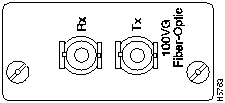
Figure 5-14 shows the Fiber-Optic Multimode ST Recessed Transceiver for the WS-X3008 model.
Figure 5-13 : Unshielded Twisted-Pair Recessed Transceiver Figure 5-14 : Recessed 100VG Fiber-Optic Multimode ST Transceiver Physical
Dimensions
All Transceivers
Width: 4.14 cm (1.63 in)
Depth: 9.22 cm (3.63 in)
Height: 2.36 cm (.93 in)
Weight: 50 g
Environmental
Operating temperature: 0C to 55C (32F to 131F)
Nonoperating temperature: 40C to 70C (-40F to 158F)
Relative humidity: 5% to 95% at 40C (104F) non-condensing
Maximum operating altitude: 4.6 km (15,000 feet)
Electromagnetic
Emissions
FCC part 15 Class A
EN55022 / CISPR-22 Class A
VCCI Level 1
Immunity
Complies with Canadian EMC Class A requirements.
Declaration of Conformity for the 100VG Module complies with ISO/IEC Guide 22 and EN 45014. The declaration identifies the product, the manufacturer's name and address, and the applicable specifications that are recognized in the European community.
Use the following steps to install a 100VG Recessed Transceivers. Reverse the installation procedure to remove a transceiver.
Figure 5-15 : 100VG Expansion Module Transceiver Insertion
The cabling instructions for each transceiver are different and are described in following sections of this guide. For cabling details, find the section that corresponds to your transceiver.
Recessed 100VG Twisted-Pair Transceiver
The Recessed 100VG Twisted-Pair Transceiver connects a networking device to an unshielded twisted-pair (UTP) network.
This transceiver is compatible with IEEE 802.12 standard.
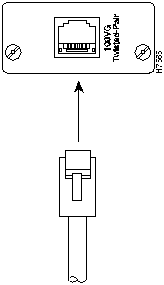
Twisted-Pair Cable Installation
Use the following information for cabling a UTP Transceiver.
Figure 5-16 : UTP Cable Connection Recessed Fiber-Optic Multimode ST Transceiver
The Recessed Fiber-Optic Multimode ST Transceiver connects a networking device to a fiber-optic network. This transceiver is compatible with the IEEE 802.12 and its wavelength is 1300nm. Optical fibers conforming to the ISO/IEC DIS 11801 standard will work with this transceiver.
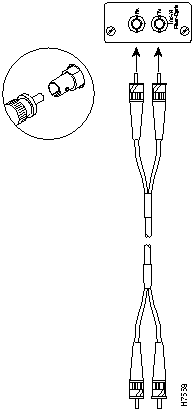
Fiber-Optic Cable Installation
Observe the following warnings and steps when cabling a Dual Port Fast Ethernet expansion module with fiber-optic cable.
Do not stare into a fiber-optic port or into the end of a cable that is connected to a fiber-optic port.
Figure 5-17 : Fiber-Optic Cable Connection
If the 100VG module is not working properly, the following problems may exist:
Accessing the 100VG Console Screens
By default, the 100VG ports are enabled and do not need configuring. The default Mode setting for the 100VG ports is Auto Detect (Auto). If a 100VG port needs a specific configuration other than the default, use the following information to configure that port.
Configuration and Statistic Console Screens
The following sections describe the Catalyst switch console menus that are used to configure ports and to show the statistics for the 100VG Module.
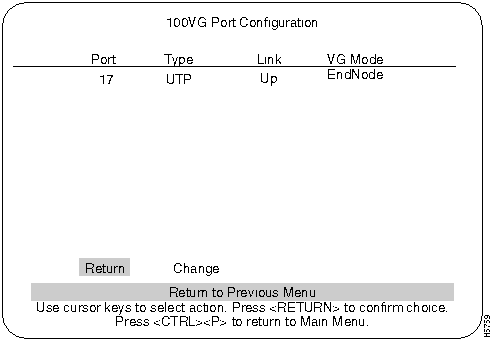
The 100VG Port Configuration screen and a 100 VG Port Configuration table are shown below. The 100VG Port Configuration screen is accessed from the Configuration screen.
Figure 5-18 : 100VG Port Configuration Screen
Use the following list in Table 5-12 for configuration information for a 100VG port.
Table 5-12 : 100VG Port Configuration
This screen is accessed from the Statistics screen. The following table lists and describes the terms used in the IEEE 802.12 screen.
Table 5-13 : IEEE 802.12 Statistics
WS-X3009/WS-X3010 Dual-Port Fast Ethernet with ISL
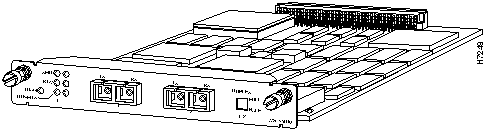
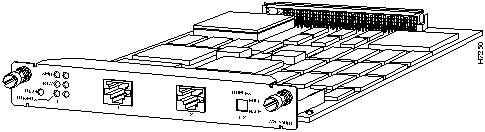
The Fast Ethernet (100Mbps) expansion module is a dual-port interface that is used to establish a connection between Catalyst switches and high-speed devices, such as servers or routers. Each of the dual-ports can be configured as Fast Ethernet or ISL mode. For an explanation of ISL configurations see the section "ISL Functional Overview and Specifications" later in this document. For configuring ISL trunk ports from a console connection, see Chapter 7, "Console Configuration." The dual-port Fast Ethernet expansion module with ISL is available in two models:
The following topics are discussed in this section:
Figure 5-19 : WS-X3009 ISL Expansion Module Figure 5-20 : WS-X3010 ISL Expansion Module ISL Functional Overview and Specifications
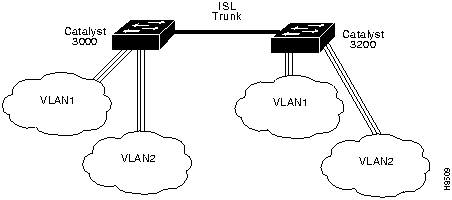
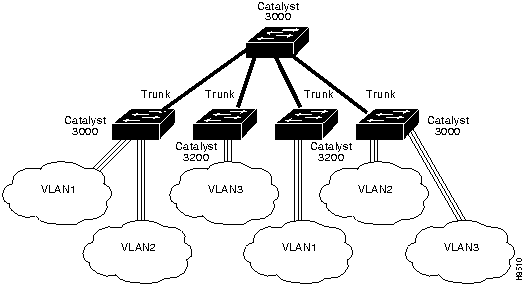
ISL is used to interconnect VLAN-capable Fast Ethernet devices like Catalyst 3000 and Catalyst 5000 switches and Cisco 7000 and Cisco 7500 routers to network servers, or to high-performance backbone devices such as Fast Ethernet hubs, switches, and routers. The ISL protocol tags a standard Ethernet frame with the VLAN information associated with that frame. VLAN packet tagging allows networks to contain VLAN trunks.
A trunk is a physical link between two Catalyst switches, or between Catalyst switches and routers, that carries the traffic of multiple VLANs. Trunks allow you to extend VLANs from one Catalyst switch to another. Users usually connect switches to each other and to routers using high-speed interfaces, such as Fast Ethernet, FDDI, and ATM.
The Catalyst series switch provides a means of multiplexing VLANs between switches and routers by using ISL on Fast Ethernet or LAN emulation on ATM protocols:
You can use any combination of these trunk technologies to form enterprise-wide VLANs. You can choose between low-cost copper and long-distance fiber connections for your trunks. An ISL trunk is like a continuation of the switching backbone. It provides a means for the Catalyst to multiplex VLANs between switches and routers.
The following figures, Figure 5-21 and Figure 5-22, are examples of Fast Ethernet ISL configurations.
Figure 5-21 : Fast Ethernet ISL Configuration Example Figure 5-22 : Fast Ethernet ISL Configuration Example Table 5-14 lists the specifications for the Dual-port Fast Ethernet with ISL module.
Table 5-14 : ISL Specifications
Connectors, LEDs, and Switches
Table 5-15, Table 5-16, and Table 5-17 describe the connector, LEDs, and switches on the Dual Port Fast Ethernet module.
Inserting the Dual Port Fast Ethernet With ISL Module
Expansion modules are installed in the expansion slots on the front of the Catalyst switch. All front expansion modules are installed in a similar way. Use the previous section "Installing The WS-X3001 (100Base TX) Expansion Module" as an example for detailed installation instructions and precautions for the dual port Fast Ethernet module.
Cabling Dual Port Fast Ethernet With ISL Modules
The dual port Fast Ethernet module's network port is either an RJ-45 or SC-style connector, depending upon the model type. The RJ-45 connector uses UTP Ethernet Category 5 cable. The SC connector uses 1300 nm multimode fiber optic cable.
Observe the following warnings and notes when cabling a dual-port Fast Ethernet expansion module with fiber-optic cable.
When cabling the Dual Port Fast Ethernet modules, the polarity of the fiber cable connectors must be "crossed-over." The TX (transmit) connector of one device goes to the RX (receive) connector of the other device. Check the polarity of each side of the fiber-optic cable. Use one side of the fiber-optic cable to connect from the transmit (Tx) side of a dual-port Fast Ethernet module to the receive (Rx) side of another device. Use the other side of the cable to connect the receive side of the dual-port Fast Ethernet module to the transmit side of the other device.
Checking the Installation/Troubleshooting
When the link is established, the LINK LED is on. If the LED is not on, try the following tests:
If the above tests do not correct the problem, contact Cisco support.
If, after installation, there is poor system performance or the Dual Port Fast Ethernet module does not work at all, remove the module and check for any damage or bent connector pins. You may need a bright light to see inside the expansion module slot to check for bent pins. If you cannot find an immediate cause for the problem, contact Cisco support.
Copyright 1988-1996 © Cisco Systems Inc.


Name
Description
AC connection
Standard AC power connection.
Name
Description
SWITCH ID
When pressed, each Catalyst 3000 attached to the Catalyst Matrix will display its box number.
ACTIVATE
When the ACTIVATE pushbutton is pressed on an off-line module, it will go on-line and the previous on-line module will go off-line. There is no effect if it is pressed on an on-line module.
Name
Color
Description
READY
Green
Indicates module is fully inserted and powered up.
POWER
Green
Indicates module is receiving power.
ACTV
Green
ACTIVE LED: On when module is on-line.
Off when off-line.
Name
Description
PORT1 to PORT8
For connecting the Catalyst Matrix to Catalyst 3000s to form a Stack.
Name
Color
Description
LINK; P1 to P8
Green
LED off = no link detected.
Green = Shows connection to a Catalyst 3000.





Name
Description
XMIT
A packet has been transmitted to the attached segment.
RCV
A packet has been received from the attached segment.
LNK/FDX
Off = link not detected.
Green = half-duplex.
Yellow = full-duplex (Enhanced version only).
DIAG
Running diagnostic. In normal operation DIAG should be off.
Name
Description
Duplex
Establishes the communication mode of the network port if the Catalyst 3000 is an enhanced version. Only set to half-duplex for unenhanced versions.
Full-duplex (up) or half-duplex (down).
Name
Description
Network Port
8-pin, RJ-45, 100BaseTX








Function
Specification
Throughput
65,000 packets per second in each direction
Number of VLANS
64
Number of SVCs
1912 in each direction
Number of PVPs
One
Packet Buffers
512K Bytes in each direction
Operating Temperature
10 to 40 degrees Centigrade
Non-operating Temperature
-25 to 75 degrees Centigrade
Relative Humidity: operating
8 to 80%, non-condensing
Non-operating Altitude
40,000 feet
Safety
UL 1950
UL-C
EN 60950
CE Mark
EMI Certifications
FCC Class A (Part 15)
EN 55022 A
VCCI Class 1


Name
Description
LINK
Off = link not detected
Green = link detected
DIAG
Running self-diagnostic or if ATM module fails
Name
Description
Network Port
SC type multi-mode optical fiber connector




Menu Item
Description
Port
The port on the 100VG Module or modules. Possible values: (17, 19, 21, or 23)
Type
The type of transceiver installed in the 100VG Module:
UTP is the abbreviation for unshielded twisted-pair.
STP is the abbreviation for shielded twisted-pair.
F27 is the abbreviation for the Recessed 100VG Fiber-Optic Multimode ST Transceiver.
VG-Empty indicates no transceiver is installed.
VG-New indicates a new transceiver was released after the software was created.
Link
Specifies whether this port has trained or not.
VG Mode
Either:
EndNode. Select EndNode if you will connect this port to a hub downlink port.
Master. Select Master if you are connecting this port to an end node PC or another Catalyst switch.
For a Catalyst switch to a Catalyst switch connection, one module should be set to Master mode and the other should be set to EndNode.
Auto. Auto tests the cable to see if the port should be a Master or EndNode mode and automatically selects the correct mode. After the software selects Master or End Node, either A-Master or A-EndNode appears in this column. Always connect the cable from the module to a downlink port on a hub. Do not connect the cable to an uplink port on the hub.
Menu Item
Description
All Transmitted Frames
Total frames transmitted from this port.
Transmitted High Priority Frames
Total high priority rather than normal priority frames transmitted from this port.
All Transmitted Octets
Total octets transmitted from this port.
All Received Frames
Total frames received by this port.
Forwarded Frames
Total frames sent from this port to another port.
Received Local Frames
Total frames received that had a destination on that local segment. The frames are not routed through the Catalyst switch but are dropped from the receive queue.
Received Broadcast Frames
Total number of broadcast frames received by this port.
Received Multicast Frames
Total number of multicast frames received by this port.
Received Error Frames
Total received frames that contained errors.
Dropped Frames
Total frames that were never sent out of this port because the buffer overflowed.
Reset Statistics
Change all counters back to zero for this screen.
Function
Specification
Dimensions (w x d x h)
6.2 x 9 x 0.9 in.
Packet Buffers
256K in each direction per port
Operating Temperature
10 to 50 degrees Centigrade
Non-operating Temperature
-25 to 75 degrees Centigrade
Relative Humidity: operating
8 to 80%, non-condensing
Non-operating Altitude
40,000 feet
Safety
UL 1950, UL-C, EN 60950
EMI Certifications
FCC Class A (Part 15), VCCI Class 2
EN 55022 A (CE Mark), CISPR-22B
Name
Description
Network Ports (2)
RJ-45; UTP Category 5 Ethernet cable
SC type; multimode fiber optic cable
Name
Color
Description
XMIT (Transmit)
Green
Transmitting data
RCV (Receive)
Green
Receiving data
LINK
Off
Green
Amber
Link not detected
Half-duplex link detected
Full-duplex link detected
DIAG
Amber
Running self-diagnostic
Name
Position
Description
Duplex
Up
Down
Full
Half


