
Banner
HomeTOCPrevNextGlossSearchHelp

PDF

Table of Contents

Catalyst 5000 Series Release Notes for Software Release 2.1

Catalyst 5000 Series Release Notes for Software Release 2.1

Catalyst 5000 Series Release Notes for Software Release 2.1

These release notes describe the features, caveats, and modifications for the Catalyst 5000 series supervisor engine module software release 2.1.


Documentation

The following documents are available for the Catalyst 5000 series switch:

These documents are available in printed form and in electronic form on UniverCD.


Release 2.1 Memory Requirements

Catalyst 5000 series software release 2.1 requires more memory than previous software releases. To use software release 2.1 you must have one of the following configurations:

Caution Catalyst 5000 series software release 2.1 fails to load without the proper memory configuration. Additionally, the single in-line memory module in the SIMM upgrade kit is a custom module that is not interchangeable with other SIMM modules.

Use one of the following three methods to determine the supervisor engine module version in your Catalyst 5000:


Command Line Interface (CLI) Method

To identify the hardware version of the supervisor engine module in your Catalyst 5000 using the CLI, enter the command show version. The supervisor engine module version number is listed as "Hardware Version:". In the following example, the supervisor module WS-X5009 has the version 1.402 and would require a memory module kit upgrade to install 2.1 software.

c5000> show version 
WS-C5000 Software, Version McpSW: 1.417 NmpSW: 1.417 
Copyright (c) 1995 by Cisco Systems 
NMP S/W compiled on Dec 15 1995, 17:58:17 
MCP S/W compiled on Dec 15 1995, 18:09:14 
System Bootstrap Version: 1.3 
Hardware Version: 1.402 Model: WS-X5009 Serial #: 000102694 

Module  Ports  Model  Serial #  Hw  Fw  Fwl  Sw
1  2  WS-x5009  000102694  1.402  1.3  1.3  1.417
3  24  Ws-C5000  000129133  1.301  1.3  ---  1.417

4096K bytes of DRAM memory. 
4096K bytes of FLASH memory. 
128K bytes of non-volatile configuration memory. 


CiscoView Method

If you are using CiscoView, you can determine the supervisor engine module version number by highlighting the supervisor engine module, selecting the Configure menu selection, and then choosing Card. The supervisor engine module version number is listed as "Hardware Version:". In this example, the supervisor module WS-X5009 has the version 1.402 and would require a memory module kit upgrade to install 2.1 software.

CiscoView (C5000-3-Inx) - Config Card
CATEGORY:    Physical     INDEX Card:    1
             Name: Supervisory Card
            Model: WS-X5009
    Serial Number: 1026-91
 Hardware Version: 1402
 Firmware Version: 1.3
 Software Version: 1.417
           Status: up
Diagnostic Errors: none
----------------------------------------------
  Modify        Print      Cancel      Help


Supervisor Physical Inspection Method

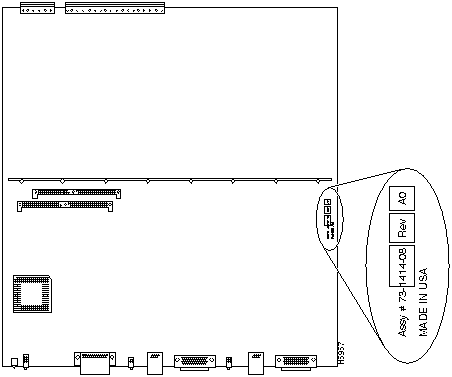
To determine the supervisor engine module version number by visually inspecting the hardware, see to Figure 1, which illustrates the location of the hardware revision number. In this example, the supervisor engine module revision is 73-1414-08, Rev A0, and would require a memory module kit upgrade to install 2.1 software.

Figure 1 : Locating the Supervisor Engine Module Version Number
h5957.gif


New Features in Release 2.1

This section lists the Catalyst 5000 series software release 2.1 new features. Refer to the Catalyst 5000 Series Installation Guide and Catalyst 5000 Series Configuration Guide and Command Reference publications for implementation instructions.

The following features are available with Catalyst 5000 series FDDI software release 2.1 and above only.


Usage Guidelines and Restrictions

This section describes warnings and cautions about using Catalyst 5000 series software release 2.1. It covers the following topics:


Setting Up VLANs

Beginning with Catalyst 5000 software release 2.1, the method for defining new VLANs and trunks has changed considerably---additional steps are required, which provide added capabilities. Some of the commands used in these steps have been modified since the Catalyst 5000 Series Installation Guide and Catalyst 5000 Series Configuration Guide and Command Reference publications for Catalyst 5000 series software release 2.1 were printed. The following sections describe these issues.


Note The automatic configuration of an LEC on the ATM module is not supported using VTP in ATM software release 2.2.


Setting Up VLANs Using VTP

Perform the following steps to create a new VLAN:

Step 1 Use the following command to be sure VTP is set to Server mode. (The default mode is Server mode.)


set vtp mode server

Step 2 Set the VTP network domain name to a value other than noname, using the following command. (The default name is noname.)


set vtp domain CISCO

Step 3 Define each VLAN using the following commands. Replace the VLAN numbers shown here with the VLAN numbers in your network domain.


set vlan 2
set vlan 3
set vlan 100
.....

Step 4 Assign a port to each VLAN using the following commands. Replace the VLAN and port numbers shown here with the VLAN and port numbers in your Catalyst 5000.


set vlan 2 2/1-24
set vlan 3 3/1-24
set vlan 100 4/1-2,5/1-2

fig_1.gif

Caution You cannot add new VLANs if the VTP mode is set to Client or the network domain name is set to the default (noname). If you attempt to assign ports to a VLAN that was not properly defined using VTP, as described above in steps 1 through 4, the ports are set to inactive and the status lights for the ports are orange.


Note To disable VTP, refer to the Catalyst 5000 Series Configuration Guide and Command Reference publication.


Setting Up an FDDI 802.10 Trunk

The following procedure is an example of how to set up an FDDI 802.10 trunk. It defines two Ethernet VLANs, VLAN 10 and VLAN 20, which communicate over an FDDI trunk port that supports the FDDI 802.10 protocol.

Step 1 Use the command set vtp as follows to be sure VTP is set to Server mode:


set vtp mode server

Step 2 Use the following command to set up the VTP network domain name to a value other than noname:


set vtp domain CISCO

Step 3 Define the Ethernet VLANs as follows:


set vlan 10 type ethernet
set vlan 20 type ethernet

Step 4 Enable trunking on the FDDI port of the FDDI module in slot 4 using the following command:


set trunk 4/1 on

Step 5 Define two unique VLANs with the type FDDI as follows:


set vlan 100 type FDDI
set vlan 200 type FDDI

Step 6 Set up the translations for 802.10 encapsulation using the following commands:


set vlan 100 trans 10
set vlan 200 trans 20

This sets up the translation between the Ethernet and FDDI VLANs that enables the FDDI module to perform 802.10 trunking.


VLAN and VTP Considerations

Catalyst 5000 series software release 2.1 contains the following changes to the VLAN and VTP software features documented in the Catalyst 5000 Series Installation Guide and Catalyst 5000 Series Configuration Guide and Command Reference publications:

  • The VTP advertisement interval time is fixed at five minutes. You cannot modify this value. The set vtp command syntax has been modified accordingly, as follows:
Console (enable) set vtp
Usage:
set vtp [domain <name>][mode <mode>] [passwd <passwd>]
(name: 1-32 characters, mode = (client, server, transparent), 
  interval = 120-600 sec, passwd : 0-64 characters)
Console> (enable)

  • The set vlan command syntax contains minor changes as follows:
Console> set vlan ?
Usage: set vlan <vlan_num> [name <name>] [type <type>] [state <state>]
                           [said <said>] [mtu <mtu>] [ring <ring_number>]
                           [bridge <bridge_number>] [stp <stp_type>]
                           [parent <vlan_num>] [translation <vlan_num>]
       (name = 1..32 characters, state = (active, suspend)
        type = (ethernet, fddi, token_ring, fddi_net, tr_net)
        said = 0..4294967295, mtu = 1500..18190, ring = 0..4095,
        bridge = 1..15, stp = (ieee, ibm), parent = 2..1005,
        vlan_num = 1..1005)
Console> 

  • The show vtp domain command syntax contains minor changes as follows:
Console> show vtp domain
Domain Name                    Domain Index VTP Version Local Mode
------------------------------ ------------ ----------- -----------
engineering                    1            1           client      

Last Updater    Vlan-count Max-vlan-storage Config Revision SNMP Traps
--------------  ---------- ---------------- --------------- -------------
172.20.25.130   5          256              0               disabled
Console> 

  • The default VLAN SAID value is assigned to 100,000 plus the VLAN number. For example, the default VLAN SAID value for VLAN 33 is 100033.


Modules

The following section describes considerations regarding the Catalyst 5000 series switch:

  • After removing a module, wait 20 seconds before replacing it. If you do not wait 20 seconds, the module might not come on line. (CSCdi40206)

  • The upload command is only supported for uploading software from the supervisor engine module. Do not use the upload command for uploading software from any other module. (CSCdi43217)


CAM Table

The following section describes CAM table considerations regarding the Catalyst 5000 series switch:

  • Because of different CAM table implementations, entries in the supervisor engine module's CAM table might not be in the FDDI CAM table. This situation does not affect normal switch operation.

  • The number of user-configured multicast permanent and static entries in the CAM table is limited to 128.

  • If an ATM module is installed, setting the CAM agingtime to a value greater than 300 seconds is not recommended. A value greater than 300 seconds violates the LAN Emulation specification.


MII Transceivers on the Supervisor Engine Module Fast Ethernet Ports

When a noncompliant MII transceiver is attached to a supervisor engine module, the following problems might occur:

When an MII Transceiver is attached to the MII port on the supervisor engine module, the System Diagnostic Loopback test fails. This is the result of a failure in the loopback mechanism with the transceiver in place; it does not indicate that the port is bad. When this problem occurs, the following message appears on the system console:
  Minor hardware problem in Module 1

This message can also occur for other failure conditions with more serious consequences. To determine the cause of the message, display the results of the supervisor engine module diagnostic tests using the show test 1 command. If the System Diagnostic Loopback test failed, ignore the system console message and use the MII ports.


Miscellaneous Considerations

The following section describes miscellaneous considerations regarding the Catalyst 5000 series switch configuration:

  • To allow the Catalyst 5000 to propagate VTP advertisements over an ATM link, be sure that a LAN emulation client (LEC) is defined for VLAN 1 on all ATM modules.

  • When you insert a module in a Catalyst 5000 slot, be sure it is fully inserted and secured with the thumb screws.

  • When setting up redundant physical links between Catalyst 5000 series switches, make sure to enable spanning tree. If spanning tree is not enabled, the Catalyst 5000 series switches will experience a broadcast storm, which might freeze the switches.

  • Limit the number of redundant trunks to two if you are using more than 100 active VLANs.

  • After you download Flash code software to the supervisor engine module, you must enter reset to reset the switch so that it will use the new image. The following information appears:

Console> (enable) reset
This command will reset the system.
Do you want to continue (y/n) [n]? y

After you download Flash code software to the FDDI/CDDI or ATM modules, the module automatically restarts.

  • When you replace a module with a module of a different type, clear the module configuration information, using the command clear config mod_num, to obtain the correct spanning-tree parameters for the modules.

  • If a module fails to come online, try resetting the module before replacing it.

  • If you are upgrading a Catalyst 5000 from software version 1.1 or 1.2 you must download the 2.1 software image software twice.

  • You will lose your system configuration if you downgrade the system software to a release previous to 2.1.

  • If a Catalyst 5000 contains 2.1 Software Memory Upgrade Kit SIMMs and is running a software release prior to 2.1 (such as release 1.5), the command show version displays only 4 MB of memory. You must install software release 2.1 or above to allow the command show version to recognize 2.1 Software Memory Upgrade Kit SIMMs and display the total memory as 8 MB.


Important Notes

This section describes Catalyst 5000 series software release 2.1 information that was not yet available when the Catalyst 5000 Series Installation Guide and Catalyst 5000 Series Configuration Guide and Command Reference publications were printed. It covers the following topics:


Accessing MIBs

To access the information that certain MIB variables support, you must enter either an Interface Index (IF-INDEX) or Bridge Identifier (BridgeID) value as an instance identifier. The following sections describe how to access these types of values for use with specific MIBs:

The following MIBs are available through ftp.cisco.com in the following locations:

  • Cisco Systems private MIBs for switches: /ftp/wgp/mibs/cisco-stack.my

  • Cisco Systems private CDP MIB: /ftp/pub/mibs/v2/CISCO-CDP-MIB.my

  • RFC1573 MIB: /ftp/pub/mibs/v2/IF-MIB.my


Finding the Mapping Between the Physical Interface and Interface Number

To find the module number and port number to which an IF-INDEX is mapped, read the IfName in the MIB object of the Interface Extension MIB (RFC 1573). Use this method to find the IF-INDEX when you are accessing any of the variables in the CDP MIB that require an IF-INDEX for a variable instance identifier (such as "CDP neighbors").

The Catalyst 5000 Series Group Switching Ethernet module has 12 ports in each of its four switched, repeated segments. To gather statistical information about one of these segments using the Interface Extension MIB (RFC 1573) or CDP MIB, use the IF-INDEX of the first port of the segment (port 1, 13, 25 or 37) as the variable instance identifier.


Using RMON (RFC 1757) and SNMP MIBs

Standard remote monitoring (RMON, RFC 1757) supports nine types of monitoring groups. The Catalyst 5000 supports four of these groups: statistics, history, alarms, and events. Any RMON-compliant manager can obtain and display information from these groups. For example, the Cisco TrafficDirector application provides a simple, point-and-click method of obtaining the information. Refer to the TrafficDirector Windows User Guide or TrafficDirector UNIX User Guide for details about TrafficDirector.

Collecting remote monitoring (RMON) information requires you to create TrafficDirector software agents. These agents consist of a Catalyst 5000 IP address and an Interface Index (IF-INDEX) for the port about which information is to be collected. For instructions about how to display the IF-INDEX and the port number to which it is mapped, refer to the sections in this document "Displaying the IF-INDEX Using SunNet Manager" and "Displaying the IF-INDEX Using HP Openview." To gather statistical information using the Interface Extension MIB (RFC 1573) or CDP MIB, use the IF-INDEX of the first port of the segment (port 1, 13, 25 or 37) as the variable instance identifier.


Accessing the Bridge MIB (RFC 1493)

The Bridge MIB (RFC 1493) contains a bridge port number for each Catalyst 5000 Series Group Switching Ethernet module segment. Query the portCrossIndex.mod_num.port_num MIB object in the CISCO-STACK-MIB to find the BridgeID. The mod_num is the module number in the Catalyst 5000, and the port_num is the first port in each Group Switching Ethernet module segment (that is, port 1, 13, 25 or 37).

To display Bridge MIB information for different VLANs, change the SNMP community string to append @vlan_num to the configured SNMP community string. The vlan_num is the VLAN number.


Accessing the SNMP-REPEATER-MIB (RFC 1516)

To access the different segments of the Group Switching Ethernet module using the SNMP-REPEATER-MIB (RFC 1516), change the SNMP community string of your SNMP application that references the Catalyst 5000 to the following syntax:

community_string@mod_num/port_num

The community_string represents the name of the SNMP community (the defaults are Public for Read-Only permission, private for Read-Write permission, and secret for Read-Write-All permission). The mod_num is the module number in the Catalyst 5000 and the port_num is the first port of each segment; for segment one use port 1, for segment two use port 13, for segment three use port 25, and for segment four use port 37.


Displaying the IF-INDEX Using SunNet Manager

To display the IF-INDEX and port number of a Catalyst 5000 using SunNet Manager, perform the following steps:

Step 1 Download the following files from ftp.cisco.com


/pub/mibs/schema/IF-MIB.schema
/pub/mibs/oid/IF-MIB.oid.

Step 2 Copy these files to your SNMP agents directory, which is typically located in $SNMHOME/agents.

Step 3 Reinitialize SunNet Manager using the following command:


$SNMHOME/bin/snm -i

Step 4 If an icon of the Catalyst 5000 you are interested in monitoring is present in your network application topology map, highlight it and select IF-MIB from the properties sheet list. If the Catalyst 5000 icon is not present, create a new object to represent the switch in your network before highlighting its icon and selecting IF-MIB from the properties sheet list.

Step 5 On the device-specific menu, select the following commands: Quick Dump, IF-MIB, and ifXTable.

Output similar to the following will be displayed. The IF-INDEX is listed under the column heading "KEY" in the first column of the output.
Apr 12 13:48:39 1996 [ 172.20.24.188 ] : Quick Dump: IF-MIB.ifXTable

KEY  ifName  ifInMulticastPkts  ifInBroadcastPkts...

1  sc0  0  0
2  sl0  0  0                                                                                                                 
3  1/1  0  0                                                                                                           
4  1/2  0  0                                                                                                          
5  2/1  0  0                                                                                                        
6  2/2  0  0                                                                                                         
7  2/3  0  0                                                                                                          
8  2/4  0  0                                                                                                         
9  2/5  0  0
10  2/6  0  0
11  2/7  0  0
12  2/8  0  0
13  2/9  0  0
14  2/10  0  0
15  2/11  0  0
16  2/12  0  0

Step 6 Choose the key that corresponds to the module or port to monitor.


Displaying the IF-INDEX Using HP Openview

To display the IF-INDEX and port number of the Catalyst 5000 using HP Openview, perform the following steps:

Step 1 Download the following file from ftp.cisco.com


/ftp/pub/mibs/V2/IF-MIB.my

Step 2 Copy this MIB file to your OpenView MIBs directory, which is typically located in the directory path: /usr/OV/snmp_mibs

Step 3 Rename the file rfc1573.mib to rfc1573-INTERFACES.

Step 4 From the HP Openview main menu, select the following commands: Options, Load/Unload MIBs:SNMP. Click on Load. Choose the file name rfc1573-INTERFACES, and click on OK.

Step 5 From the HP Openview main menu, select the following commands: Monitor, MIB Values, Browse MIB:SNMP. Type a device name or IP address into the form and then click MIB Object ID.


Configuring Valid VPI and VCI Bits on an LS100

Use the following method on an LS100 to configure the valid VPI and VCI bits for the ports to which a Catalyst 5000 ATM Module is connected:

ls100# set int ?

<Line>         Line number 0-15

<Inf_Type>     pri_UNI(0) , pri_NNI(1) or pub_UNI(2)

<Forum/ITU>    Forum(0) or ITU(1)

<VVP>          Valid VPI 0-12 bit(s)

<VVC>          Valid VCI 0-12 bit(s)

<LBO>          Line Built Out 0-225feet(1) or 225-450feet(0)

<PLCP>         PLCP(0) or Direct Mapping(1)

<Scramble>     Payload_Not_Scrambled(0) or Payload_Scrambled(1)

ls100# set int <Cat5K ATM Port#> 0 0 0 10 1 1 1


This sets the valid VPI bits to 0 and valid VCI bits to 10, to match the default settings on the Catalyst 5000 ATM Module.


Troubleshooting the 2.1 Software Upgrade

This section describes methods to recover from errors during the 2.1 software upgrade process. The following issues are discussed:


Recovering from a Release 2.1 Installation with Insufficient Memory

If you attempt to upgrade the Catalyst 5000 with software release 2.1 and there is insufficient memory on the supervisor engine module, the following output is displayed on the Catalyst 5000 console:

ATE0
ATS0=1
 
Catalyst 5000 Power Up Diagnostics
 
Init NVRAM Log 
LED Test 
ROM CHKSUM 
DUAL PORT RAM r/w 
RAM r/w 
RAM address test 
Byte/Word Enable test 
EARL test 
EARL test Done

BOOTROM Version 1.5, Dated Mar  8 1996 16:24:38
BOOT date: 04/26/00 BOOT time: 05:38:22
 

Warning: Insufficient Memory present to Run Software Release 2.1 or later.
Options:

1. Erase 2.1 Software and prepare download of 1.x  Software.
2. Power down the System and add optional Memory SIMM.

To recover from this error, select Option 1 or Option 2 and follow the steps below, according to the option you selected.


Option 1 Recovery

If you select Option 1 to recover from the insufficient memory error, the following output is displayed on the Catalyst 5000 console.

Enter Option: (1 or 2): 1

*** Flash will be erased! OK to proceed ? (Y or N): y 
 
Flash erase in progress  ...
Erase Complete ... System will reset

ATE0
ATS0=1

Catalyst 5000 Power Up Diagnostics
 
Init NVRAM Log 
LED Test 
ROM CHKSUM 
DUAL PORT RAM r/w 
RAM r/w 
RAM address test 
Byte/Word Enable test 
Warm Restart 
EARL test 
EARL test Done

BOOTROM Version 1.5, Dated Mar  8 1996 16:24:38
BOOT date: 04/26/00 BOOT time: 05:40:36
*** FLASH NOT VALID *** Download new image
boot> 

Follow the steps below to recover the system:

Step 1 At the Boot PROM, make sure you have a connection through the TFTP server to an Ethernet port.

Step 2 Enable the port to which the TFTP server is connected using the following command:


set port enable mod_num/port_num

Step 3 Download a previous 1.X release of the software (such as release 1.5, 1.4, 1.3 and so on) using the download command.

Step 4 Reset the Catalyst 5000.

The system will now be running the release 1.X software you just downloaded.


Option 2 Recovery

If you select Option 2, the Catalyst 5000 displays the following message on the console and then halts, allowing you to perform the following steps:


Please power down the System and add Memory SIMM

Step 1 Power down the system.

Step 2 Follow the instructions in your SIMM upgrade kit to install the additional memory required for software release 2.1.

Step 3 Power up the Catalyst 5000.

Step 4 The system comes online running the Catalyst 5000 supervisor module software release 2.1 image that you loaded before adding additional memory.


Recovering from Memory Test Errors

Catalyst 5000 memory diagnostic tests will fail if you attempt to install a SIMM module that is not part of the Cisco single in-line memory module (SIMM) upgrade kit. If the diagnostic test fails, the following appears on the Catalyst 5000 console:

Incorrect SIMM for Hardware Configuration

To recover from this error, remove the incorrect SIMM and replace it with the upgrade kit memory module.

If a memory module is faulty, Catalyst 5000 memory diagnostic tests display the following message on the Catalyst 5000 console:

SIMM RAM address test
SIMM Ram r/w 55aa
SIMM Ram r/w aa55

Address   Expected  Actual
addr_num  value_1   value_2

Catalyst 5000 memory diagnostics test all of memory modules in the supervisor engine module. To recover from a faulty memory module error, determine which memory module is faulty and
replace it.


Software Release 1.X Modifications

This section describes the software release 1.X caveats that were resolved in Catalyst 5000 supervisor engine module software release 2.1.

  • Make sure to set the screen length (using the set length command) to a nonzero value (for example, 24 lines) before entering commands that have long displays (for example, the show cam and show vlan commands). If the screen length is set to zero, you cannot interrupt and cancel the display of information on the screen. This problem is fixed in Catalyst 5000 series supervisor engine module software release 2.1. (CSCdi33985)

  • When multiple ports are disabled on a module using the set port disable or set module disable commands, the LED for the port does not turn orange to indicate that the port has been disabled; however, the port stops receiving and transmitting packets. This problem is fixed in Catalyst 5000 series supervisor engine module software release 2.1. (CSCdi42486)

  • The show cam dynamic mod_num/port_num command shows static CAM table entries in addition to dynamic entries. Static entries are identified with an *. This problem is fixed in Catalyst 5000 series supervisor engine module software release 2.1. (CSC44944)

  • The Catalyst 5000 does not generate a module-up trap for a module whose ports are all disabled. Use the reset mod_num command to restart the module. This problem is fixed in Catalyst 5000 series supervisor engine module software release 2.1. (CSCdi 45045)

  • The Catalyst 5000 does not generate module traps when you reset modules. This problem is fixed in Catalyst 5000 series supervisor engine module software release 2.1. (CSCdi45049)

  • When an ATM module is installed, the show netstat ip command indicates that the supervisor engine module has received frames that are smaller than the required minimum size. This problem is fixed in Catalyst 5000 series supervisor engine module software release 2.1. (CSCdi45054)

  • The show port command shows disabled, unconnected ports as faulty. This problem is fixed in Catalyst 5000 series supervisor engine module software release 2.1. (CSCdi45229)

  • If an external transceiver is attached to a supervisor engine module MII port when you reset or power up the system, the Catalyst 5000 might report a minor hardware failure on the supervisor engine module, and the LINK LED on the MII port of the supervisor engine module may not turn on. These conditions do not seriously affect the Catalyst 5000 unit's switching capability. If they occur, unplug the transceiver, and plug it back into the MII port of the supervisor engine module. This problem is fixed in Catalyst 5000 series supervisor engine module software release 2.1, however the problem may still occur with the use of a noncompliant transceiver. (CSCdi45289)

  • A diagnostic test for detecting FDDI and ATM port PMD failures does not function properly. Instead of disabling the failed port and reporting a serious hardware problem, it brings the FDDI or ATM module on line with a green status LED. This problem has been fixed in software release 1.5. This problem is fixed in Catalyst 5000 series supervisor engine module software release 2.1. (CSCdi45710)


Caveats in Software Release 2.1

This section describes possible, unexpected behavior and other miscellaneous caveats for the Catalyst 5000 supervisor engine module software release 2.1. The caveats listed here describe only serious problems.

  • Currently, the show mac command displays the InDiscard counter value as zero, instead of the actual counter value for Ethernet ports. (The InDiscard counter tracks the number of frames that the Catalyst 5000 series switch discards because it was destined for the local segment.) (CSCdi39812)

  • The LrnDiscard counter (displayed using the show mac command) indicates the number of times a CAM entry was replaced with a newly learned address when the CAM table is full. In supervisor engine module software releases 1.3 and 1.4, the counter value is not maintained for each port; instead, the value is maintained for the entire switch. (CSCdi39883)

  • Serial download is supported for downloading Flash code to the supervisor engine module, but not to the switching modules. (CSCdi41103)

  • SNMP applications may temporarily slow down or time out if you are using an SNMPWALK, mibwalk, or Cisco View session on a Catalyst 5000 during an FDDI or ATM download. (CSCdi54102)

  • Although the show spantree command displays the fast-start feature as enabled on a trunk port, the spanning-tree portfast mode has no effect on trunk ports, such as ISL, ATM, or FDDI. Do not use the set portfast command on a trunk port. In addition, designating a port as a trunk port ignores the portfast feature for the port. When you hot-swap an FDDI or ATM module, use the set portfast disable command to disable the fast-start feature for any ports that are using it. (CSCdi55205)

  • Use the reset command at the boot prompt to load the Flash image. Do not use the command execflash to load the Flash image from the Boot PROM. (CSCdi57385)

  • Sometimes the command show module indicates that the status LED of an Ethernet module is green even if some module ports fail the PMD loopback test during powerup. The status LED of an Ethernet module is orange or red only when all of the module ports fail the PMD loopback test. Use the show test command to view PMD loopback test results for a module. To correct this error, reset the module using the reset mod_num command; if the failure persists, replace the module. (CSCdi57908)

  • When you are enabling or disabling FDDI ports on an FDDI module, be sure to use the set port enable and set port disable commands for both ports 1 and 2; port A (port 1) and port B (port 2) on the FDDI module are treated as two different ports. (CSCdi57956)

  • You cannot disable an ATM module using the set module disable command. However, you can disable other module types.

  • If you attempt to enter an incorrect FLASH image for the supervisor engine module, the error message might not be immediately obvious. For example, if you accidentally tried to download ATM software to the supervisor engine module, the following message would appear:
Console> (enable) download 199.133.219.189 atm_21.cbi
Download image atm_21.cbi from 199.133.219.189 to Module 1 FLASH (y/n) [n]? y
-
Finished network download.  (1950240 bytes)
ERROR: ocs hdr: csum=0x41e4ecb7 ocsp->csum=0x4c

Download failed

(CSCdi58607)

  • A Catalyst 5000 might timeout if several SNMP applications are running concurrently. Limit the number of SNMP applications to one at a time. Alternatively, increase the timeout value for manager applications. (CSCdi58669)

  • Sometimes the Catalyst 5000 prints the following error message after a software download to an ATM or FDDI module, even though the software download has completed without a problem:
TFTP Failed Abnormal Termination

Ignore messages of this type and continue normal operation. (CSCdi58944)

  • When you are viewing the etherStats for an Ethernet port, using an RMON application such as TrafficDirector, the Catalyst 5000 reports oversize frames even though oversize packets have not been received on the port. Ignore messages of this type and continue normal operation. (CSCdi59442)

  • If you upgrade the Catalyst 5000 with supervisor engine module software release 2.1 while the FDDI software is a release prior to 2.1 (such as FDDI software release 1.5), the FDDI module might fail to come online. To recover from this error, reset the module using the command reset mod_num. (CSCdi60282)

  • An ATM module running Catalyst 5000 series ATM software release 1.1 fails to come online on a Catalyst 5000 running Catalyst 5000 series supervisor engine software release 2.1. To recover from this error, reset the ATM module using the command reset mod_num. It is recommended that you install the ATM software release 2.2.

  • When you disable a trunk on a fast Ethernet port using the command set trunk mod_num/port_num off, wait for a confirmation statement from the Catalyst 5000 before re-enabling the trunk. This prevents the trunk from going into an undesired state. If this error occurs, use the set port command to disable and then re-enable the port.


Cisco Connection Online

Cisco Connection Online (CCO), formerly Cisco Information Online (CIO), is Cisco Systems' primary, real-time support channel. Maintenance customers and partners can self-register on CCO to obtain additional content and services.

Available 24 hours a day, 7 days a week, CCO provides a wealth of standard and value-added services to Cisco's customers and business partners. CCO services include product information, software updates, release notes, technical tips, the Bug Navigator, configuration notes, brochures, descriptions of service offerings, and download access to public and authorized files.

CCO serves a wide variety of users through two interfaces that are updated and enhanced simultaneously---a character-based version and a multimedia version that resides on the World Wide Web (WWW). The character-based CCO supports Zmodem, Kermit, Xmodem, FTP, Internet e-mail, and fax download options, and is excellent for quick access to information over lower bandwidths. The WWW version of CCO provides richly formatted documents with photographs, figures, graphics, and video, as well as hyperlinks to related information.

You can access CCO in the following ways:

  • WWW: http://www.cisco.com.

  • Telnet: cco.cisco.com.

  • Modem: From North America, 408 526-8070; from Europe, 33 1 64 46 40 82. Use the following terminal settings: VT100 emulation; databits: 8; parity: none; stop bits: 1; and baud rates up to 14.4 kbps.

For a copy of CCO's Frequently Asked Questions (FAQ), contact ccohelp@cisco.com. For additional information, contact ccoteam@cisco.com.


Note If you are a network administrator and need personal technical assistance with a Cisco product that is under warranty or covered by a maintenance contract, contact Cisco's Technical Assistance Center (TAC) at 800 553-2447, 408 526-7209, or tac@cisco.com. To obtain general information about Cisco Systems, Cisco products, or upgrades, contact 800 553-6387, 408 526-7208, or csrep@cisco.com.
fig_3.gif

HomeTOCPrevNextGlossSearchHelp
-

Copyright 1988-1996 © Cisco Systems Inc.
