


|
|

This appendix provides a summary of all the LED indicators used in the router. The LEDs on the front panel and on the RSP2 indicate the system power and processor status. LEDs on the interface processors indicate the status of the individual interface processor and its interfaces.
Three system status LEDs on the front of the router, shown in Figure B-1, indicate the status of the system and the power supplies. The normal LED lights to indicate that the system is in a normal operating state. The power A and power B LEDs light to indicate that a power supply is installed in the indicated power supply bay and is providing power to the system. (Facing the chassis as shown in Figure 1-1, the power A bay is on the left and the power B bay is on the right.)
Figure B-1 Router Front Panel LEDs
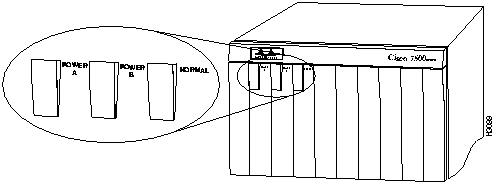
The power LEDs go out if the power supply in the corresponding bay reaches an out-of-tolerance temperature or voltage condition. For descriptions of thresholds and status levels, refer to "Environmental Monitoring and Reporting Functions" in the chapter "Product Overview." The front panel normal LED is controlled by the RSP2, which contains an identical normal LED that provides system status on the rear of the chassis.
On the router front panel, the power A and B LEDs light when the power supply in the corresponding bay is installed and supplying power to the system. Both LEDs should light in systems with redundant power. The front panel LEDs are described in the following section. If any of the front panel LEDs fails, the blower module, which contains these LEDs, must be replaced.
There are two types of power supplies for the Cisco 7513: AC input and DC input. Each power supply contains the following LEDs: AC (or DC) OK, fan OK, and output fail. Figure B-2 shows the AC-input power LEDs, and Figure B-3 shows the DC-input power LEDs.
Figure B-2 AC-Input Power Supply LEDs
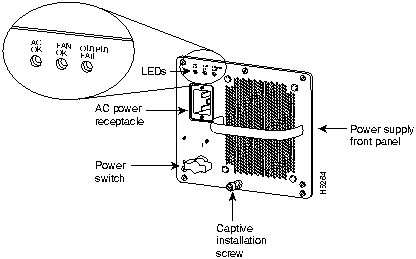
Figure B-3 DC-Input Power Supply LEDs
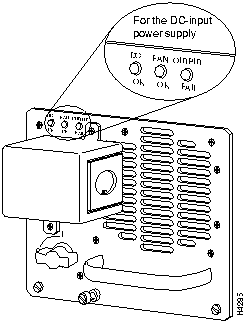
The green, AC (or DC) OK LED indicates that the power supply is turned on and is receiving input power. The red, output fail LED is normally off, but goes on if the power supply shuts down for any of the following reasons:
The green fan OK LED is on to indicate the fan in the power supply is operating properly. This LED is useful in noisy environments when you are troubleshooting a potential power supply problem and it is difficult to differentiate the sound of one power supply's fan from another.
In systems with a single power supply, and in systems with redundant power when both power supplies are being shut down, the output fail LED lights momentarily as the system ramps down, but is off when the power supply has completely shut down.
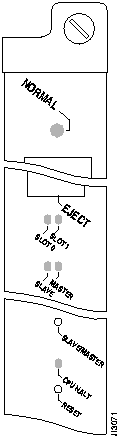
The two LEDs on the RSP2, which are shown in Figure B-4, indicate the system and RSP2 status. The normal LED goes on to indicate that the system is operational. During normal operation, the CPU halt LED on the RSP2 should be off and stay off unless the system detects a processor hardware failure. A successful boot is indicated when the normal LED comes on and stays on; however, this does not necessarily mean that the system has reached normal operation. The Slot 0 and Slot 1 LEDs indicate which PCMCIA slot is in use and blink when either slot is being accessed by the system.
Figure B-4 RSP2 LEDs, Reset Switch, and Master/Slave Switch

Each interface processor (except the RSP2, which is not really an interface processor) contains an enabled LED. When on, this LED indicates that the interface processor is operational and that it is powered up. It does not necessarily mean that the interface ports are functional or enabled. The following sections describe the LEDs for each interface processor.
The AIP has an enabled LED (see Figure B-5) and two additional LEDs, which are generic to the interface type indicated by your PLIM.
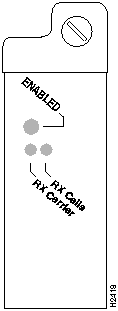
The three LEDs above the ATM port (see Figure B-5) indicate the following:
The CIP has an enabled LED (see Figure B-6) and two banks of LEDs: one for each interface. The interfaces can be any combination of bus and tag or ESCON, and the LEDs indicate status specific to these interface types.
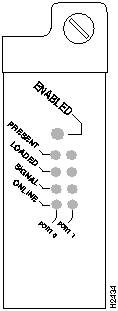
Following are the functions of the CIP LEDs. (See Figure B-6.)
Following are the sequences for the CIP LED indicators. The enabled LED is not part of the following sequences. On cold boots, the following four LED sequences apply:
| Present | Loaded | Signal | Online | |
|---|---|---|---|---|
| Port 1 | On | On | Off | Off |
| Port 0 | Off | Off | Off | Off |
| Present | Loaded | Signal | Online | |
|---|---|---|---|---|
| Port 1 | On | On | On | On |
| Port 0 | On | On | Off | Off |
| Present | Loaded | Signal | Online | |
|---|---|---|---|---|
| Port 1 | On | On | On | On |
| Port 0 | On | On | On | On |
The following sequence indicates that the CIP is waiting for commands from the RSP2.
| Present | Loaded | Signal | Online | |
|---|---|---|---|---|
| Port 1 | Off | Off | Off | Off |
| Port 0 | Off | Off | Off | Off |
On warm boots, the LEDs flash briefly. On downloads, the following three LED sequences apply; the first indicates that the system is downloading volatile programmable logic device (VPLD) code:
| Present | Loaded | Signal | Online | |
|---|---|---|---|---|
| Port 1 | On | On | On | On |
| Port 0 | On | On | On | Off |
The following sequence indicates that the CIP is downloading microcode:
| Present | Loaded | Signal | Online | |
|---|---|---|---|---|
| Port 1 | Off | Off | Off | Off |
| Port 0 | On | On | On | On |
The following sequence indicates that the CIP is starting to execute the microcode:
| Present | Loaded | Signal | Online | |
|---|---|---|---|---|
| Port 1 | Off | Off | Off | Off |
| Port 0 | Off | Off | Off | Off |
The EIP contains a bank of 18 LEDs: one horizontal row of 3 LEDs for each of the 6 Ethernet interfaces, as shown in Figure B-7.
As with the other interface processors, the enabled LED goes on when the EIP is enabled for operation.
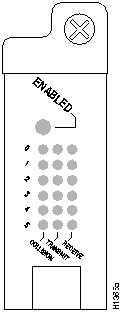
Three LEDs for each port indicate the following:
The FEIP contains the enabled LED, standard on all interface processors, and a bank of three status LEDs for the ports. After system initialization, the enabled LED goes on to indicate that the FEIP has been enabled for operation. (The LEDs are shown in Figure B-8.) The following conditions must be met before the enabled LED goes on:
If any of these conditions is not met, or if the initialization fails for other reasons, the enabled LED does not go on.
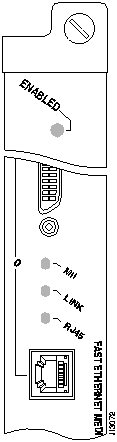
A bank of three LEDs indicates the following:
Either the MII LED or the RJ-45 LED should be on at one time; never both.
The FIP LEDs are shown in Figure B-9. The LEDs on the top indicate the state of PHY B, and those on the bottom indicate the state of PHY A. (The PHY B interface is also above the PHY A interface on the face of the FIP.) As with the other interface processors, the enabled LED goes on when the FIP is enabled for operation.
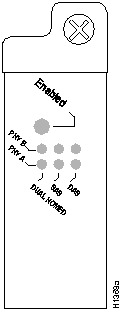
The state of each B/A pair of LEDs indicates the status of one type of three possible station connections: dual attachment station (DAS), single attachment station (SAS), or dual homed. The states of the FIP LED combinations, and the meanings of each, are described and illustrated in Table B-1.
Table B-1 FIP LED Descriptions
| LED Pattern(1) | State | Indication |
|---|---|---|
| B A | DAS | Note: Both lights off means not connected. |
| -- --X XX X | Both lights off | Not connected |
| O O X X X X | Both lights on | Through A |
| O --X XX X | B on and A off | Wrap B |
| -- OX XX X | B off and A on | Wrap A |
| B A | SAS | |
| X X-- --X X | Both lights off |
Not connected |
| X XO --X X | B on and A off |
Single attachment B (PHY A shut down) |
| X X-- OX X | B off and A on |
Single attachment A (PHY B shut down) |
| B A | Dual Homed | |
| X XX X-- -- | Both B and A off |
Not connected |
| X XX OO O | Single attachment A onplus both B and A on |
Dual homed with A active; not a normal condition; indicates potential problem on B |
| X XO XO O | Single attachment B onplus both B and A on plus |
Dual homed with B active, which is a normal condition |
| X XO XO X | Single attachment B onplus B on |
Single attachment B, Dual homed A failed |
| X XX OX O | Single attachment A onplus A on |
Single attachment A, Dual homed B failed |
The FSIP LEDs are shown in Figure B-10. As with the other interface processors, the enabled LED goes on when the FSIP is enabled for operation. However, unlike the LED cluster on other interface processors, the LEDs for each serial port are adjacent to the connector. Table B-2 lists descriptions of each LED.
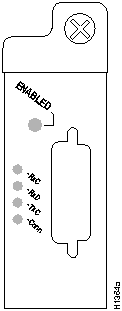
The Conn (connected) LED goes on when the interface is connected to the network. During normal operation, the three other LEDs go on to indicate data and timing signal traffic, or an idle pattern that is commonly sent across the line during idle time.
Table B-2 FSIP LED Descriptions
| LED | DTE Signal | DCE Signal |
|---|---|---|
| RxC | Receive clock (from DTE) | (TxC) Transmit clock (to DTE) |
| RxD | Receive data (from DTE) | (TxD) Transmit data (from DTE) |
| TxC | Send timing (from DCE) | (RxC) Receive timing (to DTE) |
| Conn | Connected | Connected |
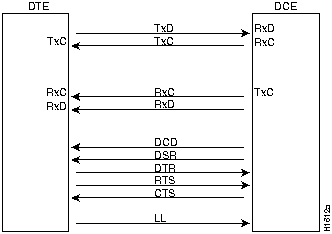
The labels on each LED indicate the signal state when the FSIP port is in DTE mode. However, the direction of the signals is reversed when the FSIP port is in DCE mode. For example, a DCE device usually generates a clock signal, which it sends to the DTE device. Therefore, when the Receive Clock (RxC) LED lights on a DTE interface, it indicates that the DTE is receiving the clock signal from the DCE device. However, when the RxC LED lights on a DCE interface, it indicates that the DCE is sending a clock signal (RxC) to the DTE device. Because of limited space on the FSIP faceplate, only DTE mode states are labeled on each port.
Figure B-11 shows the signal flow between a DTE and DCE device and the LEDs that correspond to signals for each mode. The following LED state descriptions include the meanings for both DTE and DCE interfaces.
Figure B-11 DTE to DCE Signals
The default mode for all interface ports without a port adapter cable attached is DCE, although there is no default clock rate set on the interfaces. The DCE default allows you to perform local loopbacks without having to terminate the port or connect a cable. Because the serial adapter cables determine the mode and interface type, the FSIP port becomes a DTE when a DTE cable is connected to it. If a DTE cable is connected to a port with a clock rate set, the DTE will ignore the clock rate and use the external clock signal that is sent from the remote DCE.
Four LEDs on the HIP indicate the state of the HSSI interface. As with the other interface processors, the enabled LED goes on when the HIP is enabled for operation. The four LEDs above the HSSI port (see Figure B-12) indicate the following.
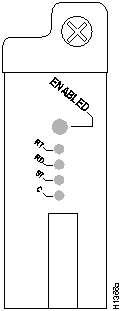
After system initialization, the enabled LED (shown in Figure B-13), which is present on all interface processors, turns on to indicate that the MIP has been enabled for operation.
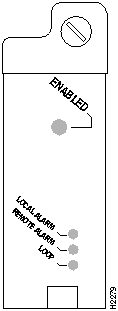
The following conditions must be met before the MIP is enabled:
If any of these conditions is not met, or if the initialization fails for other reasons, the enabled LED does not turn on.
There are three LEDs associated with each MIP port that indicate alarm or loop conditions on that port. The three LEDs above each MIP port indicate the following:
The TRIP LEDs are shown in Figure B-14. Each horizontal row of three LEDs, one for each Token Ring interface, indicates the speed (4 or 16 Mbps) of the interface and whether the interface is inserted into the ring.
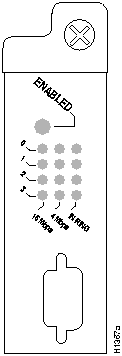
All TRIPs, regardless of whether they provide two or four ports, contain the bank of LEDs shown in Figure B-14. As with the other interface processors, the enabled LED goes on when the TRIP is enabled for operation. Three LEDs for each port indicate the following:

|
Copyright 1988-1995 © Cisco Systems Inc.