


|
|

The 13-slot Cisco 7513 router supports multiprotocol, multimedia routing and bridging with a wide variety of protocols and any combination of Asynchronous Transfer Mode (ATM), Ethernet, Fast Ethernet, Token Ring, Fiber Distributed Data Interface (FDDI), serial, High-Speed Serial Interface (HSSI), channel attachment, and multichannel media. All network interfaces reside on interface processors, which provide a direct connection between the high-speed, dual CyBuses and your external networks.
Online insertion and removal (OIR) allow you to add, replace, or remove interface processors without interrupting the system power or entering any console commands. Environmental monitoring and reporting functions enable you to maintain normal system operation by resolving adverse environmental conditions prior to loss of operation. If conditions reach critical thresholds, the system shuts down to avoid equipment damage from excessive heat or electrical current. Downloadable software and microcode allow you to load new images into Flash memory remotely, without having to physically access the router, for fast, reliable upgrades.
This chapter provides physical and functional overviews to familiarize you with your new router. It contains physical descriptions of the system hardware and major components, and functional descriptions of hardware-related features. Descriptions and examples of software commands appear only when they are necessary for installing, configuring, or maintaining the system hardware.
Following is a list of acronyms, initializations, and terms that identify the system components and features:
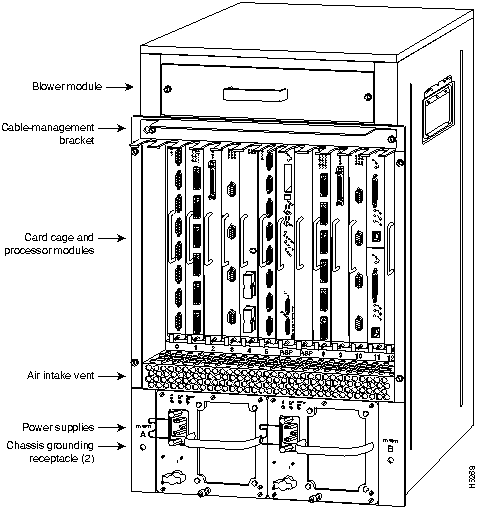
The Cisco 7513 uses the RSP2 and supports up to 11 interface processors. (The RSP2 and interface processors are collectively referred to as processor modules.) Figure 1-1 shows the interface processor end of the router.
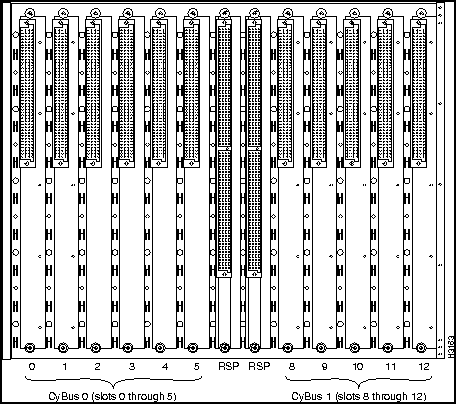
When viewing the router from the interface processor end (see Figure 1-1), slot 6 and slot 7 are for RSP2s only. The remaining 11 slots are for interface processors, and are numbered from the left beginning with slot 0 (the far left slot) through slot 5 and from slot 8 through slot 12 (the far right slot). Slots 0 through 5 comprise CyBus 0 and slots 8 through 12 comprise CyBus 1.
An RSP2 in either slot 6 or slot 7 controls both CyBus 0 and CyBus 1. The dual-CyBus backplane in the Cisco 7513 has an aggregate bandwidth of 2.134 gigabits per second (Gbps). Interface processors connected to one CyBus are unaffected by the traffic generated by the interface processors connected to the other CyBus. The two CyBuses are independent of one another.
The RSP2 and interface processors are keyed with guides on the backplane to prevent them from being fully inserted in the wrong slot.
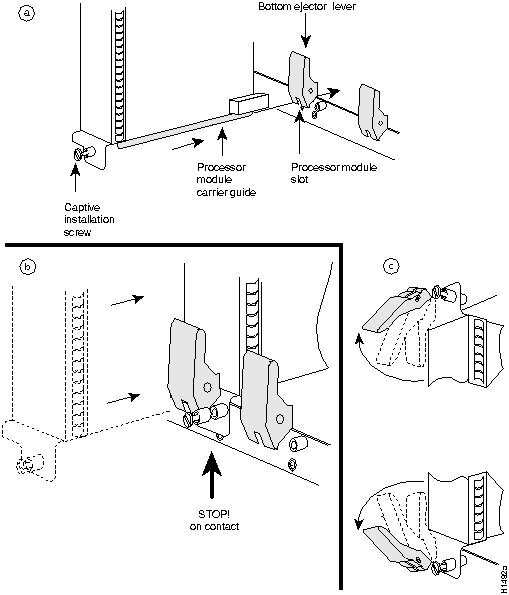
The RSP2 and interface processors slide into the processor slots in the rear of the router (see Figure 1-1) and connect directly to the backplane; there are no internal cables to connect. Spring-loaded ejector levers help to ensure that a processor module is either connected to the backplane or fully disconnected from it, but the captive installation screws on each processor module are the best way to ensure it is completely secured to the backplane.
Figure 1-1 : Cisco 7513 Router, Processor End---AC-Input Power Supplies Shown
Captive installation screws, one at each end of the processor module faceplate, ensure proper seating in the slot and prevent the processor module from disengaging from the backplane connectors. Empty slots contain either a blank interface processor slot filler or a blank RSP slot filler. These fillers are metal processor module carriers without boards, LEDs, or connectors, and they help ensure proper airflow through the chassis by covering unused slots.
The Cisco 7513 operates as either a tabletop or rack-mounted unit; however, we recommend that you rack-mount the Cisco 7513. A rack-mount kit is standard equipment that is included with all Cisco 7513 chassis. The kit provides the hardware needed to mount the router in a standard 19-inch equipment rack, a Telco rack, or in a variety of other equipment-rack configurations. When the router is not mounted in a rack, place it on a sturdy table or platform.
A fully configured Cisco 7513, with dual power supplies and all slots filled, weighs approximately 160 pounds (72.6 kilograms [kg]). Do not stack the router with any other equipment or place it directly on a floor. For clearance requirements and rack-mount installation considerations, refer to the section "Site Environment" in the chapter "Preparing for Installation."
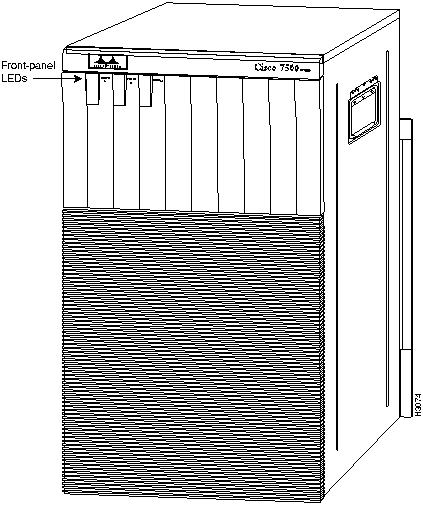
The front of the Cisco 7513 is shown in Figure 1-2. The three front-panel LEDs indicate system and power supply status. LED indications are discussed in detail in the appendix "Reading LED Indicators."
Figure 1-2 : Cisco 7513---Front View Showing Cover Panels
Table 1-1 lists the Cisco 7513 physical specifications and power requirements.
Table 1-1 : Cisco 7513 System Specifications
Spares and Field-Replaceable Units
The primary spares in the Cisco 7513 are the blower module and (at least one) power supply. Figure 1-1 shows the power supplies and blower module in their normal operating positions. The power supplies operate on AC input power (or DC input power for the DC-input power supplies) and provide DC voltages to the system components.
The blower in the blower module moves cooling air through the chassis interior (from the bottom of the card cage to the top) to prevent internal components from overheating.
The card cage and backplane assembly is a field-replaceable unit (FRU) that includes the chassis interface and the dual arbiter, which are attached to the backplane. The backplane distributes power throughout the system and contains the dual CyBus for high-speed information exchange; the dual arbiter, which controls bus arbitration; and the chassis interface, which contains the environmental monitoring functions for the system.The following sections describe the major system components.
The dual arbiter, which arbitrates traffic on the dual CyBus and generates the CyBus clocks, is a printed circuit board that is mounted to the front (noninterface processor side) of the system backplane. The dual arbiter controls traffic across the CyBuses by prioritizing access requests from interface processors. This ensures that each request is processed and prevents any interface processor from jeopardizing the CyBuses and interfering with the ability of the other interface processors to access the RSP2. The dual arbiter provides the following services for the system:
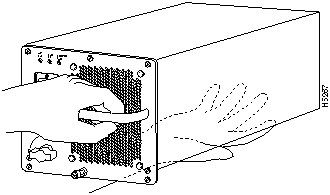
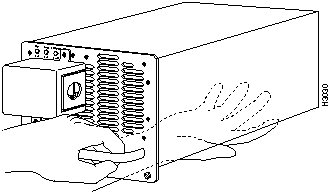
The Cisco 7513 comes equipped with at least one 1200W, AC-input power supply (shown in Figure 1-3) or at least one 1200W, DC-input power supply (shown in Figure 1-4).
Figure 1-3 : 1200W AC-Input Power Supply
Figure 1-4 : 1200W DC-Input Power Supply
A second, redundant, power supply is available as an option. All power supplies are available as spare parts. Redundant power supplies can be removed while power is on.
The AC-input power supply operates between 100 and 240-VAC input voltage and supplies DC power to the internal components. The DC-input power supply operates on --48-VDC input voltage in North America (or --60 VDC in the European Community) and supplies DC power to the internal components. Table 1-1, earlier in this chapter, lists the acceptable AC-input and DC-input ranges and the internal operating DC voltages that are supplied.
A single handle on each power supply provides a grip point for pulling the power supply out of the chassis. (See Figure 1-3 or Figure 1-4.) A single captive screw secures each power supply to the chassis.
The power supply delivers +5 VDC power to the internal components through a bus bar system that connects directly between the power supplies and the backplane. The backplane distributes the DC voltages to the blower module, dual arbiter, chassis interface, and processor module bus connectors.
The AC power receptacle (or DC-input terminal block), power switch, and status LEDs are on the faceplate of each power supply. A modular power cable connects the AC-input power supply to the site AC power source. A cable retention band on the power supply AC receptacle prevents the cable from being pulled out accidentally. The DC-input is supplied by a three-lead, 8-AWG cable that you provide. You provide nylon cable ties for DC-input power cable strain relief.
On the AC-input and DC-input power supplies, the power switch turns the power supply on and starts the system. Adjacent to each power supply bay there is a threaded, M4 x .7 chassis ground receptacle that provides a chassis ground connection for ESD equipment or a grounding wire. (See Figure 1-1.)
On the AC-input and DC-input power supplies, the green OK LED indicates the status of the power supply and internal DC voltages.
The OK LED stays on when all of the following conditions are met:
If the AC or DC source power or any of the internal DC voltages exceeds allowable tolerances, the (AC or DC) OK LED goes off and the system environmental monitor messages indicate the line that is out of tolerance. Because the RSP2 (which uses +5 VDC), and the blower module (which uses +24 VDC) are both required for operation, the system will probably shut down if any internal voltages reach an out-of-tolerance state.
The red output fail LED is off when all internal DC voltages are within tolerance and goes on if any of the internal DC voltages is out of tolerance. When the internal power supply fan is operating properly, the fan OK LED is on. (For a complete description of the power supply LEDs, refer to the appendix "Reading LED Indicators.")
Inside each AC-input or DC-input power supply, one fan forces cooling air through the power supply interior. The air flows into the faceplate of the power supply and out the rear of the power supply (or the lower front panel of the chassis).
The power supply monitors its own temperature and internal voltages. If a power supply detects an overvoltage or overtemperature condition, it shuts down to avoid damage to itself or other system components. For a description of power-supply shutdown conditions and thresholds, refer to the section "Environmental Monitoring and Reporting Functions" in this chapter.
The AC-input and DC-input power supplies are available as spares for immediate onsite replacement in case one fails. The chapter "Maintaining the Router" provides power supply replacement instructions. In addition, detailed, up-to-date instructions (called configuration notes) are included with all spares when they are shipped from the factory.
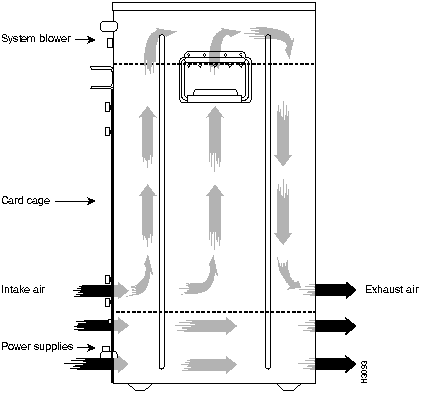
The system blower is mounted in a self-enclosed, removable module and draws cooling air through the chassis interior to maintain an acceptable operating temperature for the internal components. The blower module comprises the blower, a printed circuit board with the speed control circuits, the front-panel LEDs, and a metal case with a handle. The blower module slides into the top of the chassis from the interface processor end of the router. Figure 1-5 shows the airflow path for the system blower and power supply fans.
Figure 1-5 : Internal Air Flow---Side View
The blower draws air in through the intake vent below the chassis card cage, up through the card cage, processor modules, and other internal components, through the blower module, and out through the exhaust vents on the front of the chassis.
The front and back of the chassis must remain unobstructed to ensure adequate airflow and prevent overheating inside the chassis; we recommend at least six inches of clearance. (See the section "Site Requirements" in the chapter "Preparing for Installation.")
A speed control board in the blower module monitors and controls the operation of the variable-speed blower. The variable-speed feature enables quieter operation by allowing the blower to operate at less than maximum speed when doing so provides adequate cooling air to maintain an acceptable operating temperature inside the chassis. The variable-speed feature also provides for longer blower bearing life. The blower speed control can be overridden to always run the blower at maximum speed.
Temperature sensors on the chassis interface and RSP2 monitor the internal air temperature. When the ambient air temperature is within the normal operating range, the blower operates at the slowest speed, which is 55 percent of the maximum speed. If the temperature inside the chassis exceeds the normal range, the blower speed control board increases the blower speed to provide additional cooling air to the internal components. If the temperature continues to rise, the blower speed control board linearly increases the blower speed until the blower reaches full speed (100 percent). If the internal temperature exceeds the specified threshold, the system environmental monitor shuts down all internal power to prevent equipment damage from excessive heat.
If the system detects that the blower has stopped, or cannot maintain sufficient blower speed, it will display a warning message on the console screen. If the condition is not corrected, the system might shut down the processor modules to avoid an overtemperature condition and potential system damage. For specific thresholds and message descriptions, refer to the section "Environmental Monitoring and Reporting Functions," in this chapter, and to the section "Troubleshooting the Cooling Subsystem" in the chapter "Troubleshooting the Installation." The blower module is available as a spare. The chapter "Maintaining the Router" provides blower module replacement instructions.
The chassis interface provides the environmental monitoring (ENVM) and power supply monitoring functions for the Cisco 7513. The chassis interface isolates the CPU and system software from chassis-specific variations. The chassis interface is a part of the backplane assembly and is not available separately as a spare part or FRU.
Following are the functions of the chassis interface:
The dual-CyBus backplane in the Cisco 7513 has an aggregate bandwidth of 2.134 gigabits per second (Gbps). Interface processor slots 0 through 5 comprise CyBus 0, and interface processor slots 8 through 12 comprise CyBus 1. Figure 1-6 shows the orientation of the two CyBuses.
Figure 1-6 : CyBus 0 and CyBus 1 Orientation on the Backplane
The RSP2 provides distributed processing and control for the interface processors, and controls communication between high-speed interface processors (interface processor-to-interface processor) and the system processor (interface processor-to-processor).
Interface processors connected to one CyBus are unaffected by the traffic generated by the interface processors connected to the other CyBus. The two CyBuses are independent of one another.
A chassis identification (memory) device on the backplane contains a bank of hardware (MAC-layer) addresses for the interface processor ports, as well as chassis-specific information.
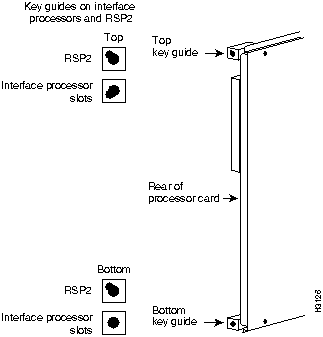
The backplane slots are keyed so that the processor modules can be installed only in the slots designated for them. Keys on the backplane fit into two key guides on each module. (See Figure 1-7.)
Figure 1-7 : Backplane Slot Key Guides on the Processor Modules
The RSP2 uses one type of key, and all interface processor slots use another. You can install an interface processor in any interface processor slot (0 through 5 and 8 through 12), but not in the RSP2 slots (6 and 7). The RSP2 can only be installed in slots 6 or 7.
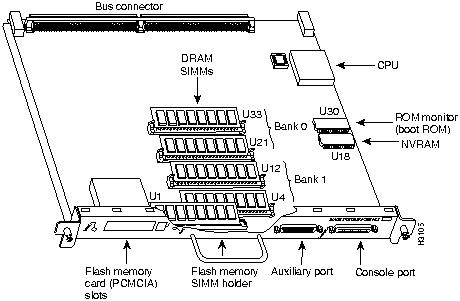
The RSP2, shown in Figure 1-8, is the main system processor in the router. The RSP2 contains the system CPU and system memory components. It maintains and executes the management functions that control the system. The system software is contained on the RSP2 in either a Flash memory, single in-line memory module (SIMM) or in a Personal Computer Memory Card International Association (PCMCIA) Flash memory card.
The RSP2 contains the following components:
In addition to the preceding system components, the RSP2 contains and executes the following management functions that control the system:
The high-speed switching section of the RSP2 communicates with and controls the interface processors on the CyBus. This section decides the destination of a packet and switches it based on that decision. The RSP2 uses a 16-million-instructions-per-second (mips) processor to provide high-speed, autonomous switching and routing. The single enabled LED lights to indicate that the RSP2 is enabled for operation.
Figure 1-8 shows the locations of the various types of memory on the RSP2, and Table 1-2 lists the functions of each.
Figure 1-8 : Route Switch Processor (RSP2)---Horizontal Orientation
Table 1-2 : RSP2 Memory Components
System Software and Interface Processor Microcode
The Cisco 7513 router supports downloadable system software and microcode for most upgrades, which enables you to remotely download, store, and boot from a new image. The publication Upgrading Software and Microcode in Cisco 7XXX Series Routers (Document Number 78-1144-xx), which accompanies all upgrade kits, provides instructions for upgrading from either floppy disks or over the network.
Flash memory contains the default system software (either in the Flash memory SIMM or Flash memory card). An EPROM device on each interface processor contains the latest interface processor microcode version, in compressed form. At system startup, an internal system utility scans for compatibility problems between the installed interface processor types and the bundled microcode images, then decompresses the images into running memory (DRAM). The bundled microcode images then function the same as images loaded from the microcode EPROM.
DRAM
DRAM stores routing tables, protocols, and network accounting applications. The standard RSP2 configuration is 16 MB of DRAM, with up to 128 MB available through SIMM upgrades.
NVRAM The nonvolatile random-access memory (NVRAM) stores the system configuration and the environmental monitoring logs, and is backed up with a built-in lithium battery that retains the contents for a minimum of five years. When replacing an RSP2, be sure to back up your configuration to a remote server so that you can retrieve it later. (See the Timesaver note that follows.)
Flash Memory
Either the onboard Flash memory SIMM or the Flash memory (PCMCIA) card allow you to remotely load and store multiple Cisco IOS and microcode images. You can download a new image over the network or from a local server and then add the new image to Flash memory or replace the existing files. You can also transfer images between Flash memory cards and the onboard Flash memory SIMM.
You can then boot routers either manually or automatically from any of the stored images. Flash memory also functions as a TFTP server to allow other servers to remotely boot from stored images or to copy them into their own Flash memory.
EEPROM
An electrically erasable programmable read-only memory (EEPROM) component on the RSP2 (and each interface processor) stores board-specific information such as the board serial number, part number, controller type, hardware revision, and other details unique to each board.
Because the RSP2 uses a software configuration register for system configuration and Flash memory for system software images, there are no user-configurable jumpers on the RSP2.
The normal and CPU halt LEDs on the RSP2 indicate the system and RSP2 status. The normal LED is on when the system is operational and operating normally; the CPU halt LED should be off. The CPU halt LED goes on only if the system detects a processor hardware failure. For complete descriptions of the LED states, refer to the appendix "Reading LED Indicators."
Two asynchronous EIA/TIA-232 serial ports on the RSP2, the console and auxiliary ports, provide the means for connecting a terminal, modem, or other device for configuring and managing the system. A data circuit-terminating equipment (DCE) EIA/TIA-232 receptacle console port on the RSP2 provides a direct connection for a console terminal.
The adjacent data terminal equipment (DTE) EIA/TIA-232 plug auxiliary port supports flow control and is often used to connect a modem, a channel service unit (CSU), or other optional equipment for Telnet management of the attached device.
The console and auxiliary ports support asynchronous transmission. Asynchronous transmission uses control bits to indicate the beginning and end of characters, rather than precise timing. The serial interface ports on the FSIP support synchronous transmission, which maintains precise clocking between the transmitter and receiver by sending frames of information that comprise separate clock signals along with the data signals. When connecting serial devices, ensure that the devices support the proper transmission timing methods for the respective port: asynchronous for the console and auxiliary ports, and synchronous for the FSIP and MIP serial ports.
An interface processor comprises a modular, self-contained interface board and one or more network interface connectors in a single 11 x 14-inch unit. All interface processors support OIR, so you can install and remove them without opening the chassis and without turning off the chassis power.
The RSP2, which is a required system component, always resides in RSP slot 6 or 7. (See Figure 1-6.) Slots 1 through 5 (CyBus 0) and 8 through 12 (CyBus 1) are available for any combination of the following interface processors:
The microcode on each interface processor contains board-specific software instructions. New features and enhancements to the system or interfaces are often implemented in microcode upgrades. The Cisco 7513 supports downloadable microcode for most maintenance upgrades, which enables you to download new microcode images remotely and store them in Flash memory. You can then use software commands to instruct the system to load a specific microcode image from Flash memory or to load the default microcode image from ROM. System software upgrades also can contain upgraded microcode images, which will load automatically when the new software image is loaded.
Each interface processor has a unique bank of status LEDs, and all have a common enabled LED at the left end of the interface processor faceplate. The enabled LED goes on when the RSP2 has completed initialization of the interface processor for operation, indicating that, as a minimum, the interface processor is correctly connected to the backplane, that it is receiving power, and that it contains a valid microcode version.
If any of these conditions is not met, or if the initialization fails for other reasons, the enabled LED stays off. Additional LEDs on each interface processor type indicate the state of the interfaces. The appendix "Reading LED Indicators" describes all LED indications.
The following sections describe each interface processor type.
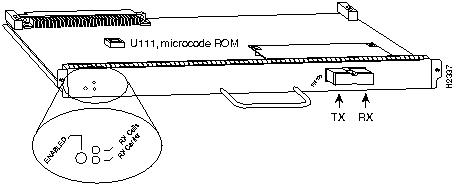
The AIP provides a direct connection between the high-speed CyBus and the external networks. (See Figure 1-9.) The AIP can support the following data transmission rates: Transparent Asynchronous Transmitter/Receiver Interface (TAXI) 4B/5B at 100 Mbps, Synchronous Optical Network/Synchronous Digital Hierarchy (SONET/SDH) at 155 Mbps, E3 at 34 Mbps, and DS3 at 44.736 Mbps The default AIP microcode resides on an EPROM in socket U111.
Figure 1-9 : ATM Interface Processor---User-to-Network Interface (UNI) PLIM Shown
The specific physical layer interface module (PLIM) on the AIP determines the type of ATM connection. There are no restrictions on slot locations or sequence; an AIP can be installed in any available interface processor slot. The AIP supports the following features:
Following are the product numbers associated with the AIP:
For more information on the AIP, refer to the sections "Distance Limitations and Interface Specifications" and "ATM Connection Equipment" in the chapter "Preparing for Installation." Also refer to the Asynchronous Transfer Mode Interface Processor (AIP) Installation and Configuration publication (Document Number 78-1214-xx), available on UniverCD or in print.
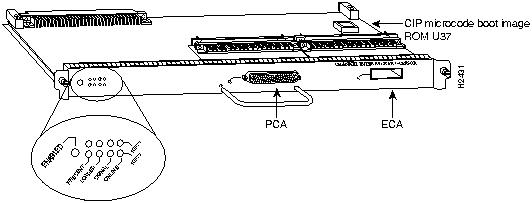
The CIP provides up to two channel-attached interfaces, eliminating the need for a separate front-end processor. (See Figure 1-10.) The CIP interfaces are combinations of a bus and tag (also called an original equipment manufacturer's interface [OEMI] and a parallel I/O interface) adapter and/or an Enterprise Systems Connection (ESCON) adapter. The bus and tag adapter is called the Parallel Channel Adapter (PCA) and the ESCON adapter is called the ESCON Channel Adapter (ECA). The PCA and ECA connect directly to the CIP, and any combination of the two adapters can be used.
Figure 1-10 : Channel Interface Processor---Combination PCA and ECA Shown
The supported processor input/output architectures for the CIP include ESA/390 for ESCON and System/370, 370/Xa, and ESA/390 for bus and tag. The ESCON interface is capable of a data rate up to 17 megabytes per second (MBps) and the bus and tag interface is capable of a data rate up to 4.5 MBps. Only the CIP microcode boot image resides on an EPROM in socket U37. (See Figure 1-10.) The entire CIP microcode image is located in the software/microcode bundle.
There are three carrier types: PCA-ECA carrier, dual ECA carrier, and dual PCA carrier. Following are the product numbers and carrier types associated with the CIP:
For more information on the CIP, refer to the Channel Interface Processor (CIP) Installation and Configuration publication (Document Number 78-1342-xx), available on UniverCD, or in print.
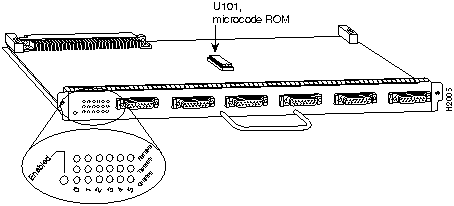
The EIP, shown in Figure 1-11, provides two, four, or six Ethernet ports that operate at up to 10 Mbps. A bit-slice processor provides a high-speed data path between the EIP and other interface processors. The default EIP microcode resides on an EPROM in socket U101.
Figure 1-11 : Ethernet Interface Processor
Each port requires an Ethernet transceiver or a media attachment unit (MAU) and attachment unit interface (AUI) cable to connect to the external network. Following are the product numbers associated with the EIP:
For descriptions of Ethernet transceivers and AUIs, refer to the section "Ethernet Connection Equipment" in the chapter "Preparing for Installation." For descriptions of Ethernet network connections, refer to the section "Ethernet Connections" in the chapter "Installing the Router."
Each port on the EIP automatically supports both Ethernet Version 1 and Version 2/IEEE 802.3 connections. When an interface is connected to an EIP port, the port automatically adjusts to the interface type. The ports are independent, so you can mix both versions on one EIP.
Fast Ethernet Interface Processor
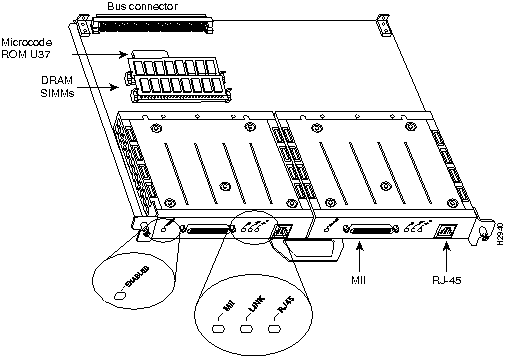
The FEIP provides up to two 100-Mbps, IEEE 802.3u 100BASE-T ports. (Figure 1-12 shows a two-port FEIP.) IEEE 802.3u specifies several different physical layers for 100BASE-T: 100BASE-TX---100BASE-T half duplex, over Category 5, unshielded twisted-pair (UTP), EIA/TIA-568-compliant cable; 100BASE-FX---100BASE-T full duplex, over twisted pair or optical fiber); and 100BASE-T4---100BASE-T full duplex, using Category 3 and 4 cabling with four pairs (also called 4T+).
Figure 1-12 : Fast Ethernet Interface Processor
Following are the product numbers associated with the FEIP:
The interfaces on an FEIP can both be configured at 100 Mbps, half duplex (HDX) or full duplex (FDX), for a maximum aggregate bandwidth of 200 Mbps. The FEIP microcode boot image resides in an EPROM in socket location U37.
Fiber Distributed Data Interface Processor
The FIP contains the industry-standard AMD SuperNet chipset for interoperability, and a 16-million instructions per second (mips) processor for high-speed (100 Mbps) interface rates. There are no restrictions on slot locations or sequence; you can install a FIP in any available interface processor slot.
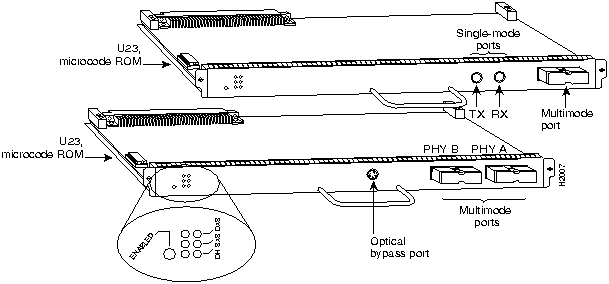
Figure 1-13 shows a multimode/multimode FIP on the bottom and a single-mode/multimode FIP on the top. The FIP supports single attachment stations (SASs), dual attachment stations (DASs), dual homing, and optical bypass for both multimode and single-mode operation. The FIP complies with ANSI X3.1 and ISO 9314 FDDI standards. The default FIP microcode resides on an EPROM in socket U23.
Figure 1-13 : FDDI Interface Processor
Each FIP provides a single network interface for both multimode and single-mode FDDI networks. The two FIP connectors are available in any combination of multimode (MIC) or single-mode (FC) connectors for matching multimode and single-mode fiber in the same FDDI network. Following are the product numbers associated with the FIP:
Each FIP provides the interface for connection to a Class A, DAS (with primary and secondary rings), or to a Class B, SAS (with only a primary ring). The multimode MIC or single-mode FC ports on the FIP provide a direct connection to the external FDDI network.
A six-pin mini-DIN connector on the multimode/multimode and single-mode/single-mode FIPs provides the connection for an optical bypass switch. When the interface is shut down, the bypass switch allows the light signal to pass directly from the receive port to the transmit port on the bypass switch, completely bypassing the FIP transceivers. The bypass switch does not repeat the signal, and significant signal loss may occur when transmitting to stations at maximum distances.
Optical bypass switches typically use a six-pin DIN or mini-DIN connector. A DIN-to-mini-DIN adapter cable (CAB-FMDD) is included with the FIP to allow connection to either type of connector. For a detailed description of optical bypass and FDDI connections, refer to the section "FDDI Connection Equipment" in the chapter "Preparing for Installation." For descriptions of FDDI network connections, refer to the section "FDDI Connections" in the chapter "Installing the Router."
Fast Serial Interface Processor
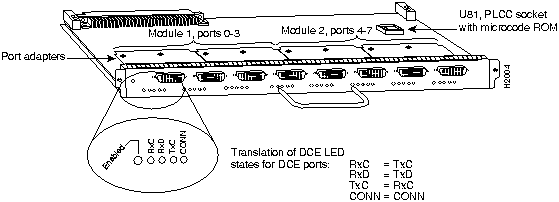
The FSIP provides four or eight channel-independent, synchronous serial ports that support full duplex operation at T1 (1.544 Mbps) and E1 (2.048 Mbps) speeds. Each port supports any of the available interface types: EIA/TIA-232, EIA/TIA-449, V.35, X.21, EIA-530, and E1-G.703/G.704. Figure 1-14 shows an eight-port FSIP. The eight ports are divided into two four-port modules, each of which is controlled by a dedicated Motorola MC68040 processor and contains 128 kilobytes (KB) of static random-access memory (SRAM). Each module can support up to 4 T1 or 3 E1 interfaces, and an aggregate bandwidth of up to 8 Mbps at full-duplex operation. The type of electrical interface, the amount of traffic, and the types of external data service units (DSUs) connected to the ports affect actual rates. For information on setting up high-speed interfaces, refer to the section "Configuring the FSIP" in the chapter "Maintaining the Router." The default FSIP microcode resides on a PLCC-type EPROM in socket U81.
Figure 1-14 : Fast Serial Interface Processor
Additional port adapters are available as spares so that you can replace one that fails; however, you cannot upgrade a four-port FSIP to an eight-port by adding port adapters. Each FSIP comprises an FSIP board with two or four port adapters installed. Following are the FSIP product numbers:
The four-port FSIP is not constructed to support additional ports after it leaves the factory. It contains the circuitry to control only one four-port module. For port adapter descriptions, refer to "Universal Serial Port Adapters," which follows in this section.
There are no restrictions on slot locations or sequence; you can install FSIPs in any available interface processor slots. For descriptions of serial connection equipment, refer to the section "Serial Connection Equipment" in the chapter "Preparing for Installation." For examples of network connections, refer to the section "Serial Connections" in the chapter "Installing the Router."
All interface types except EIA-530 and E1-G.703/G.704 are individually configurable for operation with either external timing (DTE mode) or internal timing (DCE mode); EIA-530 operates with external timing only. In addition, all interfaces support nonreturn to zero (NRZ) and nonreturn to zero inverted (NRZI) format, and both 16-bit and 32-bit cyclic redundancy checks (CRCs). The default configuration is for NRZ format and 16-bit CRC. You can change these default settings with software commands. (See the section "Configuring the FSIP" in the chapter "Maintaining the Router.")
In order to provide a high density of ports, the FSIP uses special port adapters and adapter cables. A port adapter is a daughter card that provides the physical interface for two FSIP ports. Both ports use the same high-density, 60-pin universal receptacle that supports all interface types. The adapter cable connected to the port determines the interface type and mode.
The interface ports are not set to a default mode or for a default clock source, so there are no software commands required to enable internal or external timing (DCE or DTE). Each port automatically supports the mode of the port adapter cable when one is connected. However, there is no default clockrate set. You must set the clock rate on all DCE ports with the clockrate command before the port can operate with an external timing signal.
To use the port as a DCE interface, you must set the clock rate and connect a DCE adapter cable. To use the port as a DTE interface, you need only connect a DTE adapter cable to the port. If you connect a DTE cable to a port on which a clock rate is set, the system will ignore the clock rate until a DCE cable is attached. For example, you can change an interface from an EIA/TIA-232 to a V.35 by replacing the adapter cable, or change the mode of an EIA/TIA-232 DTE port by replacing the EIA/TIA-232 DTE cable with an EIA/TIA-232 DCE cable, provided that you have already specified a clock rate for the port.
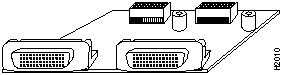
Universal Serial Port Adapters The FSIP uses special universal serial port adapters and adapter cables to allow up to eight interface ports on an FSIP, regardless of the size or form factor of the connectors typically used with each electrical interface type. Figure 1-15 shows a universal port adapter with the 60-pin connectors that support all interface types. The adapter cable connected to the port determines the interface type and mode.
The universal port adapters are field-replaceable daughter cards mounted to the FSIP, and each provides two high-density connectors for two FSIP ports. (See Figure 1-15.) The 60-pin D-shell receptacle supports EIA/TIA-232, V.35, EIA/TIA-449, X.21, and EIA-530.
Figure 1-15 : Universal Serial Port Adapter
The router (FSIP) end of all universal-type adapter cables is a 60-pin plug that connects to the 60-pin port (receptacle) on the FSIP. The network end of the cable is an industry-standard connector for the type of electrical interface that the cable supports: DB-25 for EIA/TIA-232 and EIA-530, DB-37 for EIA/TIA-449, DB-15 for X.21, or a standard V.35 block connector. For most interface types, the adapter cable for DTE mode uses a plug at the network end, and the cable for DCE mode uses a receptacle at the network end. However, V.35 adapter cables are available with either a V.35 plug or a receptacle for either mode, and EIA-530 is available only in DTE mode with a DB-25 plug.
Factory-installed 4-40 thumbscrews are standard at the network end of all cable types except V.35. A metric conversion kit with M3 thumbscrews is included with each cable to allow connection to devices that use metric hardware.
The FSIP is shipped from the factory with two or four dual-port adapters installed. Additional port adapters are available as spares so that you can replace one that fails; however, you cannot upgrade a four-port FSIP to an eight-port by adding port adapters. The four-port FSIP is manufactured with only one four-port module and processor.
For port adapter replacement instructions, refer to the section "Removing and Replacing Serial Port Adapters" in the chapter "Maintaining the Router." The appendix "Cabling Specifications" provides adapter cable pinouts. However, because the FSIP uses a special high-density port that requires special adapter cables for each electrical interface type, we recommend that you obtain serial interface cables from the factory.
E1-G.703/G.704 Port Adapter
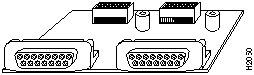
The FSIP E1-G.703/G.704 port adapter (see Figure 1-16) connects the Cisco 7513 with 2-Mbps leased-line services. The interface eliminates the need for a separate, external data termination unit to convert a standard serial interface (such as V.35) to a G.703/G.704/G.732 interface.
Figure 1-16 : FSIP E1-G.703/G.704 Port Adapter
The FSIP can be configured to support up to eight E1-G.703/G.704 ports (four ports per module, two modules per FSIP). FSIP bandwidth can be allocated by the user, and the maximum aggregate bandwidth per four-port module is 16 Mbps, full duplex. We recommend that you leave one port on each module shut down to avoid exceeding this 16-Mbps maximum per module. Each of the four interfaces can operate up to 2.048 Mbps, which potentially presents a load greater than 16 Mbps, full duplex, if all four interfaces are configured. Eight E1-G.703/G.704 ports can be supported up to the 16-Mbps aggregate bandwidth capability; however, it is not possible to simultaneously support eight E1-G703/G.704 ports at 100-percent peak bandwidth utilization, without exceeding the 16-Mbps maximum per module.
Two versions of the E1-G.703/G.704 interface are available: one supports balanced mode, and the other supports unbalanced mode. Neither the modes nor the cables are interchangeable; you cannot configure a balanced port to support an unbalanced line, nor can you attach an interface cable intended for a balanced port to an unbalanced port.
The FSIP E1-G.703/G.704 interface supports both framed and unframed modes of operation, a loopback test, and a four-bit CRC. The interface can operate with either a line-recovered or an internal clock signal. The FSIP is configured at the factory with from one to four E1-G.703/G.704 port adapters. Each port adapter provides two 15-pin D-shell (DB-15) receptacles, which support only E1-G.703/G.704 interfaces.
The FSIP E1-G.703/G.704 interface uses a DB-15 receptacle for both the balanced and unbalanced ports. The label adjacent to the port indicates whether the port is balanced or unbalanced; you must connect the correct type of interface cable or the port will not operate.
The FSIP end of all E1-G.703/G.704 adapter cables is a DB-15 connector. At the network end, the adapter cable for unbalanced connections uses a BNC connector. The adapter cables for balanced mode are available with several connector types to accommodate connection standards in different countries. You must use the proprietary cables to connect the E1-G.703/G.704 port to your network.
Cables for balanced and unbalanced mode are available with the following types of network-end connectors:
In addition, some connections require bare-wire connections (directly to terminal posts).
Table 1-3 lists the model numbers and descriptions of the E1-G.703/G.704 port adapters and cables.
Table 1-3 : Model Numbers and Descriptions of E1-G.703/G.704 Port Adapter and Cables
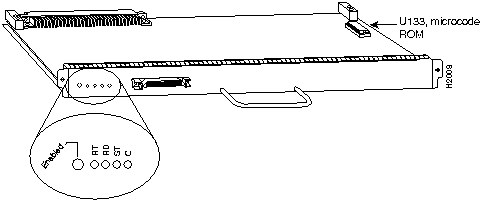
The HIP, shown in Figure 1-17, provides a full-duplex, synchronous serial interface for transmitting and receiving data at rates of up to 52 Mbps. HSSI, recently standardized as EIA/TIA-612/613, provides access to services at T3 (45 Mbps), E3 (34 Mbps), and SONET STS-1 (51.82 Mbps) rates. The actual rate of the interface depends on the external DSU and the type of service to which it is connected. The default HIP microcode resides on an EPROM in socket U133.
Figure 1-17 : HSSI Interface Processor
The HIP interface port is a 50-pin, SCSI-II-type receptacle; however, you need an HSSI interface cable to connect the HIP with an external DSU.
A null modem cable allows you to connect two collocated routers back to back to verify the operation of the HSSI interface or to build a larger node by linking the routers directly. For a description of HSSI network and null modem connections, refer to the section "HSSI Connections" in the chapter "Installing the Router." The appendix "Cabling Specifications" provides connector pinouts and cable assembly drawings. Following are the product numbers associated with the HIP:
There are no restrictions on slot locations or sequence; you can install a HIP in any available interface processor slot.
MultiChannel Interface Processor
The MIP provides up to two channelized T1 or E1 connections via serial cables to a CSU. On the MIP, two controllers can each provide up to 24 T1 channel-groups or 30 E1 channel-groups. Each channel-group is presented to the system as a serial interface that can be configured individually.
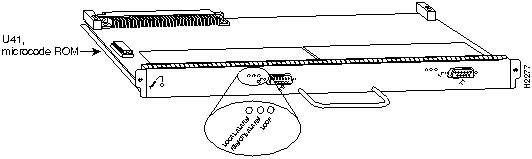
The MIP, shown in Figure 1-18, provides one or two controllers for transmitting and receiving data bidirectionally at the T1 rate of 1.544 Mbps or one or two controllers for transmitting and receiving data bidirectionally at the E1 rate of 2.048 Mbps. For wide-area networking, the MIP can function as a concentrator for a remote site. The default MIP microcode resides on an EPROM in socket U41.
Figure 1-18 : Multichannel Interface Processor---Dual-Port Module Shown
Following are the product numbers associated with the MIP:
There are no restrictions on slot locations or sequence; you can install a MIP in any available interface processor slot.
Token Ring Interface Processor
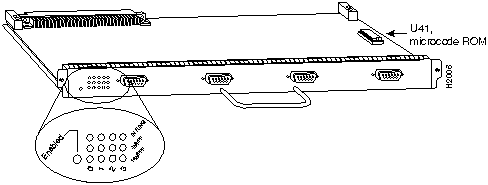
The TRIP, shown in Figure 1-19, provides two or four Token Ring ports for interconnection with IEEE-802.5 and IBM Token Ring media. The TRIP uses the IBM 16/4-Mbps chipset with an imbedded, performance-enhanced interface driver and a 16.7-MHz bit-slice processor for high-speed processing. The speed on each port is independently software-configurable for either 4 or 16 Mbps. The default TRIP microcode resides on an EPROM in socket U41.
Figure 1-19 : Token Ring Interface Processor
The TRIP is available with two or four ports. Each port requires a media access unit (MAU) to connect the DB-9 TRIP connectors to the external Token Ring networks. There are no restrictions on slot locations or sequence; you can install a TRIP in any available interface processor slot.
Following are the product numbers associated with the TRIP:
For descriptions of Token Ring connectors and MAUs, refer to the section "Token Ring Connection Equipment" in the chapter "Preparing for Installation." For descriptions of Token Ring network connections, refer to the section "Token Ring Connections" in the chapter "Installing the Router."
This section describes functions that support the router's high availability and maintainability. The OIR feature enables you to quickly install new interfaces without interrupting system power or shutting down existing interfaces. The environmental monitoring and reporting functions continuously monitor temperature and voltage points in the system, and provide reports and warning messages that enable you to quickly locate and resolve problems and maintain uninterrupted operation. These descriptions will help you become familiar with the capabilities of the router and with the functional differences between the Cisco 7513 and other products.
Each interface (port) in a Cisco 7513 uses different types of addressing. The slot/port number is the actual physical location of the interface connector (port) within a chassis slot. The system software uses the slot/port numbers to control activity within the router and to display status information. The Media Access Control (MAC)-layer or hardware address is a standardized data link layer address that is required for every port or device that connects to a network. These addresses are not used by other devices in the network; they are specific to the individual router. The Cisco 7513 uses a specific method to assign and control the MAC-layer addresses of its interfaces.
The following sections describe how the Cisco 7513 assigns and controls both the slot/port numbers and MAC--layer addresses for interfaces within the chassis.
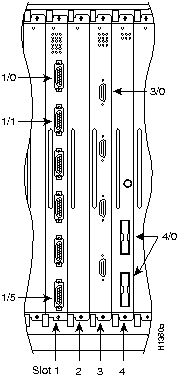
In the Cisco 7513, slot/port numbers specify the actual location of each interface port on the router interface processors. (See Figure 1-20.) The numbers use the format slot/port. The first number identifies the slot in which the interface processor is installed (0 through 5 and 8 through 12). The second number identifies the port number on the interface processor. The ports on each interface processor are numbered sequentially from top to bottom beginning with the port 0.
Interface ports maintain the same slot/port number regardless of whether other interface processors are installed or removed. However, when you move an interface processor to a different slot, the first number changes to reflect the new slot number.
For example, on a six-port EIP in slot 1, the slot/port number of the first port is 1/0 and that of the last port is 1/5. If you remove the EIP from slot 1 and install it in slot 2, the slot/port numbers of those same ports become 2/0 and 2/5, respectively. Figure 1-20 shows some of the slot/port numbers of a sample system.
Figure 1-20 : Slot/Port Number Examples---Partial View of the Chassis Card Cage
Interface slots are numbered 0 to 5 (CyBus 0) and 8 to 12 (CyBus 1), from left to right. The port numbers always begin at 0 and are numbered from top to bottom. The number of additional ports (/1, /2, /3, and so forth) depends on the number of ports available on an interface.
For example, FDDI interfaces are always /0 because each FIP supports one interface. The multiple connectors on the FIP can be misleading, but they provide multiple attachment options for a single FDDI interface. Ethernet interfaces can be numbered from /0 through /5 because EIPs support up to six Ethernet ports; serial interfaces on an eight-port FSIP are numbered /0 through /7; and so forth.
You can identify interface ports by physically checking the slot/port number on the back of the router, or by using software commands to display information about a specific interface or for all interfaces in the router. To display information about every interface, use the show interfaces command without arguments. To display information about a specific interface, use the show interfaces command with the interface type and slot/port number in the format show interfaces [type slot/port]. If you abbreviate the command (sho int) and do not include arguments, the system interprets the command as show interfaces and displays the status of all interfaces.
Following is an example of how the show interfaces command, used without arguments, displays status information (including the physical slot/port number) for each interface in the router. In the following example, most of the status information for each interface is omitted.
You can also use arguments such as the interface type (ethernet, tokenring, fddi, serial, hssi, and so forth) and the port address (slot/port) to display information about a specific interface only.
The following example shows the display for the first (far left) Ethernet port on an EIP in slot 1:
For complete command descriptions and instructions, refer to the related software configuration and command reference documentation.
All network interface connections (ports), except serial ports, require a unique MAC-layer address, which is also known as a hardware address. Typically, the MAC address of an interface is stored on a memory component that resides directly on the interface circuitry; however, the OIR feature requires a different method.
The OIR feature allows you to remove an interface processor and replace it with another identically configured one. If the new interfaces match the interfaces you removed, the system immediately brings them on line. In order to allow OIR, an address allocator with unique MAC addresses is stored in an EEPROM device on the backplane. Each address is reserved for a specific slot/port in the router regardless of whether an interface resides in that port. The MAC addresses are assigned to the ports in sequence. The first address is assigned to port 0/0 and the last address is assigned to port 12/n (where n is the maximum number of ports on the interface processor installed in slot 12). This address scheme allows you to remove interface processors and insert them into other routers without causing the MAC addresses to move around the network or be assigned to multiple devices.
Note that if the MAC addresses were stored on each interface processor, OIR would not function because you could never replace one interface with an identical one; the MAC addresses would always be different. Also, each time an interface was replaced, other devices on the network would have to update their data structures with the new address, and, if they did not do so quickly enough, could cause the same MAC address to appear in more than one device at the same time.
Storing the MAC addresses in a memory device on the backplane avoids these problems. When an interface is replaced with another identical interface, there is no need for other devices in the network to update their data structures and routing tables.
The OIR feature allows you to install and replace interface processors while the system is operating; you do not need to notify the software or shut down the system power. All interface processors (AIP, CIP, EIP, FEIP, FIP, FSIP, HIP, MIP, and TRIP) support OIR. The following is a functional description of OIR for background information only; for specific procedures for installing and replacing interface processors on line, refer to the section "Installing and Configuring Processor Modules" in the chapter "Maintaining the Router."
Each RSP2 and interface processor contains a bus connector with which it connects to the system backplane. The bus connector is a set of tiered pins, in three lengths. The pins send specific signals to the system as they make contact with the backplane. The system assesses the signals it receives and the order in which it receives them to determine what event is occurring and what task it needs to perform, such as reinitializing new interfaces or shutting down removed ones.
For example, when you insert an interface processor, the longest pins make contact with the backplane first, and the shortest pins make contact last. The system recognizes the signals and the sequence in which it receives them. The system expects to receive signals from the individual pins in this logical sequence, and the ejector levers help to ensure that the pins mate in this sequence.
When you remove or insert an interface processor, the backplane pins send signals to notify the system, which then performs as follows:
OIR functionality enables you to add, remove, or replace interface processors with the system online, which provides a method that is seamless to end users on the network, maintains all routing information, and ensures session preservation.
When you insert a new interface processor, the system runs a diagnostic test on the new interfaces and compares them to the existing configuration.
If this initial diagnostic test fails, the system remains off line while it performs a second set of diagnostic tests to determine whether or not the interface processor is faulty and if normal system operation is possible. If the second diagnostic test passes, which indicates that the system is operating normally and the new interface processor is faulty, the system resumes normal operation but leaves the new interfaces disabled. If the second diagnostic test fails, the system crashes, which usually indicates that the new interface processor has created a problem in the bus and should be removed. The system brings on line only interfaces that match the current configuration and were previously configured as active; all other interfaces require that you configure them with the configure command.
On interface processors with multiple interfaces, only the interfaces that have already been configured are brought on line. For example, if you replace a single-PCA CIP with a dual-PCA CIP, only the previously configured interface is brought on line automatically; the new PCA interface remains in the administratively shutdown state until you configure it and bring it on line.
The function of the ejector levers (see Figure 1-21) is to align and seat the interface processor bus connectors in the backplane. Failure to use the ejector levers and insert the interface processor properly can disrupt the order in which the pins make contact with the backplane. Following are examples of incorrect insertion practices and results:
It is also important to use the ejector levers when removing an interface processor to ensure that the interface processor bus connector pins disconnect from the backplane in the logical sequence expected by the system. Any interface processor that is only partially connected to the backplane can hang the bus. For detailed steps on how to perform OIR, refer to the section "Installing and Configuring Processor Modules" in the chapter "Maintaining the Router."
Figure 1-21 : Ejector Levers and Captive Installation Screws
The Cisco 7513 supports downloadable microcode for most upgrades, which enables you to load new microcode images into Flash memory. The latest interface processor microcode version is bundled with the system software image. New microcode images are now distributed on floppy disk as part of each software maintenance release, and are no longer distributed individually.
The default operation is to load the microcode from the bundled image. At system startup, an internal system utility scans for compatibility problems between the installed interface processor types and the bundled microcode images, then decompresses the images into running memory (DRAM). The bundled microcode images then function the same as images loaded from the individual microcode ROMs on the processor modules.
To instruct the system to boot a microcode image other than the default at startup, use the microcode interface-type [system | flash] filename configuration command to add the instructions to the configuration file. The system option tells the system to load from the system bundle. All processors of the same type (for example, all CIPs) will load the same microcode image, either from the default source or from the source you specify.
The show microcode command lists all of the microcode images that are bundled with the system software image. In order to support OIR, the system loads a microcode image for all available processor types.
Following is an example of the show microcode command. (The indicated versions are intended as examples only.)
The microcode version and description lists the bundled microcode version for each processor type, which is not necessarily the version that is currently loaded and running in the system. A microcode image that is loaded from ROM or a Flash memory file is not shown in this display. To display the currently loaded and running microcode version for each processor type, issue the show controller cybus command.
The target hardware version lists the minimum hardware revision required to ensure compatibility with the new software and microcode images. When you load and boot from a new bundled image, the system checks the hardware version of each processor module that it finds installed and compares the actual version to its target list. If the target hardware version is different from the actual hardware version, a warning message appears when you boot the router, indicating that there is a disparity between the target hardware and the actual hardware. You will still be able to load the new image; however, contact a service representative for information about upgrades and future compatibility requirements.
To display the current microcode version for each interface processor, enter the show controller cybus command. The following example shows that an FSIP is running Microcode Version 10.0:
Although most microcode upgrades are distributed on floppy disk or Flash memory card, some exceptions may require EPROM replacement. If so, refer to the chapter "Maintaining the Router" for replacement procedures. Instructions are also provided with the upgrade kit. For complete command descriptions and instructions, refer to the related software documentation.
Environmental Monitoring and Reporting Functions
The environmental monitoring and reporting functions, controlled by the chassis interface board, enable you to maintain normal system operation by identifying and resolving adverse conditions prior to loss of operation. The environmental monitoring functions constantly monitor the internal chassis air temperature and DC supply voltages and currents. Each power supply monitors its own voltage and temperature and shuts itself down if it detects a critical condition within the power supply. If conditions reach shutdown thresholds, the system shuts down to avoid equipment damage from excessive heat. The reporting functions periodically log the values of measured parameters so that you can retrieve them for analysis later, and the reporting functions display warnings on the console if any of the monitored parameters exceed defined thresholds.
In addition to monitoring internal temperature and voltage levels, the system also monitors the blower. If the blower fails, the system displays a warning message on the console. If the blower is still not operating properly after two minutes, the system shuts down to protect the internal components against damage from excessive heat.
Three sensors on the RSP2 monitor the temperature of the cooling air that flows through the processor slots: inlet, hotpoint, and exhaust. The sensors are located at the bottom, center, and top of the RSP2, when facing the interface processor end of the chassis and viewing the RSP2 as it is installed.
The power supply uses the Normal, Critical, and Warning levels to monitor DC voltages. Table 1-4 lists temperature thresholds for the three processor-monitored levels. Table 1-5 lists the DC power thresholds for the Normal and Critical (power-supply-monitored) levels.
Table 1-4 : Typical Processor-Monitored Temperature Thresholds
Table 1-5 : Typical Power Supply-Monitored DC-Voltage Thresholds
If the air temperature exceeds a defined threshold, the system processor displays warning messages on the console terminal and, if the temperature exceeds the shutdown threshold, it shuts down the system. The system stores the present parameter measurements for both temperature and DC voltage in NVRAM, so that you can retrieve it later as a report of the last shutdown parameters.
The power supplies monitor internal power supply temperature and voltages. A power supply is either within tolerance (Normal) or out of tolerance (Critical or Warning levels), as shown in Table 1-5. If an internal power supply temperature or voltage reaches a critical level, the power supply shuts down without any interaction with the system processor.
If the system detects that AC or DC input power is dropping, but it is able to recover before the power supply shuts down, it logs the event as an intermittent power failure. The reporting functions display the cumulative number of intermittent power failures logged since the last power up.
The system displays warning messages on the console if chassis interface-monitored parameters exceed a desired threshold or if a blower failure occurs. You can also retrieve and display environmental status reports with the show environment, show environment all, show environment last and show environment table commands. Parameters are measured and reporting functions are updated every 60 seconds. A brief description of each of these commands follows.
The show environment command display reports the current environmental status of the system. The report displays parameters that are out of the normal values. No parameters are displayed if the system status is normal. The example that follows shows the display for a system in which all monitored parameters are within Normal range. Following is sample output of the show env command:
If the environmental status is not normal, the system reports the worst-case status level in the last line of the display.
The show environment last command retrieves and displays the NVRAM log showing the reason for the last shutdown (if the shutdown was related to voltage or temperature) and the environmental status at that time. Air temperature is measured and displayed and the DC voltages supplied by the power supply are also displayed. Following is sample output of the show env last command:
The show environment table command displays the temperature and voltage thresholds for each of the three RSP2 temperature sensors, for each monitored status level: low critical, low warning, high warning, and high critical, which are the same as those listed in Tables 1-4 and 1-5. The slots in which the RSP2 can be installed are indicated in parentheses (6 and 7). Also listed are the shutdown thresholds for the processor boards and power supplies. Following is sample output of the sh env table command:
The show environment all command displays an extended report that includes the arbiter type, backplane type, power supply type (AC or DC), wattage and status, the number and type of intermittent power failures (if any) since the system was last powered on, and the currently measured values at the RSP2 temperature sensors and the DC-input lines. The show environment all command also displays a report showing which slots in the Cisco 7513 are occupied (indicated by an X) and which are empty.
Active fault conditions are indicated when the blower or power supply has failed or is not present (as "Blower #3" indicates in the following example). The system expects to see three blowers or fans in the Cisco 7513: the main system blower, and one fan in each power supply. The system blower is designated #1, the power supply fan in power bay A is #2, and the power supply fan in power bay B is #3. The active fault condition in the following example shows that there is no power supply installed in power bay B because the display indicates that power supply #2 (in power bay B) is removed. System blower speed is displayed as a percentage of maximum.
There are four active trip points: restart OK, temperature warning, board shutdown, and power supply shutdown. (There are no active trip points shown in the following example.) The soft shutdowns refer to the number of times the system will reset itself before it executes a complete chassis (or hard) shutdown.
The current temperature measurements at the three RSP2 sensors are displayed as inlet, hotpoint, and exhaust. The shutdown temperature source is the hotpoint sensor, which is located toward the center of the RSP2. System voltage measurements are also displayed, followed by the system current measurements and power supply wattage calculation. Following is sample output of the sh env all command:
When the system power is on, the blower must be operational. If the system detects that the blower has failed or is failing, it will display a warning message on the console screen. The entire system will shut down when the voltage at the hotpoint sensor (center of the RSP2) reaches a predetermined value.
In the following example, the system has detected an out-of-tolerance blower, which it interprets as a blower failure.
When the temperature reaches a critical level, the system will display the following message on the console screen and in the show environment command display when the system restarts:
Copyright 1988-1996 © Cisco Systems Inc.

Description
Specification
Backplane
13-slot, two 1.0677-Gbps CyBuses: 11 interface processor slots plus the two RSP2 slots
Dimensions
(H x W x D)
33.75 x 17.5 x 22 in (85.73 x 44.45 x 55.88 cm)
Chassis width including rack-mount flanges is 18.93 in (48.1 cm)
Chassis depth including power cord and cable management fixture is 24 in (60.96 cm)
Weight
Chassis with blower module: ~75 lbs (34.02 kg)
Chassis with blower module and one power supply: ~100 lbs (45.36 kg)
Chassis with blower module and two power supplies: ~125 lbs (56.7 kg)
Chassis with blower module, two power supplies, and all slots filled: ~160 lbs (72.58 kg) Each processor module weighs ~2.5 lbs (1.13 kg)
Power dissipation
1600W with a maximum configuration and one AC-input power supply
1600W with a maximum configuration and one DC-input power supply
1700W nominal with a maximum configuration and two AC- or DC-input power supplies
Heat dissipation
1600W (5461 Btu/hr)
AC-input voltage and current
100 VAC1 at 16 amps (A) maximum2 wide input with power factor correction (PFC)
240 VAC at 7A maximum
Frequency
50/60 Hz
AC-input cable
12 AWG (American Wire Gauge), with three-leads, an IEC-320 receptacle on the power supply end, and a country-dependent plug on the power source end
DC-input voltage and current
--48 VDC3 nominal, at 35 amps (A) in North America
(--60 VDC at 35A in the E.C.)
DC-input cable
8 AWG recommended minimum, with three conductors rated for at least 194°F (90°C)
DC voltages supplied and maximum, steady-state current (AC- and DC-input)
+5.2 VDC @ 75 A
+12 VDC @ 15A
--12 VDC @ 3A
+24 VDC @ 5A
Airflow and noise level
Through chassis by variable-speed blower; 62 to 70 dBA
Temperature
32 to 104°F (0 to 40°C), operating; --4 to 149°F (--20 to 65°C), nonoperating
Relative humidity
10 to 90%, noncondensing
Software requirement
Release 10.3(571) or later for the RSP2 and Cisco 7513
Agency approvals
Safety: UL 1950, CSA 22.2-950, EN60950, EN41003, AUSTEL TS001, AS/NZS 3260
EMI: FCC Class A, EN60555-2, EN55022 Class B, VDE 0878 Part 3, 30 Class B
Immunity: EN55101/2 (ESD), EN55101/3 (RFI), EN55101/4 (Burst), EN55101/5 (Surge), EN55101/6 (Conducted), IEC77B (AC Disturbance)
1 VAC = volts alternating current.
2 Each AC-input power supply operating at 120VAC requires a dedicated 20A service and a 20A receptacle.
3 VDC = volts direct current.


Type
Size
Quantity
Description
Location
DRAM1
16 to 128 MB2
2 to 4
8, 16, or 32-MB SIMMs (based on maximum DRAM required).
Bank 0: U21 and U33 Bank 1: U4 and U12
NVRAM3
128 KB4
1
Nonvolatile EPROM5 for the system configuration file.6
U18
Flash SIMM
Flash Card
8 MB
8, 16, and 20 MB7
1
Up to 2
Contains the Cisco IOS images on the RSP2.
Contains the Cisco IOS images on up to two PCMCIA cards.
U1
Slot 0 and Slot 1
Boot ROM8
256 KB
1
EPROM for the ROM monitor program.
U30
1 Dynamic random-access memory.
2 MB = megabyte.
3 NVRAM = nonvolatile read-only memory.
4 KB = kilobyte.
5 EPROM = erasable programmable read-only memory.
6 A system configuration file is contained in NVRAM, which allows the software to control several system variables.
7 Only Intel Series 2+ Flash memory cards can be used with the RSP2.
8 ROM = read-only memory.


Port Adapter and Cable Model Numbers
Description
PA-7KF-E1/120=1
Dual-port E1-G.703/G.704 120 ohm, balanced
PA-7KF-E1/75=
Dual-port E1-G.703/G.704 75 ohm, unbalanced
CAB-E1-TWINAX=
E1 cable twinax 120 ohm, balanced, 5 m
CAB-E1-DB15=
E1 cable, DB-15, 120 ohm, balanced, 5 m
CAB-E1-BNC=
E1 cable BNC 75 ohm, unbalanced, 5 m
1 The appended equal sign (=) indicates a spare part.
Router# sho int

Serial0/0 is up, line protocol is up
  Hardware is cxBus Serial
  Internet address is 1.1.1.1, subnet mask is 255.255.255.0
    (display text omitted)
Ethernet1/2 is up, line protocol is up
  Hardware is cxBus Ethernet, address is 0000.0c02.d0f1 (bia 0000.0c02.d0f1)
    (display text omitted)
Fddi2/0 is administratively down, line protocol is down
  Hardware is cxBus Fddi, address is 0000.0c02.adc2 (bia 0000.0c02.adc2)
  Internet address is 1.1.2.2, subnet mask is 255.255.255.0
  (display text omitted)
Router# show int ether 1/0

Ethernet1/0 is up, line protocol is up
  Hardware is cxBus Ethernet, address is 0000.0c02.d0ce (bia 0000.0c02.d0ce)
  Internet address is 1.2.1.1, subnet mask is 255.255.255.0
  MTU 1500 bytes, BW 10000 Kbit, DLY 1000 usec, rely 255/255, load 1/255
  Encapsulation ARPA, loopback not set, keepalive set (10 sec)
    (display text omitted)

Any newly inserted interfaces are put in the administratively shutdown state, as if they were present (but unconfigured) at boot time. If a similar interface processor type has been reinserted into a slot, then its ports are configured and brought on line up to the port count of the original interface processor.

Router# show microcode
Microcode bundled in system

Card    Microcode    Target Hardware    Description
Type    Version      Version
----    ---------    ---------------    -----------
EIP      10.1              1.x          EIP version 10.1
FIP      10.2              2.x          FIP version 10.2
TRIP     10.1              1.x          TRIP version 10.1
AIP      10.5              1.x          AIP version 10.5
FEIP     10.1              1.x          FEIP version 10.1
FSIP     10.6              1.x          FSIP version 10.6
HIP      10.2              1.x          HIP version 10.2
MIP      11.0              1.x          MIP version 11.0
CIP      10.3              1.x          CIP version 10.3

Router#
Router# show cont cybus

  (display text omitted)
 FSIP 0, hardware version 4, microcode version 10.0
  (display text omitted)
Parameter
Normal
High Warning
High Critical
Shutdown
Inlet
10--40°C
44°C
50°C
--
Hotpoint
10--40°C
54°C
60°C
--
Exhaust
10--40°C
--
--
--
Processors
--
--
--
70°C
Power supply
--
--
--
75°C
Restart
40°C
--
--
--
Parameter
Normal
Low Critical
Low Warning
High Warning
High Critical
+5V
4.74 to 5.26
4.49
4.74
5.25
5.52
+12V
10.20 to 13.8
10.76
11.37
12.64
13.24
--12V
--10.20 to --13.80
--10.15
--10.76
--13.25
--13.86
+24V
20.00 to 28.00
19.06
21.51
28.87
26.51

Router# show env

All measured values are normal
Router# show env last

  RSP(6) Inlet       previously measured at 27C/80F
  RSP(6) Hotpoint    previously measured at 38C/100F
  RSP(6) Exhaust     previously measured at 31C/87F
  +12 Voltage        previously measured at 12.17
  +5 Voltage         previously measured at 5.19
  -12 Voltage        previously measured at -12.17
  +24 Voltage        previously measured at 23.40
Router# show env table

Sample Point    LowCritical    LowWarning     HighWarning    HighCritical

RSP(6) Inlet                                    44C/111F       50C/122F
RSP(6) Hotpoint                                 54C/129F       60C/140F
RSP(6) Exhaust
RSP(7) Inlet                                    44C/111F       50C/122F
RSP(7) Hotpoint                                 54C/129F       60C/140F
RSP(7) Exhaust
+12 Voltage     10.76          11.37          12.64          13.24
+5 Voltage      4.49           4.74           5.25           5.52
-12 Voltage     -10.15         -10.76         -13.25         -13.86
+24 Voltage     19.06          21.51          26.51          28.87
Shutdown boards at           101C/213F
Shutdown power supplies at   101C/213F
Router# show env all

Arbiter type 1, backplane type 7513 (id 2)
Power supply #1 is 1200W AC (id 1), power supply #2 is removed (id 7)
Active fault conditions: Blower #3
Fan speed is 50%
Active trip points: none
15 of 15 soft shutdowns remaining before hard shutdown

                      1
            0123456789012
Dbus slots: XX XXXX XXXX

         inlet        hotpoint     exhaust
RSP(6)   24C/75F      35C/95F      29C/84F

Shutdown temperature source is 'hotpoint' slot6 (requested slot6)

+12V measured at 12.17
 +5V measured at 5.19
-12V measured at -12.26
+24V measured at 24.44
+2.5 reference is 2.49

PS1 +5V Current    measured at 42.35 A (capacity 200 A)
PS1 +12V Current   measured at 6.86 A (capacity 35 A)
PS1 -12V Current   measured at 0.55 A (capacity 3 A)
PS1 output is 296 W
%ENVM-2-FAN: Blower has failed.
Queued messages:
%ENVM-1-SHUTDOWN: Environmental Monitor initiated shutdown

