


|
|

This chapter provides the following procedures for installing the router, making all external cable connections, turning on the system power, and verifying that the system initializes properly:
The rack-mount kit provides the hardware for mounting the chassis in a standard 19-inch-wide equipment rack or in a Telco-type rack. If you are installing an equipment shelf or using mounting hardware other than that supplied with the chassis, review the guidelines in the section "Equipment Racks" in the chapter "Preparing for Installation," then proceed to "General Installation" in this chapter after the router is installed in the rack.
A cable management bracket is also included with the chassis. Install these fixtures to keep network interface cables untangled and orderly, and to maintain clear access to interface processors in the lower interface processor slots.
The procedures for rack-mounting the router are included in the configuration note Cisco 7513 Rack-Mount Kit Installation Instructions (Document Number 78-2023-xx, where xx is the latest version). A printed copy of this configuration note ships with the rack-mount kit. Follow the procedures included in the configuration note to rack-mount your Cisco 7513.
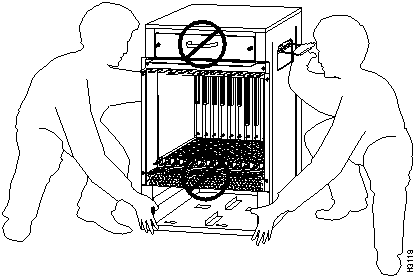
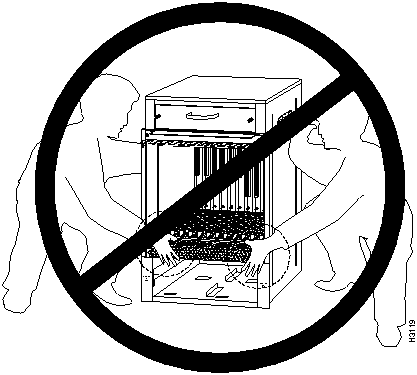
When you get ready to place the chassis into a rack or onto a tabletop, you should lift the chassis by grasping the handle with one hand and the bottom of the chassis with the other, and lift with your legs, as shown in Figure 3-1. (Do not lift the chassis using the blower module handle or the air intake vent below the card cage.)
Figure 3-1 : Correct Way to Lift the Cisco 7513
Figure 3-2 : Incorrect Way to Lift the Cisco 7513
The router should already be in the area where you will install it, and your installation location should already be determined; if not, refer to the section "Site Requirements" in the chapter "Preparing for Installation."
When installing the router on a tabletop, ensure that you have planned a clean, safe location for the chassis and have considered the following:
If you do not mount the router in a rack, follow these steps to install the router on a bench or tabletop:
Installing the Cable Management Bracket
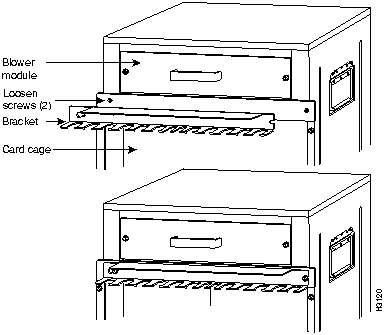
The cable management bracket attaches to the interface processor end of the chassis just above the card cage and below the blower module. Use the bracket to keep network interface cables untangled and orderly, and to prevent cables from hindering access to interface processors in the interface processor slots.
Install the bracket before connecting network interface cables to the interface processor ports; otherwise, you will probably need to disconnect the cables to install the screws that secure the brackets. Route interface cables through the cable management bracket as you connect them to the interface processor ports. If necessary, wrap cable ties through the holes provided to secure small-gauge cables.
You will need the following tools and parts to install the cable management brackets; the brackets and panhead screws are included with the chassis:
Follow these steps to install the cable management bracket on the router:
Figure 3-3 : Cable Management Bracket
This completes the procedure for installing the cable management bracket.
Proceed to the next section to connect the power cables.
Connect a 1200W, AC-input power supply as follows:
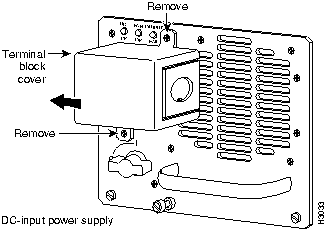
Connect a 1200W, DC-input power supply as follows:
Figure 3-4 : Removing and Replacing the Terminal Block Cover
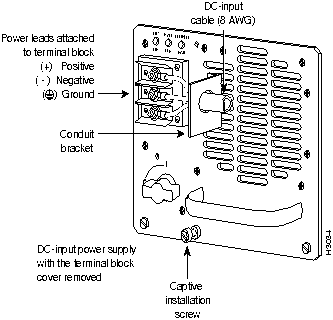
Figure 3-5 : Removing and Replacing the DC-Input Power Cable
This completes the power connections.
The following sections describe the basic network connections you will make to the router. Using the Port and Slot Configuration Worksheet in Table 2-18 will help you to make connections and later configure each interface without having to access the rear of the chassis to check port addresses. Complete the Port and Slot Configuration Worksheet in Table 2-18 if you have not already done so.
The following guidelines will assist you in properly connecting the external network cables to the router interface ports.
Have the following tools on hand to secure interface cables and complete the installation:
The sections that follow provide illustrations of the connections between the router interface ports and your network(s). Network interface equipment, such as Ethernet transceivers, MAUs, and CSUs, should be available and in place already. If they are not, refer to the section "Preparing Network Connections" in the chapter "Preparing for Installation" for descriptions of the equipment you need for each interface type to complete the connection to your network.
All AIP interfaces are full-duplex. You must use the appropriate ATM interface cable to connect the AIP with an external ATM network.
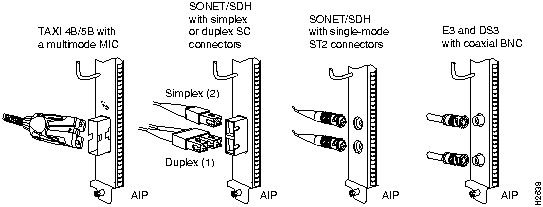
The AIP provides an interface to ATM switching fabrics for transmitting and receiving data at rates of up to 155 Mbps bidirectionally; the actual rate is determined by the physical layer interface module (PLIM). Figure 3-6 illustrates the types of connections available for the AIP.
Figure 3-6 : ATM Connections to the AIP---Partial Views of the AIP
The AIP can support the following physical layers:
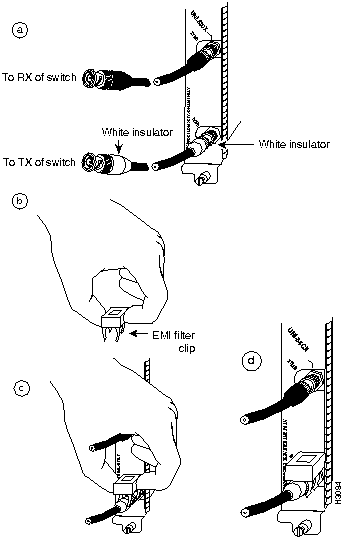
Figure 3-7 : Installing the CAB-ATM-DS3/E3 Cable and EMI Filter Clip Assembly
For more information on the AIP, refer to the sections "Distance Limitations and Interface Specifications" and "ATM Connection Equipment" in the chapter "Preparing for Installation" and the section "Configuring the AIP" in the chapter "Maintaining the Router."
Also refer to the Asynchronous Transfer Mode (ATM) Interface Processor (AIP) Installation and Configuration publication (Document Number 78-1214-xx), which is available on UniverCD or in print.
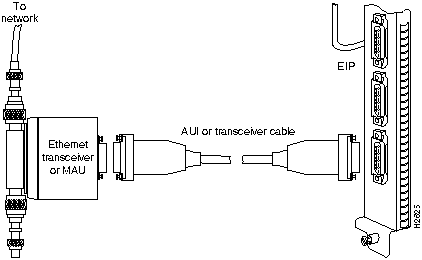
An Ethernet transceiver or MAU should already be connected to your network. Connect each Ethernet port on the EIP to an Ethernet transceiver with a transceiver cable, or to an attachment unit with an attachment unit interface (AUI). Figure 3-8 shows an example of a typical connection. Some transceivers connect directly to the Ethernet port on the EIP (usually the 10BaseT type) and do not require an interface cable. On each EIP port, slide the metal bracket up over two posts on the cable connector, or tighten the thumbscrews to secure the cable in the port and provide strain relief. For descriptions of the connection equipment and connector locks, refer to the section "Ethernet Connection Equipment" in the chapter "Preparing for Installation."
Figure 3-8 : Ethernet Connections
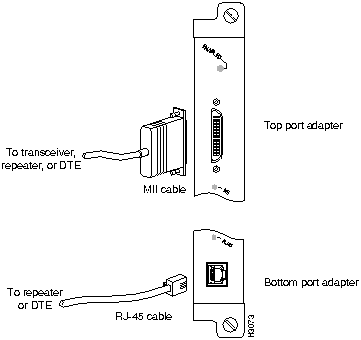
For an MII connection, a 100BASE-T transceiver or MAU should already be connected to your network. The RJ-45 connection does not require an external transceiver.
On a single 100BASE-T port adapter, you can use either the RJ-45 connection or the MII connection. If you have two 100BASE-T port adapters on your FEIP, you can use the RJ-45 connection on one and the MII connection on the other.
If you have RJ-45 connections, attach the Category 5 UTP cable directly to the RJ-45 port on the FEIP. (See Figure 3-9.) If you have MII connections, attach an MII cable directly to the MII port on the FEIP or attach a 100BASE-T or 100BASE-F transceiver, with the media appropriate to your application, to the MII port on the FEIP.
Figure 3-9 : Fast Ethernet Connections
Attach the network end of your RJ-45 or MII cable to your 100BASE-T or 100BASE-F transceiver, switch, hub, repeater, DTE, or whatever external 100BASE-T equipment you have.
Channel Attachment Connections
Connecting bus and tag or Enterprise System Connection (ESCON) cables between the CIP, or CIP2, and a host processor is beyond the scope of this publication. The specific connection requirements are discussed in detail in the Channel Interface Processor (CIP) Installation and Configuration (Document Number 78-1342-xx) or Second-Generation Channel Interface Processor (CIP2) Installation and Configuration (Document Number 78-3335-xx) publications. These configuration notes, which ship with the CIP and CIP2 (respectively) installed in your chassis, are available on UniverCD or in print.
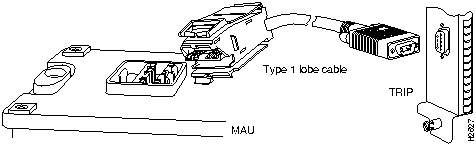
Each Token Ring interface connects to the ring through a MAU or a multistation access unit (MSAU), which should already be connected to the ring. (See Figure 3-10.) Connect the Type 1 or Type 3 lobe cables to the appropriate TRIP ports and tighten the thumbscrews to secure the cable in the port and provide strain relief. Then connect the network end of each lobe cable to the MAU or MSAU. For descriptions of the connection equipment, refer to the section "Token Ring Connection Equipment" in the chapter "Preparing for Installation."
Figure 3-10 : Token Ring Connections
The speed of each Token Ring port must match the speed of the ring to which it is connected. The default speed for all TRIP ports is 4 Mbps, which you can change to 16 Mbps on any port with the configuration command ring-speed n, where n is the speed (4 or 16) in Mbps. Before you enable the Token Ring interfaces, ensure that each is set for the correct speed, or it can bring the ring down. The following sample session changes the ring speed on Token Ring port 1/2 from the default 4 Mbps to 16 Mbps:
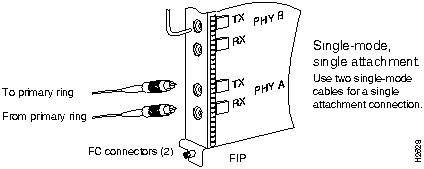
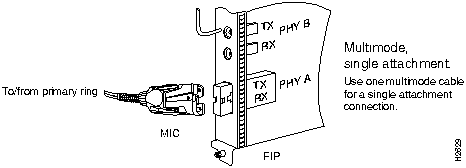
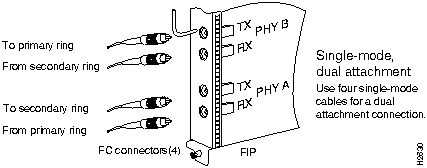
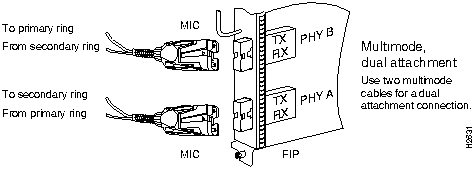
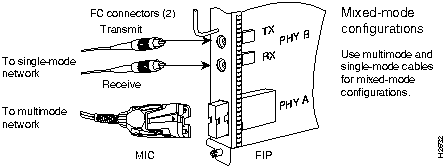
Both single-mode and multimode connections are available and can be combined on one FIP. The fiber-optic cable connects directly to the FIP ports. Single-mode uses separate transmit and receive cables. You will need two single-mode cables for a single attachment connection or four cables for a dual attachment connection. Multimode uses one integrated transmit/receive cable for each physical interface (one for PHY A and one for PHY B). You will need one multimode cable for a single attachment connection, and two cables for a dual attachment connection. Figure 3-16, which shows the connections for a dual attachment connection that uses both single-mode and multimode fiber, illustrates the types of connections used for both fiber modes. For cable and connector descriptions, refer to the section "FDDI Connection Equipment" in the chapter "Preparing for Installation."
This section also provides instructions for connecting an optical bypass switch to a dual attachment multimode network connection. Because the method of connecting optical bypass switches varies between different manufacturer's models, refer to the documentation for your particular bypass switch for correct connection instructions. If you are installing an optical bypass switch, proceed to "Installing an Optical Bypass Switch" in this chapter.
A FIP that is connected as a single attachment station (SAS) typically is connected to the ring through a concentrator. The FIP receives and transmits the signal through the same physical interface, usually PHY A. Depending upon whether you are connecting to a single-mode or multimode fiber network, connect the FIP as follows:
If you are connecting other FIPs as dual attachment stations (DASs), proceed to the following section.
Figure 3-11 : Single Attachment Station, Single-Mode Fiber Network Connections
Figure 3-12 : Single Attachment Station, Multimode Fiber Network Connections
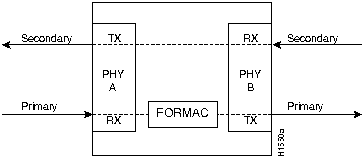
A FIP that is connected as a DAS connects to both the primary and secondary rings. The signal for each ring is received on one physical interface (PHY A or PHY B) and transmitted from the other. The standard connection scheme (which is shown in Figure 3-13) for a DAS dictates that the primary ring signal comes into the FIP on the PHY A receive port and returns to the primary ring from the PHY B transmit port. The secondary ring signal comes into the FIP on the PHY B receive port and returns to the secondary ring from the PHY A transmit port. Failure to observe this relationship will prevent the FDDI interface from initializing. Figure 3-16 shows the connections for a dual attachment that uses both multimode and single-mode fiber.
Depending upon whether you are connecting to a single-mode or multimode fiber network, connect the FIP as follows:
Figure 3-14 : Dual Attachment Station, Single-Mode Fiber Network Connections
Figure 3-15 : Dual Attachment Station, Multimode Fiber Network Connections
Figure 3-16 : FDDI Dual Attachment Network Connections, Single-Mode and Multimode
If you are connecting an optical bypass switch, proceed to the next section. Otherwise, proceed to "Connecting the Console Terminal" in this chapter.
Installing an Optical Bypass Switch
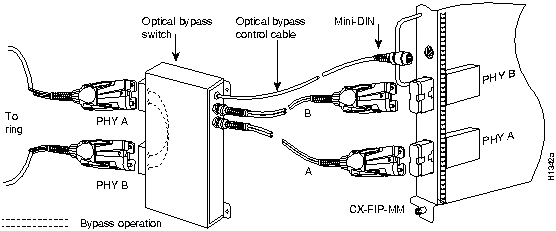
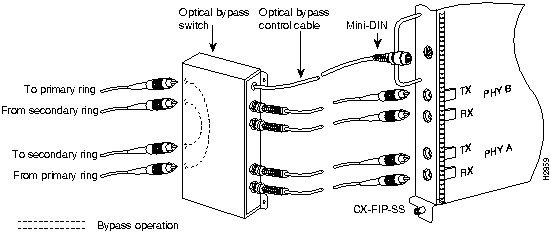
An optical bypass switch is a device installed between the ring and the station that provides additional fault tolerance to the network. If a FIP that is connected to a bypass switch fails or shuts down, the bypass switch activates automatically and allows the light signal to pass directly through it, bypassing the FIP completely. A port for connecting an optical bypass switch is provided only on the multimode/multimode FIP, called the CX-FIP-MM, and shown in Figure 3-17, and the single-mode/single-mode FIP, called the CX-FIP-SS, and shown in Figure 3-18.
Figure 3-17 : Optical Bypass Switch Connections for the CX-FIP-MM
Figure 3-18 : Optical Bypass Switch Connection for the CX-FIP-SS
The optical bypass control port on the FIP is a six-pin mini-DIN receptacle. Some optical bypass switches use DIN connectors, and some use a mini-DIN. A DIN-to-mini-DIN cable is included with the FIP to connect optical bypass switches that use the larger DIN connector. Up to 100 milliamperes (mA) of current can be supplied to the bypass switch.
Following are general instructions for connecting an optical bypass switch to the FIP; however, your particular bypass switch may require a different connection scheme. Use these steps as a general guideline, but refer to the instructions provided by the manufacturer of the switch for specific connection requirements.
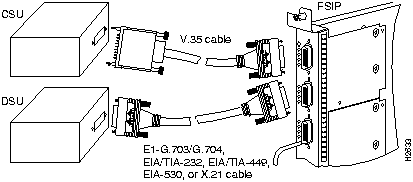
All FSIP ports support any available interface type and mode. The serial adapter cable determines the electrical interface type and mode of the port to which it is connected. EIA/TIA-232, EIA/TIA-449, V.35, and X.21 interfaces are available in DTE mode with a plug at the network end and in DCE mode with a receptacle at the network end. EIA-530 is available only in DTE mode with a plug. For descriptions and illustrations of each connector type, refer to the section "Serial Connection Equipment" in the chapter "Preparing for Installation." For cable pinouts, refer to the appendix "Cabling Specifications."
Connecting DTE and DCE Devices
When connecting serial devices, consider the adapter cables as an extension of the router for external connections; therefore, use DTE cables to connect the router to remote DCE devices such as modems or DSUs, and use DCE cables to connect the router to remote DTE devices such as a host, PC, or another router. (See Figure 3-19.) The optional or additional connection equipment required depends on the interface type of each port.
Figure 3-19 : Serial Port Adapter Cable Connections
Connecting to Metric-Based Devices
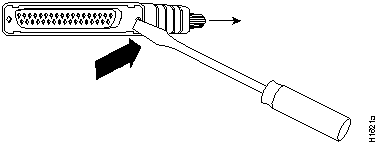
A pair of metric thumbscrews is included with each port adapter cable except V.35. If you will connect serial cables to a remote device that uses metric hardware, replace the standard 4-40 thumbscrews at the network end of the cable with the M3 thumbscrews. To remove thumbscrews, use the flat side of a large (1/4-inch) flat-blade screwdriver to push the tip of the screw into the connector housing and out the other side. (See Figure 3-20.) If the screw resists, use pliers to pull it out. Insert the new thumbscrew and push it into the connector housing until it pops into place.
Figure 3-20 : Replacing Standard 4-40 Thumbscrews with M3 Metric Thumbscrews
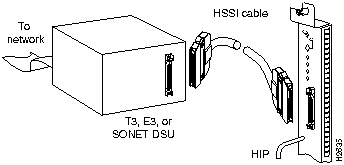
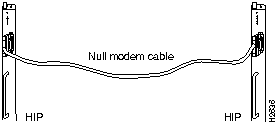
The HIP HSSI port functions as a DTE when it is connected to a DSU for a standard HSSI connection, and it can also be connected to a collocated router with a null modem cable.
To connect the router to a HSSI network, use a HSSI interface cable between the HIP port and the DSU. Both ends of the HSSI interface cable are the same, so you can connect either end to the HIP or DSU. (See Figure 3-21.)
Figure 3-21 : HSSI Network Connection
To connect two routers back to back in order to verify the operation of the HSSI port or to build a larger node, use a null modem cable between available HSSI ports in two separate routers. (See Figure 3-22.) The two routers must be in the same location, and can be two Cisco 7513s, two Cisco 7000s, or one of each. When you configure the ports, you must enable the internal transmit clock on in the HSSI interface in both routers with command hssi internal-clock. To negate the command when you disconnect the cable, use the command no hssi internal-clock. For complete command descriptions and instructions, refer to the related software documentation.
Figure 3-22 : HSSI Null Modem Connection
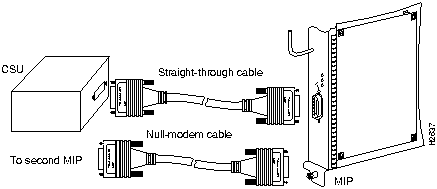
Two standard T1 serial cables are available from Cisco Systems and other vendors for use with the MIP: null-modem and straight-through. These interface cables are used to connect your MIP to additional MIP s or external CSUs.
You must use null-modem cables for MIP-to-MIP connections and straight-through cables for MIP-to-CSU connections. The T1 cables used to connect the MIP with external T1 equipment have DB-15 male connectors on each end.
Four E1 cables are available from Cisco Systems and other vendors for use with the MIP: BNC, Twinax, DB-15, and RJ-45. The E1 cables used to connect the MIP with external equipment have a DB-15 male connector on the MIP end.
Connect the MIP cables as shown in Figure 3-23.
Figure 3-23 : MultiChannel Network Connection
Connecting the Console Terminal
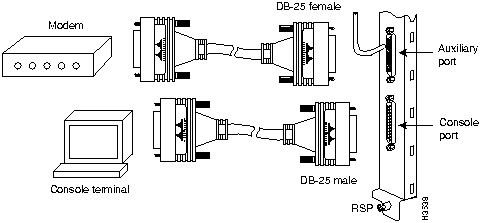
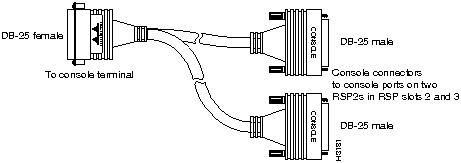
The system console port on the RSP2 is a DCE DB-25 receptacle for connecting a data terminal, which you will need to configure and communicate with your system. (See Figure 3-24.) The console port is located on the RSP2 below the auxiliary port.
Figure 3-24 : Console and Auxiliary Port Connections
Before connecting the console port, check your terminal's documentation to determine the baud rate of the terminal you will be using. The baud rate of the terminal must match the default baud rate (9600 baud). Set up the terminal as follows: 9600 baud, 8 data bits, no parity, and 2 stop bits (9600,8N2).
Use the console cable provided to connect the terminal to the console port on the RSP2, then follow the steps in the section "Starting the Router" in this chapter.
Connecting Auxiliary Port Equipment
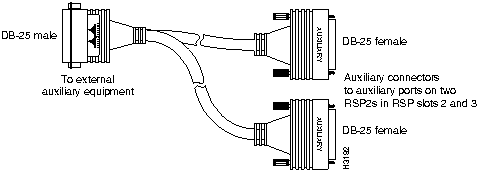
The auxiliary port is a DB-25 plug DTE port for connecting a modem or other DCE device (such as a CSU/DSU or other router) to the router. The port is located on the RSP2 above the console port. An example of a modem connection is shown in Figure 3-24.
Using the Y Cables for Console and Auxiliary Connections
For systems with two RSP2s installed (one as master and one as slave in RSP slots 6 and 7), you can simultaneously connect console or auxiliary ports on both RSP2s using a special Y cable (CAB-RSP2CON= and CAB-RSP2AUX=). The master/slave switch on the RSP2 designates it as either the system master or slave. RSP2s ship as system masters by default. Figure 3-25 shows the console Y cable and Figure 3-26 shows the auxiliary Y cable.
Figure 3-26 : Auxiliary Y Cable
When all interfaces are connected, perform a final check of all connections, then power up the router as follows:
Many of the interface processor LEDs will not go on until you have configured the interfaces. In order to verify correct operation of each interface, complete the first-time startup procedures and configuration, then refer to the LED descriptions in the appendix "Reading LED Indicators" to check the status of the interfaces.
Your installation is complete. Proceed to the appropriate software publications to configure your interfaces.
Formatting a Flash Memory Card
The Flash memory card that shipped with your Cisco 7513 contains the Cisco IOS software image you need to boot your router. In some cases, you might need to insert a new Flash memory card and copy images or backup configuration files onto it. Before you can use a new Flash memory card, you must format it.
Use the following procedure to format a new Flash memory card:
The new Flash memory card is now formatted and ready to use.
Copying a Bootable Image into a Flash Memory Card
With the Flash memory card formatted, you can now copy a bootable image into it. To copy an image, use the following procedure, which assumes the following:
Following is the procedure for copying a bootable file (called new.image) into the Flash memory card:
When the system reloads it will boot the image new.image from the Flash memory card in Slot 0.
Copying Bootable Images between Flash Memory Cards
As future releases of Cisco IOS images become available, you will receive these images either as a file booted from a network server, a file on floppy disk, or a file on a Flash memory card.
The following scenario describes how to use a newly released image on a Flash memory card, in a system that has an older image on a Flash memory card in Slot 0 and a default boot image in the onboard Flash SIMM.
For this scenario, the filenames are as follows:
You will copy the new image from the new Flash memory card onto the Flash memory card that contains the old image.
When the system reloads, it will boot the file image.new from the Flash memory card in Slot 0.
Copyright 1988-1996 © Cisco Systems Inc.








Router# configure terminal
Enter configuration commands, one per line.  End with CNTL/Z.
Router(config)# int tokenring 1/2
Router(config-if)# ring-speed 16
Router(config-if)# ^Z
Router# copy running-config startup-config
[OK]
Router#



GS Software (RSP-K), Version 10.3(571)
Copyright (c) 1986-1995 by Cisco Systems, Inc.
Compiled Wed 10-May-95 11:06
--- System Configuration Dialog ---
At any point you may enter a questions mark `?' for help.
Refer to the `Getting Started' Guide for additional help.
Default settings are in square brackets `[]'. continue with
configuration dialog? [yes]:

Router#
format slot0:
All sectors will be erased, proceed? [confirm]
Enter volume id (up to 30 characters):
MyNewCard
Formatting sector 1
Format device slot0 completed
Router#
Router>
en
Password:
Router#
copy tftp:new.image slot0:new.image
20575008 bytes available on device slot0, proceed? [confirm]
Address or name of remote host [1.1.1.1]?
Loading new.image from 1.1.1.1 (via Ethernet1/0): !!!!!!!!!!!!!!!!!!!!!!!!!!!!!!
!!!!!!!!!!!!!!!!!!!!!!!!!!!!!!!!!!!!!!!!!!!!!!!!!!!!!!!!!!!!!!!!!!!!!!!!!!!!!!!!
!!!!!!!!!!!!!!!!!!!!!!!!!!!!!!!!!!!!!!!!!!!!!!!!!!!!!!!!!!!!!!!!!!!!!!!!!!!!!!!!
!!!!!!!!!!!!!!!!!!!!!!!!!!!!!!!!!!!!!!!!!!!!!!!!!!!!!!!!!!!!!!!!!!!!!!!!!!!!!!!!
!!!!!!!!!!!!!!!!!!!!!!!!!!!!!!!!!!!!!!!!!!!!!!!!!!!!!!!!!!!!!!!!!!!!!!!!!!!!!!!!
!!!!!!!!!!!!!!!!!!!!!!!!!!!!!!!!!!!!!!!!!!!!!!!!!!!!!!!!!!!!!!!!!!!!!!!!!!!!!!!!
!!!!!!!!!!!!!!!!!!!!!!!!!!!!!!!!!!!!!!!!!!!!!!!!!!!!!!!!!!!!!!!!!!!!!!!!!!!!!!!!
!!!!!!!!!!!!!!!!!!!!!!!!!!!!!!!!!!!!!!!!!!!!!!!!!!!!!!!!!!!!!!!!!!!!!!!!!!!!!!!!
!!!!!!!!!!!!!!!!!!!!!!!!!!!!!!!!!!!!!!!!!!!!!!!!!!!!!!!!!!!!!!!!!!!!!!!!!!!!!!!!
!!!!!!!!!!!!!!!!!!!!!!!!!!!!!!!!!!!!!!!!!!!!!!!!!!!!!!!!!!!!!!!!!!!!!!!!!!!!!!!!
!!!!!!!!!!!!!!!!!!!!!!!!!!!!!!!!!!!!!!!!!!!!!!!!!!!!!!!!!!!!!!!!!!!!!!!!!!!!!!!!
!!!!!!!!!!!!!!!!!!!!!!!!!!!!!!!!!!!!!!!!!!!!!!!!!!!!!!!!!!!!!!!!!!!!!!!!!!!!!!!!
!!!!!!!!!!!!!!!!!!!!!!!!!!!!!!!!!!!!!!!!!!!!!!!!!!!!!!!!!!!!!!!!!!!!!!!!!!!!!!!!
!!!!!!!!!!!!!!!!!!!!!!!!!!!!!!!!!!!!!!!!!!!!!!!!!!!!!!!!!!!!!!!!!!!!!!!!!!!!!!!!
!!!!!!!!!!!!!!!!!!!!!!!!!!!!!!!!!!!!!!!!!!!!!!!!!!!!!!!!!!!!!!!!!!!!!!!!!!!!!!!!
!!!!!!!!!!!!!!!!!!!!!!!!!!!!!!!!!!!!!!!!!!!!!!!!!!!!!!!!!!!!!!!!!!!!!!!!!!!!!!!!
!!!!!!!!!!!!!!!!!!!!!!!!!!!!!!!!!!!!!!!!!!!!!!!!!!!!!!!!!!!!!!!!!!!!!!!!!!!!!!!!
!!!!!!!!!!!!!!!!!!!!!!!!!!!!!!!!!!!!!!!!!!!!!!!!!!!!!!!!!!!!!!!!!!!!!!!!!!!!!!!!
!!!!!!!!!!!!!!!!!!!!!!!!!!!!!!!!!!!!!!!!!!!!!!!!!!!!!!!!!!!
[OK - 7799951/15599616 bytes]
CCCCCCCCCCCCCCCCCCCCCCCCCCCCCCCCCCCCCCCCCCCCCCCCCCCCCCCCCCCCCCCCCCCCCCCCCCCCCCCC
CCCCCCCCCCCCCCCCCCCCCCCCCCCCCCCCCCCCCCCCCCCCCCCCCCCCCCCCCCCCCCCCCCCCCCCCCCCCCCCC
CCCCCCCCCCCCCCCCCCCCCCCCCCCCCCCCCCCCCCCCCCCCCCCCCCCCCCCCCCCCCCCCCCCCCCCCCC
Router#
Router#
config terminal
Router(config)#
no boot system
Router(config)#
boot system flash slot0:new.image
Router(config)#
^z
Router#
copy running-config startup-config
Router#
reload
Router>
en
Password:
Router#
Router#
copy slot1:image.new slot0:image.new
Router#
config t
Router(config)#
no boot system
Router(config)#
boot system flash slot0:image.new
Router(config)#
^z
Router#
copy running-config startup-config
Router#
reload
