Fill out the warranty registration sheet and mail or fax it to Cisco Systems, Inc. today. Report any missing parts and any damage not related to shipping to your customer service representative.
Note Keep the packing materials for future use. All components returned under warranty must be packed in their original packing materials.
Installing an A/B Port Card
To install an A/B port card, perform the following steps:
Step 1 Disconnect power from the switch. If you handle port cards, properly ground the chassis to channel electrostatic discharge (ESD) voltages to ground.
 Caution To prevent damage to a card, never install or remove a port card with power applied to the switch.
Step 2 Attach an ESD-preventive wrist strap.
Step 3 Remove the blank plate by removing the two Phillips screws.
 Caution To prevent damage to the FDDI transceivers on the FDDI port card (in step 4), gently press down on the port card as you insert it so that the transceivers clear the chassis. The fit is snug.
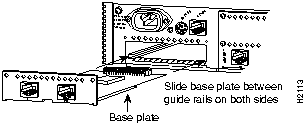
Step 4 Slide the port card into the slot in the switch. Make sure the base plate slides between the guide rails in the switch. (See Figure 3-1.)
- Carefully push the card into the slot until the card edge connector engages and the faceplate is against the rear panel of the chassis.

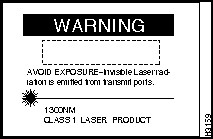
Warning Invisible laser radiation may be emitted from the aperture ports of the single-mode FDDI card when no cable is connected. Avoid exposure and do not stare into open apertures. To see translated versions of this warning, refer to the appendix "Translated Safety Warnings." Following is an example of the warning label that appears on the product:
Figure 3-1 : Installing the A/B Port Card
Step 5 Attach the card to the switch using two Phillips screws.
Step 6 Attach the appropriate interface cables to the port card.
Removing an A/B Port Card
To remove an A/B port card, perform the following steps:
Step 1 Disconnect power from the switch. If you handle port cards, properly ground the chassis to channel ESD voltages to ground.
 Caution To prevent damage to a card, never install or remove a port card with power applied to the switch.
Step 2 Attach an ESD-preventive wrist strap.

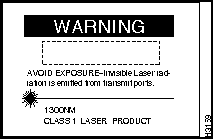 Warning nvisible laser radiation may be emitted from the aperture ports of the single-mode FDDI card when no cable is connected. Avoid exposure and do not stare into open apertures. Following is an example of the warning label that appears on the product:
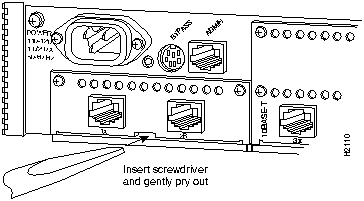
Step 3 Remove the two Phillips screws that secure the port card to the switch. (See Figure 3-2.)
Figure 3-2 : A/B Port Card Screws
 Caution To prevent damage to the FDDI transceivers on the FDDI port card (in step 4), gently press down on the port card as you remove it so that the transceivers clear the chassis. The fit is snug.
Step 4 Gently pry the port card out of the slot with a flat-blade screwdriver. (See Figure 3-2.)
- After traveling approximately 1/2 inch, the card is freed from the connector and slides out easily.
Step 5 Replace the blank plate.
 Caution To help ensure proper airflow, operate the switch with either the blank plate or a port card installed.
Installing the Hardware
You can mount the switch on a wall, in a standard 19-inch rack, or place it on a desktop. Following are the procedures for wall-mounting the switch, installing it on a desktop, or mounting it in an open or closed rack.
Wall-Mounting
Figure 3-3 shows a typical wall-mount installation. The optional wall-mount kit consists of the following items:
- Two wall-mount brackets
- Four machine screws to secure the wall-mount brackets to the switch
- Four wood screws to attach the switch to the wall (you supply these)
- Wall-mounting template
Figure 3-3 : Typical Wall-Mount Installation
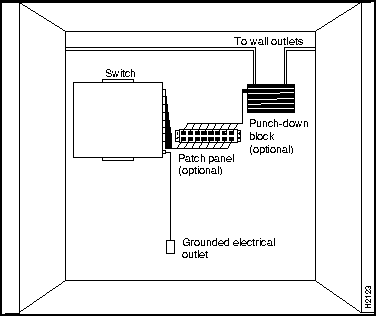
To wall-mount the switch, perform the following steps:
Step 1 Remove the rubber feet from the switch if necessary.
Step 2 Mark the location of the four support screws that secure the switch to the wall. Use the template provided in the wall-mount kit. Make sure the screws attach to a wall stud or some other support that is strong enough to hold the weight of the switch.
Step 3 Drill a pilot hole with a 1/16-inch bit at each mark you made for the location of a support screw.
Step 4 Screw the four 1/2-inch wood screws into the pilot holes, but not all the way; allow them to protrude about 0.125 inch (0.317 cm).
Step 5 Attach the wall-mount brackets to the switch with the machine screws supplied. Figure 3-4 shows where to install the brackets.
 Caution Longer screws (longer than 0.375 inch [0.952 cm]) cause severe internal damage to the switch. Use the machine screws supplied with the wall-mount kit to attach the brackets to the switch.
Figure 3-4 : Attaching the Wall-Mount Brackets to the Bottom of the Switch
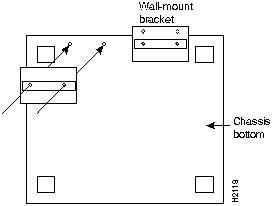
Step 6 If the plastic front and side panels are installed, remove them from the switch. To remove a panel, hold it firmly with both hands and rock it slowly while you pull it away from the switch.
Step 7 Pick up the switch with the brackets facing away from you.
Step 8 Align the support screws with the holes in the brackets, and push the switch against the wall, allowing the screws to go through the holes in the brackets.
Step 9 Hang the switch from the support screws.
Step 10 Tighten the support screws to secure the switch to the wall. Do not overtighten them.
Step 11 Replace the front and side panels on the switch. To install a panel, hold it firmly with both hands and rock it slowly while you push it onto the switch.
Step 12 Continue with the section "What to Do After the Hardware Is Installed," later in this chapter.
Desktop Installation
The switch operates at a low noise level, which makes it suitable for any desktop environment. Place it in a clear and level location. Leave at least 3 inches (7.6 centimeters) clearance at the front for proper ventilation, and sufficient room at the rear for easy cable access. Proceed to the section "What to Do After the Hardware Is Installed" later in this chapter.
 Caution To prevent damage from overheating, do not stack any other equipment on top of the switch chassis.
Rack-Mounting
The switch can also be mounted in an open or closed EIA-standard 19-inch rack using the rack-mount bracket kit. The rack-mount bracket kit consists of the following materials:
- Two L-shaped brackets
- Eight Phillips machine screws to attach the brackets to the switch
Note You provide the rack-mount screws.
To rack mount the switch, perform the following steps:
Step 1 If the front and side panels are installed, remove them from the switch. To remove a panel, hold it firmly with both hands and rock it slowly while you pull it away from the switch.
 Caution Before you mount the switch in a rack, make sure of the following: the rack is secure and in no danger of falling over, the area around the rack does not exceed a maximum ambient temperature of 104°F (40°C), and sufficient airflow exists around the rack.
 Warning To prevent bodily injury when mounting or servicing this unit in a rack, you must take special precautions to ensure that the system remains stable. To see translated versions of this warning, refer to the appendix "Translated Safety Warnings." The following guidelines are provided to ensure your safety:
- This unit should be mounted at the bottom of the rack if it is the only unit in the rack.
- When mounting this unit in a partially filled rack, load the rack from the bottom to the top, with the heaviest component at the bottom of the rack.
- If the rack is provided with stabilizing devices, install the stabilizers before mounting or servicing the unit in the rack.
Step 2 Attach a rack-mount bracket to each side of the switch with the supplied Phillips machine screws. Mount each bracket with the tab positioned toward the front of the switch. (See Figure 3-5.)
Figure 3-5 : Attaching the Rack-Mount Brackets to the Switch
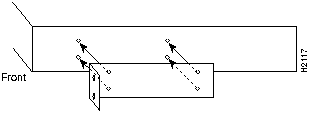
Step 3 Secure both brackets tightly, but do not overtighten them.
Step 4 Position the switch in the rack at the desired location and align the holes on the bracket tabs with the holes in the rack.
Step 5 Attach the switch to the rack using the screws you provide.
Step 6 Replace the front panel (if required) and store the side panels. To install the front panel, hold it firmly with both hands and rock it slowly while you push it onto the switch.
Step 7 Continue with the following section, "What to Do After the Hardware Is Installed."
What to Do After the Hardware Is Installed
After the chassis hardware is installed, continue with the chapter "Connecting to the Network" for the procedures required to attach all cables to the switch. Then go on to the chapter "Configuring the System" for the procedures necessary to configure the software portion of the system. For information on software commands, refer to the appendix "Command Reference."
Copyright 1988-1996 © Cisco Systems Inc.



