


|
|

Catalyst 1700 Out-of-Band Management allows you to configure, monitor, and test the Catalyst 1700 and each of its ports. You can perform these functions by attaching a terminal or a modem and terminal to the Catalyst 1700 and using the menu-driven Catalyst 1700 Management Console Program.
This chapter describes this program (hereafter called Management Console) and how to change the configuration settings and display management statistics. The Configuration parameters include:
The Management Console provides the following information on four management menus:
The Management Console allows you to manage the Catalyst 1700 locally and remotely via modem.
The Catalyst 1700 is shipped with an autobaud capability enabled to automatically match your modem settings. Refer to the section "Changing the RS232 Port Configuration" for more information.
Any changes you make using the Management Console will automatically be saved in in-band management also.
The Management Console provides menus for all out-of-band management functions, as shown in Figure 6-1.
Figure 6-1 : Catalyst 1700 Management Console Menus
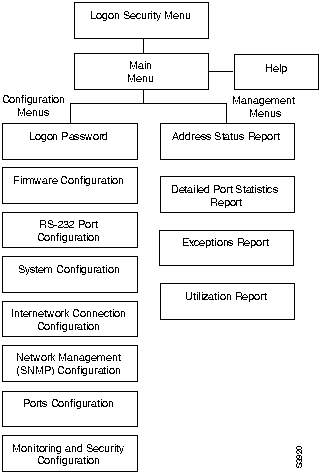
Each of the menus allows you to change the Catalyst 1700 configuration or display management statistics. These menus are described in this chapter. A single global Help screen is available and is reachable only from the Main Menu. You can access these menus by logging on to the Management Console. For more information, see "Logging On to the Management Console," later in this chapter.
The following conventions are implemented for the Management Console menus:
Now you are ready to log on to the Management Console. Proceed to the next section.
When directly connected to a terminal or terminal emulator (versus a modem connection), the Catalyst 1700 must be configured to the same baud rate (and character format) as the terminal or emulator.
Likewise, if the Catalyst 1700 is dialing out, it will not change from its configured baud rate. The Match Remote Baud Rate option (autobaud) only applies when the Catalyst 1700 is answering an incoming call.
Furthermore, the Catalyst 1700 will only match a lower rate than the rate for which it is configured. Upon disconnecting from a call, the Catalyst 1700 always reverts back to the last configured baud rate.
The default RS232 characteristics for the Catalyst 1700 are as follows:
All characteristics, with the exception of the protocol, can be modified using the RS232 Port Configuration Menu as described later in this chapter or through the in-band management as discussed in "In-Band Management."
Access to the Management Console requires a logon password for security purposes. Upon initialization, the Management Console displays a signon banner and a request for a password, as shown below.
Figure 6-2 : Management Console Logon Screen
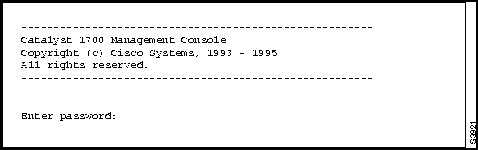
The Management Console waits for you to log on. The initial factory shipped password is grandkey. You can change it using the Logon Password Menu described later in this chapter.
From the Main Menu, any one of the listed menus may be selected.
Figure 6-3 : Management Console Main Menu
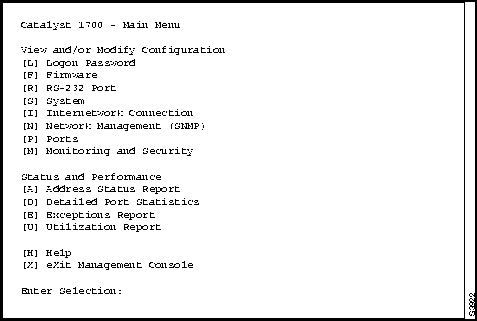
The H key displays the Help text. Typing an X brings back the Logon Security Menu. The rest of the menus are described in the following sections.
The first eight options on the Main Menu allow you to change the configuration settings. These options are described in the following section.
You can change the password by typing L on the Main Menu to display the Logon Password Menu, as shown in Figure 6-4 below.
Figure 6-4 : Logon Password Menu
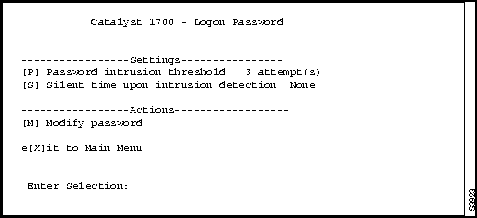
[P] Password intrusion threshold Password intrusion threshold limits the number of failed logon attempts allowed.
The Management Console becomes silent for a user-defined amount of time before allowing the next logon. The threshold value may range from zero to 65,500 attempts. Specify zero for no threshold.
Current setting ===>  3 attempt(s)
    New setting ===>
To change the threshold value, type the desired threshold number next to the prompt and press Return.
[S] Silent time upon intrusion configures the number of minutes this Management Console will be unavailable for use, after some number of failed attempts to log on. Values may range from zero to 65,500 minutes. Specify zero for no silent time. The following prompt is displayed:
Current setting ===> None
    New setting ===>
Type the new setting at the prompt and press Return.
[M] Modify password allows you to change the current logon password. You can enter a string from 4 to 8 characters. Any character with a legal keyboard representation is allowed. The password is case insensitive. For your protection, the new password must be entered the same way twice, before it is accepted. The following prompt is displayed:
Enter new password:
Reenter to verify your new password:
Type the new password at the prompt and press Return.
You can select a firmware source or upgrade firmware by using the Firmware Configuration Menu.
Figure 6-5 : Firmware Configuration Menu
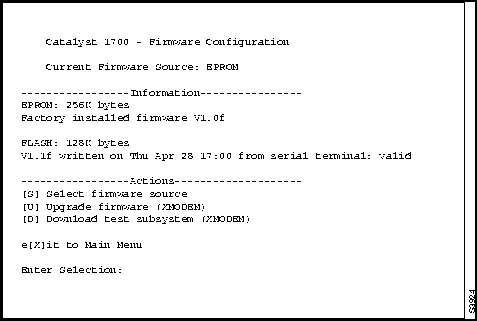
The Firmware information appears in the middle of the screen under "Information" as depicted above.
The information under the EPROM heading reflects factory-installed firmware. The information under the FLASH heading will reflect the most recent upgrade written to flash memory. Specifically, the version number states, the version number of the upgrade, and the date and time states the time when the upgrade was initiated.
The station address states the address of the station where the upgrade initiated. If you are using the terminal attached to the Catalyst 1700, the serial port is indicated. If the upgrade is successful, valid appears as depicted in Figure 6-5. Other status options are in-progress or invalid.
[S] Select firmware source. The source of the currently executing Catalyst 1700 firmware is shown at the top of the menu. It is either EPROM or FLASH. You can switch the firmware source by typing S. This prompt appears:
Valid firmware found in [E]PROM,[F]LASH
Current firmware source ===> EPROM
    New firmware source ===>
Type either E or F at the prompt and Return.
Pressing Return without any preceding characters, or after using backspace to clear an entry, results in no change to the setting, and the full Firmware Configuration Menu will be displayed again.
[U] Upgrade firmware (XMODEM) provides access to an out-of-band upgrade. Depending on whether a valid firmware has previously been written into Flash, this message appears:
This upgrade will overwrite the firmware version 1.0b in FLASH memory.
Do you wish to continue with the upgrade process, [Y]es or [N]o?
N aborts the process. The Firmware Configuration Menu will be repainted. When you type Y the transfer begins.
Please initiate XMODEM transfer.
Awaiting transfer...C
C is the first XMODEM/CRC protocol request, and you are expected to start transferring an upgrade file from the terminal side using an appropriate application-specific command.
Upon successful completion of the transfer, the Catalyst 1700 will reset and the newly downloaded firmware will begin execution. (The new firmware will take you back to the Logon Security Menu.)
[D] Download test subsystem (XMODEM) This menu item allows diagnostic software to be downloaded to the Catalyst 1700. It is designed solely for use by your technical support representative in troubleshooting the Catalyst 1700 hub.
The RS232 Port Configuration Menu configures the physical characteristics of the Catalyst 1700 RS232 port.
Figure 6-6 : RS232 Port Configuration Menu
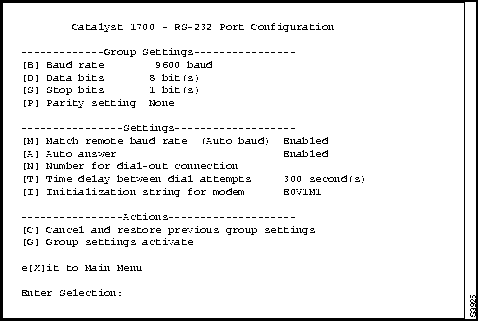
The group settings are modifiable to match the settings of a modem or terminal attached to the RS232 port. To activate all new values simultaneously, type G.
[B] Baud rate allows you to change the Catalyst 1700 serial port baud rate value. This prompt appears:
Valid baud rates are: 110, 150, 300, 600, 1200, 2400, 4800, 9600, 19200.

Type G to activate new setting when done with selection.
Current setting ===> 9600 baud
    New setting ===>
Type the desired baud rate value at the prompt and press Return.
[D] Data bits allows you to change the data bits value of the Catalyst 1700 RS232 port. This prompt appears:
Valid data bits are: 5, 6, 7, 8.

Type G to activate new setting when done with selection.
Current setting ===> 8 bit(s)
    New setting ===>
Type the desired data bits value at the prompt and press Return.
[S] Stop bits allows you to change the stop bits value of the Catalyst 1700 RS232 port. This prompt appears:
Valid stop bits are: 1, 2.

Type G to activate new setting when done with selection.
Current setting ===> 1 bit(s)
    New setting ===>
Type the desired stop bits value at the prompt and press Return.
[P] Parity setting allows you to change the Catalyst 1700 RS232 port parity setting. This prompt appears:
Valid parity settings are: [N]one, [O]dd, [E]ven, [M]ark, [S]pace.

Type G to activate new setting when done with selection.
Current setting ===> None
    New setting ===>
Type the desired parity setting value at the prompt and press Return.
[M] Match remote baud rate (auto baud) enables the RS232 port to automatically determine the baud rate of an incoming call. This prompt appears:
Auto baud may be [E]nabled or [D]isabled
Current setting ===> Enabled
    New setting ===>
Type the desired setting at the prompt and press Return.
[A] Auto answer allows you to enable or disable the auto answer setting. This prompt appears:
Auto answer may be [E]nabled or [D]isabled
Current setting ===> Enabled
    New setting ===>
Type the desired auto answer setting at the prompt and press Return.
[N] Number for dial-out connection allows you to change the phone number for the dial-out connection. This phone number is dialed when the Catalyst 1700 is configured to communicate with a remote terminal upon power-up or reset. This prompt appears:
Phone number for dial-out connection
Current phone number ===> 555-5555
    New phone number ===>
Type the desired phone number at the prompt, using the format required by your modem and press Return.
Up to 48 characters may be entered. A single backspace followed by a carriage return deletes the number.
[T] Time delay between dial attempts allows you to change the time delay between dial attempts. This prompt appears:
Delay between dial attempts: 1 to 65500 seconds, or zero for no redial
Current setting ===> 300 second(s)
    New setting ===>
Type the desired time delay value at the prompt and press Return.
[I] Initialization string for modem allows you to change the initialization string to match your modem requirements. This prompt appears:
Modem init string (do not specify AT prefix or end of line suffix):
Current init string ===> E0V1M1
    New init string ===>
Type the desired initialization string at the prompt and press Return.
Up to 48 characters may be entered. A single backspace followed by a carriage return deletes the current string and restores the default string E0V1M1 for Hayes-compatible modems.
[C] Cancel and restore previous group settings undoes any new values entered for the baud rate, data bits, stop bits and parity setting and restores them to the values last saved (last activated).
[G] Group settings activate causes any new values entered for the baud rate, data bits, stop bits and parity setting to take effect. Following this activation, you need to configure the attached terminal to match these settings.
You can the change the Catalyst 1700 system configuration by using the System Configuration Menu, shown in Figure 6-7.
Figure 6-7 : System Configuration Menu
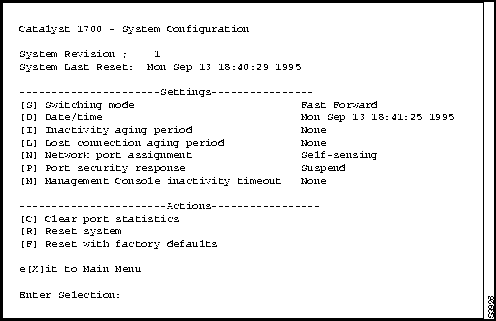
[S] Switching Mode allows you to change the switching mode setting. See "Catalyst 1700 Concepts Overview" for a detailed explanation of this feature. This prompt appears:
FastForward or FragmentFree switching mode reduces bridge delay by making
a forwarding decision as soon as the destination address is received, or
as soon as a frame is determined to not be a collision fragment. Select
Store-and-Forward [1], FragmentFree [2], or FastForward [3].
Current setting ===> FastForward
    New setting ===>
Type the new setting at the prompt and press Return.
[D] Date/time allows you to change the date and time. This prompt appears:
Current date/time ===> Fri Sep 24 07:21:05:94
New date (mm-dd-yy) ===>
Type the new date at the prompt and press Return.
New time (hh:mm:ss) ===>
Type the new time at the prompt and press Return.
[I] Inactivity aging period allows you to change the duration of the inactivity aging period. For a detailed explanation of this feature, see "Catalyst 1700 Concepts Overview." This prompt appears:
Inactivity aging period: 1 to 65500 seconds, or zero for none.
Current setting ===> None
    New setting ===>
Type the new inactivity aging period at the prompt and press Return.
[L] Lost connection aging period allows you to change the lost connection aging period. A lost connection is the functional equivalent of lost Link Beat. For a detailed explanation of this feature, see "Catalyst 1700 Concepts Overview." This prompt appears:
Lost Connection aging period: 1 to 65500 seconds, or zero for None.
Current setting ===> None
    New setting ===>
Type the new lost connection aging period at the prompt and press Return.
[N] Network port assignment allows you to designate one of the Fast Ethernet or General Ethernet ports as the network port. For a detailed explanation of this feature, see "Catalyst 1700 Concepts Overview." This prompt appears:
Network port assignment may be G25[G], F1[A], F2[B], or [S]elf-sensing
Current setting ===> Self-sensing
    New setting ===>
Type the new network port assignment at the prompt and press Return.
The assignment of Self-sensing cancels the current setting and allows the Catalyst 1700 to relearn the identity of the network port automatically.
[P] Port security response is the type of action the Catalyst 1700 should take when it detects a secure address violation. This parameter allows you to choose between suspending or disabling a port. For a detailed explanation of this feature, see "Catalyst 1700 Concepts Overview." This prompt appears:
Port security response is to [S]uspend, [D]isable, or [N]o Action the
affected port
Current setting ===> Suspend
    New setting ===>
Type S or D at the prompt and press Return.
[M] Management Console inactivity timeout allows you to change the terminal session inactivity timeout period. This prompt appears:
Management Console inactivity timeout: 30 to 65500 seconds, or zero for
none
Current setting ===> None
    New setting ===>
Type the new timeout period at the prompt and press Return.
[C] Clear port statistics allows you to clear all port statistics accumulated by the Catalyst 1700. The following menus are affected:
[R] Reset system allows you to restart the Catalyst 1700 with all set values. This prompt appears:
System reset requested.
Do you wish to continue with the reset process, [Y]es or [N]o?
Type Y followed by Return to reset the Catalyst 1700.
[R] Reset system with factory defaults allows you to restart the Catalyst 1700 with all parameter values, including the logon password, reverted to factory defaults. All addresses learned or assigned will be cleared. The content of FLASH memory will remain unchanged. Catalyst 1700 will execute the firmware from the same source (EPROM or FLASH) after coming out of reset.
This prompt appears:
System reset with factory defaults requested.
Do you wish to continue with the reset process, [Y]es or [N]o?
Type Y followed by Return to reset Catalyst 1700.
The Catalyst 1700 must be configured with an IP address before it can make available any in-band management. This is done using the Internetwork Connection Configuration Menu. You may assign addresses individually to each Catalyst 1700 in an administrative domain, or use BOOTP to maintain a centralized database of such addresses.
Figure 6-8 : Internetwork Connection Configuration Menu
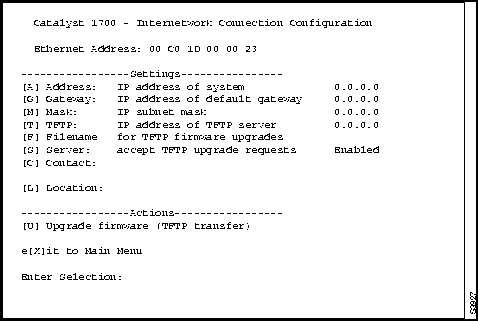
[A] Address: IP address of system allows you to key in or change the current IP address for Catalyst 1700. This prompt appears:
System IP address, in dotted quad format (nnn.nnn.nnn.nnn)
Current setting ===>
    New setting ===>
Type the new IP address at the prompt and press Return.
The current IP address is either the last one assigned or discovered through a BOOTP server.
A change from a zero value to non-zero immediately takes effect, i.e., the internet protocol suite will be activated, and in-band management will be available. Any other value transition will take effect on the next reset.
[G] Gateway: IP address of default gateway allows you to change the current IP address for the default gateway. This prompt appears:
Default gateway IP address, in dotted quad format (nnn.nnn.nnn.nnn)
Current setting ===>
    New setting ===>
Type the new IP address at the prompt and press Return.
The new value will take immediate effect, including 0.0.0.0, which effectively removes the address.
[M] Mask: IP subnet mask allows you to change the current IP subnet mask address. This prompt appears:
IP subnet mask, in dotted quad format (nnn.nnn.nnn.nnn)
Current setting ===>
    New setting ===>
Type the new IP subnet mask address at the prompt and press Return.
The new value will take effect after a reset. The subnet mask is the same as the network mask if subnetting is not in use.
[T] TFTP: IP address of TFTP server allows you to change the current TFTP server address. This prompt appears:
TFTP server IP address, in dotted quad format (nnn.nnn.nnn.nnn)
Current setting ===>
    New setting ===>
Type the new IP address of the TFTP server at the prompt and press Return.
[F] Filename for TFTP firmware upgrades allows you to enter the filename for the TFTP upgrade. This prompt appears:
Filename of firmware module for TFTP upgrades (80 characters max)
Current filename ===>
    New filename ===>
Type the new filename at the prompt and press Return.
A filename for the upgrade file is required on the same TFTP server. Up to 80 characters may be entered. A single backspace followed by a carriage return deletes the filename.
[S] Server: accept TFTP upgrade requests allows Catalyst 1700 to receive firmware upgrade requests from a TFTP workstation. When set to disabled, Catalyst 1700 will silently ignore all such requests. This prompt appears:
TFTP server listener may be [E]nabled or [D]isabled to accept TFTP upgrade
requests
Current setting ===> Enabled
    New setting ===>
Type E or D at the prompt and press Return.
[C] Contact allows you to enter a contact name for this Catalyst 1700. This prompt appears:
Contact description string (255 characters max)
Current ===>
    New ===>
Type the contact name at the prompt and press Return.
This menu item accepts a free form text string of up to 255 characters. A single backspace followed by a carriage return deletes the contact information.
[L] Location allows you to enter a location name for the Catalyst 1700. This prompt appears:
Location description string (255 characters max)
Current ===>
    New ===>
Type the location name at the prompt and press Return.
Up to 255 characters may be entered. A single backspace followed by a carriage return deletes the location string.
[U] Upgrade firmware (TFTP transfer) begins the process where Catalyst 1700 locates a TFTP server from which it reads an upgrade file to update its current firmware. The IP address of the TFTP server and the name of the upgrade file must have been specified using other commands on this menu. This prompt appears:
Do you wish to continue with the upgrade process, [Y]es or [N]o?
Type Y or N at the prompt.
The following sample prompt appears after a positive response:
TFTP transfer of /etc/fastswitch.fw from server at 192.9.200.1
initiated...
Press any key to continue.
The Internetwork Connection Configuration Menu is redisplayed, and you can continue with a new Management Console action, such as viewing the current upgrade progress using the Firmware Configuration Menu.
A successful transfer results in a reset, and returns you to the Logon Security Menu.
To set Trap Clients and Set Clients for in-band management, you must use the Network Management Configuration Menu.
Figure 6-9 : Network Management (SNMP) Configuration Menu
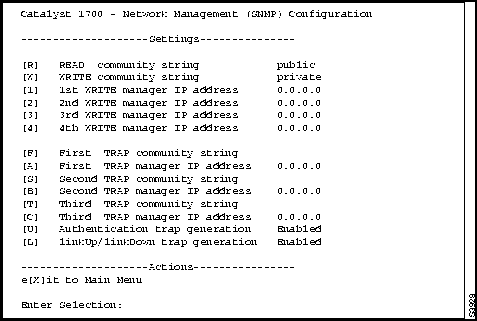
[R] READ community string
[W] WRITE community string
These menu items are used to modify the SNMP Agent's Get (Read) and Set (Write) community strings. Up to 32 characters may be entered.
A single backspace followed by a carriage return deletes the string. One of these prompts appears:
READ community string (32 characters max)
Current ===> public
    New ===>
WRITE community string (32 characters max)
Current ===> private
    New ===>
Type the new community string at the prompt and press Return.
[1] 1st WRITE manager IP address
[2] 2nd WRITE manager IP address
[3] 3rd WRITE manager IP address
[4] 4th WRITE manager IP address
These menu items allow modifications to the Set Manager IP address table. Specify 0.0.0.0 to nullify an entry.
Type the IP address at the prompt and press Return. This prompt appears upon entering 1:
First WRITE manager IP address, in dotted quad format (nnn.nnn.nnn.nnn)
Current setting ===> 192.9.200.201
    New setting ===>
Type the new IP address at the prompt and press Return.
Continue as necessary to add up to 4 Write managers.
[F] First TRAP community string
[A] First TRAP manager IP address
[S] Second TRAP community string
[B] Second TRAP manager IP address
[T] Third TRAP community string
[C] Third TRAP manager IP address
These options allow modifications to the Trap Manager table. Up to 3 Trap managers as well as their community strings can be set. The prompts are:
First TRAP community string (32 characters max)
Current ===>
    New ===>
Type the trap community string at the prompt and press Return.
First TRAP manager IP address, in dotted quad format (nnn.nnn.nnn.nnn)
Current setting ===> 192.9.200.201
    New setting ===>
Type the IP address at the prompt and press Return. Continue as necessary until you have entered all of the desired Trap manager addresses and community strings.
[U] Authentication trap generation allows the Catalyst 1700 to generate authenticationFailure traps. This prompt appears:
Authentication trap generation may be [E]nabled or [D]isabled
Current setting ===> Enabled
    New setting ===>
Type E or D at the prompt and press Return.
[L] linkUp/linkDown trap generation allows the Catalyst 1700 to generate linkUp/linkDown traps. This prompt appears:
linkUp/linkDown trap generation may be [E]nabled or [D]isabled
Current setting ===> Enabled
    New setting ===>
Type E or D at the prompt and press Return.
You can change the configuration for every port using the Ports Configuration Menu.
Identify port: P1-P24[1-24], G25[G], F1[A], or F2[B]:
Select [1 - 24, G, A, B]: \x7f
Type the port number of the target port. If you typed a 3, a screen like Figure 6-10 is displayed.
Figure 6-10 : Ports Configuration Menu
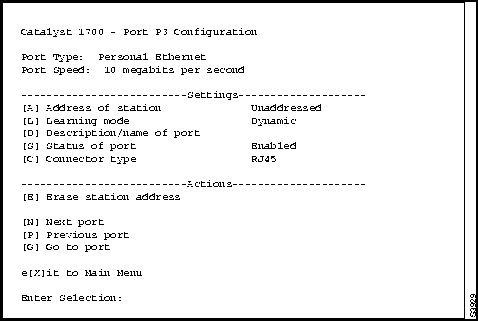
[A] Address of station allows you to manually set or change the address of the port.
If the learning mode is set to Dynamic, the Catalyst 1700 will automatically learn the port address by reading the source of an incoming packet from the attached workstation.
When you set the learning mode to Secure, you can either manually enter an address or have the Catalyst 1700 dynamically learn the first address it receives. See the next menu entry, learning mode for further details.
This prompt appears on the monitor.
Address (6 hex octets: hh hh hh hh hh hh)
Current ===> 00 C0 1D 1A 1A 1A
    New ===>
The input values 00 00 00 00 00 00 and FF FF FF FF FF FF are special.
00 00 00 00 00 00 sets the port learning mode to Dynamic learning.
FF FF FF FF FF FF places the port in Secure learning mode. The current address, if any, is secured. Otherwise, the next address learned is secured.
Enter the address at the prompt and press Return.
[L] Learning mode can also be used to change the Dynamic/Secure mode of the current port address. This prompt appears on the monitor.
Learning mode may be set to [S]ecure or [D]ynamic
Current setting ===> Dynamic
    New setting ===>
Enter S or D at the prompt and press Return.
Setting a port to Dynamic learning unsecures the current address.
Setting the port to Secure activates the Secure mode for the current address if there is one; otherwise the next received address will be secured.
Once an address has been obtained, the Catalyst 1700 can suspend or disable the port if it receives any frame whose source address differs from this address.
[D] Description/name of port allows you to assign a descriptive name for a port. For example, port P3 may be given a name such as Hardware Engineering NetWare Server. This prompt appears:
Port name or description string (60 characters max)
Current ===>
    New ===>
Enter the port name at the prompt and press Return.
[S] Status of port allows you to activate a port that has been suspended or disabled or to disable a port that is currently in an operational state. This prompt appears:
Port status may be set to [E]nabled or [D]isabled
Current setting ===> Enabled
    New setting ===>
Enter E or D at the prompt and press Return.
[C] Connector type allows you to specify the active connector for the General Ethernet port. This prompt appears:
Port connector type may be set to [S]elf-sensing, [R]J45, [B]NC, or [A]UI
Current setting ===> Self-sensing
    New setting ===>
Enter S, R, B, or A at the prompt and press Return.
If you select Self-sensing, Catalyst 1700 will determine the active connector type automatically.
If this option is selected for any port other than the General Ethernet port, this message will appear:
The connector type for this port may not be changed.
Press any key to continue.
[E] Erase station address allows you to remove an address from a port. If the address cleared was on a secure port, the next received address will be secured. This prompt appears:
Proceed with erasing address, [Y]es or [N]o?
Enter Y or N at the prompt and press Return. If you type Y, the port will transition into Unaddressed addressing status, and the Ports Configuration Menu screen will be redisplayed.
[N] Next port
[P] Previous port
These menu options display the menus for ports numerically preceding or following the current port selection. The Ports Configuration Menu will appear displaying the new port's information. These actions as well as Go to port allow you to cycle through the ports quickly and conveniently.
[G] Go to port allows you to enter another port number to display that port's configuration menu. This prompt is displayed:
Identify port:  P1-P24[1-24], G25[G],         F1[A], or F2[B]:
Select: [1 - 24, G, A, B]:
Enter the port number at the prompt and press Return.
You can set port monitoring and Secure learning mode using the Monitoring and Security Configuration Menu.
Figure 6-11 : Monitoring and Security Menu
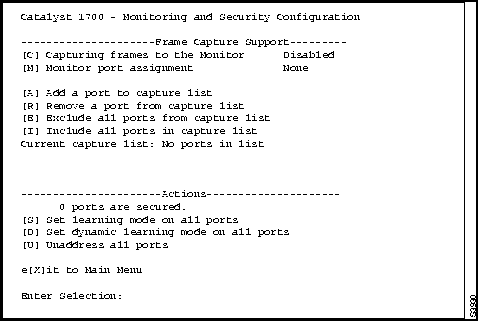
[C] Capturing frames to the monitor allows you to enable or disable the monitoring of frames received from ports you've added to the list to be captured.
Actual monitoring takes place only if all of the following 3 conditions have been met:
This prompt appears:
Capturing frames to the Monitor may be [E]nabled or [D]isabled
Current setting ===> Disabled
    New setting ===>
Enter E or D at the prompt and press Return.
When monitoring is enabled, the Catalyst 1700 reverts to Store-and-Forward switching mode, regardless of the switching mode selected in the System Configuration Menu. Refer to "Catalyst 1700 Concepts Overview" for an explanation of monitoring ports.
[M] Monitor port assignment supplies the second piece of information, the identity of the port serving as the monitor port. This prompt appears:
Identify port: P1-P24 [1-24], G25[G], F1[A], F2[B], or [N]one:
Select [1 - 24, G, A, B, N]: \x7f
Enter the port number at the prompt and press Return.
[A] Add a port to capture list
[R] Remove a port from capture list
You can add and remove ports to and from the Capture List, and complete the third piece of information. This prompt appears:
Identify port: P1-P24 [1-24], G25[G], F1[A], F2[B]:
Select [1 - 24, G, A, B]:
Enter the port number at the prompt and press Return.
[E] Exclude all ports from capture list
[I] Include all ports in capture list
You can quickly remove or add all ports from/to the Capture List by typing E or I at the prompt and then pressing Return.
[S] Set secure learning mode on all ports sets all ports to Secure Learning Mode. This menu action ensures that all ports that currently have valid addresses will now have these addresses secured.
For Unaddressed ports, the next address received on each port will be secured. This prompt appears:
All ports set to Secure learning mode.
Press any key to continue.
Press any key to continue.
[D] Set dynamic learning mode on all ports. This prompt appears:
All ports set to dynamic learning mode.
Press any key to continue
Press any key to continue.
[U] Unaddress all ports This allows you to remove all port addresses. If the address received was on a secure port, the next received address will be secured. This prompt appears:
Proceed with unaddressing all ports, [Y]es or [N]o?
Type Y to unaddress all ports.
Press any key to continue.
Press any key to continue.
The last four options on the Management Console Main Menu (depicted in Figure 6-3) allow you to display Catalyst 1700 management statistics. These options are described in the following sections.
The Address Status Report Menu reports port learning mode information, addresses, and operational status, as shown in Figure 6-12.
Figure 6-12 : Address Status Report
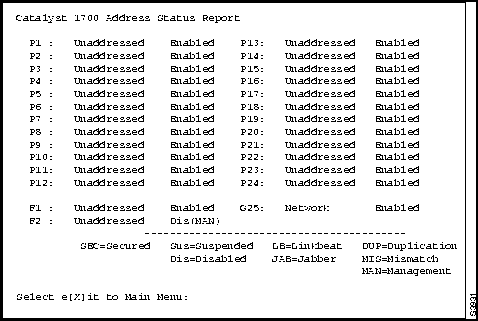
Unaddressed indicates that an address has not been set or learned for the port. The network port is the only port that has multiple addresses and is shown with Network. See the next page for more details.
A secure port is identified by the designation SEC. The port status is either Enabled, Suspended or Disabled. The letters in parentheses following a Suspended (Sus) or Disabled (Dis) designation provide information on the cause of the inactive state:
You can press the X key to return to the Main Menu.
The Detailed Port Statistics Menu reports frame transmit and receive statistics as shown in Figure 6-13. The report displays per port information, so you must enter the desired port at the following prompt:
Identify port: P1-P24[1-24], G25[G], F1[A], or F2[B]:
Select [1 - 24, G, A, B]:
Enter the port number at the prompt and press Return.
Figure 6-13 : Detailed Port Statistics
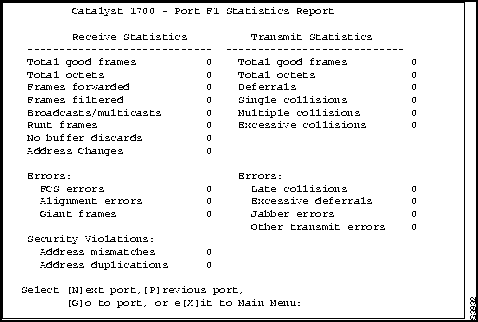
You can cycle through and view the statistics of other ports using the N (Next port), P (Previous port), or G (Go to port) key. Typing X takes you back to the Main Menu.
The Exceptions Report Menu displays the number of Receive Errors, Transmit Errors, and Security Violations for each port.
Figure 6-14 : Exceptions Report Menu
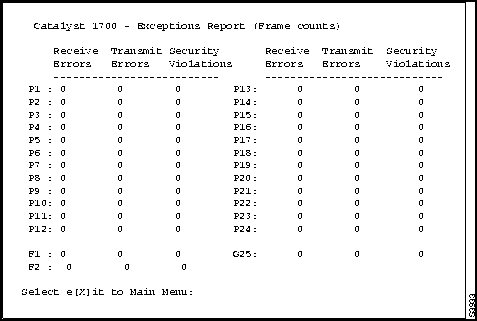
Receive Errors are the combined number of Giants, FCS, and Alignment Errors.
Transmit Errors are the combined number of excessive deferrals, excessive collisions, and other transmit errors.
Security Violations are the combined number of secure address violations caused by address mismatches or duplications.
Typing X takes you back to the Main Menu.
The Utilization Report Menu shown in Figure 6-15, displays the number of frames received, forwarded, and transmitted for each port.
Figure 6-15 : Utilization Report Menu
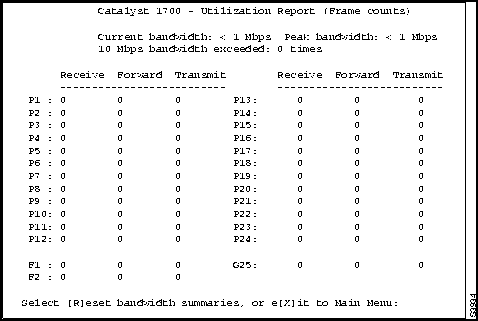
Typing R resets the current values of Current Bandwidth, Peak Bandwidth and 10 Mbps Bandwidth Exceeded. Typing X takes you back to the Main Menu.

|
Copyright 1988-1996 © Cisco Systems Inc.