


|
|

Removing a Workgroup from a Port List
This chapter describes how to change configuration attributes using the CLI. Normally, these changes are made to run-time memory only. If the switch is reset, the changes are overwritten by the attribute settings in the configuration database.
The modem password and the modem initialization string are stored in EEPROM in the midplane. The default modem password is
atmhiway
and the default modem initialization string is
AT&F&D2&C1&Q0S0=1S2=128S7=30S36=7S95=44
You may retain these default values. If you change them, the changes you make are permanent and remain in effect unless you change them again. Rebooting the system or restarting the CLI does not change the modem password or the modem initialization string.
If you change the modem password or the modem initialization string for one switch card slot, make the same change for the other. This is especially important for a two-card system because the backup switch card takes over if the active switch card fails. It is also important for a single switch card system because you may want to add an additional switch card later or you may decide to move the single switch card to the other slot.
You must have a switch card in the switch card slot to change the modem password or the modem initialization string. Therefore, if you have only one switch card, move it from one switch card slot to the other as you effect the change for both slots.
You can change this password from within protected mode only.
Inform all authorized users of the changes you make.
Each SNMP manager (the CLI, for example) and each managed system (the MMA in an LS2020 switch, for example) has a community name. The SNMP manager specifies a community name in each command it sends. The managed system validates the commands before executing them by comparing the community name in the command against its own community name.
Before you can set attributes or use the CLI control commands, you must set the SNMP community to a community that has read/write access privileges. The read/write community provided with the system is named write. (A switch can have several SNMP community names with read/write privileges.) The read-only community provided with your system is named public.
To prevent unauthorized access to your system, you should set the SNMP community names that the LS2020 switch uses to validate the commands before it executes them. Follow the procedure below to set the SNMP community name that the CLI puts in commands.
The SNMP community reverts to the read-only community when you log out of the CLI. However, if you leave your terminal without logging out of the CLI, be sure to change the SNMP community back to the read-only community to prevent unauthorized access to your system.
The LS2020 switch uses the Spanning Tree Protocol to detect loops within a bridged network. When a loop is detected, one port on the bridge performs a blocking function to break the loop. All bridging traffic on that port is discarded and MAC address learning is not performed. This section provides the steps to define and display spanning tree bridging parameters and static filters using the CLI show and set commands.
To define and display spanning tree bridge parameters, follow these steps:
To make entries into the bridge filtering database, follow these steps:
LightStream custom filtering allows you to define filters to block or forward incoming packets for specific ports. A filter is a set of conditions that is compared to information in the header of incoming packets. As an incoming packet is received, its level 2 and level 3 headers are broken into components. The header information is evaluated against all filters (in priority order) associated with the receiving port. If a filter condition matches the header information, the action specified by that filter is taken. If the filter condition does not match the packet header information, the next filter is evaluated. If no filter conditions match the packet header information, the default action for the port is taken.
You must first define the traffic filter (bridge filter, IP filter, or IPX filter) and then assign the filter with a port or ports. Optionally, you can associate a multicast group and traffic profile to a filter or a port. You must define a filter, a multicast group, and a traffic profile before you can assign that filter to a specific port.
To define a custom traffic filter, you assign a number to the filter and write the filter expression. The next sections discuss defining traffic filters, multicast groups, and traffic profiles and assigning filters to a specific port.
For a description of filter attributes, construction, and examples, see the LightStream 2020 CLI Reference Manual.
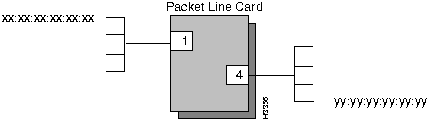
The following steps define sample traffic filters that block the LAN end stations in Figure 5-1 from communicating with each other. To successfully block the communications, filters must be created for the ports (1 and 4) supporting each LAN.
Figure 5-1 : Connections to be Filtered
A multicast group is a list of destination ports on nodes in the network. Traffic that matches an associated filter condition is sent to each member of the group. Only one multicast group may be associated with any given filter on a given port, and the action of the filter must be forward. These steps describe how to define the multicast group parameter for a filter.
A traffic profile is a set of type-of-service attributes that can be applied to traffic flows by associating the profile with a filter. Only one profile may be associated with any given filter on any given port, and the action of the filter must be forward. These steps describe how to define the traffic profile parameter for a filter.
Any filter can be assigned to any port (which is up and running) at any time. Incoming packets for that port are subsequently compared with the filter conditions. If the value of a specific field in the packet header matches the value of the filter, the action specified by the filter condition is taken.
To associate a filter with a specific port or ports, follow these steps:
This procedure describes how to define the default filter action for a specific port. This determines the action to take with incoming traffic (forward or block) when incoming traffic matches none of the defined filter conditions.
This procedure describes how to define the default broadcast limit parameter for a specific port. It applies only to bridge filters.
To disassociate a filter from a specific port or ports, follow these steps:
This procedure describes how to delete a filter. You cannot delete a filter that is associated with a port. You must first perform the procedure "Deleting the Association Between a Filter and a Port" as previously described.
Virtual LAN Internetworking (VLI) allows you to transcend the physical limitations of LAN internetworking. The LS2020 configurator lets you arrange stations in distinct workgroups and to restrict access between workgroups. Stations on different physical segments can belong to the same workgroup, and they can belong to more than one workgroup. For further information, see the LightStream 2020 Configuration Guide.
You establish the default workgroup by having no workgroup IDs at all in an exclude list; that is, excluding no one. An exclude list that is not empty includes everybody except those that have at least one of the listed workgroup IDs in their include list. An include list admits only those that have at least one of the listed workgroup IDs in their include list. An empty include list blocks all communications.
To add a workgroup ID to a list for a specific port, follow these steps.
To delete a workgroup ID from a list for a specific port, follow these steps.
Copyright 1988-1996 © Cisco Systems Inc.
cli>
prompt.
Enter password:
*cli>
prompt.
*cli>
prompt:
*cli> set modem <slot #> password <password>
where
*
cli
>
prompt:
*cli>
set modem <slot #> initstring <initstring>
where
*
cli>
prompt:
*cli>
show modem <slot #> all
The password and the modem initialization string are permanently changed. Inform all authorized users of the changes you make.
Changing the Protected Mode and npadmin Password
cli>
prompt.
Enter the protected mode password when you see the following prompt:
Enter password:
The
*
cli>
prompt appears to indicate that you are in protected mode.
*cli>
prompt.
Enter the protected mode password when you see the following prompt:
Changing password for npadmin
Enter current password:
Enter the new protected mode password when you see the following prompt:
Enter new password:
The password must contain at least six alphanumeric characters.
Retype new password:
If you retype the new password correctly, the system changes the password and displays the
*
cli>
prompt.
Please use a longer password.
Password unchanged.
Please use a less obvious password.
Passwords don't match, try again.
Setting the SNMP Community
Setting the SNMP Community Name
cli>
prompt, enter:
cli> set snmp community <name>
where
cli>
prompt:.
Modifying Spanning Tree Bridging
Defining and Displaying Spanning Tree Bridge Parameters
cli>
prompt.
To view the current general spanning tree bridge parameters, enter the following at the
cli>
prompt:
cli> show stb general
A screen similar to the following is displayed:
cli> show stb general
Bridge Max Age:  2000

Bridge Hello Timer:  200

Bridge Forward Delay:  1500

Priority:  0
cli>
prompt:
cli> set stb maxage <maxagevalue>
where
cli> set stb hellotimer <hello-timer-val>
where
cli> set stb forwdelay <fwd-delay-val>
where
cli> set stb priority <priority>
where
cli>
prompt
cli> show stb general
Your changes should appear in the display. The spanning tree parameters are set as you specified.
Defining Spanning Tree Static Filters
cli>
prompt.
cli>
prompt:
cli> show stb static
To make entries into the spanning tree bridge static filtering database, enter the following at the
cli>
prompt:
cli> set stb static <MACaddr> rcv <rcv-port> xmit <xmit-port(s)>
where
cli>
prompt:
cli> show stb static
Your entries should appear in the display.
cli>
prompt:
cli> show stb fwd
Your entries should appear in the display.
cli>
prompt:
cli> show stb ports
Defining Traffic Filters
Procedures for Defining Traffic Filters
cli>
prompt:
cli> show port <port#> {bflt|ipflt|ipxflt} [ID]
where
(card = 2 - 10; port = 0 - 7).
cli>
prompt:
cli> show {bflt|ipflt|ipxflt} [ID]
where
cli>
prompt:
cli> define bflt <ID> (macDst == yy:yy:yy:yy:yy:yy) && (macScr == xx:xx:xx:xx:xx:xx)
where
cli>
prompt:
cli> define bflt <ID> (macDst == xx:xx:xx:xx:xx:xx) && (macSrc == yy:yy:yy:yy:yy:yy)
You must now assign each filter to the appropriate ports.
cli>
prompt:
cli> set port <port#> {bflt|ipflt|ipxflt} <ID> {block|forward} <priority>
[tprof <ID>] [mcast <ID>]
where
(card = 2 - 10; port = 1).
cli>
prompt:
cli> set port <port#> bflt [ID] block <priority>
where
(card = 2 - 10; port = 4).
cli>
prompt:
cli> show bflt
cli>
show port <port#> {bflt|ipflt|ipxflt}
<port#> is the card and port number in card.port format
(card = 2 - 10; port = 0-7).
Defining a Multicast Group
cli>
prompt:
cli> show mcast [ID]
where
cli>
prompt:
cli> define mcast ID [node:]c.p [[node:]c.p...]
where
Defining a Traffic Profile
cli>
prompt:
cli> show tprof [ID]
where
cli>
prompt:
cli> define tprof ID arguments
where
Assigning a Filter to a Specific Port
cli>
prompt:
cli> show <port#> {bflt|ipflt|ipxflt}
where
(card = 2 - 10; port = 0 - 7).
cli>
prompt:
cli> set port <port#> {bflt|ipflt|ipxflt}
<filter ID> {block|forward} <priority>
where
Defining the Default Filter Action
cli>
prompt:
cli> show port <port#> {bflt-def|ipflt-def|ipxflt-def}
where
<port#>
is the card and port number in card.port format
(card = 2 - 10; port = 0 - 7).
cli>
prompt:
cli> set port <port#> {bflt-def|ipflt-def|ipxflt-def} {block|forward}
(card = 2 - 10; port = 0 - 7).
cli>
prompt:
cli> show port <port#> {bflt-def|ipflt-def|ipxflt-def}
Defining the Default Broadcast Limit
cli>
prompt:
cli> show port <port#> bcast-limit
where
<port#>
is the card and port number in card.port format
(card = 2 - 10; port = 0 - 7).
cli>
prompt:
cli> set port <port#> bcast-limit {discard-all|forward-all|packets/sec}
where
(card = 2 - 10; port = 0 - 7).
Deleting the Association Between a Filter and a Port
cli>
prompt:
cli> show port <port#> {bflt|ipflt|ipxflt}
To break the association between a filter and a port, enter the following at the
cli>
prompt:
cli> set port <port#> {bflt|ipflt|ipxflt} <filter ID> delete
where
>
is the card and port number in card.port format
(card = 2 - 10; port = 0 - 7).
cli>
prompt:
cli> show port <port#> {bflt|ipflt|ixpflt}
Deleting a Filter
cli>
prompt:
cli> show {bflt|ipflt|ipxflt}
To view the filters currently defined for a specific port, enter the following at the
cli>
prompt:
cli> show port <port#> {bflt|ipflt|ipxflt} <filter ID>
where
(card = 2 - 10; port = 0 - 7).
cli>
prompt:
cli> delete {bflt|ipflt|ipxflt} <filter-id>
where
cli>
prompt:
cli> show {bflt|ipflt|ipxflt}
The filter you deleted should not appear in the display.
Configuring Virtual LAN Internetworking
Establishing the Default Workgroup
cli>
prompt:
cli> set port <port#> wgrp include
where
(card = 2 - 10; port = 0 - 7).
cli>
prompt:
cli> set port <port#> wgrp exclude
Adding a Workgroup to a Port List
cli>
prompt.
cli>
prompt:
cli> set port <port#> wgrp add <wgrp#>
<port#> is the card and port number in card.port format
(card = 2 - 10; port = 0 - 7).
cli>
prompt:
cli> show port <port#> wgrp
A screen similar to the following is displayed.
cli> show port <port#> wgrp
WorkGroup List
______________
Card Port WgrpId Mode
____ ____ ______ ____
5 7 1 Include
Removing a Workgroup from a Port List
cli>
prompt:
cli> show port <port#> wgrp
where
(card = 2 - 10; port = 0 - 7).
cli>
prompt:
cli> set port <port#> wgrp del <wgrp#>
To verify that the association was removed, enter the following at the
cli>
prompt:
cli> show port <port#> wgrp
A screen similar to the following is displayed:
cli> show port 5.7 wgrp
WorkGroup List
______________
Card Port WgrpId Mode
____ ____ ______ ____
5 7 1 Exclude
cli>
