Banner
HomeTOCPrevNextGlossSearchHelp

PDF

Table of Contents

Setting Up Domains and Securing Applications


Setting Up Domains and Securing Applications

Setting Up Domains and Securing Applications

This chapter contains the following sections that describe how to use the Security Manager and Domain Manager applications:


Using Security Manager

The Security Manager application allows you to protect your CiscoWorks applications and network devices from unauthorized individuals. In general, this requires you to define what degree of access each group/domain has for each CiscoWorks application that uses security. This can be a time-consuming process, so first determine whether you need to restrict access to any applications. If you do not require security, skip ahead to the next chapter.

fig_1.gif

With Security Manager, you can set up your CiscoWorks environment to require a login to access each application. This protection ensures that only users who have a valid account can perform tasks such as configuring a router, deleting database device information, or defining polling procedures.

The CiscoWorks security system is turned off upon the first installation or upgrade of CiscoWorks. Until you turn on the authentication checking in the Security Manager, anyone can access any CiscoWorks application without a username or password. Authentication checking requests that users prove their identity by entering a valid CiscoWorks username, and optionally, a password. If you do not possess a valid username and password, you will be denied access.

Before you can protect your applications with Security Manager, you should confirm that device entries exist in the database. To ensure that the device list is updated, you may want to run Sync w/Sybase before setting application privileges. For more information on running Sync w/Sybase, refer to Chapter 6, "Device Management."

Following is an overview of how to use the Security Manager application to protect your network devices and data:

Step 1 Run Domain Manager to create domains. Domains are logical groupings of devices.

Step 2 On SunNet Manager, select Security Mgr from the Tools menu.

On HP OpenView, select Administer>Security>Security Mgr.

Step 3 Select Options>Users and Groups.

Step 4 Establish users and groups, being careful to add each user to only one group. (A user can only belong to one group.)

Step 5 Select Options>Domains and Groups and add domains to groups.

Step 6 From the Security Manager window, click on the toggle button for the CiscoWorks application to which you want to apply privileges.

Step 7 Select Options>Permissions.

Step 8 Click on the Group button to display a list of groups.

Step 9 Select a group name.

Step 10 Click on the OK button to display a list of domains associated with that group.

Step 11 Select a domain name from the right list box.

The bottom scrolled region will update, showing the current privileges for each application. You can see the current privileges at the top of the window in the Group/Domain box.

Step 12 Enable or disable privileges for each application, as your needs determine, by clicking on the red or green privilege buttons.

Step 13 Click on the Apply button at the bottom of the Security Manager window to confirm that you want to assign privileges for the selected CiscoWorks applications.

Step 14 Select Options>Permissions to display the Permissions window.

For each CiscoWorks application, give full access privileges to at least one group/domain. This ensures that at least one person, presumably the network administrator, can always modify the restrictions to a given application. In particular, ensure that someone has full privileges to Security Manager, before exiting Security Manager, to prevent being locked out when you attempt to re-enter the application.

Step 15 Repeat steps 11 to 14 for each group/domain combination.


Security Manager Window

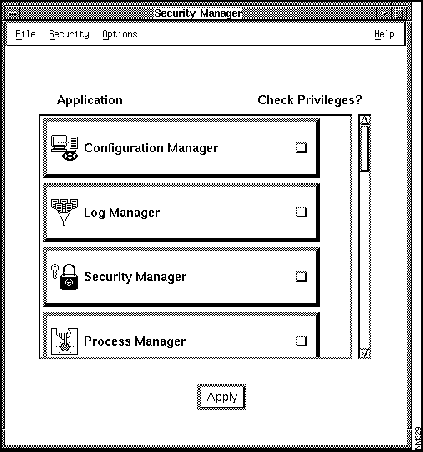
Figure 7-1 illustrates the Security Manager window. Table 7-1 describes its components.

nm329.gif

Figure 7-1 : Security Manager Window

Table 7-1 : Security Manager Window Components

Component Subcomponent Description
File Print
Exit
Prints a snapshot of the window.
Exits the current window.
Security Change User
Privileges
Enables user to change user ID.
Provides current user privileges.
Options Users and Groups

Domains and Groups

Permissions
Opens a subwindow that allows you to create, modify, and delete users and groups; and to add users to groups.
Opens a subwindow that allows you to assign domains to groups, or delete domains from groups.
Opens a subwindow that displays the application authority status for selected groups and domains. This window allows you to assign specific access privileges of a given application to a specific group/domain combination.
Help On Version

On Security Manager
Displays the CiscoWorks version information for this application.
Provides help text on the current window.
Check Privileges toggle buttons Enables authentication checking on the corresponding CiscoWorks application.
Apply Confirms authentication checking for the CiscoWorks applications whose Check-Privileges buttons were enabled. Applies changes to the database.


Restricting Permissions to CiscoWorks Applications

Table 7-2 lists the Security Manager applications for which privileges can be set, the available privileges for each application, and a brief description of the access privilege. The application names in parentheses are filenames. If you start the application from the command line, enter the filename. For more information on starting applications from the command line, refer to Appendix B, "Troubleshooting CiscoWorks Errors."

The remaining CiscoWorks applications do not require usernames and passwords. These applications are meant to be shared by your network users without restrictions.

Table 7-2 : CiscoWorks Applications and Privileges

Application Available privileges Description
Configuration Management (nmconfman) Execute
Write Password
Read Password
File To Database

Compare Configs

Delete from Database

Device to Database

Database to Device

Browse Config File
Edit Config File
User can execute this application.
User can download a configuration file to a router.
User can access files or data, but not modify them.
User can copy a configuration file from a disk to the database.
User can view configuration differences in the database.
User can permanently remove a configuration file from the database.
User can upload a running configuration file to the database.
User can download an edited configuration file to a router.
User can read an uploaded configuration file.
User can make changes to a given configuration file.
Log Manager (nmlogman) Execute
Delete log records
User can open this application.
User can permanently remove log messages.
Security Manager (nmadmin) Execute
Add Groups
Add Users
User can open this application.
Allows creation of new group access.
Allows creation of new user access.
Process Manager (nmproc) Execute
Start/Stop Process
User can open this application.
User can alter Process Manager functions.
Device Management (nmdevman) Execute
Write to Sybase
Modify SNMP comm-string
Modify Line Password
Modify Enable Password
User can open this application.
File or data changes are permitted.
User can view and change the community string.
User can view and change the Line Password
User can view and change the Enable Password.
Device Monitor (nmdevmon)---SunNet Manager platform only Execute
Configure Device
User can open this application.
User can alter Device Monitor functions.
Sync with Sybase (nmsync) Execute User can open this application.
Device Polling (nmpoll) Execute
Modify Polling
User can open this application.
User can alter Device Polling functions.
Polling Summary (nmsummary) Execute
Modify Polling
User can open this application.
User can alter Polling Summary functions.
AutoInstall Manager (nmautoinst) Execute
Modify Config
View Config
User can open this application.
User can change the configuration.
User can see the configuration, but not change it.
Software Library Manager (nmswman) Execute
View Device Inventory
Import Software


Edit Software comments/alias
User can open this application.
User can view a list of all devices in all domains.
User can copy files from another directory (disk or Flash memory of a device) into the CiscoWorks database.
User can add comments to the configuration file.
Software Inventory Manager
(devinventory)
Execute
Update Device

Update Inventory
User can open this application.
User can download system or microcode image to a specified device.
User can edit the device inventory seen from within Software Management.
Device Software Manager (nmdevman) Execute
Reload Device

Upgrade Device

Edit Software Comments
User can open this application.
User can reload a device.
User can replace existing software or microcode in the device with a version from Flash memory.
User can change comments associated with the operating system.
Domain Manager (nmdomain) Execute
Delete Domain
Modify Domain
Add Domain
User can open this application.
User can permanently remove a domain.
User can change the domain organization.
User can create a new domain.
Global Command Manager (nmscheduler)
Execute
Delete Commands

Modify Commands
User can open this application.
User can delete configuration commands from a specified router or set of routers.
User can change configuration commands from a specified router or set of routers.
Global Command Scheduler (nmgcmd) Execute
Delete cron
User can open and run this application.
User can permanently remove the cron file.
TACACS Account Manager (nmtacacs) Execute
Schedule
Modify Accounts
User can open this application.
User can schedule a task.
User can change (modify, add, or delete) the ownership of TACACS accounts.

The following sections describe how to set up user and group permissions for these applications.


Setting Up the CiscoWorks Default Account

The CiscoWorks software contains a default account password for CiscoWorks applications that access the Sybase database. The administrator password is referred to as the SA (system administrator) password. The SA Password application allows you to change the default account password; you can also use the nmsanms program, a command line interface, to change the default account password. Run the SA Password application (or the nmsanms program) when you are not using the Security Manager application.


Note If you run the SA Password application (or the nmsamns program) when Security Manager is being used, you must restart the Security Manager application, or Security Manager will be unable to access any Sybase database records.

Run the SA Password application (or the nmsanms program) in the following situations:

In this case, the directory owner of $NMSROOT creates a dummy ncspwd file under $NMSROOT/etc by entering the following commands:
hostname% cd $NMSROOT/etc
hostname% su directory_owner
Password: password
hostname% cp /dev/null ncspwd
hostname% chmod 660 ncspwd
hostname% exit

To run the SA Password application application, perform the following steps:

Step 1 Ensure that Security Manager is not being used.

Step 2 On SunNet Manager, select Tools>SA Password.

On HP OpenView, select Administer>Security>SA Password.

or

Enter the following at the command line (either a Bourne shell or a C shell) to start the nmsanms program:

% $NMSROOT/bin/nmsanms

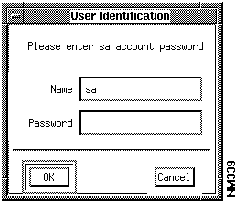
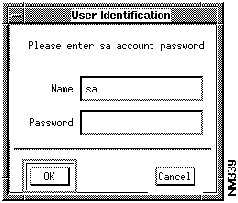
The User Identification window appears with the SA name in the window. (See Figure 7-2.)

nm339.gif

Figure 7-2 : User Identification Window

Step 3 Enter your SA account password.

Step 4 Click on OK.

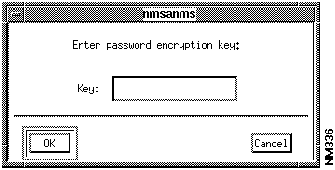
An nmsanms encryption window appears. (See Figure 7-3.)

nm336.gif

Figure 7-3 : nmsanms Encryption Window

Step 5 Enter your password encryption key of up to 64 characters.

The encryption key is used for generating the default password. For example, beta is the default keyword. The nmsanms program inserts your new password encryption key in $NMSROOT/etc/ncspwd.

Step 6 Click on OK.

Step 7 To verify your new password encryption key, list the file ncspwd to ensure that it has the correct date:


% ls -l $NMSROOT/etc/ncspwd

The most current date on the file displays.

Step 8 To display the password encryption key word, enter the more command.


% more $NMSROOT/etc/ncspwd


Establishing Security Privileges for Users

Using Security Manager, you can add new users to access the CiscoWorks applications that can take advantage of security or authentication checking. The CiscoWorks applications that can take advantage of Security Manager are those that use the Sybase database. You will give privileges to users so they can access secured CiscoWorks applications.

fig_8.gif Timesaver You may want to have several Security Manager subwindows open simultaneously. This allows cross referencing of changes you make in one window when you update or add new security options to another window. Only run one Security Manager application at a time.


Adding New Group Names

Every user must belong to a group. To authorize users to access applications that have security restrictions, define groups of users that can access each application via their usernames. The first time you access the Users and Groups window, there are no groups or users defined. You must define group names and authorized users for each group.

To add new group names to the Security Manager, perform the following steps:

Step 1 On SunNet Manager, select Tools>Security Manager.

On HP OpenView, select Administer>Security>Security Mgr.

The Security Manager window appears. (See Figure 7-1.)

Step 2 Select Options>Users and Groups.

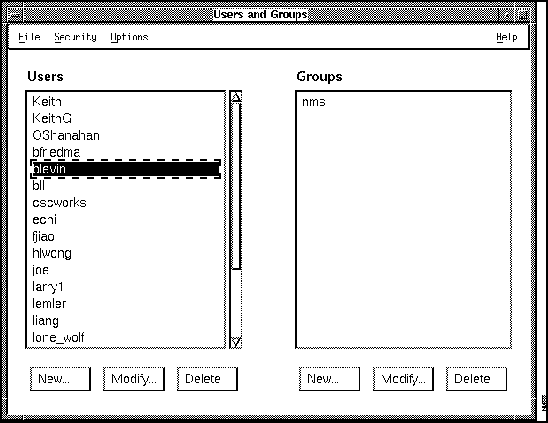
The Users and Groups window appears. (See Figure 7-4.)

nm338.gif

Figure 7-4 : Users and Groups Window

Step 3 To create or add group names, click on the New button under the Groups scroll window.

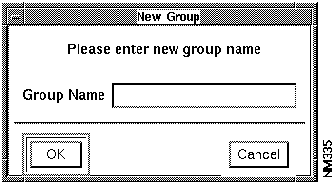
The New Group window appears. (See Figure 7-5.)

nm335.gif

Figure 7-5 : New Group Window

Step 4 Enter your group name.

Step 5 Click on OK.

The Users and Groups window appears.

There are no spaces or quotation marks allowed in group names, usernames, or passwords. The maximum length for passwords, group names, or usernames is 32 characters. For specific details on legal username and password information, refer to your Sybase documentation.

Step 6 Repeat steps 3 through 5 until you have entered all your group names.


Editing Group Names

This section describes how to edit existing group names, if necessary. After you finish adding and editing your group names, you will need to add your usernames.

To change the name of a group, you must access the Security Manager and edit an existing group name. The relationship between the users and groups remains unchanged. In other words, users affiliated with the previous group name automatically move to the new group name.

To edit group names in Security Manager, perform the following steps:

Step 1 From the Security Manager window, select Options>Users and Groups. (See Figure 7-1.)

The Users and Groups window appears. (See Figure 7-4.)

Step 2 Select an existing group name from the Groups scroll window.

The usernames associated with this group appear in the Users scroll window.

Step 3 Click on the Modify button under the Groups scroll window.

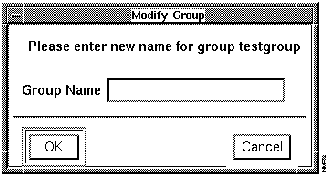
The Modify Group window appears, asking you to enter a new name for the selected group. (See Figure 7-6.)

nm332.gif

Figure 7-6 : Modify Group Window

Step 4 Enter the new name for the existing group name.

Step 5 Click on OK.

You are returned to the Users and Groups window. The modified group name appears in the scroll window.

Step 6 Repeat steps 1 through 5 until you have modified the necessary group names.

If you are setting up first-time group and user permissions, continue with the section "Adding New Users" later in this chapter.


Deleting Group Names

To remove security permissions for an entire group, delete the group name from the Security Manager application. After you delete the group name, all users in that group will no longer have privileges assigned to that group.

To delete group names from the Security Manager, perform the following steps:

Step 1 From the Security Manager window, select Options>Users and Groups. (See Figure 7-1.)

Step 2 Select a group name from the Groups scroll window.

The usernames associated with this group appear in the Users scroll window.

Step 3 Click on the Delete button under the Groups scroll window.

A window appears that prompts you to confirm the deletion.

Step 4 To delete the group name, click on OK.

By deleting the group name, all usernames associated with that group no longer have the group privileges.

To cancel the delete request and return to the Users and Groups window, click on Cancel.


Adding New Users

In order to grant users permission to access protected applications, you must enter every user account name (or username) that receives permission to use the CiscoWorks applications.


Note You need a Sybase SA account login to use the New, Modify, and Delete button commands on the Users and Groups scroll windows. You will be asked for an SA password once. Once you enter a valid SA password, you can add, edit, and delete multiple users. Because SA is a reserved database name, it will not be accepted as a valid username.

To add new usernames to the Security Manager, perform the following steps:

Step 1 From the Security Manager window, select Options>Users and Groups.

The Users and Groups window appears. (See Figure 7-4.)

Step 2 Click on the New button under the Users scroll window.

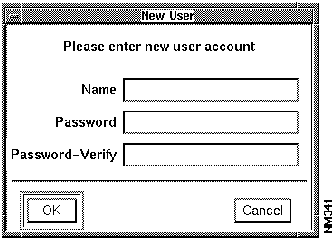
The New User window appears. (See Figure 7-7.)

nm341.gif

Figure 7-7 : New User Window

Step 3 Enter your username and password and verify the password by reentering it on the next line.

No spaces or quotation marks are allowed in group names, usernames, or passwords. The maximum length for each is 32 characters.

Step 4 Click on OK.

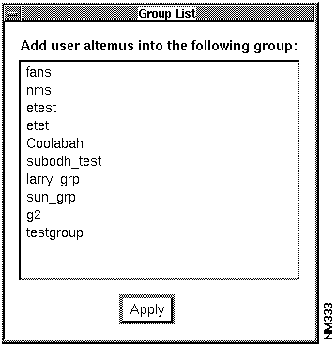
The Group List window appears. (See Figure 7-8.)

nm333.gif

Figure 7-8 : Group List Window

Step 5 Select the group you want the user to be connected to.

Step 6 Click OK.


Modifying Passwords

To change the password of a user, you need to access the Security Manager application. The relationship between the users and groups remains unchanged. The previous groups affiliated with the old username will be assigned to the new username.

To modify passwords in Security Manager, perform the following steps:

Step 1 From the Security Manager window, select Options>Users and Groups. (See Figure 7-1.)

The Users and Groups window appears. (See Figure 7-4.)

Step 2 Select a username in the User scroll window.

The name is highlighted, and group names associated with this user appear in the Groups scroll window.

Step 3 Click on the Modify button under the Users scroll window.

The User Identification Window appears. (See Figure 7-9.)

fig_6.gif

Figure 7-9 : User Identification Window

Step 4 Enter the SA password.

Step 5 Click on OK.

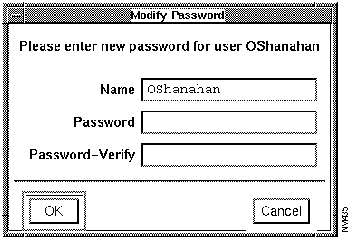
The Modify Password window appears. (See Figure 7-10.)

nm435.gif

Figure 7-10 : Modify Password Window

Step 6 Enter the new password, and verify the password by reentering it.

Step 7 Click on OK.

The window disappears, and the Users and Groups window appears. The modified password is now active.

Step 8 Repeat steps 1 through 6 until you have modified the necessary passwords.


Deleting Usernames

To remove security permissions for a user, you must delete the username from the Security Manager application. After you delete the username, this individual will not be authorized to access the CiscoWorks applications previously indicated.

To delete usernames from the Security Manager, perform the following steps:

Step 1 Select the username from the Users and Groups window. (See Figure 7-4.)

The group names associated with this user display in the Groups scroll window.

Step 2 Click on the Delete button under the Users scroll window.

A window appears that prompts you to confirm the deletion.

Step 3 To delete the username, click on OK.

To return to the Users and Groups window and cancel the delete request, click on Cancel.

By deleting a username, you also delete the user's association with a group. However, the group and the usernames still associated with it remains undisturbed.


Connecting Users and Groups

The Security Manager authorizes groups to access CiscoWorks applications based on the permissions set in the Security Manager application. Therefore, you need to connect each user to a group. Users then get permission to the application because they are part of a group.


Note A user can only belong to one group although a single group can have many users.

With the Users and Groups window, you can add an individual user to a group or you can add several users to a group at one time. Each of these procedures is described in the following subsections.


Adding an Individual User to a Group

To connect an individual user to a group, perform the following steps:

Step 1 From the Users and Groups window, select an individual username from the User scroll window. (See Figure 7-4.)

The username is highlighted.

Step 2 Select Options>Add User to Groups.

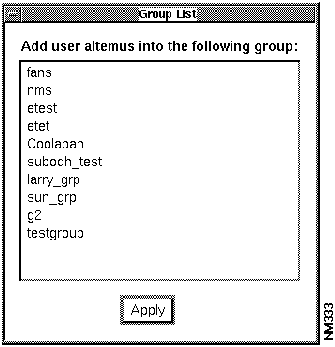
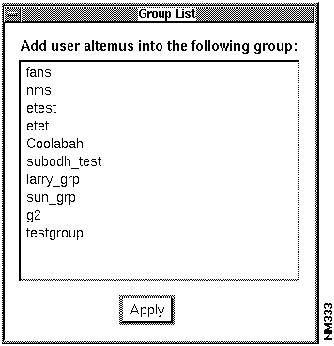
The Group List window appears. See Figure 7-11.

fig_2.gif

Figure 7-11 : Group List Window

Step 3 Select the group name to which you want to add the user.

Step 4 Click on Apply to connect this username with the selected group.

The username is added to the group, and the Group List window appears.


Adding Several Users to a Group

To connect several users to a group at once, perform the following steps:

Step 1 From the Users and Groups window (see Figure 7-4), select the desired group name from the Groups scroll window.

The group name is highlighted.

Step 2 Select Options>Add User to Groups.

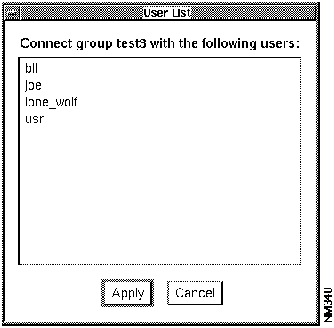
The User List window appears. (See Figure 7-12.)

nm340.gif

Figure 7-12 : User List Window

Step 3 Select the usernames you want to add to this group.

Step 4 Click on Apply to connect the users selected with this group.

The users are connected to the groups you indicate, and you return to the Users and Groups window.


Viewing User and Group Relationships

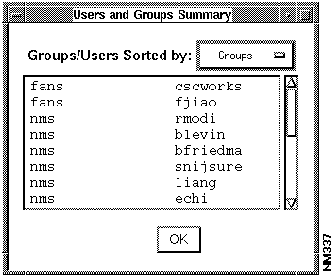
Use the Users and Groups Summary window to check your group assignments. This window allows you to sort by groups or users. Sorting by groups provides a quick look at all user accounts with this group's privileges. Sorting by users provides a quick look at all groups associated with one user.

To display your user or group assignments, perform the following steps:

Step 1 From the Users and Groups window, select Options>Summary. (See Figure 7-4.)

The Users and Groups Summary window appears. (See Figure 7-13.)

nm337.gif

Figure 7-13 : Users and Groups Summary Window

Step 2 Click on the small button above the scroll bar to display a drop-down menu.

The drop-down menu allows you to change the sort category in order to view by Groups or by Users.

Step 3 Select the way you want to sort the accounts (by Groups or by Users).

The Users and Groups Summary window displays the newly selected sort category information.

Step 4 Click on OK to exit the window.


Connecting Domains to Groups

Domains are logical collections of devices, just as groups are collections of people. A device is any network entity that contains an SNMP agent. (Devices generally include routers, bridges, or communication servers.)

Creating domains gives you the flexibility to establish a new sphere of security because groups can be assigned privileges according to their connected domain. By incorporating the use of domains, you can allow a local network center to assign privileges for its own devices. The ability of a user to exercise one or more features of a given application is now defined by the group and domain association.

Upon installation, CiscoWorks automatically creates a World domain, which contains all the devices listed in the database. The World domain is predefined and cannot be deleted.

Depending on your needs, you can establish and modify other domains by using the Domain Manager application. For example, consider a large business whose expanding financial hub is located in New York. As a network administrator, you determine a need to protect the New York device configurations and inventories by securing the CiscoWorks applications that can potentially access them. Therefore, you establish the group of devices in New York as its own domain.

Users of the World domain can look into the New York domain to see its devices, but are denied any other privileges. However, New York users are also part of the World domain, so they can exercise the same privileges granted to others in the World domain.

Privileges to devices for users in New York depends on the definitions set by the New York-based network administrator. The network administrator assigns the application-specific privileges (such as read-only or execute) by using the Security Manager application.

Although a user can only belong to one group, a single group can contain many users. By applying this feature, the New York-based administrator decides to govern access to devices even further. Application-specific privileges can be assigned to groups to grant or restrict varying levels of access. In the New York domain, the administrator determines that only users of a specified group are granted the special privileges to modify the configuration files on selected routers. Next, the administrator creates a second group whose users are granted the application-specific privileges needed to modify other router information. Groups with other levels of privileges to other applications can be created or modified as the needs of the domain determine.

The net result is that corporate-wide users can view devices in the New York domain. But access to New York devices is restricted to its connected groups. Each connected group is further restricted to the application-specific privileges that were granted by the New York-based network administrator who toggled on each application-specific privilege in Security Manager.

If you want to learn how to create additional domains and the other functions of Domain Manager, go to the next section, "How Domain Manager Works." If you want to connect the default World domain (or other domains that may already exist) to the groups you established in the previous section, perform the following steps:

Step 1 From the Options menu of Security Manager, select Domains and Groups.

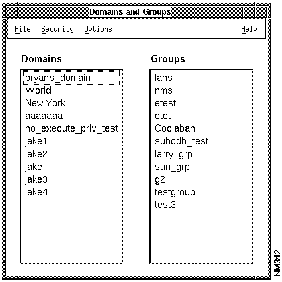
The Domains and Groups window appears, as shown in Figure 7-14.

nm342.gif

Figure 7-14 : Domains and Groups Window

Step 2 From the Domains and Groups window, select the domain name to which you want to assign group-wide privileges.

If the domain already has privileges of one or more groups assigned, the names appear in the Groups column. The domain you select contains the devices you specified in the Domain Manager application. If necessary, use the Domain Manager application to review the devices to which you are about to assign privileges.

Step 3 From the Domains and Groups window, select Options>Add Domain to Groups.

The Group List window appears. (See Figure 7-15.)

fig_7.gif

Figure 7-15 : Group List Window

Step 4 From the Group List window, select the name of the group to which you want to add the specified domain.

Step 5 Click on Apply to confirm your action. (Click Cancel to close the window without saving any changes.)

If you clicked the Apply button, the devices in the specified domain are part of the group you selected in the previous step. Users in this group can now apply their assigned privileges to access devices in the connected domain.


How Domain Manager Works

The Domain Manager application enables you to assign meaningful alias names to groups of devices. Using the various alias domain names you created to manage your network, you can use other CiscoWorks applications to focus on certain domains in order to complete network management tasks.

You can use the Security Manager application to assign group privileges to certain domains. For example, a domain named "North America" might only allow a group called "America-admin" to perform configuration management on these Cisco devices.

Other applications can use domains efficiently to perform their tasks. The Domain Manager communicates domain information to the following CiscoWorks applications:

  • AutoInstall Manager (read/write domain information)

  • Configuration Management (read-only domain information)

  • Device Management (read/write domain information)

  • Security Manager (read-only domain information)

  • Software Management (read-only domain information)

The Domain Manager sends update messages to these applications, so the domain name and device information is accurate at any given time.


Domain Manager Window

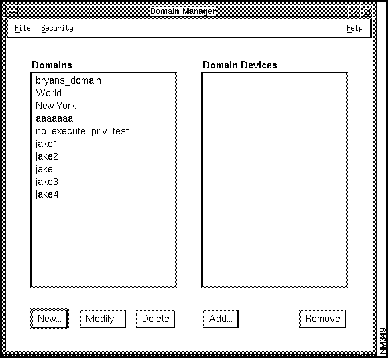
Figure 7-16 illustrates the Domain Manager window. Table 7-3 describes the components in this window.

nm349.gif

Figure 7-16 : Domain Manager Window

Table 7-3 : Domain Manager Window Components

Component Subcomponent Description
File Import


Print
Exit
Opens the File Selection Box window, which allows you to open an ASCII file to import domain information.
Prints a snapshot of the current window.
Exits the current window.
Security Change User

Privileges
Enables you to log in again as another user.
Displays the current user's security privileges.
Help On Version

On Domain Manager
Displays the CiscoWorks version information for this application.
Provides help text on the current window.
Domains Displays list of current groups of devices.
Domain Devices Displays list of current devices within the domain selected.
New OK


Add Devices

Copy Domain


Cancel
Creates a domain containing the added devices or, if no devices are added, creates a domain without any devices.
Creates new domain names. Allows you to add devices or copy an existing domain.
When a new domain name is specified, allows you to copy all the device information from an existing domain to the newly established one.
Closes the window without saving any changes.
Modify Allows you to edit the name of an existing domain.
Delete Deletes domain names from the scroll window. Updates other CiscoWorks applications on any changes to domain list.
Add Adds devices to the selected domain.
Remove Removes devices from the selected domain.


Domain Manager Task List

You can perform the following tasks with the Domain Manager application:

  • Add new domains and associate devices with the domain

    • Acquire devices from the domain World (created automatically upon installation)

    • Acquire by copying an existing domain

  • Add a new domain from an ASCII file

  • Changing the name of an existing domain

  • Edit domains (adding or deleting devices)

  • Delete domains

  • Viewing domain information


Adding New Domains and Associating Devices with Domains

Part of the process of creating domains, or groups of devices associated to an alias, is to first create a domain name and then associate devices with that domain name.

There are three ways to add a new domain to CiscoWorks:

  • Create a new domain name and associate all devices with that domain

  • Copy an existing domain, rename it, and edit the domain devices

  • Import an ASCII file that contains domain information

The following sections provide procedures for each of the tasks.


Creating a New Domain

To create a domain, perform the following steps:

Step 1 Select Domain Manager.

On SunNet Manager, select Tools>Domain Manager.

On HP OpenView, select Administer>Security>Domain Mgr.

The Domain Manager window appears. (See Figure 7-16.)

Step 2 From the Domain Manager window, click on New. (See Figure 7-16.)

The New Domain window appears.

Step 3 Enter the new domain name in the text field.

Step 4 Click on Add Devices.

The Adding Devices window appears.

Step 5 Select the devices you want to include in this domain and click on OK.

The Domain Manager window updates automatically to include the new domain name and the devices included in that domain.


Creating a Domain from an Existing One

You can create a new domain by copying devices from one or more existing domains. To copy an existing domain, perform the following steps:

Step 1 From the Domain Manager window, click on New. (See Figure 7-16.)

The New Domain window appears.

Step 2 Enter the new domain name in the text field.

Step 3 Click on Copy Domain.

The Copy Domain window appears.

Step 4 Select the domain or domains you want to copy and click on OK.

For example, select the World domain and click on the OK button. The Domain Manager window updates automatically to include the new domain name and the devices included in that domain.


Creating and Importing an ASCII File with Domain Information

To create an ASCII file that contains domain data and import it into the Domain Manager, perform the following steps:

Step 1 Create a file (for example, "domain_new") using a text editor, such as vi, textedit (Sun only), or vuepad (HP-UX only).

Step 2 Add the following information to the new file in the proper sequence (the first line is essential for checking the format of the imported file):


# CiscoWorks 2.0 Domain Creation File
New_domain_name
Device_1
Device_2
Device_3
Device_4

Step 3 Save the new file.

Step 4 To import the ASCII file into Domain Manager, select File>Open.

The File Selection window displays.

Step 5 If you know the directory path to the ASCII file, enter the pathname including the ASCII file name into the Filter field. If you do not know the path, select one of the directories displayed in the Directories scroll window and then select the filename from the Files scroll window.

Your selection appears in the Selection field.

Step 6 When the selection field displays the correct file to import, click on the OK button.

The Domain Manager window updates automatically to include the new domain name and the devices included in that domain. If some devices do not display in the Domain Devices scroll window, check to ensure that the missing device names are valid.


Changing the Name of an Existing Domain

To change the name of an existing domain, perform the following steps:

Step 1 From the Domain Manager window, select the domain name you want to modify and click on Modify. (See Figure 7-16.)

The Edit Domain Name window appears.

Step 2 Enter the new domain name in the text field and click on OK.

The Copy Domains window appears.

Step 3 Select the domain or domains you want to copy and click on OK.

The Domain Manager window updates automatically to include the new domain name and the devices included in that domain.


Note You cannot change the name of the domain World. The World domain is created automatically during CiscoWorks installation and contains all known devices. Its name cannot be changed or deleted.


Adding or Deleting Devices to Existing Domains

To add or delete devices associated with an existing domain, perform the following steps:

Step 1 From the Domain Manager window, select the domain name you want to modify. (See Figure 7-16.)

Step 2 Click on Add to add devices to the selected domain.

The Adding Devices window displays.

Step 3 Select the device names you want to add and click on OK.

The additional devices are display in the Domain Manager window.

Step 4 To delete devices from the selected domain, select the device you want to delete and click on Remove.

The device is deleted from the Domain Devices scroll window and is no longer associated with the selected domain name.


Note You cannot delete the name of the domain World. The World domain is created automatically during CiscoWorks installation and contains all known devices. Its name cannot be changed or deleted.


Deleting Domains

To delete domains from the Domain Manager, perform the following steps:

Step 1 From the Domain Manager window, select the domain name you want to delete. (See Figure 7-16.)

Step 2 Click on Delete.

The domain name selected is removed from the Domains scroll window.


Viewing Domain Information

To view which devices comprise the domain, perform the following steps:

Step 1 From the Domain Manager window, select the domain name from which you want to view information.

The Domain Manager window refreshes with the domain devices displaying in the Domain Devices scroll window. Note that the scroll window scroller is enabled when the list of devices extends past the window parameters.

Step 2 To close the Domain Manager, select the File menu Exit option.


Establishing Access to Applications

After you created users and groups and connect them to domains, you are ready to establish access to applications, a process called authentication checking. This section describes how to establish user-group permissions and how to set up authentication checking to require login information.

To establish user-group permissions, following these steps:

Step 1 On the Security Manager window, click the toggle button of the applications you want protect. (See Figure 7-1.)

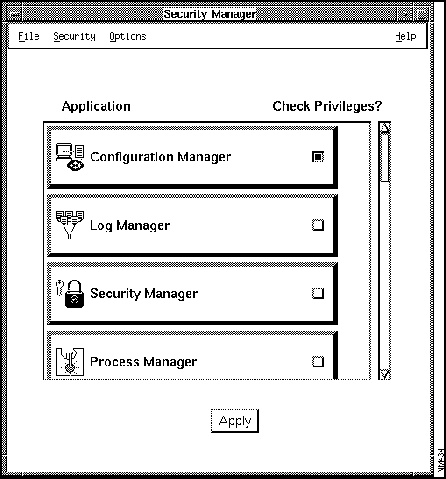
For example in the following figure, the toggle button for Configuration Manager was clicked to designate that it is a protected application. (See Figure 7-17.)

nm434.gif

Figure 7-17 : Protected Application

Step 2 Click on Apply to save the authentication-checking information to the database.

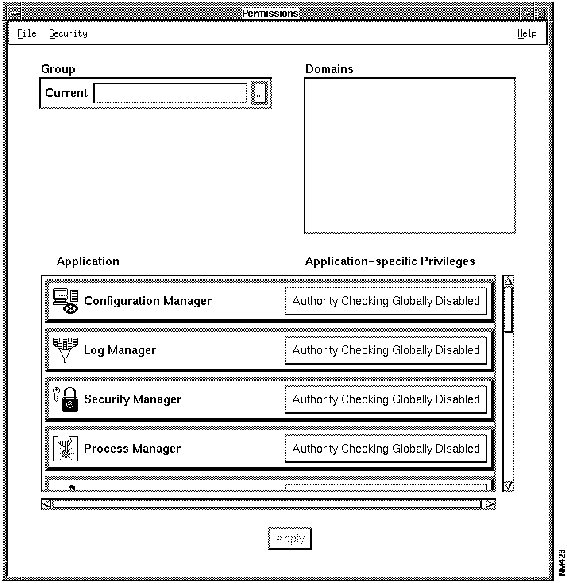
Step 3 Select Options>Permissions to view or modify the levels of permissions for enabled applications.

The Permissions window appears. (See Figure 7-18.) Initially, the Group and Domains boxes are empty.

nm423.gif

Figure 7-18 : Permissions Window

Step 4 Select a group from the drop-down menu in the Group box.

Domains that belong to that group will appear in the Domains box.

Step 5 Select a domain.

After you select a domain from the list, the window will be updated to reflect the application-specific privileges to the selected group/domain pair.

The lower portion of the Permission window lists the CiscoWorks applications that are now supporting authentication-checking. In addition, for each application that you enabled for authentication checking, the application-specific privileges appear. You will see specific privileges such as Execute, Write Password, and Read Password for all applications that you designated for authentication checking.

Step 6 For each application designated for authentication checking, select the application-specific privileges that you want to apply.

Depending on the application, you may have to use the scroll bars to see other privileges. As you select a specific privilege, it changes color from red (on) to green (off).

Step 7 When you are finished applying specific privileges to each group/domain combination, click on Apply to save your changes.

fig_4.gif Caution After you add security privileges by turning on authentication checking, you restrict user access to specified CiscoWorks applications until you grant user permissions. Complete all security procedures before you exit the Security Manager. If you have problems with group permission settings and cannot log in as any other username, log in as SA (the Sybase account). This login account will give you full permissions.


Accessing Secured CiscoWorks Applications

Depending on the application that has authentication-checking enabled, you may be required to log in to an application before receiving access. You can log in to CiscoWorks applications in two ways:

  • You can perform a session-wide login by first logging in to all secured CiscoWorks applications to which you have permission, and then access other applications. This saves you from logging in to several applications. After you are logged in, all applications for which you have permission to use open automatically. You are requested to enter username and password information only once.

  • You can also perform an application-specific login by logging in to each CiscoWorks application that requires a username and optional password upon request. The user identification window appears whenever a username and password is required.


Logging in to CiscoWorks Applications

Use the CiscoWorks Login application to log in to use any secured application for which you have permissions. You will be asked for your username and password only once.

The next sections describe the two login scenarios.

fig_3.gif Timesaver You can save time by logging in once (in other words, creating a "session-wide" login) at any time after you enter your network management platform. By using the CiscoWorks Login application, all current security permissions are checked based on your settings in the Security Manager application.


Logging in before Accessing CiscoWorks Applications

To log into all CiscoWorks applications you have access to, perform the following steps:

Step 1 On SunNet Manager, select Tools>Login.

On HP OpenView, select Misc>Login.

The User Identification window appears. (See Figure 7-9.)


Note When applying naming conventions, note that the database translates single quotation marks into double quotation marks.

Step 2 Enter your username and password.

Step 3 Click on OK.

You are prompted to select a domain name.

Step 4 Select a domain name, then click on OK to complete the Login process.

You are now logged in to all secured CiscoWorks applications for which you were granted access.


Logging in after Accessing CiscoWorks Applications

If you do not wish to use the Login application, each CiscoWorks application you enter will prompt you for your user identification information.

To log in to any CiscoWorks application for the first time (without the Login application), perform the following steps:

Step 1 Select any CiscoWorks application.

If the authentication checking is enabled, the User Identification window appears.

Step 2 Enter your username and password.

Step 3 Click on OK.

You are prompted to select a domain name.

Step 4 Select a domain name and click on OK to complete the Login process.

The CiscoWorks application window appears.

fig_5.gif

Caution CiscoWorks applications that are already open use privileges that were assigned when the application was first started. If your workstation will be unattended, exit all CiscoWorks applications or log out using the Logout application to fully secure your workstation.


Logging Out of CiscoWorks Secured Applications

To ensure network security, log out of the CiscoWorks applications after you are done using them. You need to perform this procedure only if you have previously logged in using the Login application.

If you select Logout and you have not previously used the Login application, you will receive the following error message: "There is no CiscoWorks login for this process. Logout is not needed."

To log out of CiscoWorks applications, perform the following steps:

Step 1 On SunNet Manager, select Tools>Logout.

On HP OpenView, select Misc>Logout.

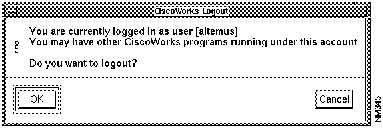
The CiscoWorks Logout window appears. (See Figure 7-19.)

nm345.gif

Figure 7-19 : CiscoWorks Logout Window

Step 2 To secure your username and exit the CiscoWorks Login application, click on OK.

You will be denied immediate access into any secured CiscoWorks application. You must supply your username and password the next time you wish to access a secured CiscoWorks application.


Using TACACS Account Manager

The TACACS Account Manager application maintains the TACACS password file on UNIX hosts that act as TACACS security servers. Terminal Access Controller Access Control System, or TACACS, controls Internet host access from terminals using dial-up lines. The TACACS Account Manager allows you to easily create and update TACACS accounts in a graphical user interface.This application also creates computer-generated passwords. Use this application to designate which users have access to your security server.

nm279.gif

The TACACS user can perform numerous commands on Cisco devices. For more information on tacacs-server commands, refer to the Router Products Configuration Guide or the Router Products Command Reference publication.

For information on the TACACS daemon, refer to Chapter 9, "Using CiscoWorks Process Manager."


TACACS Account Manager Window

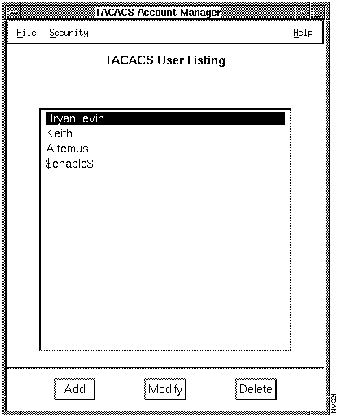
Figure 7-20 illustrates the TACACS Account Manager window. Table 7-4 describes its components.

nm321.gif

Figure 7-20 : TACACS Account Manager Window

Table 7-4 : TACACS Account Manager Window Components

Component Subcomponent Description
File Print
Exit
Prints a snapshot of the current window.
Exits the current window.
Security Change Domain
Change User
Privileges
Enables you to view devices in another domain.
Enables you to log in again as another user.
Displays your current privileges.
Help On Version
On TACACS
Provides information on the application version.
Provides information on the current window.
TACACS User Listing Displays current list of UNIX TACACS users.
Add Adds new TACACS user data, including TACACS name, user's full name, access ID, user ID, password, and account expiration date.
Modify Edits TACACS user data, including TACACS name, user's full name, access ID, user ID, password, and account expiration date.
Delete Deletes TACACS user data.


Add or Edit TACACS User Window

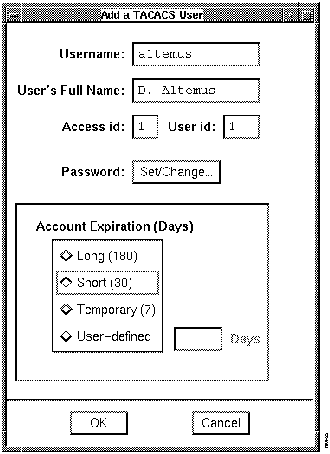
Figure 7-21 illustrates the Add a TACACS User window. The Edit a TACACS User window is the same except the window title and the ReadWrite permissions to each field are different. Table 7-5 describes its components.

nm322.gif

Figure 7-21 : Add a TACACS User Window

Table 7-5 : Add a TACACS User Window Components

Component Subcomponent Description
Username Displays TACACS username.
User's Full Name Displays user's name. For reference only.
Access ID Displays current access rights to Cisco devices, if defined.
User ID Displays numeric user ID in UNIX for system administrator convenience. Not used in TACACS.
Password Set/Change Sets or changes the current user password from a user-entered password or generated list of passwords.
Account Expiration (Days) Long (180)
Short (30)
Temporary (7)
User-defined
Specifies how long the TACACS password is valid.


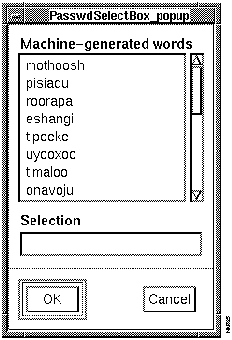
PasswdSelectBox_popup Window

Figure 7-22 illustrates the PasswdSelectBox_popup window.

nm325.gif

Figure 7-22 : PasswdSelectBox_popup Window


Adding a TACACS User

To add a TACACS user, perform the following steps:
Step 1 On SunNet Manager, select Tools>TACACS Mgr.

On HP OpenView, select Administer>Security>TACACS Mgr.

The TACACS Account Manager window appears. (See Figure 7-20.)

Step 2 Click on Add.

The Add a TACACS User window appears. (See Figure 7-21.)

Step 3 Enter the TACACS username, and enter the full name of the user if desired.

Step 4 Enter the Access ID.

Step 5 Enter the numeric user ID if desired.

This information is not used by TACACS, but is displayed for system administrator convenience.

Step 6 Click on Set/Change to set the TACACS password for this user.

The PasswdSelectBox_popup window appears. (See Figure 7-22.)

Step 7 To enter a password, select one of the machine-generated passwords.

or

Enter a customized password in the Selection field.

Step 8 Click on OK.

Step 9 To choose account expiration date, click on the appropriate button in the Account Expiration section.

or

Enter a user-defined expiration date by entering the number of days you want this TACACS user to remain active.

Step 10 Click on OK to save all new user information.


Adding the Special TACACS Account

There is a special TACACS account user named $enable$. You need to add the $enable$ user as a privileged account if you are running routers in the extended TACACS mode. This account is used to access routers that use the extended TACACS mode. The $enable$ user has normal and enable mode privileges on your Cisco routers.

To add the $enable$ user, perform the previous steps for adding a TACACS user. Use the following guidelines to fill in the Add TACACS User window:

  • Add an access ID and user ID.

  • Select a password and long-term usage.


Changing a TACACS Password

If a TACACS user forgets their password, or if system maintenance requires that a new password be assigned at periodic intervals, use this procedure to change the current password for any TACACS user.

To change a TACACS password, perform the following steps:

Step 1 On SunNet Manager, select Tools>TACACS Mgr.

On HP OpenView, select Administer>Security>TACACS Mgr.

The TACACS Account Manager window appears. (See Figure 7-20.)

Step 2 Select a TACACS username in the window.

Step 3 Click on Modify to edit the user information.

The Edit a TACACS User window appears.

Step 4 To change the TACACS password, click on Set/Change.

The Select Password window appears. (See Figure 7-22.)

Step 5 Select one of the machine-generated passwords.

or

Enter a customized password in the Selection field.

Step 6 Click on OK.

Step 7 Update the account expiration for this TACACS user in the Account Expiration section by clicking on the appropriate button.

Step 8 Click on Save to save all changes made to user information.


Changing TACACS Account Expiration

To change the TACACS account expiration, perform the following steps:

Step 1 On SunNet Manager, select Tools>TACACS Mgr.

On HP OpenView, select Administer>Security>TACACS Mgr.

The TACACS Account Manager window appears. (See Figure 7-20.)

Step 2 Select the TACACS username in the window.

Step 3 Click on Modify to edit the user information.

The Edit a TACACS User window appears.

Step 4 Edit the TACACS account expiration in the Account Expiration section by clicking on the appropriate button.

or

Enter a user-defined expiration date by entering the number of days you want this TACACS user to remain active.

Step 5 Click on OK to save all changes made to user information.


Viewing TACACS Accounts

To view current TACACS account information, perform the following steps:

Step 1 On SunNet Manager, select Tools>TACACS Mgr.

On HP OpenView, select Administer>Security>TACACS Mgr.

The TACACS Account Manager window appears. (See Figure 7-20.)

Step 2 Select a TACACS username from the window.

Step 3 Click on Modify to view TACACS account information.

The Edit a TACACS User window appears.

Step 4 After you review the necessary information, click on the Cancel button.


Deleting TACACS Accounts

To delete a TACACS user account, perform the following steps:

Step 1 On SunNet Manager, select Tools>TACACS Mgr.

On HP OpenView, select Administer>Security>TACACS Mgr.

The TACACS Account Manager window appears. (See Figure 7-20.)

Step 2 Select a TACACS username from the window.

Step 3 Click on Delete to delete the user information.

The Delete a TACACS User window appears.

Step 4 Click on OK to delete the TACACS account for this user.


Modifying the Special TACACS Accounts Created at Installation Time

During installation, you are presented with options to have two special TACACS accounts created automatically for you. The first is used by the CiscoWorks applications to remotely log in to your managed Cisco devices. The second is used to access routers in the extended TACACS mode. The name of the account used to access routers in extended mode is $enable$. The name $enable$ cannot be changed. However, you can modify other information relating to the special TACACS accounts.

To modify the special TACACS accounts created at installation time, perform the following steps:

Step 1 Log in as root.

Step 1 Run the following script to return to the installation portion of the script that allows you to create special TACACS accounts:


# $NMSROOT/etc/tacacs_config

Step 2 Respond to each of the prompts (shown in the following sample output) that addresses special TACACS accounts:


Enter a TACACS username that will be used to remotely
login to your managed cisco devices: ciscoworks

Enter the corresponding password key for this username: password

Are your cisco devices using 'Extended TACACS mode' (y/n)? [y] y

Enter the password for the special TACACS '$enable$' account: special


When you return to the UNIX prompt, any changes you made to the TACACS accounts are enabled.

HomeTOCPrevNextGlossSearchHelp
-

Copyright 1988-1996 © Cisco Systems Inc.