
Table of Contents
CiscoWorks Getting Started
CiscoWorks Getting Started
Read this chapter before attempting to use CiscoWorks for the first time. The chapter includes the following major sections:
- First-time use of CiscoWorks---a suggested step-by-step procedure which includes: starting NetView for AIX and CiscoWorks, establishing accurate network maps, modifying map symbols for Cisco devices, and securing CiscoWorks applications from unauthorized use
- Quick tutorial on using a CiscoWorks application---using the CiscoWorks Path Tool application as an example
Note For details on each CiscoWorks application, refer to the CiscoWorks online help system. For details on the Worgroup Director application, refer to the online help and the Workgroup Director User Guide.
Before getting started, you must be familiar with the Motif windowing system and the elements of the NetView Console window.
This section outlines the steps you must complete on NetView for AIX before operating CiscoWorks applications for the first time.
- Step 1 Start NetView for AIX. Refer to the section "Starting CiscoWorks on NetView" in this chapter for details.
- Step 2 Verify that you know how to operate the online help. Refer to the section "Starting CiscoWorks Online Help" in this chapter for details.
- Step 3 NetView automatically creates an IP Internet map for you, providing data on all IP devices connected to your network management system. To automatically discover newly added or modified IP devices, use NetView's Options> Manage Objects command. Refer to the section "Running the Manage Objects Command on NetView" in this chapter for details.
- Step 4 Create other network maps and submaps, and add the appropriate devices as your needs dictate. Use NetView's Files> New Map command, or the CiscoWorks Administer> CW-Devices> Device Management or Administer> CW-Devices> AutoInstall Manager applications to add new devices to your network map. Refer to online help.
- To add a Cisco Device by hand, use NetView's Edit> Add> Object command and refer to "Adding Cisco Devices to the NetView Network Map" in this chapter.
- Step 5 Ensure the CiscoWorks database of managed devices is synchronized with the NetView database. Use the CiscoWorks Misc> Sync w/Sybase application to add devices in the NetView database to the CiscoWorks database. Sync w/Platform, located within Sync w/Sybase, allows you to add devices from the CiscoWorks database to the network management system (NetView) database. Refer to "Synchronizing the NetView and CiscoWorks Databases" in this chapter and the appropriate CiscoWorks online help sections.
- Step 6 Use the NetView Change Symbol Type command to change appropriate generic devices to Cisco devices. To do so, select a symbol on the map, click the right mouse button, and refer to "Assigning Symbols to Cisco Devices" in this chapter.
- Step 7 Access the CiscoWorks Security Manager to turn on authentication checking and to control access privileges to CiscoWorks applications. See "Security Options" in this chapter, and refer to the CiscoWorks online help section on setting up domains and securing applications in Security Manager.
- Step 8 Optionally, start the CiscoWorks Health Monitor and Real-Time Graphs applications and adjust the graphics properties on their options menus.
- Step 9 Use the CiscoWorks applications and NetView utilities to monitor and manage network activity.
Table 5-1 lists general network management tasks and their responsible software applications. The X not only indicates which software package can perform a task, but also the documentation set to look at for help.
Table 5-1 CiscoWorks Versus NetView Task Descriptions
| Start NetView and CiscoWorks software |
X |
|
| Use Manage Objects |
X |
|
| Create or find devices or device properties |
X |
AutoInstall Manager, Device Mgmt, Sync w/Sybase |
| Modify or change device or device properties |
X |
Device Mgmt, Sync w/Sybase |
| Move or connect devices |
X |
|
| Copy or delete devices |
X |
Device Mgmt, Domain Manager |
| Save your network map (run-time database) |
X |
|
| Modify a graph display |
X |
|
| Print graphs, windows, or text files |
X |
|
| Change the symbol type |
X |
|
| Check the cause of an event |
X |
|
| Change how symbol type changes propagate |
X |
|
| View or change the status of requests |
X |
|
| View error and traps |
X |
|
| Manage SNMP devices |
X |
All CiscoWorks applications |
This section briefly explains two ways to start the NetView Console to run CiscoWorks. You can use several different commands to start the NetView Console. However, you must be running an X window manager such as Motif.
To start CiscoWorks when the database is present, select one of the following methods:
- Step 1 To start the NetView Console initially (when no database is present) or when you want to bring up the last map file, enter the following:
% nv6000
- or
% ovw
- Step 2 Select File>Open/List Maps to load a database map file into the NetView Console.
Perform the following tasks to start CiscoWorks when no database is present or when you don't want to start NetView with a network map:
- To start the Console without a database map file (which clears the run-time database), enter one of the following:

Caution The -i option starts the NetView Console and removes the current run-time database. If you have a run-time database and wish to preserve it, do not use the -i option, or you will lose this data.
% nv6000 -i
- or
% ovw -i
- To start the Console with a specified map file (map_name is an ASCII database file), enter one of the following:
% nv6000 - map map_name
- or
% ovw - map map_name
CiscoWorks applications appear in NetView menus and begin with "CW -" such as in Figure 5-1.
Figure 5-1 NetView Main Window
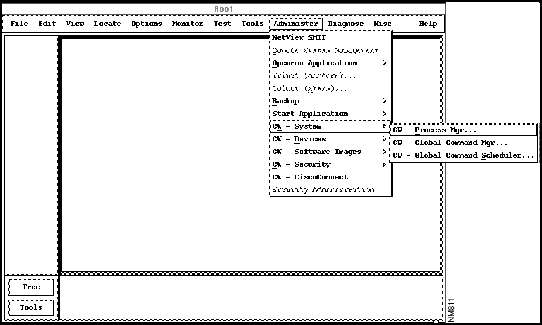
For example, to open the Process Manager application, select Administer> CW - System> and
CW - Process Mgr.
The online help system includes descriptions for all CiscoWorks menus and windows, including windows that do not have Help menus. You can view online help in the following ways:
- To start CW - Application Help from NetView for AIX, select Help>CW - Application Help. The CiscoWorks Help Contents window opens.
- Starting help from inside a CiscoWorks application.
- Select Help>On window_name from any CiscoWorks window that has a Help menu. The CiscoWorks Help Contents for that application opens.
- Starting help from the CiscoWorks Toolbox application:
- Press the F1 key while pointing to a CiscoWorks application icon in the Toolbox window. The CiscoWorks Help Contents for that application opens.
- To get help for a window that does not have a Help menu or get help for a menu:
- Start the Help system for that application from a window that has a Help menu, or use one of the other methods for starting the help system.
- The Contents page for each application, titled "Using Application_name," includes highlighted jumps to topics containing lists of all the windows and menus for that application.
- Click on the highlighted jumps, Application_name Windows or Application_name Menus, for information on windows and menus.
CiscoWorks applications require a database of network devices and a network map that contains these devices. NetView automatically displays a default map, called an IP Map, which shows all the IP devices connected to the local NetView system. The Manage Objects command enables you to find the devices in the primary network to which your system is attached. Use Manage Objects to view your network and a run-time database for NetView.
Note The amount of time Manage Objects takes to find devices on your network depends on the size of your subnetwork and the number of devices attached to it.
To run Manage Objects, perform the following steps:
- Step 1 Display the NetView Console by entering the following command:
% ovw
- Step 2 Click the IP Internet default map to open it.
- Step 3 Click a device symbol to select it.
- Step 4 Select Options>Manage Objects.
- NetView displays a submap of the selected device's children (that are reachable in one hop). Newly appearing children could have been newly added to the network or explicitly unmanaged by a previous user. All newly appearing child devices are accessible by CiscoWorks.
- Step 5 Select File>Save Map As to save the database of devices that you created.
- For detailed information on how to run Manage Objects, refer to the online help.
To add a Cisco device to your new network map, perform the following steps:
- Step 1 Display the network map.
- Step 2 Select Edit> Add> Object.
- The Add Object Palette appears.
- Step 3 In the Symbol Class area of the Add Object Pallette, click the Cisco Router icon.
- Step 4 From the Symbol Subclass area, use the middle mouse button to drag a specific Cisco device icon to the network map.
- The Add Object window appears.
- Step 5 Complete the Add Object window, then click OK to record information about the object you just added.
CiscoWorks utilizes two separate databases:
- The CiscoWorks database is managed by the Sybase database management system and is also called the Sybase database. It stores information about Cisco network devices, configuration details, and other data needed by each application.
- The NetView database is managed by NetView itself and is also called the network management system (nms) database. It stores information for NetView.
These two databases must be synchronized before NetView for AIX and CiscoWorks can operate in concert.
Use the CiscoWorks Misc> Sync w/Sybase application to synchronize database information. Sync w/Sybase performs the following functions to enable you to use CiscoWorks applications:
- Transfers information about Cisco devices from the CiscoWorks database to the NetView database
- Confirms that the device lists in the NetView and Sybase databases match one another.
Run Sync w/Sybase if you just initialized NetView and need to synchronize both databases. (Use Sync Selected when you want to synchronize one or more selected devices.)
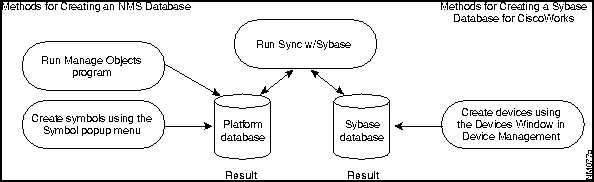
Figure 5-2 illustrates the relationship between the NetView and CiscoWorks databases. Although you can directly add device names to either database, you must run Sync w/Sybase to confirm that the information about a particular device is correct in both places.
Figure 5-2 Database Creation for NetView and CiscoWorks
For more detailed information about the database and the Sync w/Sybase and Sync with Platform applications, refer to the CiscoWorks online help on Sync w/Sybase. For more information about the AutoInstall Manager application, refer to the CiscoWorks online help on AutoInstall Manager.
After you finish creating a run-time database with network devices, follow these steps to run the Sync w/Sybase application:
- Step 1 Select Misc> Sync w/Sybase.
- The Sync w/Sybase window appears similar to that shown in Figure 5-3.
Figure 5-3 Sync w/Sybase Window
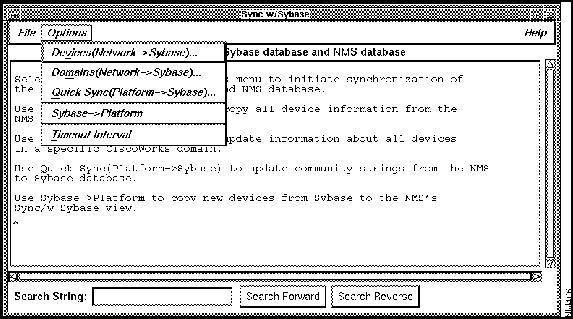
- Step 2 Select one of the following commands from the Options menu of the Sync w/Sybase window:
- Devices (Network--->Sybase)
- Copies the complete number and contents of database records from the NetView database to the Sybase database. These records might include information about the hardware platforms, community strings, and so forth. Allows you to choose the NetView device records that you want to add to Sybase. To select contiguous items, hold down the Shift key and click on additional device names, or drag through a range of names. To select noncontiguous items, hold down the Control key and select individual device names. With the device name(s) selected, click the Sync button.
- Domains (Network--->Sybase)
- Updates device records for the selected domain in the Sybase database. With the domain name selected, click the Sync button.
- Quick Sync (Platform--->Sybase)
- Creates entries in the Sybase database only for devices listed in the NetView database---but excludes specific information such as inventory details or hardware platforms. Use this command if you need the databases to quickly recognize the devices contained in each. Later, if you decide that you want the complete device information available from your network management platform (NetView), you can copy it with another command from the Options menu of Sync w/Sybase, or enter the information via the CiscoWorks Device Management application.
- Copies only the Sybase device records that did not yet exist in NetView into the NetView database. This is the inverse process of Devices (Network--->Sybase). When you use Device Management or AutoInstall Manager to add a device to Sybase, the device name is not recognized by NetView until you use Sybase--->Platform. Nor is the device name recognized if you add it to Sybase but do not add the symbol to NetView. If you delete a device from NetView, however, it remains as a record in Sybase until you manually delete it. A network symbol (circle) appears in your network map that lists the device records added from this process.
- Displays a dialog box where you can specify how much time can elapse before synchronization terminates and declares the device unreachable. You can also specify the default timeout using the X Resource timeout interval in your .Xdefaults file. The resource name is synchTimeout.

Timesaver First-time CiscoWorks users should run the Device (Network> Sybase) option to synchronize all device information. If you are a first-time user and want the quickest method of synchronizing, use Quick Sync, which synchronizes all the devices, with the warning that device information will not be complete. If you use Quick Sync, you may want to return to Sync w/Sybase when you have more time to use the Device (Network>Sybase) option to fill in the incomplete device information.
- Step 3 The synchronization process takes from 3 minutes to over an hour, depending on the size of the network and the number of devices you are synchronizing. Select File>Exit to stop the synchronization process at any time, or when synchronization is complete. The devices synchronized up to this point are saved in the Sybase database.
Network devices that are discovered by Manage Objects may be assigned generic or incorrect symbols. You must identify them as Cisco devices to take advantage of CiscoWorks functionality.
To use Change Symbol Type to change device status from generic to that of a Cisco device, perform the following steps:
- Step 1 Use the mouse to point to a Cisco device in the NetView Console window.
- Step 2 Press the right mouse button or equivalent.
- The Symbol menu pops up.
- Step 3 On the Symbol popup menu, Select Edit> and Change Symbol Type.
- The Change Symbol Type window appears, as shown in Figure 5-4.
Figure 5-4 Change Symbol Type
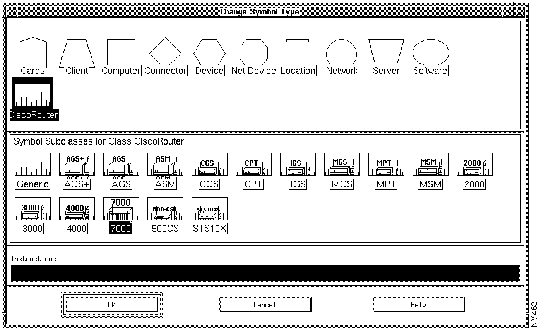
- Step 4 In the Symbol Class area of the Change Symbol Type window, click the correct symbol class of the selected device. For example, if the selected device in your network map is a Cisco 7000, select Cisco Router (because Cisco 7000 is a class of Cisco Router).
- Step 5 In the Symbol Subclasses area of the Change Symbol Type window, click a specific icon to represent the selected device. For example, if the selected device in your network map is a Cisco 7000, select the 7000 symbol.
- Step 6 Click OK.
- Step 7 Repeat Steps 1 through 6 to identify other devices on the network map.
- Step 8 Confirm that the selected devices have the correct SNMP community strings by viewing the SNMP Configuration window. Select Options>SNMP Configuration from the NetView menu bar.
The CiscoWorks Security Manager application can protect individual applications by requiring users to enter a username and password. For a detailed description of which CiscoWorks applications you can protect, refer to the CiscoWorks online help section on setting up domains and securing applications.
Note This security feature operates in addition to the basic AIX system security established for CiscoWorks during configuration of CiscoWorks. To pass basic AIX security, a user's name must be in the CiscoWorks group of users. If you start NetView for AIX without passing the AIX security check, CiscoWorks applications appear on the NetView menus but cannot be executed.
Each CiscoWorks application has varying levels of access privileges. Users are granted inherent privileges to certain applications (such as the ability to display devices) based solely on their group-domain associations. The CiscoWorks administrator governing Security Manager can grant further levels of "application-specific" privileges (such as adding or changing database information) to selected groups.
When security is enabled, each secured application requires a username and password every time you try to use it. If you use the CiscoWorks Login function, however, user identification is a one-time event and no password prompts appear during subsequent invocations of CiscoWorks applications. After you use Logout, a username and password prompt appears before every CiscoWorks application. Refer to the CiscoWorks online help section on Login and Logout.

Timesaver By using Login, you need log in only once. If you do not use Login, CiscoWorks requires user identification information (username and password) each time you attempt to start a secured application.
This section provides a general idea of how to use a CiscoWorks application. It uses the Path Tool application as an example.
To use the Path Tool application, you must have at least two network devices in the Sybase database. Use Sync w/Sybase to add network devices to the Sybase database.
To graphically display the routing path between two devices, perform the following steps:
- Step 1 In the NetView Console window, click an SNMP device and select Diagnose> Network Connectivity> CW - Path Tool.
- A window similar to that in Figure 5-5 appears. The Path Source field automatically displays the device you selected.
Figure 5-5 Path Tool Window
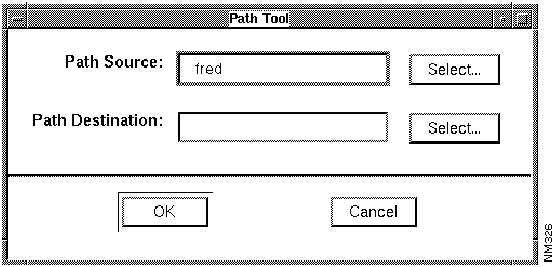
- Step 2 To select a destination device, click the Select button next to the Path Destination field or enter the complete device name in the Path Destination field.
Note Expect a delay after clicking the Select button.
- The Device Selection window appears listing the devices in the NetView database. It is similar to the window shown in Figure 5-6.
Figure 5-6 Device Selection Window
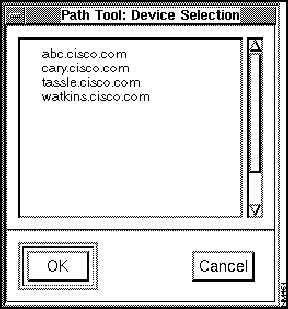
- Step 3 Click on the device that you want to specify as the destination, and click the OK button.
- The device name appears in the Path Destination field in the Path Tool window.
- Step 4 Click on OK in the Path Tool window to display the Path Tool Hops window.
- A browser window then appears (similar to the window shown in Figure 5-7), displaying the progress of the Path Tool as it makes each network hop from the source to the destination device.
Figure 5-7 Path Tool Window with Text
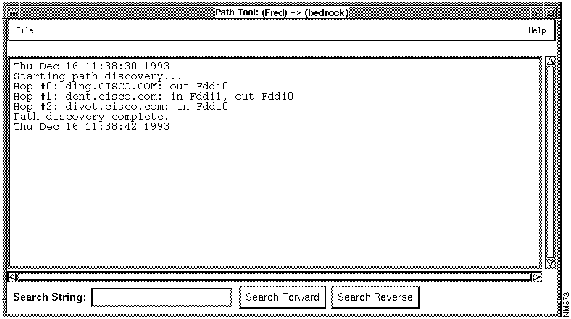
After the connection is established, another Path Tool window appears (similar to the window shown in Figure 5-8), graphically displaying the path between the source and destination devices you specified.
Figure 5-8 Path Tool Window with a Graphic Display
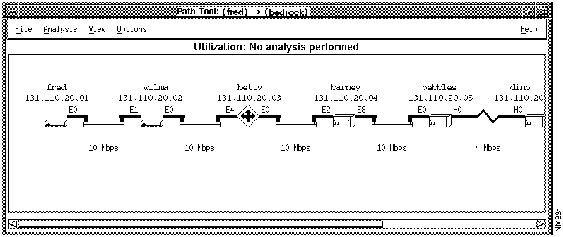
- Step 5 Select File>Exit to close the window.
For more information on how to use the Path Tool, refer to the online help for Path Tool.
Copyright 1988-1995
©
Cisco Systems Inc.



