
Table of Contents
Periodic Maintenance of CiscoWorks
Periodic Maintenance of CiscoWorks
Periodic maintenance includes
- CiscoWorks database maintenance---routine and as-needed maintenance
- De-installing CiscoWorks---in the event that CiscoWorks must be removed from a system
CiscoWorks databases are maintained by use of SMIT. Some maintenance tasks should be performed on a regular schedule, and others on an as-needed basis.
- Moving a database---If you must move a database from one directory to another (or from the control of one Sybase server to another) after configuration is complete, use this utility to inform CiscoWorks and/or Sybase of the changes.
- Enlarging a database---If CiscoWorks issues a warning message that a database is about to overflow, use this utility to extend its capacity.
- Backing up a database---Routine AIX system backups are not sufficient for backing up CiscoWorks or Sybase data. Typically on the same schedule as your routine AIX backups, use the backup utility to save the databases.
- Recovering a database---To restore a backed-up database after a system failure, or to load the image of a database on a new system, use the restore utility.
Use this SMIT utility (or /usr/nms/etc/cw_move_db) to move a Sybase database from one location to another. The move can be from the control of one Sybase server to another Sybase server on the same host or a different host, or from one directory to another under control of the same Sybase server. A local migration is a move in which the database stays under control of the same Sybase server.
A database can also be migrated from an AIX file system to a raw partition. This task must be performed as a nonlocal migration.
Before using SMIT to move a database, verify the following:
- That the destination Sybase server (which might be the same as the source server) is enabled to create and assign virtual device numbers to the device files being moved there
- If the destination Sybase server is different from the source server, that both servers are Sybase Version 10
- That the destination directory is writable and that its file system has sufficient space
To execute this utility, use SMIT as follows on the host of the destination Sybase server:
- Step 1 Log in as the root user.
- For details, see "Becoming the Root User" in the chapter "Preparing to Install CiscoWorks."
- Step 2 Start SMIT by entering the following at the command prompt:
hostname# smit
- Step 3 On the System Management menu, select Communications Applications and Services.
- Step 4 On the next menu, select Cisco Network-Management Applications for AIX.
- Step 5 On the next menu, select CiscoWorks-3.0.
- Step 6 On the next menu, select Maintain.
- Step 7 On the next menu, select Database Utilities.
- Step 8 On the next menu, select Move database.
- Step 9 Respond to the prompts:
Local Migration? (y/n)?[y] :
- If you respond n, go to Step 10. If you respond y, go to Step 13.
- Step 10 If this is not a local migration, continue here.
- Enter the name and password of the Sybase server that will control the database in the destination directory. The Sybase server you enter must be on the local host:
Enter the name of the destination SQL Server: SYBASE_DIFFERENT
Please provide the sa password for the SYBASE_DIFFERENT server.
Sybase sa password: password
- Step 11 Enter the name of the Sybase server that currently controls the database to be moved. To accept the default CW_SYBASE, just press Return.
Enter the name of the source SQL server: :[CW_SYBASE] : CW_SYBASE
- Step 12 If you have entered the same name for the source and destination Sybase servers, the utility gives you the opportunity to specify that the database is to be moved from a file system to a raw partition:
The source SQL server is identical to the destination SQL server.
Should this be considered a file system to raw partition

migration on the SAME Sql server? (y/n)?[y] :
- Enter y or n, and then skip to Step 14.
- Step 13 If this is a local migration, continue here.
- Enter the name and password of the Sybase server that controls the database in the source directory and which will control the database in the destination directory. The Sybase server you enter must be on the local host:
Enter the name of the SQL Server you wish to migrate: : CW_SYBASE
Please provide the sa password for the CW_SYBASE server.
Sybase sa password: password
- Step 14 Enter the names of the source and destination databases:
Enter the name of the source Database: :polldb
Enter the name of the destination Database: :polldb2
- The utility displays the values you entered and requests verification:
*************************
SQL Server: CW_SYBASE
Source Database Name: polldb
Destination Database Name: polldb2
**********************************
Are these values correct? (y/n)[y] :y
- Step 15 If the values are correct, enter y or press Return.
- SMIT now displays the name and size of each file involved in the selected database. For example:
You currently have 4 devices for the polldb database
      1    40 MB data only
      2    20 MB log only
      3    50 MB log only
      4    49 MB log only
Each device needs a corresponding device on the new database
Do you wish to continue? (y/n)?[y] : y
- Step 16 Enter y or press Return to continue the move process.
- Step 17 For each numbered device (file) involved in the selected database, SMIT prompts you to enter the directory to which you want it moved. Be sure to move each device file in a given database to the same directory.
Device location:
- After you specify a directory for each file, the Sybase server assigns a new virtual device number (vdevno) to each file. If Sybase cannot assign the vdevno because they are unavailable, the entire move process fails. In this case, configure Sybase to be able to create additional vdevnos and attempt this procedure again.
- Step 18 Terminate SMIT by pressing F12 or by clicking Exit SMIT on the Exit menu.
To execute this maintenance utility, use SMIT as follows:
- Step 1 Log in as the root user.
- For details, see "Becoming the Root User" in the chapter "Preparing to Install CiscoWorks."
- Step 2 Start SMIT by entering the following at the command prompt:
hostname# smit
- Step 3 On the System Management menu, select Communications Applications and Services.
- Step 4 On the next menu, select Cisco Network-Management Applications for AIX.
- Step 5 On the next menu, select CiscoWorks-3.0.
- Step 6 On the next menu, select Maintain.
- Step 7 On the next menu, select Database Utilities.
- Step 8 On the next menu, select Backup database.
- The Database Backup dialog appears, as shown in Figure 6-1.
Figure 6-1 Database Backup Dialog
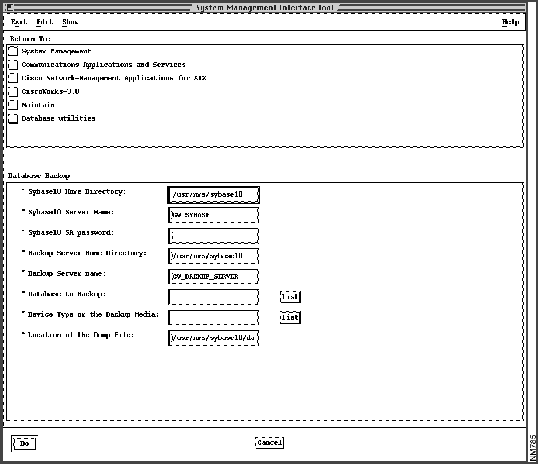
- Step 9 Accept the defaults or modify each of the following fields:
- Sybase10 Home Directory---Directory of the Sybase 10 database management system.
- Sybase10 Server Name---Name of the Sybase 10 data server.
- Sybase10 SA password---Sybase 10 system administrator's password, established during configuration of the server with SMIT.
- Backup Server Home Directory---Directory of the Sybase 10 backup server that will perform this backup.
- Backup Server name---Name of the Sybase 10 backup server that will perform this backup.
- Database to Backup---Click the List button to select one database to store on the backup medium (Sybase master database, CiscoWorks nms database, polldb database, or nms transaction log).
- Device Type or the Backup Media---Click the arrow buttons to select disk (the default), or tape.
- Location of the Dump File---If the device type is disk, enter the directory in which to place the backup file. If the device type is tape, enter the tape device on which to write the backup file. (If used, the tape device must be /dev/rmt0.1). Whether the backup is to disk or tape, the backup file is named cw_dump_databasenameMMDDYYHHMMSS.
- Step 10 Click Do, read the output, and then click Done.
- Step 11 Terminate SMIT by pressing F12 or by clicking Exit SMIT on the Exit menu.
To execute this maintenance utility, use SMIT as follows:
- Step 1 Log in as the root user.
- For details, see "Becoming the Root User" in the chapter "Preparing to Install CiscoWorks."
- Step 2 Start SMIT by entering the following at the command prompt:
hostname# smit
- Step 3 On the System Management menu, select Communications Applications and Services.
- Step 4 On the next menu, select Cisco Network-Management Applications for AIX.
- Step 5 On the next menu, select CiscoWorks-3.0.
- Step 6 On the next menu, select Maintain.
- Step 7 On the next menu, select Database Utilities.
- Step 8 On the next menu, select Enlarge database.
- The "Enlarge Database" dialog appears, as shown in Figure 6-2.
Figure 6-2 Enlarge Database Dialog
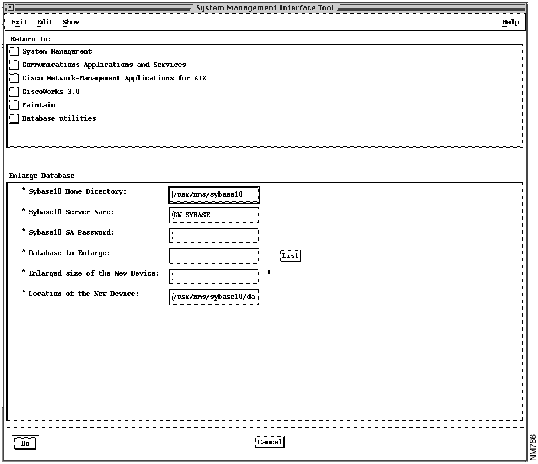
- Step 9 Accept the defaults or modify each of the following fields:
- Sybase10 Home Directory---Directory of the Sybase 10 database management system.
- Sybase10 Server Name---Name of the Sybase 10 data server.
- Sybase10 SA Password---Sybase 10 system administrator's password, established during configuration of the server with SMIT.
- Database to Enlarge---Click the List button to select one database to enlarge (tempdb, nms database, polldb database, nms transaction log, or polldb transaction log).
- Enlarged size of the New Device---New database size, in megabytes. The new size must be larger than the existing size.
- Location of the New Device---Directory of the newly enlarged database. If an enlargement fails due to lack of space in a file system, or if you want the newly created database to live in a different directory than the existing one, enter a directory name here. Otherwise, accept the default to locate the enlarged database in the same directory as the existing one.
- Step 10 Click Do, read the output, and then click Done.
- Step 11 Terminate SMIT by pressing F12 or by clicking Exit SMIT on the Exit menu.
If you must recover the master database, perform the following steps before using the SMIT-based procedure that follows. If you are recovering the nms or polldb databases, or the nms transaction log, do not perform the preliminary steps.
Perform this procedure before recovering the master database, but not before recovering any other database.
- Step 1 Log in as the root user.
- For details, see "Becoming the Root User" in the chapter "Preparing to Install CiscoWorks."
- Step 2 Log in to the Sybase server by entering the following on the command line:
hostname# $SYBASE/bin/isql -Usa -Padmin-password
- admin-password was set when you configured the Sybase server.
- Step 3 Ascertain the dataserver user processes by entering:
> sp-who
- A list of processes is displayed. The process numbers appear in the spid column.
- Step 4 Terminate each and every process by entering commands such as the following:
> kill 28
> kill 29
> kill 32
...
- Step 5 Log out from the dataserver:
> quit
- Step 6 Use SMIT to stop the Sybase dataserver. Refer to "Viewing CiscoWorks Daemons and the Sybase 10 Dataserver" in the chapter "Validating CiscoWorks Installation."
- Step 7 Start the dataserver in single-user mode by entering the following on the command line:
hostname# startserver -f data_server_name -m
- For example, enter:
hostname# startserver -f CW_SYBASE -m
- Step 8 Go to the next procedure, "To Recover Any Database."
To recover any database, use SMIT as follows.
- Step 1 Log in as the root user.
- For details, see "Becoming the Root User" in the chapter "Preparing to Install CiscoWorks."
- Step 2 Start SMIT by entering the following at the command prompt:
hostname# smit
- Step 3 On the System Management menu, select Communications Applications and Services.
- Step 4 On the next menu, select Cisco Network-Management Applications for AIX.
- Step 5 On the next menu, select CiscoWorks-3.0.
- Step 6 On the next menu, select Maintain.
- Step 7 On the next menu, select Database Utilities.
- Step 8 On the next menu, select Recover database.
- The Recover Database dialog appears, as shown in Figure 6-3.
Figure 6-3 Recover Database Dialog
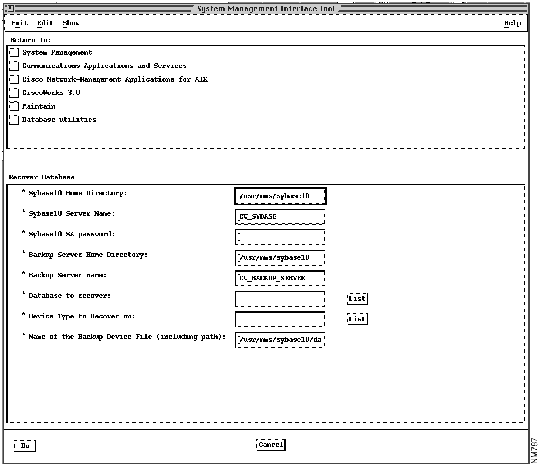
- Step 9 Accept the defaults or modify each of the following fields:
- Sybase10 Home Directory---Directory of the Sybase 10 database management system.
- Sybase10 Server Name---Name of the Sybase 10 data server.
- Sybase10 SA password---Sybase 10 system administrator's password, established during configuration of the server with SMIT.
- Backup Server Home Directory---Directory of the Sybase 10 backup server program.
- Backup Server name---Name of the Sybase 10 backup server program.
- Database to recover---Click the List button to select one database to recover (master database, nms database, polldb database, or nms transaction log).
- Device Type to Recover on---Click the arrow buttons to select the source of the backed-up database to be recovered: disk (the default), or tape.
- Name of the Backup Device File (including path)---If the device type is disk, enter the full path name of the backed-up database. If the device type is tape, enter the tape device on which to find the backed-up database. (If used, the tape device must be /dev/rmt0.1).
- Step 10 Click Do, read the output, then click Done.
- Step 11 Terminate SMIT by pressing F12 or by clicking Exit SMIT on the Exit menu.
If you must de-install all files related to CiscoWorks, perform these steps:
- Step 1 Log in as the root user.
- For details, see "Becoming the Root User" in the chapter "Preparing to Install CiscoWorks."
- Step 2 Start SMIT by entering the following at the command prompt:
hostname# smit
- Step 3 On the System Management menu, select Communications Applications and Services.
- Step 4 On the next menu, select Cisco Network-Management Applications for AIX.
- Step 5 On the next menu, select CiscoWorks-3.0.
- Step 6 On the next menu, select Maintain.
- Step 7 On the next menu, select De-Install CiscoWorks 3.0.
- The Deinstall dialog appears, as shown in Figure 6-4.
Figure 6-4 Deinstall Dialog with Multi-Select List Dialog
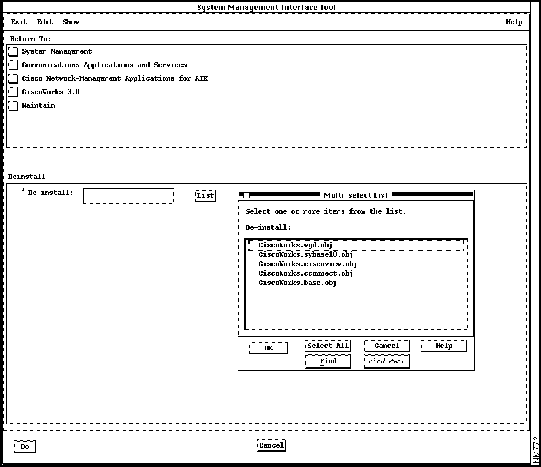
- Step 8 In the Deinstall dialog (shown in Figure 6-4), click the "De-install" List button.
- Step 9 In the Multi-select List dialog (also shown in Figure 6-4), select all five object names so that all are highlighted simultaneously, then click OK.
- Step 10 In response to the "ARE YOU SURE?" prompt, click OK.
- While the animated man is running, SMIT de-installs all files related to CiscoWorks.
- If the man raises his hands and SMIT displays OK, the de-installation process has succeeded.
- If the man falls on his face, de-installation has failed. Contact a TAC representative.
- Step 11 Terminate SMIT by pressing F12 or by clicking Exit SMIT on the Exit menu.
Copyright 1988-1995
©
Cisco Systems Inc.



