
Table of Contents
Starting VlanDirector Options
Starting VlanDirector Options
Chapter 3 describes how to start VlanDirector on a new known network. You can also start VlanDirector from an existing known network or from a configuration.
Starting VlanDirector from an Existing Known Network
To start VlanDirector from an existing known network, follow these steps:
Step 1 Start VlanDirector as if you were starting it for the first time from the command line or from the management platform; for example, enter the following on the command line:
vdirector
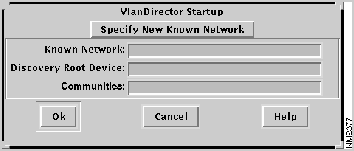
- The VlanDirector Startup window is displayed as in Figure C-1.
Figure C-1 : VlanDirector Startup Window
Step 2 Select Specify Existing Known Network from the pulldown list as shown in Figure C-2.
Figure C-2 : Startup Window Pull-Down List
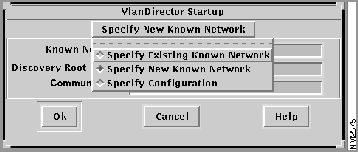
- The VlanDirector Startup window for an existing known network is displayed.
Figure C-3 : Starting VlanDirector on an Existing Known Network
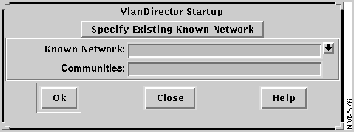
Step 3 In the Known Network field, enter a name for the known network that VlanDirector will discover. If your network supports VTP, the name must be the same name as the management domain name defined by VTP on one of the switches configured on your network as a VTP server. All Catalyst 5000s are by default configured as VTP servers. You can check the management domain names using the CLI on any switch.
Step 4 In the Communities field, enter the name of the communites file or the community strings for the known network as described below:
- If you have not changed the community strings for your switches (the default values are "public" for read-only, and "private" for read-write), complete the Communities field as follows:
-wr private
- If you have changed the default values of the read-only or read-write community strings, and the changed community strings are the same for all devices on the network, complete the Communities field as shown in the following example:
-rd light -wr day
- In this example, light is the read-only community string for all devices on the network and day is the read-write community string for all devices on the network.
- If you have changed the default values of the community strings, and the strings are not the same for all devices on the network, enter the name of the community string file for the network. If you do not have a file, create one using the format and examples provided in Appendix A.
- If you want read-only access to the switches, and if you have not changed the default values of public for the read-only string or private for read-write community string on any of your switches, leave the Communities field blank, and continue to the next step. With read-only access, you will not be able to perform configuration changes, such as adding ports to a VLAN.
Step 5 Click OK.
- The discovery process begins and the VlanDirector Names and Network Topology windows are displayed.
- The magnifying glass icon stops moving when the discovery is completed. The length of time that the discovery takes varies depending on your network. The average time is from 2 to 7 minutes.
- After the discovery process has been completed, the discovered network is displayed in the Network Topology window. Figure 3-2 shows an example of the Names and populated Network Topology window after you start VlanDirector.
Starting VlanDirector from a Configuration
To start VlanDirector with a configuration, follow these steps:
Step 1 Start VlanDirector as if you were starting it for the first time from the command line or from the management platform by entering the following on the command line:
vdirector
- The VlanDirector Startup window is displayed.
Step 2 Select Specify Configuration from the pull-down list.
- The VlanDirector Configuration window is displayed.
Step 3 In the Configuration field, enter the name of the configuration on which you want to start VlanDirector.
- The Names and Network Topology windows are displayed and show the selected Configuration.
Copyright 1988-1996 © Cisco Systems Inc.



