|
|

You can change VlanDirector operating characteristics and VLAN displays to suit your specific environment or needs. You can have the change take effect for the current session only, or have it take effect whenever VlanDirector is launched. This chapter describes the customizations you can make and how to make them.
Customizing Operating Characteristics
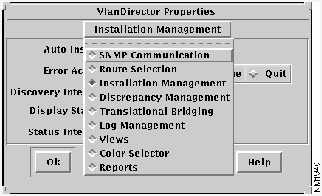
Most customizations or changes are made from the VlanDirector Properties window. If you want changes to take effect permanently, after you make the changes, in the Names window, select Save Program Properties.
To view or change current operating properties, do the following:
Figure 7-1 : VlanDirector Properties
When you restart VlanDirector, it will start up with the changed operating properties.
The Installation Management window displays the following VlanDirector operational values:
Auto Install
The Auto Install value indicates whether changes that you make to the known network are applied immediately (On) or not until you choose Action>Install All from the Names window (Off). The default value is On.
Error Action
The Error Action value specifies the action to be taken if an error occurs during installation. The default value is Back Out.
The Back Out value indicates that if an error occurs during installation, VlanDirector undoes all changes made and restores the network to its state before the installation was started.
The Continue value indicates that the installation should continue.
The Quit value indicates that installation should terminate but any changes made to the state of the network remain.
Discovery Interval
The Discovery Interval specifies the minimum time in seconds between discoveries. The process does not guarantee that the next discovery will follow the previous one by exactly the specified interval of seconds. Depending on what else VlanDirector is doing, it can be longer than the specified interval. It will never be shorter.
The default value is 300 seconds.
You need to restart VlanDirector for the changes to take effect.
Display Status
The Display Status displays (Yes) or hides (No) the port status in the VLAN Ports window. The default value is Yes.
Changes take effect the next time that you select an attributes window showing port status.
Status Interval
The Status Interval specifies the interval between each poll for port status when both Display Status is set to Yes and the VLAN Ports window is displayed. Reduce the status interval if you want the VLAN Ports window to update its status display more frequently than once every 60 seconds. The default status interval for VlanDirector is much greater, because VlanDirector causes much more network traffic polling for status than CiscoView.
Changes take effect the next time you select the VLAN Ports display.
The default value is 60 seconds.
The SNMP Communication window allows you to display or set the SNMP timeout value. This value specifies the time that the VlanDirector ANI waits for a response before timing out. The default value is 2 seconds.
A change to the timeout value takes effect on the next discovery.
As a guideline, the timeout value should be set to twice the average end-to-end delay in your network. If you have a network with several slow links, you might need to set the timeout to a higher value. If you have only LAN links in your network, a value of 2 seconds is reasonable to account for processing delays and timer accuracy.
The interactive route specifies if the Path Dialog window should be displayed whenever you add a port to a VLAN on a device which does not currently have a VLAN assigned.
If you set this value to Off, VlanDirector automatically assigns the path or paths over which packets for the new VLAN will flow from the device to devices on which the VLAN already exists.
The default value is On.
The Discrepancy Management window enables you to select the type of discrepancies that are reported.
The default value for all discrepancy types is On.
The Translational Bridging window enables you to specify whether VLANs created using the Create VLAN window are configured to perform translational bridging.
The default value is Off. This means that if you want to create a VLAN that bridges between an FDDI and Ethernet VLAN, you can still do so, but you must click the Advanced option in the Create VLAN window.
If you set Translational Bridging to On, VlanDirector assumes that every new VLAN that you create will perform translational bridging.
The Log Management window allows you to specify if and how logging is performed. The log file shows changes that were made to the network.
The Perform Logging option indicates if logging is to be performed. The default value is On.
The Log File Directory indicates the default path and directory where the log file is stored. You can change this by specifying an alternative location.
The New Log Interval field shows the default interval after which a new log file is created.
The default interval is seven days.
Restart VlanDirector for Log Management changes to take effect.
The Views window indicates if the Customize Menu in the VlanDirector views is available or not. Modifiable indicates that this menu is available. By default, this is selected. When Unselected, the option Customize>Modifiable is grayed out and unavailable in the view windows, and you will not be able to customize the window or move icons.
To customize an individual view, you also need to select Customize>Modifiable in the view that you want to customize before you can make changes.
The Color Selector allows you to change some of the colors in VlanDirector.
The following color values can be displayed and changed:
To change a color, click the down arrow next to the color field to display the list of available colors. You cannot enter a value in the color field. You must select one from the pull-down list.
The Reports window allows you specify whether reports printed will display Purpose and Description information specified when you first created the VLAN.
The default value for both options is Off.
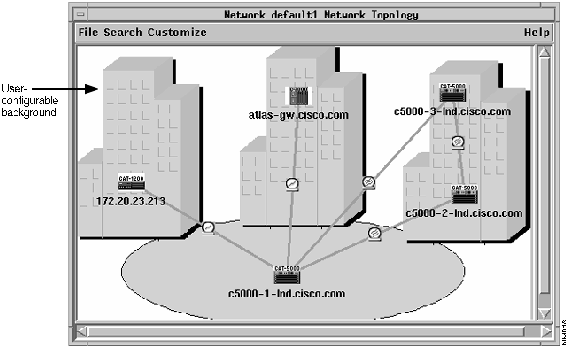
You can customize some display characteristics. To help you organize your display, you can move icons around and add decorations and backgrounds. A decoration is a bitmap used to indicate a nondiscoverable or nonmanageable item, such as a wiring closet, or to convey visual interest, such as a building to represent a campus location. You can add as many decorations as you want. A background is a bitmap usually used to cover all the display area. You can have only one background per display. To customize a topology, device, or port display, in the display window select Customize>Add Background. Figure 7-1 shows an example of a Network Topology window that has been customized with added decorations.
To add a background, follow these steps:
To add a decoration, follow these steps:
When the discovery process is completed, VlanDirector updates all displays with the most recently saved customizations. If you are doing a long customization with your display and are using a short discovery interval, save the display periodically while you are doing the customization.
Figure 7-2 shows an example of a customized topology window.
Figure 7-2 : VlanDirector Customized Network Topology Window
Copyright 1988-1996 © Cisco Systems Inc.