
Table of Contents
Installing Workgroup Director
on the IBM RS/6000
Installing Workgroup Director
on the IBM RS/6000
This chapter explains how to install Workgroup Director in your IBM RS/6000 and start it as a standalone application or from AIX NetView/6000. The chapter also includes instructions for removing Workgroup Director.
To install Workgroup Director, you must meet the following requirements:
- Be familiar with AIX and the SMIT (System Management Interface Tool) utility.
- Know your superuser password.
Use the SMIT utility to install Workgroup Director on your IBM RS/6000 as follows:
- Step 1 Log in to your system as root.
- Step 2 Insert the installation disk into the IBM RS/6000 floppy disk drive.
- Step 3 Enter smit to run the SMIT utility.
- Step 4 Select Installation and Maintenance.
- Step 5 Select Standard Installation and Maintenance.
- Step 6 Select Software Installation and Maintenance.
- Step 7 Select Install/Update Software.
- Step 8 Select Install Software With Updates.
- Step 9 From the Install Software With Updates menu, select List to display a list of available devices.
- Step 10 Select the disk drive from this list to automatically fill in the proper device name in the Input Device field.
- SMIT then displays the SMIT screen. You do not need to modify any entries on this screen.
- Step 11 To continue with the installation, click on the Do button at the bottom left of the window.
- An alert box asks for confirmation.
- Step 12 Click on the OK button to continue.
- A status window displays as the software is copied from the floppy disk. When the operation is completed, the status screen appears and displays "SUCCESS" in the Result column.
- Scroll through the message window to view the Success message.
- Step 13 Select Exit at the top of the screen.
The installation process is complete.
To start Workgroup Director as a standalone application, enter the following command:
wgd -h host [-c readCommunity] [-C writeCommunity]

[-t timeout] [-r retry] [-p port] [-P polling]
Following are explanations of the command options:
- -h host---The concentrator or workstation name or IP address. The name must be configured in the /etc/hosts file or NIS database.
- -c readCommunity---The string used for reading SNMP requests. The default is "public."
- -C writeCommunity---The string used for writing SNMP requests. The default is the same as the string for readCommunity.
- -t timeout---The number of seconds allowed for an SNMP request to respond. The default is 2 seconds.
- -r retry---The number of times to retry a request that has timed out. The default is 3.
- -p
port---The UDP port number. The default is 161.
- -P
polling---The polling interval. The default is 1 second.
If you want to change a default value when starting Workgroup Director, add the letter of the command (preceded by a hyphen), followed by a space, and then the new value. For example, if you want to change the read community string from public to cisco, enter the following command when starting Workgroup Director:
/usr/bin/wgd -h <host> -c cisco
You can start Workgroup Director from AIX NetView/6000 as follows:
- Step 1 Place the mouse pointer on the symbol representing any concentrator that is configured as a multiport repeater on AIX NetView/6000 or any workstation with a Cisco adapter. Use the left mouse button to display the symbol popup menu.
- Step 2 Select Workgroup Director from the Tools menu.
- The Workgroup Director display appears on the screen. Figure 31 shows an example of the Catalyst Workgroup Switch display.
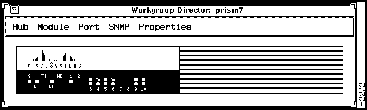
Figure 3-1 Workgroup Director Display
To remove Workgroup Director from the IBM RS/6000, do the following:
- Step 1 Log in to your system as root.
- Step 2 Enter smit to run the SMIT utility.
- Step 3 Select Installation and Maintenance.
- Step 4 Select Standard Installation and Maintenance.
- Step 5 Select Software Installation and Maintenance.
- Step 6 Select Remove Applied Software Products.
- Step 7 Enter WGD.obj in the SOFTWARE name field.
- Step 8 Select DO.
Copyright 1988-1995
©
Cisco Systems Inc.



