
Table of Contents
Installing a Cisco Internet Junction Client
Installing a Cisco Internet Junction Client
This chapter describes how to install Cisco Internet Junction client software on a personal computer or workstation, and includes the following sections:
To install IJ client software, you need the following:
- 80x86-based personal computer running one of the following operating systems:
- Windows 3.1, running in Enhanced mode
- Windows for Workgroups 3.11
- Windows 95
- IPX/SPX driver software
In addition, to ensure smooth installation and startup on a Windows for Workgroups operating system, you should check the IPX/SPX version numbers and check the compatibility of configured frame types.
The IJ client relies on the Novell IPX/SPX components and versions listed in Table 3-1.
Table 3-1 Required Versions of IPX/SPX Components
| IPXODI |
3.0 or later |
Windows 3.1 |
Typically installed in \NWCLIENT |
| LSL |
2.12 or later |
Windows 3.1 |
Typically installed in \NWCLIENT |
| NWIPXSPX.DLL |
4.10 or later |
Windows 3.1 |
Typically installed in \WINDOWS or \WINDOWS\SYSTEM |
| VIPX.386 |
1.19 or later |
Windows 3.1 |
Typically installed in \WINDOWS or \WINDOWS\SYSTEM |
To determine the version numbers of your files, you can download the Novell Technical Support (NTS) Windows Diagnostics tool, ntswd.exe. This tool is in a self-extracting file named windr2.exe located at Novell's FTP site, ftp.novell.com/pub/netwire/novfiles/.
If your installed Novell files are outdated, you can download new files from NetWire, CompuServe, or ftp.novell.com.
On Windows for Workgroups computers, the NWLINK component supplied by Microsoft must interoperate with the IPX/SPX component supplied by Novell. These components use different configuration files, but both configuration files must specify the same frame type. Mismatched frame types are a common source of problems.
Take the following steps to ensure that the IPX/SPX frame type and the NWLINK frame type are set to the same value:
- Step 1 Use a text editor to open the file NET.CFG.
- Step 2 Find one or more of the following lines, which configure the IPX/SPX frame type. If there are no similar lines, type in the line that specifies the Ethernet frame type used on your network.
Frame Ethernet_802.3
Frame Ethernet_802.2
Frame Ethernet_II
Frame Ethernet_SNAP
- Step 3 Immediately below the lines displayed in Step 2, find one or more of the following lines. If the line is missing, type in the line that specifies the IPX frame type used on your network:
Protocol IPX 0 Ethernet_802.3
Protocol IPX E0 Ethernet_802.2
Protocol IPX 8137 Ethernet_II
Protocol IPX 8137 Ethernet_SNAP
- Step 4 Note these values and close the file.
- Step 5 Open the file PROTOCOL.INI, where NWLINK is configured. If there is no PROTOCOL.INI file, create one in the Windows directory.
- Step 6 Find the section labeled [NWLINK]. If there is no NWLINK section, create this section header.
- Step 7 If there is a line in the NWLINK section starting with FRAME=, make sure that it specifies the same frame type that you noted in NET.CFG. (Note that the format of the lines differs slightly, as shown in Table 3-2.) If the frame types are the same, close the file, exit the text editor, and proceed to the next section, "Running the Setup Program."
- Step 8 If there is no line starting with FRAME=, or if the frame type specified does not match the frame type in NET.CFG, edit PROTOCOL.INI, using the format shown in Table 3-2.
- Step 9 Close the file and exit the text editor.
Table 3-2 NET.CFG and PROTOCOL.INI Frame Formats
| Protocol IPX 0 Ethernet_802.3 |
FRAME=ETHERNET_802.3 |
| Protocol IPX E0 Ethernet_802.2 |
FRAME=ETHERNET_802.2 |
| Protocol IPX 8137 Ethernet_II |
FRAME=ETHERNET_II |
| Protocol IPX 8137 Ethernet_SNAP |
FRAME=ETHERNET_SNAP |
From the Windows File Manager, run A:SETUP to install IJ client software. The Setup program asks whether you want to run Express Setup or Custom Setup.

Timesaver On a NetWare network, you can avoid installing IJ client files on every computer by installing them on the NetWare file server. Place the files in a public folder that is on the search path, such as F:\PUBLIC.
If you choose Express Setup, the Setup program takes the following actions:
- Searches the directories in the search path for existing files named WINSOCK.DLL and displays the name of each file found.
- Because IJ client software requires a customized WINSOCK.DLL file, there must be only one file with that name. Allow the Setup program to back up the existing WINSOCK.DLL files, or exit from Setup.
- Updates the SYSTEM.INI file on Windows 3.1 and Windows for Workgroups systems. (This step is unnecessary in Windows 95.)
- Adds the following lines to the [386Enh] section:
device=vipx.386
TimerCriticalSection=10000
- Adds the following section to the file:
[vipx]
VipxMappingPages=20
VipxFailOverSizedPackets=ON
- Updates the WIN.INI file with the following lines:
[Internet Junction Client]
Preferred Gateway=Any
- IJ client software first tries to connect the client to the preferred gateway. The default value, Any, allows the software to automatically pick a gateway from among those available. You can change this value later, as described in the chapter "Advanced Configuration of Cisco Internet Junction."
- Copies the IJ client files IJCLIENT.EXE and WINSOCK.DLL from the floppy disk to the Windows directory.
- Creates a Cisco Internet Junction program group and icons.
- Asks you to reboot the computer so that configuration file changes can take effect.
If you choose Custom Setup, the Setup program takes the following actions:
- Searches the directories named in the PATH variable for existing files named WINSOCK.DLL and displays the name of each file found.
- Because IJ client software requires a customized WINSOCK.DLL file, there must be only one file with that name. Allow the Setup program to back up the existing WINSOCK.DLL files, or exit from Setup.
- Updates the SYSTEM.INI file on Windows 3.1 and Windows for Workgroups systems. (This step is unnecessary on Windows 95.)
- Adds the following lines to the [386Enh] section:
device=vipx.386
TimerCriticalSection=10000
- Adds the following section to the file:
[vipx]
VipxMappingPages=20
VipxFailOverSizedPackets=ON
- Allows you to change the target directory for IJ client files.
- Allows you to specify the client's preferred gateway.
- IJ client software first tries to connect the client to the preferred gateway. The default value, Any, allows the software to automatically pick a gateway from among those available. You can change this value later, as described in the chapter "Advanced Configuration of Cisco Internet Junction."
- Updates the WIN.INI file with the following lines:
[Internet Junction Client]
Preferred Gateway=gateway-name
- Copies the IJ client files IJCLIENT.EXE and WINSOCK.DLL from the floppy disk to the Windows directory.
- Creates a Cisco Internet Junction program group and icons.
- Asks you to reboot the computer so that configuration file changes can take effect.
After your computer has rebooted, start the IJ client by double-clicking its icon.
The window shown in Figure 3-1 appears, displaying diagnostic information.
Figure 3-1 Client Status Window
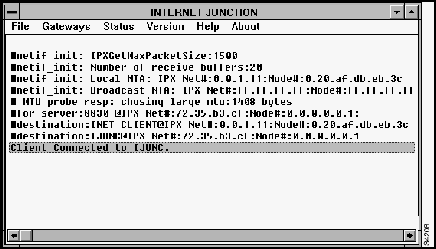
When the client connects to a gateway, a message appears identifying it. For example, if the client connects to gateway IJUNC, the following message is displayed:
Client Connected to IJUNC
You have installed IJ client software and confirmed that the IJ client and gateway work together successfully. You can now install and run any of the applications listed in the appendix "Applications Certified for Use with Cisco Internet Junction," or other Winsock 1.1--compliant applications.
Once IJ client software is running, you do not usually need to start or stop it explicitly. When any Winsock 1.1--compatible application starts, the IJ client automatically starts and connects to a gateway on behalf of the application. When applications shut down and the client is idle, the IJ client automatically exits.
See the chapter "Advanced Configuration of Cisco Internet Junction" for information about additional software features.
Copyright 1988-1996 © Cisco Systems Inc.



