


|
|

Installing a Cisco Internet Junction Gateway
This chapter describes how to install the Windows NT version of Cisco Internet Junction gateway software and includes the following sections:
Installing IJ gateway software before moving on to the IJ client simplifies verification and troubleshooting.
To install IJ gateway software, you need the following:
For Internet access, make the following additional preparations:
NWLINK is the Windows NT implementation of IPX. If you have not already done so, take the following steps to configure NWLINK:
Take the following steps to enable the IJ gateway computer to broadcast SAP messages so that IJ clients can find it:
Before you install the IJ gateway, you need to verify that TCP/IP and IPX network services are running.
To verify that TCP/IP is running, go to an MS-DOS window and ping a host. The PING command attempts to connect with a specified computer and return information to you about its status. It accepts a host name, IP address, or domain name as an argument. With a connection to the Internet, you can check your connection to any external domain name.
For example, to check the connection to cisco.com, enter the following command at the MS-DOS prompt:
ping cisco.com
If TCP/IP is running, PING responds with the status of your connection to the Cisco host computer.
If there is a NetWare server on the network, take the following steps to verify that NWLINK IPX/SPX is running:
If one or more NetWare servers are listed, NWLINK IPX/SPX is working.
From the Windows File Manager, run A:SETUP to install IJ gateway software. The Setup program asks whether you want to run Express Setup or Custom Setup.
Both Express Setup and Custom Setup ask for your license key, which can be found on the floppy disk envelope. Entering an invalid key causes the license to default to two users.
If you choose Express Setup, the Setup program takes the following actions:
If you choose Custom Setup, the Setup program takes the following actions:
If you do not install the gateway as a Windows NT service, you can start the gateway manually by double-clicking the IJ gateway icon.
To check the status of the IJ gateway, double-click on the gateway icon. The window shown in Figure 2-1 appears.
Figure 2-1 Gateway Status Window
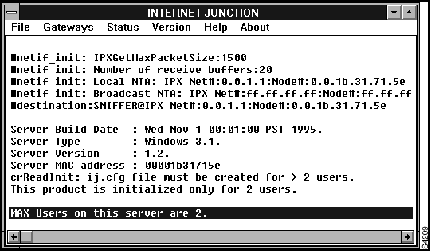
Click on the Status menu item. A line similar to the following appears:
IPX bcast packet counts: in:0, out:4
This line displays the count of inbound and outbound IPX broadcast packets. A gateway regularly broadcasts SAP messages, so if the count of outbound packets is greater than zero, the IJ gateway is broadcasting its presence.
You have now installed IJ gateway software. To proceed with your installation, see the chapter "Installing a Cisco Internet Junction Client."
See the chapter "Advanced Configuration of Cisco Internet Junction" for information about additional software features.

|
Copyright 1988-1996 © Cisco Systems Inc.