


|
|

This chapter describes two methods for accessing StrataView Plus. You can perform a full startup which presents the SV+ desktop and HP OpenView features, or you can perform a partial startup which presents only the SV+ desktop tools. You can also incorporate other functionality into your startup by using the database, statistics, or SNMP agent options of the SV+ Main Menu.
A logon at the StrataView Plus workstation results in display of the SV+ Main Menu. You use this menu primarily to initiate the SV+ core processes and, occasionally, access the SV+ desktop window. You can also use this menu to start SNMP Agents, include database details, or present the statistics GUI, and configure INS.
Main Menu
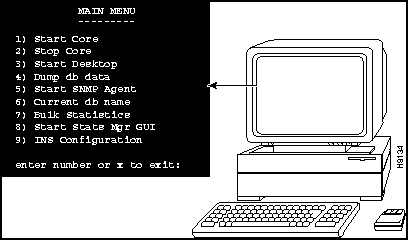
| 1) Start Core | Use this menu option to initiate StrataView processes. |
| 2) Stop Core | Use this menu option to cease StrataView processes |
| 3) Start Desktop | Use this menu option to present the StrataView Plus desktop window. |
| 4) Dump db data | Use this menu option to provide an additional database in your SV+ startup. After you select this menu, the system prompts for the name of the database: |
| If you do not recall the name of the database you want to load, use Database Name Search (see Chapter 10). | |
| Once you have entered the name of the database, you can start up SV+ with the designated database by using the 1) Start Core command from the Main Menu. | |
| 5) Start SNMP Agent | Use this menu option if you are authorized to use the StrataView Plus Simple Network Management Protocol (SNMP) Proxy Agent. This agent enables read-access of the local SV+ database to remote network managers. |
| 6) Current db name | Use this selection to see the name of the database currently loaded on SV+. |
| 7) Bulk Statistics | Select this menu option, prior to starting the StrataView Plus core, to change the StrataView Plus default statistics collection mode, from individual statistics collection to group statistics collection. |
| 8) Start Stats Mgr GUI | Use this menu option to present the SV+ Statistics Manager window. See Chapter 5, "StrataView Statistics Manager" for more information about the Statistics Manager window. |
| 9) INS Configuration | Use this menu to present the ANI Configuration Interface selection screen. Guidelines for using INS functions are provided in the INS Dial-Up Frame Relay Operations Guide. |
This section describes how to execute either a full or partial startup at the StrataView Plus workstation. If you want the complete toolset, do the full startup. If you want the SV+ Desktop only, do the partial startup.
During a full SV+ startup process, you will need to display two C Shell windows on your workstation screen. You will present the Main Menu to start core processes at one of these windows. At the other C-shell, you will access the HP OpenView environment which leads to the StrataView Plus desktop.
svplus
svplus
SV+
1
cd /usr/OV/bin
ovw
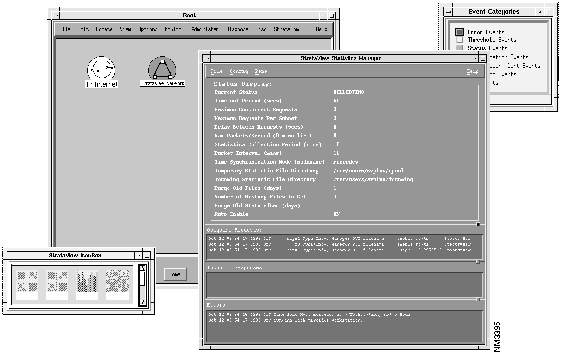
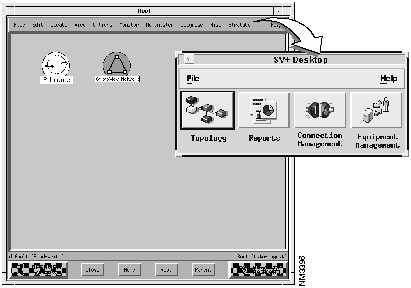
During a partial SV+ startup, you will present the Main Menu to start core processes, wait for completion, and use the Main Menu to start the SV+ desktop.
svplus
svplus
SV+
1
3
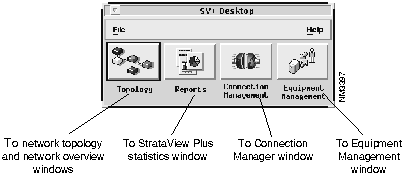
Presentation of the StrataView Plus Desktop dialog window provides access to the principle NMS applications. Buttons on the SV+ Desktop launch the toolsets you need for specific network management, monitoring, and administration tasks. Use the SV+ Desktop menu bar to either exit the window or access help, see Figure 2-1.
Figure 2-1 : SV+ Desktop Menu Bar
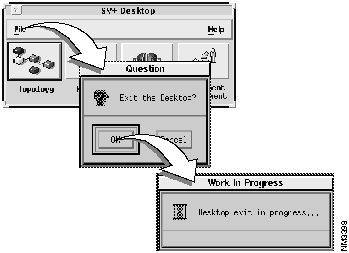
File -- Exit Menu
Use this menu to terminate all desktop processes and exit the SV+ desktop window.
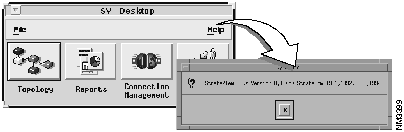
File -- Help -- On Version Menu
More than one workstation can run the StrataView Plus GUI. Licensed workstations operating on a common LAN log in to HPOpenView and access the SV+ desktop from the HPOpenView Menu Bar.

|
Copyright 1988-1996 © Cisco Systems Inc.