


|
|

This chapter describes the menus and commands of the SV+ network topology toolsets. The N/W Topology map is presented when you select the Topology icon of the SV+ Desktop window. To learn more about HP OpenView Topology, see Appendix D in this manual.
Figure 3-1 : SV+ Network Topology Window
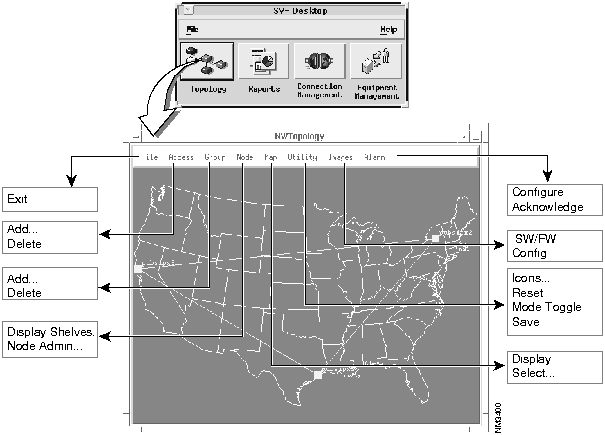
Topology tools include the commands contained within the menus at the network topology menu bar as well as those generated from selected nodes. Other tools are the alarm indicators (sound and color) which provide timely indications of network status
Network Topology Maps and Objects
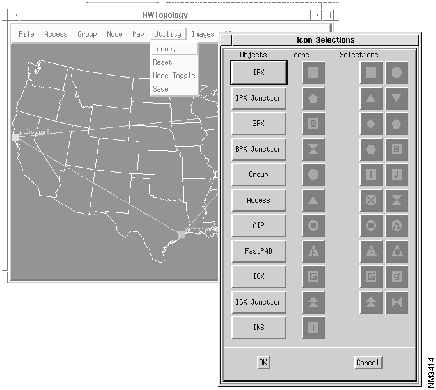
IPX/BPX networks can contain ten types of icons, each of which is displayed on the topology map with its name or node ID. You select node-specific icons with the N/W Topology - Utility - Icons... menu which is described later in this chapter. You can also place an icon on your map to represent the INS/DAS.
| BPX node | These icons are associated with the BPX broadband ATM switch. A BPX node provides backbone ATM switching and integration of multiple user services, such as ATM frame relay, SMDS, and circuit emulation. |
| BPX junction node | A BPX designated to internetwork with another domain in a structured network.
|
| IPX node | These icons correspond to IPX 8, IPX16, or IPX 32 narrowband ATM switches in your network. An IPX 8 contains a single shelf with 8 card slots and is typically used at the periphery of networks in smaller sites where traffic is lighter. The IPX 16 and IPX 32 are network backbone systems for large sites with multiple trunks and considerable local traffic requirements. An IPX which is positioned as a feeder within the network is not represented by a topology icon. |
| IPX junction node | An IPX designated to internetwork with another domain in a structured network. |
| FastPAD | Associated with a member of the FastPAD family, including FastPAD, FastPADmicro, FastPADmp, and the FastPADlmp. A FastPAD integrates voice and data over frame relay services or fractional T1/E1 leased lines. |
| AIP node | You use one of these icons to represent a node which is attached to a BPX. |
| Access node | These nodes are displayed as connections to IPX nodes. You can access the properties of a selected access node but, unlike the IPX and BPX nodes and trunks, there are no associated states for access nodes. |
| IGX node | These icons correspond to the IGX 16 and/ IGX 32 multiservice ATM switches in your network. These are network backbone nodes for large sites with multiple trunks and heavy local traffic requirements where a large number of physical ports and gigabit scale throughput are required. |
| IGX junction node | An IGX designated to internetwork with another domain in a structured network. |
| INS Server | This icon is associated with the INS/DAS (Intelligent Network Service/Dial Access Server) which handles new call processing requests, dialup frame relay, dial backup, and criteria for connection initiation. |
| DNS | Dynamic Network Switching node icon represents a DNS node attached to either an IPX or IGX node. Instructions for adding the INS/DNS icon to the HP topology map are provided in the DNS Installation and Operations Manual. |
Select Objects in the Topology Window
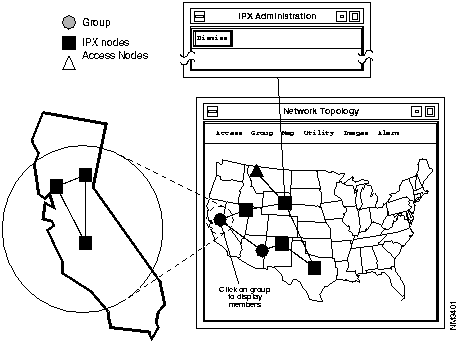
To select objects on the Network Topology map, position the cursor on the object and click the left mouse button. If you click on an IPX, BPX, or access node, you connect to that node and an Administration Window is displayed.
If you click (without movement) on a group, the system zooms and the display centers on the members of the group.
The left mouse button is also used to select menus from the menu bar, and for general window manipulation (shrinking, expanding, and stacking).
Figure 3-2 : Selecting Objects
Zoom Display of Topology Objects
Press the left mouse button and move the mouse over the map area you want to zoom into. When you release the mouse button, the display zooms into the region that you selected.
Figure 3-3 : Zooming in on Objects
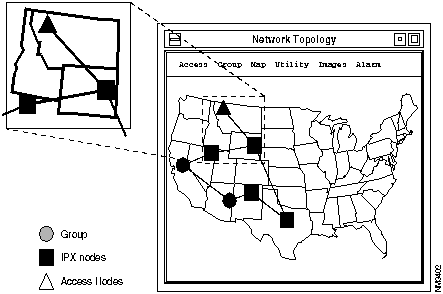
Zoom back out by selecting the Reset command under the Utilities pull-down menu.
To move objects on the topology map, select an object and drag the pointer with the left mouse button, then release it at the desired destination. Clicking and dragging does not connect to nodes; it simply moves and repositions the object on the screen.
Figure 3-4 : Moving Topology Objects
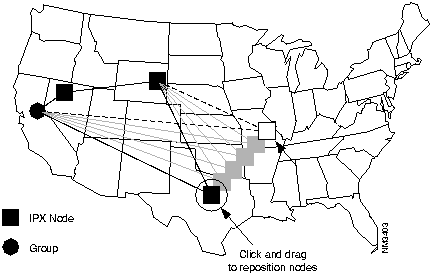
The move object function is used to rearrange objects on the StrataView Plus Topology map. You need to use this function whenever you add new nodes to your network because the node icons cluster into the left corner of the screen until you move them. Once an object is moved, you can use the Save command in the Utility pulldown menu to save the current display arrangement.
Press and hold the middle mouse button to move (pan) the topology display. The amount and direction of the pan is controlled by how long and in what direction you drag the mouse.
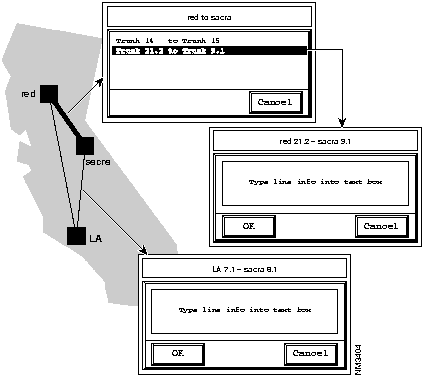
When you click on a trunk, a window appears with user-defined information, such as carrier data, trunk id and type, etc. If there is no existing information for the trunk you selected, a comment can be added to the displayed text box. Selecting an existing comment allows you to edit or delete it. Select the desired trunk for information display, and the dialog box that allows you to enter trunk information is then displayed.
Figure 3-5 : Viewing Trunk Comments
The following sections provide information on working with the topology display pulldown menu functions. The descriptions that follow are presented in order as you look at the pulldown menus from left to right in the Network Topology window:
N/W Topology - File - Exit Menu
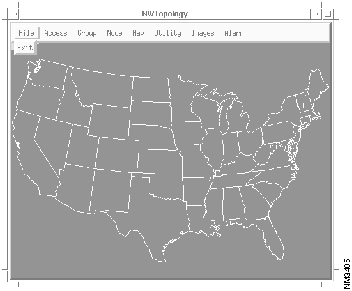
Use this menu to exit the Network Topology Map without shutting down StrataView Plus processes. StrataView Plus continues to collect data even though the workstation screen is cleared of the topology windows.
Figure 3-6 : Exiting Network Topology Window
N/W Topology - Access - Add... Menu
Use this menu to install an access node on the topology map. This menu presents the Add Access Node window.
Figure 3-7 : Add Access Node Menu
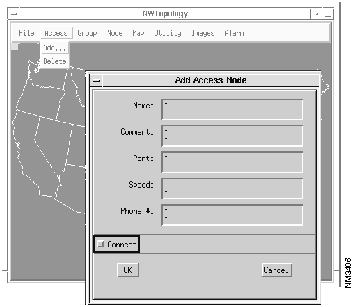
| Name | Type the name of the access node that you are adding. If this field is left blank, the window will be untitled. |
| Comment | Type a description of the equipment (such as feeder MUX).
PortType the UNIX logical device that is attached to the access node. (such as /dev/tty03 for an RS-232 interface, or /dev/ttyDD for a LAN interface). |
| Speed | Type the baud rate for the (async) port. Acceptable values are: 300, 1200, 2400, 9600, or 192000 bps. |
| Phone # | Type a phone number for the system to use when autodialing the auxiliary equipment, or leave this field blank for direct connection. |
N/W Topology - Access - Delete Menu
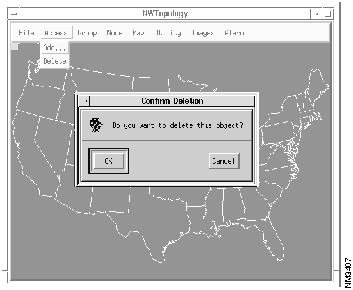
Use this menu to remove a selected access node from the topology map. The Access-Delete command converts your cursor to a skull-and-crossbone symbol. Use this cursor to select the node targeted for deletion.The Confirm Deletion dialog window appears following your selection. Click the OK button on this window to complete the delete process.
Figure 3-8 : Removing Access Node
N/W Topology - Group - Add... Menu
Use this menu to either create a new group or to add a selected network device to an established group.
This menu converts your cursor to an umbrella symbol. With this cursor, select the network icon targeted for grouping. The Add Group dialog box then appears.
Figure 3-9 : Adding Topology Groups
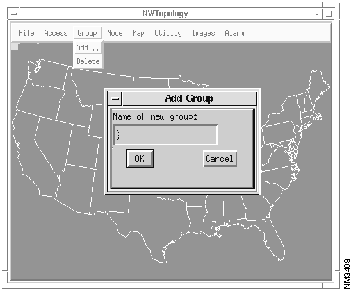
| Name of new group: | Type the name by which the group can be identified on the topology map. When OK'd, your entry is immediately displayed on the Network Overview map, and recorded at the SV+ Event Log |
N/W Topology - Group - Delete Menu
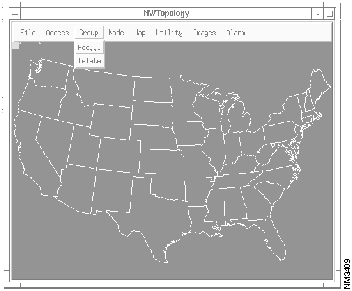
Use this menu to separate the members of a group. Following the Group-Delete operation, each member that formerly belonged to the selected group is displayed as a separate object on the topology map.
This menu converts your cursor to a skull-and-crossbones symbol. With this cursor, select the group targeted for deletion and click OK on the confirmation dialog box to complete this operation.
Figure 3-10 : Deleting Topology Groups
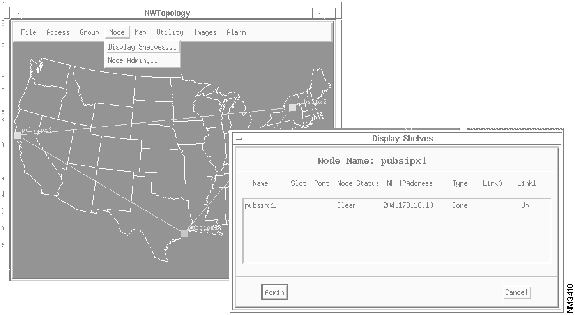
N/W Topology - Node - Display Shelves... Menu
Use this menu to display the interface devices attached to the selected routing node. To present the Display Shelves dialog window, click on a node within the topology map prior to selecting the Display Shelves... menu
Figure 3-11 : Displaying Shelves Attached to Window
N/W Topology - Node Admin... Menu
Use this menu to present the Node Administration window. This window provides a virtual terminal session to enable command line interface activities to a selected node. You can also use this window to interface with selected access devices, such as a FastPAD feeder MUX and an AIP, that are attached to network nodes The commands acceptable in this window are documented in the Commands Reference Manual. For an NMS with several local and/or remote connections to the network, one window for each connection may be opened.
Figure 3-12 : Node Administration Window
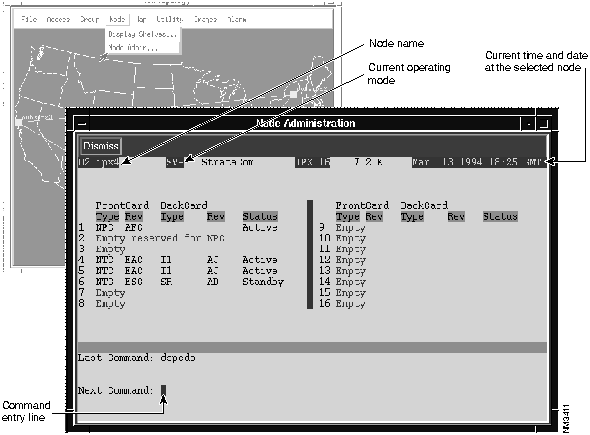
| Dismiss | Use this menu to close the Node Administration window. |
| Last command: | Displays the command used prior to your next command entry. |
| Next command: | Type a command in this field. To cancel an IPX/BPX command entered in the Node Administration window, press SHIFT DELETE (the default key sequence to abort a CLI operation). |
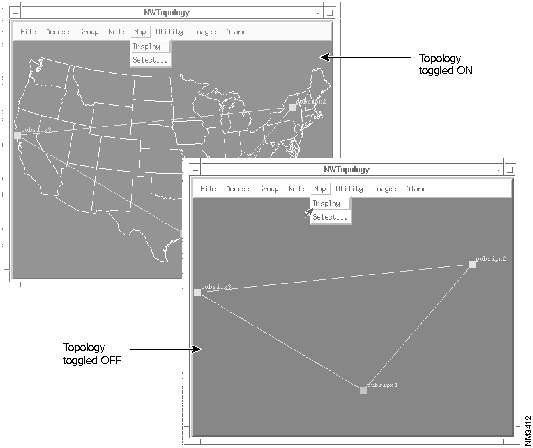
N/W Topology - Map - Display Menu
Use this menu to toggle the display of the background map to either ON or OFF. If you want to change the type of map shown in your topology work area, use the Map Select menu.
Figure 3-13 : Addubg a Background Map to Topology Window
N/W Topology - Map - Select Menu
Use this menu to define the background map display for your topology window. This menu presents the Select Map dialog window.
Figure 3-14 : Selecting Desired Map
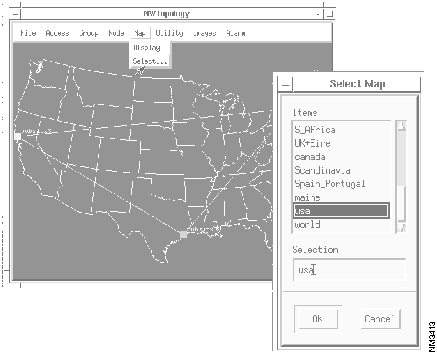
| Items | Use this area to view the available maps you can select for your topology map background. Left click on the name of a map to begin the selection process. |
| Selection | This field displays the name of your selection. You can confirm this selection by clicking the OK button, or abort by clicking the Cancel button. |
N/W Topology - Utility - Icons... Menu
Use this menu to define the icons you use to depict network objects on your topology map. Selection of an icon type globally affects established icons for specific network objects.
If you want to save this selection, click on Save in the Utility pulldown menu. This will preserve the selection in the event that you quit StrataView Plus.
Figure 3-15 : Defining Icons for Topology Map
N/W Topology - Utility - Reset Menu
Use this menu to force a complete update of the workstation screen. The reset function redraws the display and restores zoom to the default level.
N/W Topology - Utility - Mode Toggle Menu
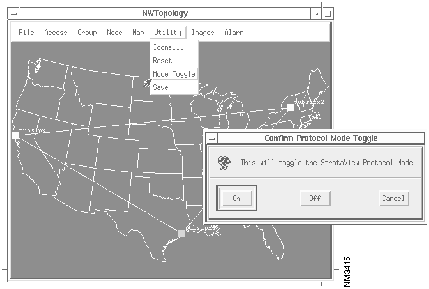
Use this menu to toggle SV+ operation to either protocol mode or TRM mode
Protocol mode provides all StrataView Plus capabilities and is the correct operation mode for day-to-day activities. You can verify that StrataView Plus is operating in StrataView Plus mode by looking for SV+ in the upper line of the Node Administration screen.
TRM mode provides only a VT100 terminal interface window to the BPX/IPX. The TRM mode is occasionally used during initial equipment setup to provide a low-level interface, or to communicate at boot level on the BPX/IPX.
Figure 3-16 : Protocol or Terminal Mode
N/W Topology - Utility - Save Menu
Use this menu to store StrataView Plus configuration information to the database without exiting StrataView Plus. A save operation preserves the current map, disposition of the background map, and current configuration of the network objects.
NW Topology - Images - SW/FW Menu
Use this menu to view the list of current software images. The images shown in the dialog window are available from the SV+ hard disk
Figure 3-17 : List of Software and Firmware Images
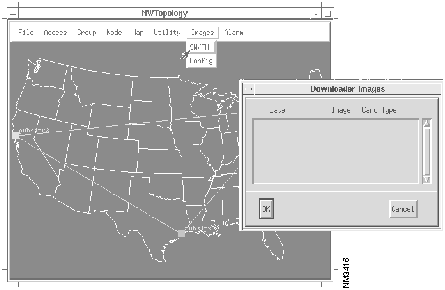
During IPX/BPX node initialization, the node attempts to locate the correct version of software or firmware, or image, from Flash EPROM. If the image is not located there, the SV+ workstation is then interrogated. Failure to find the image at the SV+ workstation results in interrogation of other nodes on the network. If the system is unable to locate the image, you may need to download or restore the image.The Images menu enables software and firmware downloads and restoration of previous BPX/IPX configurations to your BPX/IPX nodes. Downloading commands are issued from the Node Administration window. Contact StrataCom ISC for further information
The StrataView Plus Downloader simplifies the distribution of software and card firmware to IPXs and BPXs in the field. This is accomplished by providing download capability from a single point to an entire network.
IPX and BPX nodes can download software from one of the following three places:
To store an BPX/IPX software release (image), you copy the IPX (NPC or PCC) or BPX (BCC) software release from tape to the SV+ workstation hard disk. A list of the stored software images can then be viewed from the Network Topology window via the Images SW/FW menu. Images can then be loaded to system nodes by using commands at the Node Administration window.
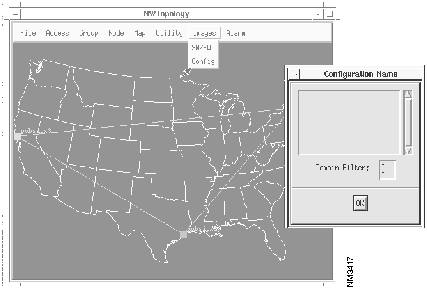
N/W Topology - Images - Config Menu
Use this menu to present the Configuration Name dialog window. Use this window to view IPX BRAM configurations that may be used to restore a previous or current IPX configuration.
Figure 3-18 : Battery RAM Configurations
N/W Topology - Alarm - Configure Menu
Use this menu to set the frequency of alarm beeps. This menu presents the Audible Alarm Configuration dialog window.
StrataView Plus generates audible alarms as a result of either topology or statistics collection alarms.The default time for how long the alarms will continue to sound may be set. The alarms may also be turned on or off.
Figure 3-19 : Audible Alarm Configuration Menu
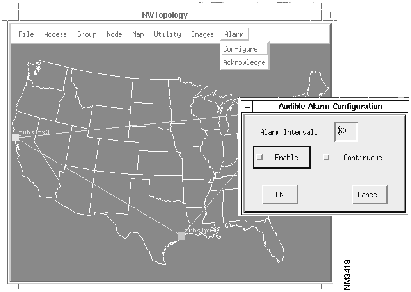
| Alarm Interval Default: 60 | Type the number of seconds to pass between alarm sounds |
| Enable Default: OFF | Toggle this button to ON to hear alarm sounds.
Toggle this button to OFF to remain silent during alarms. |
| Continuous Default: OFF | Toggle this button to ON to bypass the alarm interval setting, and to sound an alarm continuously until acknowledged. |
N/W Topology - Alarm - Acknowledge Menu
Use this menu to silence an alarm and to quickly find a description of the source problem. This menu presents a dialog box similar to that shown below. By left clicking on the OK button, you silence an alarm as well as acknowledge the situation.
Figure 3-20 : Acknowledging Alarms
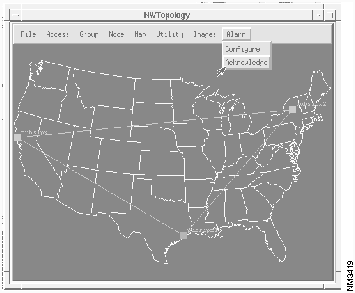
The main tool for monitoring the status of your network is the StrataView Plus Network Topology Map. By matching the displayed node and trunk color codes to specific alarm conditions, you can see what is occurring throughout the network.
When the topology display is updated, the node and trunk icons change colors to reflect the latest alarm events.
| Green | Normal |
| Yellow | Minor alarm |
| Red | Major alarm |
| Brown | Node unreachable |
A typical map display may contain multiple alarm indications.
Figure 3-21 : Typical Network Topology Map
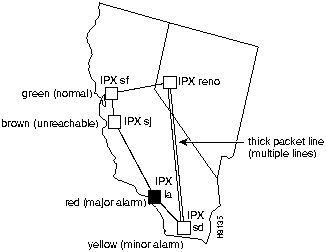
StrataView Plus continuously monitors the network topology status and updates the Network Topology Map display.
The network nodes send network status messages to the StrataView Plus workstation as the events occur. Any discrepancy between the dynamic update messages and the StrataView Plus workstation's internal topology information causes the workstation to repoll the network for a new topology, and then update the workstation database. Complete topology polling also happens whenever the workstation is first brought on line.

|
Copyright 1988-1996 © Cisco Systems Inc.