This chapter provides information on the following topics:
- Safety
- Unpacking the box that contains your hub
- What you must provide before installing your hub
- Installing your hub
To ensure personal safety and to protect the hub, use the following guidelines:
- Keep the chassis area clear and dust-free during and after installation.
- Keep tools and chassis components away from walk areas.
- Do not wear loose clothing that could get caught in the chassis. Fasten your tie or scarf and roll up your sleeves.
- Wear safety glasses when working under conditions that might be hazardous to your eyes.
- Do not perform any action that creates a hazard to people or makes the equipment unsafe.

| Caution Do not place anything on top of the hub that could block the air flow from the vents on top of the hub. Products designed specifically to interoperate with the hub, and that are stacked on top of the hub with the included stacking clip, will not block the air flow from the vents.
|

| Warning Read the installation instructions before you connect the system to its power source.
|

| Warning Before working on equipment that is connected to power lines, remove jewelry (including rings, necklaces, and watches). Metal objects heat up when connected to power and ground and can cause serious burns or weld the metal object to the terminals.
|

| Warning Unplug the power cord before you work on a system that does not have an on/off switch.
|

| Warning Ultimate disposal of this product should be handled according to all national laws and regulations.
|

| Warning The device is designed to work with TN power systems.
|

| Warning Do not work on the system or connect or disconnect cables during periods of lightening activity.
|

| Warning The ports labeled "10BaseT", 100BaseTX", and "10/100" are safety extra-low voltage (SELV) circuits. SELV circuits should only be connected to other SELV circuits. Avoid connecting these circuits to telephone network voltage (TNV) circuits.
|
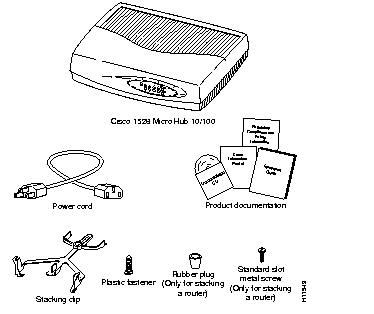
The box that contains your hub should contain the following items. If any of the items are missing or damaged, contact your Cisco reseller.
Before you begin installing the hub, you must perform these steps:
- Assemble network devices to be connected to the hub, which can include the following:
- A compatible switch, router, server, PC, or workstation. To be considered compatible, a switch, router, server, PC, or workstation must support either 10BaseT or 100BaseTX. For example, the Cisco 1548 Micro Switch 10/100 or any of the Cisco 1600 series routers are compatible devices.
- Another Cisco 1528 Micro Hub 10/100.
- Select your cabling:
- To connect a compatible switch, router, server, PC, or workstation, you must supply one of the straight-through Ethernet cables listed in Table 2-1.
- To connect another Cisco 1528 Micro Hub 10/100, you must supply one of the straight-through Ethernet cables listed in Table 2-2.
For more information on cabling the hub to another Cisco 1528 Micro Hub 10/100, refer to Appendix B, "Cabling Guidelines."
Note If you are connecting a compatible switch or another Cisco 1528 Micro Hub 10/100, you can also use a crossover Ethernet cable. For more information on the crossover Ethernet cable, refer to the
"Ethernet Cable Specifications" section in
Appendix C, "
Hub Specifications and Cables."
- If you plan to connect a PC or workstation that runs at 100 Mbps, make sure the device has a 10/100 autonegotiating network interface card (NIC) installed.
To install your hub, perform the following steps:
- Stack the hub (if you are using more than one hub or other Cisco products designed to be stacked with the hub).
- Connect the power cord.
- Connect the network devices to the hub.

| Time Saver If you are using only one hub, skip this section, and go to the "Connecting Power Cord" section.
|
You can stack up to two hubs in a four-device stack, along with other Cisco products designed to be stacked with the hub. You can stack each device directly on top of another.
This section provides information on stacking the hub with those products, except for the Cisco 1600 series router. For information on stacking the Cisco 1600 series router, refer to the "Including Cisco 1600 Series Router in Stack" section in this chapter.
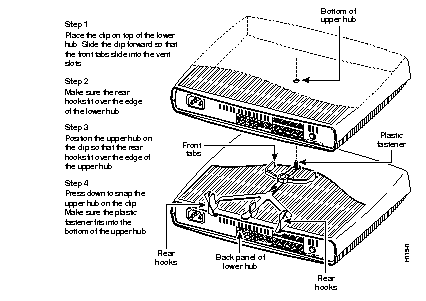
Each Cisco product designed to be stacked with the hub comes with a stacking clip and a fastener to keep multiple devices together in a stack. Assemble the clip and the fastener as shown in this figure.
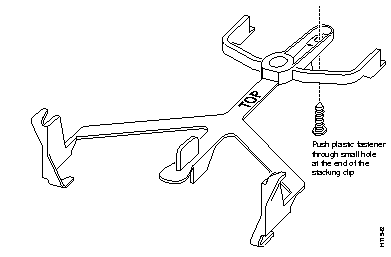
After pushing the fastener into the stacking clip, follow the instructions in this figure.
Note Although the following figure shows how to stack hubs, these instructions also apply to other Cisco products designed to be stacked with the hub, except for the Cisco 1600 series router.

| Time Saver If you are not including a Cisco 1600 series router in your stack, skip this section, and go to the "Connecting Power Cord" section.
|
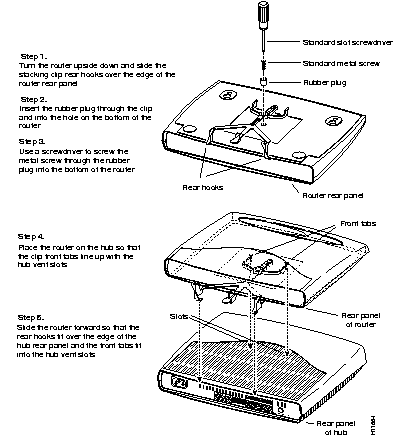
If you include a Cisco 1600 router in the stack, the router must be the top device in the stack. Use the stacking clip as shown in the figure to stack a Cisco 1600 series router on another Cisco product designed to be stacked with the hub.
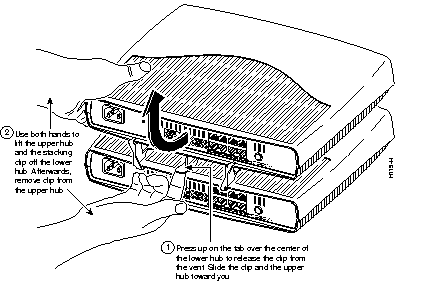
To unstack devices in a stack, follow the instructions in this figure.
Note Although the following figure shows how to unstack hubs, these instructions also apply to all Cisco products designed to be stacked with the hub including the Cisco 1600 series router.

| Warning This product relies on the building's installation for short-circuit (overcurrent) protection. Ensure that a fuse or circuit breaker no larger than 120 VAC, 15A U.S. (240 VAC, 10A international) is used on the phase conductors (all current-carrying conductors).
|
Follow these steps to connect the power cord.
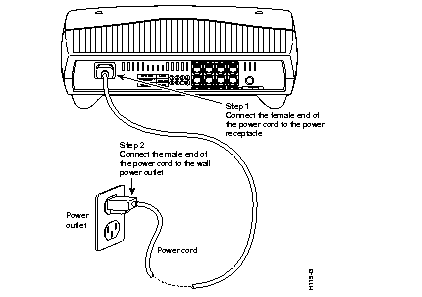
Check the front panel to make sure that the PWR LED is on.

The following sections describe how to connect the following devices to the hub ports:
- A compatible PC, workstation, router, or server
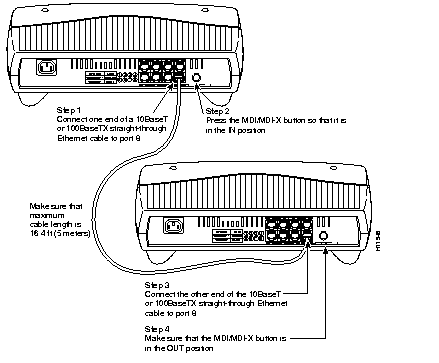
- Another Cisco 1528 Micro Hub 10/100
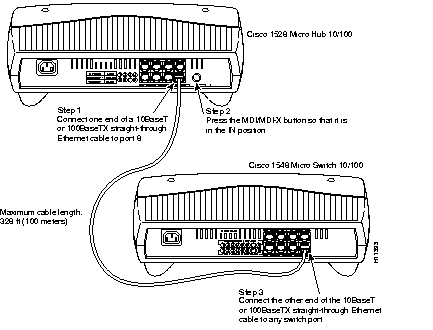
- A compatible switch
A compatible device must support either 10BaseT or 100BaseTX.
Table 2-3 lists the network devices that you can connect to the hub and summarizes how to connect each device.
You can connect any combination of 10BaseT and 100BaseTX PCs, workstations, routers, servers, and switches to the hub. However, you can connect only one 100BaseTX hub (another Cisco 1528 Micro Hub 10/100) to the hub.
Table 2-3: Connecting Network Devices To Hub
| Network Device
| Hub Ports Through Which You Can Make Connection
| Ethernet Cable Type1
| Position of MDI/MDI-X Button (Associated With Port 8)
|
|---|
| PC, workstation, router, server
| 1 through 8
| Straight-through
| OUT
|
| Switch or another Cisco 1528 Micro Hub 10/1002
| 8
| Straight-through3
| IN
|
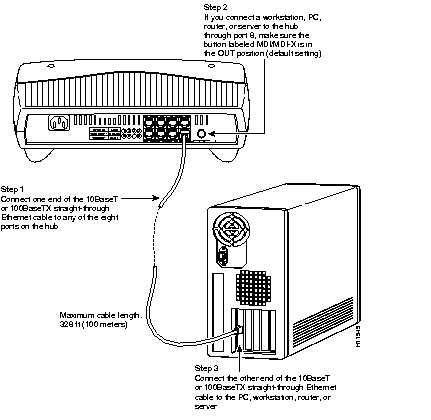
Connect PCs, workstations, routers, or servers to the hub ports 1 through 8, as shown in the following illustration. The PCs and workstations must have a 10BaseT or 100BaseTX network interface card (NIC).
Connect another Cisco 1528 Micro Hub 10/100 to the hub through port 8, as shown in the following illustration:
Connect the compatible switch to the hub through port 8, as shown in the following illustration.
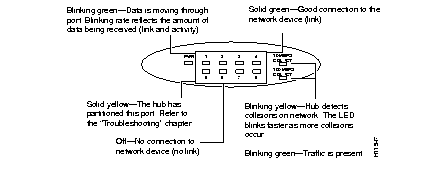
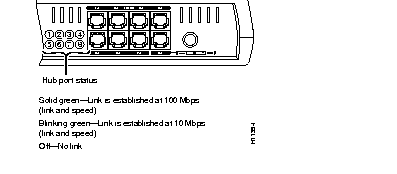
After connecting network devices to the hub ports, check the corresponding port LEDs (labeled 1 through 8) on the front and back panels. The color and blinking pattern of the LEDs indicate the activity for the corresponding hub port.