


|
|

This chapter contains basic configuration examples for connecting a Cisco 700 series router to an Internet service provider (ISP) or to a central site, such as your company network. It is assumed that your router is cabled, as described in the Cisco 700 Quick Reference Guide. Before you proceed with the examples in this chapter, have the information regarding ordering the ISDN line and the connection information in the Cisco 700 Quick Reference Guide (shipped with your router package) available.
The chapter is written so a knowledgeable beginner can perform a basic configuration of the router, guided by the examples. Explanations are kept to a minimum, but they do show how the individual commands fit into the framework of a configuration.
This chapter has the following sections:
The information in this section describes basic networking concepts as they relate to the Cisco 700 series router and the examples presented. If you have some experience with Cisco routers, you can skip this section.
Routers forward packets on to specific network segments based on a logical network address, reducing network traffic by keeping unnecessary packets off network segments by only forwarding packets to segments as required.
A bridge joins individual network segments into a single network. The bridge floods packets on to all the network segments it is connected to. In other words, bridges offer simplicity and routers offer a greater degree of control. Cisco 700 series routers can function as a bridge and a router.
Profiles are logically organized sets of commands for each connection that can be customized and stored independently. This allows you to configure your router for more than one connection. There are two types of profiles, permanent and user-defined. The Cisco 700 Series Command Reference publication contains an extensive discussion on profiles. It is important to understand the use of profiles before attempting to configure your router.
Cisco 700 series routers have a "LAN side" and a "WAN side." The LAN side of the router is the Ethernet 10BaseT connection where your computer (or another short-range network device) is connected to the router. The WAN side is ISDN. The configuration commands can affect function on one or both sides of the router. Which side is affected depends upon the command and the profile containing the command.
You can display the current configuration at any time using the show configuration command. If you issued the command in system mode, system mode commands display. If you issue the command in profile mode, profile mode commands display. An asterisk (*) next to a value indicates the value has been modified from the default value. The command is entered as follows:
>show config
The following sample display shows output for the Cisco 700 series routers, from the show configuration command in profile mode:
Host> show config
System Parameters
    Environment
      Screen Length          20
      Echo Mode              ON
      CountryGroup           1
    Bridging Parameters
      LAN Forward Mode       ANY
      WAN Forward Mode       ONLY
      Address Age Time       OFF
    Call Startup Parameters
      Multidestination       OFF
    Line Parameters
      Switch Type            5ESS
    Call Parameters          Link 1             Link 2
      Retry Delay              30                 30
Profile Parameters
    Bridging Parameters
      Bridging               ON
      Routed Protocols
      Learn Mode             ON
      Passthru               OFF
    Call Startup Parameters
      Encapsulation          PPP
    Line Parameters
      Line Speed             AUTO
      Numbering Plan         NORMAL
    Call Parameters          Link 1             Link 2
      Auto                     ON                 ON
      Called Number
      Ringback Number
In the examples, the Cisco 700 series router you are configuring is referred to as the remote router. This is strictly for identification purposes and does not have anything to do with geography or the physical location of the router.
There are several types of authentication, such as Password Authentication Protocol (PAP) and Challenge Handshake Authentication Protocol (CHAP). To avoid confusion, the PAP password is referred to as password, and the CHAP secret password is referred to as secret. The PAP password is plain text. The CHAP secret is encrypted.
For more information on the commands, basics of networking, profiles and so forth, refer to the Cisco 700 Series Command Reference publication. The Cisco 700 Series Command Reference publication also contains advanced configuration examples.
This section shows how to set the router to default values and provide basic configuration information used in all configurations. All of the example configurations assume default values unless otherwise indicated.
Step 1 Use the set default command as follows to be sure that you begin with all default values when configuring your router:
System-level parameters and the parameters in the permanent profiles are set to their default values. Existing user-defined profiles are deleted and the router reboots.
Step 2 Enter the set directorynumber command (a ten-digit local number with no spaces or dashes) to set the ISDN directory numbers.
You are ready to set Service Profile Identifier (SPID) automatic detection. A SPID is a number provided by the ISDN carrier to identify the line configuration of the BRI service. Each SPID points to line setup and configuration information.
Setting a SPID is described in the section "Setting SPID Autodetection" in this chapter (recommended if you are connecting to a service provider where the ISDN switch type is DMS-100 or National ISDN-1 (NI-1)) or to enter the SPIDs manually, as described in the section "Setting SPIDs Manually" in this chapter.
If the service provider ISDN switch type is DMS-100 or National ISDN-1 (NI-1), the router supports an automatic SPID detection feature. This section describes how to set the autodetection feature. If the switch type is 5ESS Custom PPP, do not enter SPIDs; go to the next section.
Enable automatic SPID detection feature as follows:
Once you enable the autodetection feature, wait for the router to complete the process. This process might take several minutes to complete. When autodetection is successful, the following messages display:
No additional procedures are required. You can now enter specific configuration information.
If autodetection fails, the following message displays:
In this event, set autodetection off by using the set autodetection command and continue with the section "Setting SPIDs Manually" to enter SPIDs manually.
SPIDs can be detected automatically using the set autodetection command, or SPIDs can be entered manually, as described in this section.
If the service provider switch type is 5ESS Custom PPP, you do not need to enter SPIDs; go to the next section. If the service provider switch type is DMS-100, National (NI-1), or 5ESS Multipoint, continue with this section.
To enter the SPIDs assigned by your ISDN service provider, take the following steps:
Step 1 Enter the set switch command to configure the ISDN switch type that is being used with your ISDN line:
Step 2 Enter the set spid command to set the router's SPID numbers:
set 1 spid 0510198765430
set 2 spid 0510187654320
You are ready to configure the router for a specific routing environment.
An AT&T 5ESS switch can support up to eight SPIDs per BRI line. Because multiple SPIDs can be applied to a single B channel, multiple services can be supported simultaneously. For example, the first B channel can be configured for data, and the second B channel can be configured for both voice and data. In this scenario, the second B channel can support an ISDN telephone in addition to supporting data connections. For 5ESS switches, the SPID is usually the 10-digit ISDN number beginning with "01" and ending with "0." For example: ISDN number, 4085551212; SPID, 0140855512120. (There is no standard format for SPIDs. As a result, SPID values can vary, depending on the switch vendor and the carrier.)
DMS-100 and NI-1 switches support only two SPIDs, with only one B channel per SPID. If both B channels will be used for data only, enter the two SPIDs (one for each B channel). An issue comes up when trying to run data and voice over the same B channel. Assuming the first SPID is applied to the first B channel for data traffic and is limited to that B channel only, this leaves only one other SPID for the second B channel.
Consequently, the second B channel can be used for either data or voice, but not both simultaneously. The absence or presence of the second SPID in the configuration dictates whether the second B channel can be used for data or voice. This is an example of SPID values for DMS-100 and NI-1 switches: ISDN number, 4085551212; SPID 1, 408555121201; SPID 2, 408555121202. In this case the SPID is the 10-digit ISDN number ending with a "01" for SPID 1 and a "02" for SPID 2.
This section describes how to bridge a Cisco 700 series router over an ISDN line to another router. Bridging is used in cases where you do not need a lot of filtering to manage the network. Basically, you are relying on the nodes on the LAN side of the router to determine if a packet should be accepted or dropped. (If you turn routing on, you can filter the packets on the WAN side, reducing your traffic on the LAN side.)
Figure 3-1 illustrates an example of a remote Cisco 700 series router bridging to a router called CPA902 at a central site.
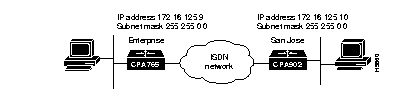
You are going to establish a basic connection with another router, relying primarily on the defaults. In this example configuration, a simple user-defined profile is created in your Cisco 700 series router to bridge over an ISDN network to another router.
By default, the Cisco 700 series router automatically "learns" the MAC addresses that exist locally and remotely across the WAN. The router stores the MAC addresses in a MAC address table, so it knows if the unicast packets should remain on the LAN or forwarded across the ISDN line. In a bridging scenario, the router does not need an IP address and bridging occurs regardless. The IP address is used when the router is being managed remotely by a Telnet session or participating in SNMP.
Both sides of the WAN must be configured with PPP host names, secrets, and passwords for authentication. Each profile must also include dialing information.
The IP address and subnet mask are not entered. IP address assignments are not necessary in a bridged network; they are used only if the router is being pinged or accessed through Telnet or SNMP. Take the following steps to configure the Cisco 700 series router to bridge to the CPA902 router at the central site:
Step 1 Enter the set system command to create a system name for the Cisco 700 series router:
set system CPA765
This is a system-level command. The system name is case sensitive and can be from 1 to 60 characters. Notice that the prompt changes to reflect the name of the router.
Step 2 Enter the set user command to create a user-defined profile:
The user-defined profile matching the central router user name is created. Notice that the prompt changes to reflect the name of the router and the profile. The appearance of the profile name indicates you are working in the specified profile. You can have up to 16 profiles.
Step 3 Enter the set active command to activate the user-defined profile:
set active
When you initiate a call, the router reviews the user-defined profile information to determine where to send the data. The router reviews the active profiles, looking for a match. When a matching profile is found, communications are established, based on the profile.
The router slows down when a call is initiated and the router has to search a large number of active profiles to discover the profile to use for establishing a call. If there are only two active profiles, the response time is faster. When receiving calls, the state of the profile does not matter. The router searches all profiles to find a match.
Step 4 Enter the set ppp secret client command to configure the client secret for CHAP authentication:
set ppp secret client
This is required if the router you are connecting to requires a secret for CHAP authentication. If the router does not require a secret, this entry is not necessary. Note that despite the prompt indicating a password entry, the entry is actually a secret.
When your router attempts communications with another router, it receives the host secret of the other router. Your router looks at the value in the profile it has for the calling router. If the secrets match, authentication passes and communications are allowed. If the secrets do not match, the call is dropped. This example uses cisco for the secret. The characters are not echoed on the terminal when you type the secret.
Step 5 Enter the set ppp password client command to configure the client password for PAP authentication:
set ppp password client
This is required if the router you are connecting to requires a PAP password for authentication. If the router does not require a PAP password, this entry is not necessary.
The PPP client password is compared to the connected router host password during PAP authentication. This example uses cisco for the password. The difference between a password and a secret is that a secret is encrypted, but a password is not encrypted.
Step 6 Enter the reboot command to enable your configuration changes:
reboot
Just as you reboot your PC to activate major configuration changes, the router is rebooted.
The following commands are all that is necessary to configure the CPA902 router at the central site for user-defined profile bridging:
CPA902>set userCPA765 CPA902>set ppp password host<cisco>CPA902>set ppp secret host<cisco>CPA902>set ppp password client<cisco> CPA902>set ppp secret client<cisco>
The commands create a user profile for your router and uses the defaults. If there is no profile for a router attempting to connect to a Cisco 700 series router (or a CPA902) using software Release 4.1(1) or higher, the call is dropped.
This section describes how to configure a Cisco 700 series router to route to an ISP using Internet Protocol (IP). Figure 3-2 illustrates the configuration used in this example. By default, PPP incoming authentication is on and outgoing authentication is off.
For an incoming call with authorization required, the router asks the calling router to supply a user name, password and secret for the specified authorization type (CHAP or PAP). If authorization fails, the call is dropped. If authorization passes, the corresponding profile is activated.
For an outgoing call with authorization required, the router asks the switch it calls to identify itself. (If you call an Ascend device, the Ascend device drops the call if your router attempts authentication. In this case, it is best to set the authentication to none.)
The example also uses unnumbered IP addresses, a common practice used to conserve IP addresses.
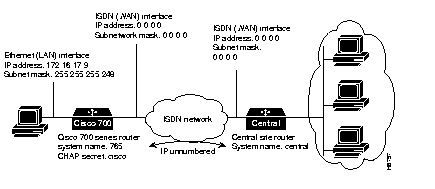
In this example, a user-defined profile named central is created, representing the ISP router. Your router uses the central profile to initiate the call to the ISP router.
When the Cisco 700 series router calls the ISP router, it sends the ISP the PPP host name, the CHAP secrets, and PAP passwords, depending upon what the other router requires to authenticate the call.
If authentication is required and the call fails authentication or a profile cannot be found, the call is dropped. If authentication is not required and a profile cannot be found, the router uses the Standard profile to establish the connection.
Do the following to configure the system-level commands for a remote Cisco 700 series router to connect to an ISP:
Step 1 Enter the set system command to configure your router with a system name:
set system 765
The system name is case sensitive and can be from 1 to 60 characters used to identify the router.
Take the following steps to configure the permanent profile, LAN:
Step 1 Enter the change user command to select the LAN profile:
cd lan
The LAN profile is a permanent profile that manages the LAN (10BaseT) side of your router. You do not have to create this profile or activate it.
Step 2 Enter the set ip address command to configure the IP address for the 10BaseT port (or unmanaged hub):
set ip address 172.16.17.9
Step 3 Enter the set ip netmask command to configure the IP subnet mask for the 10BaseT port (or unmanaged hub):
set ip netmask 255.255.255.248
IP networks can be divided into smaller units called subnets. Subnets provide extra flexibility for network administrators. The number of bits used for the subnet address varies. To specify how many bits are used, IP provides the subnet mask.
Step 4 Enter the set ip routing command to enable IP routing on the 10BaseT port (or unmanaged hub):
set ip routing on
Step 5 Enter the change user command without any parameters to return to the system level:
cd
Take the following steps to configure the user-defined profile, central:
Step 1 Enter the set user command to create a user-defined profile named central for the router at the ISP:
set user central
Step 2 Enter the set number command to configure the ISDN telephone number the router dials to connect to the ISP:
set number 5558011
Step 3 Enter the set ppp password client command to configure the client secret if needed:
set ppp password client
The router only supplies the PAP password or the CHAP secret it is asked for. If another router asks the Cisco 700 series router for the password, it sends only the password, not the secret. Setting all the passwords and secrets avoids a failed connection.
Step 4 Enter the set ppp secret client command to configure the client secret if needed:
set ppp secret client
Step 5 Enter the set ip routing command to enable IP routing to the ISP:
set ip routing on
Previously, you turned IP routing on for the LAN side of your router. Here, you are enabling the IP routing engine on the WAN side of the router.
Step 6 Enter the set ip route and set ip netmask commands to use IP unnumbered routing.
> set ip route destination 0.0.0.0/0 gateway 0.0.0.0 propagate on
> set ip netmask 0.0.0.0
> set bridge off
If you are not using IP unnumbered routing (the ISP has assigned a specific IP address to you), the following example shows the commands:
> set ip address 172.16.125.2
> set ip netmask 255.255.255.248
> set ip route destination 0.0.0.0/0
propagate on
These are filtering parameters.
Step 7 Enter the set timeout command to terminate the ISDN connection after 360 seconds of no ISDN line activity:
set timeout 360
Your router listens to the ISDN connection. If there is no traffic for 360 seconds (6 minutes), your router drops the line. If you are paying for the time you are connected through the ISDN line, dropping the line when there is no traffic saves you money.
Step 8 Enter the set active command to activate the user-defined profile:
set active
Step 9 Enter the reboot command to enable your configuration changes:
reboot
Just like you would reboot your PC to activate major configuration changes, the router is rebooted.
This section describes how to configure a remote Cisco 765 router and a central site CPA902 router for on-demand IP routing using PPP.
PPP addresses issues that include the assignment and management of IP addresses, asynchronous (start/stop) and bit-oriented synchronous encapsulation, network protocol multiplexing, error detection, and option negotiation.
PPP addresses these issues by providing an extensible Link Control Protocol (LCP) and a family of Network Control Protocols (NCPs) to negotiate optional configuration parameters and facilities. PPP supports IP and IPX.
Figure 3-3 is an illustration of the configuration used in this example.

In this example, the Cisco 765 router is used to establish a connection through the ISDN service provider to the corporate network at a central site. A CPA902 represents the router at the central site (although the central site router could be any router).
Take the following steps to configure the Cisco 700 series router for on-demand IP routing using PPP:
Step 1 Enter the set system command to configure the router with a system name.
set system remote765
Step 2 Enter the set multidestination command:
set multidestination on
The set multidestination command enables the router to dial to multiple destinations. This is not necessary if you are only calling one site.
Take the following steps to configure the permanent profile, LAN:
Step 1 Enter the cd command to configure the LAN profile:
cd LAN
Step 2 Enter the set ip address command to configure the IP address of the connection to the local Ethernet LAN:
set ip address 172.16.17.9
Step 3 Enter the set ip netmask command to configure the IP subnet mask of the connection to the local Ethernet LAN:
set ip netmask 255.255.255.0
Step 4 Enter the set ip routing command to enable IP routing to the local Ethernet LAN (the 10BaseT port):
set ip routing on
Turning IP routing on enables the IP routing engine.
Step 5 Enter the set ip rip update command to send IP Routing Information Protocol (RIP) packets to the local Ethernet LAN every 30 seconds:
set ip rip update periodic
The RIP sends information about your router to other routers. Each entry in a RIP routing table provides a variety of information, including the ultimate destination and the next hop on the way to that destination.
Take the following steps to configure the user-defined profile, central902:
Step 1 Enter the change user command without any parameters to return to the system level:
cd
Step 2 Enter the set user command to create a user-defined profile for the central site, matching the system name of the central site router:
set user central902
When receiving a call, the Cisco 765 router searches its user profiles, looking for a match between the user-defined profile name and the system name of the calling router. This is part of the authentication process. When it finds a match, it uses the parameters in the profile to communicate with the calling device. If it does not find a match, the Cisco 765 router drops the call.
Step 3 Enter the set ppp password client command to configure the PAP password:
set ppp password client
Step 4 Enter the set ppp secret client command to configure the client secret:
set ppp secret client
Step 5 Enter the set ip address command to configure the IP address of the ISDN (WAN) interface (this could also be unnumbered):
set ip address 10.48.125.7
Step 6 Enter the set ip netmask command to configure the IP subnet mask of the ISDN interface used by the ISDN service provider:
set ip netmask 255.255.255.0
Step 7 Enter the set ip routing command to enable IP routing to the central site CPA902:
set ip routing on
Step 8 Enter the set ip rip update command to send IP RIP packets to the central site CPA902 only when a change occurs in the RIP routing table:
set ip rip update demand
Demand is unique to Cisco 700 series routers. It is only used where you are connecting to another router running Cisco IOS-700. If you are connecting to any other router, you should use static or periodic RIP update.
Step 9 Enter the set ip route command to configure a static route to the destination network and the IP address of the gateway:
set ip route destination 0.0.0.0/0
gateway 10.32.125.4
Use 0.0.0.0 if you are doing unnumbered IP routing.
Step 10 Enter the set number command to configure the ISDN telephone number the router dials to connect to the central site CPA902:
set number 5550143
Step 11 Enter the set timeout command to terminate the ISDN connection after 360 seconds of no ISDN line activity:
set timeout 360
Step 12 Enter the set active command to activate the user-defined profile:
set active
When you initiate a call, the router reviews the user-defined profile information to determine where to send the data. The router reviews the active profiles, looking for a match. When a matching profile is found, communications are established, based on the profile.
Step 13 Enter the reboot command to reset the router and enable your configuration changes:
reboot
Following is the command summary for configuring the central site CPA902 router for on-demand IP routing with PPP:
set system central902
set multidest on
set ppp auth in chap
set ppp secret client
cd lan
set ip address 172.15.1.100
set ip netmask 255.255.255.0
set ip routing on
set ip rip update periodic
cd
set user remote765
set ppp auth out chap
set ppp secret host
set bridging off
set ip address 10.48.125.4
set ip netmask 255.255.255.0
set ip routing on
set ip rip update demand
set number 5553693
set timeout 360
set active
reboot
This section describes how to configure the Cisco 765 router and a CPA902 router for on-demand IP and IPX routing using PPP.
Figure 3-4 illustrates the configuration used in this example.

The Cisco 765 router is used to establish a connection through the ISDN service provider to the corporate network at a central site using PPP. A CPA902 represents the router at the central site; however, it could be any router. The Cisco 765 router has three permanent profiles: LAN, Internal and Standard. This example uses the LAN profile and a user-defined profile.
Take the following steps to configure the remote Cisco 765 router for on-demand IP and IPX routing using PPP:
Step 1 Enter the set system command to configure the router with a system name:
set system remote765
Step 2 Enter the set multidestination command to enable the router to dial to multiple remote destinations:
set multidestination on
This is not necessary if you are only calling one site.
Take the following steps to configure the permanent profile, LAN:
Step 1 Enter the change user command to configure the LAN profile:
cd LAN
Step 2 Enter the set ipx routing command to enable IPX routing to the local Ethernet LAN:
set ipx routing on
Step 3 Enter the set ipx network command to configure the IPX network number for the local Ethernet LAN:
set ipx network 1478
Step 4 Enter the set ipx framing command to configure IPX framing for the local Ethernet LAN:
set ipx framing 802.2
Framing is the process of inserting start and stop signals before and after data being transmitted. These framing elements delimit the data. They allow the receiver to determine the sender's timing, because the duration of the start bit indicates the bit interval size being used by the sender.
A framing error occurs when the receiver incorrectly identifies the start and stop signals, or the framing, in a transmission.
Step 5 Enter the set ipx rip update command to send IPX RIP updates onto the local Ethernet LAN every 60 seconds:
set ipx rip update periodic
Step 6 Enter the set ip address command to configure the IP address of the router connection to the local Ethernet LAN:
set ip address 172.16.17.9
Step 7 Enter the set ip netmask command to configure the IP subnet mask of the router's connection to the local Ethernet LAN:
set ip netmask 255.255.255.0
Step 8 Enter the set ip routing command to enable IP routing to the local Ethernet LAN:
set ip routing on
Step 9 Enter the set ip rip update command to send IP RIP packets onto the local Ethernet LAN every 30 seconds:
set ip rip update periodic
Step 10 Enter the change user command without parameters to return to the system level:
cd
Take the following steps to configure the user-defined profile, central902:
Step 1 Enter the set user command to create a user-defined profile for the central site CPA902:
set user central902
Step 2 Enter the set ppp password client command to configure the PAP password:
set ppp password client
Step 3 Enter the set ppp secret client command to configure the client secret:
set ppp secret client
Step 4 Enter the set ipx routing command to enable IPX routing to the central site CPA902:
set ipx routing on
Step 5 Enter the set ipx network command to configure the network number for the ISDN segment between the routers:
set ipx network 32125
Step 6 Enter the set ipx rip update command to send IPX RIP packets to the central site CPA902 only when changes are made to the routing tables:
set ipx rip update demand
Step 7 Enter the set ipx spoof command to have the router respond to the local server's watchdog packets on behalf of the remote workstation:
set ipx spoof 10
Cisco IOS software provides a feature that allows the router to respond to a server's Watchdog requests on behalf of a remote client. This process is called NCP or IPX spoofing. Benefits of IPX spoofing include:
When using IPX spoofing, NetWare servers are lead to believe that a session is still active when it is not. When the number of IPX or SPX sessions are limited, this can cause connectivity problems by denying logins to legitimate users.
Step 8 Enter the set ip address command to configure the IP address for the ISDN (WAN) interface:
set ip address 10.32.125.7
Step 9 Enter the set ip netmask command to configure the IP subnet mask for the ISDN (WAN) segment:
set ip netmask 255.255.255.0
Step 10 Enter the set ip routing command to enable IP routing to the central site CPA902:
set ip routing on
Step 11 Enter the set ip rip update command to send IP RIP packets to the central site CPA902 only when a change occurs in the RIP routing table:
set ip rip update demand
Step 12 Enter the set ip route command to configure a static route to the destination network:
set ip route destination 0.0.0.0/0 gateway 10.32.125.4
Step 13 Enter the set number command to configure the ISDN telephone number the router dials to connect to the central site CPA902 router:
set number 5550143
Step 14 Enter the set timeout command to terminate the ISDN connection after 360 seconds of no ISDN line activity:
set timeout 360
Step 15 Enter the set active command to activate the user-defined profile:
set active
Step 16 Enter the reboot command to reset the router and enable your configuration changes:
reboot
Just like you would reboot your PC to activate major configuration changes, the router is rebooted.
Following is the command summary for configuring the central site CPA902 router for on-demand IP and IPX routing using PPP:
set system central902
set multidestination on
set ppp auth in chap
set ppp secret client <cisco>
cd lan
set ipx routing on
set ipx network 73146
set ipx framing 802.2
set ipx rip update periodic
set ip address 172.15.1.100
set ip netmask 255.255.255.0
set ip routing on
set ip rip update periodic
cd
set user REMOTE765
set bridging off
set ipx network 32125
set ipx routing on
set ipx rip update demand
set ipx spoof 10
set ip address 10.32.125.4
set ip netmask 255.255.255.0
set ip routing on
set ip rip update demand
reboot
|
|