


|
|

This appendix contains information about replacement procedures for the access server field-replaceable units. The appendix contains the following sections:
Note the following safety recommendations:
 | Warning Before opening the chassis, disconnect the telephone-network cables to avoid contact with telephone-network voltages. |
| Warning Do not work on the system or connect or disconnect cables during periods of lightning activity. |
| Warning Do not touch the power supply when the power cord is connected. For systems with a power switch, line voltages are present within the power supply even when the power switch is off and the power cord is connected. For systems without a power switch, line voltages are present within the power supply when the power cord is connected. |
| Warning Before performing any of the following procedures, ensure that power is removed from the DC circuit. To ensure that all power is OFF, locate the circuit breaker on the panel board that services the DC circuit, switch the circuit breaker to the OFF position, and tape the switch handle of the circuit breaker in the OFF position. |
| Warning Before working on a chassis or working near power supplies, unplug the power cord on AC units; disconnect the power at the circuit breaker on DC units. |
| Warning Before working on equipment that is connected to power lines, remove jewelry (including rings, necklaces, and watches). Metal objects will heat up when connected to power and ground and can cause serious burns or weld the metal object to the terminals. |
| Warning Only trained and qualified service personnel should be allowed to install or replace this equipment. |
 | Caution Before opening the chassis, ensure that you have discharged all static electricity from your body and be sure that the power is OFF. Before performing any procedures described in this appendix, review the section "Safety Recommendations" in the chapter "Preparing to Install the Universal Access Server." |
This section describes how to replace features cards, which include:
You need the following tools and equipment:
Note the following safety recommendations:
| Warning This equipment is to be installed and maintained by service personnel only as defined by AS/NZS 3260 Clause 1.2.14.3 Service Personnel. |
| Warning The telecommunications lines must be disconnected 1) before unplugging the main power connector and/or 2) while the housing is open. |
| Warning The E1 interface card may only be installed in an ACA-permitted customer equipment or a Data Terminal Equipment (DTE) that is exempted from ACA's permit requirements. The customer equipment must only be housed in a cabinet that has screw-down lids to stop user access to overvoltages on the customer equipment. The customer equipment has circuitry that may have telecommunications network voltages on them. |
| Caution The feature cards are not hot-swappable (that is, you cannot remove or install them when the power to the access server is ON). Be sure to turn OFF the power to the access server before installing or removing feature cards. Failure to do so can damage the access server. |
Refer to Figure A-1 and take these steps:
Step 1 Turn the power switch on the access server OFF and disconnect site power.
Step 2 Attach an ESD-preventive wrist strap.
Step 3 Remove all interface cables from the rear panel of the access server.
Step 4 Loosen the two captive screws that secure the feature card or blank slot cover to the chassis until each screw is free of the chassis.

Step 5 Insert the feature card removal tool so that the slots in each arm of the tool are behind the shoulder of each captive screw, as shown in Figure A-2, and carefully pull the removal tool toward you until the feature card slides free of the chassis.
| Caution The EMI protective devices on the feature cards are designed to make the cards fit tightly. When removing the cards, they can release suddenly. Exercise caution when removing the feature cards with the removal tool. |

Step 6 Set the removed feature card aside on an ESD-preventive mat.
Refer to Figure A-1 and take these steps:
Step 1 Remove the feature card from the ESD-preventive shipping material.
Step 2 Slide the card into the slot until it touches the backplane connector.
Step 3 Align the captive screws with their holes, and then seat the card completely.
Step 4 Tighten the two captive screws to secure the card to the chassis.
Step 5 If the access server is configured with fewer than three cards, make sure that a blank slot cover is installed over each open slot to ensure proper airflow inside the chassis.
The access server supports two types of modules:


You need the following tools and equipment:
Note the following safety recommendations:
| Caution The modules are not hot-swappable (that is, you cannot remove or install them when the power to the access server is ON). Be sure to turn OFF the power to the access server before installing or removing modules. Failure to do so can damage the access server. |
Refer to Figure A-5 and take these steps:
Step 1 Turn the power switch on the access server OFF and disconnect site power.
Step 2 Attach an ESD-preventive wrist strap.
Step 3 Remove all interface cables from the rear panel of the access server.
Step 4 Loosen the two captive screws that secure the module or blank slot cover to the feature card until each screw is free of the feature card.
Step 5 Hold each captive screw between two fingers, and pull the module toward you until it slides free of the feature card.
Step 6 Set the module aside on an ESD-preventive mat.
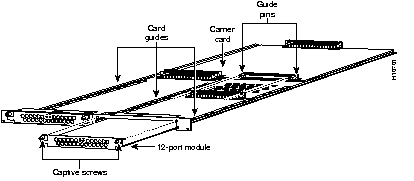
Refer to Figure A-5 and take these steps:
Step 1 Remove the module from the ESD-preventive shipping material.
Step 2 Slide the module into the carrier card until it is seated completely.
Step 3 Tighten the two captive screws on the module to secure it to the carrier card.
Step 4 If the carrier card contains only one 12-port module, make sure that a blank slot cover is installed over the open slot to ensure proper airflow inside the chassis.
Take these steps:
Step 1 Attach an ESD-preventive wrist strap.
Step 2 Power OFF the access server.
Step 3 Remove all interface cables from the rear panel of the access server.
Step 4 Loosen the two captive screws until each screw is free of the chassis.
Step 5 Hold each captive screw between two fingers, and pull the feature card toward you until it slides free of the chassis.
Step 6 Set the feature card (see Figure A-6) on an ESD-preventive mat.

Step 7 Orient the feature card so that the socket on the faulty SIMM faces away from you (see Figure A-7), and then gently pry the edges of the 6-port module away from the standoffs.
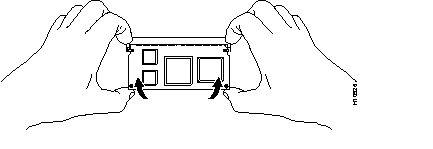
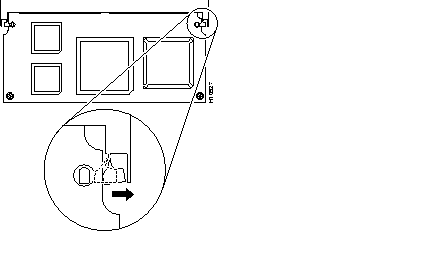
Step 8 Move the socket latches away from the module, as shown in Figure A-8.
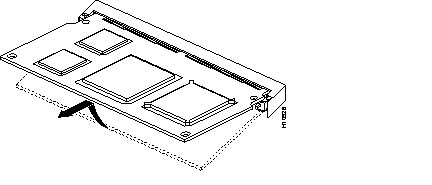
Step 9 Remove the module from its socket as shown in Figure A-9.
Take these steps:
Step 1 Insert the 6-port module into the socket at a 45-degree angle as shown in Figure A-10.
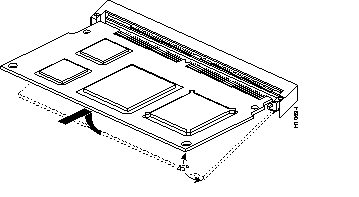
Step 2 Seat the module in the socket, and press its edges onto the standoffs as shown in Figure A-11.
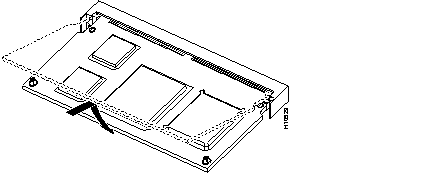
This section describes how to open the chassis by removing the chassis cover.
You need the following tool:
Note the following safety recommendations:
| Warning Before opening the chassis, disconnect the telephone-network cables to avoid contact with telephone-network voltages. |
| Warning Do not work on the system or connect or disconnect cables during periods of lightning activity. |
| Warning Do not touch the power supply when the power cord is connected. For systems with a power switch, line voltages are present within the power supply even when the power switch is off and the power cord is connected. For systems without a power switch, line voltages are present within the power supply when the power cord is connected. |
| Warning Before performing any of the following procedures, ensure that power is removed from the DC circuit. To ensure that all power is OFF, locate the circuit breaker on the panel board that services the DC circuit, switch the circuit breaker to the OFF position, and tape the switch handle of the circuit breaker in the OFF position. |
| Warning Before working on a chassis or working near power supplies, unplug the power cord on AC units; disconnect the power at the circuit breaker on DC units. |
NVRAM in the universal access server uses an internal lithium battery to maintain data. Although this is not a field-serviceable component, we are required to provide the following safety warning:
| Warning There is the danger of explosion if the battery is replaced incorrectly. Replace the battery only with the same or equivalent type recommended by the manufacturer. Dispose of used batteries according to the manufacturer's instructions. |
| Warning Before working on equipment that is connected to power lines, remove jewelry (including rings, necklaces, and watches). Metal objects will heat up when connected to power and ground and can cause serious burns or weld the metal object to the terminals. |
You must open the access server chassis to gain access to its interior components: boot read-only memory (ROM) software, dynamic random-access memory (DRAM) SIMMs, and Flash memory SIMMs. (When you replace the boot ROMs, you must also remove all feature cards in the chassis.)
Take these steps:
Step 1 Turn the power switch on the access server OFF and disconnect site power. (Note that the power switch is part of the power supply.)
Step 2 Remove all interface cables from the rear panel of the access server.
Step 3 Place the access server so that the front panel is facing you.
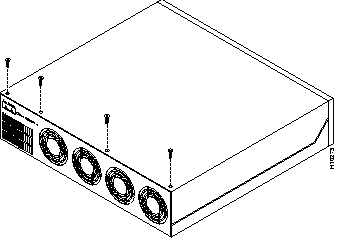
Step 4 Remove the four screws on the chassis cover, as shown in Figure A-12.
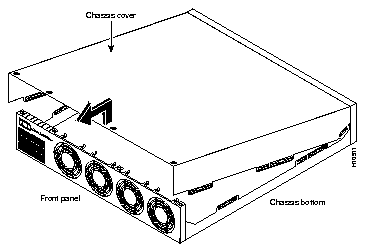
Step 5 Lift the chassis cover upward, as shown in Figure A-13, and pull it away from the tabs on the rear of the chassis.
To upgrade the boot ROM software to a new software image, you must must replace the existing boot ROMs.
You will need the following tools and equipment:
Take these steps:
Step 1 Turn the power switch on the access server OFF and disconnect site power.
Step 2 Attach an ESD-preventive wrist strap.
Step 3 Remove the chassis cover. (See the instructions in the section "Removing the Chassis Cover" earlier in this appendix.)
Step 4 Remove all feature cards to access the system card. (See the instructions in the section "Removing Feature Cards" earlier in this appendix.)
Step 5 Locate the boot ROM on the system card using Figure A-14.
Step 6 Gently extract the old ROM with a ROM extraction tool or a small flat-blade screwdriver, and set the old boot ROM on a nonconductive surface.
Step 7 Insert the new boot ROM into the socket. Be careful not to bend or crush any of the bottom pins. If necessary, use needlenose pliers to straighten out any bent pins.
| Caution The notch in the ROM must align with the notch in the socket on the system card. If the ROM is installed backwards, it will be damaged when the access server is powered ON. |
Step 8 Replace any feature cards removed. (See the instructions in the earlier section,"Replacing Feature Cards.")
Step 9 Replace the access server chassis cover. (See the instructions in the section, "Replacing the Chassis Cover," later in this appendix.)
Step 10 Power ON the access server. If error messages relating to memory are displayed, remove the new boot ROMs and reinstall them, taking care to seat the ROMs firmly in their sockets.
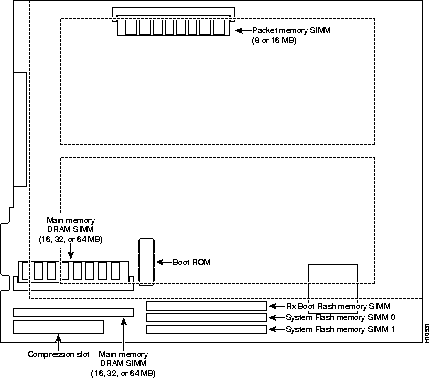
This section describes how to replace DRAM SIMMs on the system card. You might need to upgrade the DRAM SIMMs for the following reasons:
The system card contains three sockets for DRAM SIMMs (see Figure A-14):
You need the following tools and equipment:
Take these steps:
Step 1 Turn the power switch on the access server OFF and disconnect site power.
Step 2 Attach an ESD-preventive wrist strap.
Step 3 Remove the chassis cover. (See the instructions in the section "Removing the Chassis Cover" earlier in this appendix.)
Step 4 Remove all feature cards to access the system card. (See the instructions in the section "Removing Feature Cards" earlier in this appendix.)
Step 5 Use Figure A-14 to locate the SIMM you are replacing.
Step 6 Pull the socket latches away from the SIMM, and then pull the SIMM out of the socket, as shown in Figure A-15. The latches hold the SIMM tightly, so be careful not to break the latches.
| Caution To prevent damage, do not press on the center of the SIMM. Handle the SIMM carefully. |
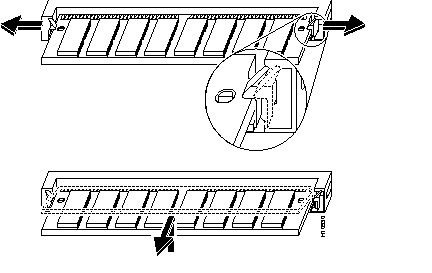
Step 7 Position the new SIMM so that the polarization notch is located at the right end of the SIMM socket.
Step 8 Insert the new DRAM SIMM by sliding the end with the metal fingers into the SIMM socket at approximately a 45-degree angle to the system card, as shown in Figure A-16.
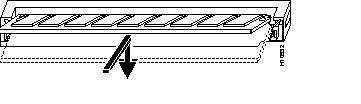
Step 9 Gently rotate the SIMM downward until the latches snap into place, Do not use excessive force because the socket might break.
Step 10 Replace the access server chassis cover. (See the instructions in the section "Replacing the Chassis Cover" later in this appendix.)
Step 11 Replace the feature cards. (See the instructions in the section "Replacing Feature Cards" earlier in this appendix.)
Step 12 Power ON the access server. If error messages relating to memory are displayed, remove the DRAM SIMM and reinstall it, taking care to seat the SIMM firmly in its socket.
The system card contains three sockets for Flash memory SIMMs (see Figure A-14):
The Flash memory SIMMs must be purchased from Cisco Systems, Inc. For ordering information, refer to the Information Packet that accompanied your access server.
You need the following tools and equipment:
Take these steps:
Step 1 Turn the power switch on the access server OFF and disconnect site power.
Step 2 Attach an ESD-preventive wrist strap.
Step 3 Remove the chassis cover. (See the previous procedure in the section "Removing the Chassis Cover" earlier in this appendix.)
Step 4 Place the chassis so that the system card is oriented as shown in Figure A-14, with the Flash memory SIMMs toward you. The system code SIMM sockets are labeled SIMM0 and SIMM1; the rxboot SIMM socket is labeled SIMM.
Step 5 Remove the existing Flash memory SIMM by pulling outward on the socket latches and then lifting the SIMM out of the socket (see Figure A-17).
| Caution To prevent damage, do not press on the center of the SIMMs. Handle each SIMM carefully. |
Step 6 Repeat these steps for all the Flash memory SIMMs that you need to replace.
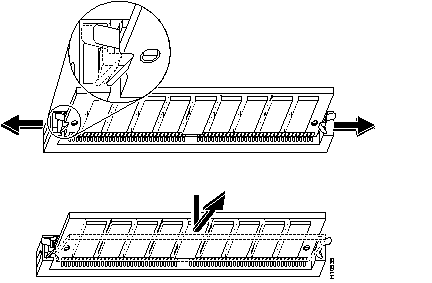
Step 7 Insert the new SIMM by sliding the end with the metal fingers into the appropriate SIMM socket at approximately a 45-degree angle to the system card as shown in Figure A-18.
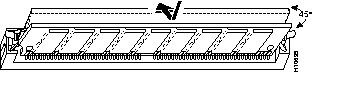
Step 8 Gently rotate the SIMM until the latch on either side snaps into place. Do not use excessive force because the connector might break. When inserting the new SIMM, make sure that the polarization notch is located at the right end of the SIMM socket.
Step 9 Replace the access server chassis cover. (See the instructions in the section "Replacing the Chassis Cover" later in this appendix.)
Step 10 Replace any feature cards removed. (See the instructions in the earlier section,"Replacing Feature Cards.")
Step 11 Connect the access server to a console terminal.
Step 12 Power ON the access server. If any memory-related error messages appear, remove the Flash memory SIMM and reinstall it, taking care to seat the SIMM firmly in the socket.
Before replacing the power supply, read the section, "Safety Recommendations" earlier in this appendix and note the following safety warnings:
| Warning Read the installation instructions before you connect the system to its power source. |
| Warning Ultimate disposal of this product should be handled according to all national laws and regulations. |
| Warning Only trained and qualified personnel should be allowed to install or replace this equipment. |
You need the following tools and equipment:
Take these steps:
Step 1 Turn the power switch on the access server OFF and disconnect site power. (Note that the power switch is part of the power supply.)
| Warning Before working on a chassis or working near power supplies, unplug the power cord on AC units; disconnect the power at the circuit breaker on DC units. |
Step 2 Remove the chassis cover. (See the procedure in the section "Removing the Chassis Cover" earlier in this appendix.)
Step 3 Place the access server so that the rear panel is facing you.
Step 4 Remove the three mounting screws that secure the power supply to the chassis and set them aside. (See Figure A-19.)
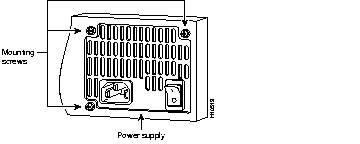
Step 5 Turn the access server so that the front panel is facing you.
Step 6 Lift the air separator out of the chassis. (See Figure A-20.)
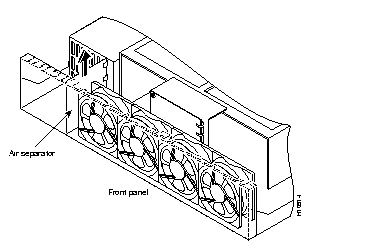
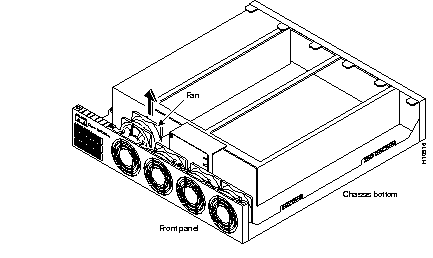
Step 7 Pull the fan closest to the power supply away from the sheet metal tabs as shown in Figure A-21.
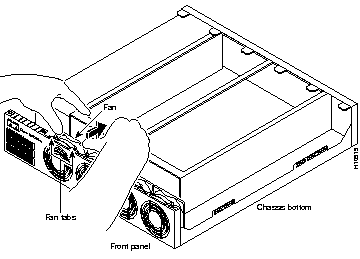
Step 8 Lift the fan out of the chassis as shown in Figure A-22, and set the fan on top of the power supply.
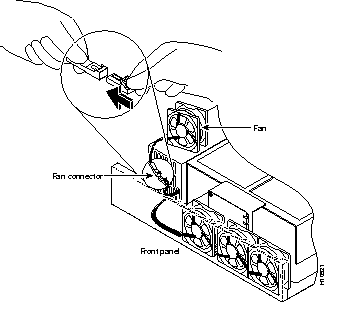
Step 9 Disconnect the fan cable as shown in Figure A-23.
| Caution Do not attempt to remove the fan cables without first depressing the tab as shown in Figure A-23. You can damage the fan cables by applying stress if the connector is not removed properly. |
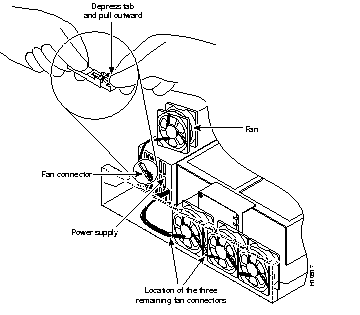
Step 10 Remove the second fan and disconnect its cable. The cables for the two remaining fans can be disconnected without removing the fans.
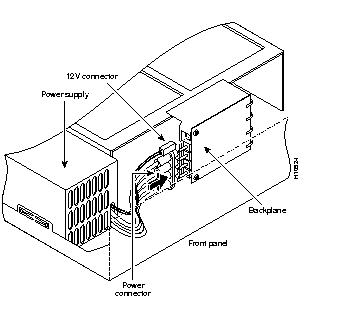
Step 11 Disconnect the power connectors from the backplane as shown in Figure A-24. First disconnect the 2-pin 12V connector and then disconnect the 4-jack harness.
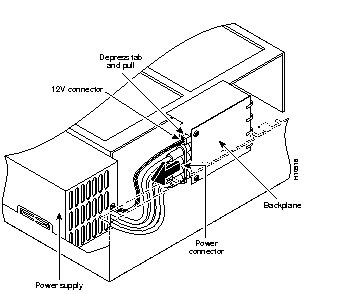
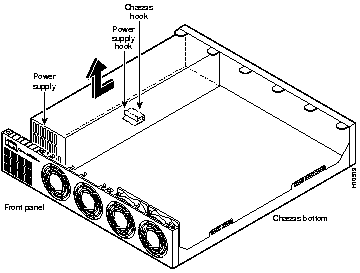
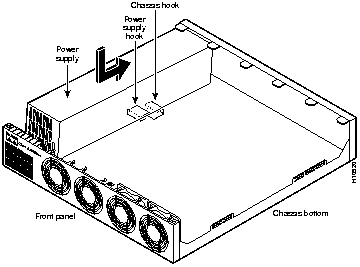
Step 12 Slide the power supply toward the front panel to disengage the power supply hook from the chassis hook as shown in Figure A-25. Then remove the power supply from the chassis.
Take these steps:
Step 1 Place the power supply as shown in Figure A-26, and then slide it toward the rear panel. You will be able to feel the hooks engage.
Step 2 First reconnect the 4-jack harness and then reconnect the 2-pin 12V connector, as shown in Figure A-27. Note that, for clarity, the illustration does not show the fans in place.
| Caution Observe the proper keying of the DC output connector to the back panel connector. Never force the connector or you could damage your Cisco AS5300. |
Step 3 Route the fan cables exactly as shown in Figure A-28. Note that the two longest cables are connected to the two installed fans on the right. The connectors to these two fans will fit into the space between the second and third fans.
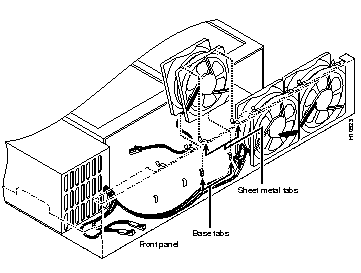
Step 4 Insert the middle fan as shown in Figure A-28, making sure that the cable feeds to your left. Position the cables to the two installed fans so that they will fit under the first and second fans. Press the fan into place between the four sheet metal tabs.
Step 5 Reconnect the two 2-pin fan cables as shown in Figure A-29
Step 6 Reinstall the remaining fan. Make sure you orient the fan so that the cables feed to the right (toward the second fan). Then route the cable completely under the fan before you reconnect it. This takes up the extra length of fan cable and keeps it out of the way.
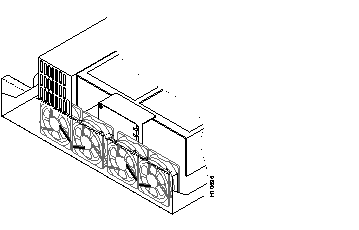
When correctly assembled, the cables appear as shown in Figure A-30.
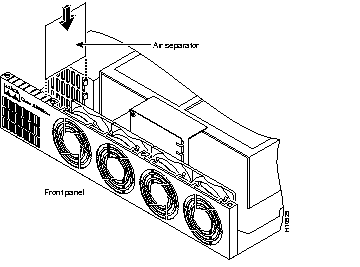
Step 7 Replace the air separator as shown in Figure A-31, holding all cables to the right of the separator as you slip it into the chassis.
Step 8 Turn the access server so that you face the rear panel, and then reinstall the three mounting screws as shown in Figure A-32.
Step 9 If you installed a different type of power supply (AC or DC) than was originally installed in the access server, place one of the power ratings labels that came in the plastic bag with the documentation directly over the power ratings information on the rear panel. For example, if the original chassis came with an AC power supply and you replaced it with a DC power supply, place the DC power ratings label over the ratings stamped on the rear panel of the chassis. This will ensure that the correct power ratings information appears on the rear panel.
Step 10 Replace the chassis cover as described in the next section, "Replacing the Chassis Cover."
This section describes the procedure for replacing the chassis cover.
You need the following tool:
To replace the chassis cover, take these steps:
Step 1 Place the chassis bottom so that the front panel is facing you.
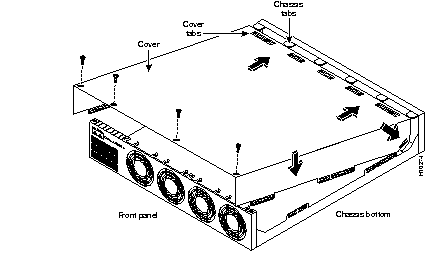
Step 2 Hold the chassis cover over the chassis bottom, and align each of the cover tabs with the chassis tabs at the top rear of the chassis, as shown in Figure A-33.
Step 3 Lower the front of the top cover to close the chassis, and ensure the following:
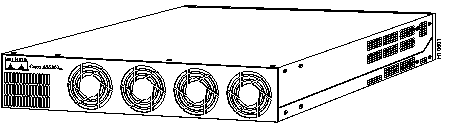
When the chassis cover is properly assembled, no tabs are visible, as shown in Figure A-34.
Step 4 Secure the chassis cover with four screws.
Step 5 Reinstall the chassis on a rack, desktop, or table.
Step 6 Reinstall all interface cables.
Step 7 Reconnect the AC power cord or rewire the DC power supply.
| Warning After wiring the DC power supply, remove the tape from the circuit breaker switch handle and reinstate power by moving the handle of the circuit breaker to the ON position. |
Step 8 Power ON the access server.
The internal power supply fan should power on.
|
|