


|
|

This chapter provides safety information and describes the tasks you must perform before you install the Cisco 2517 and Cisco 2519.
This chapter includes the following topics:
Follow these guidelines to ensure general safety:
Follow these guidelines when working on equipment powered by electricity.

Warning Before working on a chassis or working near power supplies, unplug the power cord on AC units; disconnect the power at the circuit breaker on DC units. Translated versions of this warning are in the appendix "Translated Safety Warnings."

Warning Do not work on the system or connect or disconnect cables during periods of lightning activity. Translated versions of this warning are in the appendix "Translated Safety Warnings."

Warning Do not touch the power supply when the power cord is connected. For systems with a power switch, line voltages are present within the power supply even when the power switch is off and the power cord is connected. For systems without a power switch, line voltages are present within the power supply when the power cord is connected. Translated versions of this warning are in the appendix "Translated Safety Warnings."

Electrostatic discharge (ESD) can damage equipment and impair electrical circuitry. It occurs when electronic components are improperly handled and can result in complete or intermittent failures.
Always follow ESD-prevention procedures when removing and replacing components. Ensure that the router/hub is electrically connected to earth ground. Wear an ESD-preventive wrist strap, ensuring that it makes good skin contact. Connect the clip to an unpainted surface of the chassis frame to safely channel unwanted ESD voltages to ground. To properly guard against ESD damage and shocks, the wrist strap and cord must operate effectively. If no wrist strap is available, ground yourself by touching the metal part of the router/hub.

This section describes the requirements your site must meet for safe installation and operation of your system. Ensure that your site is properly prepared before beginning installation.
Cisco 2517 and Cisco 2519 router/hubs are designed to be rack-mounted in a wiring closet, or placed on a desktop.
Warning Ultimate disposal of this product should be handled according to all national laws and regulations. Translated versions of this warning are in the appendix "Translated Safety Warnings."

The location of the individual router/hub and the layout of your equipment rack or wiring room are extremely important for proper system operation. Equipment placed too close together, inadequate ventilation, and inaccessible panels can cause system malfunctions and shutdowns, and can make system maintenance difficult.
When planning your site layout and equipment locations, use the precautions in the following sections to help avoid equipment failures and reduce the possibility of environmentally caused shutdowns. If you are currently experiencing shutdowns or unusually high errors with your existing equipment, these precautions can help you isolate the cause of failures and prevent future problems.
The following precautions will help you plan an acceptable operating environment for the Cisco router/hub and will help you avoid environmentally caused equipment failures:
The following tips will help you plan an acceptable equipment rack configuration:
Check the power at your site to ensure that you are receiving "clean" power (free of spikes and noise). Install a power conditioner if necessary.


Figure 2-1 Power Supply Input Voltage Selection Switch
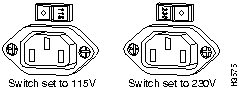
The installation checklist lists the procedures for initial hardware installation of a new Cisco 2517 or Cisco 2519. Make a copy of this checklist and mark the entries as you complete each procedure. Include a copy of the checklist for each system in your site log.
Installation checklist for site _______________________________________________
| Task | Verified by | Date |
|---|---|---|
| Installation checklist copied | ||
| Background information placed in the site log | ||
| Environmental specifications verified | ||
| Site power voltages verified | ||
| Installation site prepower check completed | ||
| Required tools available | ||
| Additional equipment available | ||
| Power supply input voltage selection switch set | ||
| Unit received | ||
| Cisco Connection Documentation CD-ROM or printed documentation received, if ordered | ||
| Router/Hub components verified | ||
| Software version verified | ||
| Initial electrical connections established | ||
| Terminal or PC attached to the Cisco router/hub console port | ||
| Modem attached to the console port (for remote configuration) | ||
| Signal distance limits verified | ||
| Startup sequence steps completed | ||
| Initial system operation verified |
LAN interface name ______________________________
Unit serial number ________________________
The site log provides a historical record of all actions relevant to the router/hub. Keep the site log in an easily accessible place near the router/hub where anyone who performs tasks has access to it. Use the installation checklist to verify steps in the installation and maintenance of your system. Site log entries might include the following:
When setting up your Cisco 2517 or Cisco 2519, consider distance limitations and potential electromagnetic interference (EMI) as defined by the Electronic Industries Association (EIA). Following are the distance limitation specifications for serial interfaces.
The IEEE 802.5 specification for the maximum length of a Token Ring unshielded twisted pair (UTP) segment is 328 feet (100 meters) at a transmission rate of 4 Mbps or 16 Mbps.
As with all signaling systems, EIA/TIA-232 signals can travel a limited distance at any given bit rate; generally, the slower the data rate, the greater the distance. Table 2-1 shows the standard relationship between baud rate and maximum distance.
Table 2-1 EIA/TIA-232 Speed and Distance Limitations
| Data Rate (Baud) | Distance (Feet) | Distance (Meters) |
|---|---|---|
| 2400 | 200 | 60 |
| 4800 | 100 | 30 |
| 9600 | 50 | 15 |
| 19200 | 25 | 7.6 |
| 38400 | 12 | 3.7 |

The use of balanced drivers allows EIA/TIA-449 signals to travel greater distances than the
EIA/TIA232 standard. Table 2-2 lists the standard relationship between baud rate and maximum distance for EIA/TIA-449 signals. These limits are also valid for V.35 and X.21.
Table 2-2 EIA/TIA-449 Speed and Distance Limitations
| Data Rate (Baud) | Distance (Feet) | Distance (Meters) |
|---|---|---|
| 2400 | 4,100 | 1,250 |
| 4800 | 2,050 | 625 |
| 9600 | 1,025 | 312 |
| 19200 | 513 | 156 |
| 38400 | 256 | 78 |
| 56000 | 102 | 31 |
| T1 | 50 | 15 |

When you run cables for any significant distance in an electromagnetic field, interference can occur between the field and the signals on the cables. This fact has two implications for the construction of terminal plant cabling:
If you use twisted-pair cables with a good distribution of grounding conductors in your plant cabling, emitted radio interference is unlikely. If you exceed the maximum distances, ground the conductor for each data signal; however, this practice is not recommended.
If you have cables exceeding recommended distances, or if you have cables that pass between buildings, give special consideration to the effect of lightning strikes or ground loops. The electromagnetic pulse caused by lightning or other high-energy phenomena can easily couple enough energy into unshielded conductors to destroy electronic devices. If your site has experienced this type of problem, consult experts in lightning suppression and shielding.
To prevent EMI, consult experts in radio-frequency interference (RFI).
In order to avoid possible EMI interference when the Token Ring port speed is set to 16 MHz, follow these recommendations:
Before connecting the management card console and router card auxiliary ports, read the following sections.
The management card has an RJ-45 console asynchronous serial port. This port connects to a terminal or PC with a special blue colored RJ-45 to DB-25 console cable, which is supplied. The default parameters for the console port are 9600 baud, 8 data bits, no parity generated or checked, and 1 stop bit. The console port does not support hardware flow control.
The router card has an RJ-45 asynchronous (AUX) serial port that is used as an auxiliary port. This port connects to a terminal using an RJ-45-to-DB-25 adapter. Depending on the adapter used, this port becomes a data communications equipment (DCE) device or a data terminal equipment (DTE) device. To use the terminal as a console, you should use a DCE RJ-45-to-DB-25 adapter. The default parameters for the port are 9600 baud, 8 data bits, no parity generated or checked, and 2 stop bits.
This section contains information about connecting the Token Ring, serial, and BRI ports to your network.
The Token Ring hub ports are located on the hub port card, and on the router card. Use a modular, RJ-45, UTP cable to connect the Token Ring ports to workstations, PCs, servers, or a media attachment unit (MAU).
Two serial interface ports are located on the router card. The serial ports use 60-pin, D-type connectors. All serial interfaces except the EIA-530 interface can be configured as DCE using a DCE cable. The DTE serial port needs external clocking, which is provided by a channel service unit/data service unit (CSU/DSU) or modem.
You must use a special serial cable to connect the router card to a modem or CSU/DSU. This cable is available from Cisco Systems and can be ordered with the system. The cable uses a DB-60 connector on the hub end. For cable specifications, see the appendix "Cabling Specifications." For ordering information, contact a customer service representative.
The Basic Rate Interface (BRI) port is an RJ-45 8-pin jack located to the right of the serial port on the daughter card. Use an appropriate cable to connect the system directly to the ISDN through the NT1. The common carrier will provide the NT1 connection worldwide, except in North America, where the NT1 is owned by individual customers.
Warning Before opening the chassis, disconnect the telephone-network cables to avoid contact with telephone-network voltages. Translated versions of this warning are in the appendix "Translated Safety Warnings."

Do not unpack the router/hub until you are ready to install it; keep the router/hub in its shipping container to prevent accidental damage. When you have determined where you want to install the Cisco 2517 or Cisco 2519, proceed with the unpacking.
The router/hub, cables, Cisco Connection Documentation CD-ROM or printed publications, and any optional equipment you ordered might be shipped in more than one container. When you unpack each shipping container, check the packing list to ensure that you received the following items:
Inspect all items for shipping damage. If anything appears to be damaged, or if you encounter problems when installing or configuring your system, contact your Cisco customer service representative.
To prepare your system for operation:

|
Copyright 1988-1995 © Cisco Systems Inc.