


|
|

When the router card and hub card are configured according to your specifications, you can install the chassis in a 19-inch rack, or place it on a desktop. This chapter explains how to prepare the hub for rack-mount and desktop usage, and how to connect a PC or terminal to the console port and communicate with the hub.
Cisco 2517 and Cisco 2519 router/hubs are shipped from the factory ready to use in the following configuration:

The Cisco router/hub is designed to be rack-mounted in a wiring closet or data processing environment, or placed on a desktop.
Cisco 2517 and Cisco 2519 router/hubs include two brackets you use to mount the chassis in a 19-inch rack. Perform the following steps to attach the rack-mount brackets:
Figure 3-1 Rack-Mount Brackets
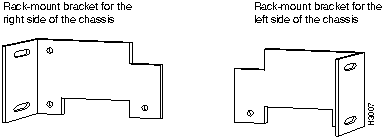
Figure 3-2 Rack-Mount Bracket Attached to a Cisco 2517 or Cisco 2519
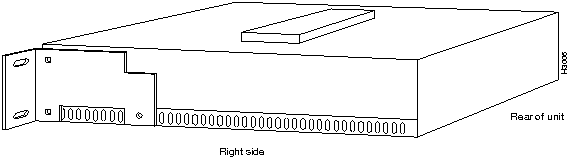
The router/hub is now ready to be mounted in a 19-inch rack.
Cisco 2517 and Cisco 2519 router/hubs are shipped with four rubber "feet" that attach to the bottom four corners of the chassis. If you plan to place the chassis on a desktop, make sure you attach the feet before using the router/hub.
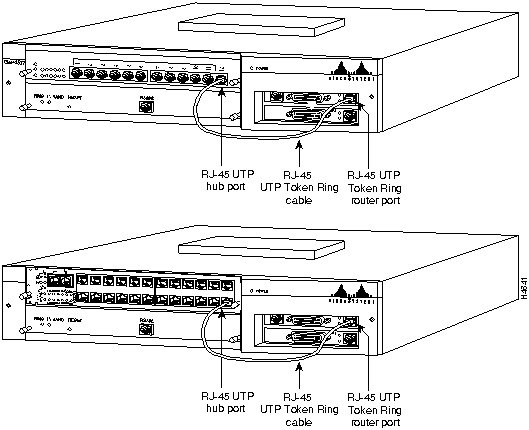
The Token Ring port on the router card connects to port 12 on the Cisco 2517 hub port card, or port 23 on the Cisco 2519 hub port card. Use the RJ-45 cable provided with the router/hub. (See Figure 3-3.)
Figure 3-3 Connecting the Router Card to the Hub Port Card
The management card contains an EIA/TIA-232 console port where you attach a terminal or PC, and then configure the SNMP agent and router card. This section provides instructions for connecting the terminal or PC.
Perform the following steps to attach a terminal or PC to the management card console port:


Figure 3-4 Power Supply Input Voltage Selection Switch
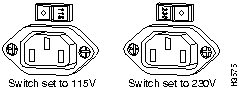
Table 3-1 DOS Commands Used in the Router/Hub
| Key Sequence or Command | Action |
|---|---|
| Ctrl-E | Stops the SNMP agent and displays the <<C>> prompt. |
| Ctrl-Q | Exits the router program |
| hellottt | Wakes up the SNMP agent |
| agent | Restarts the SNMP agent |
| router | Connects to the router card |
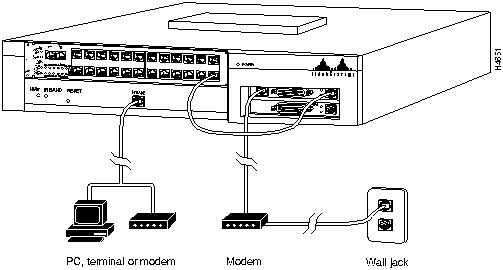
You can also connect a console, modem, or terminal server to the auxiliary port on the router card. Figure 3-5 shows additional ways to communicate with the router card or management card console port.
Figure 3-5 Communicating with the Cisco Router/Hub
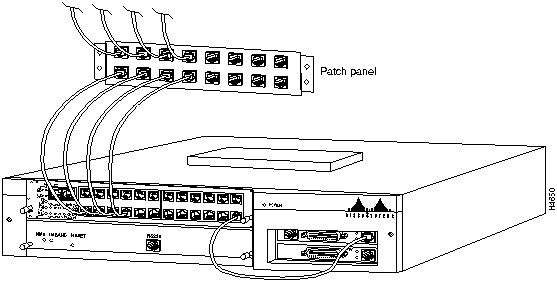
You can connect up to 11 stations in a Token Ring network to the Cisco 2517 router/hub, and up to 23 stations to a Cisco 2519 router/hub. Figure 3-6 shows the Cisco 2519 ports connected to a patch panel.
Figure 3-6 Token Ring Hub Ports Connected to a Patch Panel
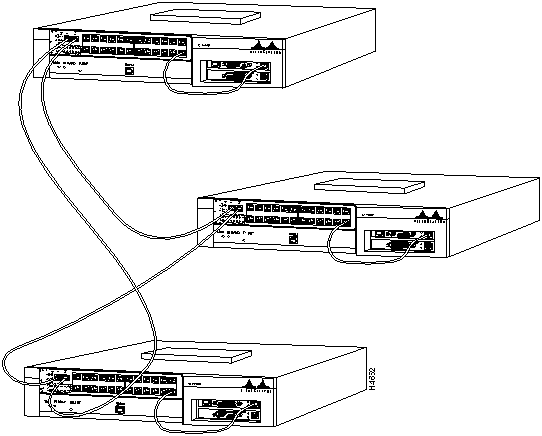
You can connect a Cisco 2519 router/hub to a Token Ring network via the Ring In and Ring Out ports. The Ring In port connects to the Ring Out port of the upstream router/hub, and the Ring Out port connects to the Ring In port of the downstream router/hub. See Figure 3-7.
Figure 3-7 Connecting to a Token Ring Network
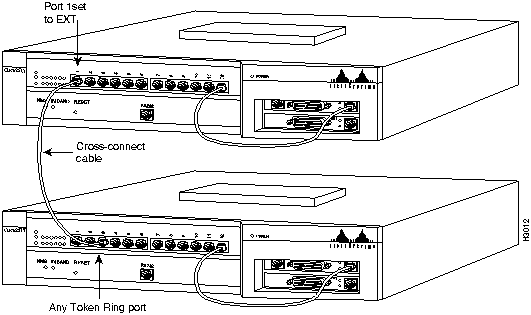
You can add stations to the ring by attaching another Cisco 2517 or Token Ring concentrator to port 1 on the hub card. Port 1 has two mode settings that are configured with the DIP switch (see the appendix "Cisco 2517 and Cisco 2519 Router/hub Maintenance" for switch location and settings). When the port is set to lobe mode, it can be used to connect a station in the ring. When the port is set to EXT mode, it is used to connect another router/hub. In Figure 3-8, the upper Cisco 2517's port 1 mode setting is EXT, and the lower Cisco 2517's port 1 mode setting is lobe.
Figure 3-8 Cascading Cisco 2517 Router/Hubs
The Cisco 2517 and Cisco 2519 have a stack expansion connector terminator on the top of the unit. Removing this terminator allows you to increase the number of ports by connecting up to five stackable expansion units (available from Lanoptics, Inc.).

|
Copyright 1988-1995 © Cisco Systems Inc.