
Table of Contents
Cisco 4000 Rack-Mount/Wall-Mount
Installation
Cisco 4000 Rack-Mount/Wall-Mount
Installation
Cisco Product Number ACS-NPRM, ACS-NPWM
This configuration note describes how to mount your Cisco 4000 in a rack or on a wall. Topics covered include the following:
- Required tools and parts
- Rack-mount/wall-mount procedures overview
- Removing the chassis shell and front panel
- Mounting the chassis in a standard rack
- Mounting the chassis on a wall
- Mounting the chassis in a telco rack
- Replacing the component tray
The following tools and parts are required for rack-mount and wall-mount procedures:
- Screwdriver, No. 1 or No. 2 Phillips
- Screwdriver, No. 2 flat-blade
Table 1 lists the parts contained in the standard rack-mount kit.
| 2 |
Rack-mount brackets |
| 2 |
Short bracket extenders |
| 2 |
Long bracket extenders |
| 6 |
M3 machine screws |
| 8 |
10--32 machine screws |
| 1 |
Installation diagram |
Table 1 Standard Rack-Mount Kit Components
Table 2 lists the parts contained in the telco rack-mount/wall-mount kit.
| 2 |
Telco rack-mount/wall-mount brackets |
| 4 |
10-32 machine screws |
| 4 |
Hex-head wood screws for mounting the chassis to a wooden board |
| 4 |
Rubber feet |
| 2 |
M3 machine screws |
| 1 |
Installation diagram |
Table 2 Telco Rack--Mount/Wall-Mount Kit Components
For wall mounting, the following additional equipment is required:
- Plywood board (19" x 19" x 1/2" minimum size)
- Wood fasteners for attaching the board to the wall
The Cisco 4000 has three mounting options: standard 19-inch rack mount, telco rack mount, or wall mount. The procedures for the different mounting options involve removing the front panel and component tray from the chassis shell and then installing the empty shell in position before reinserting the component tray.
- Note: The Cisco 4000 ships with optional rubber "feet." For desktop and wall-mounted chassis, install the feet to provide adequate spacing between the chassis and the supporting surface for proper ventilation. For rack-mounted chassis, do not install the feet if the chassis is to be mounted directly above another chassis in the same rack.
To rack mount or wall mount the chassis, the front panel and component tray must first be removed from the chassis shell. Follow these steps to remove the chassis shell and front panel.
- Step 1: Loosen the (nonremovable) screw in the back of the chassis, labeled Chassis release screw in Figure 1.
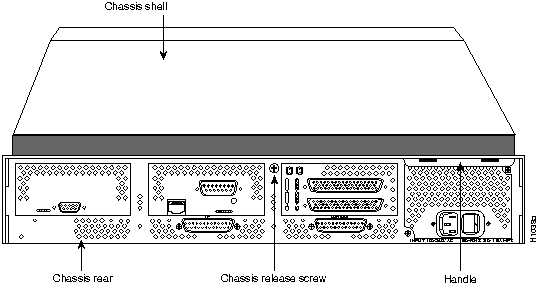
Figure 1 Chassis Component Tray Removal
- Step 2: Slide the component tray out of the chassis shell while facing the chassis rear panel, pulling the handle on the right side of the chassis until the safety latch catches (see Figure 2).
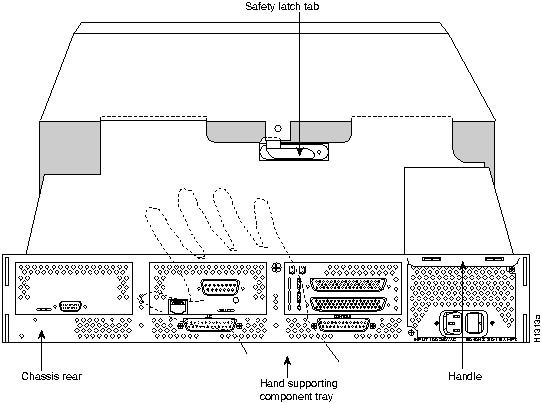
Figure 2 Safety Latch Tab Location

- Warning: Before releasing the safety latch, support the component tray from underneath either on your work surface or with your hands to prevent it from falling (see Figure 2).
- Step 3: While supporting the component tray with one hand, push down on the safety latch tab while pulling out on the component tray.
- Step 4: Set the component tray aside in a safe location.
- Step 5: Remove the plastic front panel from the front of the chassis shell by pulling it straight out using both hands. The front panel is held in place by five ball studs.
After removing the chassis shell and front panel, follow these steps to install the chassis shell into a standard 19-inch rack. The standard 19-inch rack-mount kit (see Figure 3) consists of two sets of one bracket, one short extender (approximately 5"), and one long extender (approximately 10") (see Figure 4 and Figure 5).
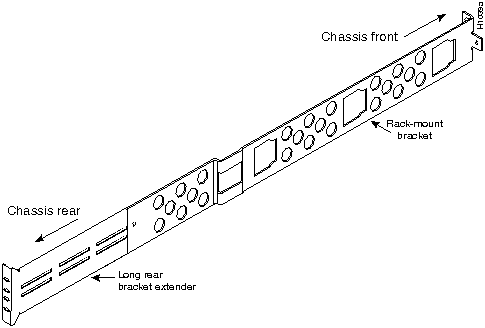
Figure 3 Standard Rack-Mount Bracket and Extender
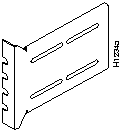
Figure 4 Short Rear Bracket Extender
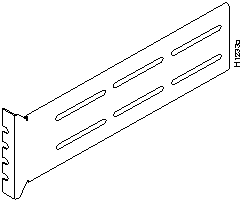
Figure 5 Long Rack-Mount Bracket Extender
Follow these steps to install the chassis shell into a standard rack:
- Step 1: On the rear of the rack, insert two 10-32 machine screws through the slots of the extenders and thread them into the rack-mount threaded holes (see Figure 6).
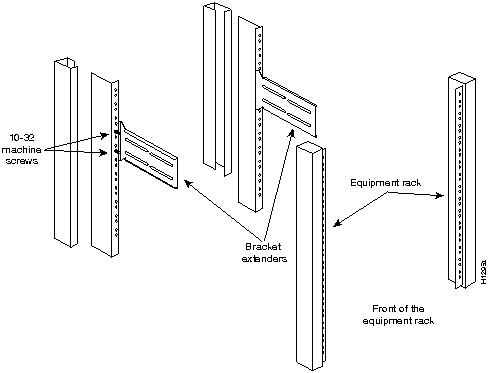
Figure 6 Rear Bracket Extenders in a Standard 19-inch Rack
- Step 2: On the chassis shell, insert one rack-mount bracket through the slot on each side of the front and rear of the shell, sliding the rack-mount brackets straight into the shell's inner brackets (see Figure 7).
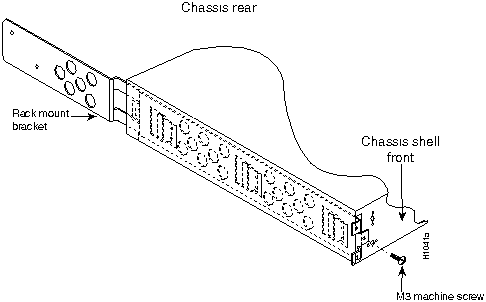
Figure 7 Rack-Mount Bracket Insertion (Front View)
- Step 3: Fasten the brackets to each side of the chassis shell with the M3 machine screws provided (see Figure 8).
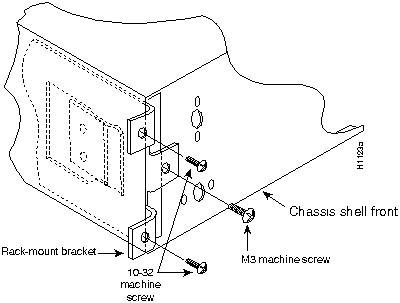
Figure 8 Standard Rack-Mount Bracket and Screw
- Step 4: While supporting the chassis shell, slide the rack-mount brackets into the installed rear extenders. The standard rack-mount bracket, extender, and screws fit together as shown in Figure 9.
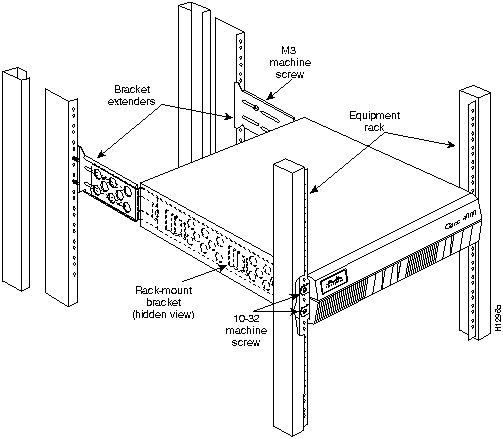
Figure 9 Rack-Mount Bracket Insertion
- Step 5: Mount the shell's front to the rack using two 10-32 machine screws on each side of the front brackets.
- Step 6: In the rear of the chassis shell, insert two M3 machine screws on both sides to fasten the brackets and bracket extenders together.
- Step 7: Replace the front panel by inserting the ball studs into their holes.
Follow these steps to replace the component tray in the chassis shell:
- Step 1: Reinsert the component tray into the shell.
- Step 2: Push on the back of the tray while at the same time pressing on the chassis release screw (as shown in Figure 1) with the thumb of your right hand.
- Step 3: Retighten the chassis release screw.
This completes the standard rack-mount procedure.
Figure 10 shows the telco rack/wall-mount bracket.
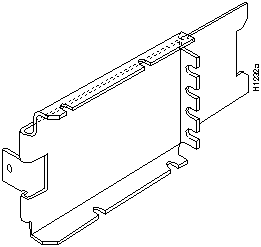
Figure 10 Telco/Wall-Mount Bracket
Follow these steps to install the telco/wall-mount bracket into a chassis:
- Step 1: Insert one rack-mount bracket into the slot on each side of the shell, sliding the bracket straight into the shell's inner 2-inch brackets.
- Step 2: Fasten the bracket to the shell on each side with one M3 machine screw (as shown in Figure 11).
- Note: Figure 11 shows screw locations for both telco rack and wall-mounting. The wood screw locations apply only to the wall-mount procedures.
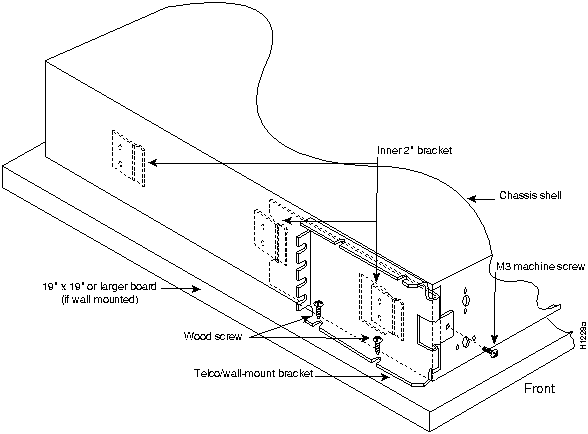
Figure 11 Screw Locations for Telco Rack/Wall-Mount Bracket
After removing the chassis shell, removing the front panel, and installing the telco rack/wall-mount brackets, follow these steps to wall mount your system:
- Step 1: Install the wall-mount brackets following the procedures described in "Removing the Chassis Shell and Front Panel" and "Installing the Telco Rack/Wall-Mount Brackets."
- Step 2: Choose the wall on which you will mount the Cisco 4000 chassis. When choosing a location, consider cable lengths and limitations, and wall structure (see Figure 12).
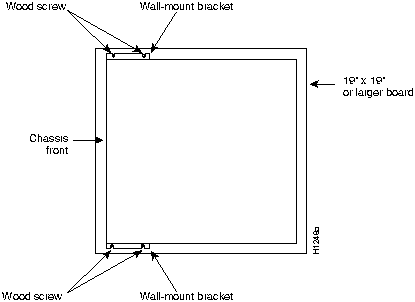
Figure 12 Wall-Mounted Cisco 4000 Chassis
- Note: The chassis should be wall mounted with the front and rear of the chassis perpendicular to the floor and at eye level, enabling the reading of the front and rear LED indications. All four mounting screws must be anchored to solid wood.
- Step 3: Attach the four rubber "feet" to the chassis bottom for proper spacing.
- Step 4: Lay the chassis on top of a plywood board (19" x 19" x 1/2" minimum, not supplied). Using the chassis as a pattern, mark or drill the wall-mount screw locations on the board. For the easiest screw insertion, drill the screw locations in preparation for mounting the chassis.
- Step 5: To safely accommodate variations in interior wall construction, locate the wall studs (2" x 4" boards inside a building's walls, commonly spaced 16" apart) and mount the piece of plywood securely to the wall, nailing the board to the studs.
- Step 6: Start the two screws in their places on the bottom of the board, leaving about 1/4" to insert the bracket.
- Step 7: While supporting the chassis shell, insert the lower bracket over the two wood screws in place on the piece of plywood (see Figure 11). At the same time, insert on wood screw through the top wall/mount bracket to hold the chassis in place. Follow this by inserting the second top wood screw.
- Step 8: Tighten all wood screws.
Follow these steps to replace the component tray in the chassis shell:
- Step 1: Reinsert the component tray into the shell.
- Step 2: Push on the back of the tray while at the same time pressing on the chassis release screw (as shown in Figure 1) with the thumb of your right hand.
- Step 3: Retighten the chassis release screw.
This completes the wall-mount procedure.
To install the chassis shell in a telco rack, follow these steps:
- Step 1: Partially thread two 10-32 machine screws into one side of the telco rack with enough space to allow one side bracket to fit (see Figure 13).
- Step 2: While supporting the chassis shell, slip the one side bracket over the two screws in place and thread one screw in on the opposite side's bracket to hold the shell to the telco rack.
- Step 3: Thread the remaining machine screw in and tighten all the screws in place.
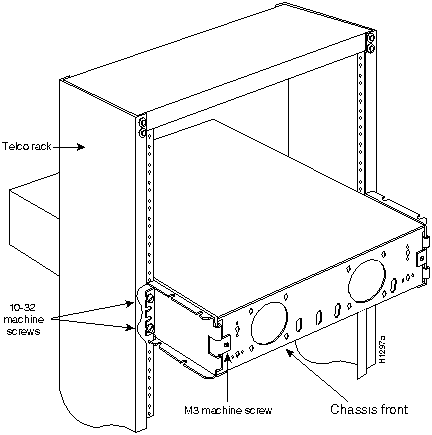
Figure 13 Telco Rack-Mounted Chassis
- Step 4: Replace the front panel by reinserting the ball studs into the receiving holes.
- Step 5: Reinsert the component tray into the shell.
- Step 6: Push on the back of the tray while at the same time pressing on the chassis release screw (shown in Figure 1) with the thumb of your right hand.
- Step 7: Retighten the chassis release screw.
This completes the telco rack-mount procedure.
Copyright 1988-1995
©
Cisco Systems Inc.



