Caution Before opening the router chassis, ensure that you have discharged all static electricity from your body and be sure the power is OFF. Before performing any procedures described in this chapter, review the following sections in Chapter 2: "Safety Recommendations," "General Site Requirements," "Installation Checklist," and "Tools and Equipment Required."
Tools Required
The following tools are required for the procedures described in this chapter:
- ESD cord and wrist strap
- Screwdrivers: No. 1 and No. 2 Phillips
- Screwdriver: flat-blade
- PAL extraction tool
Accessing the Router Internal Components
You must open the router chassis to gain access to the router's internal components: the network processor modules, Flash electronically programmable read-only memory (EPROM) card, boot ROMs, and jumpers.
 Warning Hazardous voltages may exist in or near the power supply, so use extreme caution when working near the power supply. Before starting any of these procedures, turn OFF power to the system, unplug the power cord, disconnect any cables at the ports, and connect your ESD protection.
To open the chassis, proceed as follows:
Step 1 Turn OFF power to the system.
Step 2 Connect your ESD wriststrap to the chassis.
Step 3 Remove all network and power cables before opening the chassis.
Step 4 To remove the chassis shell, loosen the (nonremovable) screw in the back of the chassis, labeled Chassis release screw in Figure 5-1.
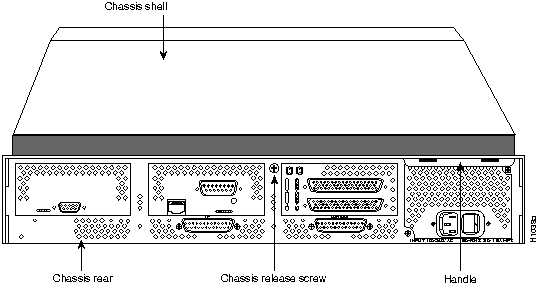
Figure 5-1 : Chassis Component Tray Removal
Step 5 Slide the component tray out of the chassis shell while facing the chassis rear panel, pulling the handle on the right side of the chassis until the safety latch catches. (See Figure 5-2.)
 Warning Before releasing the safety latch, support the component tray from underneath, either on your work surface or with your hands, to prevent it from falling. (See Figure 5-2.)
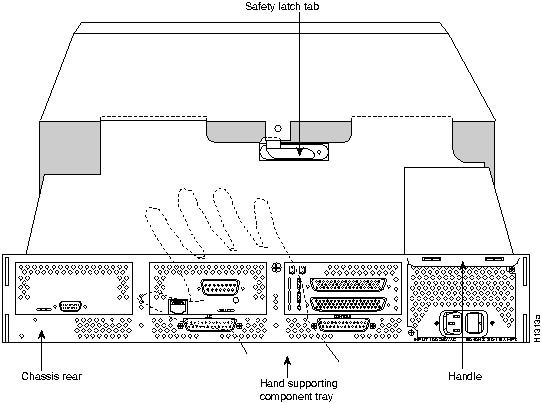
Figure 5-2 : Safety Latch Tab Location and Hand Supporting Component Tray
Step 6 While supporting the component tray with one hand, push down on the safety latch tab while pulling out on the component tray.
Step 7 Set the component tray aside in a safe location.
Removing Network Processor Modules
If you are replacing shared-memory single in-line memory modules (SIMMs), you must first remove the network processor modules. Follow the steps in this section to remove a network processor module.
 Caution Some network processor modules are mounted to the rear of the chassis with two external screws. On modules with external rear mounting screws, which include the Fiber Distributed Data Interface (FDDI) module, these screws must be removed before the module can be safely lifted out of the chassis or damage to the module will occur. Other types of modules may not have the two external rear mounting screws attached to the chassis.
Step 1 With the component tray in front of you (as shown in Figure 5-3), remove the module mounting screw from the top end of the network processor module, and the two external rear mounting screws (not shown) if the module has them, and set the screws aside.
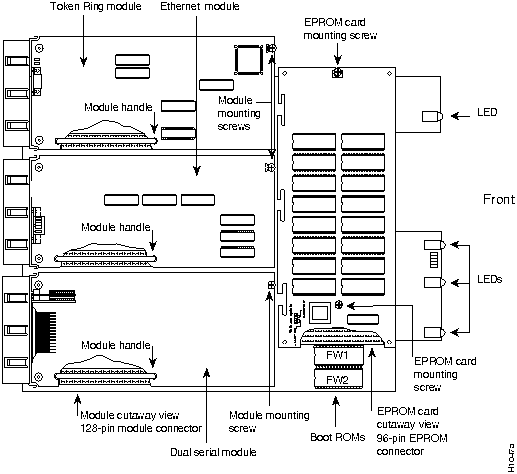
Figure 5-3 : Router Component Tray
Step 2 To lift the module out of its connector after removing the mounting screws, grasp the network processor module handle and pull straight up. (See Figure 5-4.)
 Caution Do not wiggle the handle when handling the network processor module, and do not exert any side-to-side pressure, or the handle might work loose and damage the network processor module.
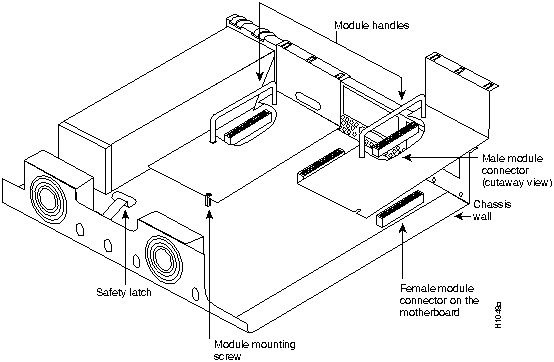
Figure 5-4 : Network Processor Module Locations
Step 3 Place the removed module on an electrostatic discharge (ESD) prevention mat.
Adding Flash EPROM Memory
Once the Flash EPROM card is exposed, follow the procedures in this section to install additional Flash EPROMs and to replace the programmable array logic device (PAL) on the card.
It is not necessary to remove the Flash EPROM card for this upgrade procedure. Do not try to remove the existing Flash EPROMs; they are permanently installed.
 Caution The correct placement of the Flash EPROMs and PAL is crucial. If improperly positioned, the new components could be damaged when the system is powered on. Read through all of the instructions before proceeding. To prevent damage to the EPROMs and PAL from ESD (when handling the system and its components), follow the ESD procedures described earlier. Also, be careful not to damage or scratch the printed circuit card under the EPROMs.
Installing Flash Memory EPROMs
To install the eight new Flash EPROMs in the eight open sockets (U141 through U148) on the Flash EPROM card (see Figure 5-5), insert the Flash EPROMs in the sockets, being careful not to bend or crush any of the pins. (To straighten out a bent pin, use needlenose pliers.) Align the notch in the EPROM with the notch in the EPROM socket.
All the Flash EPROM sockets should now be filled (as shown in Figure 5-5).
Figure 5-5 shows the Flash EPROM card with all the Flash EPROM sockets fully populated as well as the PAL at location U2.
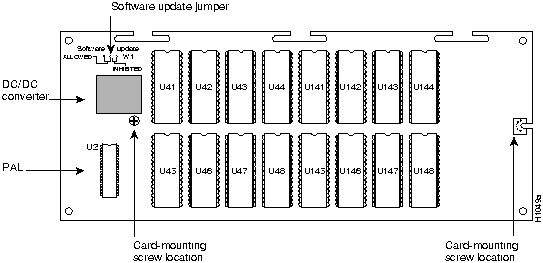
Figure 5-5 : Flash EPROM Card (Top View)
Replacing the Flash EPROM Card PAL
Follow these steps to replace the PAL at location U2. (See Figure 5-5.)
Step 1 Using the PAL extraction tool or small flat-blade screwdriver, gently lift the existing PAL at location U2 out of its socket, exerting care not to damage the underlying printed circuit card. Set the old PAL (Part Number 17-1186-01) aside.
Step 2 With your fingertips, gently align the replacement PAL (Part Number 17-1248-01) with its socket, being careful not to bend or crush any of the pins. (To straighten out a bent pin, use needlenose pliers.) Align the notch in the PAL with the notch in the PAL socket.
Configuring Flash Jumper Settings
To configure the Flash EPROM card jumpers for write enable or for write disable settings, place the Flash EPROM card with the notched edges on top (as shown in Figure 5-5). The software update jumper is on the upper left of the card. To allow for software update (the factory-set default), the jumper should be on the left two pins. To inhibit software update, the jumper should be on the right two pins. Refer to the appropriate software publication for more information on using Flash memory.
Removing the Flash EPROM Memory Card
In order to remove or install system-memory SIMMs, you must first remove the Flash EPROM card. Follow these steps to remove the Flash EPROM card. (See Figure 5-5.)
Step 1 Place the component tray in front of you as in Figure 5-3. Remove the two card mounting screws from the Flash EPROM card and set the screws aside.
 Caution To prevent damaging the Flash EPROM card, handle it by the sides only.
Step 2 Holding the Flash EPROM card by its edges, pull straight up to lift the card out of its connector. (See Figure 5-6.) The system-memory SIMMs will now be exposed.
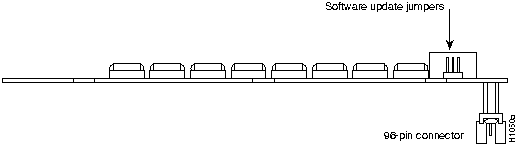
Figure 5-6 : Flash EPROM Card and Connector---Side View
To reinstall the Flash EPROM card, see the section "Installing the Flash EPROM Card."
DRAM SIMM Replacement Procedures
There are two random access memory (RAM) systems on the router. One is the shared-memory interface, which is the interface that the network processor modules deposit data to or transmit data from, and the second is the primary- or system-memory interface, which is reserved for the CPU.
 Caution Observe all ESD precautions. Too much force in removing or replacing SIMMs could damage the underlying system card.
The router can accommodate system-memory configurations of 4 MB or 16 MB of memory (four 1 MB x 9 SIMMs or four 4 MB x 9 SIMMs) and a shared-memory configuration of 1 MB or 4 MB. When replacing your DRAM SIMMs, you must fully populate all the DRAM SIMM card sockets (as shown in Figure 5-7).
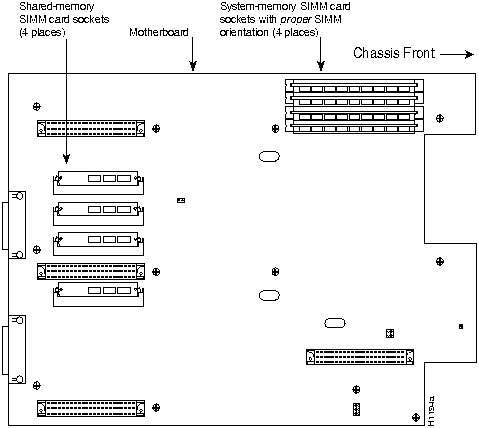
Figure 5-7 : Router SIMM Locations
Replacing System-Memory SIMMs
Figure 5-8 shows the polarization notch and locations of the alignment holes on a system-memory SIMM card. The system-memory SIMM cards are installed with the connector edge down and the component side facing in, as shown in the upper right of Figure 5-7.
.
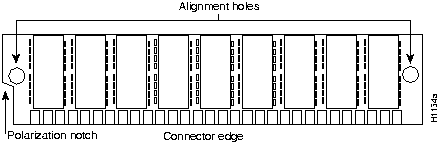
Figure 5-8 : System-Memory SIMM
Replacing Main Memory SIMMs in the Cisco 4000
If upgrading main memory in the Cisco 4000, the existing main memory SIMMs can be used to upgrade the Cisco 4000 shared memory to 4 MB.
Note The listed components do not apply to the Cisco 4000-M.
Table 5-1, Table 5-2, and Table 5-3 list main memory SIMM components approved for use in the Cisco 4000.
Table 5-1 : Approved 256 Kx9, 80 NS SIMM Vendors
| Motorola
|
MCM94256AS80
|
| Smart Modules
|
SM59256A-08-2
|
| Smart Modules
|
SM59256A-08-3
|
| Smart Modules
|
SM59256A-A8-4
|
| TI
|
TM256GU9C-80
|
| Toshiba
|
THM92500AS-80
|
Table 5-2 : Approved 1 Mx9, 80 NS SIMM Vendors
| Micron
|
MT3D19M-7
|
| Micron
|
MT3D19M-8
|
| Mitsubishi
|
MH1M09A0A7-7
|
| Mitsubishi
|
MH1M09A0AJ-8
|
| Motorola
|
MCM91430S80
|
| Samsung
|
KMM591000BN-7
|
| Samsung
|
KMM591000BN-8
|
| Smart Modules
|
SM591000A-7
|
| Smart Modules
|
SM591000A-8-1
|
| TI
|
TM124EAD9B-80
|
Table 5-3 : Approved 4 Mx9, 70 NS SIMMs
| Hyundai
|
HYM594000AM-70
|
| Micron
|
MT9D49M-7
|
| Mitsubishi
|
MH4M09A0J-7
|
| Mitsubishi
|
MH4M09A0AJ-7
|
| Motorola
|
MCM94000AS-70
|
| Samsung
|
KMM594000B-7
|
| TI
|
TM4100EAD9-70
|
Removing System-Memory SIMMs
Follow these steps to remove system-memory SIMMs:
Step 1 Slip on an ESD wriststrap.
Step 2 On the motherboard, locate the system-memory SIMM card sockets shown in the upper right corner of Figure 5-7. All the sockets should contain SIMM cards (as shown in Figure 5-7.)
 Caution Handle SIMMs by the card edges only. SIMMs are ESD-sensitive components and can be damaged by mishandling.
Step 3 Beginning with the SIMM farthest from the edge of the motherboard (the bottom sharedmemory SIMM in Figure 5-7), remove one SIMM at a time.
Step 4 To lift the SIMM out of its socket, pull the locking spring clips on both sides outward and tilt the SIMM free of the clips.
Step 5 Hold the SIMM by the edges with your thumb and index finger and lift it out of the socket. Place the removed SIMM in an antistatic bag to protect it from ESD damage.
Step 6 Repeat steps 2 through 4 for each system-memory SIMM card.
Proceed to the section "Inserting System-Memory SIMMs."
Inserting System-Memory SIMMs
Follow this procedure to install system-memory SIMMs.
Step 1 Slip on an ESD wriststrap.
Step 2 On the motherboard, locate the system-memory SIMM card sockets shown in the upper right corner of Figure 5-7. All the sockets should be empty. If not, follow the steps in the section "Removing System-Memory SIMMs."
 Caution Handle SIMMs by the card edges only. SIMMs are ESD-sensitive components and can be damaged by mishandling.
Step 3 SIMMs are manufactured with a polarization notch to prevent them from being installed backwards. Hold the SIMM with the polarization notch on the right and the component side away from you with the connector edge at the bottom. (See Figure 5-8.)
Step 4 Beginning with the SIMM nearest the edge of the motherboard, insert the system-memory SIMM card at a 45-degree angle and rock it into its vertical position (see Figure 5-9), using the minimum amount of force required. When the SIMM is properly seated, the socket guide posts will insert through the alignment holes, and the connector springs will click into place.
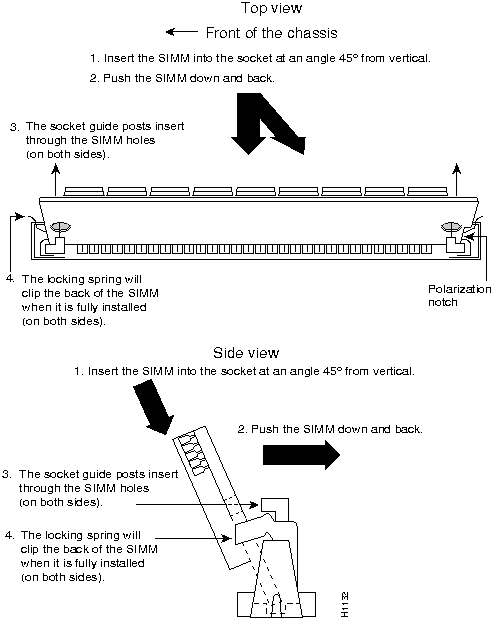
Figure 5-9 : Installing System-Memory SIMMs
 Caution You will feel some resistance, but do not use excessive force on the SIMM and do not touch the surface components to avoid damaging them.
Step 5 Check the alignment of each SIMM to make sure that it is straight and that the alignment holes (as shown in Figure 5-9) line up with the plastic socket guides on the socket.
Step 6 Repeat steps 2 through 4 for each system-memory SIMM.
Replacing Shared-Memory SIMMs
Table 5-4 lists approved 1 MB x 9, 80-nanosecond DRAM SIMMs for an upgrade of shared memory.
Table 5-4 : Approved Shared-Memory 1 MB x 9, 80-Nanosecond DRAM SIMMs
| Motorola
|
MCM91430S80
|
| Micron
|
MT3D19M-8
|
Follow this procedure if you are replacing the shared-memory SIMMs:
Step 1 Unplug the chassis power cord and network connections.
Step 2 Slip on an ESD wrist strap and ensure that it makes good contact with your skin. Connect the equipment end of the wrist strap to the metal back plate of the chassis, avoiding contact with the connectors.
Step 3 Remove the chassis cover as described in the section "Accessing the Router Internal Components."
Step 4 Remove all the network processor modules present as described in "Removing Network Processor Modules." Put aside safely for later reinstallation.
Step 5 On the motherboard, locate the shared-memory SIMM card sockets shown on the left of the motherboard (as shown in Figure 5-7). All the sockets should contain a SIMM card.
Step 6 Turn the chassis so that the chassis rear is closest to you.
Step 7 The SIMMs are held in place at each end by a small metal spring clasps. To remove a shared-memory SIMM, push the two metal clasps apart. Angle the SIMM upward and pull it out. (See Figure 5-10.)
 Caution Do not exert pressure on the components on the SIMM surface or it might be damaged. The sides of the SIMM must clear the metal clasps before the SIMM can be safely removed.
Step 8 Place the removed SIMM in an antistatic bag to protect it from ESD damage.
Step 9 Repeat steps 7 through 8 for each SIMM.
Step 10 Proceed to the section "Inserting Shared-Memory SIMMs."
Inserting Shared-Memory SIMMs
Follow this procedure to insert shared-memory SIMMs:.
Step 1 Unplug the chassis power cord and network connections.
Step 2 Slip on an ESD wrist strap, ensuring that it makes good skin contact. Connect the equipment end of the wrist strap to the metal back plate of the chassis, avoiding contact with the connectors.
Step 3 Remove the chassis cover as described in the section "Accessing the Router Internal Components."
Step 4 On the left of the motherboard (as aligned in Figure 5-7), locate the shared-memory SIMM card socket locations. All the sockets should be empty. If not, remove the shared-memory SIMMs following the procedures in the section "Replacing Shared-Memory SIMMs."
Step 5 Turn the chassis so that the side with the shared-memory SIMM cards is closest to you.
 Caution Handle SIMMs by the card edges only. SIMMs are sensitive components and can be shorted by mishandling.
Step 6 SIMMs are manufactured with a polarization notch to prevent them from being installed backwards. Hold the SIMM with the connector edge at the bottom, component side facing you, and the polarization notch on the left. (See Figure 5-10.)
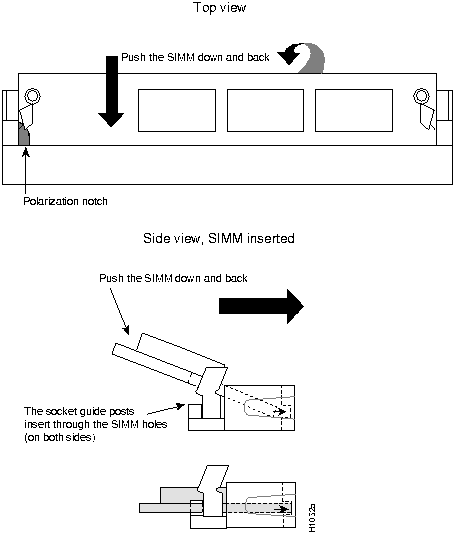
Figure 5-10 : Inserting Shared-Memory SIMMs
Step 7 To insert a SIMM, angle it into position, then carefully push down and back on the edges, holding each edge so that it securely snaps in place. (See Figure 5-10.) When it snaps into place, the two metal holders clip over the edge of the SIMM, and it sits horizontally.
 Caution SIMMs can be damaged by rough handling or ESD. Also avoid damaging the SIMM socket.
Step 8 Check that the SIMM is straight and that the holes are aligned with the socket guide posts on the socket. (See Figure 5-10.)
Step 9 Proceed to the section "Installing the Flash EPROM Card."
Installing the Flash EPROM Card
Follow these steps to install the Flash EPROM card.
 Caution To prevent damaging the Flash EPROM card, handle it only by the sides.
Step 1 Slip on an ESD wrist strap, ensuring that it makes good skin contact. Connect the equipment end of the wrist strap to the metal back plate of the chassis, avoiding contact with the connectors.
Step 2 Line up the Flash EPROM card with the 96-pin connector (see Figure 5-6) and screw holes.
Step 3 Holding the Flash EPROM card by its edges, push straight down on the connector (see Figure 5-6) to insert its connector into the socket on the component tray. (See Figure 5-3.)
 Caution Be gentle; do not over torque the screws. The maximum screw torque is 7 inch-lb (about what is required to turn a key in an automobile's door lock).
Step 4 Reinstall the two card-mounting screws. (See Figure 5-3.)
Step 5 Proceed to the section "Replacing the Component Tray."
Replacing Boot ROMs
To upgrade the boot read-only memory (ROM) software to a new software image, the existing boot ROMs must be replaced.
Step 1 Open the chassis and expose the boot ROMs following the procedures in the section "Accessing the Router Internal Components."
Step 2 Once the boot ROMs (FW1 and FW2) on the system card are exposed (see Figure 5-3), follow the procedures in this section to replace the ROMs.
Note It is not necessary to remove the Flash EPROM card for this upgrade procedure.
 Caution The correct placement of the boot ROMs is crucial. If improperly positioned, the new components could be damaged when the system is powered on. Read through all of the instructions before proceeding. To prevent damage to the ROMs from ESD (when handling the system and its components), follow the ESD procedures described earlier. Also, be careful not to damage or scratch the printed circuit card under the ROMs.
Step 3 Locate the boot ROMs, FW1 and FW2. (See Figure 5-3.)
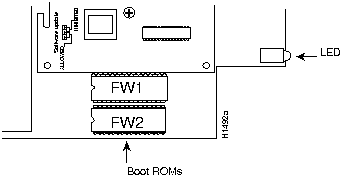
Figure 5-11 : Boot ROMs Locations
Step 4 Using an EPROM extraction tool or a small flat-blade screwdriver, gently remove the boot ROMs and set them aside.
Step 5 Insert the new boot ROMs in their respective sockets in the orientation shown in
Figure 5-11 being careful not to bend or crush any of the bottom pins. To straighten out a bent pin, use needlenose pliers. Align the notch in the new ROM with the notch in the ROM socket, ignoring the orientation of the label.
Step 6 Proceed to the section "Replacing the Component Tray."
Replacing Network Processor Modules
Follow these steps to replace a network processor module:
Step 1 Hold the network processor module by its handle, align it with the grooves in the chassis (not shown) and over its connector, and push the network processor module lightly against the chassis wall. (See Figure 5-4.)
Step 2 Gently, without bending the connector pins, push the network processor module into place, inserting the male network processor module connector into the female network processor module connector on the motherboard.
Step 3 Replace the module mounting screw in its place on the end of the network processor module. (See Figure 5-3.)
Step 4 If the module requires external rear mounting screws to attach to the chassis rear, replace the screws at this time.
 Caution Do not over torque the screw. The network processor module or the underlying motherboard could be damaged. The maximum screw torque is 7-inch-lb.
Replacing the Component Tray
Follow these steps to replace the component tray in the chassis shell:
Step 1 Reinsert the component tray into the shell, pushing on the back of the tray while at the same time pressing on the chassis release screw (as shown in Figure 5-1) with the thumb of your right hand.
Step 2 Retighten the chassis release screw.
Testing Your Installation
Test your installation by rebooting the system.When you power up a system in which one or more of the boot ROMs has been incorrectly inserted, the system will not boot into the ROM monitor or the operating system mode.
If you suspect that your boot ROMs have been inserted incorrectly, reopen the chassis, locate the affected boot ROM and remove it, straighten its pins, and then reinsert the boot ROM and try rebooting again.
Recovering a Lost Password
An overview to recovering a lost password follows:
- Enter the show version command to display existing virtual configuration value
- Break to the bootstrap program prompt (ROM monitor)
- Change the configuration register to 0x141 (boot from ROM)
- Enter the privileged mode in the system bootstrap program (the boot ROM software image)
- Enter the show configuration command to display the enable password
- Change the configuration register value back to its original setting
Note To recover a lost password if Break is disabled on the router, it is necessary to have physical access to the router.
To recover a lost password, follow this procedure.
Step 1 Attach an RS-232 ASCII terminal to the router console port which is located at the rear of the router.
Step 2 Configure the terminal to operate at 9600 baud, 8 data bits, no parity, 1 stop bit (or to whatever settings the router is set).
Step 3 Enter the command show version to display the existing configuration register value. Note this value for later use in step 13.
Step 4 If Break is disabled, power cycle the router. (Turn the router OFF, wait 5 seconds, and then turn it ON again.) If Break is enabled on the router, send a Break and then proceed to step 5.
Step 5 Within 60 seconds of turning the router on, press the Break key. This action causes the terminal to display the bootstrap program prompt (>).
Step 6 To reset the configuration register to boot from the boot ROMs, enter o/r at the bootstrap prompt as follows:
>
o/r
Step 7 Initialize the router by entering the i command as follows:
>
i
- The router will power cycle, the configuration register will be set to 0x141, and the router will boot the boot ROM system image and prompt you with the system configuration dialog as in the follows:
--- System Configuration Dialog ---
Step 8 Enter no to the system configuration dialog prompts until the following system message is displayed:
Press RETURN to get started!
Step 9 Press Return. The boot ROM prompt appears as follows:
Router(boot)>
Step 10 Enter the enable command to enter the EXEC mode in the boot ROM image. The prompt changes to the following:
Router(boot)#
Step 11 Enter the show configuration EXEC command to display the enable password in the router's configuration file.
Step 12 Enter the configure terminal command at the EXEC prompt. You are prompted as follows:
Router(boot)#
conf
Configuring from terminal, memory, or network [terminal]? <Return>
Enter configuration commands, one per line.
Edit with DELETE, CTRL/W, and CTRL/U; end with CTRL/Z
Step 13 Using the config-reg 0xvalue command, change the configuration register value back to its original value (from step 3) or change it to a value of 0x102, which in the absence of a boot system command in the configuration file, causes the router to boot from Flash memory.
Step 14 Exit configuration mode by entering Ctrl-Z.
Step 15 Reboot the router and enable using the recovered password.
Copyright 1988-1996 © Cisco Systems Inc.



