


|
|
Troubleshooting the Initial Hardware Configuration
Your router went through extensive testing and burn-in before leaving the factory. However, if your system appears to have problems starting up, follow the steps in this chapter to help identify the problem.
Sections of this chapter follow:
Use the information in this chapter to help isolate problems. This section is designed to help you rule out the router as the problem source. Whether or not you can locate the source of your problem, contact a customer service representative for information on how to proceed in resolving the problem. Before you call, have the following information ready:
The key to problem solving in this system is to try to isolate the problem to a specific subsystem. By comparing what the system is doing to what it should be doing, the task of isolating a problem is greatly simplified.
When problem solving, consider the following subsystems of the router:
Check the following items to help isolate the problem:
Check for the following symptoms to help isolate the problem:
If the router is operating at an abnormally high temperature, the following message will be transmitted to the console screen:
%SYS-1-OVERTEMP: System detected OVERTEMPERATURE condition. Please resolve cooling
problem immediately!
Typical causes of abnormally high system temperature follow:
The router's front panel has LED indicators for determining system performance and operation at a glance. The following sections contain information on reading the LED indicators.
Figure 4-1 shows the network activity and health indicators and the run and power lights on the router front panel.
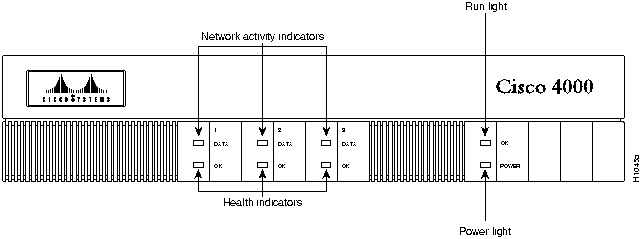
Figure 4-1 Router---Front View
From left to right, when facing the chassis front, the three lower LEDs on the left correspond in position to the three network processor modules, if present, and represent their status. The upper LEDs, when blinking, indicate network activity on their respective interfaces.
When lighted, the bottom LED on the right indicates that the system card's power is on, and the top LED on the right indicates that the processor is working.
The network processor module LEDs are all visible thorough cutouts in the rear of the chassis.
When facing the rear of the chassis, the LEDs on the dual-port Ethernet network processor module, are labeled as shown in Figure 4-2. (See Figure 2-6 in Chapter 2.)

Figure 4-2 Dual-Port Ethernet Network Processor Module LEDs
When facing the rear of the chassis, the LEDs on the single-port Ethernet network processor module are labeled as shown in Figure 4-3. (See Figure 2-6 in Chapter 2.)
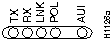
Figure 4-3 Single-Port Ethernet Network Processor Module LEDs
Descriptions of the Ethernet LED indicators follow:
In the Token Ring network processor module, there are two LEDs: 16M/4M and IN-RING. (See Figure 2-11.)
The left LED (16M/4M) indicates ring speed. When lit, it indicates a ring speed of 16 Mbps; when not lit, it indicates a ring speed of 4 Mbps.
The right LED (In-Ring), when lit, indicates that the network processor module is inserted into the ring. When it is not lit, it indicates that the network processor module is not inserted into the ring.

The dual serial network processor module has two LED cards. As viewed from the front
(see Figure 4-4), the left card is marked P-0 (for port 0), and the right card is marked P1 (for port 1). The lower serial port is port 0, and the upper serial port is port 1, as shown on the labels. There are ten LEDs per port. System network processor modules can be configured for either DTE or DCE.
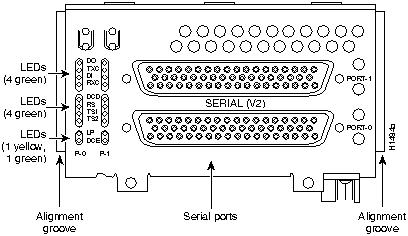
Figure 4-4 Serial Port Labeled V2
Figure 4-5 shows the top view of the dual serial network processor module. Note the locations of the LED daughter cards and the ports that they indicate.
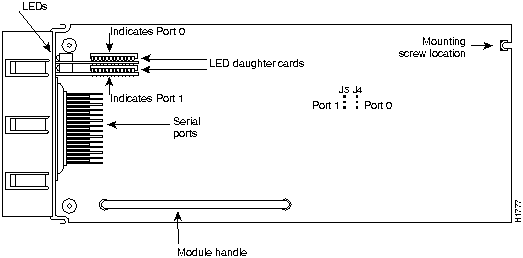
Figure 4-5 Dual Serial Network Processor Module---Top View
When DCE cables are used and when the port is configured in software with the clockrate command as a DCE port, the bottom LED will light. (See Figure 4-6.) (For an explanation of the clockrate command, see the Router Products Configuration and Reference publication).
Figure 4-6 shows the dual serial port network processor module LED card.
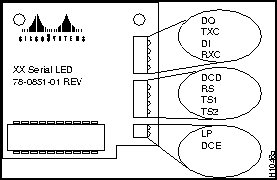
Figure 4-6 Dual Serial Port LED Card---Side View
The convention used here to indicate corresponding signals for DTE/DCE is to list DTE first. For example, Figure 4-6 shows the top LED indicates TXD in DTE mode or RXD in DCE mode.
The dual serial port network processor module LED indications are explained in Table 4-1.
Table 4-1 Dual Serial Network Processor Module LED Indications
| Serial LED Card Outer Labels | Indication (DTE/DCE) |
|---|---|
| DO | Data Out (TXD/RXD) |
| TXC | Transmit Clock |
| DI | Data In (RXD/TXD) |
| RXC | Receive Clock |
| DCD | Data Carrier Detect |
| RS | Receive Signaling |
| TS1 | Transmit Signaling |
| TS2 | Transmit Signaling |
| LP | Loop |
| DCE | Lit if network processor module is DCE |
Dual attachment FDDI network processor modules have one LED per port, located adjacent to the corresponding port on the module panel (See Figure 2-18), while single attachment modules have one LED, located adjacent to the single port on the module panel. (See Figure 2-18.) When lit, a module LED indicates a ring up condition. Dual attachment FDDI module LEDs indicate which PHY on the network processor module is inserted into the ring; if a PHY is not actively inserted into the ring, the LED is not lit. On a single attachment module, the LED indicates ring up when lit; when the LED is not lit, it indicates that the module is not inserted into a ring.

|
Copyright 1988-1995 © Cisco Systems Inc.