


|
|

This chapter describes the tasks you must perform before starting actual system installation. The sections of this chapter follow:
Follow these guidelines to ensure general safety:

Follow these guidelines when working on equipment powered by electricity:
Preventing Electrostatic Discharge Damage
Electrostatic discharge (ESD) can damage equipment and impair electrical circuitry. It occurs when electronic printed circuit cards are improperly handled and can result in complete or intermittent failures.
Always follow ESD prevention procedures when removing and replacing cards. Ensure that the chassis is electrically connected to earth ground. Wear an ESD wrist strap, ensuring that it makes good skin contact. Connect the clip to an unpainted chassis frame surface to safely channel unwanted ESD voltages to ground. To properly guard against ESD damage and shocks, the wrist strap and cord must operate effectively.
If no wrist strap is available, ground yourself by touching the metal part of the chassis.
This section describes the requirements your site must meet for safe installation and operation of your system. Ensure that your site is properly prepared before beginning installation.
The router can be used as desktop or rack-mounted equipment in a data processing or lab environment. In addition, the system can be mounted in either a standard or telco rack. Optional rack-mount kits are available.
For desktop mounting, use the rubber feet provided. They protect the chassis and provide a nonskid surface.
The location of individual chassis and the layout of your equipment rack or wiring room are extremely important for proper system operation. Equipment placed too close together, inadequate ventilation, and inaccessible panels can cause system malfunctions and shutdowns, and can make system maintenance difficult.
When planning your site layout and equipment locations, use the following precautions to help avoid equipment failures and reduce the likelihood of environmentally caused shutdowns. If you are currently experiencing shutdowns or unusually high errors with your existing equipment, these precautions may help you isolate the cause of failures and prevent future problems.
The following precautions will help you plan an acceptable operating environment for your router and will help you avoid environmentally caused equipment failures:
The following tips will help you plan an acceptable equipment rack configuration:
Following are features of the router power supply:
The Installation Checklist (see Figure 2-1) lists all the procedures for initial hardware installation of new systems. Make a copy of this checklist and mark your entries as each procedure is completed. Include a copy of the checklist for each system in your Site Log. (See the "Site Log" section.)
The Site Log provides a historical record of all actions relevant to the router. Keep it in a common place near the chassis where anyone who performs tasks has access to it. Use the Installation Checklist to verify steps in the installation and maintenance of your router. Site Log entries might include the following:
You need the following tools and equipment for the installation of the router:
Review the sections in this chapter as preparation for making connections to the router.
When viewed from the rear, the power cable and power switch appear on the right side of the router chassis. The system console port, auxiliary (AUX) port, and network processor module ports appear to the left of the power cable and switch. (See Figure 2-2.)
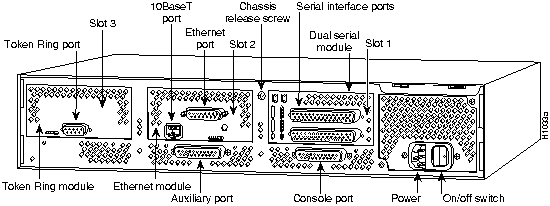
Figure 2-2 : Router---Rear View Showing Slot Numbering and Interface Ports
The chassis contains slots for three network processor modules. These slots correspond to the three slot numbers printed on the chassis front panel. (See Figure 2-3.) Slot numbers represent the order in which the system scans the network interface modules. Network processor module location is not slot dependent. Any module can be moved to any other available slot location.
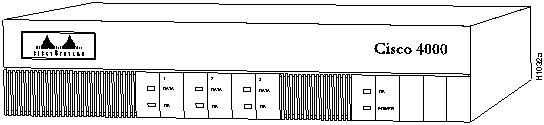
Figure 2-3 : Router---Front View
Network processor module location is not slot dependent. Any network processor module can be relocated to any other slot position. However, for optimum heat dissipation, locate an FDDI module in the center slot. For information on how to remove and replace network processor modules, see the sections "Removing Network Processor Modules" and "Replacing Network Processor Modules" in Chapter 5.
Unit numbering allows the system to distinguish between two interfaces of the same type. As viewed from the chassis rear, the network processor modules' unit numbering increments from zero counting from the right to left. The system assigns unit number addresses to these network modules by starting with zero for each module interface type and numbering from right to left and from bottom to top, with the lowest unit number of that interface type being the module closest to the power supply. (See Figure 2-2.) For example, the unit number addresses for the modules in Figure 2-2 would be as listed in Table 2-1. However, if the Token Ring module was replaced by a second Ethernet module, the unit addresses would be as listed in Table 2-2.
Table 2-1 : Unit Numbering for Dual Serial, Ethernet, and Token Ring Modules
| Slot No. | Interface Type | Unit Address No. |
|---|---|---|
| 1 | Serial Port (Top)
Serial Port (Bottom) |
1
0 |
| 2 | Ethernet | 0 |
| 3 | Token Ring | 0 |
Table 2-2 : Unit Numbering Addresses for a Dual Serial and Two Ethernet Modules
| Slot No. | Interface Type | Unit Address No. |
|---|---|---|
| 1 | Serial Port (Top)
Serial Port (Bottom) |
1
0 |
| 2 | Ethernet | 0 |
| 3 | Ethernet | 1 |
Figure 2-2 shows a chassis configured with three dual serial modules. The unit numbering of these modules would be as listed in Table 2-2.
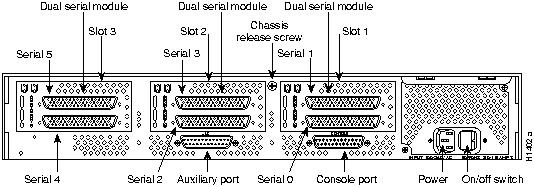
Figure 2-4 : Router---Rear View Showing Serial Port Unit Numbering
Table 2-3 : Unit Numbering Addresses for Three Dual Serial Modules
| Slot No. | Interface Type | Unit Address No. |
|---|---|---|
| 1 | Serial Port (Top)
Serial Port (Bottom) |
1
0 |
| 2 | Serial Port (Top)
Serial Port (Bottom) |
3
2 |
| 3 | Serial Port (Top)
Serial Port (Bottom) |
5
4 |
If the router is configured with fewer than three network processor modules, you must place a slot filler panel in the open slot to ensure proper air flow. Figure 2-5 shows a slot filler panel.
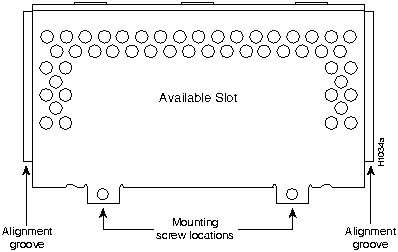
Figure 2-5 : Slot Filler Panel
When setting up your router, consider distance limitations and potential electromagnetic interference (EMI) as defined in the Electronic Industries Association's (EIA) Recommended Standard 232-C.
As with all signaling systems, RS-232 signals can travel a limited distance at any given bit rate; generally, the slower the data rate, the greater the distance. Table 2-4 shows the standard relationship between bit rate and distance as defined in the EIA Recommended Standard 232-C.
Table 2-4 : RS-232 Speed and Distance Limitations
| Data Rate (bps) | Distance (Feet) | Distance (Meters) |
|---|---|---|
| 2400 | 200 | 60 |
| 4800 | 100 | 30 |
| 9600 | 50 | 15 |
| 19200 | 25 | 7.6 |
| 38400 | 12 | 3.7 |
| 56000 | 8.6 | 2.6 |
When wires are run for any significant distance in an electromagnetic field, interference can occur between the field and the signals on the wires. This fact has two implications for the construction of terminal plant wiring:
If you use twisted-pair cables in your plant wiring with a good distribution of grounding conductors, the plant wiring is unlikely to emit radio interference. Ground conductor for each data signal when exceeding the distances listed in Table 2-4.
If you have cables exceeding the distances in Table 2-4, or if you have cables that pass between buildings, then give special consideration to the effect of lightning strikes and ground loops. The electromagnetic pulse caused by lightning and other high-energy phenomena can couple enough energy into unshielded conductors to destroy electronic devices; the potential existence of ground loops are also a threat to electrical components and to safety. If your site has experienced problems of this sort, then consult experts in lightning suppression and shielding.
Most data centers cannot resolve the infrequent but potentially catastrophic problems just described without pulse meters and other special equipment. Take precautions to avoid these problems by providing a properly grounded and shielded environment, with special attention to issues of electrical surge suppression. To predict and remedy strong electromagnetic interference, consult experts in RFI.
Console and Auxiliary Ports Connection Considerations
Before connecting the console and auxiliary ports, read the following sections.
Each router includes an asynchronous router console port (female DB-25 connector) wired as a data communications equipment (DCE) device. The default parameters for this port follow:
Table A-1 in Appendix A lists the pinout for the console port.
A male DB-25 connector auxiliary port (labeled AUX on the chassis rear) is included on all router units. The AUX port is a shared-memory data terminal equipment (DTE) port to which you can attach an RS-232 connector from a channel service unit/data service unit (CSU/DSU), a modem, or protocol analyzer for network access. Table A-2 in Appendix A lists the pinout for this asynchronous serial auxiliary console port.
Network Connection Considerations
Read this section to prepare for making network connections.
Ethernet network processor modules come in two types: single-port and dual-port modules.
Single-Port Ethernet Module Connections
Each single-port Ethernet network processor module has an Ethernet AUI connector and a 10BaseT connector. (See Figure 2-6.) (Only one connector on the module can be used at a time.) Use either an IEEE 802.3 AUI or a 10BaseT cable to make the connection.
Use the media command to configure your selection of 10BaseT or AUI. The syntax of the media command follows:
The media command is described in the Router Products Configuration and Reference publication.
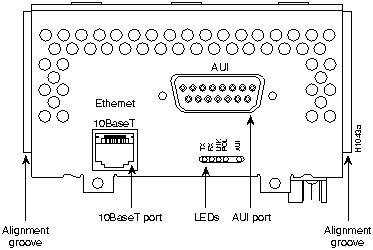
Figure 2-6 : Ethernet Network Processor Module with AUI and 10BaseT Connectors
An Ethernet transceiver cable with thumbscrew connectors can be connected directly to the router port by replacing the slide latch with a jackscrew (provided in a separate bag). A 10BaseT transition cable can connect directly from the router to your network. (See Figure 2-7.)
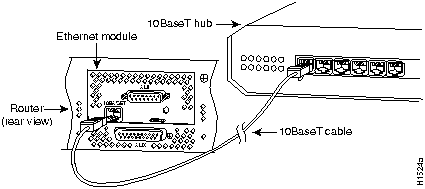
Figure 2-7 : Single-Port Ethernet Network Processor Module 10BaseT Port Connection
Figure 2-8 shows a single-port Ethernet network processor module with an Ethernet (AUI) connection to a transceiver.
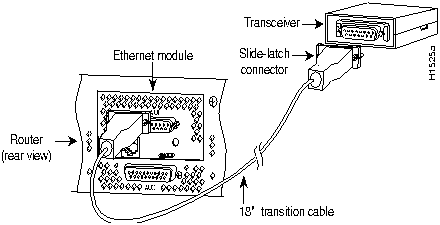
Figure 2-8 : Single-Port Ethernet Network Processor Module Ethernet (AUI) Port Connection
Figure 2-9 shows the transition cable used as a flexible extension of the Ethernet port allowing an Ethernet transceiver cable with a slide-latch connector to mate with the female end of the 18-inch transition cable.
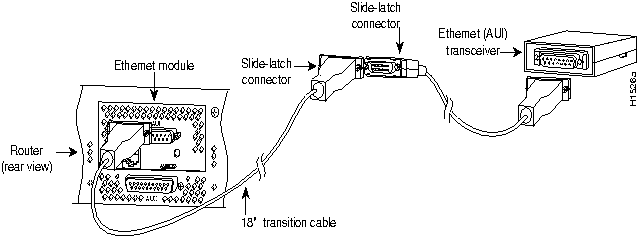
Figure 2-9 : Extending the Transition Cable From the Ethernet Port
Dual-Port Ethernet Module Connections
The dual-port Ethernet network processor module has ports for two network connections. (See Figure 2-6.) The top port is marked Port1 on the module, and the lower port is marked Port0. On the dual-port Ethernet network processor module, on a given port, either the Ethernet connector or the 10BaseT connector can be used, but not both. For example, Ethernet port 0 could be attached to either a 10BaseT connector or to an AUI connector, and similarly Ethernet port 1 could be attached to either a 10BaseT connector or to an AUI connector.
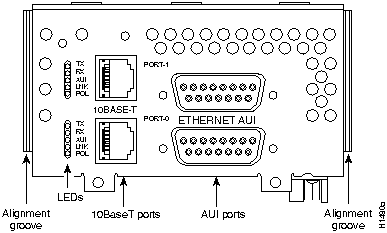
Figure 2-10 : Dual-Port Ethernet Network Processor Module with AUI and 10BaseT Connectors
The Token Ring network processor module has one standard 9-pin connector. (See Figure 2-11.)
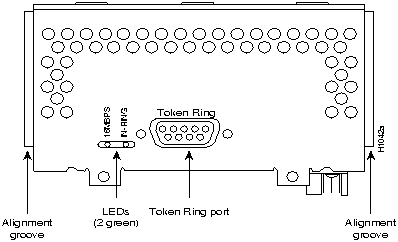
Figure 2-11 : Token Ring Module Network Connector
Use a standard 9pin Token Ring lobe cable to connect the router directly to a media attachment unit (MAU). (See Figure 2-12.)
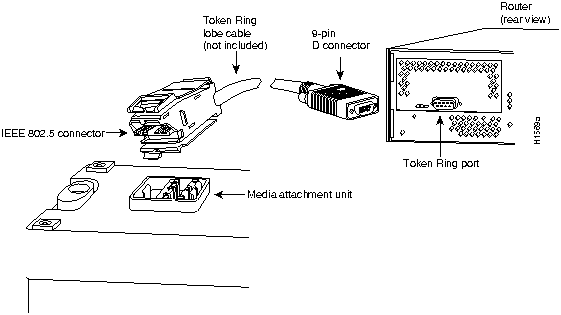
Figure 2-12 : Token Ring Cable Connections
The dual serial ports are 50-pin D-sub connectors. (See Figure 2-13.) These serial ports can be configured as DTE or DCE depending on the type of serial cable being used.
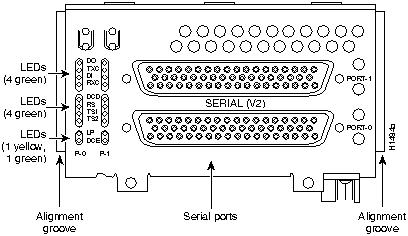
Figure 2-13 : Serial Port Labeled V2
The dual serial network processor module contains two jumpers, J-4 and J-5 (see Figure 2-14), which determine whether the ports are configured for nonreturn to zero (NRZ) or nonreturn to zero-inverted (NRZI). The factory-configured (default) jumper setting is for NRZ.
To configure for NRZI mode on each port, the jumper must connect pins 1 and 2 of the respective jumper locations. J-4 configures serial port 0, and J-5 configures serial port 1. For NRZ (not NRZI), the jumpers can connect pins 2 and 3 or be removed.
If the network processor module is operating as DTE in NRZI mode, the sense of the dte-invert-timing command has to be manually changed. For instance, if the command no dte-invert-timing was configured, then dte-invert-timing must be configured.
To set the jumpers for NRZI, move the jumpers to the position shown in Figure 2-15 using the orientation shown in Figure 2-14.
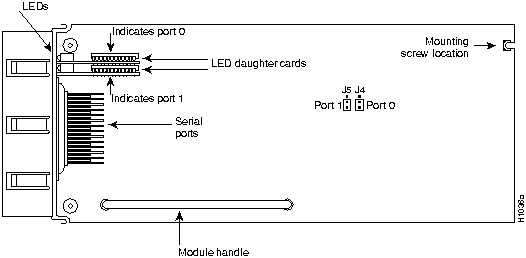
Figure 2-14 : Dual Serial Network Processor Module---Top View
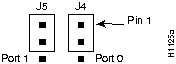
Figure 2-15 : Dual Serial Network Processor Module Jumpers, J-4 and J-5---NRZI Setting
You must use a special serial cable to connect the router to a modem, CSU/DSU, or other device as shown in Figure 2-16. This cable, available from your sales representative, is normally ordered with the router. See Appendix A for cable specifications. In all, there are nine different serial cables available: DTE and DCE versions of RS-232, RS-449, V.35, and X.21; and a DTE version of EIA530.
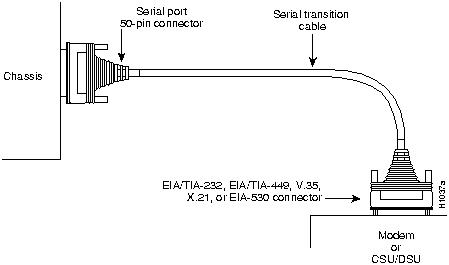
Figure 2-16 : Router Serial Cable Connections
Fiber Distributed Data Interface Connections
The network processor modules' fiber-optic multimode connectors are Fiber Distributed Data Interface (FDDI) standard physical sublayer (PHY) connectors. The media interface connector (MIC) connects to FDDI-standard 62.5/125 micron multimode fiber-optic cable.
Figure 2-17 shows the MIC typically used for network and chassis connections in multimode FDDI applications.
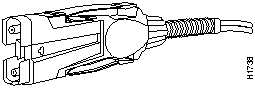
Figure 2-17 : Multimode FDDI Network Interface Connector, MIC Type
A dual attachment module configuration requires two connections: one to the primary ring and one to the secondary ring. The PHY A port is the bottom port, and PHY B is the top port.
(See Figure 2-18.) To connect to another dual attachment station (DAS), connect PHY A on the module to PHY B on the other DAS, and connect PHY-B on the module to PHY-A on the other DAS.
(See Figure 2-19.)
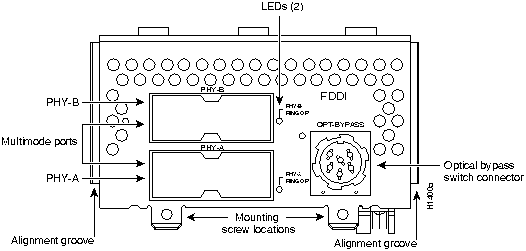
Figure 2-18 : Dual Attachment Multimode FDDI Module---End View

Figure 2-19 : Dual Attachment FDDI Connections
The single attachment module's PHY-S port (as shown in Figure 2-18) can be connected through a concentrator to a single attachment ring, or it can be connected point-to-point directly to another device.
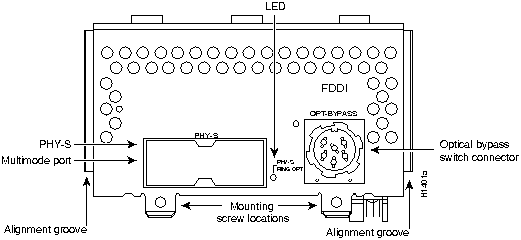
Figure 2-20 : Single Attachment Multimode FDDI Module---End View
Both the dual attachment and single attachment FDDI modules have an optical bypass switch connector. (See Figure 2-18, Figure 2-19, and Figure 2-18.) An optical bypass switch is a passive optical device, powered by the FDDI module. If there is a fault in the router, or if power is lost, the optical bypass switch is enabled, and the ring will be unaffected. The optical bypass switch is automatically enabled if power is lost. In addition, the system software can enable the optical bypass switch if a problem is detected or if the operator chooses to take the router out of the ring.
Before unpacking the system, make certain that you are prepared to install it. If its final installation site will not be ready for some time, keep the chassis in its shipping container to prevent accidental damage. When you have determined where you want the system installed, proceed with the unpacking.
The router, cables, publications, and any optional equipment you ordered might be shipped in more than one container. When you unpack each shipping container, check the packing list to ensure that you received all of the following items:
Inspect all items for shipping damage. If anything appears damaged, or if you encounter problems when installing or configuring your system, contact a customer service representative.

|
Copyright 1988-1996 © Cisco Systems Inc.