
Table of Contents
Updating the Catalyst 2600 Software
Updating the Catalyst 2600 Software
As enhancements are made to the Catalyst 2600, you may need to update the software, or microcode, that is contained in the Catalyst 2600. This chapter describes how to upgrade the Catalyst 2600 flash EEPROM.
 Caution After downloading the new software, you must reset the switch. The Catalyst 2600 is not operational while it is resetting. Before starting this procedure, make sure the network will not be effected.
The download procedures depend on the download method you choose. This chapter provides information about the following:
Downloading via TFTP
You can use TFTP to update the main image, boot code, or SOLO code of the Catalyst 2600. The SOLO code is the microcode for the Token Ring MAC processor chip. To perform a software upgrade via TFTP, the Catalyst 2600 must have access to a TFTP server. Do the following:
Step 1 Copy the binary file "cis_xxyy.gz" to the TFTP server and prepare the TFTP server.
Step 2 If you have not already done so, start a console session as described in the section "Planning for Configuration and Management."
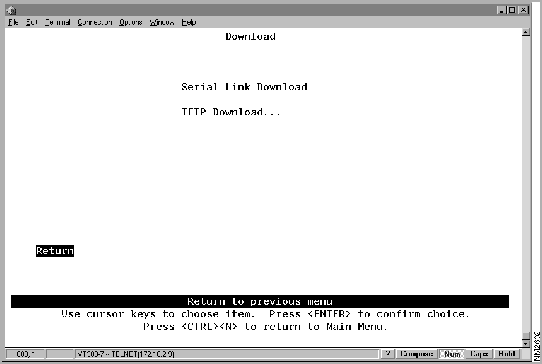
Step 3 Select Download on the Main Menu. The Download panel (Figure 8-1) is displayed.
Figure 8-1 : Download Panel
Step 4 Select TFTP Download. The TFTP Download panel (Figure 8-2) is displayed.
Figure 8-2 : TFTP Download Panel
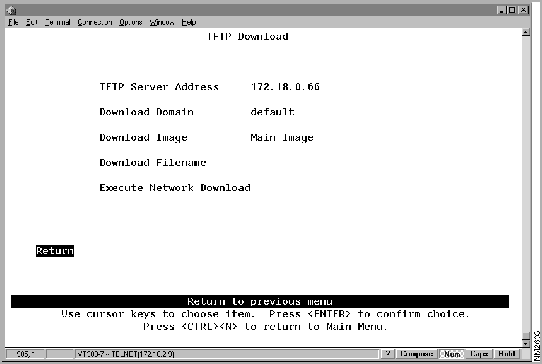
Step 5 Fill in the following fields:
- TFTP Server Address---The IP address of the TFTP server.
- Download Domain---The domain of the Catalyst 2600 in which the TFTP server resides.
- Download Image---Select either Main Image, Boot Code, or SOLO code.
- Download Filename---The path and file name of the code on the TFTP server.
Step 6 Select Execute Network Download.
Step 7 Confirm the download when the following message is displayed:
Please confirm new code download via network (Y or N):
Note Do not interrupt the download or the boot image will be corrupted and need to be reloaded. During the download the Catalyst 2600 OK LED will be blinking.
Step 8 Press ENTER when you see the message:
Download complete - reset switch to activate new software.
Press <Enter> to continue......
Step 9
Reset the Catalyst 2600 to activate the new code using the Reset/Diagnostics on the Main Menu panel or press the Reset button.
TFTP Considerations
When using TFTP to update the Catalyst 2600 software, remember:
- Do not configure multiple TFTP servers to download code updates using TFTP to a single Catalyst 2600 (or to multiple domains).
- If the download is interrupted or corrupted, you must download a new image using the serial port download (refer to the section "Downloading via a Serial Link").
- If the network broadcast traffic is 200 packets per second or more, the TFTP request might not be initiated by the Catalyst 2600. You must reset the Catalyst 2600 and download a new image using the serial port download (refer to the section "Downloading via a Serial Link").
Downloading via a Serial Link
You can use the serial link to update the main code of the Catalyst 2600. To perform a software upgrade through the serial port, your terminal emulator must support the Xmodem protocol. Do the following:
Step 1 Insert the upgrade disk in your terminal drive.
Step 2 If you have not already done so, start a console session as described in "Planning for Configuration and Management."
Step 3 Select Download on the Main Menu. The Download panel (Figure 8-1) is displayed.
Step 4 Select Serial Link Download.
Step 5 Confirm the download when the following message is displayed:
Please confirm new code download via serial port (Y or N):
The following messages appear:
Console: Beginning Xmodem download of main image
Console: Waiting for binary file....
Step 6
Use the file transfer function of your terminal emulator program to download the binary file using the Xmodem protocol. The download takes approximately 12 minutes at 9600 baud.
Note Do not interrupt the download or the boot image will be corrupted and need to be reloaded. During the download, the Catalyst 2600 OK LED will be blinking.
- When the download is complete, the following messages appear:
Console: Beginning Xmodem download of main image
Console: Waiting for binary file.... Done
Console: Preparing Flash....Done.
Console: Saving Main Image into Flash...Done
Please confirm switch reset (Y or N):
Step 7
Enter Y to confirm the reset. The procedure is complete.
Downloading via the System Request Menu
This section provides information on initiating the download procedure with the System Request Menu.
Note This function should be used only with the direction of Cisco service personnel.
Follow these steps to begin a software upgrade:
Step 1 If you have not already done so, start a console session as described in "Planning for Configuration and Management," and advance to the Copyright panel.
Step 2 Press the System Request button (the unlabeled button on the lower left portion of the front panel beside the Reset button). The System Request Menu is displayed.
Step 3 Select your download option from the console and continue with the procedure.
Step 4 The following messages appear:
SYSREQ: Beginning Xmodem download of main (or boot) image
SYSREQ: Waiting for binary file....
Step 5
Use a terminal emulator program on your PC to download the binary file using Xmodem protocol. The download takes approximately 12 minutes at 9600 baud.
- When the download is complete, the following messages appear:
SYSREQ: Beginning Xmodem download of main image
SYSREQ: Waiting for binary file.... Done
SYSREQ: Preparing Flash....Done.
SYSREQ: Saving Main Image into Flash...Done
SYSREQ: Press any key to return to System Request menu.
Step 6
Press any key.
Step 7 On the System Request Menu, select 5 to reset the Catalyst 2600.
Copyright 1988-1996 © Cisco Systems Inc.



