


|
|

Establishing Security for the Catalyst 2600
The Catalyst 2600 allows you to use a console session to establish two types of security: one to protect the configuration of the Catalyst 2600 and one to limit the scope and access of users attached to the Catalyst 2600. This chapter provides information on the following:
For information about setting up a console session, refer to "Planning for Configuration and Management".
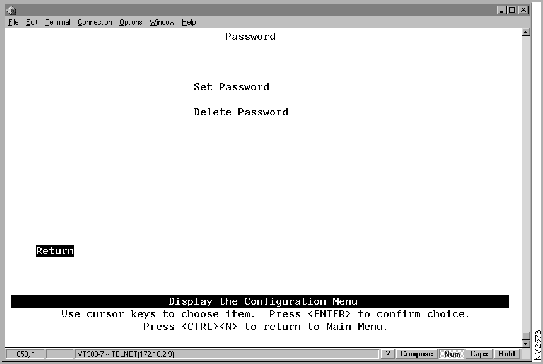
The Catalyst 2600 allows you to set a password to protect its configuration. If you establish a password, users must enter it to obtain access to the Main Menu. To set a password, select Password on the Configuration Menu. The Password panel (Figure 6-1) is displayed.
| To | Select | Then |
|---|---|---|
| Add a password... | Set Password | Press ENTER at the Old Password prompt and specify a new password. |
| Change the password... | Set Password | Specify the current password and the new password. |
| Delete the password... | Delete Password | Specify the current password. |
| Save your changes... | Return |
For network security, you can isolate parts of your network by limiting the scope and access of your users. For example, you might want to limit access to a specific file server to a select group of users. To do this, you could:
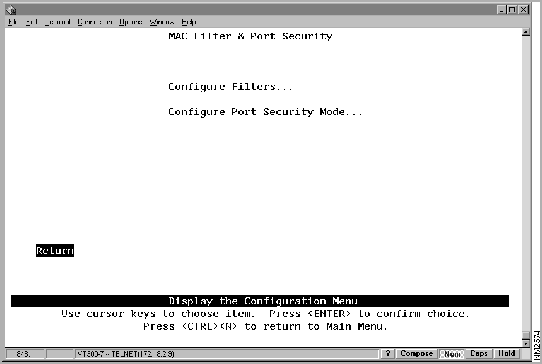
To limit the scope and access of users on segments attached to the Catalyst 2600, select MAC Filter & Port Security from the Configuration Menu. The MAC Filter & Port Security panel (Figure 6-2) is displayed.
Figure 6-2 : MAC Filter & Port Security Panel
| To | Select | Then |
|---|---|---|
| View or change MAC address filters... | Configure Filters | Refer to "Filtering Data Based on MAC Address." |
| View or change the port security... | Configure Port Security Mode | Refer to "Securing Ports." |
| Save your changes... | Return |
Filtering Data Based on MAC Address
To restrict certain users from communicating with other users or resources (such as printers or servers), select Configure Filters on the MAC Filter & Port Security panel. The Configure Filters panel (Figure 6-3) is displayed.
Figure 6-3 : Configure Filters Panel
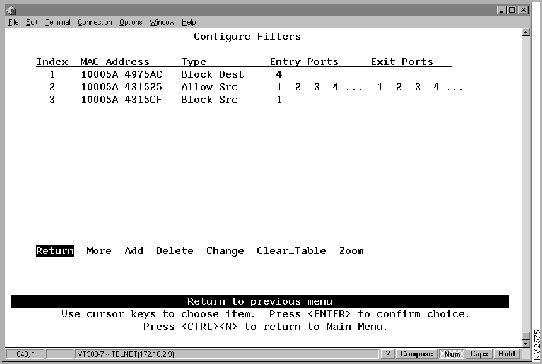
The following information is displayed on this panel:
You can define up to 100 source or destination MAC addresses to be filtered at the port of entry into the Catalyst 2600. MAC addresses can be unicast, multicast (group), or broadcast. All 100 addresses can be associated with one port or divided among the available ports.
| To | Select | Then |
|---|---|---|
| Add a filter... | Add | Specify the filter type, the MAC address, and ports. The port numbers should be listed from lowest to highest and separated by spaces. If you do not specify a port number, the filter will be applied to all ports. |
| Change a filter... | Change | Specify the index number of the filter to be changed and enter the new information. |
| Delete a filter... | Delete | Specify the index number of the filter to be deleted. |
| Delete all filters... | Clear_Table | Confirm the deletion of all filters. |
| Display the complete list of Entry Ports and Exit Ports for a filter... | Zoom | Specify the index number. |
| Save your changes... | Return |
The Catalyst 2600 also allows you to totally block (secure) communication at selected ports, unless explicitly allowed by a MAC filter. Addresses that have been allowed or forced by a configured filter are not blocked. To define the security attributes of each port, select Configure Port Security Mode on the MAC Filter & Port Security panel. The Configure Port Security Mode panel (Figure 6-4) is displayed.
Figure 6-4 : Configure Port Security Mode Panel
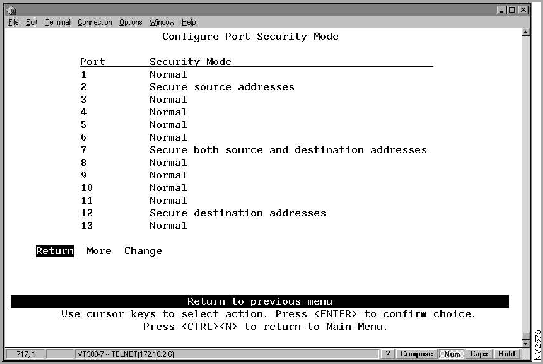
The following information is displayed on this panel:
| To | Select | Then |
|---|---|---|
| Change the security mode for a port... | Change | Specify the port and the desired security mode. |
| Save your changes... | Return |

|
Copyright 1988-1996 © Cisco Systems Inc.