|
|

Catalyst 5000 Series ATM LAN Emulation Module Configuration Note
Product Numbers: WS-X5153, WS-X5154, WS-X5155
This document contains instructions for installing and configuring the Catalyst 5000 series ATM LAN emulation module. Configuration examples are also provided. For a complete description of commands used to configure and maintain the Catalyst 5000 series switch, refer to the Catalyst 5000 Series Configuration Guide and Command Reference publication. For complete hardware configuration and maintenance procedures, refer to the Catalyst 5000 Series Installation Guide publication. These documents are available on the Cisco Connection Documentation, Enterprise Series CD-ROM, or in print.
Sections in this document include the following:


What is the Catalyst 5000 Series Switch?
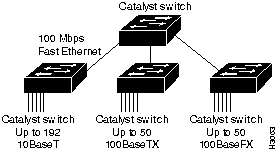
The Catalyst 5000 series switch provides high-density switched Ethernet and Fast Ethernet for both wiring closet and data center applications. The switch includes a single, integrated 1.2-Gbps switching backplane that supports switched 10-Mbps Ethernet with repeater connections, and 100-Mbps Fast Ethernet with backbone connections, Fiber Distributed Data Interface (FDDI), and Asynchronous Transfer Mode (ATM), Copper Distributed Data Interface (CDDI), and Asynchronous Transfer Mode (ATM). The Catalyst 5000 provides switched connections to individual workstations, servers, LAN segments, backbones, or other Catalyst 5000 switches using shielded twisted-pair (STP), unshielded twisted-pair (UTP), and fiber-optic cable. Figure 1 is an example of a configuration using the Catalyst 5000 series switch.
Figure 1 : Cascaded Switches Using Fast Ethernet Interfaces
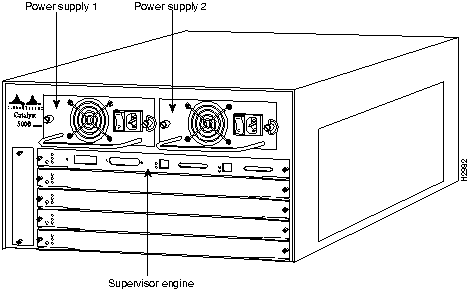
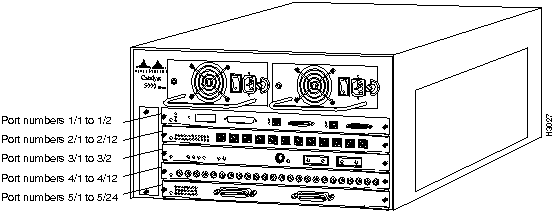
The Catalyst 5000 series switch chassis has five slots. Slot 1 is reserved for the supervisor engine, which provides Layer 2 switching, local and remote management, and dual Fast Ethernet interfaces. The remaining four slots are used for any combination of modules for additional Ethernet, Fast Ethernet, CDDI/FDDI, and ATM connections. Figure 2 shows the rear view of the Catalyst 5000 series switch, which provides access to the supervisor engine, all switching modules, power supplies, and fan assembly.
Figure 2 : Catalyst 5000 Series Switch Chassis Rear View
ATM LAN Emulation Module (Single-Mode and Multimode Fiber)
The ATM LAN emulation module provides a direct connection between the ATM network and the switch using a single or multimode fiber-optic connector. (See Figure 3.)
Figure 3 : ATM LAN Emulation Module (Multimode Fiber)

The LEDs provide status information for the module and individual port connections. The LEDs are shown in Figure 4 and described in the section "ATM LAN Emulation Module LEDs."
Figure 4 : ATM LAN Emulation Module (Multimode Fiber) LEDs
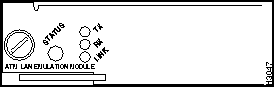
The physical layer interface module (PLIM) on the ATM LAN emulation module determines the type of ATM connection. There are no restrictions on slot locations or sequence; an ATM LAN emulation module can be installed in any available module slot.
The ATM multimode module supports the following features:
ATM LAN Emulation Module (UTP)
The ATM LAN emulation module (UTP) provides a direct connection between the ATM network and the switch using one RJ-45 connector. (See Figure 5.)
Figure 5 : ATM LAN Emulation Module (UTP)

The LEDs provide status information for the module and individual ATM port connection. The LEDs are shown in Figure 6 and described in the section "ATM LAN Emulation Module LEDs."
Figure 6 : ATM LAN Emulation Module (UTP) LEDs

The PLIM on the ATM LAN emulation module determines the type of ATM connection. There are no restrictions on slot locations or sequence; an ATM LAN emulation module can be installed in any available module slot.
The ATM multimode module supports the following features:
Following are the ATM LAN emulation module specifications:
Table 1 : ATM LAN Emulation Module Specifications
| Description | Specification |
|---|---|
| Dimensions (H x W x D) | 1.2 x 14.4 x 16 in (3 x 35.6 x 40.6 cm) |
| Weight | Minimum: 3 lb (1.36 kg)
Maximum: 5 lb (2.27 kg) |
| Environmental Conditions:
Operating temperature Nonoperating temperature Humidity |
32 to 104°F (0 to 40°C) -40 to 167°F (-40 to 75°C) 10 to 90%, noncondensing |
| Connectors | Multimode fiber-optic: SC
Single-mode fiber-optic: SC Category 5 UTP1: RJ-45 |
| RAM buffer memory | 192 KB per interface |
| Maximum station-to-station cabling distance | Multimode fiber: 1.2 miles (2 km)
Single-mode fiber: 18.6 miles (30 km) Category 5 UTP: 328' (100 m) |
| Frame-to-cell conversion | AAL5, 1024 virtual circuits, 255 concurrent reassembly |
| Network management | SNMP2 agent |
| Agency approvals:
Safety EMI3 |
UL4 1950, CSA5-C22.2 No. 950-93, and EN60950 FCC Part 15 Class A, VDE B, EN55022 Class A, and VCCI Class 1 with single-mode and multimode fiber, and unshielded twisted pair |
The five available interface slots on the Catalyst 5000 series switch support the supervisor engine (slot 1 only), and any combination of network interface modules (slots 2 through 5), providing a maximum port density of up to three ATM LAN emulation modules.
Each module contains a status LED. When green, this LED indicates that the module is powered up. It does not necessarily mean that the interface ports are functional or enabled.
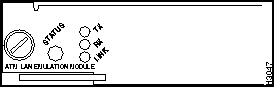
The LEDs on the faceplate of the ATM LAN emulation module, shown in Figure 7, are described in Table 2.
Table 2 : ATM LAN Emulation Module LED Description
| LED | Description |
|---|---|
| Status | The switch performs a series of self-tests and diagnostic tests.
If all the tests pass, the status LED is green. If a test other than an individual port test fails, the status LED is red. During system boot or if the module is disabled, the LED is orange. During self-test diagnostics, the LED is orange. If the module is disabled, the LED is orange. |
| TX (Transmit) | Whenever a port is receiving a packet, the receive (RX) LED is green for approximately 50 ms1; otherwise, it is off. |
| RX (Receive) | Whenever a port is transmitting a packet, the transmit (TX) LED is green for approximately 50 ms, otherwise, it is off. |
| Link | The link LED displays the link integrity status of a LAN port. The link LED is green if the link integrity is good. The link LED will blink to indicate that a collision is detected on this link. |
Figure 7 : ATM LAN Emulation LEDs
When preparing your site for network connections to the switch, you need to consider a several factors related to each type of interface:
Before installing the switch, have all additional external equipment and cables on hand. If you intend to build your own cables, refer to the cable pinouts in the appendix "Cabling Specifications" in the Catalyst 5000 Series Installation publication. For ordering information, contact a customer service representative.
Approximating the ATM LAN Emulation Module Power Margin
The LED used for a multimode transmission light source creates multiple propagation paths of light, each with a different path length and time requirement to cross the optical fiber, causing signal dispersion (smear). Higher-order mode loss (HOL) results from light from the LED entering the fiber and being radiated into the fiber cladding. A worst-case estimate of the power margin (PM) for multimode transmissions assumes minimum transmitter power (PT), maximum link loss (LL), and minimum receiver sensitivity (PR). The worst-case analysis provides a margin of error, although not all the parts of an actual system will operate at the worst-case levels.
See Table 3 for maximum cable distances used with the ATM LAN emulation modules.
Table 3 : ATM Maximum Transmission Distances
| Transceiver Type | Maximum Distance between Stations |
|---|---|
| Multimode | 1.2 miles (2 km) |
| Single-mode | 6.25 miles (10 km) |
| Category 5 UTP | 328 feet (100 meters) |
The power budget (PB) is the maximum possible amount of power transmitted. The following equation lists the calculation of the power budget:
The power margin calculation is derived from the power budget and subtracts the link loss, as follows:
If the power margin is positive, as a rule, the link will work.
Table 4 lists the factors that contribute to link loss and the estimate of the link loss value attributable to those factors.
Table 4 : Estimating Link Loss
| Link Loss Factor | Estimate of Link Loss Value |
|---|---|
| Higher-order mode losses | 0.5 dB |
| Clock recovery module | 1 dB |
| Modal and chromatic dispersion | Dependent on fiber and wavelength used |
| Connector | 0.5 dB |
| Splice | 0.5 dB |
| Fiber attenuation | 1 dB/km |
The power budget minus the data link loss should be greater than zero. Results less than zero may have insufficient power to operate the receiver.
Multimode Power Budget Example of Sufficient Power for Transmission
The following is an example multimode power budget calculated based on the following variables:
Estimate the power budget as follows:
The value of 2.5 dB indicates that this link would have sufficient power for transmission.
Multimode Power Budget Example of Dispersion Limit
Following is an example with the same parameters as the previous example, but with a multimode link distance of 4 km:
The value of 1.5 dB indicates that this link would have sufficient power for transmission. However, because of the dispersion limit on the link (4 km x 155.52 MHz > 500 MHz/km), this link would not work with multimode fiber. In this case, single-mode fiber would be the better choice.
Using Statistics to Estimate the Power Budget
Statistical models determine the power budget more accurately than the worst-case method. Determining the link loss with statistical methods requires accurate knowledge of variations in the data link components. Statistical power budget analysis is beyond the scope of this document. For further information, refer to User-Network Interface (UNI) Forum specifications, ITU-T standards, and your equipment specifications.
For Further Reference
The following publications contain information on determining attenuation and power budget:
ATM LAN Emulation Connection Equipment
All ATM interfaces are full-duplex. You must use the appropriate ATM interface cable to connect the ATM single-mode, multimode, or UTP module with an external ATM network.
The ATM LAN emulation modules provide an interface to ATM switching fabrics for transmitting and receiving data at rates of up to 155 Mbps bidirectionally. The actual rate is determined by the physical layer interface module (PLIM). The ATM LAN emulation module can support PLIMs that connect to the following physical layers:
The ATM LAN emulation module supports RFC 1213 interface MIBs as specified in the ATM MIB V.2 specification.
The ATM interface cable is used to connect the switch to an ATM network. Cables can be obtained from the following cable vendors:
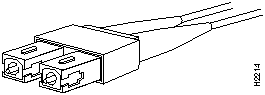
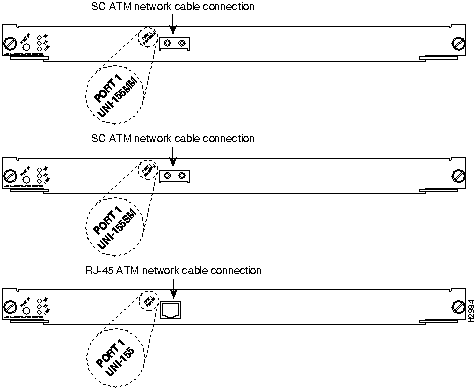
For traffic over single-mode or multimode fiber, use the SC type connector (see Figure 8) to connect the ATM LAN emulation module with the external ATM switch.
Figure 8 : Fiber-Optic Network Interface Connector (SC Type)
You can use RJ-45 male connectors to connect to the ATM LAN emulation network. (See Figure 9.)
Figure 9 : ATM LAN Emulation UTP RJ-45 Interface Cable Connectors
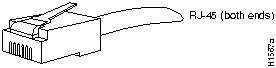
Table 5 lists the signals for the ATM LAN emulation module RJ-45 UTP connector.
Table 5 : ATM LAN Emulation Module (UTP) RJ-45 Port Pinouts
| Pin | Signal | Direction | Description |
|---|---|---|---|
| 1 | TxD+ | ---> | Transmit data + |
| 2 | TxD-- | ---> | Transmit data -- |
| 3 | NC | No connection | |
| 4 | NC | No connection | |
| 5 | NC | No connection | |
| 6 | NC | No connection | |
| 7 | RxD+ | <--- | Receive data + |
| 8 | RxD-- | <--- | Receive data -- |
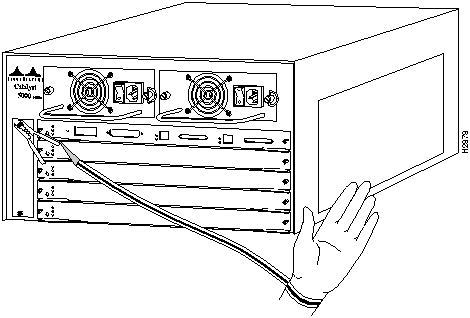
The following guidelines will help to ensure your safety and protect the equipment. This list is not inclusive of all potentially hazardous situations that you may be exposed to when installing the switch, so be alert.

The supervisor engine, switching modules, and redundant power supplies are designed to be removed and replaced while the system is operating without presenting an electrical hazard or damage to the system. Before removing a redundant power supply, ensure that the primary supply is powered on. However, you must shut down the system before removing or replacing any of the replaceable components inside the front panel; for example, the backplane. Never install equipment that appears damaged.
Follow these basic guidelines when working with any electrical equipment:
In addition, use the following guidelines when working with any equipment that is disconnected from a power source but still connected to telephone wiring or other network cabling

Preventing Electrostatic Discharge Damage
Electrostatic Discharge (ESD) damage occurs when electronic or components are improperly handled, resulting in complete or intermittent failures. The supervisor engine and switching modules each consist of a printed circuit board (PCB) fixed in a metal carrier. Electromagnetic interference (EMI) shielding, connectors, and a handle are integral components of the carrier. Although the metal carrier helps to protect modules from ESD, use a preventive antistatic strap whenever you handle the supervisor engine or switching modules. Handle the carriers by the handles and the carrier edges only, never touch the modules or connector pins.
Following are guidelines for preventing ESD damage:
Figure 11 : Placement of ESD Wrist Strap
Installing and Configuring Modules
All switching modules support hot swapping, letting you install, remove, replace, and rearrange them without turning off the system power. When the system detects that a switching module has been installed or removed, it automatically runs diagnostic and discovery routines, acknowledges the presence or absence of the module, and resumes system operation without any operator intervention.
The hot-swap feature lets you remove and replace switching modules while the system is operating. You do not need to notify the software or shut down the system power. All switching modules support hot swapping.
The switching module contains a bus-type connector that connects to the backplane. Each connector consists of a set of tiered pins in two lengths. The pins send specific signals to the system as they make contact with the backplane. The system assesses the signals it receives and the order in which it receives them to determine what event is occurring and what task it needs to perform, such as reinitializing new interfaces or shutting down removed ones.
For example, when inserting the switching module, the longest pins make contact with the backplane first, and the shortest pins make contact last. The system recognizes the signals and the sequence in which it receives them. The system expects to receive signals from individual pins in this logical sequence.
When you remove or insert a switching module, the backplane pins send signals to notify the system, and performs as follows:
When you insert a new switching module, the system runs a diagnostic test on the new interfaces and compares them to the existing configuration. If this initial diagnostic fails, the system remains off line for another 15 seconds while it performs a second set of diagnostic tests to determine whether or not the switching module is faulty and if normal system operation is possible.
If the second diagnostic test passes, indicating that the system is operating normally and a new switching module is faulty, the system resumes normal operation but leaves the new interfaces disabled.
If the second diagnostic test fails, the system crashes, which usually indicates that the supervisor engine or a switching module created a problem in the bus and should be removed.
Avoiding Problems When Inserting and Removing Switching Modules
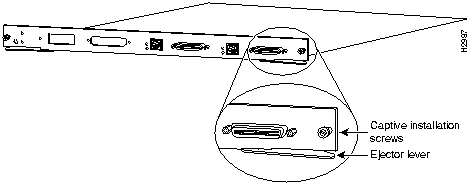
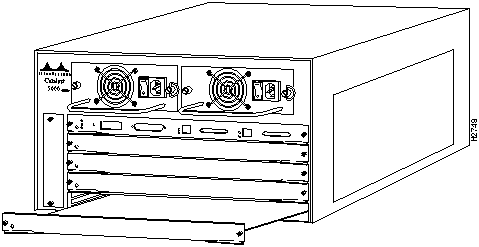
The function of the ejector levers (see Figure 12) on the switching module is to align and seat the board connectors in the backplane. Failure to use the ejector levers and insert the switching module properly can disrupt the order in which the pins make contact with the backplane. Follow the installation and removal instructions carefully, and review the following examples of incorrect insertion practices and results:
It is also important to use the ejector levers when removing a switching module, ensuring that its connector pins disconnect from the backplane in the logical sequence expected by the system. A switching module partially connected to the backplane can hang the bus. Detailed steps for correctly performing a hot swap are included in the following procedures for installing and removing a switching module.
Figure 12 : Ejector Levers and Captive Installation Screws (Supervisor Engine Module Shown)
You need a flat-blade screwdriver to remove any filler (blank) switching modules and to tighten the captive installation screws that secure the modules in their slots. Whenever you handle switching modules, you should use a wrist strap or other grounding device to prevent ESD damage. See the section "Preventing Electrostatic Discharge Damage."
Take the following steps to remove a switching module:
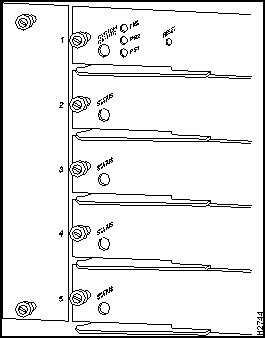
You can install switching modules in any of the four switching module slots, numbered 2 through 5 from top to bottom, when viewing the chassis from the rear. (See Figure 13.) The top slot contains the supervisor engine---a required system component. Switching module fillers, blank switching module carriers, are installed in slots without switching modules to maintain consistent airflow through the switching module compartment.
Figure 13 : Module Slot Numbers
Follow these steps to installing a module:
Figure 14 : Module Installation
Hot-Swapping Procedure Sample Screen Display
When you remove and replace switching modules, the system provides status messages on the console screen. The messages are for information only. In the following sample display, using the show system and show module commands, you can follow the events logged by the system when a switching module is removed from slot 2. When the show port command is used to query the module, the system reports notconnect.When the module is reinserted, the system marks the module as ok.
After you install the ATM LAN emulation module, use the following information to configure the module and the individual interfaces on the ATM LAN emulation module. The section "Port Addresses" contains an overview of the port and module numbering scheme used to configure the Catalyst 5000 series modules. The section "Configuring the ATM Ports" describes how to configure the ports on the ATM LAN emulation module. And the section "Switch Configuration Examples" describes the procedures you should use to confirm that the ATM LAN emulation module is configured correctly.
Each interface in the Catalyst 5000 series switch is designated by several different types of addresses. The physical interface address is the actual physical location (slot and port) of the interface connector within the chassis. The system software uses the physical addresses to control activity within the switch and to display status information. These physical slot and port addresses are not used by other devices in the network. They are specific to the individual switch and its internal components and software.
A second type of address is the MAC or hardware address---a standard data link layer address required for every port or device connected to a network. Other devices in the network use these addresses to locate specific ports in the network, and to create and update routing tables and data structures. The Catalyst 5000 series switch uses a unique method to assign and control the MAC addresses of its interfaces.
The following sections describe how the Catalyst 5000 series switch assigns and controls both the physical and MAC addresses for interfaces within the chassis.
In the Catalyst 5000 series switch, physical port addresses specify the actual physical location of each port on the rear of the switch. (See Figure 15.) The address is composed of a two-part number in the format slot number/port number. The first number identifies the slot in which the supervisor engine or switching module is installed. Module slots are numbered 1 to 5, from top to bottom. The second number identifies the physical port number on the switching module. The port numbers always begin at 1 and are numbered from the left port to right port when facing the rear of the switch. The number of additional ports (n/1, n/2, and so on) depends on the number of ports available on the module.
Interface ports maintain the same address regardless of whether other switching modules are installed or removed. However, when you move a switching module to a different slot, the first number in the address changes to reflect the new slot number. For example, on a 12-port 10/100BaseTX switching module in slot 2, the address of the left port is 2/1 and the address of the right port is 2/12. If you remove the 12-port 10/100Base TX switching module from slot 2 and install it in slot 4, the addresses of those same ports become 4/1 and 4/12.
Figure 15 : Interface Port Address Examples
You can identify module interfaces by physically checking the slot/port location on the back of the switch. Software commands are used to display information about a specific interface in the switch. To display information about every interface, use the show port command without parameters. To display information about a specific interface, use the show port command with the interface type and port address in the format show port [mod_num/port_num]. If you abbreviate the command (sho po), and do not include parameters, the system interprets the command as show port and displays the status of all interfaces.
Following is an example of how the show port command without parameters displays status information (including the physical slot and port address) for each interface in the switch.
For complete descriptions of the commands used to configure and maintain the Catalyst 5000 series switch, refer to the Catalyst 5000 Series Configuration Guide and Command Reference.
All network interface connections require a unique MAC address. The switch uses a MAC address allocator, stored in the supervisor engine's nonvolatile memory which identifies all system interface addresses. Each switch interface, configured or not, is allocated a MAC address. For instance, interface 2/10 is allocated a MAC address as a Fast Ethernet connection configured in slot 2, port 10; interface 2/11 is not configured but is also allocated an address. This addressing scheme is important, especially when hot-swapping modules, because it gives the switch the intelligence to identify the state---connected or notconnect---of each interface on the switch.
If an ATM module is installed in the Catalyst 5000, you can open a session with the ATM module. To open a session with the ATM module use the session mod_num command from the Console> prompt. The switch prompts you for a password. At this point, you are at the ATM> prompt, and you have direct access to only the ATM module that you have established a session with.
The ATM module uses a subset of the Internetwork Operating System (IOS) software. Generally, the IOS software works the same on the ATM module as it does on routers. Refer to the "ATM Module Command Line Interface" section of the "Command Line Interfaces" chapter of the Catalyst 5000 Series Configuration Guide and Command Reference document for information about using the ATM module command line.
To enter configuration mode, enter the EXEC command configure at the privileged-level EXEC prompt. The ATM module responds with the following prompt asking you to specify the terminal, nonvolatile memory (NVRAM) or a file stored on a network server as the source of configuration commands:
Terminal configuration means changing the runtime configuration, which can be saved into the NVRAM. Configuring from memory means that the runtime configuration is updated from the NVRAM. Configuring from network means that the runtime configuration is updated from a file in a server on the network. Each of these three methods is described in the next two sections.
The ATM module accepts one configuration command per line. You can enter as many configuration commands as you want.
You can add comments to a configuration file describing the commands you have entered. Precede a comment with an exclamation point (!). Comments are not stored in NVRAM or in the active copy of the configuration file. In other words, comments do not appear when you list the active configuration with the write terminal EXEC command or list the configuration in NVRAM with the show configuration EXEC command. Comments are stripped out of the configuration file when it is loaded to the ATM module.
Configuring the ATM Module from the Terminal
To configure the ATM module from the terminal, complete the following steps:
In the following example, the ATM module is configured from the terminal. The interface atm 0 command is issued to designate that atm interface 0 is to be configured. Then, the lane client ethernet vlan# elan-name command is issued to link VLAN 1 to the manufacturing (man) ELAN. By pressing Ctrl-Z, the user quits configuration mode. The write memory command loads the configuration changes into NVRAM on the ATM module.
Nonvolatile memory stores the current configuration information in text format as configuration commands, recording only nondefault settings. The memory is checksummed to guard against corrupted data.
As part of its startup sequence, the ATM module startup software always checks for configuration information in NVRAM. If NVRAM holds valid configuration commands, the ATM module executes the commands automatically at startup. If the ATM module detects a problem with the nonvolatile memory or the configuration it contains, the card goes into default configuration. Problems can include a bad checksum for the information in NVRAM or the absence of critical configuration information.
Configuring the ATM Module from Nonvolatile Memory
You can configure the ATM module from NVRAM by re-executing the configuration commands stored in NVRAM. To do so, complete the following step in EXEC mode:
Implementing LAN Emulation (LANE)
The implementation of LANE makes an ATM interface look like one or more Ethernet interfaces.
LANE is an ATM service defined by the ATM Forum specification "LAN Emulation over ATM," ATM_FORUM 94-0035. This service emulates the following LAN-specific characteristics:
LANE service provides connectivity between ATM-attached devices and LAN-attached devices. This includes connectivity between ATM-attached stations and LAN-attached stations, as well as connectivity between LAN-attached stations across an ATM network.
Because LANE connectivity is defined at the MAC layer, upper-protocol layer functions of LAN applications can continue unchanged when the devices join Emulated LANs (ELANs). This feature protects corporate investments in legacy LAN applications.
An ATM network can support multiple independent ELANs. Membership of an end system in any of the ELANs is independent of the physical location of the end system. This characteristic simplifies hardware moves and changes. In addition, the end systems can move easily from one ELAN to another, independent from whether the hardware moves.
In this release, Cisco supports only emulated Ethernet LANs. This release does not support emulation of Token Ring networks.
This release of LANE is supported on Catalyst 5000 series switches containing ATM modules and on Cisco routers with ATM interfaces installed; it requires an ATM switch that supports UNI 3.0 and point-to-multipoint signaling---for example, the Cisco LightStream family of ATM switches.
An unlimited number of ELANs can be set up in an ATM switch cloud. A Catalyst 5000 ATM module can participate in multiple ELANs.
LANE is defined on a client-server LAN model as follows:
The LECS contains the database that determines to which ELAN a device belongs. Each configuration LES can have a differently named database. Each LEC consults the LECS just once, when it joins an ELAN to determine which ELAN it should join. The LECS returns the ATM address of the LES for that ELAN.
One LECS is required per ATM LANE switch cloud.
The LECS database can have the following four types of entries:
Defining LANE Operation and Communication
Communication among LANE components is ordinarily handled by several types of switched virtual circuits (SVCs). Some SVCs are unidirectional; others are bidirectional. Some are point-to-point and others are point-to-multipoint. Figure 16 illustrates the various types of SVCs.
The following section describes LANE Operation and Communication processes, starting with an LEC requesting to join an ELAN after the component Catalyst 5000 series switches have been installed.
The following process (illustrated in Figure 16) normally occurs after an LEC has been enabled on the ATM module in a Catalyst 5000 series switch:
As communication occurs on the ELAN, each LEC dynamically builds a local LANE ARP (LE ARP) table. A LEC LE ARP table can also have static, preconfigured entries. The LE ARP table maps MAC addresses to ATM addresses.
When an LEC first joins an ELAN, its LE ARP table has no dynamic entries, and the LEC has no information about destinations on or behind its ELAN. To learn about a destination when a packet is to be sent, the LEC begins the following process to find the ATM address corresponding to the known MAC address:
For unknown destinations, the LEC sends a packet to the BUS, which forwards the packet to all LECs. The BUS floods the packet because the destination might be behind a bridge that has not yet learned this particular address.
When an LEC has broadcast or multicast traffic, or unicast traffic with an unknown address to send, the following process occurs:
On a LAN, packets are addressed by the MAC-layer addresses of the destination and source stations. To provide similar functionality for LANE, MAC-layer addressing must be supported. Every LEC must have a MAC address. In addition, every LANE component (LECS, LES, BUS, and LEC) must have a unique ATM address.
In this release, all LECs on the same interface have the same, automatically assigned MAC address. That MAC address is also used as the end-system identifier (ESI) part of the ATM address, as explained in the following section. Although LEC MAC addresses are not unique, all ATM addresses are unique.
Defining LANE ATM Addresses Structure
A LANE ATM address has the same syntax as an NSAP, but it is not a network-level address. It consists of the following:
Automatically Assigning ATM Addresses
Cisco provides the following standard method of constructing and assigning ATM and MAC addresses for use in an LECS database. A pool of MAC addresses is assigned to each ATM module. The pool contains 16 MAC addresses. For constructing ATM addresses, the following assignments are made to the LANE components:
Because the LANE components are defined on different subinterfaces of an ATM interface, the value of the selector field in an ATM address is different for each component. The result is a unique ATM address for each LANE component, even within the same Catalyst 5000 series switch. For more information about assigning components to subinterfaces, see the "Assigning Components to Interfaces and Subinterfaces" section later in this chapter.
For example, if the MAC addresses assigned to an interface are 0800.200C.1000 through 0800.200C.100F, the ESI part of the ATM addresses are assigned to LANE components as follows:
Refer to the example sections "Configuring Multiple ELANs with Unrestricted Membership" and "Configuring Multiple ELANs with Restricted Membership" for examples using MAC address values as ESI field values in ATM addresses, and for examples using subinterface numbers as Selector field values in ATM addresses.
ATM address templates can be used in many LANE commands that assign ATM addresses to LANE components (thus overriding automatically assigned ATM addresses), or that link LEC ATM addresses to ELANs. The use of templates can greatly simplify the use of these commands. The syntax of address templates, the use of address templates, and the use of wildcard characters within an address template for LANE are very similar to those of address templates for ISO CLNS.
LANE ATM address templates can use two types of wildcards: an asterisk (*) to match any single character, and an ellipsis (...) to match any number of leading or trailing characters.
In LANE, a prefix template explicitly matches the prefix but uses wildcards for the ESI and selector fields. An ESI template explicitly matches the ESI field but uses wildcards for the prefix and selector. Table 6 indicates how the values of unspecified bytes are determined when an ATM address template is used.
Table 6 : ATM Address Template Values
Assigning Components to Interfaces and Subinterfaces
The following rules apply to assigning LANE components on the major ATM interface and its subinterfaces:
The Catalyst 5000 ATM module uses ILMI registration to build its ATM address and to register this address with the ATM switch. To build its ATM address, the Catalyst 5000 obtains its ATM address prefix from the ATM switch. Then it combines the ATM address prefix with its own MAC address and the LEC subinterface number. Once the Catalyst ATM module has determined its ATM address, it uses ILMI registration to register this address with the ATM switch.
Using the atm vc-per-vp command, you can configure the maximum number of VCIs per VPI. If this value is configured, when the Catalyst 5000 ATM module registers with the ATM switch, the maximum number of VCIs per VPI is also passed to the ATM switch. In this way, the ATM switch will not assign a VCI value for an SVC to the Catalyst 5000 that is out of the ATM switch's range. The default is 10 VCI bits, and 0 VPI bits on the Catalyst 5000 ATM module. Any change from the default requires an ATM module reset.
On the Catalyst 5000 series switch, a VLAN is a logical group of end stations, independent of physical location, with a common set of requirements. Currently, the Catalyst 5000 series switch supports a port-centric VLAN configuration. All end stations connected to ports belong to the same VLAN and are assigned to the same VLAN number. The VLAN number is only significant to the Catalyst 5000 series switch.
On an ATM network, an emulated LAN is called an ELAN and is designated by a name. To create a VLAN that spans multiple Catalyst 5000 series switches on an ATM network, you must assign the VLAN on each Catalyst 5000 series switch to the same ELAN. Use the lane client ethernet vlan# elan-name command to link the VLAN number with the ELAN name. You must use a router to allow communication between two or more ELANs, whether they are on the same or on different Catalyst 5000 series switches.
Examining Typical LANE Scenarios
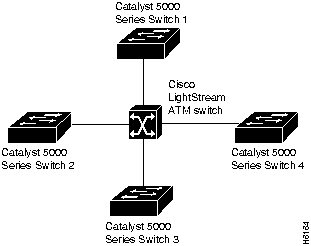
In typical LANE cases, one or more Catalyst 5000 series switches or Cisco routers with ATM interfaces are attached to a Cisco LightStream ATM switch. For distributing multiple ELANs within a network, you can use Catalyst 5000 switches instead of Cisco routers with ATM interfaces to configure the LANE LECS, LES, and LANE BUS.
The physical layout and the physical components of an emulated network might not differ for the single and the multiple ELAN cases. The differences are in the software configuration for the number of ELANs and the assignment of LANE components to the different physical components.
Examining LANE with Catalyst 5000 Switches Only
In typical LANE cases using Catalyst 5000 series switches only, one or more Catalyst 5000 series switches are attached to a Cisco LightStream ATM switch. The Cisco LightStream ATM switch provides connectivity to the broader ATM network switch cloud. The Catalyst 5000 series switches are configured to support one or more ELANs. One of the Catalyst 5000 series switches is configured to perform the LECS functions. Another Catalyst 5000 series switch is configured to perform the LES function and the BUS function for each ELAN. (One Catalyst 5000 series switch can perform the LES and the BUS functions for several ELANs.) A Catalyst 5000 series switch can act as an LEC for one or more ELANs.
This section presents two scenarios using Catalyst 5000 series switches and a Cisco LightStream ATM switch. Figure 17 illustrates the use of four Catalyst 5000 series switches and one Cisco LightStream ATM switch; it illustrates both the single and the multiple ELAN cases.
Figure 17 : ELAN Layout with Catalyst 5000 Switches Only
Single ELAN Scenario with Catalyst 5000 Switches Only
In a single ELAN scenario, the LANE components might be assigned as follows:
Multiple ELAN Scenario with Catalyst 5000 Switches Only
In the multiple LAN scenario, one ATM switch and four Catalyst 5000 series switches are used, but multiple ELANs are configured. In the following scenario, three ELANs are configured on the four Catalyst 5000 series switches.
The LANE components are assigned as follows:
Examining LANE Scenarios with Catalyst 5000 Switches and Routers
LANE configurations that use routers typically have one or more Catalyst 5000 series switches or Cisco routers with ATM interfaces attached to a Cisco LightStream ATM switch. The Cisco LightStream ATM switch provides connectivity to the broader ATM network switch cloud. The routers are configured to support one or more ELANs. One of the routers is configured to perform the LECS functions. A router is configured to perform the LES function and the BUS function for each ELAN. (One router can perform the LES and the BUS functions for several ELANs.) Routers and Catalyst 5000 series switches can act as an LEC for one or more ELANs.
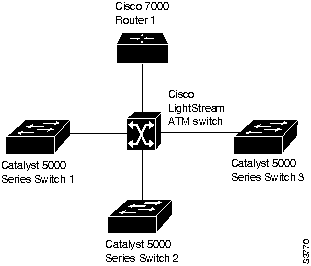
This section presents two scenarios using a router, Catalyst 5000 series switches, and a Cisco LightStream ATM switch. Figure 18 illustrates this typical layout of one Cisco LightStream ATM switch, with a Cisco router and three Catalyst 5000 series switches; it illustrates both the single and the multiple ELAN cases.
Figure 18 : Typical ELAN Layout
Single ELAN Scenario with Catalyst 5000 Switches and Routers
In a single ELAN scenario, the LANE components might be assigned as follows:
Refer to the "Configuring a Single ELAN" section later in this chapter for an illustrated example of this scenario.
Multiple ELAN Scenario with Catalyst 5000 Switches and Routers
In a multiple LAN scenario, one ATM switch, one router, and three Catalyst 5000 series switches are used, but multiple ELANs are configured. In the following scenario, three ELANs are configured on a router and three Catalyst 5000 series switches. Refer to the example sections "Configuring Multiple ELANs with Unrestricted Membership" and "Configuring Multiple ELANs with Restricted Membership" for detailed examples.
The LANE components are assigned as follows:
Listing LANE Configuration Tasks
Before you begin configuring LANE, you must decide whether to set up one or multiple ELANs. If you set up Multiple ELANs, decide where the LESs and LECs will be located, and if you will restrict the LECs that can belong to each ELAN.
Once you have made these basic decisions, you can proceed to configure LANE. Some of the tasks required to configure LANE are performed on a Cisco LightStream ATM switch.
The following sections describe the tasks required to configure LANE:
You can configure some ELANs from a router and some from a Catalyst 5000 switch.
Once the LANE is configured, you can monitor and maintain the components in the participating Catalyst 5000 ATM modules and optional routers by completing the tasks in the "Monitoring and Maintaining the LANE Components" section.
Creating a LANE Plan and Worksheet
It might help you to begin if you draw up a plan and a worksheet for your own LANE scenario, include the following information, and leave space for the ATM address of each LANE component on each subinterface of each participating device. The last three items in this list are very important; they determine how you set up each ELAN in the LECS database:
Configuring a Cisco LightStream ATM Switch Prefix
Before you configure LANE components on Catalyst 5000 switches, you must configure a Cisco LightStream ATM switch with the ATM address prefix to be used by all LANE components in the switch cloud.
To set the ATM address prefix, complete the following steps on the Cisco LightStream ATM switch:
On the Cisco LightStream ATM Switch, you can display the current prefix by using the show network command.
LANE LECS, BUS, LES, and LEC Addresses
For each Catalyst 5000 series switch that will participate in LANE, set up the necessary LECs for each ELAN; then display and record the LEC ATM addresses. Be sure to keep track of the Catalyst 5000 series switch or router interface where the LECS will eventually be located.
If you are going to have only one default ELAN, you will have only one LES to set up. If you are going to have multiple ELANs, you can set up the LES for another ELAN on a different subinterface on the same interface of this router---or you can place it on a different Catalyst 5000 switch.
To set up only an LEC on a subinterface, complete the steps in the "Setting Up Signaling and ILMI PVCs" section and the "Setting Up an LEC on a Subinterface" section.
LEC location is important, because any router with LECs for multiple ELANs can route frames between those ELANs.
To set up the LES, BUS, and an LEC on the same subinterface, complete the steps in the following sections:
To set up only an LEC on a subinterface, complete the steps in the following sections:
Once you have set up the components, you can display their ATM addresses by completing the task in the "Displaying the LEC ATM Addresses" section later in this chapter.
Setting Up Signaling and ILMI PVCs
Set up the signaling and the ILMI PVC that will communicate with the ILMI on the major ATM interface of any Catalyst 5000 series switch that will participate in LANE. Complete this task only once for a major interface. You do not need to repeat this task on the same interface even though you might configure LECs on several of its subinterfaces.
To set up these PVCs, complete the following steps, beginning in global configuration mode:
Setting Up an LES, BUS, and LEC
To set up the LES and BUS for an ELAN, perform the following steps beginning in interface configuration mode:
If the ELAN in Step 3 is intended to have restricted membership, consider carefully whether you want to specify its name here. You will specify the name in the LECS database when it is set up. However, if you link the LEC to an ELAN in this step and, through some mistake, it does not match the database entry linking the LEC to an ELAN, this LEC will not be allowed to join this ELAN or any other. You might consider this as either a helpful check that the configuration is correct or as a problem to overcome.
If you do decide to include the name of the ELAN linked to the LEC in Step 3 and later want to associate that LEC with a different ELAN, make the change in the LECS database before you make the change for the LEC on this subinterface.
Setting Up an LEC on a Subinterface
On any given Catalyst 5000 series switch, you can set up one LEC for one ELAN or multiple LECs for multiple ELANs. You can set up an LEC for a given ELAN on any Catalyst 5000 you choose to have participate in that ELAN. After you set up the interface for the VLAN, you must link the VLAN number with the ELAN name.
You must first set up the signaling and ILMI PVCs on the major ATM interface, as described earlier in the "Setting Up Signaling and ILMI PVCs" section, before you set up the LEC.
To set up only an LEC for an ELAN, perform the following steps---beginning in interface configuration mode:
Displaying the LEC ATM Addresses
Once you have set up the LECs as needed on the subinterfaces of an ATM module on the Catalyst 5000 series switch, you can display their ATM addresses by completing the following step in EXEC mode:
The output of this command shows all subinterfaces configured for LANE. For each subinterface, the command displays and clearly labels the ATM addresses that belong to the LES, the BUS, and the LEC.
When you look at each ATM address, you will notice the following:
This automatic assignment of ATM address values was explained in the section "Automatically Assigning ATM Addresses" earlier in this chapter.
Repeat the show lane step on each Catalyst 5000 series switch before you proceed to set up the LECs on the next Catalyst 5000.
Print the display (or make a note on your LANE worksheet of these ATM addresses) so you can use it when you set up the LECS database.
At this point, the LECs will not yet be operational. That is normal for this stage of
After you have set up all the LESs, BUSs, and LECs on all the ATM subinterfaces on all Catalyst 5000 series switches or routers that will participate in LANE and have displayed their ATM addresses, you can use the information to populate the LECS database.
You can set up a default ELAN, no matter whether you set up any other ELANs. You can also set up some ELANs with restricted membership and others with unrestricted membership.
To set up the database, complete the steps in the following sections as appropriate for your ELAN plan and scenario:
Setting Up Database Signaling and ILMI PVCs
If you have already set up the signaling and ILMI PVCs on this interface, skip to the next section.
You must set up the signaling PVC and the PVC that will communicate with the ILMI on the major ATM interface of any router that will participate in LANE.
Complete this task only once for a major interface. You need not repeat this task on
To set up these PVCs, complete the following steps, beginning in global configuration mode:
Setting Up the Database for the Default ELAN
When you configure a Catalyst 5000 switch as the LECS for one default ELAN, you provide a name for the database, the ATM address of the LES for the ELAN, and a default name for the ELAN. In addition, you indicate that the LECS ATM address is to be computed automatically.
When you set up a database of only a default, unrestricted ELAN, you need not specify where the LANE LECs are located. That is, when you set up the LECS database for a single default ELAN, you need not provide any database entries that link the ATM addresses of any LECs with the ELAN name.
To set up the LECS for the default ELAN, complete the following steps beginning in global configuration mode:
In Step 2, enter the ATM address of the LES for the specified ELAN as noted in your worksheet.
If you are setting up only a default ELAN, the elan-name value in Step 2 is the same as the default ELAN name you provide in Step 3.
Setting Up the Database for Unrestricted-Membership ELANs
When you set up a database for unrestricted ELANs, you create database entries that link the name of each ELAN to the ATM address of its LES.
However, you may choose not to specify where the LECs are located. That is, when you set up the LECS database, you do not have to provide any database entries that link the ATM addresses or MAC addresses of any LECs with the ELAN name.
To configure a router as the LECS for multiple ELANs with unrestricted membership, complete the following steps beginning in global configuration mode:
In Steps 2 and 3, enter the ATM address of the LES for the specified ELAN, as noted in your worksheet.
Setting Up the Database for Restricted-Membership LANs
When you set up the database for restricted-membership ELANs, you create database entries that link the name of each ELAN to the ATM address of its LES.
However, you also must specify where the LECs are located. That is, for each restricted-membership ELAN, you provide a database entry that explicitly links the ATM address or MAC address of each LEC of that ELAN with the name of that ELAN.
Those LEC database entries specify the LECs that are allowed to join the ELAN. When an LEC requests that the LECS indicate which ELAN it is to join, the LECS consults its database and then responds as configured.
When LECs for the same restricted-membership ELAN are located in multiple Catalyst 5000 ATM modules, each LEC ATM address or MAC address must be linked explicitly with the name of the ELAN. As a result, you must configure as many LEC entries (Step 5 in the following procedure) as you have LECs for ELANs in all the ATM modules of Catalyst 5000 switches. Of course, each LEC will have a different ATM address in the database entries.
To set up the LECS for ELANs with restricted membership, perform the following steps, beginning in global configuration mode:
Once you have created the database entries as appropriate to the type and the membership conditions of the ELANs, you can enable the LECS on the selected ATM interface and Catalyst 5000 ATM module and then display its ATM address by completing the following steps:
Make a note of the LECS ATM address so you can configure it on each ATM subinterface where an LES and BUS is configured.
Configuring the Server ATM Address on an LS100
You must enter the LECS ATM address into a Cisco LS100 ATM switch and save it permanently, so that the value will not be lost when the switch is reset or powered off.
To enter the LECS ATM address into the Cisco LS100 ATM Switch and save it there permanently, complete the following steps on the Cisco LS100 ATM Switch:
In Step 1, you must specify the full 40-digit ATM address.
Monitoring and Maintaining the LANE Components
After configuring LANE components on an interface or any of its subinterfaces, on a specified subinterface, or on an ELAN, you can display their status. To show LANE information, perform the following steps in EXEC mode:
Configuring QuickStart Procedure
This section provides a specific operating example of how to set up a single ATM ELAN (LANE) and configure the LAN Emulation components. Substitute your own values in each step to configure the LANE module in your system. This procedure includes the following tasks:
The example below assumes you have:
Defining Values for LANE Module Configuration
Entering the ATM Address Prefix on an LS100
Configure the default ATM address prefix of all edge devices connected to the switch. If you do not intend to connect the LS 100 ATM switch to the Ethernet network, use After you assign an IP address to the supervisor engine module's sc0 interface, start a session with the ATM module on the console for the Catalyst 5000 as follows. The following example assumes the ATM module is in slot 5.
Setting Up the Signaling and ILMI Permanent Virtual Circuits
Set up the signaling and ILMI permanent virtual circuits (PVCs) by typing the following commands:
Displaying the Default LANE Module Network Service Access Points
Display the default ATM network service access points (NSAPs):
Setting Up the Cisco LS100 ATM Switch with the Default LECS Address
To set up the Cisco LS100 ATM switch with the default LECS address, perform the steps below:
Setting Up the LECS, LES, and BUS Servers
This section describes how to set up the LECS, LES, and BUS.
Setting Up the LAN Emulation LEC
The examples in the following sections illustrate how to configure LANE for the following cases:
All examples use the automatic ATM address assignment method described in the section "Automatically Assigning ATM Addresses" earlier in this chapter. These examples show the resulting configuration, not the process of determining and entering the ATM addresses appropriately, as described earlier.
The following example configures one Cisco router and three Catalyst 5000 series switches for one ELAN. Router 1 contains the LECS, the LES, the BUS, and an LEC. The remaining Catalyst 5000 series switches each contain an LEC for the ELAN. This example accepts all default settings that are provided. For example, it does not explicitly set ATM addresses for the different LANE components that are co-located on Catalyst 5000 series switch 1. Membership in this LAN is not restricted.
Catalyst 5000 Series Switch 1
Catalyst 5000 Series Switch 2
Catalyst 5000 Series Switch 3
Catalyst 5000 Series Switch 4
Configuring Multiple ELANs with Unrestricted Membership
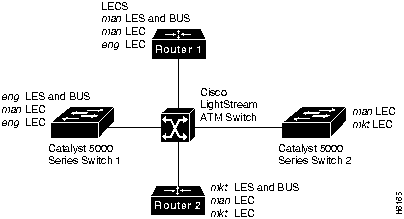
The following example, illustrated in Figure 19, configures two Cisco routers and two Catalyst 5000 series switches. It contains three ELANS for engineering, manufacturing, and marketing. This example does not restrict membership in the ELANs.
In this example, Router 1 has the following LANE components:
Router 2 has the following LANE components:
Catalyst 5000 series switch 1 has the following LANE components:
Catalyst 5000 series switch 2 has the following LANE components:
For the purposes of this example, the Catalyst 5000 series switches and routers are assigned the following ATM address prefixes and base ESI:
Router 1
Router 1 has the LECS and its database, the LES and BUS for the manufacturing ELAN, an LEC for manufacturing, and an LEC for engineering. Router 1 is configured as follows:
Router 2
Router 2 has the LES and BUS for the marketing ELAN, an LEC for marketing, and an LEC for manufacturing. Because the default ELAN name is man, the second LEC is linked to that ELAN name by default. Router 2 is configured as follows:
Catalyst 5000 Series Switch 1
Catalyst 5000 series switch 1 is configured for the LES and BUS for the engineering ELAN, an LEC of the manufacturing ELAN, and an LEC of the engineering ELAN. Because the default ELAN name is man, the first LEC is linked to that ELAN name by default.
Catalyst 5000 Series Switch 2
Catalyst 5000 series switch 2 is configured for an LEC of the manufacturing ELAN and an LEC of the marketing ELAN. Because the default ELAN name is man, the first LEC is linked to that ELAN name by default.
Configuring Multiple ELANs with Restricted Membership
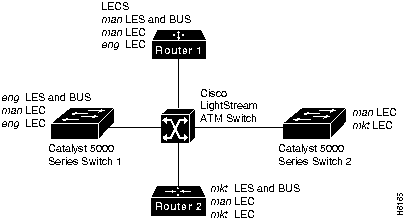
The following example, illustrated in Figure 20, configures the Cisco router for three ELANS for engineering, manufacturing, and marketing.
The same components are assigned to the four routers as in the previous example. The ATM address prefixes and MAC addresses are also the same as in the previous example.
However, this example restricts membership in the ELANs. In this example, the LECS database has explicit entries binding the ATM addresses of LECs to specified, named ELANs. In such cases, the LEC asks the LECS which ELAN it belongs to; the LECS checks its database and informs the LEC to which ELAN it belongs.
Figure 20 : Multiple ELANs with Restricted Membership
Router 1
Router 1 has the LECS and its database, the LES and BUS for the manufacturing ELAN, an LEC for manufacturing, and an LEC for engineering. It also has explicit database entries binding the ATM addresses of LECs to specified, named ELANs. Router 1 is configured as follows:
Router 2
Router 2 has the LES and BUS for the marketing ELAN, an LEC for marketing, and an LEC for manufacturing. The first LEC is listed in the database as linked to the mkt ELANs. The second LEC is not listed in the database, but is linked to the man ELAN name by default. Router 2 is configured as follows:
Catalyst 5000 Series Switch 1
Catalyst 5000 series switch 1 is configured for the LES and BUS for the engineering ELAN, an LEC of the manufacturing ELAN, and an LEC of the engineering ELAN. Because the default ELAN name is man, the first LEC is linked to that ELAN name by default.
Catalyst 5000 Series Switch 2
Catalyst 5000 series switch 2 is configured for an LEC of the manufacturing ELAN and an LEC of the marketing ELAN. Because the default ELAN name is man, the first LEC is linked to that ELAN name by default. The second LEC is listed in the database as linked to the mkt ELAN.
Copyright 1988-1996 © Cisco Systems Inc.


bring it on line.



seated in the backplane will cause the system to halt and subsequently crash.
Console> (enable) show system
PS1-Status PS2-Status Fan-Status Temp-Alarm Sys-Status Uptime d,h:m:s Logout
---------- ---------- ---------- ---------- ---------- -------------- ---------
ok         none       ok         off        ok         0,00:21:41     none

PS1-Type   PS2-Type   Modem   Baud  Traffic Peak Peak-Time
---------- ---------- ------- ----- ------- ---- -------------------------
WS-C5153   none       disable  9600   0%      0% Tue May 14 1996, 14:37:31

System Name              System Location          System Contact
------------------------ ------------------------ ------------------------
Console> (enable)

Console> (enable) show module
Mod Module-Name          Ports Module-Type           Model   Serial-Num Status
--- -------------------- ----- --------------------- -------- --------- -------
1                        2     100BaseTX Supervisor  WS-X5009 002650014 ok
2                        10    ATM LANE              WS-X5253 002475046 ok
4                        48    4 Segment 10BaseT Eth WS-X5020 001336146 ok

Mod MAC-Address(es)                           Hw     Fw     Sw
--- ----------------------------------------  ------ ------ ----------------
1   00-40-0b-ac-80-00 thru 00-40-0b-ac-83-ff  1.81   1.5    2.1
2   00-40-0b-4c-92-58 thru 00-40-0b-4c-92-6f  1.0    1.4    2.1
4   00-40-0b-ff-00-00 thru 00-40-0b-ff-00-03  0.2    2.1(1) 2.1
Console> (enable)

Console> (enable) show port 2/10
Port Name                 Status     Vlan       Level  Duplex Speed Type
---- -------------------- ---------- ---------- ------ ------ ----- -----------
2/10                      connected  1          normal   half    10 10BaseT

Port Align-Err  FCS-Err    Xmit-Err   Rcv-Err
---- ---------- ---------- ---------- ----------
2/10          0          0          0          0

Port Single-Col Multi-Coll Late-Coll  Excess-Col Carri-Sens Runts     Giants
---- ---------- ---------- ---------- ---------- ---------- --------- ---------
2/10          0          0          0          0          0         0         0

Last-Time-Cleared
--------------------------
Tue May 14 1996, 14:37:31
Console> (enable)
Console> (enable) show port

    Port Name                  Status     Vlan       Level  Duplex Speed Type
---- --------------------  ---------- ---------- ------ ------ ----- -----------
1/1  100BaseTX Supervisor  connected  1          normal   half   100  100BaseTX
1/2  100BaseTX Supervisor  connected  trunk      normal   half   100  100BaseTX
2/1  ATM LAN Multimode     connected  1          normal   half   100  100BaseFX
2/2  10BaseFL 12 Port      connected  1          normal   half   auto 10BaseFL
2/3  10BaseFL 12 Port      connected  1          normal   half   auto 10BaseFL
2/4  10BaseFL 12 Port      connected  1          normal   half   auto 10BaseFL
2/5  10BaseFL 12 Port      connected  1          normal   half   auto 10BaseFL
.
.
4/45                       notconnect 1          normal   half    10  10BaseT
4/46                       notconnect 1          normal   half    10  10BaseT
4/47                       notconnect 1          normal   half    10  10BaseT

Port Align-Err  FCS-Err    Xmit-Err   Rcv-Err
---- ---------- ---------- ---------- ----------
1/1           0          0          0          0
1/2           0          0          0          0
2/1           0          0          0          0
2/2           0          0          0          0
2/3           0          0          0          0
.
.
.
2/18          0          0          0          0
2/19          0          0          0          0
2/20          0          0          0          0
2/21          0          0          0          0
2/22          0          0          0          0
2/23          0          0          0          0
2/24          0          0          0          0TT


Port Auto-Parts Giants     Data-Rate  FCS-Err    Runts      Rcv-frms   Src-Addr
                           Mismatch                                    Changes
---- ---------- ---------- ---------- ---------- ---------- ---------- --------
4/1           0          0          0          0          0          0        0
4/2           0          0          0          0          0          0        0
4/3           0          0          0          0          0          0        0
4/4           0          0          0          0          0          0        0
4/5           0          0          0          0          0          0        0
4/6           0          0          0          0          0          0        0
.
.
.
4/43          0          0          0          0          0          0        0
4/44          0          0          0          0          0          0        0
4/45          0          0          0          0          0          0        0
4/46          0          0          0          0          0          0        0
4/47          0          0          0          0          0          0        0
4/48          0          0          0          0          0          0        0

Port Rcv-Multi  Rcv-Broad  Good-Bytes Align-Err  Short-Evnt Late-Coll Collision
---- ---------- ---------- ---------- ---------- ---------- --------- ---------
4/1           0          0          0          0          0         0         0
4/2           0          0          0          0          0         0         0
4/3           0          0          0          0          0         0         0
4/4           0          0          0          0          0         0         0
.
.
.

4/42          0          0          0          0          0         0         0
4/43          0          0          0          0          0         0         0
4/44          0          0          0          0          0         0         0
4/45          0          0          0          0          0         0         0
4/46          0          0          0          0          0         0         0
4/47          0          0          0          0          0         0         0
4/48          0          0          0          0          0         0         0

Last-Time-Cleared
--------------------------
Tue May 14 1996, 14:37:31
Console> (enable)
Configuring from terminal, memory, or network [terminal]?
Task
Command
configure terminal
See appropriate chapter for specific commands.
Ctrl-Z
write memory
ATM# configure terminal
ATM (config)# interface atm 0
ATM (config)# lane client ethernet 1 man
Ctrl-Z
ATM (config)# write memory
Task
Command
configure memory
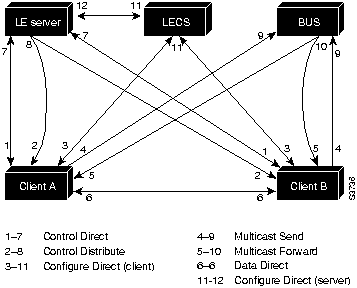
The LEC sets up a connection to the LECS (bidirectional point-to-point Configure Direct VCC, link 1-7 in Figure 16) to find the ATM address of the LES for its ELAN.
The LECs find the LECS by using the following interface and addresses in the listed order:
remains established.
The LES for the ELAN sets up a connection to the LECS to verify that the LEC is allowed to join the ELAN (bidirectional point-to-point Server Configure VCC, link 11-12 in Figure 16). The LES configuration request contains the LEC MAC address, its ATM address, and the name of the ELAN. The LECS checks its database to determine whether the LEC can join that LAN; then it uses the same VCC to inform the LES whether the LEC is allowed to join.
addresses (layer 2); LE ARP maps ELAN MAC addresses (layer 2) to ATM addresses (also layer 2).
Unspecified Digits
Where to Obtain Value
Prefix (first 13 bytes)
ATM switch via ILMI, or configured locally if ILMI is not supported on the ATM switch.
ESI (next 6 bytes)
Slot MAC address1 plus
Selector field (last 1 byte)
Subinterface number, in the range 0 through 255.
1 The Catalyst 5000 series switch ATM card has a pool of 16 MAC addresses.

You can configure some ELANs with unrestricted membership and some ELANs with restricted membership. You can also configure a default ELAN, which must have unrestricted membership.
Task
Command
Set the local node ID (prefix of the ATM address).
set local name ip-address mask prefix1
Save the configuration values permanently.
save
1 On the Cisco LightStream ATM Switch, the ATM address prefix is called the node ID. Prefixes must be 26 digits long. If you provide fewer than 26 digits, zeros are added to the right of the specified value to fill it to 26digits.
powered off.
Task
Command
interface atm 0
atm pvc vcd vpi vci qsaal1
atm pvc vcd vpi vci ilmi
1 This command is documented in the "ATM Commands" chapter of the Router Products Command Reference publication.
Task
Command
interface atm 0.subinterface-number
lane server-bus ethernet elan-name
lane client ethernet [vlan-1] [elan-name]
protocol address mask(1)
Task
Command
interface atm 0.subinterface-number
lane client ethernet vlan# elan-name
Task
Command
Display the LES, BUS, and LEC ATM addresses.
show lane
LANE configuration.
the same interface, even though you might configure LESs and LECs on several of
its subinterfaces.
Task
Command
interface atm 0
atm pvc vcd vpi vci qsaal1
atm pvc vcd vpi vci ilmi1.
1 This command is documented in the "ATM Commands" chapter of the Router Products Command Reference publication.
Task
Commands
lane database database-name
name elan-name server-atm-address atm-address
default-name elan-name
exit
Task
Command
lane database database-name
name elan-name1 server-atm-address atm-address
name elan-name2 server-atm-address atm-address
default name elan-name
exit
Task
Command
lane database database-name
name elan-name1 server-atm-address atm-address restricted
name elan-name2 server-atm-address atm-address [restricted]
default name elan-name
client-atm-address atm-address name elan-name
exit
Task
Command
interface atm 0
lane config database-name
lane auto-config-atm-address
exit
Ctrl-Z
show lane config
Task
Command
set configserver 0 atm-address
save
Task
Command
Display the global and per-VCC LANE information for all the LANE components and ELANs configured on an interface or any of its subinterfaces.
show lane [interface atm 0 [.subinterface-number] | name elan-name] [brief]
Display the global and per-VC LANE information for the BUS configured on any subinterface or ELAN.
show lane bus [interface atm 0 [.subinterface-number] | name elan-name] [brief]
Display the global and per-VC LANE information for all LECs configured on any subinterface or ELAN.
show lane client [interface atm 0 [.subinterface-number] | name elan-name] [brief]
Display the global and per-VC LANE information for the LECS configured on any interface.
show lane config [interface atm 0]
Display the LANE LECS database.
show lane database [database-name]
Display the LANE ARP table of the LECs configured on the specified subinterface or ELAN.
show lane le-arp [interface atm 0 [.subinterface-number] | name elan-name]
Display the global and per-VC LANE information for the LES configured on a specified subinterface or ELAN.
show lane server [interface atm 0 [.subinterface-number] | name elan-name] [brief]
39000000000000000000000000
one
.
name
test
.
5
.
ATMSW
.
1
.
0.0.0.0
as the IP address and
255.255.255.255
as the network mask.
ATMSW>enable

Input the password:

ATMSW>#set local ATMSW IP address mask 39000000000000000000000000
Catalyst 5000> (enable) show version
WS-C5000 Software, Version McpSW: 2.133 NmpSW: 2.136(Eng)
Copyright (c) 1995,1996 by Cisco Systems
NMP S/W compiled on May  8 1996, 17:41:51
MCP S/W compiled on Apr 30 1996, 18:08:27

System Bootstrap Version: 1.5

Hardware Version: 1.81  Model: WS-X5009  Serial #: 002650014

Module Ports Model      Serial #   Hw     Fw     Fw1    Sw
------ ----- ---------- --------- ------ ------ ------ ------------
1      2     WS-X5009   002650014 1.81   1.5    1.5    2.1
2      24    WS-X5010   002475046 1.0    1.4           2.1
5      1     WS-X5155   002745909 1.0    1.2    1.320  2.1

8191K bytes of DRAM memory.
4096K bytes of FLASH memory.
256K bytes of non-volatile configuration memory.
Catalyst 5000> session 5
Catalyst 5000> enable
ATM>en
ATM#config terminal

ATM(config)#int atm 0

ATM(config-if)#atm pvc 1 0 5 qsaal

ATM(config-if)#atm pvc 2 0 16 ilmi

ATM(config-if)#end
ATM#show lane default-atm-addresses
interface ATM1/0:

LANE Client:         39.000000000000000000000000.00000C302A3C.**

LANE Server:         39.000000000000000000000000.00000C302A3D.**

LANE Bus:            39.000000000000000000000000.00000C302A3E.**

LANE Config Server:  39.000000000000000000000000.00000C302A3F.00
note: ** is the subinterface number byte, in hex
subinterface 1.
ATMSW
#
set configserver 0
3900000000000000000000000000000C302A3F00
0
after the configserver command is the index into the LECS address table in the LS100 ATM switch. The switch can accommodate up to four LECS addresses: index
0
through
3
.
ATMSW#
save
ATM#
config terminal

ATM(config)#
lane database test

ATM(lane-config-database)#
name one server-atm-address
  39.000000000000000000000000.00000C302A3D.01

ATM(lane-config-database)#
default-name one
test
.
server-atm-address
is the one displayed in the command above. For the last byte, use the subinterface number (
config-subif
) you plan to use in
Step 3, below.
one
. (See Step 2 in the next section "Setting Up the LAN Emulation LEC," below.)
ATM(config)#
int atm 0

ATM(config-if)#
lane config test

ATM(config-if)#
lane auto-config-atm-address
ATM(config-if)#
int atm 0.1

ATM(config-subif)#
lane server-bus ethernet one
ATM(config-subif)#
end

ATM#
wr mem
C5000>(enable)
session 5
sc0
interface before running the session command.
ATM>
enable

ATM#
config terminal

ATM(config)#
int atm 0

ATM(config-if)#
no shutdown

ATM(config-if)#
atm pvc 1 0 5 qsaal

ATM(config-if)#
atm pvc 2 0 16 ilmi

ATM(config-if)#
int atm 0.1

ATM(config-subif)#
lane client ethernet 1 one
one
, so you can omit it from the command above. However, you must provide the ELAN name if you are joining an ELAN that has not been designated as the default ELAN. The default was set up in Step 1 in the "Setting Up the Signaling and ILMI Permanent Virtual Circuits" section.
lane client ethernet
vlan_#
elan_name
one
.
ATM(config-subif)#
end
ATM#
wr mem
lane database example1
name eng server-atm-address 39.0000014155551211.0800200c1001.01
default-name eng
interface atm 0
atm pvc 1 0 5 qsaal
atm pvc 2 0 16 ilmi
lane auto-config-atm-address
lane config example1
interface atm 0.1
lane server-bus ethernet eng
lane client ethernet 1
interface atm 0
atm pvc 1 0 5 qsaal
atm pvc 2 0 16 ilmi
interface atm 0.1
lane client ethernet 1
interface atm 0
atm pvc 1 0 5 qsaal
atm pvc 2 0 16 ilmi
interface atm 0.1
lane client ethernet 1
interface atm 0
atm pvc 1 0 5 qsaal
atm pvc 2 0 16 ilmi
interface atm 0.1
lane client ethernet 1
Router
ATM Address Prefix
ESI Base
Router 1
39.0000014155551211
0800.200c.1000
Catalyst 5000 series switch 1
39.0000014155551211
0800.200c.20001
Catalyst 5000 series switch 2
39.0000 014155551211
0800.200c.30001.
Router 2
39.0000014155551211
0800.200c.4000
1 The ESI part of the ATM address is derived from the first MAC address of the Catalyst 5000 ATM module shown in the example.
!The following lines name and configure the configuration server's database.
lane database example2
name eng server-atm-address 39.0000014155551211.0800200c2001.02
name man server-atm-address 39.0000014155551211.0800200c1001.01
name mkt server-atm-address 39.0000014155551211.0800200c4001.01
default-name man
!
! The following lines bring up the configuration server and associate
! it with a database name.
interface atm 1/0
atm pvc 1 0 5 qsaal
atm pvc 2 0 16 ilmi
lane auto-config-atm-address
lane config example2
!
! The following 3 lines configure the manufacturing server, broadcast-and-unknown server,
! and the client on atm subinterface 1/0.1. The client is assigned to the default
! emulated lan.
interface atm 1/0.1
ip address 172.16.0.1 255.255.255.0
lane server-bus ethernet man
lane client ethernet
!
! The following 3 lines configure the "man" server/broadcast-and-unknown server,
! and the client on atm subinterface 1/0.1. The client is assigned to the default
! emulated lan.
interface atm 1/0.1
ip address 172.16.0.1 255.255.255.0
lane server-bus ethernet man
lane client ethernet
interface atm 3/0
atm pvc 1 0 5 qsaal
atm pvc 2 0 16 ilmi
interface atm 3/0.1
lane server-bus ethernet mkt
lane client ethernet mkt
interface atm 3/0.2
lane client ethernet
interface atm 0
atm pvc 1 0 5 qsaal
atm pvc 2 0 16 ilmi
interface atm 0.1
lane client ethernet 1
interface atm 0.2
lane server-bus ethernet eng
lane client ethernet 2 eng
interface atm 0
atm pvc 1 0 5 qsaal
atm pvc 2 0 16 ilmi
interface atm 0.1
lane client ethernet 1
interface atm 0.2
lane client ethernet 3 mkt
! The following lines name and configure the configuration server's database.
lane database example3
name eng server-atm-address 39.0000014155551211.0800200c2001.02 restricted
name man server-atm-address 39.0000014155551211.0800200c1001.01
name mkt server-atm-address 39.0000014155551211.0800200c4001.01 restricted
default-name man
!
! The following lines add database entries binding specified client ATM
! addresses to emulated LANs. In each case, the Selector byte corresponds
! to the subinterface number on the specified router.
! The next command binds the client on Router 1's subinterface 2 to the eng ELAN.
client-atm-address 39.0000014155551211.0800200c1000.02 name eng
! The next command binds the client on Router 2's subinterface 2 to the eng ELAN.
client-atm-address 39.0000014155551211.0800200c2000.02 name eng
! The next command binds the client on Router 3's subinterface 2 to the mkt ELAN.
client-atm-address 39.0000014155551211.0800200c3000.02 name mkt
! The next command binds the client on Router 4's subinterface 1 to the mkt ELAN.
client-atm-address 39.0000014155551211.0800200c4000.01 name mkt
!
! The following two lines bring up the configuration server and associate
! it with a database name.
interface atm 1/0
atm pvc 1 0 5 qsaal
atm pvc 2 0 16 ilmi
lane auto-config-atm-address
lane config example3
!
! The following 3 lines configure the "man" server/broadcast-and-unknown server,
! and the client on atm subinterface 1/0.1. The client is assigned to the default
! emulated lan.
interface atm 1/0.1
ip address 172.16.0.1 255.255.255.0
lane server-bus ethernet man
lane client ethernet
!
! The following 3 lines configure the "eng" client on atm subinterface 1/0.2. The
! configuration server assigns the client to the engineering emulated lan.

interface atm 1/0.2
ip address 172.16.1.1 255.255.255.0
lane client ethernet eng
interface atm 3/0
atm pvc 1 0 5 qsaal
atm pvc 2 0 16 ilmi
! The first client is explicitly entered in the configuration server's
! database as linked to the "mkt" ELAN.
interface atm 3/0.1
ip address 172.16.2.4 255.255.255.0
lane server-bus ethernet mkt
lane client ethernet mkt
! The following client is not entered in the database, so it is linked to the
! "man" ELAN by default.
interface atm 3/0.2
ip address 172.16.0.4 255.255.255.0
lane client ethernet
interface atm 0
atm pvc 1 0 5 qsaal
atm pvc 2 0 16 ilmi
interface atm 0.1
lane client ethernet 1
! A client for the following interface is entered in the configuration
! server's database as linked to the "eng" ELAN.
interface atm 0.2
lane server-bus ethernet eng
lane client ethernet 2 eng
interface atm 0
atm pvc 1 0 5 qsaal
atm pvc 2 0 16 ilmi
! The first client is not entered in the database, so it is linked to the
! "man" ELAN by default.
interface atm 0.1
lane client ethernet 1
! The second client is explicitly entered in the configuration server's
! database as linked to the "mkt" ELAN.
interface atm 0.2
lane client ethernet 3 mkt