


|
|

This section describes procedures used to confirm that the hardware and software installation and configuration procedures were successful. The following will be discussed:
Your LightStream 1010 ATM switch went through extensive testing and burn-in before leaving the factory; however, if your system appears to have problems starting up, use the information in this chapter to help isolate the cause. Problems with the initial startup will most likely be caused by an interface processor or power supply that has become dislodged from the backplane or chassis power connector. Although over-temperature conditions rarely occur at initial startup, the environmental monitoring functions are included because they also monitor DC line voltages. This manual covers the system hardware installation only. At the initial system boot, you should verify the following:
When each of these conditions is met, the hardware installation is complete, and you should proceed to the chapter "Configuring the LightStream 1010 ATM Switch." If the startup sequence fails before these conditions are met, use the procedures in this chapter to isolate and, if possible, resolve the problem. If you are unable to easily solve the problem, contact a customer service representative for assistance and further instructions. Before you call, have the following information ready to help your service provider assist you as quickly as possible:
The power-up or hardware reset diagnostics provide full sets of test suites to test the LightStream 1010 ATM switch hardware. The test results are stored in the switch memory and an interface is provided using the show diag power-on command. If an error is detected during the test, the ASP STATUS LED is turned on RED. The watchdog timer timeout or software warm-start may run minimum diagnostics.
Figure 8-1 is an example of a power-on diagnostic display.
Figure 8-1 : Power-On Diagnostics Example
        Switch#show diag power-on
LS1010 Power-on Diagnostics Status (.=Pass,F=Fail,U=Unknown,N=Not Applicable)
-----------------------------------------------------------------------------
   Last Power-on Date: 96/06/12   Time: 06:33:44

   BOOTFLASH:  .   PCMCIA-Slot0: N   PCMCIA-Slot1: N
   CPU-IDPROM: .   FCard-IDPROM: .   NVRAM-Config: .
   SRAM:       .   DRAM:         .

   PS1:        .   PS2:          F   PS (12V):     .
   FAN:        .   Temperature:  .   Bkp-IDPROM:   .
   MMC-Switch Access: .              Accordian Access: .
   LUT: .   ITT: .   OPT: .   OTT: .   STK: .   LNK: .   ATTR: .   Queue: .
   Cell-Memory:  .
   Feature-Card Access: .
   ICC: .   OCC: .   OQP: .   OQE: .   CC:  .   RT:  .
   TM0: .   TM1: .   TMC: .   IT:  .   LT:  .   RR:  .   ABR: .

Access/Interrupt/Loopback/CPU-MCast/Port-MCast/FC-MCast/FC-TMCC Test Status:
Ports                      0         1         2         3
----------------------------------------------------------------------------
PAM 0/0 (622SM)         .......      N         N         N
PAM 0/1 (622SM)         .......      N         N         N
PAM 1/0 (155UTP)        .......   .......   .......   .......
PAM 1/1 (155MM)         .......   .......   .......   .......
PAM 3/0 (DS3)           .......   .......      N         N
PAM 3/1 (DS3)           .......   .......      N         N
PAM 4/0 (E3)            .......   .......      N         N
PAM 4/1 (E3)            .......   .......      N         N
   Ethernet-port Access:   .         Ethernet-port CAM-Access: .
   Ethernet-port Loopback: .         Ethernet-port Loadgen:    .
If a failure occurs, an "F" is inserted instead of the period (.) which indicate that the test passed. For example, in Figure 8-1, power-supply two (PS2) failed the power-on diagnostics test.
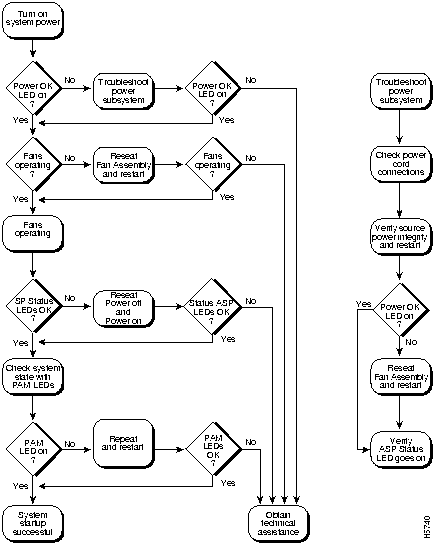
Figure 8-2 is a flowchart to help you determine which component of your LightStream 1010 may have malfunctioned.
Figure 8-2 : Troubleshooting Flowchart
This section describes the LEDs used to confirm and troubleshoot operation of the LightStream 1010 ATM switch processor and port adapter modules.
The LEDs on the ASP indicate the system, which include the fan assembly and power supply(ies), and ASP status. The ASP LEDs are shown in Figure 8-3 and described in Table 8-1.
Figure 8-3 : ATM Switch Processor LEDs
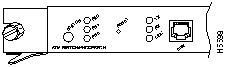
Table 8-1 : ATM Switch Processor LEDs
| LED | Description |
|---|---|
| Status | The switch performs a series of self-tests and diagnostic tests. If all the tests pass, the status LED is green. If any test fails, the status LED is red. During system boot or if the module is disabled, the LED is orange. |
| Fan | Indicates whether or not the fan is operational. If the fan is operational, the fan LED is green. If the fan is not operational, the fan LED is red. |
| PS 0, left bay | If the power supply is operational, the PS0 LED is green.If the power supply is installed but not operational, the PS0 LED is red.If the power supply is off or not installed, the PS0 LED is off. |
| PS 1, right bay | If the power supply is operational, the PS1 LED is green.If the power supply is installed but not operational, the PS1 LED is red.If the power supply is not installed, the PS1 LED is off. |
| Link | Green---The port is operational.Off---No signal is detected. |
| RX (Receive) | Off---No receive line activity.Flashing green---Cells being received: pulse rate increases with data rate. |
| TX (Transmit) | Off---No transmit line activity.Flashing green---Cells being transmitted: pulse rate increases with data rate. |
155 SM Port Adapter Module LEDs
The LEDs provide status information for the port adapter module's individual 155 single-mode (SM) fiber-optic interface connections. The LEDs are shown in Figure 8-4 and described in Table 8-2.
Figure 8-4 : 155 SM Port Adapter Module LEDs

Table 8-2 : 155 SM Port Adapter Module LED Descriptions
| LED | Description |
|---|---|
| RX (Receive) | Off---No receive line activityFlashing green---Cells being received: blinks every five seconds and pulse rate increases with data rateFlashing yellow---LoopbackRed---Alarm (LOF1, LCD2, AIS3) |
| TX (Transmit) | Off---No transmit line activityFlashing green---Cells being transmitted: pulse rate increases with data rateFlashing yellow---LoopbackSteady yellow---Alarm FERF4 |
155 MM Port Adapter Module LEDs
The LEDs provide status information for the port adapter module's individual 155 MM (multimode) fiber-optic interface connections. The LEDs are shown in Figure 8-5 and described in Table 8-3.
Figure 8-5 : 155 MM Port Adapter Module LEDs

Table 8-3 : 155 MM Port Adapter Module LED Descriptions
| LED | Description |
|---|---|
| RX (Receive) | Off---No receive line activityFlashing green---Cells being received: blinks every five seconds and pulse rate increases with data rateFlashing yellow---LoopbackRed---Alarm (LOF1, LCD2, AIS3) |
| TX (Transmit) | Off---No transmit line activityFlashing green---Cells being transmitted: pulse rate increases with data rateFlashing yellow---LoopbackSteady yellow---Alarm FERF4 |
155 UTP Port Adapter Module LEDs
The LEDs provide status information for the port adapter module's individual 155 unshielded twisted-pair (UTP) interface connections. The LEDs are shown in Figure 8-6 and described in Table 8-4.
Figure 8-6 : 155 UTP Port Adapter Module LEDs

Table 8-4 : 155 UTP Port Adapter Module LED Descriptions
| LED | Description |
|---|---|
| RX (Receive) | Off---No receive line activityFlashing green---Cells being received: blinks every five seconds and pulse rate increases with data rateFlashing yellow---LoopbackRed---Alarm (LOF1, LCD2, AIS3) |
| TX (Transmit) | Off---No transmit line activityFlashing green---Cells being transmitted: pulse rate increases with data rateFlashing yellow---LoopbackSteady yellow---Alarm FERF4 |
The LEDs provide status information for the port adapter module's individual DS3 coaxial cable interface connections. The LEDs are shown in Figure 8-7 and described in Table 8-5.
Figure 8-7 : DS3 Port Adapter Module LEDs

Table 8-5 : DS3 Port Adapter Module LED Descriptions
| LED | Description |
|---|---|
| RX (Receive) | Off---No receive line activityFlashing green---Cells being received: blinks every five seconds and pulse rate increases with data rateFlashing yellow---LoopbackRed---Alarm (LOF1, LCD2, AIS3) |
| TX (Transmit) | Off---No transmit line activityFlashing green---Cells being transmitted: pulse rate increases with data rateFlashing yellow---LoopbackSteady yellow---Alarm FERF4 |
The LEDs provide status information for the port adapter module's individual E3 coaxial cable interface connections. The LEDs are shown in Figure 8-8 and described in Table 8-6.
Figure 8-8 : E3 Port Adapter Module LEDs

Table 8-6 : E3 Port Adapter Module LED Descriptions
| LED | Description |
|---|---|
| RX (Receive) | Off---No receive line activityFlashing green---Cells being received: blinks every five seconds and pulse rate increases with data rateFlashing yellow---LoopbackRed---Alarm (LOF1, LCD2, AIS3) |
| TX (Transmit) | Off---No transmit line activityFlashing green---Cells being transmitted: pulse rate increases with data rateFlashing yellow---LoopbackSteady yellow---Alarm FERF4 |
622 Single-Mode Port Adapter Module LEDs
The LEDs provide status information for the port adapter module's individual 622 (OC-12) SM fiber-optic interface connections. The LEDs are shown in Figure 8-9 and described in Table 8-7.
Figure 8-9 : 622 SM Port Adapter Module LEDs

Table 8-7 : 622 SM Port Adapter Module LED Descriptions
| LED | Description |
|---|---|
| CD (Carrier Detect) | Off---Carrier detect signal not receivedGreen---Carrier detect signal received |
| RX (Receive) | Off---No receive line activityFlashing green---Cells being received: blinks every five seconds and pulse rate increases with data rateFlashing yellow---LoopbackRed---Alarm (LOF1, LCD2, AIS3) |
| TX (Transmit) | Off---No transmit line activityFlashing green---Cells being transmitted: pulse rate increases with data rateFlashing yellow---LoopbackSteady yellow---Alarm FERF4 |
622 Multimode Port Adapter Module LEDs
The LEDs provide status information for the port adapter module's individual 622 (OC-12) multimode fiber-optic interface connections. The LEDs are shown in Figure 8-10 and described in Table 8-8.
Figure 8-10 : 622 MM Port Adapter Module LEDs

Table 8-8 : 622 MM Port Adapter Module LED Descriptions
| LED | Description |
|---|---|
| CD (Carrier Detect) | Off---Carrier detect signal not receivedGreen---Carrier detect signal received |
| RX (Receive) | Off---No receive line activityFlashing green---Cells being received: blinks every five seconds and pulse rate increases with data rateFlashing yellow---LoopbackRed---Alarm (LOF1, LCD2, AIS3) |
| TX (Transmit) | Off---No transmit line activityFlashing green---Cells being transmitted: pulse rate increases with data rateFlashing yellow---LoopbackSteady yellow---Alarm FERF4 |
Sending Ethernet Packet Internet Groper (ping) Requests
Enter the ping command to send Internet Control Message Protocol (ICMP) echo request packets to another node on the network to confirm the connection to that node.
Syntax Description
| host | The IP address or IP alias of the host |
| packet_size | (Optional) The number of bytes in a packet, from 1 to 2,000 bytes, with a default of 56 bytes. The actual packet size is 8 bytes larger because the switch adds header information. |
| packet_count | (Optional) The number of packets to send |
Usage Guidelines
Enter Ctrl-C to stop pinging.
Following are sample results of the ping command:
Example
In the following example, a host with IP address 172.20.40.201 is pinged using the command ping ip 172.20.40.201. If the switch receives a response, the following message is displayed:
Switch#        ping ip 172.20.40.201
Type escape sequence to abort.
Sending 5, 100-byte ICMP Echos to 172.20.40.201, timeout is 2 seconds:
!!!!!
Success rate is 100 percent (5/5), round-trip min/avg/max = 1/202/1000 ms
Switch#
Displaying the System Statistics
Enter the show version and show environment commands to display the power supply, fan, temperature alarm, system, and modem status; the number of days, hours, minutes, and seconds since the last system restart; the baud rate; the media access control (MAC) address range; and the system name and contact.
Example
In the following example, system status and other information is displayed:
Switch>        show version
Cisco Internetwork Operating System Software
IOS (tm) IISP Software (LS1010-WI-M), Version 11.1(1.083), MAINTENANCE
INTERIM SOFTWARE
Copyright (c) 1986-1996 by cisco Systems, Inc.
Compiled Wed 10-Apr-96 06:11 by
Image text-base: 0x600108C0, data-base: 0x602E8000
ROM: System Bootstrap, Version 11.0(5726), INTERIM SOFTWARE
Switch uptime is 4 days, 4 hours, 19 minutes
System restarted by power-on
System image file is "slot0:rhino/ls1010-wi-m_1.083.bin.Z", booted via
console
cisco ASP1 (R4600) processor with 16384K bytes of memory.
R4600 processor, Implementation 32, Revision 2.0
Last reset from power-on
1 Ethernet/IEEE 802.3 interface.
16 ATM network interfaces.
125K bytes of non-volatile configuration memory.
8192K bytes of Flash PCMCIA card at slot 0 (Sector size 128K).
8192K bytes of Flash internal SIMM (Sector size 256K).
Configuration register is 0x0
Switch>
Example
In the following example, system status for temperature, fan, voltage, and power supply is displayed:
Switch#        show environment
Temperature:                        OK
Fan:                                OK
Voltage:                            OK
Power Supply#0 type: 1,  status:    OK
Switch#
Displaying the System Configuration
Enter the show startup-config command to display the current system configuration:
Switch#        show startup-config
Using 1830 out of 129016 bytes
!
version 11.1
no service pad
service udp-small-servers
service tcp-small-servers
!
hostname Switch
!
boot system flash slot0:rhino/ls1010-wi-m_1.083.bin.Z
!
atm over-subscription-factor 16
atm service-category-limit cbr 3000
atm qos uni3-default  cbr max-cell-loss-ratio 12
atm address 47.0091.8100.0000.0060.3e5a.db01.0060.3e5a.db01.00
!
interface ATM0/0/0.99 point-to-point
 no atm ilmi-enable
 no atm ilmi-lecs-implied
 atm maxvp-number 0
no ip classless
atm route default ATM0/0/0
atm route 47.0091.8100.5670.ca7c.e01... ATM2/0/0
atm route 47.0091.8100.0000.0000.0ca7.ce01... ATM0/0/0
!
line con 0
 exec-timeout 0 0
line aux 0
 transport input all
line vty 0 4
 login
!
end

Switch#show running-config
Building configuration...
Current configuration:
!
version 11.1
no service pad
service udp-small-servers
service tcp-small-servers
!
interface ATM1/1/2
 no keepalive
!
interface ATM1/1/3
 no keepalive
!
interface ATM2/0/0
 mtu 1500
 no ip address
 no ip route-cache
 no keepalive
 atm maxvp-number 0
 lane client ethernet mis
 lane client-atm-address ...0800200C1001**
 lane pvc 100 55.005500550055005500550055.00000C0425C2.00
!
interface Ethernet2/0/0
 ip address 80.0.0.10 255.0.0.0
 no ip route-cache
!
no ip classless
atm route default ATM0/0/0
atm route 47.0091.8100.5670.ca7c.e01... ATM2/0/0
atm route 47.0091.8100.0000.0000.0ca7.ce01... ATM0/0/0
!
line con 0
 exec-timeout 0 0
line aux 0
 transport input all
line vty 0 4
 login
!
end
Switch#
Using the show atm interface Command
Enter the show atm interface command to display the current ATM interface configuration:
Switch>         show atm interface atm 3/0/0
Interface:      ATM3/0/0        Port-type:    cpu
IF Status:      UP              Admin Status: up
Auto-config:    disabled        AutoCfgState: not applicable
IF-Side:        not applicable  IF-type:      not applicable
Uni-type:       not applicable  Uni-version:  not applicable
Max-VPI-bits:   8               Max-VCI-bits: 14
Max-VP:         0               Max-VC:       32768
Configured virtual links:
  PVCLs SoftVCLs   SVCLs   PVPLs SoftVPLs   SVPLs  Total-Cfgd  Installed-Conns
     53        0       0       0        0       0          53               29
Logical ports(VP-tunnels):     0
Input cells:    192257          Output cells: 198249
5 minute input rate:          1000 bits/sec,       2 cells/sec
5 minute output rate:         1000 bits/sec,       2 cells/sec
Input AAL5 pkts: 192147, Output AAL5 pkts: 198135, AAL5 crc errors: 0
Switch>
Using the show atm address Command
Enter the show atm address command to display the current ATM address configuration:
Switch>show atm address
Switch Address(es):
  47.00918100000000603E5ADB01.00603E5ADB01.00 active
Soft VC Address(es):
  47.0091.8100.0000.0060.3e5a.db01.4000.0c80.0000.00 ATM0/0/0
  47.0091.8100.0000.0060.3e5a.db01.4000.0c80.0000.63 ATM0/0/0.99
  47.0091.8100.0000.0060.3e5a.db01.4000.0c80.0010.00 ATM0/0/1
  47.0091.8100.0000.0060.3e5a.db01.4000.0c80.0020.00 ATM0/0/2
  47.0091.8100.0000.0060.3e5a.db01.4000.0c80.0030.00 ATM0/0/3
  47.0091.8100.0000.0060.3e5a.db01.4000.0c80.1000.00 ATM0/1/0
  47.0091.8100.0000.0060.3e5a.db01.4000.0c80.1010.00 ATM0/1/1
  47.0091.8100.0000.0060.3e5a.db01.4000.0c80.1020.00 ATM0/1/2
  47.0091.8100.0000.0060.3e5a.db01.4000.0c80.1030.00 ATM0/1/3
  47.0091.8100.0000.0060.3e5a.db01.4000.0c80.8000.00 ATM1/0/0

  47.0091.8100.0000.0060.3e5a.db01.4000.0c80.8010.00 ATM1/0/1
  47.0091.8100.0000.0060.3e5a.db01.4000.0c80.8020.00 ATM1/0/2
  47.0091.8100.0000.0060.3e5a.db01.4000.0c80.8030.00 ATM1/0/3
  47.0091.8100.0000.0060.3e5a.db01.4000.0c80.9000.00 ATM1/1/0
  47.0091.8100.0000.0060.3e5a.db01.4000.0c80.9010.00 ATM1/1/1
  47.0091.8100.0000.0060.3e5a.db01.4000.0c80.9020.00 ATM1/1/2
  47.0091.8100.0000.0060.3e5a.db01.4000.0c80.9030.00 ATM1/1/3
ILMI Switch Prefix(es):
  47.0091.8100.0000.0060.3e5a.db01
ILMI Configured Interface Prefix(es):
LECS Address(es):
Switch#

|
Copyright 1988-1996 © Cisco Systems Inc.