


|
|
Installing the LightStream 1010 ATM Switch
This chapter describes the procedures for rack-mounting, connecting the cables, and powering up the LightStream 1010 ATM switch at your site.
A rack-mount kit is included for mounting the switch in a standard 19-inch (48.7-centimeter) equipment rack with two unobstructed outer posts.
Following is the procedure for attaching the rack-mount kit and installing the switch in a wiring closet rack. Two or more people are needed to perform this procedure.
Be sure you have at least three or four feet of clearance behind the rack for maintenance. The intake and exhaust ports for cooling air are located on the front and rear and both sides of the chassis, so multiple switches can be stacked with little or no clearance in a rack. The chassis is 10.36 inches (25.9 centimeters) high.
Before rack-mounting the LightStream 1010 ATM switch, confirm that your rack-mount configuration conforms to the following criteria:
Refer to the section "Safely Lifting the Chassis" in the chapter "Preparing for Installation."
Following are the tools and equipment needed to install the chassis:
If you are installing the chassis in a rack, you will also need the following:
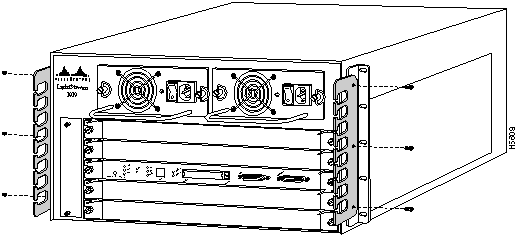
The rack-mount kit is for a standard 19-inch (48.7-centimeter) rack with a minimum depth (between the front and rear mounting posts) of 19.25 inches (39.4 centimeters) and a maximum depth of 32 inches (82 centimeters). The width between the two front equipment mounting strips (left front and right front) must be at least 17.75 inches (45.5 centimeters). Two L brackets (which you attach to either the front or back of the chassis) and the mounting posts connect the chassis to the rack. Some equipment racks provide a power strip along the length of one of the rear posts. If your rack has this feature, consider the position of the strip when planning fastener points and, before you install the L brackets on the chassis, determine whether you are going to install the chassis from the front or the rear of the rack.
Take the following steps to attach the two L brackets to the switch chassis:
Table 4-1 : Rack-Mount Kit Checklist
Figure 4-1 : Attaching the L Brackets
Figure 4-2 : Attaching the Cable Guides
Installing the Chassis in the Rack
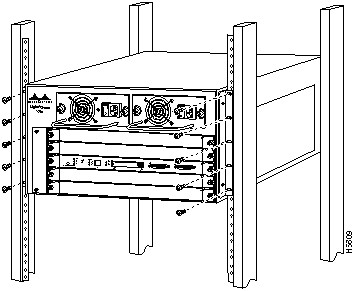
The L brackets attach the chassis to the front mounting posts. You can mount the L brackets on either the front or rear of the chassis, whichever end will be in the front of the rack.
Follow these steps to install the switch in an open rack that allows you to slide the chassis in from the front.
Figure 4-3 : Installing the Switch in the Rack
The rack-mount installation is now complete.
This section describes the basic network connections---Ethernet and ATM--- that you make to the switch. Using the Port Configuration Worksheet helps you to make connections and later configure each interface without having to access the rear of the chassis to check port addresses. See the section "Using the Port Configuration Worksheets" in the appendix "Configuration Worksheets."
Use the following guidelines to assist you in properly connecting the external network cables to your switch.
If the switch fails to operate, refer to the chapter "Confirming the Installation" to help isolate the problem, and then notify a customer service representative.
The sections that follow provide illustrations of the connections between the switch interface ports and your network(s). Interface cables and equipment, such as Ethernet transceivers and interface cables, should already be available and in place. If they are not, refer to the following section "Ethernet Connections," for descriptions of the equipment you need for each interface type to complete the connection to your network.
Most Ethernet connections do not require a transceiver on the interface cable. Figure 4-4 shows examples of typical connections. For a description of the connection equipment, refer to the section "Ethernet Connection Equipment" in the chapter "Preparing for Installation."
Figure 4-4 : Ethernet Connection
ATM Synchronous Optical Networks Connections
All Synchronous Optical Network (SONET) ATM interfaces are full-duplex. You must use the appropriate ATM interface cable to connect the ATM PAM with an external ATM network.
The ATM PAMs provide an interface to ATM switching fabrics for transmitting and receiving data at up to 622 Mbps bidirectionally.
The fiber-optic ATM PAM can support interfaces that connect to the following physical layers:
Connect the ATM interface cables as shown in Figure 4-5. For detailed descriptions of ATM cabling requirements, refer to the sections "Distance Limitations" and "ATM Synchronous Optical Networks Connections" in the chapter "Preparing for Installation."
Figure 4-5 : ATM Fiber-Optic Connections
ATM Unshielded Twisted-Pair Connections
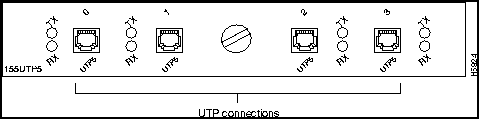
The unshielded twisted-pair (UTP) ATM interface is full duplex. You must use the appropriate ATM interface cable to connect the ATM PAM with an external ATM network.
The ATM PAMs provide an interface to ATM switching fabrics for transmitting and receiving data at up to 155 Mbps bidirectionally; the actual data rate is determined by the physical layer interface module (PLIM).
Connect the ATM interface cables as shown in Figure 4-6. For detailed descriptions of ATM cabling requirements, refer to the section "Distance Limitations" and the section "ATM Synchronous Optical Networks Connections" in the chapter "Preparing for Installation."
Figure 4-6 : ATM UTP Connections
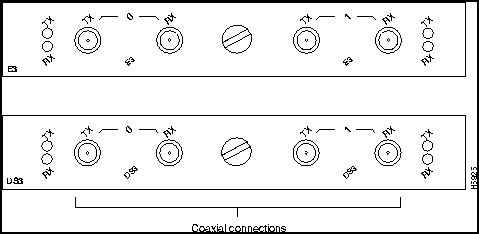
All coaxial ATM interfaces are full-duplex. You must use the appropriate ATM interface cable to connect the ATM PAM with an external ATM network.
The ATM PAM provides an interface to ATM switching fabrics for transmitting and receiving data at 34 and 45 Mbps bidirectionally.
The ATM PAM can support interfaces that connect to the following physical layers:
Connect the ATM interface cables as shown in Figure 4-7. For detailed descriptions of ATM cabling requirements, refer to the section"Distance Limitations" and the section "ATM Synchronous Optical Networks Connections" in the chapter "Preparing for Installation."
Figure 4-7 : ATM Coaxial Connections
The ASP CONSOLE port supports a data communications equipment (DCE) EIA/TIA-232 interface type and mode. For descriptions and illustrations of each connector type, refer to the section "EIA/TIA-232 Connections" in the chapter "Preparing for Installation." For cable pinouts, refer to the section "Preparing Network Connections" in the chapter "Preparing for Installation."
When connecting a serial device, consider the cable as an extension of the switch for an external connection; therefore, use null-modem cable to connect the switch to a remote DCE device such as a modem or data service unit (DSU), and use a straight-through cable to connect the switch to a data terminal equipment (DTE) device such as a terminal or PC. (See Figure 4-8.)
Figure 4-8 : Serial Port Adapter Cable Connections
Connecting the Console Terminal
The system console port on the ASP is a DCE DB-25 receptacle for connecting a data terminal, which you will need to configure and communicate to your system. The port is located on the ASP faceplate and is labeled CONSOLE, as shown in Figure 4-8.
Before connecting the console port, check your terminal's documentation to determine the baud rate. The baud rate of the terminal must match the default baud rate (9600 baud) of the terminal you will be using. Set up the terminal as follows:
Use the proper null-modem or straight-through cable to connect a terminal or modem to the console port on the ASP; then follow the steps in the section "Starting the System."
This section describes the procedures to apply power to the LightStream 1010 ATM switch at your site. Connect an AC-input power supply, as follows:
Figure 4-9 : Power Cord Connection
Connect the redundant power supply to a separate input line. Connect the redundant AC-input power supply as follows:
When all interfaces are connected, perform a final check of all connections then take the following steps to check the components and power up the system.
During the boot process, the status LED on all interfaces is orange. Some LEDs may go on and remain on or go out and go on again for a short time. Some LEDs, such as the link LED, will stay on during the entire boot process. If an interface is already configured, the LEDs may go on steadily as they detect traffic on the line. Wait until the system boot is complete before attempting to verify the module LED indications.
When the system boot is complete (it takes a few seconds), the ASP begins to initialize the PAMs. During this initialization, the LEDs on each PAM behave differently (most flash on and off). The status LED on each PAM goes on when initialization has been completed, and the console screen displays a script and system banner similar to the following:
The first section of the script displays the banner information, including the software version.
The next portion of the script lists installed hardware configuration.
Your installation is now complete. Refer to the chapter "Confirming the Software" or refer to the publication LightStream 1010 ATM Software Configuration Guide if additional information is needed.
Copyright 1988-1996 © Cisco Systems Inc.


Quantity
Part Description
Received
2
L brackets (left and right)
6
M4 Phillips countersunk-head screws
8
12-24 x 3/4-inch Phillips binder-head screws
8
10-32 x 3/4-inch slotted binder-head screws









     Restricted Rights Legend

Use, duplication, or disclosure by the Government is
subject to restrictions as set forth in subparagraph
(c) of the Commercial Computer Software - Restricted
Rights clause at FAR sec. 52.227-19 and subparagraph
(c) (1) (ii) of the Rights in Technical Data and Computer
Software clause at DFARS sec. 252.227-7013.

           cisco Systems, Inc.
           170 West Tasman Drive
           San Jose, California 95134-1706


Cisco Internetwork Operating System Software
IOS (tm) IISP Software (LS1010-WI-M), Version 11.1(1.083)
Copyright (c) 1986-1996 by cisco Systems, Inc.
Compiled Wed 10-Apr-96 06:11 by
Image text-base: 0x600108C0, data-base: 0x602E8000
cisco ASP1 (R4600) processor with 16384K bytes of memory.
R4600 processor, Implementation 32, Revision 2.0
Last reset from power-on
1 Ethernet/IEEE 802.3 interface.
16 ATM network interfaces.
125K bytes of non-volatile configuration memory.

8192K bytes of Flash PCMCIA card at slot 0 (Sector size 128K).
8192K bytes of Flash internal SIMM (Sector size 256K).
Switch>
