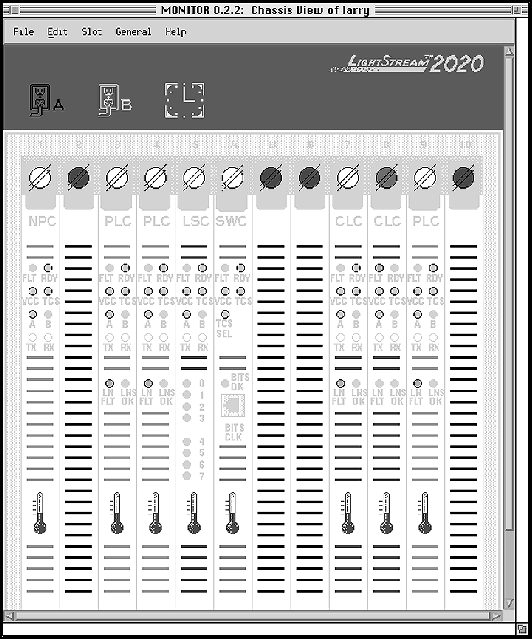
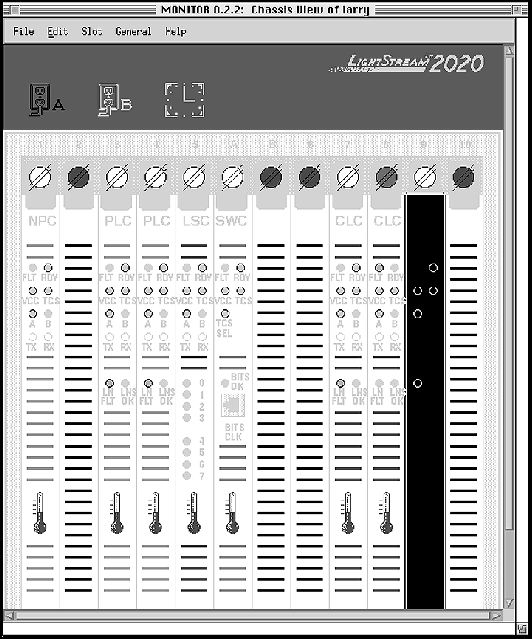
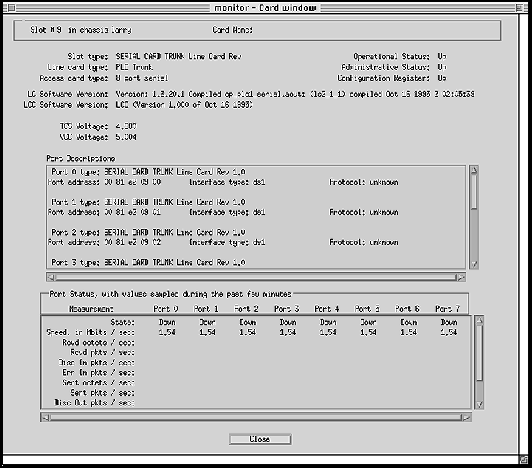
To open a new window for an NP or a line card, click on the card, and then click on the Open Selected Object option from the Slot pulldown menu. (Selecting this menu option is equivalent to double-clicking on the object.) A Monitor Card window is displayed (see Figure 4-3).
The Card window displays card and port status information and per-port statistics. You can use the vertical scroll bar to view all the relevant port information for the selected card. This window is capable of being displayed, but not edited or modified. However, the monitor application polls the target node for a fixed set of MIB objects and updates the dialog box approximately every 2 minutes.
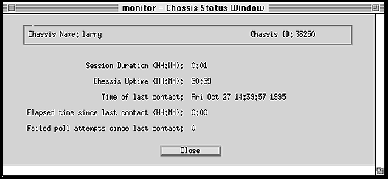
To view chassis information, double-click on the LS2020 logo in the upper-right corner of the monitor display (see Figure 4-1). A Monitor Chassis window is displayed (see Figure 4-4).
The Chassis Status window displays chassis-level information, such as the chassis name and chassis identification number. It also contains the duration of the monitor session, the time of the last contact with the node, and the time that has elapsed since the last contact.
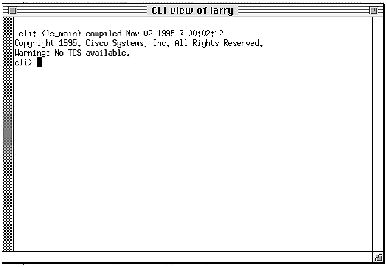
To open the CLI view window, click on the snmp cli option from the General pulldown menu. The CLI View window is displayed (see Figure 4-5).
From the CLI view window, you can issue CLI commands to monitor and configure the node. For more information about the CLI, see "Command Line Interface" chapter or the LightStream 2020 CLI Reference Manual.
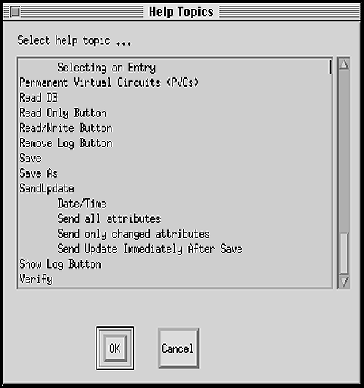
To access the Help Topics window, click on the On help option from the Help pulldown menu. The Help Topics window is displayed (see Figure 4-6).
An index of help topics is listed. The help topics appear in alphabetical order. After you select the topic you want help on, click on OK or double-click on the topic itself. You can use the vertical scroll bar to view all the available help text for the selected topic.
To open a new window for Nettime clock status information, double-click on an SWC2 bulkhead (a bulkhead with a BITS OK LED). A Nettime Status window is displayed (see Figure 4-7).
Note The Nettime service is not supported on a chassis that contains an SWC1 card.
Figure 4-7 : LS2020 Monitor Nettime Status Window
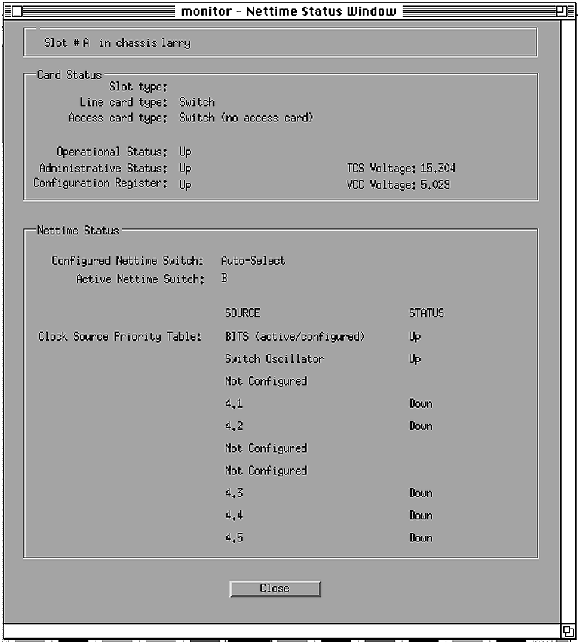
The Nettime service for a target switch uses a switch card (SWC2) to distribute a single reference clock to all the line cards in a given chassis.
The available sources for the reference clock are
- The building integrated timing source (BITS)
- The internal oscillator on the SWC2
- A clock signal received from a line card port
You can configure up to 10 reference clock sources for the target chassis, listed in order of preference. If the preferred source fails, Nettime automatically switches to the next most preferred source that is currently available. The monitor application polls the target node for the approriate Nettime MIB objects and displays the results.
If a switch failure occurs in a chassis that contains a redundant switch, Nettime automatically uses the backup switch card to distribute the reference clock to the line cards on that chassis.
New Monitor Process Target Window
To open a new window to monitor a chassis, click on the Open New Chassis option from the File pulldown menu. The New Monitor Process Target window is displayed (Figure 4-8).
Figure 4-8 : New Monitor Process Target Window
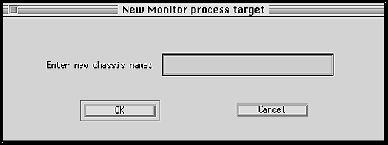
The system prompts you for the name of the new chassis you want to monitor. After you enter the name of the new chassis, a new monitor Chassis View window (see Figure 4-1) is displayed. You can continue to monitor the old chassis in the original window.
Temperature Window
To view temperature information, double-click on the thermometer icon on the line card bulkhead display (see Figure 4-1). A screen like the one shown in Figure 4-9 is displayed.
Figure 4-9 : LS2020 Monitor Temperature Window
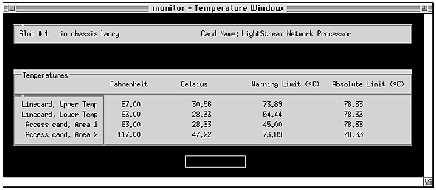
The Temperature window shows a summary view of the temperature values of the corresponding card. It also displays the warning and shutdown points for each card. The thermometer icons turn red when the card exceeds pre-defined temperature limits.The monitor application polls the target node for the appropriate MIB objects and displays the results.
Version Window
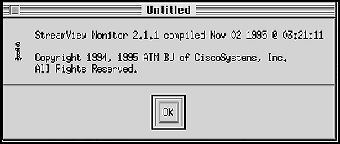
To see the software version of the monitor application that you are using, click on the On Version option from the Help pulldown menu. A screen like the one shown in Figure 4-10 is displayed.
Figure 4-10 : LS2020 Monitor Version Window
Interpreting Colors in the LS2020 Monitor Display
The LS2020 monitor application uses color to indicate the status of various objects. This section provides information about the following objects and their corresponding colors:
- Bulkhead paint bars and screws
- LED icon
- Nettime icon
- Power supply icon
- Thermometer icon
Bulkhead Paint Bars and Screws
The paint bars in the monitor graphical display of line card bulkheads correspond to the colors that are actually painted on the bulkheads of the cards. Table 4-2 lists the colors that represent the line cards.
Table 4-2 : Line Card Bulkhead Paint Bar Colors
| Network processor card (NPC)
|
Red
|
| Packet line card (PLC)
|
Orange
|
| Cell line card (CLC)
|
Purple
|
| Low-speed line card (LSC)
|
Dark blue
|
| Medium-speed line card (MSC)
|
Light blue
|
| Switch card (SWC)
|
Dark green
|
1 The color of the card does not change.
When a card goes down (ceases to operate), the bulkhead screw for that card turns red. If the card is up, the bulkhead screw is white.
LEDs
If an LED on the monitor display is shown as black, it is unlit. If an LED is shown as white, the monitor does not know its status either because the status is changing too rapidly or because the monitor does not have MIB support. For example, an LED on an access card is shown as white . Table 4-3 lists LEDs, their colors, and their meanings.
Table 4-3 : LED Colors and Their Meanings
| FLT
|
Amber
|
The card has failed POST.
|
| RDY
|
Green
|
The card has passed POST.
|
| VCC: 5-volt power
|
Green
|
Voltage is within range.
|
|
|
Red
|
Voltage is high.
|
|
|
Dark green
|
Voltage is low.
|
|
|
Black
|
Voltage is less than 4 volts.
|
| TCS: test and control system
|
Green
|
Voltage is within range.
|
|
|
Red
|
Voltage is high.
|
|
|
Dark green
|
Voltage is low
|
|
|
Black
|
Voltage is less than 4 volts.
|
| TCS SEL
|
Green
|
The switch card (SWC2) is the master TCS hub (the TCS HUB doing the polling).1
|
| BITS OK
|
Green2
|
Indicates the following:
- External BITS T1 reference clock (plugged into the BITS interface) is accurate.
- The data is phase-locked.
- There are no alarm indications.
If the previous conditions are not true, the LED is dark.
|
| TX
|
White
|
Unsupported.
|
| RX
|
White
|
Unsupported.
|
| LN FLT
|
Amber
|
At least one port on the card is configured as up (enabled), but is down (ceases to operate) or experiencing high error rates.
|
| LNS OK
|
Green
|
At least one port on the card is configured up (enabled) and is operationally up with no errors.
|
1 In a system with a reduncant switch card (SWC2), this LED is lit for the master (primary) TCS HUB card and is unlit for the slave (secondary) TCS HUB card.
2 For this release, the BITS OK LED displays white.
Nettime Icon
The Nettime status icon appears directly to the right of the B Power Supply status icon. Table 4-4 lists the icon colors that indicate the status of the Nettime service.
Table 4-4 : Nettime Status Icon Colors and Their Meanings
| Purple
|
Uninitialized. The status is unknown (the first poll of the node has not occurred yet).
|
| Black
|
Nettime is unavailable on this chassis (usually because the chassis contains an SWC1 card or SNMP poll failed).
|
| Green
|
Nettime is up and operating normally.
|
| Yellow
|
Nettime is up, but the configured clock value is not the same as the active clock value and the configured clock status is down.
|
| Orange
|
Nettime is up, but the active clock value does not match the configured clock value, and the configured clock status is up. This is slightly more serious that the yellow state because it may require more immediate operator intervention to bring the configured clock back to the "up" state.
|
| Red
|
Nettime is up, but the active clock is not one of the clocks on the configured priority list or Nettime is in illegal state.
|
Power Supply Icon
There are two icons in the summary area (logo area) that indicate the status of the two power supplies (see Figure 4-1). Table 4-5 lists the icon colors that indicate the status of the power supply.
Table 4-5 : Power Supply Icon Colors and Their Meanings
| Purple
|
Uninitialized. The status is unknown (the first poll of the node has not occurred yet).
|
| Black
|
Power supply is missing.
|
| Green
|
Power supply is operational.
|
| Red
|
Power supply has failed.
|
Thermometer Icons
Thermometer icons are displayed on the bulkheads show on the LS2020 Monitor Chassis View screen (see Figure 4-1). Each icon shows various values for the card with which it is associated. These values include recorded temperature, warning point, and shutdown point. The values are also recorded in the MIB. Table 4-6 lists the colors used in the thermometer icon and indicates the significance of each.
Table 4-6 : Thermometer Icon Colors and Their Meanings
| Blue
|
Temperature is normal.
|
| Yellow-orange1
|
At least one temperature has reached it warning point.
|
| Red-orange1
|
At least one temperature has reached its shutdown point.
|
1 The yellow and red icons each have an orange band around them to emphasize the abnormal condition.
Using the LS2020 Topology Map
The LS2020 topology map application displays a map that represents the actual topology of an LS2020 network. The map is a set of related objects, symbols, and submaps that provide a graphical and hierarchical presentation of the network.
The LS2020 topology map application runs on HP OpenView. If you are not familiar with the HP OpenView Windows product, see the HP OpenView User's Guide. When you start HP OpenView, the LS2020 Topology map application is automatically invoked. Once you start the application, it builds the current LS2020 submap and then periodically polls each LS2020 node for status information. When creating a new HP OpenView map, you can turn off the LS2020 topology function. You must have a color monitor to use the LS2020 topology map application.
The LS2020 topology map provides
- A view of the physical topology of an LS2020 network
- Autodiscovery and automatic entry of LS2020 nodes and trunks between nodes
- Verification of new nodes and trunks added to or removed from the LS2020 network
- Automatic placement of nodes
- Status information about each node and trunk
- A display of trunk connections between two LS2020 nodes
- Invocation of other LS2020 applications (configurator and monitor)
Once the LS2020 submap is created, you can modify it by
- Moving nodes
- Changing node or trunk labels
- Grouping nodes into domains
- Deleting nodes or trunks
- Changing map attributes
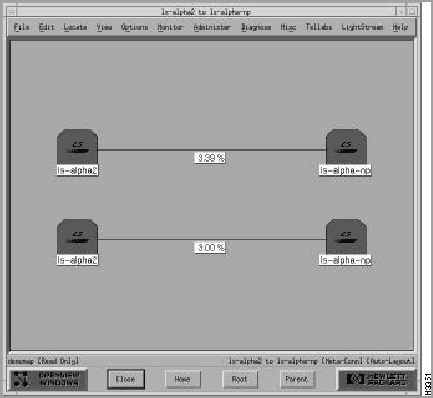
You can also show multiple trunk connections, which are represented by meta-connection symbols. The symbol for a meta-connection is <n>, where n is the number of connections being represented (see Figure 4-12).
Building a Topology
As previously mentioned, once you start HP OpenView, it can create any number of maps, and each map is able to be configured to build an LS2020 topology. However, you do not view a map directly. You view the submaps that make up the map. A submap is a particular view of the network environment. Each submap displays a different view of your map. The application creates a Root submap for each LS2020 map. The Root submap provides a standard, top-level submap for every network map.
Figure 4-11 shows an example of a Root submap. In this figure, the Root submap contains two symbols: one that represents the Internet and another that represents an LS2020 network.
Figure 4-11 : Example of a Root Submap
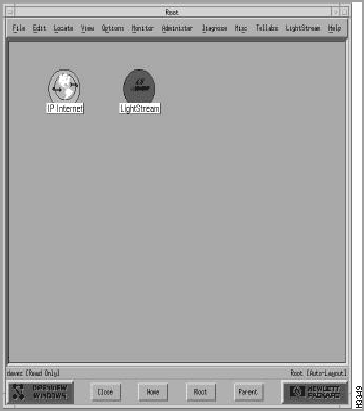
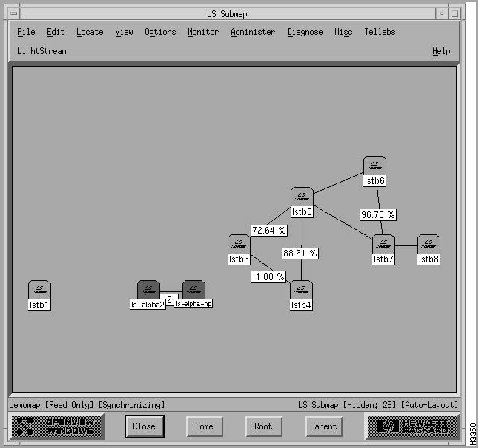
When you open a map, you actually view submaps of the map. To open the LS2020 submap, double-click on the LightStream symbol. Figure 4-12 shows a sample LS2020 topology submap.
In this example, the trunk between the ls-alpha2 and ls-alpha-np nodes actually represents two trunks, as indicated by the meta-connection symbol <2>.
Figure 4-12 : Example of an LS2020 Topology Submap
Displaying Meta-Connections
When a meta-connection is first drawn, its symbol is not displayed. To display a meta-connection symbol (see Figure 4-13), follow these steps:
Step 1 Click the right mouse button on the trunk.
Step 2 Select Describe/Modify Symbol... from the option menu.
Step 3 Select the Display Label.
The next sections describe how to modify the LS2020 submap and view its meta-connection submap.
Figure 4-13 : Meta-connection Submap
Creating LS2020 Domains
LightStream domains (logical groups of nodes) can consist of any number of LS2020 nodes. All trunk connections between selected nodes and nonselected nodes are redrawn between the LS2020 domain and the non-selected nodes. Any meta-connections between an LS2020 domain icon and either another LS2020 domain or a node show the two nodes that are connected. When you show an exploded view of an LS2020 domain icon, the nodes that make up the domain and any trunk connections between these nodes are displayed.
To create an LS2020 domain, follow these steps:
Step 1 Select the LS2020 nodes that you want grouped together.
Step 2 Pull down the LightStream menu from the menu bar, and click on Topology...Build Domain.
- The selected nodes are removed from the map and replaced by a single domain icon.
Removing an LS2020 Domain
When you remove a domain from the topology map, the LS2020 nodes that were originally grouped in that domain are redrawn onto the current submap. To remove an LS2020 domain, follow these steps:
Step 1 Select the domain you want to remove.
Step 2 Pull down the LightStream menu from the menu bar, and click on Topology...Remove Domain.
Deleting a Node or Connection
If you want to remove a node or connection from the LS2020 submap, follow these steps:
Step 1 Double-click on the node or trunk that you want to delete.
Step 2 Pull down the Edit pulldown menu on the menu bar, and click on Delete.
- When you remove a node or trunk connection from the LS2020 submap, it is rediscovered and placed back on the map. To prevent this from happening, click on Hide on the Edit menu. This option keeps a node or trunk connection from being rediscovered and placed back into the submap.
Displaying Trunk Information
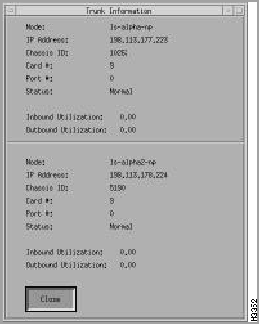
Within the LS2020 submap, a trunk connection is displayed including its interface bandwidth. If you want to get chassis, port, and utilization information about this connection, you click the left mouse button on a trunk. A pop-up dialog box appears and information similar to the following displays (see Figure 4-14).
Figure 4-14 : Example of a Trunk Connection
Updating a Topology
The LS2020 Topology Manager periodically queries each LS2020 node for its trunk information to see if new trunks have been added or known trunks have been removed. It also communicates with HP OpenView for any new objects that are discovered. If new objects are found, the LS2020 Topology Manager (LTM) checks to see if the object's SysOid number matches its own.
Changing LS2020 Topology Map Attributes
The LS2020 submap attributes that you can modify are
- LTM enabled/disabled
- Status polling interval
- Timeout for trunk removal
- Rules
- Timeout to clear a rule
- Marginal/major status timeout
The next sections provide a brief description of the attributes and the steps for changing them.
Procedure to Change the LS2020 Topology Map Attributes
You can modify these attributes from either the OpenView Root dialog box or the LS2020 Submap dialog box:
Step 1 Pull down the File menu on the menu bar, and click on Describe/Modify Map. The Map Description dialog box appears (see Figure 4-15).
Figure 4-15 : Example of Map Description Dialog Box
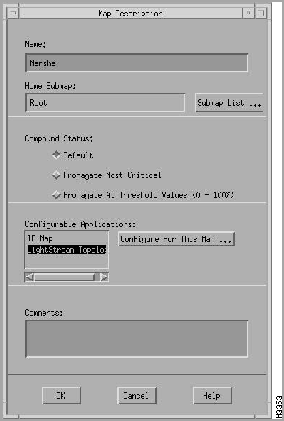
Step 2 Click on the appropriate entry in the Configurable Applications list.
Step 3 Click on the Configure for this Map button. For example, if you click on the LS2020 Topology Map, the Configuration box appears (see Figure 4-16).
Figure 4-16 : Example of Configuration Dialog Box
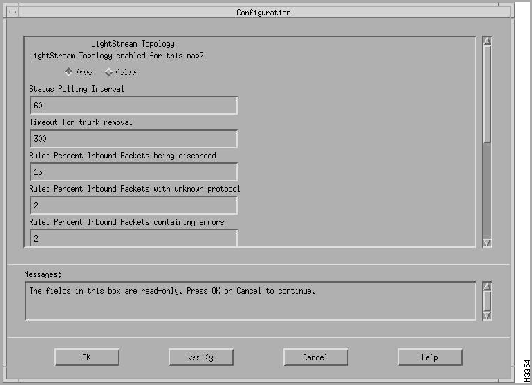
From the Configuration box, you can enable or disable the LS2020 Topology Manager (LTM) and select the attributes that you want to modify, such as status polling interval, timeout for trunk removal, and so on.
LTM Enabled/Disabled
The default is to enable the LS2020 Topology Manager (LTM) when you start HP OpenView.
Status Polling Interval
The LS2020 topology map application polls each LS2020 node periodically for status information (the default polling time is 60 seconds).
Status changes in the network are displayed through changing colors on the network map and writing messages to HP OpenView Alert window.
Status Definitions
Table 4-7 lists the possible status conditions of a node in the network and their meanings. Table 4-8 lists the same information for a trunk connection in the network.
Table 4-7 : Node Status Definitions
| Status
|
Meaning
|
| Unknown
|
Unable to access the node through SNMP.
|
| Critical
|
One of the following problems has been detected: a chassis ID conflict, a bad power supply, abnormal temperature, or a diagnostic error on a card.
|
| Major
|
One or more cards within the node reported a down operational status.
|
| Marginal
|
One of the following problems on an edge port has been detected: congestion, high error rate, large amount of discarded traffic, or attempt to use an improperly configured PVC. If any of these problems is detected, a message appears in the HP OpenView Events window. Note that for Release 2.1 edge port monitoring is turned off.
|
| Normal
|
No known problems detected.
|
| Unmanaged
|
The user has configured the node to be unmanaged.
|
Table 4-8 : Trunk Connection Status Definitions
| Status
|
Meaning
|
| Critical
|
The ifOperStatus reported down for either port in the connection, or the trunk is no longer being discovered in the GID table.
|
| Testing
|
The ifOperStatus reported testing for either port in the connection.
|
| Normal
|
No known problems detected.
|
| Major
|
One of the following problems on either of the ports on the trunk connection has been detected: high number of packets being discarded, high trunk utilization, high error rate, or attempt to use an improperly configured PVC. If any of these problems are detected, a message appears in the HP OpenView Events window.
|
| Warning
|
One of the following problems on either of the ports on the trunk connection has been detected: high number of packets with unknown protocols being received or the output queue length is excessively high.
|
| Unmanaged
|
The user has configured the trunk to be unmanaged.
|
Timeout for Trunk Removal
The default for the timeout for trunk removal attribute is 300 seconds.
Rules
The LS2020 topology map application collects information for each interface to determine the condition of the LS2020 network. There are rule definitions that apply to the data collected. For example, the default value for the percent inbound packets being discarded is 15 percent. If the percent of packets being discarded exceeds either the default value or the value you set, a message gets logged to the HP OpenView Alert window. You can change the rate of the default value according to your network needs. Table 4-9 lists the rules and their default values that are applied to the data collected.
Table 4-9 : Rule Definitions
| Percent inbound packets being discarded
|
15%
|
| Percent inbound packets with unknown protocol
|
2%
|
| Percent inbound packets containing errors
|
2%
|
| Percent outbound packets being discarded
|
15%
|
| Percent outbound packets containing errors
|
2%
|
| High output queue length
|
10
|
Marginal/Major Status Timeout
Marginal status indications for nodes and major status indications for connections indicate potential network integrity problems. Once a problem is discovered, such as a large number of packets being discarded, the appropriate status is set. The status remains in effect until a time period (the default is 5 minutes) elapses without the problem being discovered. To change the default, select the File...Describe/Modify menu item.
Using the CLI to Monitor Hardware Components
This section provides the steps for monitoring the hardware components of an LS2020 switch:
- Chassis
- Cards
- DSU/CSUs
- Ports
- Modems
- Redundant components
Monitoring a Chassis
To monitor the chassis, follow these steps. The information that displays applies to the LS2020 switch.
Step 1 Verify that the target switch is correct by entering the following at the cli> prompt:
cli> show snmp
If you need instructions on changing the target switch, see the section on "Setting the Target Switch for CLI Commands" in the chapter entitled "Command Line Interface."
Step 2 Enter the following at the cli> prompt:
cli> show chassis <parameter>
- where
- <parameter> is all (default)
general
agent
congestion
primaryswitch
powersupply
cards
listff
listdlci
listvci
listtrunk
listpvc
The following example shows what information displays when you enter show chassis all.
-
Name:                     node_A
Description:              Cisco LightStream 2020 ATM Switch
Contact:                  Rick Bell
Location:                 Saturn
System Up Time            95 Hr 12 Min 47 Sec

Software Version:         2.1.1-S1-0
Console Trap Level:       Oper
Chassis ID:               5143
Slot of Primary NP:       1
Slot of This NP:          1

Primary Addr:             198.113.179.15
Secondary Addr:           0.0.0.0
Subnet Mask:              255.255.255.0
Ethernet Address:         198.113.178.15
Ethernet IP Mask:         255.255.255.0
Default Router:           198.113.178.1

MMA Trap Filter Level:    Oper
MMA Trap Logging State:   On
MMA Collection Size:      32 KB
Config DB Active:         On

MMA PID:                  56
Configuration Host:
Configuration Author:
Configuration ID:         2

Maximum Interval between Permit Limit Updates:     5000 ms.
Minimum Interval between Permit Limit Updates:     1000 ms.
Minimum Interval between CA Updates:               1000 ms.

Switch:                   Switch A
Power Supply A:           Empty
Power Supply A Type:      Empty
Power Supply B:           Good
Power Supply B Type:      1200W AC Power Supply

Slot 1:  NP
Slot 2:  OC3 Trunk
Slot 3:  OC3 Edge
Slot 4:  T3 Trunk
Slot 5:  T3 Edge
Slot 6:  MS Trunk
Slot 7:  Serial Edge
Slot 8:  OC3 Trunk
Slot 9:  FDDI
Slot 10: Ethernet
Slot SA: Switch2
Slot SB: Empty
-
This chassis has no Frame Forwarding connections
This chassis has no Frame-Relay DLCIs
ATM-UNI VCI list:
-----------------
S Node Port VCI Node Port VCI IR IB MR MB
lstb5 3.0 4000 <-> lstb3 8.0 4000 882 300 882 300
lstb5 3.0 4001 <-> lstb3 8.0 4001 882 300 882 300
lstb5 3.0 4002 <-> lstb3 8.0 4002 882 300 882 300
lstb5 3.0 4003 <-> lstb3 8.0 4003 882 300 882 300
lstb5 3.0 5000 <-> lstb3 8.0 5000 882 300 882 300
lstb5 3.0 5001 <-> lstb3 8.0 5001 882 300 882 300
lstb5 3.0 5002 <-> lstb3 8.0 5002 882 300 882 300
lstb5 3.0 5003 <-> lstb3 8.0 5003 882 300 882 300
lstb5 3.0 5004 <-> lstb3 8.0 5004 882 300 882 300
Note The column labeled S indicates the state of the connection. If there is an asterisk in the state column for a particular connection, the connection is down. If the state column is blank, the connection is up.
If you enter any parameter except all, a subset of the show chassis command is displayed. For example, if you enter the command show chassis agent, information similar to the following is displayed:
cli> show chassis agent
MMA Trap filter Level:            Oper
MMA Trap Logging State:           On
MMA Collection Size:              32 KB
Config DB Active:                 On
MMA PID:                          11
Configuration Host:               boston
Configuration Author:             Bob Williams
Configuration ID:                 26
cli>
Monitoring Cards
You can monitor network processor (NP) cards, edge cards, trunk cards, and switch cards. You select the card you want to monitor by specifying its card number (slot number).To determine a card's slot number, you can look at the front of the system to see the numbered slots (see Figure 4-1). When you specify a card, you also get information on its associated access card. To monitor the cards in the LS2020 switch, follow these steps.
Step 1 Verify that the target switch is correct by entering the following at the cli> prompt:
cli>
show snmp
- If you need instructions on changing the target switch, see the section on "Setting the Target Switch for CLI Commands" in the chapter entitled "Command Line Interface."
Step 2 Enter the following at the cli> prompt:
cli>
show card <card #> <parameter>
- where
- <card #> is the slot in which the card you want to monitor is located.
1 --- 2 for NP cards
2 --- 10 for line cards
switcha or switchb for switch cards
- <parameter> is all (default)
name (no information available for switch cards)
processid
status
version
peak-cell-rate
hardware
ports (no information available for NP or switch cards)
- The results of this command vary, depending on the type of card in the slot. If you enter any parameter except the all parameter, a subset of the attributes is displayed.
When you enter show card 5 all, information similar to the following (for a medium-speed card) is displayed:
cli> show card 5 all
Card Name:              emtb7.5_ms-t
Card PID:               31
Operational Status:     Up
Administrative Status:  Up
Configuration Register: Up

Maximum Number of VCs: 800

LC Software Version:    Version: 1.3.20.1 Compiled cp_ms1.aout: compiled Oct 16 1995 @
09:51:16 in /u2/mszczesn/ls2_1_1/cmd/ms1_cp
LCC Software Version:   LCC (Version 1.000 of Oct 16 1995)

Card Type:                MS Trunk
Top Temperature:          72 F (22 C)
Bottom Temperature:       70 F (21 C)
TCS Voltage:              4.931 volts
VCC Voltage:              4.980 volts
VEE Voltage:              2.499 volts
Access Card Region 1 Temperature: 68 F (20 C)
Access Card Region 2 Temperature: 71 F (21 C)


Port   Protocol          Name                        Admin Stat     Oper Stat
----   --------          ----                        ----------     ---------
5.0    MS Trunk          tb7.5.0-tr-t                   Up            Up
5.1    MS Trunk          tb7.5.1-tr-t                   Up            Up
cli>
Monitoring DSU/CSU Statistics
The csumon tool, available from the bash shell, lets you monitor the DSU/CSU for the following:
- Low-speed line card
- Medium-speed line card
In addition, you can use csumon to issue commands to an external DSU/CSU attached to a low-speed interface.
Monitoring the DSU/CSU on a Low-Speed Line Card
You can obtain CSU statistics by connecting to an external data service unit/channel service unit (DSU/CSU) from an LS2020 switch through a serial line. This provides a terminal to the DSU/CSU. You use its own interface to set up and monitor the DSU/CSU. (See the documentation for the DSU/CSU for details.)
Step 1 Connect the LS2020 switch to the external DSU/CSU by connecting an EIA/TIA-232 serial cable from the control port on the fantail to the CSU craft (or console) port.
Note EIA/TIA-232 and EIA/TIA-449 were known as recommended standards RS-232 and RS449 before their acceptance as standards by the Electronic Industries Association (EIA) and Telecommunications Industry Association (TIA).
Step 2 To access the bash shell prompt, log in as root or fldsup on the LS2020 switch to which the DSU/CSU you want to monitor is attached.
Step 3 Test the connection by using the following command:
LSnode:#
csumon <.card.port#>
- where
- <.card.port#> is The target switch card and port number in the LS2020 switch, entered in .card.port format (card 2 - 10; port 0 --- 7)
Note You must use the leading "." in the card and port entry shown above.
- Figure 4-17 shows a screen displaying the kind of information you might see in a DSU/CSU status display. The display you see may vary, depending on the DSU/CSU you are using.
Figure 4-17 : Example Showing csumon Display for a Low-Speed Line Card
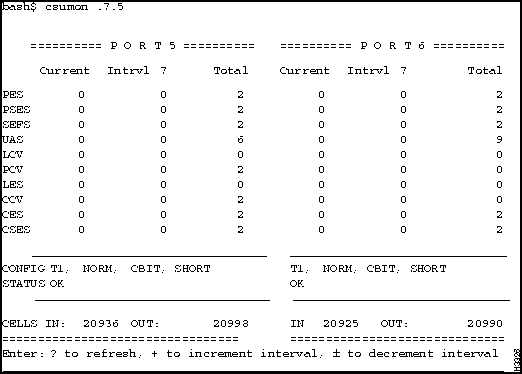
Note While the statistics are displayed, you can refresh the screen or alter the counter display. See the last line in the previous screen display for instructions on how to do this.
Step 4 Terminate the display by pressing ^C. This returns you to the bash shell prompt.
Step 5 To learn about commands you can issue to the DSU/CSU, consult its documentation. To obtain help on csumon, enter the following command:
LSnode:1#
csumon
Monitoring the DSU/CSU on a Medium-Speed Line Card
The medium-speed line card (MSC) has a built-in DSU/CSU. Use the following steps to monitor and display the DS3 MIB statistics for MSC ports. MSC CSU statistics are available through use of the standard DS3 MIB variables.
Step 1 To access the bash shell prompt, log in as root or fldsup to the LS2020 switch.
Step 2 Enter the following:
LSnode:1#
csumon <.card.port#>
- where
- <.card.port#> is the target switch card and port number in the LS2020 switch, entered in .card.port format (card 2 --- 10; port 0 --- 7).
Note You must use the leading "." in the card and port entry previously shown.
- A screen similar to the one in Figure 4-18 is displayed. Although you enter only one port number, information for both ports on the MSC displays.
Figure 4-18 : Example Showing csumon Display for a Medium-Speed Line Card
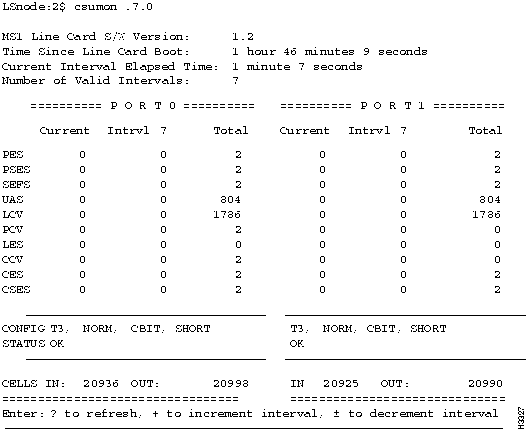
Note While the statistics are displayed, you can refresh the screen or alter the counter display. See the last line in the previous screen display for instructions on how to do this.
- The DS3 MIB maintains these counters over a 24-hour period in 15-minute intervals. The Total column in the display includes up to 96 complete intervals. The Current column includes all counts that will make up the next complete interval. The Intrvl column shows the selected complete interval (from 1 to 96), depending on the actual number of complete intervals. The values that change are updated once per second.
- Table 4-10 and Table 4-11 list the counters and their definitions.
Table 4-10 : csumon Display Term Definitions
| Counter1
|
Definition
|
| PES
|
P-bit Errored Seconds
|
| PSES
|
P-bit Severely Errored Seconds
|
| SEFS
|
Severely Errored Framing Seconds
|
| UAS
|
UnAvailable Seconds
|
| LCV
|
Line Coding Violations
|
| PCV
|
P-bit Coding Violations
|
| LES
|
Line Error Seconds
|
| CCV
|
C-bit Coding Violations
|
| CES
|
C-bit Errored Seconds
|
| CSES
|
C1-bit Severely Errored Seconds
|
1 See RFC 1407 for a further description of these counters.
Table 4-11 : csumon Status Term Definitions
| OK
|
No alarms present
|
| RED
|
Loss of Framing
|
| YELLOW
|
Far End Receive Failure
|
| BlUE
|
Receiving an Alarm Indication Signal
|
Step 3 Terminate the display by pressing ^C. This returns you to the bash shell prompt.
Step 4 To obtain help on csumon, enter the following command at the bash shell prompt:
LSnode:1#
csumon
Monitoring Ports
These steps allows you to monitor the ports on a particular card. You can look at information for a single port, a collection of ports, or a range of ports.
Note No information is available for ports on NP and switch cards.
Step 1 Verify that the target switch is correct by entering the following at the cli> prompt:
cli>
show snmp
- If you need instructions on changing the target switch, see "Setting the Target Switch for CLI Commands" in the chapter entitled "Command Line Interface."
Step 2 Enter the following at the cli> prompt:
cli>
show port <port#> <parameter1> <parameter2>
- where
- <port#> is the number of the port for which information displays. The port number is in card.port format (card is 2 --- 10; port is 0 --- 7).
- <parameter> is all (default)
name
status
statistics
physical
frameforward
framerelay
listdlci
listpvc
listvci
dlci
vci
cbrpvc
vpi
fddi
datarate
wgrp
bflt
ipflt
ipxflt
np-deliver
sonet
stb
bflt-def
ipflt-def
ipxflt-def
bcast-limit
An example for each of the port types is shown in this section. Figure 4-19 shows an example of the display you see when you enter show port 5.0 all for an MS trunk port.
Figure 4-19 : Example of the show port all 5.0 Command for an MS Trunk Port
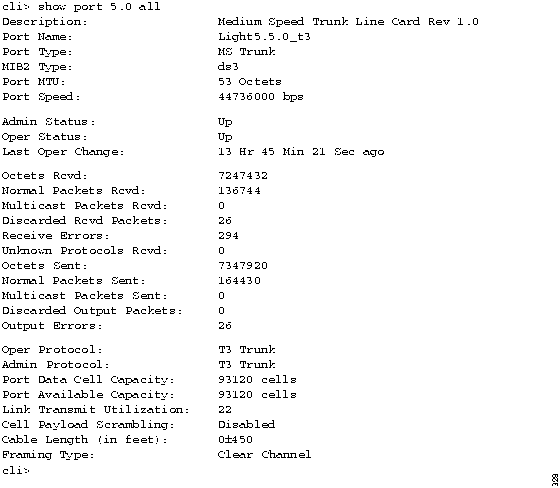
Note When the Operational Status for the trunk port is down, the Port Available Capacity field shows the capacity that has been configured for the trunk port, rather than a capacity of zero (0).
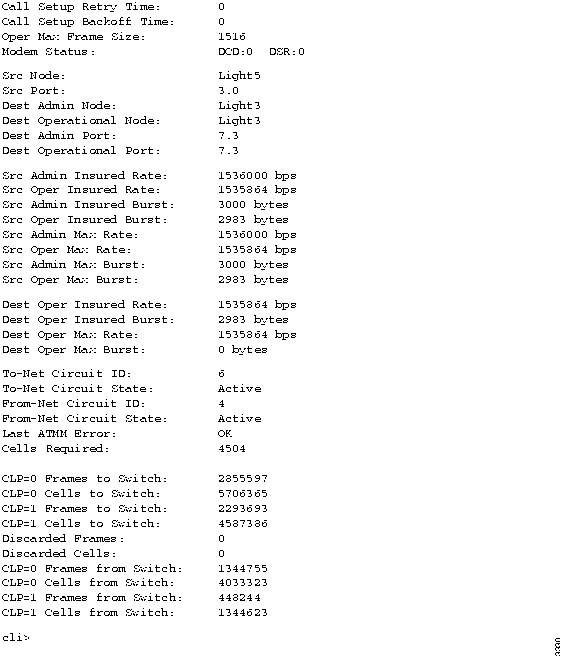
Figure 4-20 and Figure 4-21 are examples of the display you see when you enter show port 3.0 all for a Frame Forwarding port.
Figure 4-20 : Example of the show port all 3.0 Command for a Frame Forwarding Port
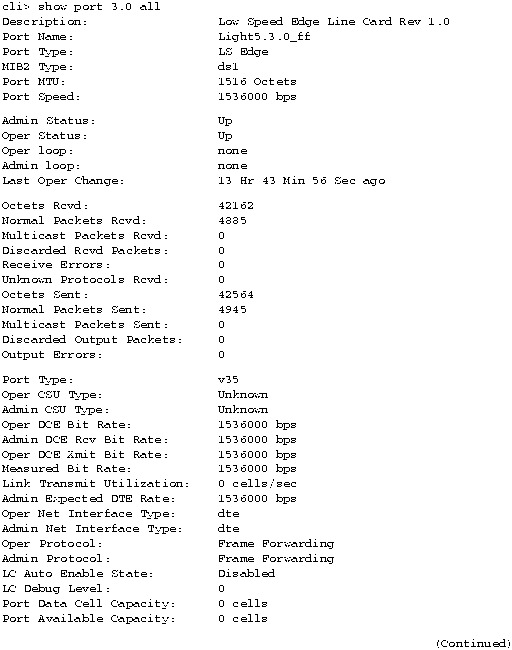
Figure 4-21 : Example of the show port all 3.0 Command for a Frame Forwarding Port (Concluded)
Monitoring Modems
To monitor the modem port on the switch card's console/modem assembly, follow these steps:
Note If you have a redundant switch card, you can monitor the modem port on either the active or backup switch card. This command is not used for monitoring modems connected to line card ports and is not available on the SUN4 version of the CLI.
Step 1 Verify that the target switch is correct by entering the following at the cli> prompt:
cli>
show snmp
- If you need instructions on changing the target switch, see "Setting the Target Switch for CLI Commands" in the chapter entitled "Command Line Interface."
Step 2 Enter the following at the cli> prompt:
cli>
show modem <slot #> <parameter>
- where
- <slot #> is sa or sb for the switch cards
- <parameter> is all
initstring
- The following is an example of the display you see when you enter show modem sa all:
cli>
show modem sa all
Initstring: AT&S&D2&&C1SO=1S7=3OS36=7S95=44
cli>
Monitoring Switch Cards, NPs, and Power Supplies
These steps tell you how to monitor the status of your redundant components (switch cards, NPs, and power supplies):
Step 1 Verify that the target switch is correct by entering the following at the cli> prompt:
cli>
show snmp
- If you need instructions on changing the target switch, see "Setting the Target Switch for CLI Commands" in the chapter entitled "Command Line Interface."
Step 2 To look at the status of switch cards, enter the following at the cli> prompt:
cli>
show chassis primaryswitch
- This command indicates which switch card is the active switch card. If you have a second switch card, you can assume it is the backup switch card.
Step 3 To look at the slot associated with each of the NPs, enter the following at the cli> prompt:
cli>
show chassis general
- This command displays a number of details including the slot for the active NP, the slot of this NP, and the system up time. The system up time indicates how long this NP has been up.
Step 4 To look at the status of power supplies, enter the following at the cli> prompt:
cli>
show chassis powersupply
This command displays the status and type of the two power supplies, A and B.
The following example shows the output for the three commands previously described.
cli>  show chassis primaryswitch
Switch:                   Switch A


cli> show chassis general
Name:                     lstb8
Description:              Cisco LightStream 2020 ATM Switch
Contact:                  Jones
Location:                 Venus
System Up Time            121 Hr 14 Min 3 Sec

Software Version:         2.1.1
Console Trap Level:       Info
Chassis ID:               5142
Slot of Primary NP:       1
Slot of This NP:          1

Primary Addr:             198.113.179.18
Secondary Addr:           198.113.179.28
Subnet Mask:              255.255.255.0
Ethernet Address:         198.113.178.18
Ethernet IP Mask:         255.255.255.0
Default Router:           198.113.178.1


cli> show chassis powersupply
Power Supply A:           Empty
Power Supply A Type:      Empty
Power Supply B:           Good
Power Supply B Type:      1200W AC Power Supply

cli>
Using the CLI to Monitor Configuration and Status
This section provides steps for monitoring the configuration and status of the following connections and processes of an LS2020 switch:
- Connections (ATM UNI, Frame Relay, frame forwarding, Ethernet, FDDI, OC3, and CBR)
- Processes (CLI, collector, GID, and ND)
Monitoring ATM Connections
To monitor the ATM UNI virtual channel identifiers (VCIs) configured on a particular ATM UNI port, follow these steps. They provide you with information on the individual connections configured on each port. This information is available for ATM UNI ports only.
Step 1 Verify that the target switch is correct by entering the following at the cli> prompt:
cli>
show snmp
- If you need instructions on changing the target switch, see "Setting the Target Switch for CLI Commands" in the chapter entitled "Command Line Interface." To get a list of all VCIs configured on a particular ATM UNI port, enter the following at the cli> prompt:
cli>
show port <port#> listvci
- where
- <port#> is the number of the port for which information displays. The port number is in card.port format (card is 2 --- 10; port is 0 --- 7).
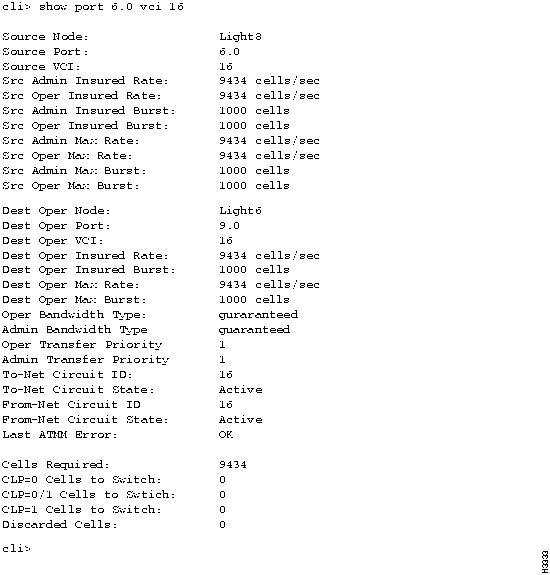
Step 2 Once you have a list of all ATM-UNI VCIs, you can look at a particular VCI by entering the following at the cli> prompt:
cli>
show port <port#> vci <vci#>
- where
- <vci#> is the number of the VCI for which information displays.
Figure 4-22 is an example of the display you see when you enter show port 6.0 vci 16.
Figure 4-22 : Example Showing the show port 6.0 vci 16 Display
You can also get a list of all the ATM UNI VCIs for the entire chassis by entering the show chassis listvci command.
Monitoring Frame Relay Connections
These steps allow you to monitor individual data link connections configured on Frame Relay ports. These connections are recognized by their data link connection identifiers (DLCIs).
Step 1 Verify that the target switch is correct by entering the following at the cli> prompt:
cli>
show snmp
- If you need instructions on changing the target switch, see "Setting the Target Switch for CLI Commands" in the chapter entitled "Command Line Interface." To get a list of all data link connections configured on a particular Frame Relay port, enter the following at the cli> prompt:
cli>
show port <port#> listdlci
- where
- <port#> is the number of the port for which information displays. The port number is in card.port format (card is 2 --- 10; port is 0 --- 7).
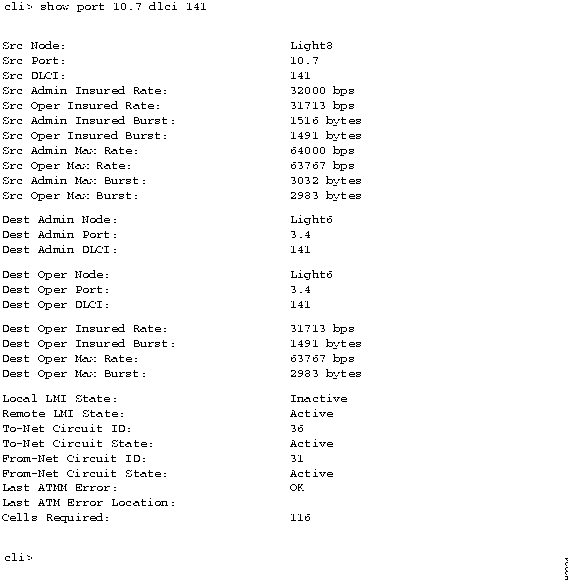
Step 2 Once you have a list of DLCIs, you can look at a particular circuit by entering the following at the cli> prompt:
cli>
show port <port#> dlci <dlci#>
- where
- <dlci#> is the DLCI number for which information displays. The DLCI number must be between 16 and 991.
Note See the LightStream 2020 CLI Reference Manual for information on setting and showing port attributes with the CLI.
Figure 4-23 shows an example of the display you see when you enter show port 10.7 dlci 141.
Figure 4-23 : Example Showing the show port 10.7 dlci 141 Display
You can also get a list of all the Frame Relay connections for the entire chassis by entering the show chassis listdlci command.
Monitoring CLI Attribute Settings
These steps let you monitor the attribute settings for the CLI program itself:
Step 1 Enter the following at the cli> prompt:
cli>
show cli <parameter>
- where
- <parameter> is all (default)
echosource
lineedit
log
term
time
timer
timestamp
timeout
traplevel
debug
banner
- The following is an example of the display you see when you enter show cli:
- cli> show cli
Echo source:  on

Line Edit:  on

Logging:  off

Terminal Type:  vt100

Date/Time:  Thu Jun 15 16:02:40 1995

SNMP Timeout value=  6 seconds

Timestamp:  off

Timer:  4 Hour(s) 37 Minute(s)  38 seconds

Traplevel:  Debug

Debug:  off

Banner:  CLI (Version 2.100 of May 24 1995

PROGRAM: cli:  compiled May 24 1995 @ 02:31:40
Monitoring the Collector
The collector lets you run up to 25 collections at one time. You can set up the collections to save user-defined data for a specified time interval and you can use this data for future analysis. For further information on creating collections, see the "LightStream 2020 Statistics and Data Collection" chapter.
To monitor the status of a particular collection, follow these steps:
Step 1 Verify that the target switch is correct by entering the following at the cli> prompt:
cli>
show snmp
- If you need instructions on changing the target switch, see "Setting the Target Switch for CLI Commands" in the chapter entitled "Command Line Interface." To look at the status of a particular collection, enter the following at the cli> prompt:
cli>
show collection [<collection #>]
- where
- [<collection #>] is the number of any collection that has been defined. If you do not enter a collection number, CLI displays all collections that have been defined.
- The following is an example of the display you see when you enter show collection 1:
*cli>
show collection 1
*** Collection 1 ***
Collection Status: Under Creation
Operational Status: Under Creation
Begin Time: 06/22/1995 08:02:43 EDT (06/22/1995 12:02:43 GMT)
End Time: 01/18/2038 22:14:07 EST (01/19/2038 03:14:07 GMT)
Interval: 60 sec
File: /usr/tmp/collector/collect.1
Collection Items:
Name: CollectDBObjectID.1.1 Value: ifInOctets.3000
Name: CollectDBObjectID.1.2 Value: ifInOctets.3001
Name: CollectDBObjectID.1.3 Value: ifInOctets.3002
Name: CollectDBObjectID.1.4 Value: ifInOctets.3003
Monitoring GID
The global information distribution (GID) system is a service that maintains a consistent network-wide database. It ensures that every switch has an up-to-date copy of all the information in the database.
To monitor the status of the GID software, follow these steps:
Step 1 Verify that the target switch is correct by entering the following at the cli> prompt:
cli>
show snmp
- If you need instructions on changing the target switch, see the section on "Setting the Target Switch for CLI Commands" in the chapter entitled "Command Line Interface."
Step 2 Enter the following at the cli> prompt:
cli>
show gid <parameter>
- where
- <parameter> is all (default)
general
synchronization
cards
clients
neighbors
ports
ip
The following is an example of the display you see when you enter show gid all:
cli> show gid all

Software Version Number:        gidd: (ls2_1_1) compiled Oct 16 1995 @ 01:52:23
GID Process ID (PID):           76
Memory In Use:                  0 Bytes
Memory Allocation Failures:     0

Neighbors in Existent Sync State:       0
Neighbors in Exchange Start State:      0

Neighbors in Exchange State:            0
Neighbors in Loading Sync State:        0
Neighbors in Full Sync State:           3

                   Cards Managed by Gid:
                   ---------------------

 Chassis    Slot      Seq#    Age  Originating-NP  Ports
 -------    ----      ----    ---  --------------  -----
lstb8         1   139863522    543       lstb8.1      0
lstb8         2   141243346   1327       lstb8.2      0
lstb8         3   139863833   1439       lstb8.1      8

.

.

.

                   Clients Managed by Gid:
                   -----------------------

Client PID    LSA-Rx    IPA-Rx    Gen-Rx Events-Tx Paths-Generated
------ ---    ------    ------    ------ --------- ---------------
   69           0         0         0         0           0
   70           0         0         0         0           0
   77      1316353       243       163       519        6257
   .

   .

   .

                  Neighbors Managed by Gid:
                  -------------------------
 Chassis     VCI    State    SYNC RLL  SLL Hello  LSA  NLSA   IPA NIPA   GA  NGA
 -------     ---    -----    ---- ---  --- -----  ---  ----   --- ----   --  ---
 lstb8.2   62722  full        8   0    0    2   196   196   131  131    5    4
 lstb7.1   79105  full        7   0    0    2  6212  5876   381  366   62   62

 .

 .

 .


                       Ports Managed by Gid:
                       ---------------------

 Chassis     Port Service Up/Down      BW0       BW1       BW2    Remote-Port
 -------     ---- ------- -------      ---       ---       ---    -----------
 lstb8         3.0   edge      Up       188       188         0        none.none
 lstb8         3.1   edge    Down         0         0         0        none.none
 lstb8         3.2   edge      Up      2628      1298         0        none.none

 .

 .

 .

                   IP Addresses Managed by GID:
                   ----------------------------

 IP Address       Age    Seq#   Advertising-NP    Net-Mask          Port
 ----------       ---    ----   --------------    --------          ----
198.113.178.13   2430  146596901    lstb3.1    255.255.255.0        lstb3.0.11
198.113.178.14   2059  146605717    lstb4.1    255.255.255.0        lstb4.0.11
198.113.178.15   2154  146603365    lstb5.1    255.255.255.0        lstb5.0.11
.

.

.
cli>
If you enter any parameter except all, a subset of the attributes is displayed.
Monitoring ND
The neighborhood discovery (ND) process runs on every NP in an LS2020 network. It collects information about the local topology of the network, keeps track of the interface modules that are added to or removed from service, and determines which NP controls each interface module.
To monitor the status of the ND software, follow these steps:
Step 1 Verify that the target switch is correct by entering the following at the cli> prompt:
cli>
show snmp
- If you need instructions on changing the target switch, see the section on "Setting the Target Switch for CLI Commands" in the chapter entitled "Command Line Interface."
Step 2 Enter the following at the cli> prompt:
cli>
show nd <parameter>
- where
- <parameter> is all (default)
general
ndcards
neighbors
switchupdown
switchstat
The following is an example of the display you see when you enter show nd all:
cli> show nd all
Software Version Number:             ndd: (ls2_1_1) compiled Oct 16 1995 @ 02
ND Process ID (PID):                 49
Memory In Use:                       347686 Bytes
Timers Processed:                    1456263
Number of Line Cards managed by ND:  7
Neighbor NPs known to ND:            4
Registered ND Client Processes:      16

Cards Managed by ND:
EIA: lstb8.3    Channel: 26115   State: Up
EIA: lstb8.4    Channel: 9988    State: Up
EIA: lstb8.5    Channel: 5637    State: Up

.

.

.

ND Neighbor Information
EIA: lstb8.1          Channel:     34049 State: Up
EIA: lstb8.2          Channel:     62722 State: Up

.

.

.


ND Up/Down Parameters:
Slot:  1 Oper Intvl: 900   J: 2     K: 31    M: 2     N: 32
         Admn Intvl: 900   J: 2     K: 31    M: 2     N: 32
Slot:  2 Oper Intvl: 900   J: 2     K: 31    M: 2     N: 32
         Admn Intvl: 900   J: 2     K: 31    M: 2     N: 32
Slot:  3 Oper Intvl: 900   J: 2     K: 31    M: 2     N: 32
         Admn Intvl: 900   J: 2     K: 31    M: 2     N: 32

.

.

.


ND Switch Statistics:
Slot:  1  In Cells:    485589  Errs:         0  Out Cells:    485589  Errs: 0
Slot:  2  In Cells:    486066  Errs:         0  Out Cells:    485688  Errs: 0
Slot:  3  In Cells:    484356  Errs:         0  Out Cells:    485689  Errs: 0

.

.

.


ND Clients:
PID:  56        Type: sys       Subtype:    5 EIA: 0.0             Mask: 0x0
PID:  68        Type: Unknown   Subtype:   11 EIA: 0.0             Mask: 0x200
PID:  69        Type: Unknown   Subtype:    9 EIA: 0.0             Mask: 0x230

.

.

.
cli>
If you enter any parameter except all, a subset of the attributes shown above is displayed.
Monitoring Processes
These steps let you monitor the status of a particular process. You select the process you want to monitor by entering its number or name.
Step 1 Verify that the target switch is correct by entering the following at the cli> prompt:
cli>
show snmp
- If you need instructions on changing the target switch, see the section on "Setting the Target Switch for CLI Commands" in the chapter entitled "Command Line Interface."
Step 2 If you do not know which processes are running, enter the following at the cli> prompt:
cli>
walksnmp pidName
- This command lists the process identification (pid) numbers and alias names of all processes running on this LS2020 switch. The pid numbers follow the term "Name: lwmaTrapCliAlias," and the alias names follow the term "Value."
The following is an example of the display you see when you enter walksnmp pidName:
cli> walksnmp pidName
Name: pidName.49 Value: ndd
Name: pidName.54 Value: lcmon
Name: pidName.55 Value: trapmon
Name: pidName.56 Value: watchdog
Name: pidName.57 Value: mma
Name: pidName.68 Value: sysinit
.

.

.
cli>
Step 3 Choose the processes that you want to monitor from this list.
Step 4 To display the status of a particular process, enter the following at the cli> prompt:
cli>
show pid {<#>|<alias>} [<parameter>]
- where
- {<#> | <alias>} is the number of the process or the alias name of the process from which you want to display status.
- [<parameter>] is all (default)
name
clialias
createtime
adminstatus
operstatus
traplevel
The following is an example of the display you see when you enter show pid 9 all:
cli> show pid 71 all
PID Name:                       rmon
PID Alias:                      RMON
PID Up Time:                    121 Hr 43 Min 25 Sec
PID Administrative Status:      Active
PID Operation Status:           Active
PID Trap Level:                 Info
cli>
-
The same information displays when you enter show pid lcc9. (The lcc9 entry is the alias name for process 9.)
If you enter any parameter except all, a subset of these attributes displays.
Monitoring SNMP Parameters
SNMP operation is controlled by a number of parameters that are set to default values when the system is started. These parameters can be changed through use of the set snmp command. (See the "SNMP Commands" chapter for a discussion of this command.)
To monitor SNMP parameters, enter the show snmp command at the cli> prompt. The following is an example of the display you see when you enter show snmp:
cli> show snmp

Community: public
HostName:  localhost
cli>
Monitoring the Test and Control System
The test and control system (TCS) is a fully integrated, yet autonomous, computer system with the LS2020 chassis. There is a TCS microcomputer on each NP, interface, and switch module in an LS2020 chassis. The TCS has a separate communications path from the LS2020 switch.
The main functions of the TCS are to manage low-level operations of each module and to provide access to all modules in the chassis through a local console port, which is supported by the TCS microcomputer on the switch card.
Monitoring TCS
To monitor the values collected by the TCS on a particular card in the chassis, follow these steps. The cards you can monitor are in slots 1 --- 10, switch A (SA), and switch B (SB).
Step 1 Verify that the target switch is correct by entering the following at the cli> prompt:
cli>
show snmp
- If you need instructions on changing the target switch, see the section on "Setting the Target Switch for CLI Commands" in the chapter entitled "Command Line Interface."
Step 2 Enter the following at the cli> prompt:
cli>
show tcs <card #> [<parameter1>] [<parameter2>]
- where
- <card #> is 1 --- 2 for NPs
2 --- 10 for line cards
SA and SB for switch cards
Note This command is not available on the SUN4 version of the CLI.
Table 4-12 describes <parameter1> and <parameter2>.
Table 4-12 : Parameter Options---show tcs Command
| all (default)
|
N/A
|
| state
|
N/A
|
| config
|
all
assembly
postcode
serialnum
slavecode
type
|
| daughter
|
all
assembly
serialnum
|
| paddle
|
all
assembly
serialnum
|
| oem
|
all
assembly
serialnum
|
| midplane
|
all
assembly
serialnum
nodeaddress
|
| temperature
|
N/A
|
| voltage
|
N/A
|
| power
|
N/A
|
1 Parameter2 is dependent on parameter1. When you enter a command, you first select the value of parameter1 from this table. Based on that selection, you can choose a value of parameter2 that is associated with parameter1.
When you enter show tcs 1 all, information similar to the following is displayed. If you use any value except all for the argument, a subset of this information is displayed.
cli> show tcs 1 all
Slot  1 State:
        Power Supply:           OK
        Temperature:            OK
        Clock:                  OK
        POST:                   OK
        XILINX Load:            OK
        Application Load:       OK
        Paddle Card:            PRESENT
        Paddle Card:            OK
        Paddle Card Override:   DISABLED
        Paddle Power Override:  DISABLED
        Flash:                  ENABLED
        CP POST:                ENABLED
        Application:            ENABLED
        Card:                   ENABLED
        TCS VCC Power:          OK
        VCC Power:              OK

        VPP Power:              OK
        SCSI Power:             OK
        Top Temperature:        OK
        Bottom Temperature:     OK
        Board Initialization:   OK
        Flash Initialization:   OK
        TCS HUB:                OK
Slot  1 Config Assembly:        2121701G01
Slot  1 Config Postcode:        00
Slot  1 Config Serialnum:       AA841905
Slot  1 Config Slavecode:       C1
Slot  1 Config Type:            N1
Slot  1 Daughter Assembly:      2121861G02
Slot  1 Daughter Serialnum:     AA841914
Slot  1 Paddle Assembly:        2121992G01
Slot  1 Paddle Serialnum:       315-03
Slot  1 Oem Assembly:
Slot  1 Oem Serialnum:
Slot  1 State:
        Top:     89 F (warning 165 F, shutdown 174 F)
                 31 C (warning  73 C, shutdown  78 C)
        Bottom:  93 F (warning 131 F, shutdown 174 F)
                 33 C (warning  55 C, shutdown  78 C)
Slot  1 Voltage:
        TCS VCC Voltage:        5.004 (Normal Range: 4.614 / 5.371)
        VCC Voltage:            5.004 (Normal Range: 4.370 / 5.615)
        SCSI Voltage:           4.785 (Normal Range: 4.614 / 5.371)
        VPP Voltage*:           0.000 (Normal Range: 11.067 / 12.858)
                *VPP Voltage Is Valid Only During FLASH Initialization

Slot 1 power: On
cli>
Copyright 1988-1996 © Cisco Systems Inc.