
Table of Contents
Installing the Router/Hub
Installing the Router/Hub
When the router card and hub card are configured according to your specifications, you can install the router/hub in a 19-inch rack or place it on a desktop. This chapter explains how to prepare the router/hub for rack-mount and desktop usage, and how to connect a PC or terminal to the console port and communicate with the router/hub.
The Cisco 2518 is shipped from the factory ready to use in the following configuration:
- Router card installed with the jumpers set to the following defaults:
- COM port set to COM 4, IRQ 3
- AUX/CON port jumpers set to AUX
- Shared memory base address set to 0xD0000
- If you need to change any of these default settings, see the appendix "Cisco 2518 Hub Maintenance."
- Ethernet port card installed with the DIP switch set to the "middle" segment position.
- If you need to change any of these settings, see the appendix "Cisco 2518 Hub Maintenance."
- Management card installed. There are no hardware options set with switches or jumpers.

Warning Before working on the Cisco 2518, turn OFF the power and unplug the power cord. Do not touch the power supply when the power cord is connected. Line voltages are present within the power supply even when the power switch is OFF and the power cord is connected. Do not work on the system or connect or disconnect cables during periods of lightning activity. To see translated versions of this warning in multiple languages, see the appendix "Translated Safety Warnings."
The Cisco router/hub is designed to be rack-mounted in a wiring closet or data processing environment, or placed on a desktop.
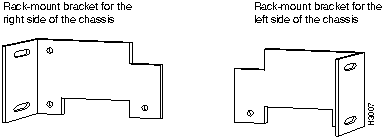
The Cisco 2518 includes two brackets you use to mount the chassis in a 19-inch rack. Perform the following steps to attach the rack-mount brackets:
- Step 1 Remove the rack-mount brackets and screws from the plastic bag and identify the left and right brackets. (See Figure 3-1.)
Figure 3-1 Rack-Mount Brackets
- Step 2 Attach the rack-mount brackets to both sides of the chassis. Use the screws provided with the brackets. (See Figure 3-2.)
Figure 3-2 Rack-Mount Bracket Attached to a Cisco 2518
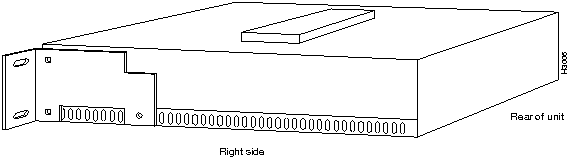
The router/hub is now ready to be mounted in a 19-inch rack.
Note You must supply the screws used to attach the chassis to a 19-inch rack.
The Cisco 2518 is shipped with four rubber "feet" that attach to the bottom four corners of the chassis. If you plan to place the chassis on a desktop, make sure you attach the feet before using the router/hub.
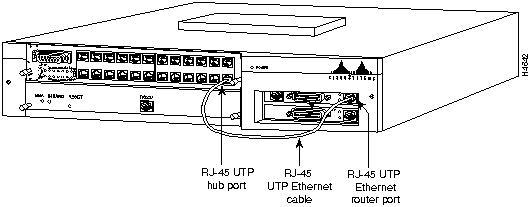
The Ethernet port on the router card connects to port 23 on the hub port card. Use the RJ-45 cable provided with the Cisco 2518. (See Figure 3-3.)
Figure 3-3 Connecting the Router Card to the Hub Port Card
The management card contains an EIA/TIA-232 console port where you attach a terminal or PC, and then configure the SNMP agent and router card. This section provides instructions for connecting the terminal or PC.
Perform the following steps to attach a terminal or PC to the management card console port:
- Step 1 Locate the blue EIA/TIA-232 RJ-45-to-DB-25F cable shipped with the Cisco 2518.
 Caution Use only the blue cable supplied with the Cisco 2518 management card. Do not use an Ethernet RJ-45 cable, and do not use a console cable designed for the router card AUX port.
- Step 2 Attach the RJ-45 connector to the console port of the management card, and attach the other end to the serial port on the terminal or PC.
- Step 3 Make sure the serial port settings on the terminal or PC are set to 9600, N, 8, 1.
- Step 4 If you are using a dumb terminal, set it to VT-100 emulation. If you are using a PC, use ANSI terminal emulation.
 Warning This product relies on the building's installation for short-circuit (overcurrent) protection. Ensure that a fuse or circuit breaker no larger than 120 VAC, 15A U.S. (240 VAC, 10A international) is used on the phase conductors (all current-carrying conductors). To see translated versions of this warning in multiple languages, see the appendix "Translated Safety Warnings."
 Warning The device is designed to work with TN power systems. To see translated versions of this warning in multiple languages, see the appendix "Translated Safety Warnings."
 Warning This equipment is intended to be grounded. Ensure that the host is connected to earth ground during normal use. To see translated versions of this warning in multiple languages, see the appendix "Translated Safety Warnings."
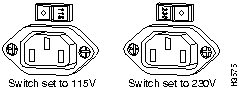
 Caution Some versions of the Cisco 2518 do not have auto-switching power supplies. Before applying power to the router/hub, make sure the input voltage selection switch on the power supply is set to the correct voltage for your area. (See Figure 3-4.)
Figure 3-4 Power Supply Input Voltage Selection Switch
- Step 5 Apply power to the router/hub. Wait approximately two minutes for the system to initialize and complete the self-tests.
- Step 6 After the SNMP manager starts, press Ctrl-E to exit to the console prompt, <<C>>.
Note If Ctrl-E has no effect, the console may have timed out. Type hellottt to reactivate the console, then type Ctrl-E to escape to the console.
- You can now begin configuring the router card or modifying the Cisco 2518 SNMP agent. See the chapter "Configuring the Router Card" for more information. Table 3-1 lists commonly used DOS commands on the Cisco 2518.
Table 3-1 DOS Commands Used in the Router/Hub
| Ctrl-E |
Stops the SNMP agent and displays the <<C>> prompt. |
| Ctrl-Q |
Exits the router program |
| hellottt |
Wakes up the SNMP agent |
| agent |
Restarts the SNMP agent |
| router |
Connects to the router card |
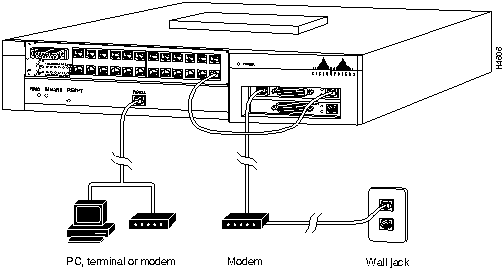
You can also connect a console, modem, or terminal server to the auxiliary port on the router card. Figure 3-5 shows additional ways to communicate with the router card or Cisco 2518 console port.
Figure 3-5 Communicating with the Cisco Router/Hub
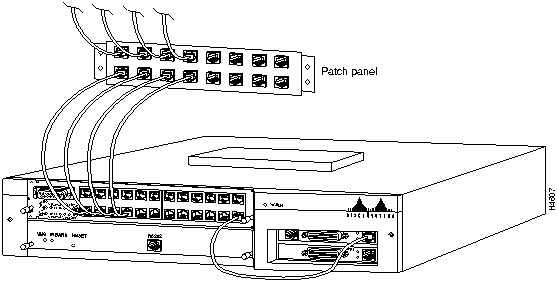
You can connect up to 23 stations in an Ethernet network to the Cisco 2518 router/hub. Figure 3-6 shows the Cisco 2518 ports connected to a patch panel.
Figure 3-6 Ethernet Hub Ports Connected to a Patch Panel
The Cisco 2518 has a stack expansion connector terminator on the top of the unit. Removing this terminator allows you to increase the number of ports by connecting up to five stackable expansion units (available from Lanoptics, Inc.).
Copyright 1988-1995
©
Cisco Systems Inc.



