


|
|
This chapter describes the CiscoWorks fault management features that help you monitor and diagnose network problems. This includes diagnosing individual devices, lines, and interfaces, detecting potential faults, and recovering from problems. This chapter contains the following sections:
Several CiscoWorks applications help monitor and diagnose the SNMP devices in your network. Use the following CiscoWorks applications when performing fault management. A brief description of each application follows.
These applications enhance your capabilities as a network administrator to set up diagnostic procedures when your network develops problems. These applications are discussed in detail in the following sections.
Using CiscoWorks Applications for Troubleshooting
You can use CiscoWorks fault management applications to troubleshoot network problems. Table 3-1 describes network problems and recommends CiscoWorks applications to help you troubleshoot and resolve the problem. To use the table, locate the problem description that most closely resembles your current situation. Then perform the recommended tasks until you determine the solution to the problem.
Table 3-1 : Troubleshooting Scenarios
| Problem | CiscoWorks Application Recommendation |
|---|---|
| Suspected problem on a network device | Use Device Management to identify the appropriate vendor to contact for assistance. Refer to the section "Vendors Window" in Chapter 6. |
| Use Device Management to get specific data on a device (serial number, software version, and so on). Check for a mismatched SNMP community string. If the community string in the NMS database does not match the string in the device, you are unable to reach the device. Refer to the section "Adding, Modifying, or Deleting a New Device" in Chapter 6. Use Sync w/Sybase to synchronize your devices. Refer to the section "Using Sync w/Sybase" in Chapter 6. | |
| If you are using SunNet Manager, use Device Monitor to monitor environment and interface statistics. Refer to the section "Monitoring Network Devices (SunNet Manager Platform)" later in this chapter.
If you are using HP OpenView, use HP OpenView's network monitoring application. For more information, refer to the HP OpenView Network Node Manager User's Guide. |
|
| Use Path Tool to check the graphical path for link utilization analysis. Refer to the section "Locating Device Routing Paths" later in this chapter. | |
| Use Environment Monitor to check the voltage and temperature of Cisco routers. Refer to the section "Monitoring Device Environment Statistics" later in this chapter. | |
| Use Show Commands to get data on the version, interface, and so on for analysis. Refer to the section "Using Show Commands to View Router Data" later in this chapter. | |
| Use Configuration Management to compare present and previous configurations for errors. Refer to the section "Managing Cisco Device Configuration Files" in Chapter 5. | |
| Use Contacts data to get information on who to call in your company. Refer to the section "Using Device Contacts" later in this chapter. | |
| Check the Log Manager file for event information. Refer to the section "Using the Log Manager as a Diagnostic Tool" later in this chapter. | |
| Suspected protocol problem | Check Log Manager for event information. Refer to the section "Using the Log Manager as a Diagnostic Tool" later in this chapter. |
| If you are using the SunNet Manager platform, check Device Monitor to ensure that you are monitoring events (and interfaces). Refer to the section "Monitoring Network Devices (SunNet Manager Platform)" later in this chapter.
If you are using HP OpenView, use HP OpenView's network monitoring application. For more information, refer to the HP OpenView Network Node Manager User's Guide. |
|
| Use Path Tool to determine whether the protocol is routing efficiently (link speed, utilization and error analysis). Refer to the section "Locating Device Routing Paths" later in this chapter. | |
| Use Show Commands to view packet information using Show Traffic Mix command. Refer to the section "Using Show Commands to View Router Data" later in this chapter. | |
| Use Real-Time Graphs to get information on router traffic. Refer to the section "Graphing Your Real-Time Device Data" later in this chapter. | |
| Suspected router configuration problems | Use the Show Version command to ensure that version numbers are compatible. Router software must be Software Release 8.2 or later. Refer to the section "Graphing Your Real-Time Device Data" later in this chapter. |
| Log onto the device and determine whether the device configuration file has a read-write community string. Refer to the section "Comparing a Configuration in a Device with the Database Version" in Chapter 5. Also see this table's recommendation under the "Suspected problem on a network device" entry. | |
| Verify that the device is running (Show Interface, Show Traffic Mix commands). Refer to the section "Using Show Commands to View Router Data" later in this chapter. | |
| Determine whether a configuration file was downloaded to a device with syntax errors in it. Log on to the outer console and initiate a TFTP session from the router. The errors will be displayed on your console screen. Or log into the router before you download a file. Check to see if any error messages exist. Refer to the section "Loading a Configuration File" in Chapter 5. |
From the Security menu you can change your user ID if you need special access to the secured CiscoWorks applications using the Change User command. The Change Domain command is also found under the Security menu. Changing domains allows you to move from one group of routers that you have named a domain, to another domain set of routers. You can also check your security privileges for your current user ID by using the Privileges command.
For more information on the security options in your fault management applications, refer to Chapter 7, "Setting Up Domains and Securing Applications."
Monitoring Network Devices (SunNet Manager Platform)
Use the CiscoWorks Device Monitor (nmdevmon) application to monitor interface and environmental card status and to filter event messages. This application provides a summary of the current devices and the categories that are being monitored.

Also use the Device Monitor to set the polling frequency for each device for interface and environment information, or to enable event logging. Because the Device Monitor polls each device according to a set polling frequency, the poll data adds to your network traffic. The default polling frequency rate is 60 seconds. The recommended minimum polling interval depends on the number of devices you are polling and how much network bandwidth you want to devote to network management.
The Device Monitor uses a monitoring engine called the Device Monitor daemon (nmdevmond) to perform the following functions:
Set monitoring requirements in the Device Monitor window; the Device Monitor daemon uses these requirements to perform its monitoring tasks. For more information on the Device Monitor daemon, refer to Chapter 9, "Using CiscoWorks Process Manager."
Figure 3-1 illustrates the process that CiscoWorks uses when monitoring devices.
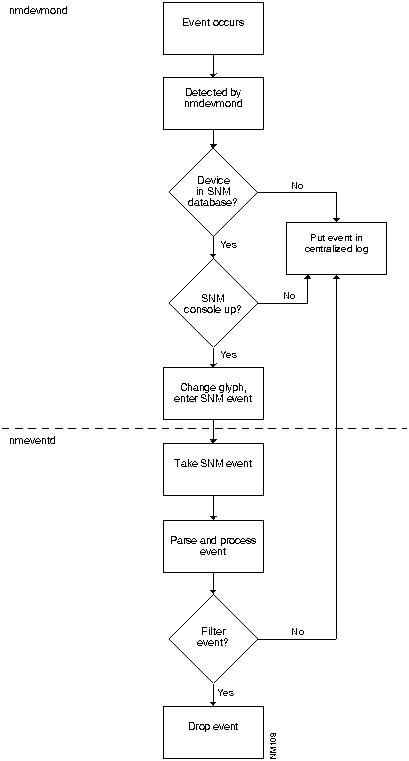
Figure 3-1 : Device Monitoring Process
Figure 3-2 illustrates the Device Monitor window. Table 3-2 describes its components.
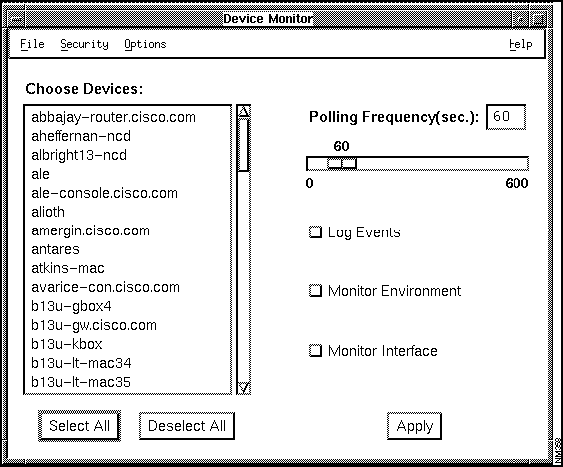
Figure 3-2 : Device Monitor Window
Table 3-2 : Device Monitor Window Components
| Component | Subcomponent | Description |
|---|---|---|
| File | Print
Exit |
Prints a snapshot of the current window.
Exits the current window. |
| Security | Change Domain
Change User Privilege |
Enables you to change to another domain, if available.
Enables you to change your username in order to access this application. Displays the security privileges for the current user. |
| Options | Activate Changes
Summary |
Updates polling to new values.
Provides an overview of which monitoring options are on or off and what interval is set for polling. |
| Help | On Version
On Device Monitor |
Displays the CiscoWorks version information for this application.
Provides help text on the current window. |
| Devices scroll window | Displays all the Cisco devices found in the Sybase database. | |
| Select All | Selects all devices in the device browser. | |
| Deselect All | Deselects all devices in the device browser. | |
| Polling
Frequency |
Polling Frequency Slider | Changes the polling rate by clicking on the slider. The default is 60 seconds. |
| Check Boxes | Log Events
Monitor Environment Monitor Interface |
Filters log messages sent to the event logging daemon.
Monitors environmental monitor card data on the Cisco AGS+ router. Monitors interface status information. |
| Apply | Applies changes to selected devices to the Sybase devices table. |
Setting Device Monitoring Options
To set device-monitoring options, perform the following steps:
After your changes are sent to the Device Monitoring daemon, the Device Monitor begins polling your designated options.
To exit the Device Monitor window, select File>Exit.
Adding Devices to the Database from Your Network Management Platform
The Device Monitor can monitor only devices that exist in the Sybase device table. If a new device has been added to SNM manually or via the SNM Discover program, the Device Monitor will not see it until you perform one of the following tasks:
Viewing Device Monitor Settings
You can quickly view the following device monitor settings with the Device Monitor Summary window:
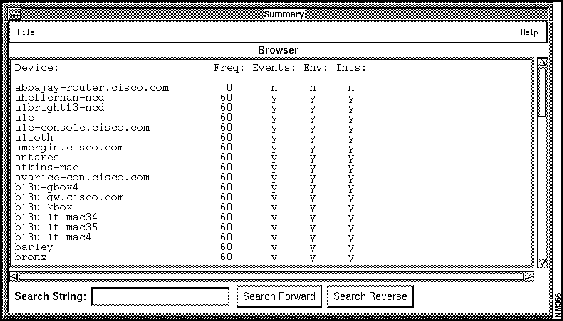
Figure 3-3 illustrates the Device Monitor Summary window. Table 3-3 describes its components.
Figure 3-3 : Summary Window for the Device Monitor Table 3-3 : Summary Window Components
To view your device monitor settings, perform the following steps:
To exit the Device Monitor Summary window, select File>Exit.
Monitoring Network Devices (HP OpenView and NetView for AIX Platforms)
The Device Monitor application is not available in CiscoWorks for HP OpenView or NetView for AIX. To monitor network devices, use the network monitoring capabilities on your specific platform. For additional information about network monitoring, refer to the HP OpenView Network Node Manager User's Guide or the NetView for AIX User's Guide for Beginners.
Monitoring Device Environment Statistics
With Software Release 9.0, Cisco has enhanced the environmental monitor card on the AGS+ router, by adding several features to allow the monitoring of temperature and voltage sensors via SNMP. Your environmental monitor card must be a Revision 4 ENVM card (Microcode Version 2.0) or later. The Cisco 7000 router is not supported by the Environmental Monitor application.
The CiscoWorks Environmental Monitor application enables you to view the environmental monitor status of a current device, including temperature and voltage statistics. The default temperature displayed is in Celsius.
If you are using SunNet Manager and want to display the environmental monitor card version or hardware information from the Glyph Tools menu, select Show Commands.
For more information on the environmental monitor card features for the AGS+, refer to the configuration note "Installing and Configuring the Environmental Monitor Card in the AGS+ Chassis." For information on the environmental monitor card features for the Cisco 7000, refer to the configuration note "Cisco 7000 Microcode Configuration Note."
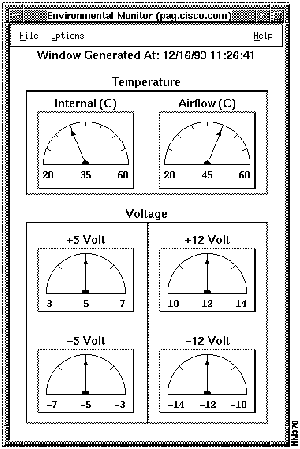
Figure 3-4 illustrates the Environmental Monitor window. Table 3-4 describes its components.
Figure 3-4 : Environmental Monitor Window Table 3-4 : Environmental Monitor Window Components
Monitoring Router Environmental Data
To use the Environmental Monitor to check the temperature and voltage of a device, perform the following steps:
The Path Tool application graphically displays the routing path between a source device and a destination device using the standard protocols (SNMP or IP). The Path Tool application displays that path in the Path Tool window. This application enables you to check the paths between two IP addresses.
The graphical display in the Path Tool window shows the devices (including routers) involved, the link speeds connecting these SNMP devices, and the interface names. You can run several Path Tool analyses at the same time. The analyses provide color-coded severity levels for each link. Each Path Tool request appears in a separate window.
If your devices contain user-defined community strings, you can change how the Path Tool uses community string using the -r option in the command line syntax or the .Xdefaults file. For more information, refer to the nmpath online manual page.
You can access the Path Tool application from the main menu to access all devices; if you are using the SunNet Manager platform, you can use the Glyph menu to access a specific device as the source device.
The Path Tool application uses the following windows:
Using the Path Tool on Secondary Addresses
Many IP networks use a Cisco Systems feature called secondary addresses. Secondary addresses allow a user to assign two different IP addresses to one physical interface (on different subnets and/or IP networks). Unfortunately, secondary addresses cannot be discovered via SNMP.
So, if a router has a secondary address and associated subnet mask, the Path Tool application cannot acquire this information. This results in the Path Tool potentially not knowing the subnet mask used on the secondary network. If the Path Tool does not have knowledge of the subnet mask used within a network, it may not be able to determine the route between the source and destination IP addresses.
If the Path Tool application cannot get the secondary address information via SNMP it searches the /etc/netmasks file for subnet mask information about a network. The/etc/netmasks file is part of the UNIX operating system and contains network numbers and their associated subnet masks. To ensure that the Path Tool can find information about secondary addresses, you must add all of your network numbers and their associated subnet masks in the /etc/netmasks file.
An example of how the file is formatted follows. Use this example as a guideline when adding your network numbers and associated subnet mask information.
This format denotes that the IP network 128.128.0.0 has the subnet mask 255.255.248.0, and the IP network 192.6.141.0 has the subnet mask 255.255.255.0. Trailing zeros are not entered in the /etc/netmasks file.
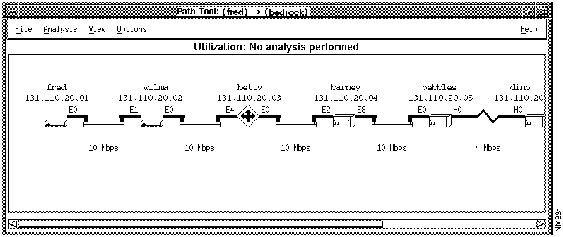
Figure 3-5 illustrates the Path Tool Route Path window, which is the main Path Tool window.
Figure 3-5 : Path Tool Route Path Window Table 3-5 : Path Tool Window Components
Using the Path Tool Application
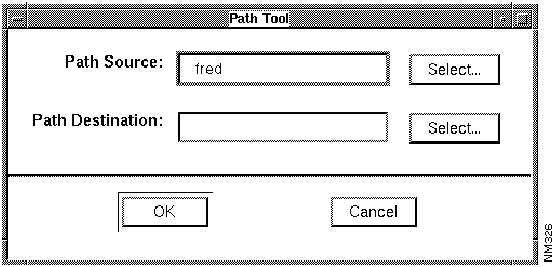
If you cannot find your source device icon on the network map or if you do not know the device information, use the menu bar to access the Path Tool application. The following procedure enables you to choose your source or destination device from a list of device names.
To display an analysis of the entire path or any valid subpath, perform the following steps:
Figure 3-6 : Path Tool Source and Destination Window
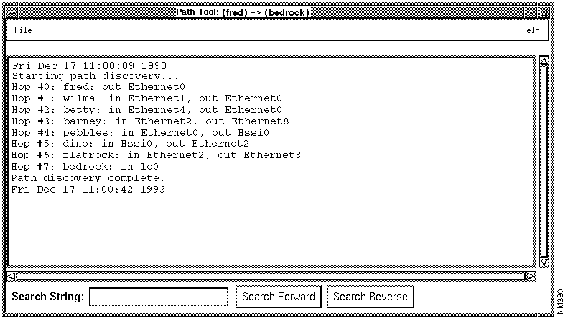
Figure 3-7 : Path Tool Window---Path Hops from Source to Destination After the Path Tool reaches the destination, it displays a picture of the route. This is the known path from your source device to your destination device. To view the full path route if it is larger than what fits into the window, use the scroller at the bottom of the Path Tool Route window or resize the window. (See Figure 3-5.)
In Figure 3-5, the source device is a UNIX workstation with a host name of fred. An interface named E0 connects the source device to a Cisco router, wilma, at a link speed of 10 Mbps. The Cisco router, pebbles, with a High-Speed Serial Interface(HSSI) H0, connects a Cisco router, dino, with a HSSI interface H0 at a link speed of 4 Mbps.
If the path cannot be discovered using SNMP or other means, the following error message displays: Could not discover desired path via SNMP or any other means.
Using Path Tool from the Glyph Menu (SunNet Manager Only)
You can also run the Path Tool application from the Glyph menu. The Glyph menu is the SNM pull-down menu for a particular device. This procedure enables you to choose your destination device from a list of device names. The source device information is automatically entered after you click on the Cisco icons representing your source device.
To display an analysis of the entire path or any valid subpath using the Glyph menu, perform the following steps:
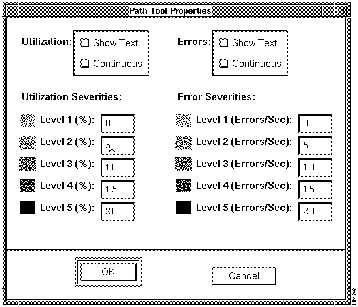
Use the Path Tool Properties window to set your analysis parameters. You can set continuous utilization and error analyses and your polling interval from the Path Tool Properties window. You can also set a text window to appear each time a utilization or error analysis is performed. This text window contains statistics displayed in the Path Tool window.
After you run the Path Tool application, you can access the Properties window from the Options menu.
Before you perform an analysis, you might want to access the Path Tool Properties window to set your parameters or use the CiscoWorks defaults to run the Path Tool application.
Figure 3-8 illustrates the Path Tool Properties window. Table 3-6 describes its components.
Figure 3-8 : Path Tool Properties Window Table 3-6 : Path Tool Properties Window Components
Setting Parameters in the Path Tool Properties Window
To change the settings in the Path Tool Properties window, use the following steps:
The Path Tool enables you to run the following two types of analysis to measure network activity. This analysis can only be performed on devices with SNMP access.
Refer to the previous section, "Setting Parameters in the Path Tool Properties Window," for more information on changing the defaults in your Properties window. A description of the types of analysis follows.
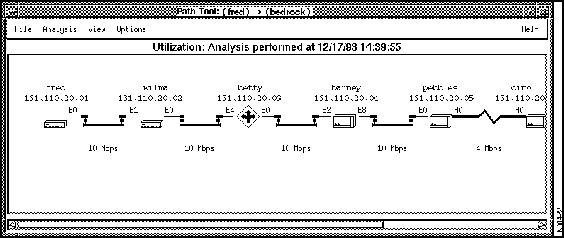
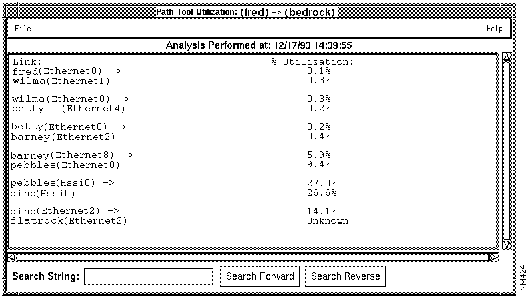
The utilization analysis function does two things: color codes the links in the path window and provides an optional browser window that shows the usage of each link if you selected Show Text on the Properties window.
Each link between devices is assigned a color based on settings in the Properties window. You can change these utilization settings depending on your network needs. A black link in a path displayed in the Path Tool window indicates that the device did not respond to SNMP.
The Path Tool provides the following defaults for the utilization settings:
For example, in the Path Tool Utilization window, a green link means that the link is using between 0 and 5 percent of the bandwidth.The defaults describe how the color codes relate to real utilizations. For example, green might signify less than 5 percent use, while red might mean over 90 percent utilized. You can set the utilization and error severities in the legend on the Path Tool Properties window.
A key to parameter settings is located on the Path Tool Properties window.
Utilization analysis also provides a browser window showing the actual usage for each link in numerical order. Use the View menu on Path Tool to display the analysis. The utilization analysis measures both ends of the link.
Running a Utilization Analysis
From the Path Tool window, you can perform a utilization analysis of the data in the window.
To analyze the average percent of bandwidth used by all traffic used in real time, perform the following steps:
Figure 3-9 : Path Tool Window after Utilization Analysis Figure 3-10 : Path Tool Utilization Text Window
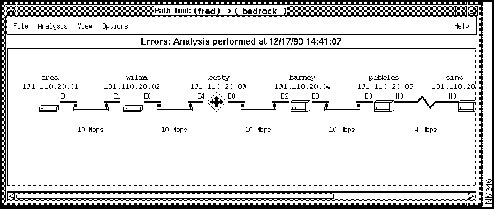
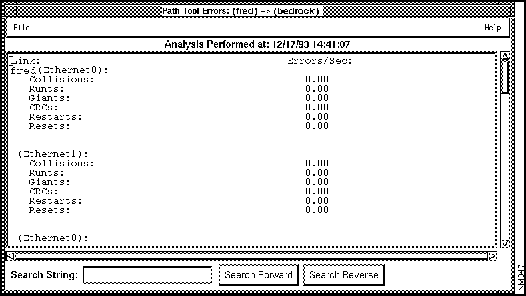
The error analysis function is similar to utilization analysis. However, instead of color coding the real utilization analysis, the Path Tool color codes the errors per second on the link. Each link between devices is assigned a color based on settings in the Properties window. You can change these error settings based on your network needs. A black link in a path displayed in the Path Tool window indicates that the device did not respond to SNMP.
The Path Tool provides the following defaults for the error analysis settings:
For example, in the Path Tool error utilization window, if a link is yellow this link is seeing from ten to fifteen errors per second. The interface error measurement includes packets with errors as a percentage of total packets (good packets plus error packets) on an interface.
Figure 3-8 shows the Properties window that the Path Tool uses to determine what colors to assign to the error status of each line.
As another example, a link with no errors may appear green, while a link with an 80 percent error rate may appear red. The Path Tool only checks errors appropriate to the type of media for the link. For example, on an Ethernet it would look at errors specific to Ethernet interfaces.
From the Path Tool window, you can perform an error analysis on the data in the window.
An error analysis collects different information depending on what type of interface your device has. Table 3-7 describes the error analysis variables for both non-Cisco and Cisco devices according to their interface types.
Table 3-7 : Error Analysis Variables
To analyze the number of packets with errors as a percentage of total packets (good packets plus error packets) in real time, perform the following steps:
Figure 3-11 : Path Tool Window after Error Analysis
Figure 3-12 : Errors Text Window
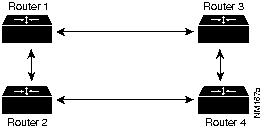
If the Path Tool is using methods other than SNMP to discover a path, it may encounter difficulties determining the correct path where parallel routers with parallel links exist. Such a setup appears in Figure 3-13. The way to avoid this problem is to enable SNMP on one of the two parallel devices.
Figure 3-13 : Parallel Routers with Parallel Links Graphing Your Real-Time Device Data
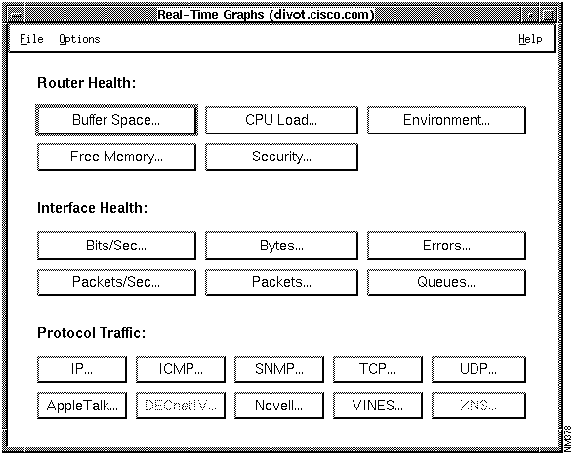
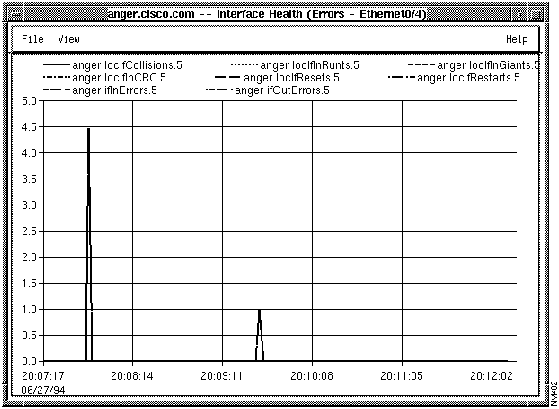
The Real-Time Graphs application monitors the behavior of devices suspected of operating in a degraded mode or introducing erratic behavior in traffic patterns, error status indications, or statistics. Use the following interface health buttons to display quick information about diagnosing problems in your network: Errors and Queues. Errors and Queues are the only buttons on the Real-Time Graphs window explained in this chapter.
Real-Time Graphs is also useful for managing and planning network loads and use. For more information on performance management, refer to section "Using the Real-Time Graphs" in Chapter 4.
The Real-Time Graphs application monitors and graphs variables for a single device. Multiple devices can be monitored simultaneously by opening more than one application. In addition, you can merge graphs to present the data in one graph.
If you are using SunNet Manager, the Real-Time Graphs application uses the SNM Grapher. For information on customizing your graph, see the SunNet Manager 2.0 User's Guide. If you are using HP OpenView, the Real-Time Graphs application uses the OpenView grapher, xnmgraph. For more information about customizing your graph, refer to the online help in the Grapher window.
Figure 3-14 illustrates the Real-Time Graphs window. Table 3-8 describes its components. Grayed-out buttons on CiscoWorks application windows indicate inactive functions.
Figure 3-14 : Real-Time Graphs Window Table 3-8 : Real-Time Graphs Window Components
Creating a Real-Time Graph for Interface Error Data Using SunNet Manager
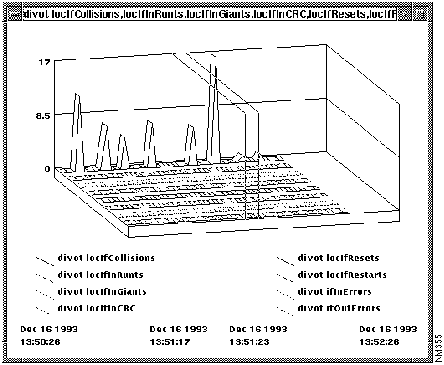
To create a graph with real-time device data (specifically for error information), perform the following steps:
Table 3-9 : Interface Health Buttons---Errors and Queues
Figure 3-15 : Graph Window for Errors Statistics on the SunNet Manager Platform Viewing or Changing Graph Properties
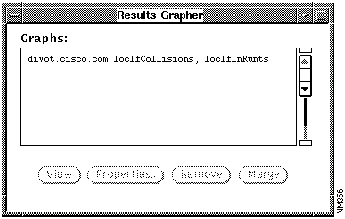
The Real-Time Graphs application uses the SNM Grapher. If you want to change the appearance of your real-time graph, you need to use the SNM Results Grapher window. (See Figure 3-16.)
Figure 3-16 : SNM Results Grapher Window You can perform the following tasks using the Results Grapher:
Creating a Real-Time Graph for Interface Error Data Using HP OpenView
To create a graph with real-time device data (specifically for error information), perform the following steps:
Figure 3-17 : Graph Window for Errors Statistics on the HP Openview Platform Viewing or Changing Graph Properties
To change graph properties, use the View menu items in the OpenView Grapher window. For more information about changing graph properties, refer to the online help in the Grapher window.
Using Show Commands to View Router Data
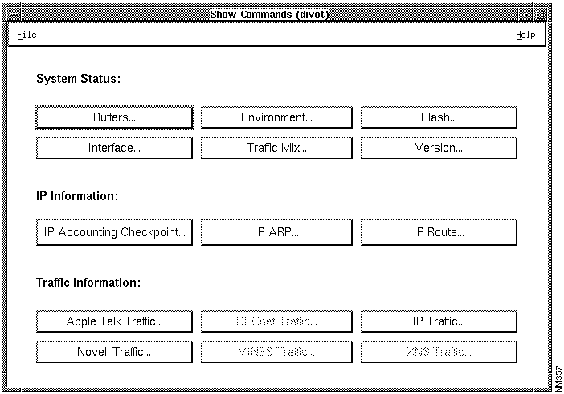
CiscoWorks provides a unique interface to Cisco routers or communication servers on your network. Using the Show Commands application, you can view device data with the click of a mouse.
Figure 3-18 illustrates the Show Commands window. Table 3-10 describes its components.
Figure 3-18 : Show Commands Window Table 3-10 : Show Commands Window Components
Accessing the Show Commands Windows
To access the individual Show Commands windows, perform the following steps:
For more detailed information on show commands, refer to the Router Products Configuration and Reference publication.
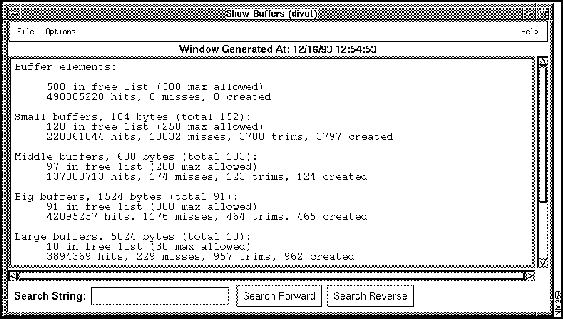
Figure 3-19 illustrates a Show Commands subwindow. Table 3-11 describes the components of the individual Show Commands subwindows.
The show commands listed in Table 3-11 each have their own Show window. There are several show commands. Examples of a selection of show windows appear later in this section.
Figure 3-19 : Show Commands Subwindow---Show Buffers Table 3-11 : Show Commands Subwindow Components
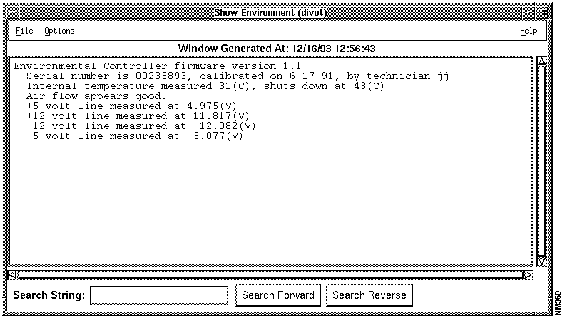
From the Show Commands window, click on the Show Environment button to display the Show Environment window. (See Figure 3-20.)
The Show Environment window displays temperature and voltage information on the AGS+ router console. You can access the Show Environment window to check data after you receive a warning or shutdown message from your AGS+ router.
Figure 3-20 : Show Environment Window From the Show Commands window, click on the Show Flash button to display the Show Flash window. (See Figure 3-21.)
The Show Flash window provides information on Flash memory contents for Cisco devices with Flash memory, such as a Cisco 7000 router.
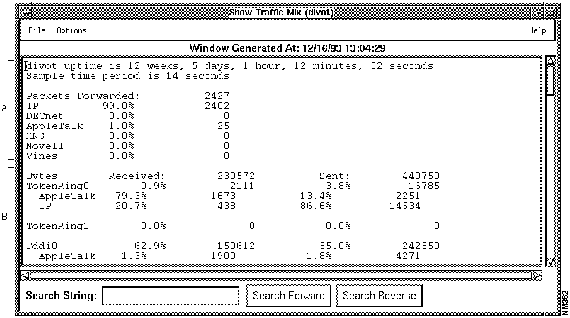
Figure 3-21 : Show Flash Window From the Show Commands window, click on the Show Traffic Mix button to display the Show Traffic Mix window. (See Figure 3-22.)
The Show Traffic Mix window provides all traffic information, regardless of protocol. This command polls the router and shows statistics over a short period of time. Use the Refresh button to update this period and recalculate the statistics shown.
This Show Command is a feature specific to CiscoWorks; it is not a router EXEC show command. You can use this command as a quick view of traffic activity.
Figure 3-22 : Show Traffic Mix Window The Show Traffic Mix window in Figure 3-22 contains the following three sections.
Show IP Accounting Checkpoint Window
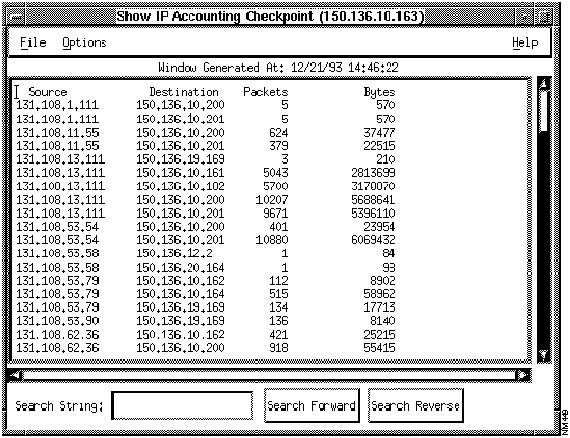
From the Show Commands window, click on the Show IP Accounting Checkpoint button to display the Show IP Accounting Checkpoint window. (See Figure 3-23.)
The Show IP Accounting Checkpoint window displays the checkpointed database. The output contains source and destination addresses, as well as total number of packets and bytes for each address pair. Use this information to check resource usage.
Figure 3-23 : Show IP Accounting Checkpoint Window If there is no IP accounting checkpoint on the selected router, the following error message will appear: No IP accounting checkpoint table on <device_name>.
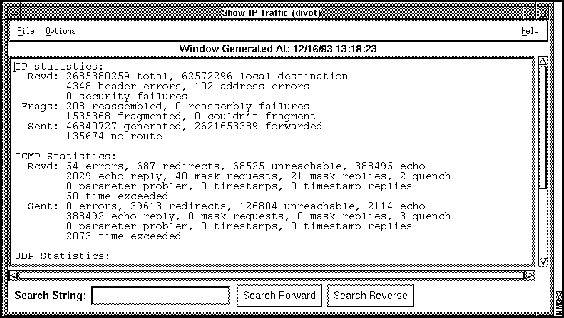
On the Show Commands window, click on the Show IP Traffic button to display the Show IP Traffic window. (See Figure 3-24.)
The Show IP Traffic window displays statistics on IP protocol operation.
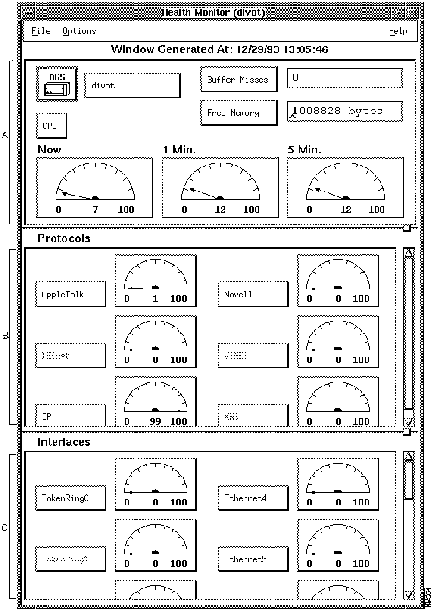
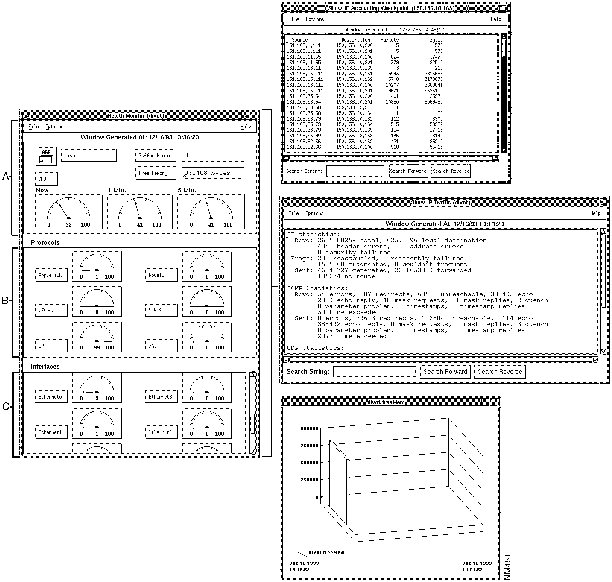
Figure 3-24 : Show IP Traffic Window The Health Monitor application provides information about the overall health of a device and allows you to access to several CiscoWorks applications on one window.
You can perform the following tasks from the Health Monitor window:
Figure 3-25 illustrates the Health Monitor window. Table 3-12 describes its components.
Figure 3-25 : Health Monitor Window
The Health Monitor window in Figure 3-25 contains the following three panels. To resize each panel, click on the panel button, also known as a sash, and shift the panel according to the view you desire.
The Health Monitor window can be changed to display data in a text format. For information on how to change the data display default, refer to the nmhealth manual page.
Table 3-12 : Health Monitor Window Components
Table 3-12 describes the Health Monitor window components and contains references to two applications: Show Commands and Real-Time Graphs. These applications are represented in the window menuing system by the icons in Figure 3-26.
Figure 3-26 : Health Monitor Window Icons Figure 3-27 illustrates the following Show Commands and Real-Time Graphs applications you can access from within the Health Monitor window:
Depending on the network management platform you are using, some of the windows in Figure 3-27 might look different.
To use the Health Monitor window, perform the following steps:
Figure 3-28 : Health Monitor Message Window
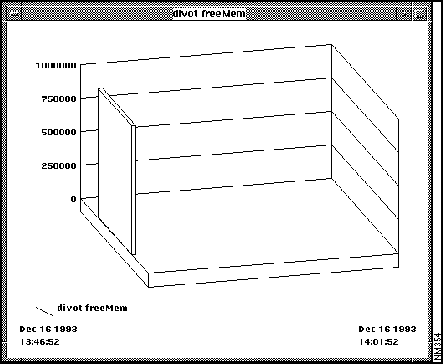
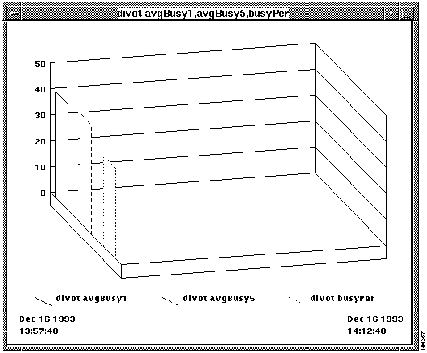
Figure 3-29 : Free Memory Real-Time Graph for Cisco Device (SunNet Manager Platform)
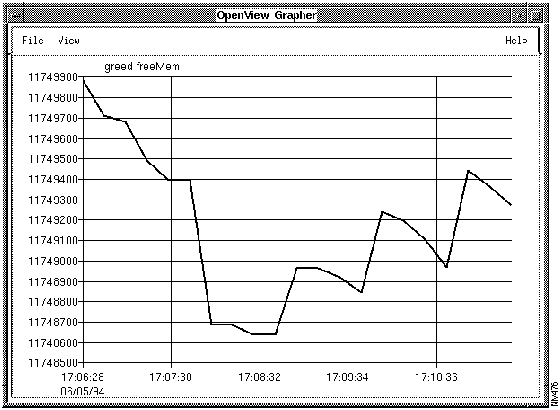
Figure 3-30 : Free Memory Real-Time Graph for Cisco Device (HP OpenView Platform)
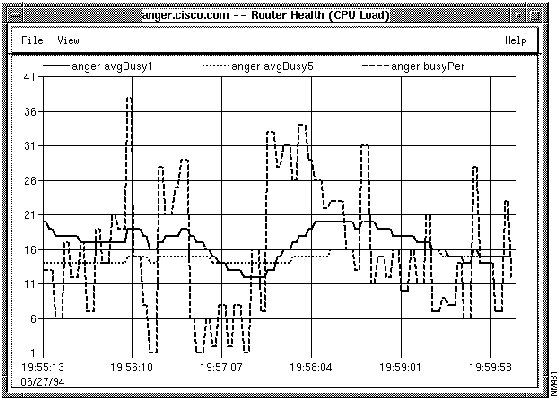
Figure 3-31 : CPU Load Real-Time Graph for Cisco Device (SunNet Manager Platform)
Figure 3-32 : CPU Load Real-Time Graph for Cisco Device (HP OpenView Platform)
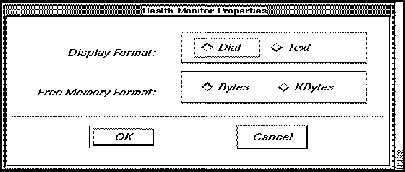
Figure 3-33 illustrates the Properties window for the Health Monitor application. Table 3-13 describes its components.
Figure 3-33 : Properties Window for Health Monitor Table 3-13 : Health Monitor Properties Window Components
To alter Health Monitor properties, perform the following steps:
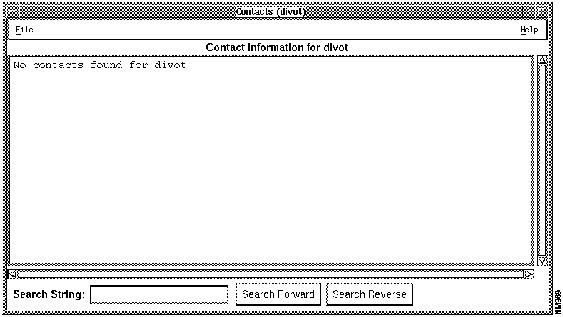
When you need to find an onsite network manager or support contact quickly, use the Contacts application. To enter contact information, access the Device Management application and enter the information using the Devices window. For instructions on entering device contact data, refer to Chapter 6, "Device Management."
As part of your fault management procedures, you might choose to use device contacts as your quick-access tool to find your emergency contact person. After you enter the necessary information in the Contacts window, you can access this important information through the Contacts application.
To access your device contact data, complete the following steps:
Using the Log Manager as a Diagnostic Tool
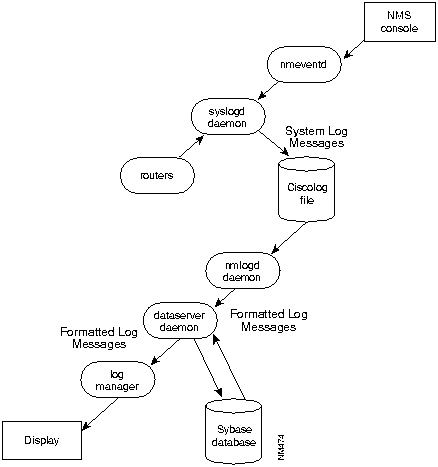
The Log Manager application enables you to view, query, and delete messages gathered from Cisco Systems devices on the internetwork. These messages are stored in the Sybase table ciscolog and viewed through the Log Manager window. Two daemons, Device Monitor and Event Logging, also forward NMS event/trap reports into the log file.
Cisco devices (routers, protocol translators, and communication servers) can send messages directly to the Log Manager file through the syslog daemon (syslogd). If you have System Software Release 8.3 or earlier, refer to the Router Products Configuration and Reference publication for a description of error messages. If you have Release 9.0 or later, refer to the System Error Messages.
During installation, the system administrator sets up the log file for CiscoWorks messages, which specifies the directory messages go to and which facility to use to view messages in the Log Manager application. For more information on setting up the log file, refer to "Log File for CiscoWorks Messages" in your CiscoWorks administration and installation guide.
CiscoWorks applications, such as Device Monitor, report to the syslog, which sends messages to the Log Manager file, nmslog.
The functionality of the Log Manager application and the log daemon is illustrated in Figure 3-35. For more information on starting the log daemon, the event daemon, or the Device Monitor daemon (SunNet Manager platform only), refer to Chapter 9, "Using CiscoWorks Process Manager."
Figure 3-35 : Log Manager Overview The syslog daemon (syslogd) can receive messages from devices on the network. Cisco Systems devices can send error messages and information directly to syslogd. Messages are also generated by CiscoWorks application programs and then sent to syslogd.
The syslog daemon reads and logs messages into a set of files described by the configuration file /etc/syslog.conf. Each message is one line. The message can be tagged with a priority setting indicating whether the message needs to be logged and, if so, into which file it will be logged.
During installation, CiscoWorks creates an nmslog file (or log manager file), and syslogd timestamps and places the collection of message, traps, and events in this file.
The nmlogclean utility can be used to clean out nmslog messages from the Sybase database. The utility is located in the $NMSROOT/contrib directory.
You can use the ls -l command to list the nmslog files in a directory. The list includes names of the nmslog files and the dates they were created. Following is a sample listing displayed by the ls -l command:
The date indicates the day when the file was created, and the name of the file (nmslog.Fri) indicates the day when that nmslog file was closed.
The CiscoWorks Log daemon (nmlogd) reads the nmslog file, formats the messages into fields, and forwards them to the Sybase server daemon. When the Log daemon starts up or receives a SIGHUP signal, it reads the /etc/syslog.conf file.
The Log daemon must be run only on the machine on which CiscoWorks is installed. This machine is called the log host. If you want to run CiscoWorks applications on another machine and you want to log events, you must customize your /etc/syslog.conf file. For information on customizing your syslog.conf file, refer to "syslog.conf File" later in this chapter.
For more information on nmlogd, refer to the online manual page nmlogd (8).
The Sybase server (dataserver) stores the formatted log messages in the CiscoWorks database table, ciscolog. The messages can then be viewed by the CiscoWorks Log Manager application.
Priorities are encoded as facilities and levels. The facility describes the part of the system generating the message. The Configuration Management application and Cisco devices are recognized as facility local7. Descriptions of levels follow.
For Cisco devices, the levels from highest to lowest priority are as follows:
For any SNMP devices or devices that support syslogd, the following seven levels, listed from most severe to least severe, can be used:
To select the type of priority messages you want to log and define where these messages should reside, refer to the instructions in the following section, "syslog.conf File."
In the /etc/syslog.conf file, you can add lines to select what type of priority messages should be logged and where they should be logged.
For SunNet Manager and HP OpenView on the Sun, to send informational messages from the Configuration Management application and from the Cisco routers (facility local7) to a file named /var/log/nmslog, the CiscoWorks installation script adds the following line to the /etc/syslog.conf file during installation:
For HP OpenView on HP-UX, to send informational messages from the Configuration Management application and from the Cisco routers (facility local7) to a file named /usr/OV/log/nmslog, the CiscoWorks installation script adds the following line to the /etc/syslog.conf file during installation:
For more information, refer to your CiscoWorks administration and installation guide.
To be able to log events at workstations other than the log host, you must enter the following line into the /etc/syslog.conf file:
With this entry in the file, the event is sent to loghost by the local syslogd. The loghost syslogd places the event in the syslog file that is read by nmlogd on loghost.
For further information on how to mark messages by facility and priority level, refer to the UNIX man pages syslogd, logger, and syslog.
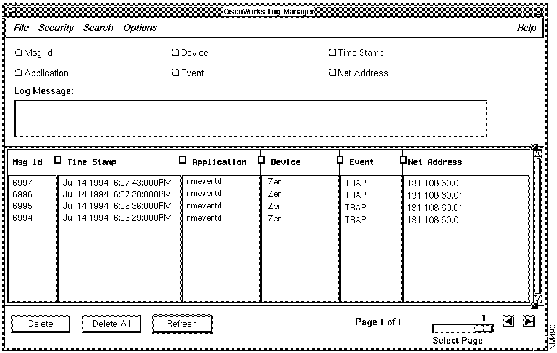
Figure 3-36 illustrates the Log Manager window. Table 3-14 describes its components.
Figure 3-36 : Log Manager Window Table 3-14 : Log Manager Window Components
Accessing the Log Manager Window
The Log Manager allows you to view messages saved in the database, query groups of messages using any combination of six criteria, and delete messages.
To access Log Manager, perform the following steps:
While in the Log Manager window, you can query for log messages, print log messages, delete messages, refresh the log message display, and set up an automatic log purging function. These functions are explained later in this chapter.
Looking for Log Error Messages
You can use any of the following methods to query the Log Manager for a particular message or set of messages:
The Show All command in the Search menu resets after a find search and returns all messages to the Log Manager window. The Delete and Delete All command purge unwanted messages from the Log Manager and allows you to enter a completely new query. The Refresh command checks the database log table for new log records and displays these records in the Log Manager window. You can change the interval that the Log Manager checks the database by using the Options>Refresh Interval command.
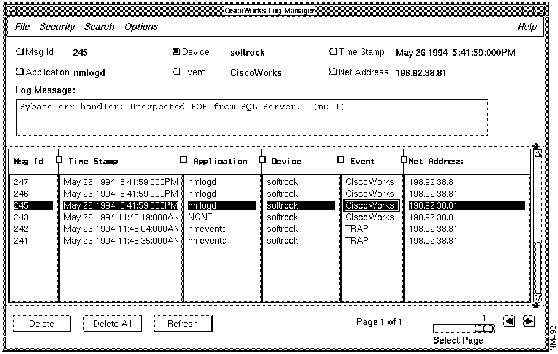
In Figure 3-37, the log files have been queried by the device name softrock.
Figure 3-37 : Querying the Log Manager by Device Name
The Event field indicates a type of status change that has occurred on the network. For a list of CiscoWorks event types and definitions, refer to Table 3-15. This table also includes a description of which events under normal operating conditions are logged. For detailed information on defining traps, refer to RFC 1215, "Defining SNMP Traps."
Table 3-15 : Event Types Logged in the CiscoWorks Log Manager
Check to see if the port is busy by invoking the following command:
If the port is busy, you will see a line similar to the following output:
In this example, 162 is the trap port. The netstat command does not determine which process is occupying the port. You need to determine this on a "best guess" basis. The process occupying the port can be any SNMP management program. To free the port, shut down the process currently accessing it.
Entering Simple Log Query Expressions
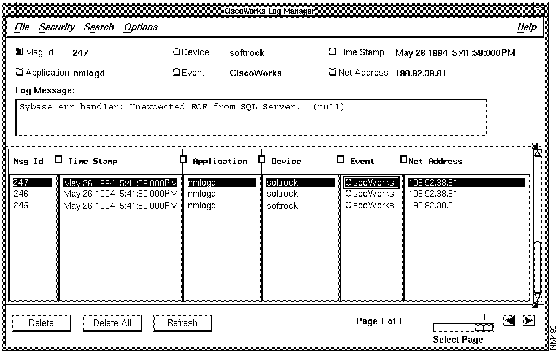
You can query the log messages more specifically by entering simple log query expressions. Figure 3-38 illustrates a simple expression created to find any messages that are numbered greater than 244.
Figure 3-38 : Using a Simple Expression to Query the Log Manager To find all messages greater than 245, click on Msg ID button in the Log Manager window and enter the simple expression >244. When the Find command is applied, all messages numbering greater than 244 are listed in the window, as shown in Figure 3-38. The page indicator at the bottom of the window indicates that one page of messages were found with this query.
The syntax used for such a simple expression follows:
The comparison operator can be =, >, <, >=, and so on. (These operators are described in detail in the "Transact-SQL Commands" section of the Sybase Commands Reference publication that is provided with CiscoWorks.)
Updating the Refresh Interval in the Log Manager Window
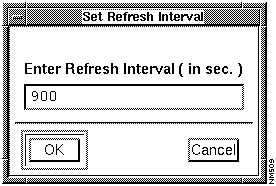
The Log Manager checks the database for new log messages periodically. The default frequency is 900 seconds. If there are new records in the database, the background of the refresh button is set to red.
Do the following to update the refresh interval:
Figure 3-39 : Set Refresh Interval Window You can also customize the frequency of this process by modifying the .Xdefaults file. To change the refresh interval of the Log Manager window using this method, perform the following steps:
You can print the current Log Manager window information. If you are using SunNet Manager or HP OpenView on the Sun, CiscoWorks uses the Sun print utility, Snapshot, to print a copy of the window and its contents. If you are using HP OpenView on HP-UX, you will use the X11 applications xwd and xpr.
If you want to print out database information, use the isql utility to make your request.
Printing the Log Manager Window
For example, to print the query of messages with message ID numbers 30 through 40, perform the following steps:
Printing the Log Manager Messages
To print messages from the Sybase ciscolog table, perform the following steps:
For more information on running isql, refer to your Sybase documentation.
Deleting Messages from the ciscolog
Deleting a message does not delete the message from the Log Manager file (NMS log); it takes it out of the Sybase database table, ciscolog. Messages from the Log Manager window are stored in the Sybase table called ciscolog. These messages can accumulate quickly, and the database can consume large amounts of disk space; therefore, you should delete unwanted Log Manager messages to prevent your database from consuming too much disk space.
You can delete log messages from the Log Manager window in three ways:
If the Sybase transaction log is filled up during the deletion of messages from the Log Manager window, you can resolve the problem by using the $NMSROOT/etc/enlarge_nms script to enlarge the transaction log. Instructions for using this script are provided in the section "Enlarging Disk Space Using a Shell Script" in Chapter 8.
Instructions for deleting Log Manager messages follow.
Deleting Log Messages from the ciscolog Table
To delete any log messages from the ciscolog database table, perform the following steps:
Deleting Log Messages from the ciscolog Table Using the isql Utility
Use the isql utility to delete Log Manager messages in the following situations:
Using the Truncate Table Command to Delete Log Messages and Table Records
Use the isql truncate table command to remove the log messages from the Log Manager window and the records from the Sybase table. The truncate table command uses less space in the transaction log.
To delete all log messages from the Log Manager window and the ciscolog file, perform the following steps:
Using the Delete Command to Delete Log Records
The isql utility allows you to specify clauses for deleting the data in the ciscolog file. If you want to delete log records that are older than 3 days, perform the following steps:
Deleting Log Messages Using nmlogclean Utility
A utility, nmlogclean, has been added to the $NMSROOT/contrib directory. This utility cleans out all ciscolog messages.
To use nmlogclean to delete log messages, perform the following steps:
Maintaining the Log Manager File
In addition to querying the log file messages, you can also delete them as necessary and set up an automatic log purging function to back up an old log file and create a new one.
Using the Automatic Log Purge Program
During the configuration of CiscoWorks, if you have responded yes to the following prompt: Do you want to install the CiscoWorks log purging utility to be started by UNIX cron daemon? The utility automatically purges and backs up the log file every day.
Logpurg is a command utility that circulates the CiscoWorks syslog file. It renames the current CiscoWorks syslog file to the same path name with a day of the week, for example, nmslog.tue. At midnight on Monday, an nmslog.mon file is created. At midnight Tuesday, an nmslog.tue file is created. The original log file is cleared out once a week---every Monday night at midnight. The new file overwrites the original file.
If the logpurg command is issued with a path name, the process ID is also included, for example, nmslog.Tue.1345. Logpurg then creates a new log file and sends a SIGHUP signal to syslogd and nmlogd. After receiving a SIGHUP signal, syslogd and nmlogd configure the new log file to be used for current messages.
When it is started, logpurg gets the current syslog file pathname for /etc/syslog.conf with facility name local6 or local7 and appends the filename with a weekday suffix.
Editing the Crontab File
You can customize the log purge utility by editing the crontab file. The crontab format follows:
For example, in the crontab file, include a line similar to the following:
The file purg is a front end for the log purge program and sets up the $NMSROOT and SYBASE environment variables. 10 represents the minutes and 6 represents the hour. The three asterisks (*) represent the day of the month, month, and the day of the week. An asterisk (*) indicates select this particular variable (for example, days of the week). The cron program will execute this program at 6:10 a.m. every day.
If the nmlogd process is not running at the time, the old log file name is entered into $TMPDIR/.nmlogdspool. If you have more than seven files in $TMPDIR/.nmlogdspool, logpurg provides an error message similar to the following: Nmlogd died. Call your system administrator. If you did not redirect the cron job output, the system will send this message to root.
In order to send signals to the syslog file, the log purge utility must be run as root.
For more information on these commands, refer to the cron(1) and crontab manual pages.
Copyright 1988-1996 © Cisco Systems Inc.

Component
Subcomponent
Description
File
Print
Exit
Prints a snapshot of the current window.
Exits the current window.
Help
On Version
On Summary
Displays the CiscoWorks version information for this application.
Provides help text on the current window.
Device list
Lists network devices known to Sybase.
Polling
Frequency
Current polling rate on this device.
Events data
Indicates whether monitoring is on (y) or off (n).
Environmental data
Indicates whether monitoring is on (y) or off (n).
Interface data
Indicates whether monitoring is on (y) or off (n).
Search String field
Locates character string entered into field in text.
Search Forward
Searches forward for a character or character string in the text.
Search Reverse
Searches backward for a character or character string in the text.

Component
Subcomponent
Description
File
Print
Exit
Prints a snapshot of the window.
Exits the current window.
Options
Convert to Fahrenheit/Celsius
Polling Frequency
Toggles temperature setting between Fahrenheit/Celsius.
Sets the polling interval for this device.
Help
On Version
On Env Monitor
Displays the CiscoWorks version information for this application.
Provides help text on the current window.
Date stamp
Provides the date and time the window was created.
Temperature meters
Internal Temperature
Airflow Temperature
Current internal intake air temperature for the router.
Current exhaust air flow for the router.
Voltage meters
+5 Voltage
--5 Voltage
+12 Voltage
--12 Voltage
Current power supply voltage to the router.
Current power supply voltage to the router.
Current power supply voltage to the router.
Current power supply voltage to the router.
Device router_name not responding to SNMP

128.128   255.255.248.0
192.6.141  255.255.255.0
Table 3-5 describes its components.
Component
Subcomponent
Description
File
Print
Exit
Prints a snapshot of the current window.
Exits the current window.
Analysis
Utilization
Errors
Performs an analysis on link utilization.
Performs an analysis on errors per second.
View
Utilization
Errors
Toggles to the path showing utilization analysis.
Toggles to the path showing error analysis.
Options
Polling Frequency
Properties
Re-discover Path
Allows you to set the frequency (in seconds) of how often polling occurs. The default is 15 seconds.
Allows you to view and set analysis settings and severity levels.
Displays alternative routing path, if found.
Help
On Version
On Path Tool
Displays the CiscoWorks version information for this application.
Provides help text on the current window.
Interface Names
Displays the first letter of the interface type and the interface number. The abbreviation is the first character of the interface description attached to the interface number. The following list includes the interface-type abbreviations for Cisco interfaces:
Link Speeds
Displays the link speed between interfaces in megabits or kilobits per second (Mbps or Kbps). If an interface is unknown, the link speed is represented by three question marks (???).
Device router_name not responding to SNMP
Component
Subcomponent
Description
Utilization
Show Text
Continuous
If activated, Show Text displays a window with utilization analysis data.
If activated, a Path Tool window runs continuously rediscovering utilization data for a specific path using the set polling interval.
Errors
Show Text
Continuous
If activated, Show Text displays a browser window with error analysis data.
If activated, a Path Tool window runs continuously rediscovering error data for a specific path using the set polling interval.
Utilization
Severities
Level 1 to 5
Provides threshold settings for utilization color codes in percent. Thresholds must be in ascending order.
Error Severities
Level 1 to 5
Provides threshold settings for error color codes in errors per second. Thresholds must be in ascending order.
Interface
Objects Polled
MIB Objects Names
Non-Cisco device (all interfaces)
Input errors
Output errors
ifInErrors
ifOutErrors
Cisco device---Ethernet
Collisions
Runts
Giants
CRCs
Restarts
Resets
locIfInCollisions
locIfInRunts
locIfInGiants
locIfInCRC
locIfRestarts
locIfResets
Cisco device---serial
Frame errors
Overruns
Ignoreds
Aborts
Restarts
Resets
Carrier transitions
locIfInFrame
locIfInOverrun
locIfInIgnored
locIfInAbort
locIfRestarts
locIfResets
locIfCar Trans
Cisco device---FDDI or Token Ring
Runts
Giants
CRCs
Restarts
Resets
locIfInRunts
locIfInGiants
locIfInCRC
locIfRestarts
locIfResets

Component
Subcomponent
Description
File
Print
Exit
Prints a snapshot of the window.
Exits the current window.
Options
Polling Frequency
Changes polling rate. Can be set using the polling slider or entering a value in the Polling Frequency field and pressing Return. Default = 2 seconds.
Help
On Version
On Real-Time Graphs
Displays the CiscoWorks version information for this application.
Provides help text on the current window.
Router Health
Interface Health1
Protocol Traffic
Buffer Space
CPU Load
Environment
Free Memory
Security
Bits/Sec
Bytes
Errors
Packets/Sec
Packets
Queues
IP
ICMP
SNMP
TCP
UDP
AppleTalk
DECnet IV
Novell
VINES
XNS
Refer to Table 4-5 in Chapter 4 for a detailed description of the router health buttons.
Refer to Table 4-6 in Chapter 4 for a detailed description of the interface health buttons.
Refer to Table 4-7 in Chapter 4 for a detailed description of the protocol traffic buttons.
1 If a button is grayed out, the selected device does not have this capability. For example, currently only a Cisco AGS+ router with the correct environmental monitor card (Revision 4) has the Environment router health button capability.
Buttons
Description
MIB Object Descriptions
Errors
Displays the number of input packets with various characteristics for Cisco-specific devices.
For Ethernet, 802.3 CSMA/CD, starLAN:
locIfCollisions
locIfInRunts
locIfInGiants
locIfInCRC
locIfResets
locIfRestarts
For FDDI and Token Ring:
locIfInRunts
locIfInGiants
locIfInCRC
locIfResets
locIfRestarts
For serial (Cisco-specific):
locIfInFrame
locIfInOverrun
locIfInIgnored
locIfInAbort
locIfResets
locIfRestarts
locIfCarTrans
Displays the number of input packets with various characteristics for any non-Cisco devices.
For serial (non-Cisco):
ifInErrors
ifOutErrors
Queues
Displays the number of packets dropped because the input or output queue was full for Cisco-specific devices.
locIfInputQueueDrops
locIfOutputQueueDrops


Component
Definition
When to Use
File>Print
File>Exit
Prints a snapshot of the window.
Exits the current window.
To perform the tasks described in the adjacent column.
Help>On Version
On Show Commands
Displays CiscoWorks version information for this application.
Provides help text for the current window.
To perform the tasks described in the adjacent column.
Buffers
Displays statistics for the buffer pools on the network server.
If the input queue count on an interface is consistently nonzero. Use to determine if you need to adjust initial buffer pool settings and the limits at which temporary buffers are created and destroyed.
Environment
Displays temperature and voltage information.
If you have received a warning or shutdown message; query the environmental monitor card to determine if a measurement is at a warning tolerance. Available only on devices with environmental monitor cards, for example, the Cisco AGS+ router.
Flash
Displays files in Flash memory for a Cisco device.
If you are using Flash memory to load a configuration file into a Cisco device, you can check to ensure that the file is uncorrupted and ready to load.
Interface
Displays status of device interfaces.
If you have a problem after reconfiguring a device. You can also use this command as a monitoring tool.
Traffic Mix1
Displays status information on all protocol traffic including device, protocol, and interface data.
If you want to check protocol traffic activity.
Version
Displays the software title and version and cumulative uptime since the last reload of the software for the selected device. For routers running Software Release 9.1, this window displays traffic per protocol on each interface.
If it is necessary to contact technical support; have all version information ready for your technical support specialist.
IP Accounting Checkpoint
Displays the checkpointed accounting database, which contains source and destination addresses and the total number of packets and bytes for each address pair.
If you want to check accounting database information.
IP ARP
Displays the Address Resolution Protocol (ARP) cache.
If you want to check the records of the correspondence for each network address (an IP address, for example) and LAN hardware addresses (MAC addresses).
IP Route
Displays the current state of the IP routing table.
If you want to check routing information.
AppleTalk Traffic
Displays AppleTalk traffic statistics.
If you want to check information on AppleTalk-specific traffic.
DECnet Traffic
Displays DECnet traffic statistics.
If you want to check information on DECnet-specific traffic.
IP Traffic
Displays IP statistics.
If you want to check IP-specific traffic information.
Novell Traffic
Displays Novell traffic statistics.
If you want to check Novell-specific traffic information.
VINES Traffic
Displays VINES traffic statistics.
If you want to check VINES-specific traffic information.
XNS Traffic
Displays XNS packet statistics.
If you want to check XNS-specific traffic information.
1 The Show Traffic Mix feature is specific to CiscoWorks; it is not a router EXEC show command.
Component
Subcomponent
Description
File
Print
Save As
Close
Prints the contents of the current window.
Saves the contents of the current window to a file.
Exits the current window.
Option
Refresh
Redisplays the current window with updated data.
Help
On Version
On Show Commands
Displays the CiscoWorks version information for this application.
Displays a manual page on the current window.
Search String field
Provides a field for the character string to locate in text.
Search Forward
Searches forward for a character or character string in the text.
Search Reverse
Searches backward for a character or character string in the text.


Component
Subcomponent
Description
File
Print
Exit
Prints a snapshot of the window.
Exits the current window.
Options
Set Polling Frequency
Properties
Allows you to change the polling rate. The default is 60 seconds.
Allows you to change the data display format from a graphical dial to text and the format of free memory from bytes to kilobytes.
Help
On Version
On Health Monitor
Displays the CiscoWorks version information for the application.
Displays help text for the current window.
Device1
Show Commands
Provides Show Version command.
Buffer Misses
Show Commands
Real-Time Graphs
Provides Show Buffers command.
Provides buffer data graph.
CPU
Real-Time Graphs
Provides CPU data graph.
Free Memory
Real-Time Graphs
Provides free memory data graph.
Protocols
Show Commands
Real-Time Graphs
Provides show protocol command.
Provides protocol data graph.
Interfaces
Show Commands
Real-Time Graphs
Provides Show Interface command.
Provides interfaces data graph.
1 An icon representing a device type appears next to the device name in the Health Monitor window. The icon changes depending on the device type.

Device router_name not responding to SNMP
Component
Subcomponent
Description
Display Format
Dial
Text
Toggles format of data display from a graphical dial to a text box.
Free Memory Format
Bytes
KBytes
Toggles format of free memory from bytes to kilobytes.


-rw-r--r--  1 root         4187 Mar  5 07:32 nmslog
-rw-r--r--  1 root        13108 Mar  4 18:48 nmslog.Fri
-rw-rw-rw-  1 root          226 Mar  3 14:26 nmslog.Thu
local7.info; /var/log/nmslog
local7.info; /usr/OV/log/nmslog
local7.info; @loghost

Component
Subcomponent
Description
File
Print
Exit
Prints the selected fields of the log message in the current browser.
Exits the current window.
Security
Change User
Privileges
Enables you to change your user ID in order to access this application.
Displays the current user's security privileges.
Search
Find
Show All
Searches for the data marked in the check boxes.
Resets after a search and returns all log messages to the Log Manager window.
Options
Refresh Interval
Sets the frequency to check the log table for new log records and displays these new records in the Log Manager window.
Help
On Version
On Log Manager
Displays the CiscoWorks version information for this application.
Provides help text on the current window.
Data Fields
Message ID
Application
Log Message
Device
Event
Time Stamp
Net Address
Message identification number.
Application name.
Any text string in the log file.
Device or element name.
Event type.
The time the message was received by syslogd.
Network address.
Delete
Purges the selected messages.
Delete All
Purges all messages in the browser.
Refresh
Updates Log Manager window display after checking the log table (ciscolog) for new log records. Turns red to indicate new log messages are waiting to be displayed. If Log Manager is iconified, the icon changes into an alarm to indicate new log messages are waiting to be displayed.
Page Indicators
Page number
Page selection slider
Indicates current page number and existing pages in Log Manager window.
Moves to selected page.
Event Type
Description
TRAP
Received a trap message.
EventReport
Received an event message.
CiscoWorks
Received CiscoWorks information or error message.

% netstat -an | grep 162
udp 0 0 *.162
comparison_operator <space> value
%
vi $HOME/.Xdefaults
XCiscoworks*refreshInterval:
new_interval_in_seconds
XCiscoWorks*refreshInterval:450
Run the following command to update the internal database of the X server with the newly specified defaults:
%
xrdb -merge $HOME/.Xdefaults
#
$SYBASE/bin/isql -U nmsuper -P
passwd
1>
select msgid, timestamp , appl ,device, event ,netadd ,text1 ,text2 ,text3 ,text4 from ciscolog where
msgid > 680
2>
go
#
$SYBASE/bin/isql -U nmsuper -P
passwd
1>
select msgid, timestamp ,appl ,device, event ,netadd ,text1 ,text2 ,text3 ,text4 from ciscolog where
device = "abc.cisco.com"
2>
go
#
$SYBASE/bin/isql -U user -P
passwd
1>
select msgid, timestamp ,appl ,device, event ,netadd ,text1 ,text2 ,text3 ,text4 from ciscolog where
event = "TRAP" and device = "abc.cisco.com"
2>
go

% isql -Unmsuper -P
passwd
>
truncate table ciscolog
>
go
>
quit
%
isql -Unmsuper -P
passwd
>
delete ciscolog where datediff(day, timestamp, getdate()) > 3
>
go
>
quit
#!/bin/sh
$SYBASE/bin/isql -Unmsuper -Ppasswd <<EOF
delete ciscolog where datediff (day, timestamp, getdate ()) > 3
go
quit
EOF
-rw-r--r--  1 root         4187 Mar  5 07:32 nmslog
-rw-r--r--  1 root        13108 Mar  4 18:48 nmslog.Fri
-rw-rw-rw-  1 root          226 Mar  3 14:26 nmslog.Thu
%
$NMSROOT/contrib/nmlogclean
10 6 * * * $NMSROOT/bin/purg $NMSROOT
