Step 3 To start the SNM Console enter one of the the following:
- To start SNM without a database map file (which clears the run-time database), enter the following:
%
snm -i
- To start SNM with a specified map file (map_name is an ASCII database file), enter the following:
%
snm
<map_name>
For more information on starting the SNM Console or troubleshooting problems with startup, refer to the SunNet Manager 2.0 User's Guide.
Learning about Other CiscoWorks Applications on SNM
This section briefly outlines the steps you must complete in SNM before continuing with CiscoWorks tasks. For instructions on using specific CiscoWorks applications, refer to the appropriate section in this guide.
Follow these steps to learn about CiscoWorks applications that use the Sybase database:
Step 1 Start SNM (if not started already).
- Refer to the section "Starting CiscoWorks on SNM" earlier in this chapter to learn how to start SNM.
Step 2 Access the Security Manager application to turn on authentication checking and provide users and groups access privileges to CiscoWorks applications.
- For more information, refer to Chapter 7, "Setting Up Domains and Securing Applications."
Step 3 Set up your SNM run-time database using SNM Discover or manually create devices using the SNM Create command.
- For SNM Discover information, refer to the section "Getting Started with CiscoWorks on SNM" or to the SNM documentation.
Step 4 Use Sync w/Sybase to synchronize SNM database devices with the CiscoWorks Sybase database.
- If you are adding individual devices, use the CiscoWorks Device Management application, the AutoInstall Manager, or the Glyph menu Sync w/Sybase application to add device data to the database. For information on the AutoInstall Manager, refer to Chapter 5, "Managing Cisco Device Configurations." For Sync w/Sybase and Device Management application information, refer to Chapter 6, "Device Management."
Note The Sync w/Sybase application synchronizes, or adds, devices that exist in the SNM database to the CiscoWorks database. The Sync w/SNM tool, located within Sync w/Sybase, allows you to add devices from the CiscoWorks database to the SNM database. Alternatively, you can add devices created in CiscoWorks by manually adding them using the Create command in SNM or the Initialize command in Device Management.
Step 5 Use the CiscoWorks applications and SNM tools to help you monitor and manage your network activity.
- Table 2-1 lists some general network management tasks and associates the task with its responsible software application. Use this table to determine which documentation set (CiscoWorks or SNM) to use if you have questions or need information. The X indicates that this information is located in the SNM manual set for the tool or application.
Table 2-1 : CiscoWorks Versus SNM Task Descriptions
| Starting SNM Console
|
X
|
|
| Using Discover
|
X
|
|
| Traversing your network map (run-time database)
|
X
|
|
| Creating or finding elements or element properties
|
X
|
Device Mgmt
|
| Modifying or changing elements or element properties
|
X
|
Device Mgmt
|
| Moving or connecting elements (devices)
|
X
|
|
| Copying or deleting elements (devices)
|
X
|
Device Mgmt
|
| Saving your network map (run-time database)
|
X
|
|
| Using SNM applications (such as Results Browser and Results Grapher)
|
X
|
|
| Configuring OPEN LOOK graphical interface standards (such as window manipulation and mouse settings)
|
X
|
|
| Modifying a graph display
|
X
|
|
| Printing graphs, windows, or text files
|
X
|
|
| Changing the state of a glyph
|
X
|
|
| Specifying an event (condition of notification)
|
X
|
Device Monitor
|
| Checking the cause of an event
|
X
|
Log Manager
|
| Changing how glyph state changes propagate
|
X
|
|
| Viewing or changing the status of requests
|
X
|
|
| Viewing error and traps
|
X
|
Log Manager
|
| Managing SNMP devices
|
X
|
All CiscoWorks applications
|
CiscoWorks Use of SNM Tools
CiscoWorks uses two SNM tools: the Result Browser and Grapher. Following is a brief description of each tool and how it is used by CiscoWorks:
- Result Browser---The SNM Results Browser retrieves, organizes, and views network management data. The Results Browser is used in several CiscoWorks applications, including Polling Summary.
- For example, the CiscoWorks Polling Summary application uses the Results Browser to display query reports on polled device groups. You can display report data or send this data to the SNM Grapher.
- Grapher---The SNM Grapher presents real-time or logged network data in graphical format. The Grapher is used in the CiscoWorks Health Monitor and Real-Time Graphs applications to display data in graphical format. You can change the properties of your graph using SNM to reflect your customized colors; delta, absolute, or cumulative graphing formats; and so on.
For more detailed information on the Results Browser and Grapher, refer to your SNM documentation.
Running the SNM Discover Tool
Most CiscoWorks applications require a database of network devices. They also require a network map that contains these network devices.
SNM provides the Discover tool, which enables you to find the devices in the primary network to which your system is attached. Use the Discover tool to create a view (map) of your network and a run-time database for SNM. If you did not install the SNM software in the /usr/snm directory, you must set the environment variable for SNMHOME as described in the SunNet Manager 2.0 User's Guide.
Note The amount of time taken by the Discover tool to find all the devices on your network depends on the size of your subnet and the number of devices attached to it.
To run the Discover tool, perform the following steps:
Step 1 At the UNIX prompt, display the SNM Console by entering the following command:
hostname%
/usr/snm/bin/snm
- The SNM Console window appears.
Step 2 Select Tools>Discover.
- The SNM Discover Program window appears, prompting you to enter your superuser password.
Step 3 Enter your superuser password.
- The Discover tool begins to construct views of the network. When the Discover tool completes the process, networks appear in the form of cloud glyphs, and devices appear in the form of workstation icons.
Step 4 To save the database of devices that you created, select File>Save.
- For detailed information on how to run the Discover tool, refer to the SunNet Manager 2.0 User's Guide. To add devices to your network map after CiscoWorks installation, you can use any of the following applications: Device Management, AutoInstall Manager, or Sync w/Sybase. For more information adding devices after a CiscoWorks installation, refer to Chapter 6, "Device Management."
Identifying Cisco Devices for CiscoWorks on your SNM Map
Network devices that are discovered by the Discover tool exist as generic devices. You must identify them as Cisco devices to take advantage of CiscoWorks functionality.
To use the Change Type command to change a device from its generic status to the status of a Cisco device, perform the following steps:
Step 1 In the SNM Console window, use the mouse to point to a Cisco device then press the right mouse button.
- The Glyph menu for the device appears. It is similar to the window in Figure 2-1.
-
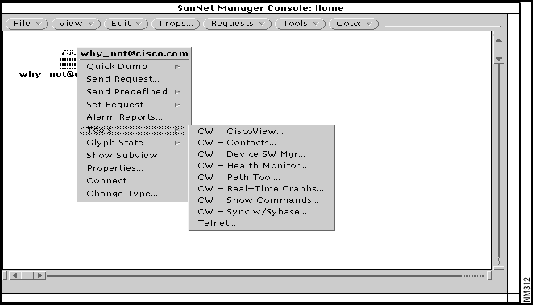
Figure 2-1 : Glyph Menu
Step 2 From the Glyph menu, select Change Type. Move the mouse to the right to display the drop-down menu, which lists device names and types.
Step 3 From the pull-down menu, select the device type that matches the one selected in your network map. For example, if the selected device in your network map is an AGS+, select Cisco-AGS+ from the pull-down menu.
- The device appears as a Cisco device.
Step 4 Repeat steps 1 through 3 to identify other devices in the network map.
Step 5 Confirm that the selected devices have the correct Simple Network Management Protocol (SNMP) Community Strings by selecting Tools>Properties to access the SNM Properties Sheet application.
Synchronizing the SNM Database with Sybase
Two distinct databases are used in your work with CiscoWorks. The first is the Sybase relational database that is used by CiscoWorks applications to contain information about network devices, polling data, configuration details, and other data needed by each application. The second is the SNM run-time database that is used by the SunNet Manager to store information about the network. By synchronizing the Sybase database of CiscoWorks with the SNM database of the network platform, you build a complete resource of information.
SNM maintains a run-time database of devices that you discover by using the Discover tool. In order to use CiscoWorks applications, you must list devices in the Sybase database. The Sync w/Sybase application performs the following functions to enable you to use CiscoWorks applications:
- Adds entries for your network devices into the SNM database.
- Turns on the Cisco agent in the Properties sheet for Cisco devices.
- Confirms that the device list in the SNM run-time database matches the device list in the Sybase database.
Use the Sync w/Sybase application to synchronize the database information. The Sync w/Sybase application appears in the SNM Tools and Glyph menus. Run Sync w/Sybase from the Tools menu if you just initialized SNM, loaded your network map, and want to fully synchronize both databases. Run Sync w/Sybase from the Glyphs menu if you want to synchronize one or more specific devices. In both cases, the Sync w/Sybase window from which you can select other options displays. (See Figure 2-2.)
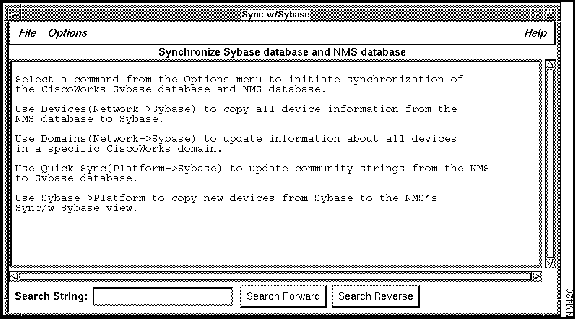
Figure 2-2 : Sync w/Sybase
Depending on the number of database records and the information contained in each, database synchronization can be timely. To adjust for synchronization time and to meet special needs, select one of the following commands from the Options menu of the Sync w/Sybase window:
- Devices (Network--->Sybase)
- Copies the complete number and contents of database records from SNM to Sybase. These records might include information about the hardware platforms, community strings, and so forth. Allows you to choose the SNM device records that you want to add to Sybase. With the device name selected, click on Sync. To select contiguous items, hold down the Shift key and click additional device names or drag your mouse through a range of device names. To select discontiguous items, hold down the Control key and select individual device names.
- Domains (Network--->Sybase)
- Updates device records for the selected domain in the Sybase database. With the domain name selected, click on Sync.
- Quick Sync (SNM--->Sybase)
- Creates only entries in the Sybase table for devices listed in SNM---but excludes any specific information, such as inventory details or hardware platforms. Use this command if you need the databases to quickly recognize the devices contained in each. Later, if you decide that you want the complete device information available from SNM, you can copy it using another command from the Options menu of Sync w/Sybase, or the CiscoWorks Device Management application.
- Copies only the device records from Sybase that did not yet exist in SNM into the SNM database. This is the inverse process of Devices (Network--->Sybase). When you use Device Management or the AutoInstall Manager application to add a device directly to Sybase, it will not be recognized by SNM until you use the Sybase--->NMS command. Nor will the device name be recognized if you added it directly to Sybase but not yet added the glyph to SNM. If you delete a device from SNM, however, it remains as a record in Sybase until you manually delete it from Sybase. A network cloud appears in your network map that lists the device records that were added from this process.
- Displays a dialog box in which you can specify how much time can elapse before synchronization terminates and declares the device unreachable. You can also specify the default timeout using X Resource timeout Interval in your .Xdefaults file. The resource name is synchTimeout.
Figure 2-3 illustrates the relationship between the SNM database and the CiscoWorks database. Although you can directly add device names to either database, you must run the Sync w/Sybase application to confirm that the information about a particular device is correct in both places.
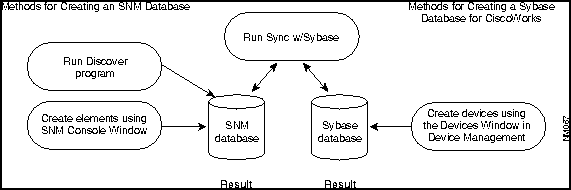
Figure 2-3 : Database Creation for SNM and CiscoWorks
For more detailed information about the database and the Sync w/Sybase and Sync with SNM applications, refer to Chapter 6, "Device Management," later in this guide. For more information about the AutoInstall Manager application, refer to Chapter 5, "Managing Cisco Device Configurations," later in this guide.
After you finish running the Discover tool and creating a run-time database with network devices, follow these steps to run the Sync w/Sybase application:
Step 1 From the SNM Console window, select Tools>Sync w/Sybase.
- The Sync w/Sybase window appears. (See Figure 2-4.)
-
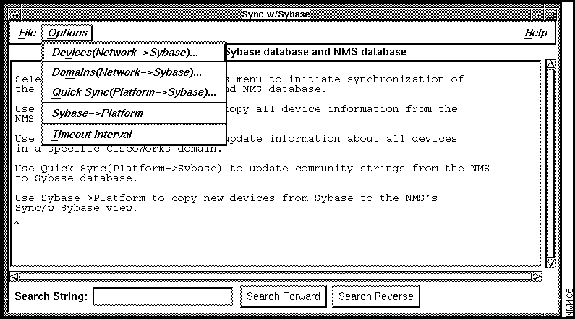
Figure 2-4 : Sync w/Sybase Window
- The synchronization process takes from 3 minutes to over an hour, depending on the size of your network and the number of devices you are synchronizing.
- You can stop the synchronization process at any time by selecting File>Exit. The devices that have been synchronized up to this time will be saved in the Sybase database.
Step 2 Select File>Exit to exit this window.
Quick Tutorial on Using CiscoWorks on SNM
This section provides steps for viewing or using four different CiscoWorks applications:
- Device Management
- Path Tool
- Show Commands
- Real-Time Graphs
In order to use these applications, you must have at least two network devices in the Sybase database. Use the Sync w/Sybase application to add network devices to the Sybase database. After completing the exercises in this chapter, you will have a general idea of how to use CiscoWorks applications. For a detailed explanation of all the CiscoWorks applications, refer to the appropriate sections later in this guide.
Displaying Devices in the Devices Window
When the SNM database is synchronized with the Sybase database, the device information in the Sybase database can be displayed with the Device Management application by accessing the Devices window.
After you synchronized the SNM database with Sybase, perform the following steps to display the names of devices present in the Sybase database:
Step 1 Select Tools>Device Management.
- The Device Management window appears, as shown in Figure 2-5.
-
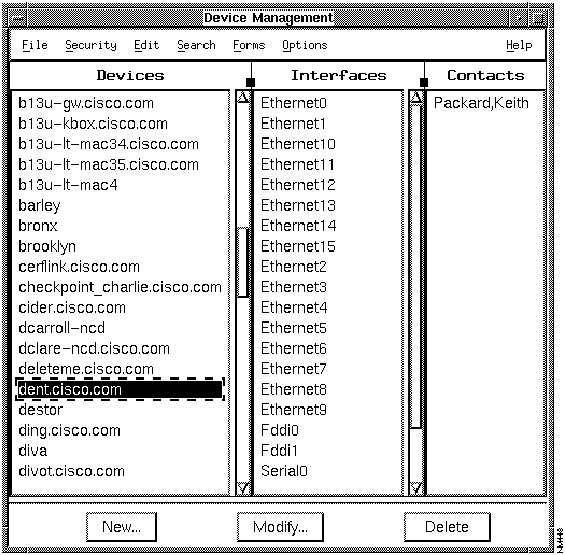
Figure 2-5 : Device Management Window
- The Device Management window uses information stored in the database to display all the devices on the network, the interfaces of the device, and the names of contacts---people who are likely to have more information about a selected device.
Step 2 Select a device name to display the interfaces and contacts associated with that device.
Step 3 To add, modify, or delete interfaces or contacts for a specified device, select a corresponding item from the Edit menu.
Step 4 To modify, add, or delete a device, click on the corresponding button.
Step 5 To search for a specific device or range of devices, select Search>Find.
Step 6 Select File>Exit to exit the Devices window and the database.
Displaying the Path between Two Devices
The Path Tool application enables you to display the routing path between a source device and a destination device.
To graphically display the path between two devices, perform the following steps:
Step 1 In the SNM Console window, click on the SNMP device to display the Glyph menu.
Step 2 Select Tools>Path Tool from the Glyph menu.
- A window similar to that in Figure 2-6 appears. The information about the source device is filled in.
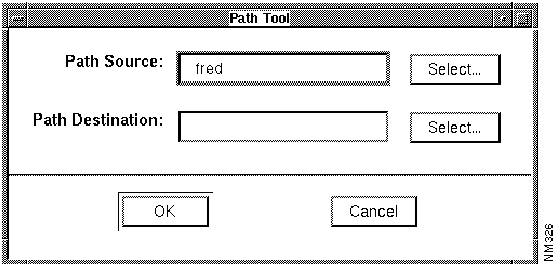
Figure 2-6 : Path Tool Window
Step 3 To select the destination device, click on the Select button beside the Path Destination field or enter the complete device name.
- If you click on the button, the Device Selection window appears listing the devices in the SNM database. It is similar to the window shown in Figure 2-7.
-
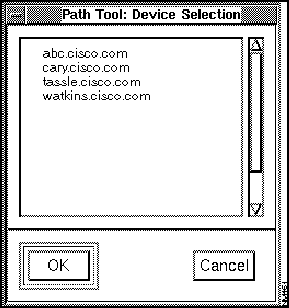
Figure 2-7 : Device Selection Window
Step 4 Click on the device that you want to specify as the destination and click on OK.
- After the connection has been established, the device name appears in the Path Destination field in the Path Tool window.
Step 5 Click on OK to launch the Path Tool.
- When the Path Tool is launched, a browser window (similar to the window shown in
Figure 2-8) appears, displaying the progress of the Path Tool as it makes each network hop from the source to the destination device.
-
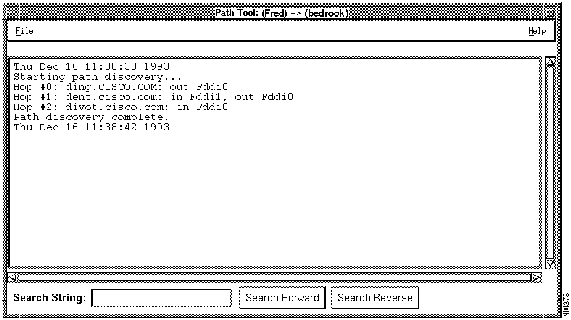
Figure 2-8 : Path Tool Window with Text
- After the connection is established, the Path Tool window appears (similar to the window shown in Figure 2-9), displaying the path between the source and the destination device you specified.
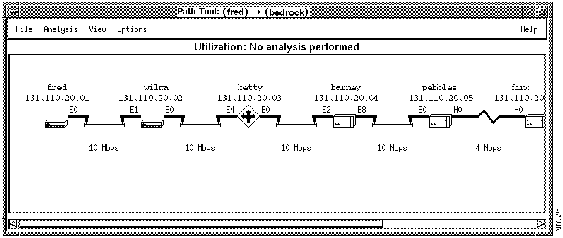
Figure 2-9 : Path Tool Window with a Graphic Display
Step 6 Select File>Exit to close the window.
Using Show Commands
The Show Commands application provides a unique interface to the Cisco devices on your network. It enables you to display device data, such as the status of a device or traffic information.
To use the Show Commands application to obtain data from a device, perform the following steps:
Step 1 In the SNM Console window, select a Cisco device.
Step 2 Select Tools>Show Commands from the Glyph menu.
- The Show Commands window (similar to that shown in Figure 2-10) appears.
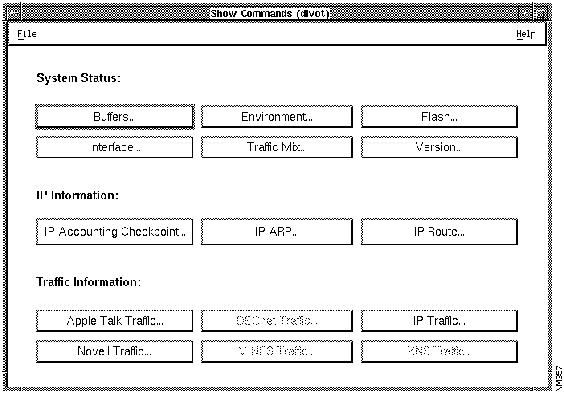
Figure 2-10 : Show Commands Window
Step 3 Click on Interface to display the interfaces for the device.
- The Show Interface window (similar to the window shown in Figure 2-11) appears.
-
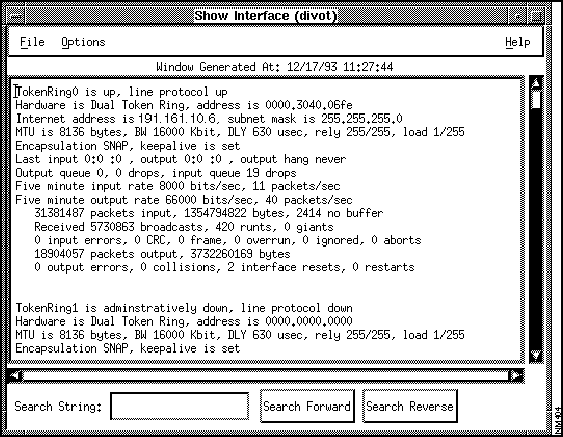
Figure 2-11 : Show Interface Window
Step 4 Select File>Close to exit from the Show Interface window.
- The Show Commands window redisplays.
Step 5 Select File>Exit to exit from the Show Commands application.
Graphing MIB Objects
You can use SNM real-time graphs to observe real-time information by means of a two- or three-dimensional graph. CiscoWorks enables you to graph data about the health of your device and interface, and traffic information.
To display a real-time graph with information on the buffer characteristics for a device, perform the follow the steps:
Step 1 In the SNM Console window, select the SNMP device to display the Glyph menu.
Step 2 Select Tools>Real-Time Graphs from the Glyph menu.
- The Real-Time Graphs window appears as shown in Figure 2-12.
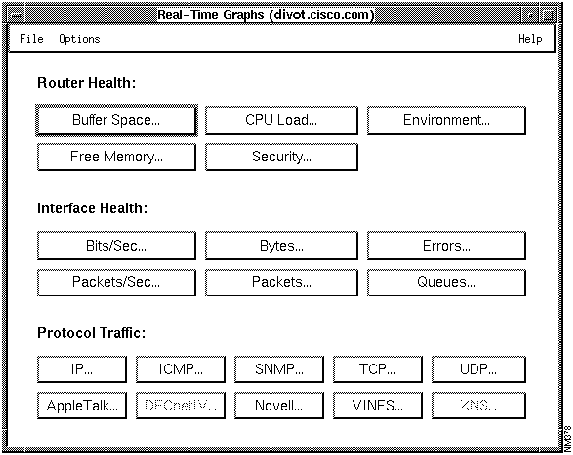
Figure 2-12 : Real-Time Graphs Window
Step 3 In the Router Health section, click on Buffer Space to display the buffer characteristics for the device.
- The Results Grapher window appears briefly (see Figure 2-13) followed by the Real-Time Graphs Free Memory window, which displays the buffer space information in the form of a graph (see Figure 2-14).
-
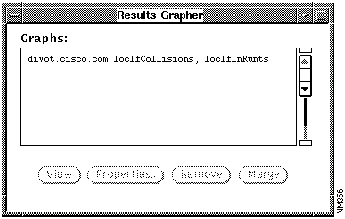
Figure 2-13 : Results Grapher Window
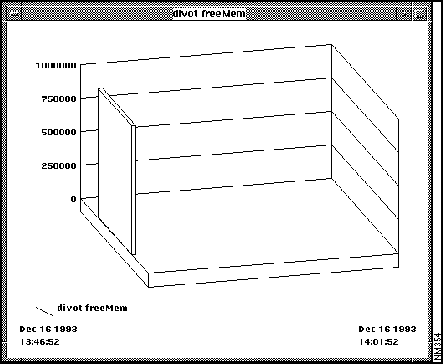
Figure 2-14 : Real-Time Graphs Free Memory Window
Step 4 Click on the close box at the top left corner of the window to display a drop-down menu; then select Close to exit the window.
- or
- Select the item in the Results Grapher and click on Remove.
Step 5 Select File>Exit to exit from the Real-Time Graphs window.
CiscoWorks is integrated with the SunNet Manager (SNM) network management platform.
Note To understand the relationship between SNM and CiscoWorks, you should be familiar with SNM features such as the Create, Discover, and Change Type commands. For all SNM questions, refer to your SNM documentation.
During installation and configuration, CiscoWorks adds customized schema files with Cisco-specific device types, such as the Cisco AGS+, to the SNM schema files directory. CiscoWorks also adds its applications to the SNM Tools and Glyph menus.
Note Familiarize yourself with the standards and conventions used by OPEN LOOK. To familiarize yourself with OPEN LOOK standards, read the appendix on the OPEN LOOK interface in the SunNet Manager 2.0 Reference Guide. CiscoWorks supports these standards for all its graphical-user-interface components, such as using the mouse, opening windows and menus, and manipulating windows and icons.
It is important that you understand the SNM environment and how you can use SNM in conjunction with CiscoWorks. To answer your SNM network management questions, refer to the SNM documentation.
SNM Processes That Affect CiscoWorks
Some processes in SNM affect how CiscoWorks runs, depending on their configuration in SNM. As you continue to work with SNM processes and CiscoWorks, consider the following conditions in which the two environments coexist:
- In SNM, you can customize the operation of the SNM Console and other SNM tools (such as the Results Browser and Results Grapher), or you can accept the default configuration. For example, one option in customizing your configuration is to specify how device errors are indicated on the screen, either by visual or audible signals. To set this type of configuration, refer to your SunNet Manager 2.0 User's Guide.
- One important option you may want to consider is to customize your system to automatically receive information about device status. To set this option, you must open the Console Properties window and enable the SNM Automatic Management feature, as described in the SunNet Manager 2.0 Reference Guide.
- In SNM, you can use the SNM Discover Program to automatically create your map (referred to by SNM as a run-time database). You also can manually add devices (referred to by Sun as components) to your map.
- Especially important is the SNM Change Type command on the SNM Glyph menu. The Change Type command enables you to change the device type. You might need to use this command if you used the SNM Discover tool, and SNM incorrectly classifies the element type of a device. You must classify device types accurately to their specific product names or product types because availability and correct operation of many CiscoWorks applications depends on the correct classification of the device type.
- If you are interested in creating a true network map (which includes different hierarchical views, devices, connections, and buses), refer to the SunNet Manager 2.0 User's Guide for specific instructions.You also will use the SNM Create command or, the CiscoWorks Device Management or Sync w/Sybase Tools, to add new devices to your network map.
- For a brief overview on how the SNM Discover tool is used, refer to "Running the SNM Discover Tool," earlier in this chapter. For a detailed description of the SNM Discover tool, refer to your SunNet Manager 2.0 Reference Guide.
Setting Environment Variables on SNM
To use SNM and CiscoWorks, you must set the following environment variables:
- DISPLAY---Tells programs to which Xserver to connect.
- MANPATH---Directory path for CiscoWorks manual pages.
- NMSROOT---Directory path for CiscoWorks software. The default is /usr/nms.
- PATH---Modify to include $NMSROOT/bin, $NMSROOT/etc, and $SNMHOME/bin.
- SNMHOME---Directory path for SNM software. The default is /usr/snm.
- SYBASE---Directory path for Sybase software. The default is $NMSROOT/sybase.
- PRINTER---Directory path for printer information.
Normally, you should set these variables before installing CiscoWorks. For information on setting environment variables, refer to the CiscoWorks administration and installation guide.
Getting Started with CiscoWorks on HP OpenView
The following sections provide detailed information on the HP OpenView post-installation tasks and contain an overview of how CiscoWorks functions on the HP OpenView network management platform.
The following topics are discussed:
Starting CiscoWorks on HP OpenView
This section briefly discusses how to start the HP OpenView Console in order to access CiscoWorks. You can use several different commands to start the HP OpenView Console. However, you must be running an X window manager, such as Motif.
Note Do not use the following commands until you install HP OpenView in the default installation directory.
Step 1 To start the HP OpenView Console initially (when there is no database present) or when you want to bring up the last map file, enter the following:
%
ovw
- If problems occur, your PATH environment variable might not include a path to HP OpenView executables. You can enter a fully qualified path. In the following example, /usr/OV/bin is the path to the executables:
%
/usr/OV/bin/ovw
Step 2 To load a database map file into the HP OpenView Console, select File>Open/List Maps.
Step 3 To start the HP OpenView Console enter one of the the following:
- To start HP OpenView without a database map file (which clears the run-time database), enter the following:
%
ovw -i
- If you have not saved your map, this command will delete it.
- To start HP OpenView with a specified map file (map_name is an ASCII database file), enter the following:
%
ovw - map
<
map_name
>
For more information on starting the HP OpenView Console or troubleshooting problems with startup, refer to the HP OpenView 2.0 User's Guide.
Learning about Other CiscoWorks Applications on HP OpenView
This section briefly outlines the steps you must complete in HP OpenView before continuing with CiscoWorks tasks. For instructions on using specific CiscoWorks applications, refer to the appropriate sections in this guide.
Follow these steps to learn about CiscoWorks applications that use the Sybase database:
Step 1 Start HP OpenView (if not started already).
- Refer to the section "GUI and Menu Structure of CiscoWorks" later in this chapter to learn how to start HP OpenView.
Step 2 Access the Security Manager application to turn on authentication checking and provide users and groups access privileges to CiscoWorks applications.
- For more information, refer to Chapter 7, "Setting Up Domains and Securing Applications."
Step 3 Set up your HP OpenView run-time database using the HP OpenView Manage Objects command.
- For information on the HP OpenView Manage Objects command, refer to the section "Getting Started with CiscoWorks on HP OpenView" or to the HP OpenView documentation.
Step 4 Use Sync w/Sybase to synchronize HP OpenView database devices with the CiscoWorks Sybase database.
- If you are adding individual devices, use the CiscoWorks Device Management application, the AutoInstall Manager, the Change Symbol Type menu, or Sync w/Sybase application to add device data to the database. For information on the AutoInstall Manager, refer to Chapter 5, "Managing Cisco Device Configurations." For Sync w/Sybase and Device Management application information, refer to Chapter 6, "Device Management."
Note The Sync w/Sybase application synchronizes, or adds, devices that exist in the HP OpenView database to the CiscoWorks database. The Sync w/NMS command, located within Sync w/Sybase, allows you to add devices from the CiscoWorks database to the HP OpenView database. Alternatively, you can add devices created in CiscoWorks by manually adding them using the Create command in HP OpenView or the Initialize command in Device Management.
Step 5 Use the CiscoWorks applications and HP OpenView tools to help you monitor and manage your network activity.
- Table 2-2 lists some general network management tasks and associates the task with its responsible software application. Use this table to determine which documentation set (CiscoWorks or HP OpenView) to use if you have questions or need information. The X indicates that this information is located in the HP OpenView manual set for the tool or application.
Table 2-2 : CiscoWorks Versus HP OpenView Task Descriptions
| Starting HP OpenView Console
|
X
|
|
| Using Manage Objects command
|
X
|
|
| Traversing your network map (run-time database)
|
X
|
|
| Creating or finding elements or element properties
|
X
|
Device Mgmt
|
| Modifying or changing elements or element properties
|
X
|
Device Mgmt
|
| Moving or connecting elements (devices)
|
X
|
|
| Copying or deleting elements (devices)
|
X
|
Device Mgmt
|
| Saving your network map (run-time database)
|
X
|
|
| Using HP OpenView applications (such as Graph Collected Data: SNMP)
|
X
|
|
| Modifying a graph display
|
X
|
|
| Printing graphs, windows, or text files
|
X
|
|
| Changing the symbol type
|
X
|
|
| Specifying an event (condition of notification)
|
X
|
Device Monitor (SNM only)
|
| Checking the cause of an event
|
X
|
Log Manager
|
| Changing how symbol type changes propagate
|
X
|
|
| Viewing or changing the status of requests
|
X
|
|
| Viewing error and traps
|
X
|
Log Manager
|
| Managing HP OpenView devices
|
X
|
All CiscoWorks applications
|
Overview of CiscoWorks on HP OpenView
CiscoWorks is integrated with the HP OpenView network management platform.
Note To understand the relationship between HP OpenView and CiscoWorks, you should be familiar with HP OpenView features such as the Open/List Maps, Manage Objects, and Change Symbol Type commands. For all HP OpenView questions, refer to your HP OpenView documentation.
During installation and configuration, CiscoWorks adds customized schema files with Cisco-specific device types, such as the Cisco AGS+, to the HP OpenView schema files directory. CiscoWorks also adds its applications to the HP OpenView Tools and Glyph menus.
Note Familiarize yourself with the standards and conventions used by Motif. CiscoWorks supports these standards for all its graphical-user-interface components, such as using the mouse, opening windows and menus, and manipulating windows and icons.
It is important that you understand the HP OpenView environment and how you can use HP OpenView in conjunction with CiscoWorks. To answer your HP OpenView network management questions, refer to the HP OpenView documentation.
CiscoWorks Use of HP OpenView Tools
CiscoWorks uses one HP OpenView application, xnmgraph.The HP OpenView xnmgraph presents real-time or logged network data in graphical format. The xnmgraph application is used in the CiscoWorks Health Monitor and Real-Time Graphs applications to display data in graphical format. you can change the graph properties either with the pull-down menu on the graph window or by means of X resources in /usr/OV/appdefaults/xnm.
For more detailed information on the xnmgraph, refer to your HP OpenView documentation.
Running the Manage Objects Command on HP OpenView
Most CiscoWorks applications require a database of network devices. They also require a network map that contains these network devices.
HP OpenView automatically displays a default map, called IP Map, which displays all the IP devices connected to the HP OpenView workstation. The Manage Objects command enables you to find the devices in the primary network to which your system is attached. Use the Manage Objects command to view your network and a run-time database for HP OpenView.
Note The amount of time taken by the Manage Objects command to find devices on your network depends on the size of your subnet and the number of devices attached to it.
To run the Manage Objects command, perform the following steps:
Step 1 At the UNIX prompt, display the HP OpenView Console by entering the following command:
hostname%
ovw
- The HP OpenView Console window appears.
Step 2 Open the IP Internet default map.
Step 3 Click on a device symbol to select it.
Step 4 Select Options>Manage Objects.
- The Manage Objects command begins to construct views of the network. When the Manage Objects command completes the process, you see a representation of the subnetwork that is joined to the selected device. The subnetworks appear in the form of lines connecting the selected device symbol to other device symbols.
Step 5 To save the database of devices that you created, select File>Save Map As.
- For detailed information on how to run the Manage Objects command, refer to the HP OpenView User's Guide. To add devices to a network map after CiscoWorks installation, you can use any of the following applications: Device Management, AutoInstall Manager, or Sync w/Sybase. For more information adding devices after a CiscoWorks installation, refer to the appropriate sections within this guide.
Identifying Cisco Devices for CiscoWorks on HP OpenView
Network devices that are discovered by the Manage Objects command may exist as generic devices. You must identify them as Cisco devices to take advantage of CiscoWorks functionality.
To use the Change Symbol Type command to change a device from its generic status to the status of a Cisco device, perform the following steps:
Step 1 In the HP OpenView Console window, use the mouse to point to a Cisco device.
Step 2 then press the right mouse button or equivalent.
- The symbol popup menu for the device appears. It is similar to the window in Figure 2-15.
-
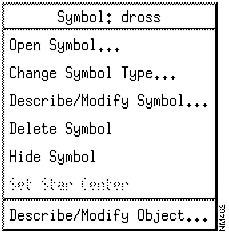
Figure 2-15 : Symbol Popup Menu
Step 3 From the Symbol Popup menu, select Change Symbol Type.
- The Change Symbol Type window appears, as shown in Figure 2-16.
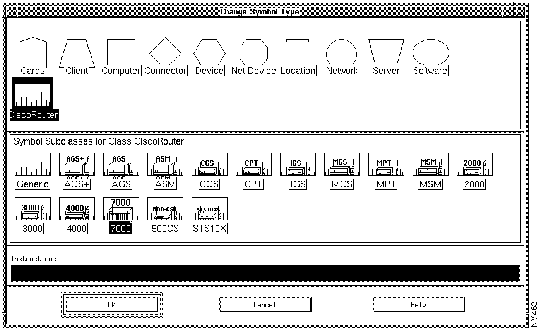
Figure 2-16 : Change Symbol Type
Step 4 Select a symbol class that corresponds to the device you selected in the map. For example, if the selected device in your network map is a Cisco 7000, select Cisco Router because Cisco 7000 is a class of Cisco Router.
- The Change Symbol Type window expands to show you the Symbol Subclasses for Class Cisco Router.
Step 5 Select a symbol subclass for the specified symbol. For example, if the selected device in your network map is a Cisco 7000, select the 7000 symbol.
Step 6 Repeat steps 1 through 4 to identify other devices in the network map.
Step 7 Confirm that the selected devices have the correct SNMP Community Strings by viewing the SNMP Configuration window. (From the HP OpenView menu bar, select Options>SNMP Configuration.)
Synchronizing the HP OpenView Database with Sybase
Two distinct databases are used in your work with CiscoWorks. The first is the Sybase relational database that is used by CiscoWorks applications to contain information about network devices, polling data, configuration details, and other data needed by each application. The second is the HP OpenView run-time database that is used by HP OpenView to store information about the network. By synchronizing the Sybase database of CiscoWorks with the HP OpenView database of the network platform, you build a complete resource of information.
HP OpenView maintains a run-time database of devices that you discover by using the Manage Objects command. In order to use CiscoWorks applications, you must list devices in the Sybase database. The Sync w/Sybase application performs the following functions to enable you to use CiscoWorks applications:
- Adds entries for your network devices into the HP OpenView database.
- Turns on the Cisco agent in the Properties sheet for Cisco devices.
- Confirms that the device list in the HP OpenView run-time database matches the device list in the Sybase database.
Use the Sync w/Sybase application to synchronize the database information. The Sync w/Sybase application appears in the CiscoWorks menu and HP OpenView symbol popup menus. Run Sync w/Sybase from the Misc. menu if you just initialized HP OpenView and want to fully synchronize both databases. Run Sync w/Sybase from the symbol popup menu if you want to synchronize one or more specific devices. In both cases, the Sync w/Sybase window from which you can select other options displays. (See Figure 2-17.)
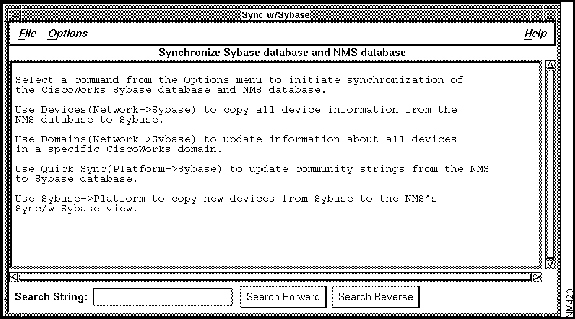
Figure 2-17 : Sync w/Sybase
Depending on the number of database records and the information contained in each, database synchronization can be timely. To adjust for synchronization time and to meet special needs, select one of the following commands from the Options menu of the Sync w/Sybase window:
- Devices (Network--->Sybase)
- Copies the complete number and contents of database records from HP OpenView to Sybase. These records might include information about the hardware platforms, community strings, and so forth. Allows you to choose the HP OpenView device records that you want to add to Sybase. With the device name selected, click on Sync. To select contiguous items, hold down the Shift key and click additional device names or drag your mouse through a range of device names. To select discontiguous items, hold down the Control key and select individual device names.
- Domains (Network--->Sybase)
- Updates device records for the selected domain in the Sybase database. With the domain name selected, click on Sync.
- Quick Sync (NMS--->Sybase)
- Creates only entries in the Sybase table for devices listed in HP OpenView---but excludes any specific information, such as inventory details or hardware platforms. Use this command if you need the databases to quickly recognize the devices contained in each. Later, if you decide that you want the complete device information available from HP OpenView, you can copy it using another command from the Options menu of Sync w/Sybase, or the CiscoWorks Device Management application.
- Copies only the device records from Sybase that did not yet exist in HP OpenView into the HP OpenView database. This is the inverse process of Devices (Network--->Sybase). When you use Device Management or the AutoInstall Manager application to add a device directly to Sybase, the device name will not be recognized by HP OpenView until you use the Sybase--->NMS command. Nor will the device name be recognized if you added it directly to Sybase but not yet have added the symbol to HP OpenView. If you delete a device from HP OpenView, however, it remains as a record in Sybase until you manually delete it from Sybase. A network symbol (circle) appears in your network map that lists the device records that were added from this process.
- Displays a dialog box in which you can specify how much time can elapse before synchronization terminates and declares the device unreachable. You can also specify the default timeout using X Resource timeout Interval in your .Xdefaults file. The resource name is synchTimeout.
Figure 2-18 illustrates the relationship between the HP OpenView database and the CiscoWorks database. Although you can directly add device names to either database, you must run the Sync w/Sybase application to confirm that the information about a particular device is correct in both places.
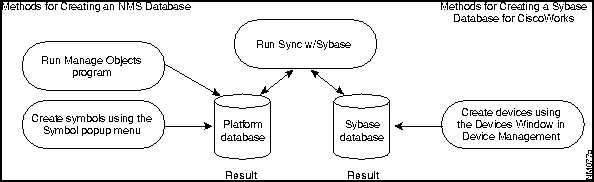
Figure 2-18 : Database Creation for HP OpenView and CiscoWorks
For more detailed information about the database and the Sync w/Sybase and Sync with NMS applications, refer to Chapter 6, "Device Management.." For more information about the AutoInstall Manager application, refer to Chapter 5, "Managing Cisco Device Configurations."
After you finish creating a run-time database with network devices, follow these steps to run the Sync w/Sybase application:
Step 1 Select Misc>Sync w/Sybase.
- The Sync w/Sybase window appears. (See Figure 2-19.)
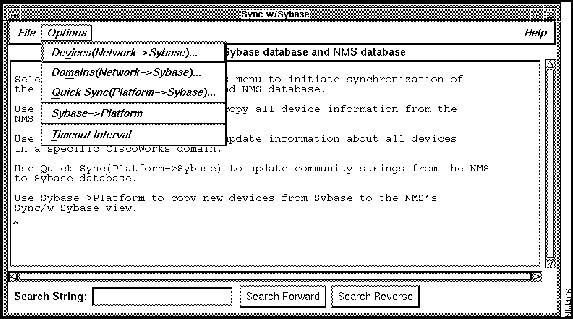
Figure 2-19 : Sync w/Sybase Window
- The synchronization process takes from 3 minutes to over an hour, depending on the size of your network and the number of devices you are synchronizing.
- You can stop the synchronization process at any time by selecting File>Exit. The devices that have been synchronized up to this time will be saved in the Sybase database.
Step 2 Select File>Exit to exit this window.
Quick Tutorial on Using CiscoWorks on HP OpenView
This section provides steps for viewing or using four different CiscoWorks applications:
- Device Management
- Path Tool
- Show Commands
- Real-Time Graphs
In order to use these applications, you must have at least two network devices in the Sybase database. Use the Sync w/Sybase application to add network devices to the Sybase database. After completing the exercises in this chapter, you will have a general idea of how to use CiscoWorks applications. For a detailed explanation of all the CiscoWorks applications, refer to the appropriate sections in this guide.
Displaying Devices in the Devices Window
When the HP OpenView database is synchronized with the Sybase database, the device information in the Sybase database can be displayed with the Device Management application by accessing the Devices window.
After you synchronized the NMS database with Sybase, perform the following steps to display the names of devices present in the Sybase database:
Step 1 Select the Administer>Cisco Devices>Device Mgmt application.
- The Device Management window appears, as shown in Figure 2-20.
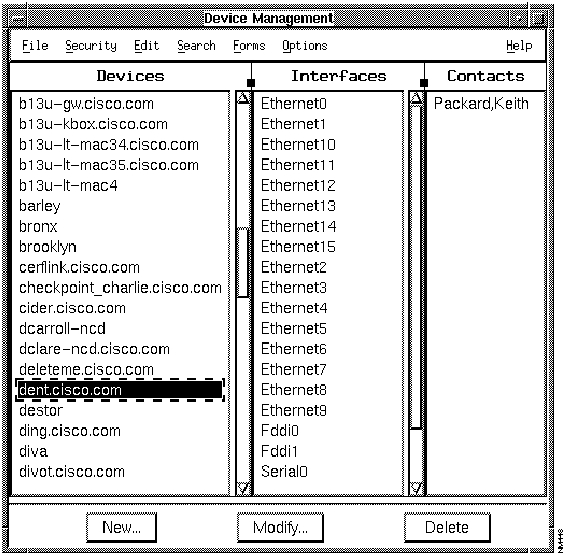
Figure 2-20 : Device Management Window
- The Device Management window uses information stored in the database to display all the devices on the network, the interfaces of the device, and the names of contacts---people who are likely to have more information about a selected device.
Step 2 Select a device name to display the interfaces and contacts associated with that device.
Step 3 To add, modify, or delete interfaces or contacts for a specified device, select a corresponding item from the Edit menu.
Step 4 To modify, add, or delete a device, click on the corresponding button.
Step 5 To search for a specific device or range of devices, select Search>Find.
Step 6 Select File>Exit to exit the Devices window and the database.
Displaying the Path between Two Devices
The Path Tool application enables you to display the routing path between a source device and a destination device.
To graphically display the path between two devices, perform the following steps:
Step 1 From the HP OpenView menu bar, select Diagnose>Network Connectivity>Path Tool.
- A window similar to that in Figure 2-21 appears. The information about the source device is filled in.
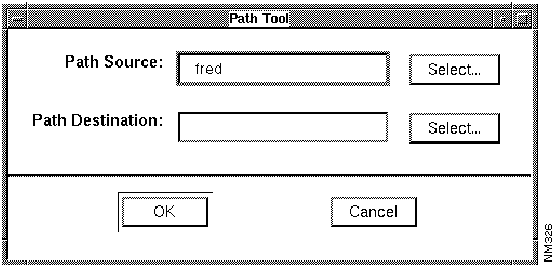
Figure 2-21 : Path Tool Window
Step 2 To select the destination device, click on Select beside the Path Destination field or enter the complete device name.
- If you click on the button, the Device Selection window appears listing the devices in the HP OpenView database. It is similar to the window shown in Figure 2-22.
-
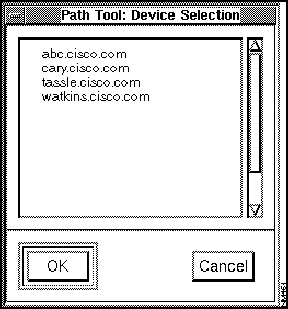
Figure 2-22 : Device Selection Window
Step 3 Click on the device that you want to specify as the destination and click on OK.
- After the connection has been established, the device name appears in the Path Destination field in the Path Tool window.
Step 4 Click on OK to launch the Path Tool.
- When the Path Tool is launched, a browser window (similar to the window shown in
Figure 2-23) appears, displaying the progress of the Path Tool as it makes each network hop from the source to the destination device.
-
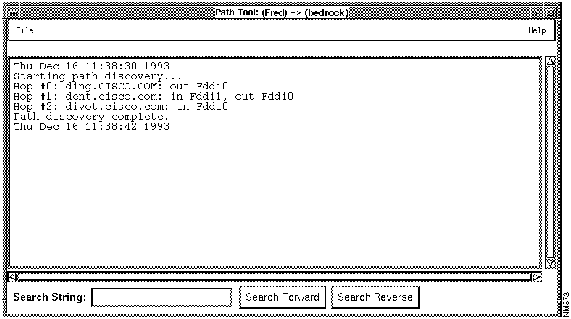
Figure 2-23 : Path Tool Window with Text
- After the connection is established, the Path Tool window appears (similar to the window shown in Figure 2-24), displaying the path between the source and the destination device you specified.
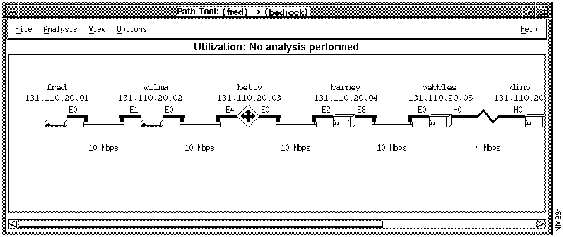
Figure 2-24 : Path Tool Window with a Graphic Display
Step 5 Select File>Exit to close the window.
Using Show Commands
The Show Commands application provides a unique interface to the Cisco devices on your network. It enables you to display device data, such as the status of a device or traffic information.
To use the Show Commands application to obtain data from a device, perform the following steps:
Step 1 In the HP OpenView Console window, select a Cisco device.
Step 2 Click the right mouse button or equivalent to select Diagnose>Show Commands.
- The Show Commands window (similar to that shown in Figure 2-25) appears.
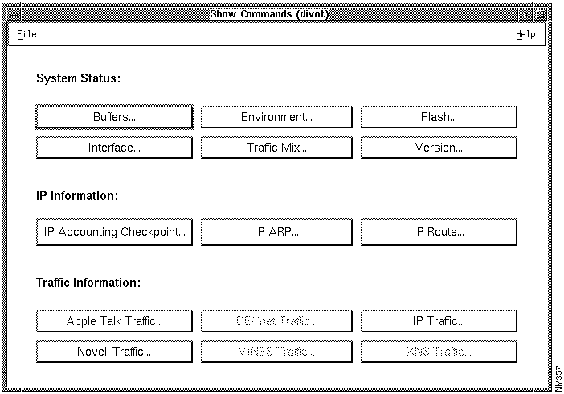
Figure 2-25 : Show Commands Window
Step 3 Click on Interface to display the interfaces for the device.
- The Show Interface window (similar to the window shown in Figure 2-26) appears.
-
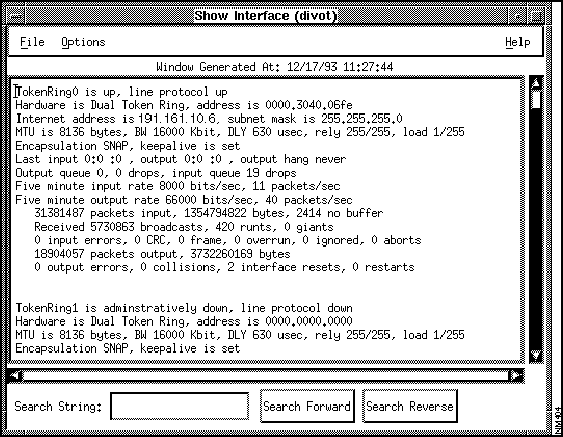
Figure 2-26 : Show Interface Window
Step 4 Select File>Close to exit from the Show Interface window.
- The Show Commands window redisplays.
Step 5 Select File>Exit to exit from the Show Commands application.
Graphing MIB Objects
You can use CiscoWorks real-time graphs to observe real-time information by means of a two- or three-dimensional graph. CiscoWorks enables you to graph data about the health of your device and interface, and traffic information.
To display a real-time graph with information on the buffer characteristics for a device, perform the follow the steps:
Step 1 In the HP OpenView Console window, select a device.
Step 2 From the HP OpenView menu bar, select Plan>Real-Time Graphs.
- The Real-Time Graphs window appears as shown in Figure 2-27.
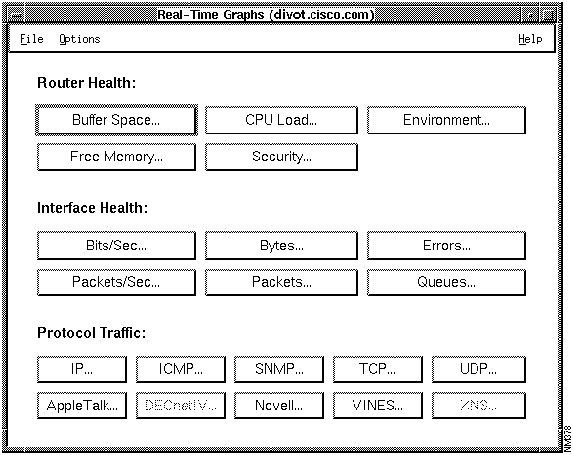
Figure 2-27 : Real-Time Graphs Window
Step 3 In the Router Health section, click on Buffer Space to display the buffer characteristics for the device.
- The Real-Time Graphs Free Memory window displays containing the buffer space information in the form of a graph (see Figure 2-28).
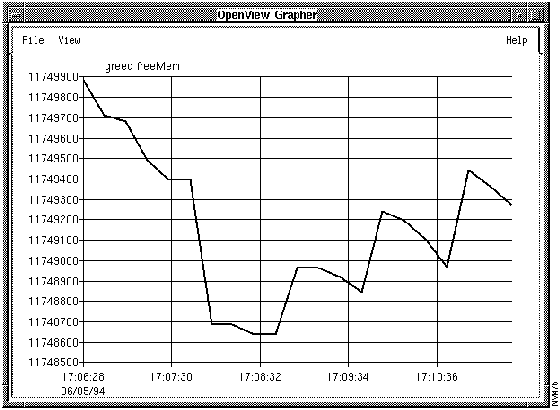
Figure 2-28 : Real-Time Graphs Free Memory Window
Step 4 Click on the close box at the top left corner of the window to display a drop-down menu; then select Close to exit the window.
Step 5 Select File>Exit to exit from the Real-Time Graphs window.
HP OpenView Processes That Affect CiscoWorks
Some processes in OpenView affect how CiscoWorks runs, depending on their configuration in OpenView. As you continue to work with OpenView processes and CiscoWorks, consider the following conditions in which the two environments coexist:
- In OpenView, you can customize the operation of the HP OpenView Console and other HP OpenView tools
- In HP OpenView, an IP Internet map is automatically created for you, providing data on all IP devices connected to your OpenView workstation. To automatically discover newly added or modified IP devices, use the HP OpenView Manage Objects command. You can also manually add devices (referred to by HP OpenView as objects) to your map.
- Especially important is the HP OpenView Change Symbol Type command on the HP OpenView symbol popup menu. The Change Symbol Type command enables you to change the device symbol type. You might need to use this command if you used the Manage Objects command, and HP OpenView assigned an incorrect symbol to the device. You must classify device types accurately to their specific product names or product types because availability and correct operation of many CiscoWorks applications depends on the correct classification of the device type.
- If you are interested in creating a true network map (which includes different submaps, devices, connections, and buses), refer to the HP OpenView User's Guide for specific instructions.You also will use the HP OpenView New Map command, or the CiscoWorks Device Management or Sync w/Sybase Tools, to add new devices to your network map.
- For a brief overview on how the HP OpenView Manage Objects command is used, refer to the section "Running the Manage Objects Command on HP OpenView," earlier in this chapter. For a detailed description of the HP OpenView Manage Objects command, refer to your HP OpenView User's Guide.
Setting Environment Variables on HP OpenView
To use HP OpenView and CiscoWorks, you must set the following environment variables:
- DISPLAY---Tells programs to which Xserver to connect.
- MANPATH---Directory path for CiscoWorks manual pages.
- NMSROOT---Directory path for CiscoWorks software. The default is /usr/nms.
- PATH---Modify to include $NMSROOT/bin, $NMSROOT/etc, and the bin directory of HP OpenView (/usr/OV/bin).
- SYBASE---Directory path for Sybase software. The default is $NMSROOT/sybase.
- PRINTER---Directory path for printer information for HP OpenView on Sun. Use LPDEST for printer path on HP OpenView on UNIX.
Normally, you should set these variables before installing CiscoWorks. For information on setting environment variables, refer to the CiscoWorks administration and installation guide.
Getting Started with CiscoWorks on NetView for AIX
The following sections provide detailed information on some post-installation tasks. It also contains an overview of how CiscoWorks functions on the NetView for AIX network management platform.
The following topics are discussed:
Starting CiscoWorks on NetView for AIX
This section briefly discusses how to start NetView for AIX in order to access CiscoWorks. You can use several different commands to start NetView for AIX. You must be running an X window manager, such as Motif to start NetView for AIX.
Note Do not use the following commands until you install NetView for AIX in the default installation directory.
There are three ways to start NetView for AIX:
- nv6000---Starts NetView for AIX initially with whatever network map last appeared in the NetView for AIX main window.
- nv6000 -i
---Starts NetView for AIX without a network map. Removes the last network map without saving it.
- nv6000 -map mapname---Starts NetView for AIX with a specified network map file, in this case, mapname.
If problems occur, your PATH environment variable might not include a path to NetView for AIX executables. To resolve this problem, try entering a fully qualified path, such as /usr/OV/bin/nv6000.
To load a network map file into the NetView for AIX main window, select File>Open/List Maps.
For more information on starting NetView for AIX or troubleshooting problems with startup, refer to the NetView for AIX User's Guide.
Learning about Other CiscoWorks Applications on NetView for AIX
This section briefly outlines the steps you must complete in NetView for AIX before continuing with CiscoWorks tasks. For instructions on using specific CiscoWorks applications, refer to the appropriate sections in this guide.
In order to use the CiscoWorks applications that use the Sybase database, follow these steps:
Step 1 Start NetView for AIX (if not started already).
- Refer to the section "Starting CiscoWorks on NetView for AIX" to learn how to start NetView for AIX.
Step 2 Access the Security Manager application to turn on authentication checking and provide user and group access privileges to CiscoWorks applications.
- For more information, refer to Chapter 7, "Setting Up Domains and Securing Applications," in your CiscoWorks User Guide.
Step 3 Set up your NetView for AIX run-time database using the NetView for AIX Manage Objects command.
- For information on the NetView for AIX Manage Objects command, refer to the section "Getting Started with CiscoWorks on NetView for AIX" or to the NetView for AIX documentation.
Step 4 Use Sync w/Sybase to synchronize devices in NetView for AIX with the CiscoWorks Sybase database.
- If you are adding individual devices, use the CiscoWorks Device Management application, the AutoInstall Manager, the Change Symbol Type command, or the Sync w/Sybase application to add device data to the database. For information on the AutoInstall Manager, refer to Chapter 5, "Managing Cisco Device Configurations." For Sync w/Sybase and Device Management application information, refer to Chapter 6, "Device Management."
Note The Devices (Network--->Sybase) command synchronizes, or adds, devices that exist in the NetView for AIX database to the CiscoWorks database. The Sybase--->Platform command, located within Sync w/Sybase, allows you to add devices from the CiscoWorks database to the NetView for AIX database. Alternatively, you can add devices created in CiscoWorks by manually adding them using the Create command in NetView for AIX or the Initialize command in Device Management.
Step 5 Use the CiscoWorks applications to help you manage your network activity.
- Table 2-3 lists some general network management tasks and associates the task with its responsible CiscoWorks software application. Use this table to determine which documentation set (CiscoWorks or NetView for AIX) to use if you have questions or need information. The NA indicates that this information is not applicable to the CiscoWorks software or manuals and to refer to the NetView for AIX manual set. The X indicates that this information may be covered briefly in the CiscoWorks manual set, but may be a platform-specific task so should be referenced in your platform documentation.
Table 2-3 : CiscoWorks Task Descriptions
| Starting NetView for AIX
|
X
|
| Using Manage Objects command
|
X
|
| Traversing your network map (run-time database)
|
NA
|
| Creating or finding elements or element properties
|
Device Mgmt, Sync w/Sybase
|
| Modifying or changing elements or element properties
|
Device Mgmt
|
| Moving or connecting elements (devices)
|
NA
|
| Copying or deleting elements (devices)
|
Device Mgmt
|
| Saving your network map (run-time database)
|
NA
|
| Using platform applications (such as Graph Collected Data: SNMP)
|
NA
|
| Modifying a graph display
|
NA
|
| Printing graphs, windows, or text files
|
X
|
| Changing the symbol type
|
NA
|
| Specifying an event (condition of notification)
|
NA
|
| Checking the cause of an event
|
Log Manager
|
| Changing how symbol type propagates
|
NA
|
| Viewing or changing the status of requests
|
NA
|
| Viewing errors and traps
|
Log Manager
|
| Managing NetView for AIX devices
|
All CiscoWorks applications
|
Overview of CiscoWorks on NetView for AIX
CiscoWorks is integrated with the NetView for AIX network management platform.
Note To understand the relationship between NetView for AIX and CiscoWorks, you should be familiar with NetView for AIX features such as the Open/List Maps, Manage Objects, and Change Symbol Type commands. For all NetView for AIX questions, refer to your NetView for AIX documentation.
During installation and configuration, CiscoWorks adds customized router files with Cisco-specific device types, such as the Cisco AGS+, to the NetView for AIX /usr/OV/symbols directory. CiscoWorks also adds its applications to the NetView for AIX menu bar.
Note Familiarize yourself with the standards and conventions used by Motif. CiscoWorks supports these standards for all its graphical-user-interface components, such as using the mouse, opening windows and menus, and manipulating windows and icons.
CiscoWorks Use of NetView for AIX Tools
CiscoWorks uses the NetView for AIX grapher, xnmgraph, to present real-time or logged network data in graphical format. The xnmgraph application is used in the CiscoWorks Health Monitor and Real-Time Graphs applications to display data in graphical format. You can change the graph properties either with the pull-down menu on the graph window or using the X resources in
/usr/OV/appdefaults/xnm.
For more detailed information on xnmgraph, refer to your NetView for AIX documentation.
Running the Manage Objects Command on NetView for AIX
Most CiscoWorks applications require a database of network devices. They also require a network map that contains these network devices.
NetView for AIX automatically displays a default map, called IP Map, which displays all the IP devices connected to the NetView for AIX workstation. The Manage Objects command enables you to find the devices in the primary network to which your system is attached. Use the Manage Objects command to view your network and run-time database for NetView for AIX.
Note The time taken by the Manage Objects command to find devices on your network depends on the size of your subnetwork and the number of devices attached to it.
To run the Manage Objects command, perform the following steps:
Step 1 At the UNIX prompt, display NetView for AIX by entering the following command:
hostname%
nv6000
- The NetView for AIX main window appears. (See Figure 1-5.)
Step 2 Open the IP Internet default map.
Step 3 Click on a device symbol to select it.
Step 4 Select Options>Manage Objects.
- The Manage Objects command begins to construct views of the network. When the Manage Objects command completes the process, you see a representation of the subnetwork that is connected to the selected device. The subnetworks appear in the form of lines connecting the selected device symbol to other device symbols.
Step 5 To save the database of devices that you created, select File>Save Map As.
- To add devices to a network map after CiscoWorks installation, you can use any of the following applications: Device Management, AutoInstall Manager, or Sync w/Sybase. For more information on adding devices after a CiscoWorks installation, refer to the appropriate sections within the CiscoWorks User Guide.
- For detailed information on how to run the Manage Objects command, refer to the NetView for AIX User's Guide.
Identifying Cisco Devices for CiscoWorks
Network devices that are discovered by the Manage Objects command may exist as generic devices. You must identify them as Cisco devices to take advantage of CiscoWorks functionality.
To use the Change Symbol Type command to change a device from its generic status to the status of a Cisco device, perform the following steps:
Step 1 In the NetView for AIX main window, use the mouse to point to the device then press the right mouse button or equivalent.
Step 2 Select Edit>Change Symbol Type.
- The Change Symbol Type window appears, as shown in Figure 2-29.
-
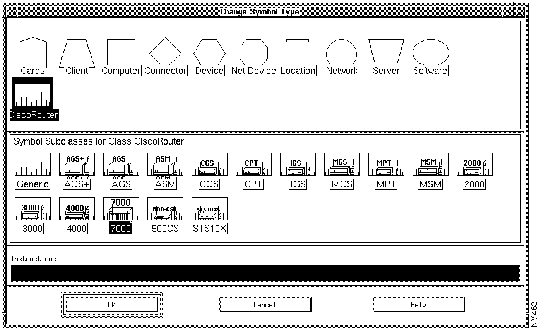
Figure 2-29 : Change Symbol Type
Step 3 Select a symbol class that corresponds to the device you selected in the map. For example, if the selected device in your network map is a Cisco 7000, select Cisco Router because Cisco 7000 is a class of Cisco Router.
- The Change Symbol Type window expands to show you the Symbol Subclasses for Class Cisco Router. All supported Cisco router classes appear in this panel in the Change Symbol Type window.
Step 4 Select a symbol subclass for the specified symbol. For example, if the selected device in your network map is a Cisco 7000, select the 7000 symbol.
Step 5 Repeat steps 1 through 4 to identify other devices in the network map.
Step 6 Confirm that the selected devices have the correct SNMP Community Strings by viewing the SNMP Configuration window. (From the NetView for AIX menu bar, select Options>SNMP Configuration.)
Synchronizing the NetView for AIX Database with Sybase
Two distinct databases are used in your work with CiscoWorks. The first is the Sybase relational database that is used by CiscoWorks applications to contain information about network devices, polling data, configuration details, and other data needed by each application. The second is the NetView for AIX run-time database that is used by NetView for AIX to store information about the network. By synchronizing the CiscoWorks Sybase database with the NetView for AIX database, you build a complete resource of information.
NetView for AIX maintains a run-time database of devices that you discover by using the Manage Objects command. In order to use CiscoWorks applications, you must include devices in the Sybase database. The Sync w/Sybase application performs the following functions to enable you to use CiscoWorks applications:
- Adds entries for your network devices from the Sybase database into the NetView for AIX database.
- Sets the correct device type for the device selected.
- Confirms that the device list in the NetView for AIX run-time database matches the device list in the Sybase database.
Use the Sync w/Sybase or Sync Selected applications to synchronize the database information. Both the Sync w/Sybase and Sync Selected applications appear in the Misc menu. Use Sync w/Sybase if you just initialized NetView for AIX and want to fully synchronize both databases. Use Sync Selected if you want to synchronize a specific device.
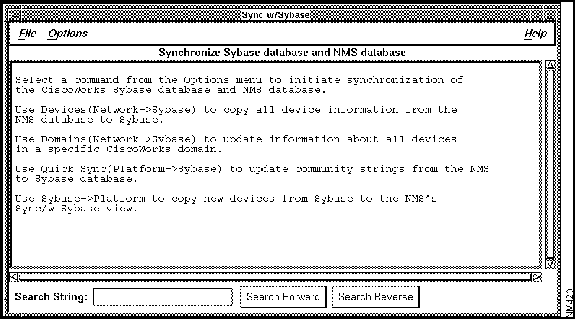
Figure 2-30 : Sync w/Sybase
Depending on the number of database records and the information contained in each, database synchronization can be time-consuming. To adjust for synchronization time and to meet special needs, select one of the following commands from the Options menu of the Sync w/Sybase window: (See Figure 2-30.)
- Devices (Network--->Sybase)
- Copies the complete number and contents of database records from NetView for AIX to Sybase. These records might include information about the hardware platforms, community strings, and so forth. Allows you to choose the NetView for AIX device records that you want to add to Sybase. With the device name selected, click on the Sync button. To select contiguous items, hold down the Shift key and click additional device names or drag your mouse through a range of device names. To select discontiguous items, hold down the Control key and select individual device names.
- Domains (Network--->Sybase)
- Updates device records for the selected domain in the Sybase database. With the domain name selected, click on the Sync button.
- Quick Sync (Platform--->Sybase)
- Creates only entries in the Sybase table for devices listed in NetView for AIX---but excludes any specific information, such as inventory details or hardware platforms. Use this command if you need the databases to quickly recognize the devices contained in each. Later, if you decide that you want the complete device information available from NetView for AIX, you can copy it using another command from the Options menu of Sync w/Sybase, or the CiscoWorks Device Management application.
- Copies only the device records from Sybase that did not yet exist in NetView for AIX into the NetView for AIX database. This is the inverse process of Devices (Network--->Sybase). When you use Device Management or the AutoInstall Manager application to add a device directly to Sybase, the device name will not be recognized by NetView for AIX until you use the
Sybase--->Platform command. Nor will the device name be recognized if you added it directly to Sybase but have not yet added the symbol to NetView for AIX. If you delete a device from NetView for AIX, however, it remains as a record in Sybase until you manually delete it from Sybase. A network symbol (circle) appears in your network map that lists the device records that were added from this process.
- Displays a dialog box in which you can specify how much time can elapse before synchronization terminates and declares the device unreachable. You can also specify the default timeout using X Resource timeout Interval in your .Xdefaults file.
Use the Misc>Sync Selected option in the NetView for AIX menu to synchronize a specific device.
Figure 2-31 illustrates the relationship between the NetView for AIX database and the CiscoWorks database. Although you can directly add device names to either database, you must run the
Sync w/Sybase application to confirm that the information about a particular device is correct in both places.
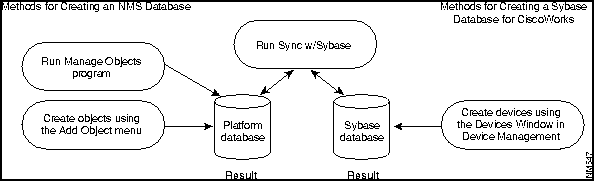
Figure 2-31 : Database Creation for NetView for AIX and CiscoWorks
For more detailed information about the database and the Sync w/Sybase and Sync Selected applications, refer to Chapter 6, "Device Management." For more information about the AutoInstall Manager application, refer to Chapter 5, "Managing Cisco Device Configurations."
After you finish creating a run-time database with network devices, follow these steps to run the Sync w/Sybase application:
Step 1 Select Misc>Sync w/Sybase.
- The Sync w/Sybase window appears. (See Figure 2-30.)
-
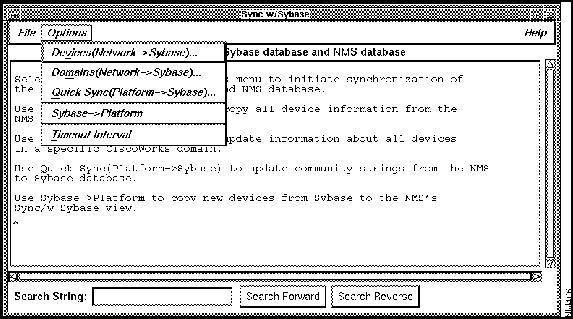
Figure 2-32 : Sync w/Sybase Window
- The synchronization process takes from 3 minutes to over an hour, depending on the size of your network and the number of devices you are synchronizing.
- You can stop the synchronization process at any time by selecting File>Exit. The devices that have been synchronized up to this time will be saved in the Sybase database.
Step 2 Select File>Exit to exit this window.
Quick Tutorial on Using CiscoWorks on NetView for AIX
This section provides steps for viewing or using four key CiscoWorks applications:
- Device Management
- Path Tool
- Show Commands
- Real-Time Graphs
In order to use these applications, you must have at least two network devices in the Sybase database. Use the Sync w/Sybase application to add network devices to the Sybase database. After completing the exercises in this chapter, you will have a general idea of how to use CiscoWorks applications. For a detailed explanation of all the CiscoWorks applications, refer to the appropriate sections in this guide.
Displaying Devices in the Devices Window
When the Sybase database is synchronized with the NetView for AIX database, the device information in the Sybase database can be displayed with the Device Management application by accessing the Devices window.
After you synchronized the NetView for AIX database with Sybase, perform the following steps to display the names of devices present in the Sybase database:
Step 1 Select the Administer>CiscoWorks Devices>Device Mgmt application.
- The Device Management window appears, as shown in Figure 2-33.
- The Device Management window uses information stored in the database to display all the devices on the network, the interfaces of the device, and the names of contacts---people who are likely to have more information about a selected device.
- You may use the Forms menu in the Device Management window to store administrative information such as contact personnel, location, vendor, and other information.
-
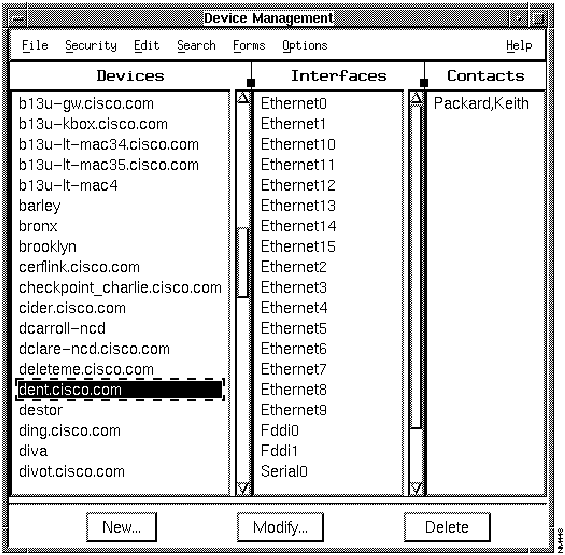
Figure 2-33 : Device Management Window
Step 2 Select a device name to display the interfaces and contacts associated with that device.
Step 3 To add, modify, or delete interfaces or contacts for a specified device, select a corresponding item from the Edit menu.
Step 4 To modify, add, or delete a device, click on the corresponding button.
Step 5 To search for a specific device or range of devices, select Search>Find.
Step 6 Select File>Exit to exit the Devices window and the database.
Displaying the Path between Two Devices
The Path Tool application enables you to display the routing path between a source device and a destination device.
To graphically display the path between two devices, perform the following steps:
Step 1 In the NetView for AIX main window, click on a source device and select Diagnose>Network Connectivity>Path Tool.
- A window similar to that in Figure 2-34 appears. If you did not select a device on the network map before selecting the menu item, the information about the source device is not filled in.
-
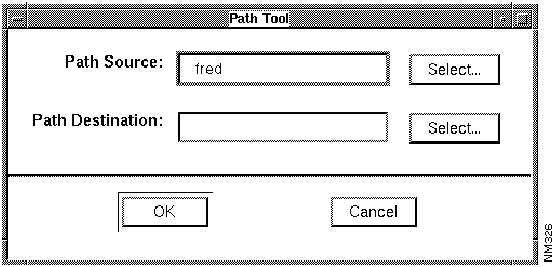
Figure 2-34 : Path Tool Window
Step 2 To select the destination device, click on Select beside the Path Destination field or enter the complete device name.
- If you click on the button, the Device Selection window appears listing the devices in the NetView for AIX database. It is similar to the window shown in Figure 2-35.
-
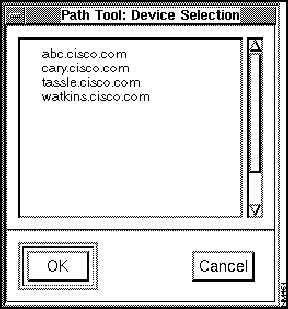
Figure 2-35 : Device Selection Window
Step 3 Click on the device that you want to specify as the destination and click on the OK button.
- After the connection has been established, the device name appears in the Path Destination field in the Path Tool window.
Step 4 Click on OK to launch the Path Tool.
- When the Path Tool is launched, a browser window (similar to the window shown in
Figure 2-36) appears, displaying the progress of the Path Tool as it traces each network hop from the source to the destination device.
-
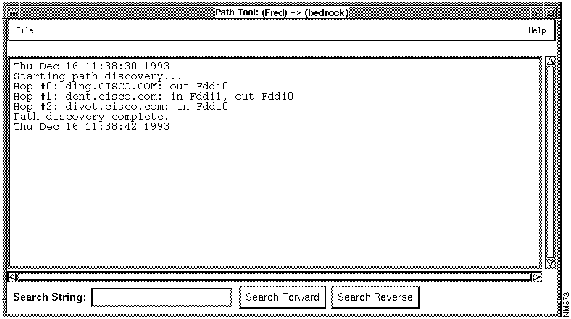
Figure 2-36 : Path Tool Window with Text
- After the connection is established, the Path Tool window appears (similar to the window shown in Figure 2-37), displaying the path between the source and the destination device you specified.
-
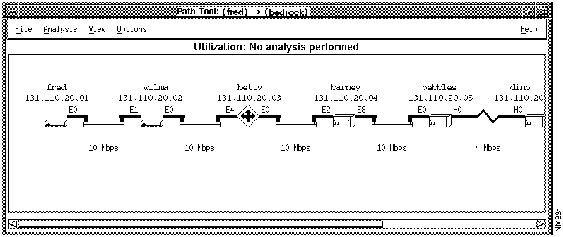
Figure 2-37 : Path Tool Window with a Graphic Display
Step 5 Select File>Exit to close the window.
Using Show Commands
The Show Commands application provides a unique interface to the Cisco devices on your network. It enables you to display device data, such as the status of a device or traffic information.
To use the Show Commands application to obtain data from a device, perform the following steps:
Step 1 In the NetView for AIX main window, select a Cisco device.
Step 2 Click the right mouse button or equivalent to select Diagnose>Show Commands.
- The Show Commands window (similar to that shown in Figure 2-38) appears.
-
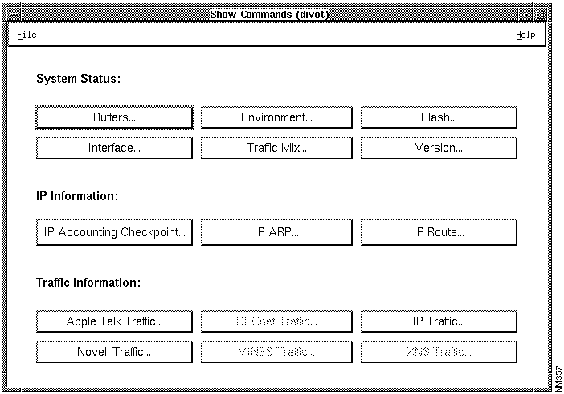
Figure 2-38 : Show Commands Window
Step 3 Click on Interface to display the interfaces for the device.
- The Show Interface window (similar to the window shown in Figure 2-39) appears.
-
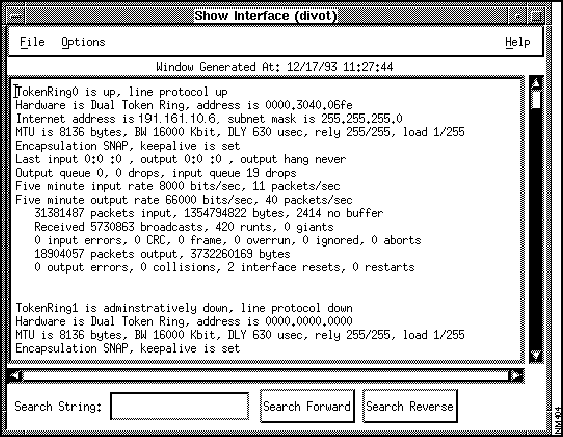
Figure 2-39 : Show Interface Window
Step 4 Select File>Close to exit from the Show Interface window.
- The Show Commands window redisplays.
Step 5 Select File>Exit to exit from the Show Commands application.



